Article verified for Release 15.1 on December 18, 2025.
This article explains how to add or remove candidates from a training course, whether from the full user list or your groups. It also outlines how to manage their progress and actions through the Candidates dashboard.
Assigning a Candidate to a Training Course
To assign a candidate to a training course, follow the steps below:
- Navigate to the Training courses in the main menu and select the desired training course
- Navigate to the Candidates tab
- Click the Assign Candidate button and choose one of the following options:
- From the List of All Users: This option lets you select a manager from the list of all users.
- From My Groups Members – This option lets you select a manager from the list of members in your group.

Assigning a Candidate to a Training Course from the list of all users
Click the From the List of All Users option, and a pop-up window will appear where you should:
- Search for a user by username using a search box or using one of the table filters.
- Check the box next to the username.
- Click the Confirm button to add the selected user.

Assigning Candidates to a Training Course from a User Group
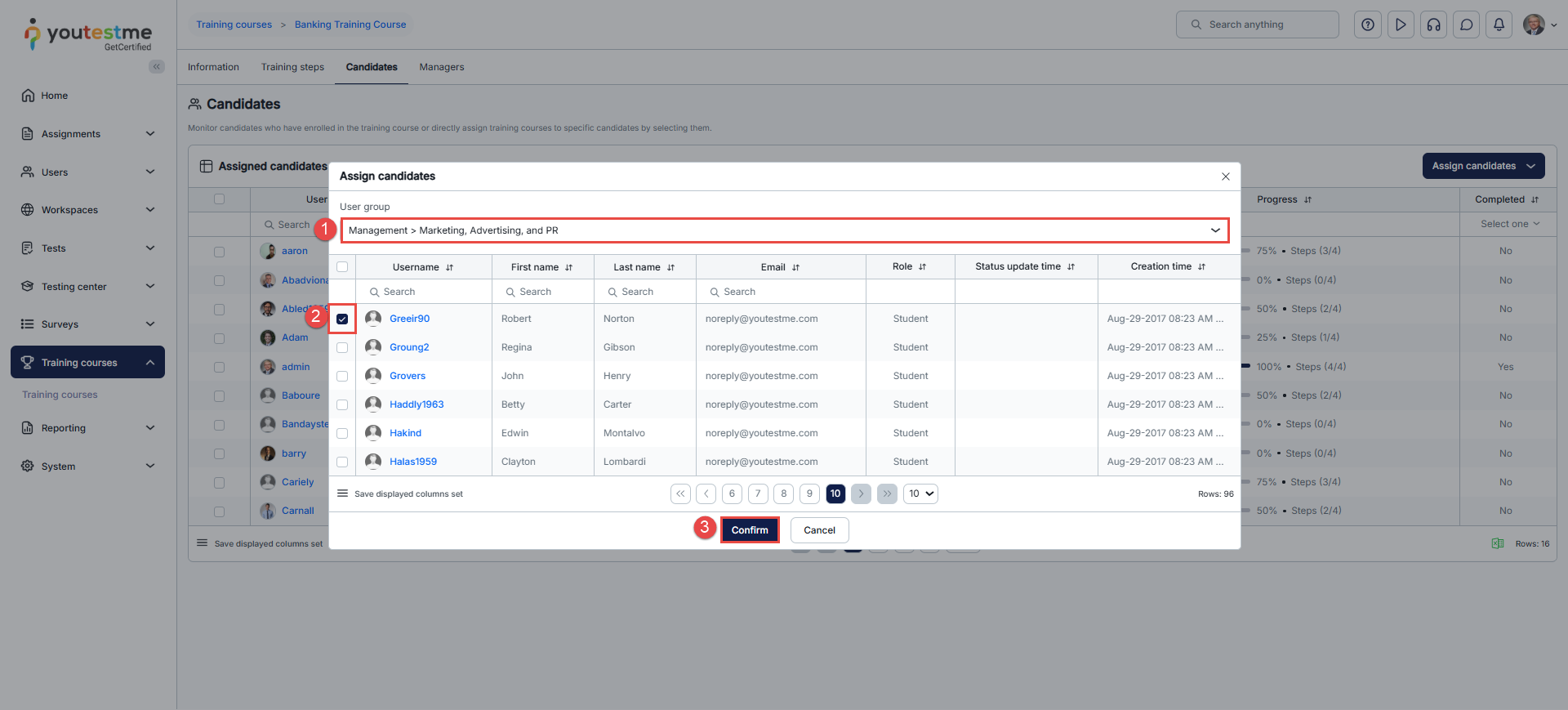
Click the From My Groups Members option, and a pop-up window will appear where you should:
- Select one of the groups you belong to from the drop-down menu.
- Check the box next to the candidate’s username.
- Click the Confirm button to add the selected user to the managers’ list.
Note: The training course will remain accessible to any user if the self-enrollment option is enabled.
Adding Candidates via Registration Link (Self-Enrolment)
Candidates can also be added to a training course using the registration link.
This option is available only if self-enrollment is enabled for the training course.
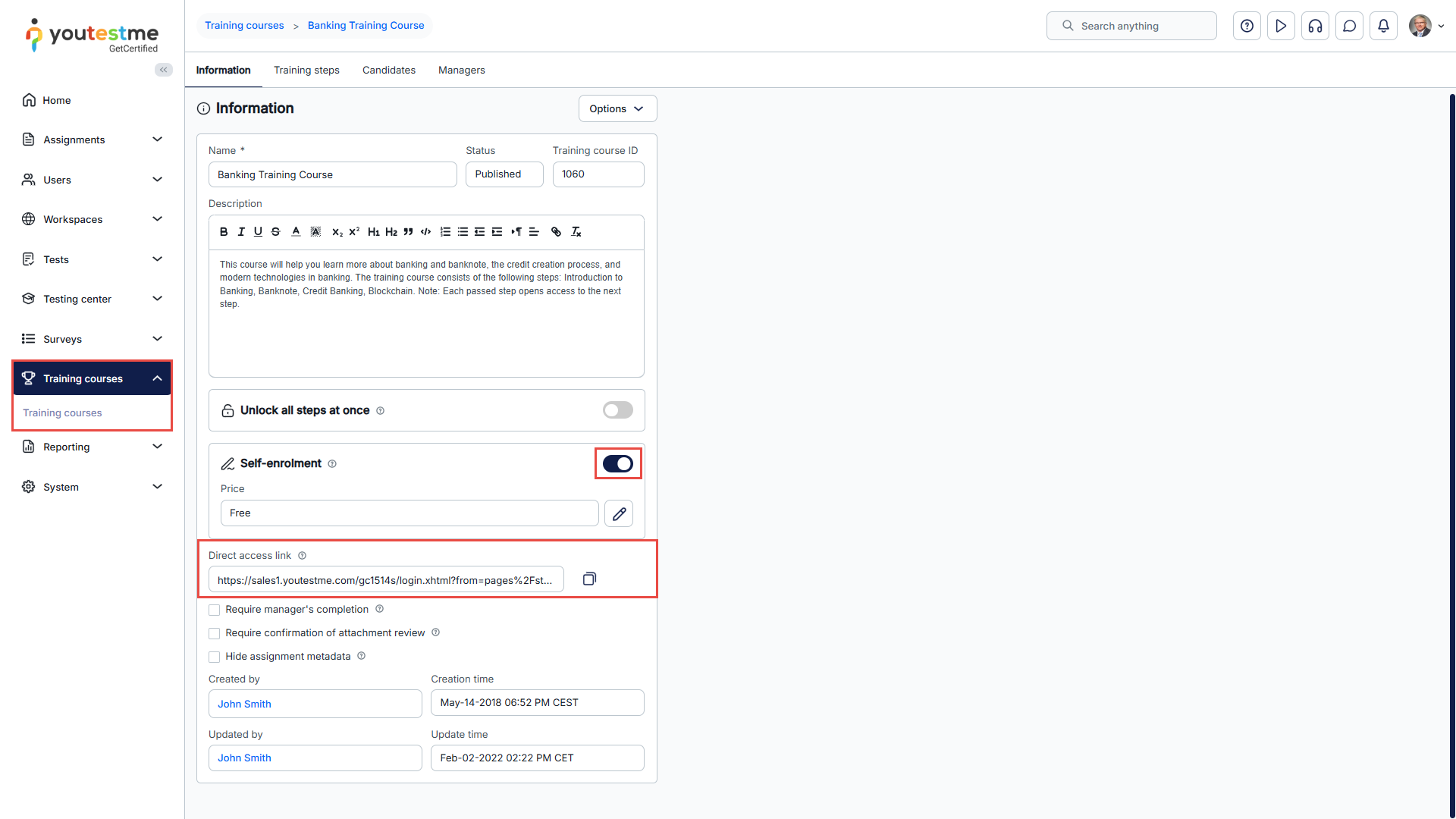
For instructions on enabling self-enrolment and accessing the registration link, see: How to Enable the Self-Enrollment Option for Training Courses
When a candidate opens the shared registration link:
-
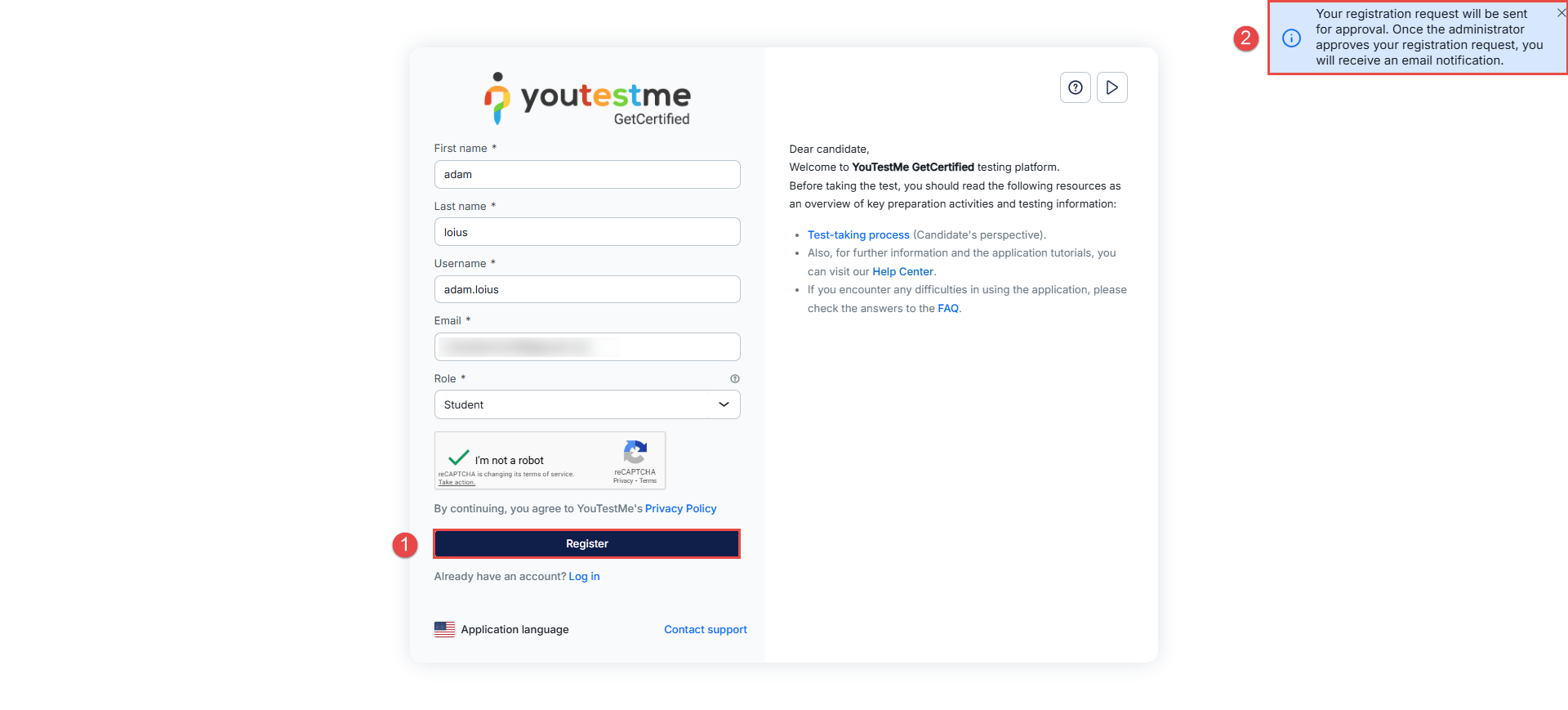
They are prompted to Register.
-
After clicking Register, a message is displayed indicating that the registration request will be sent for approval.
Note: If instant self-enrollment is enabled, the candidate is registered immediately and automatically redirected to the training course, allowing them to start the course right away. For instructions on enabling instant self-enrollment, please refer to this article.

-
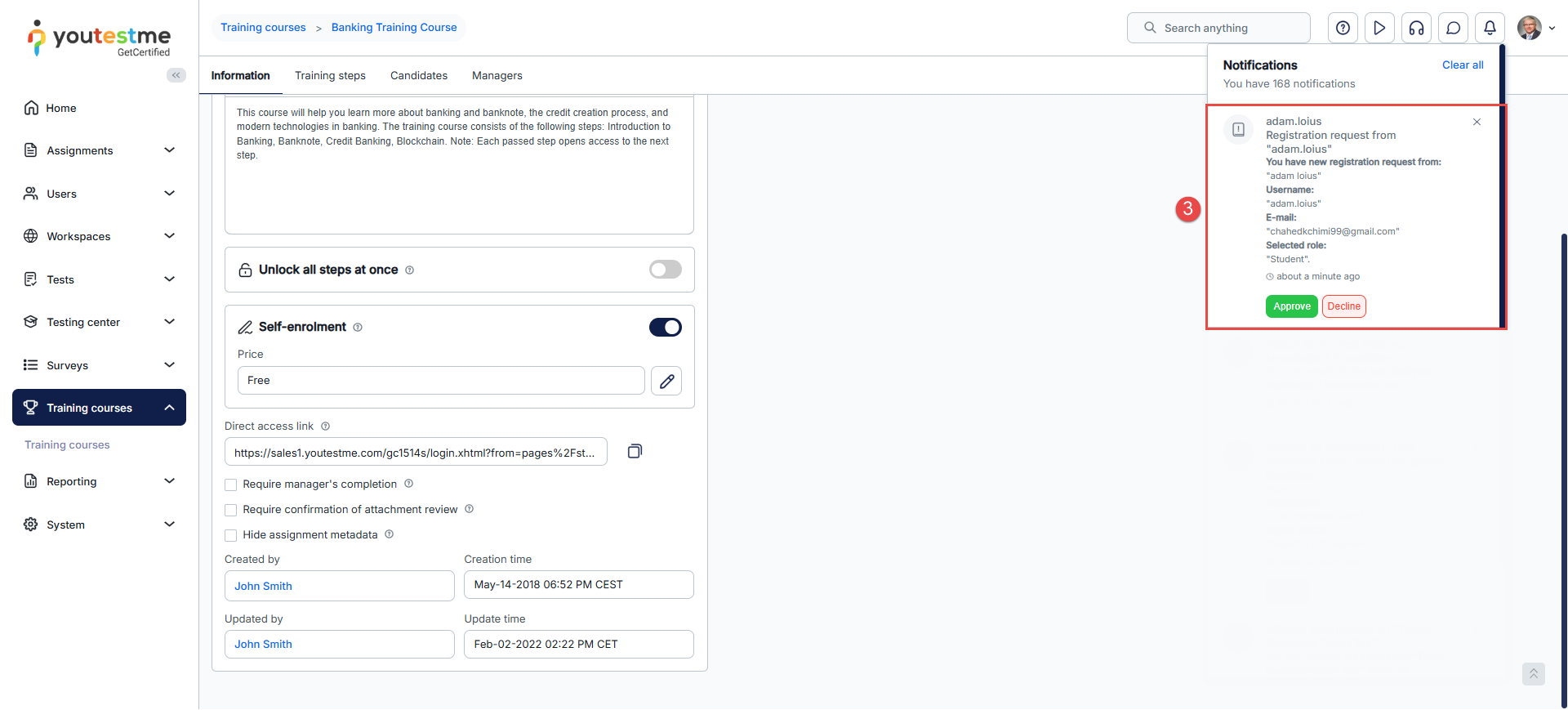
Once the administrator approves the request, the candidate receives an email notification containing their login credentials.
-
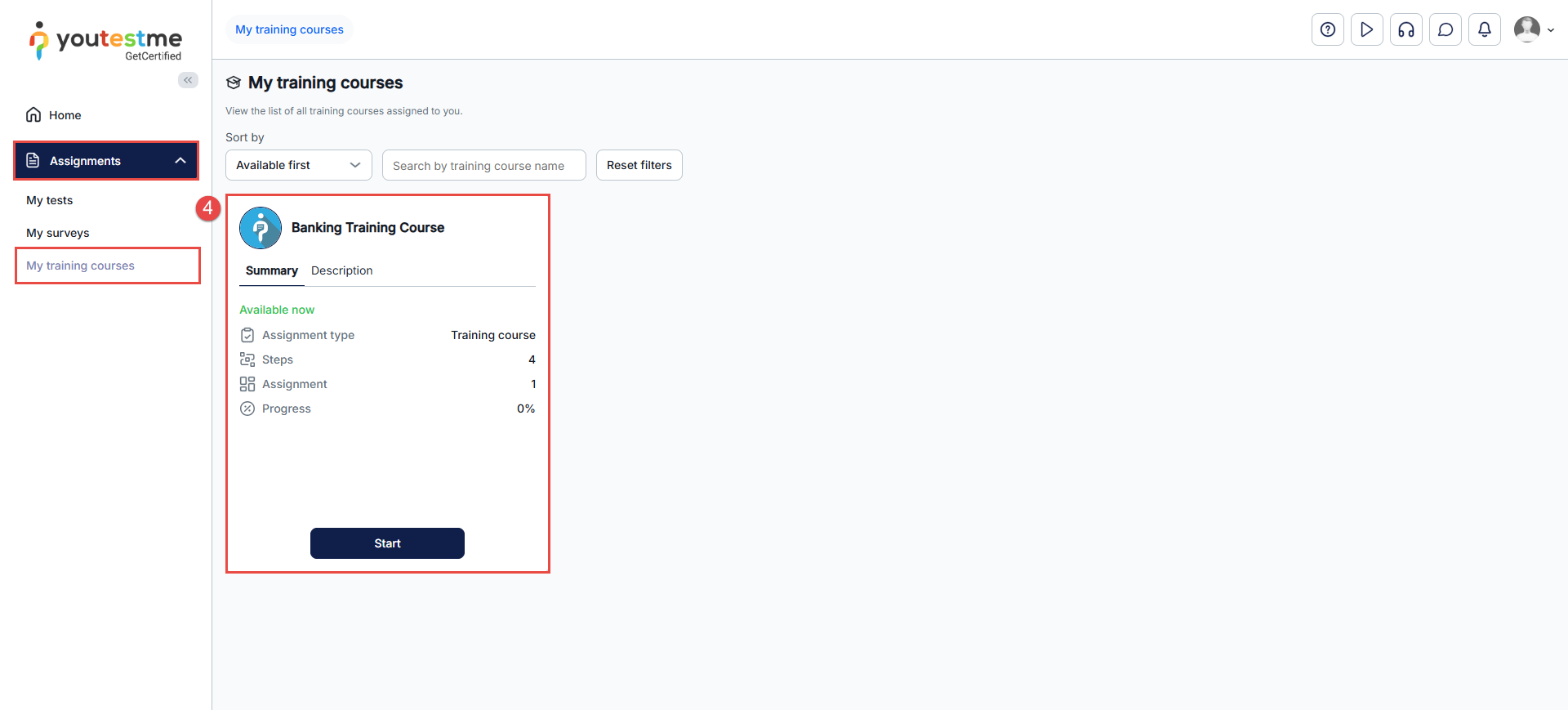
After logging in with the provided credentials, the training course becomes immediately available in the candidate’s account, without requiring manual assignment.
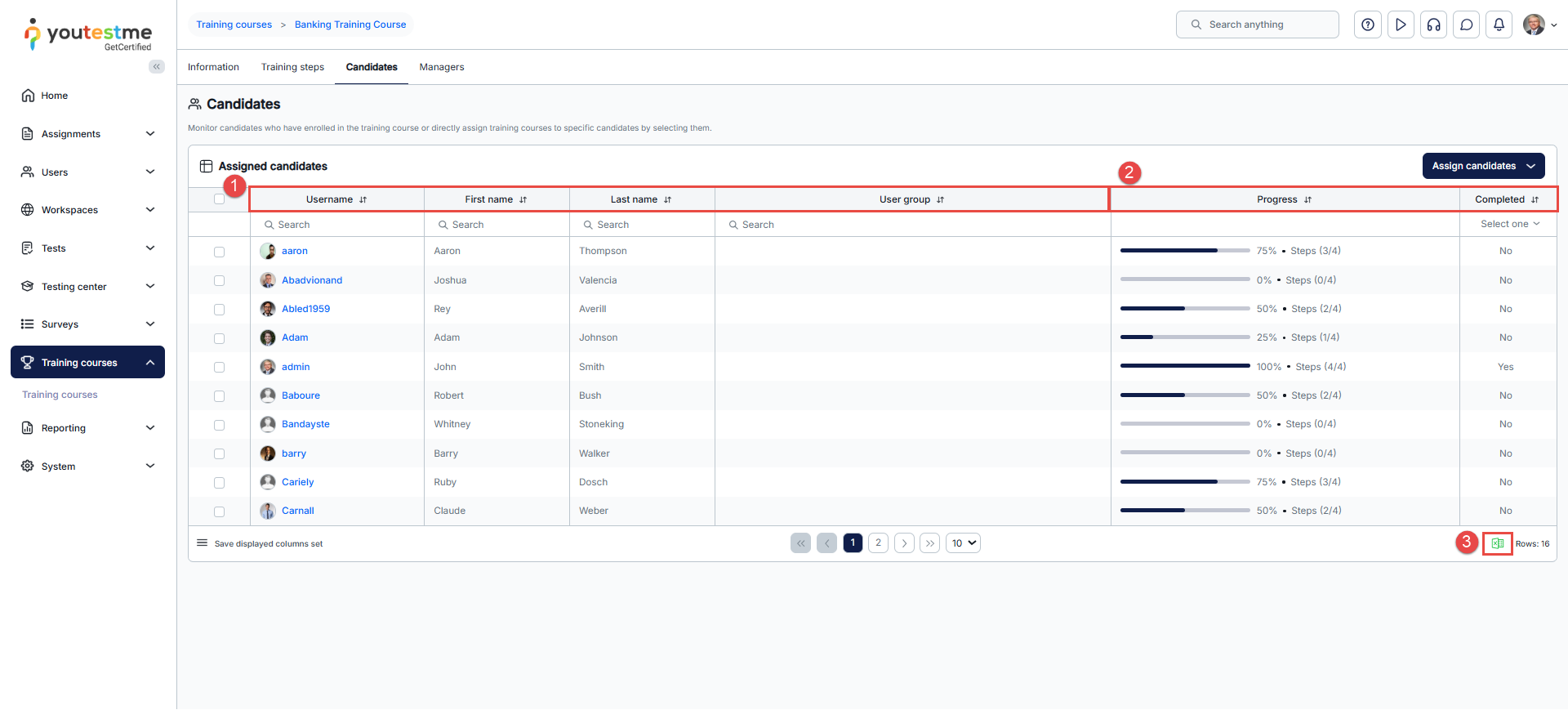
Training Course – Candidates Dashboard
Within the Candidates table, you can access a comprehensive list of all candidates assigned to the training course. In this table, you can:
- Utilize filters to refine the candidate list by username, first and last name, or their respective user groups.
- Track candidates’ progress and view the specific training step they are currently engaged in.
- Download the list of assigned candidates in an Excel format for your convenience.
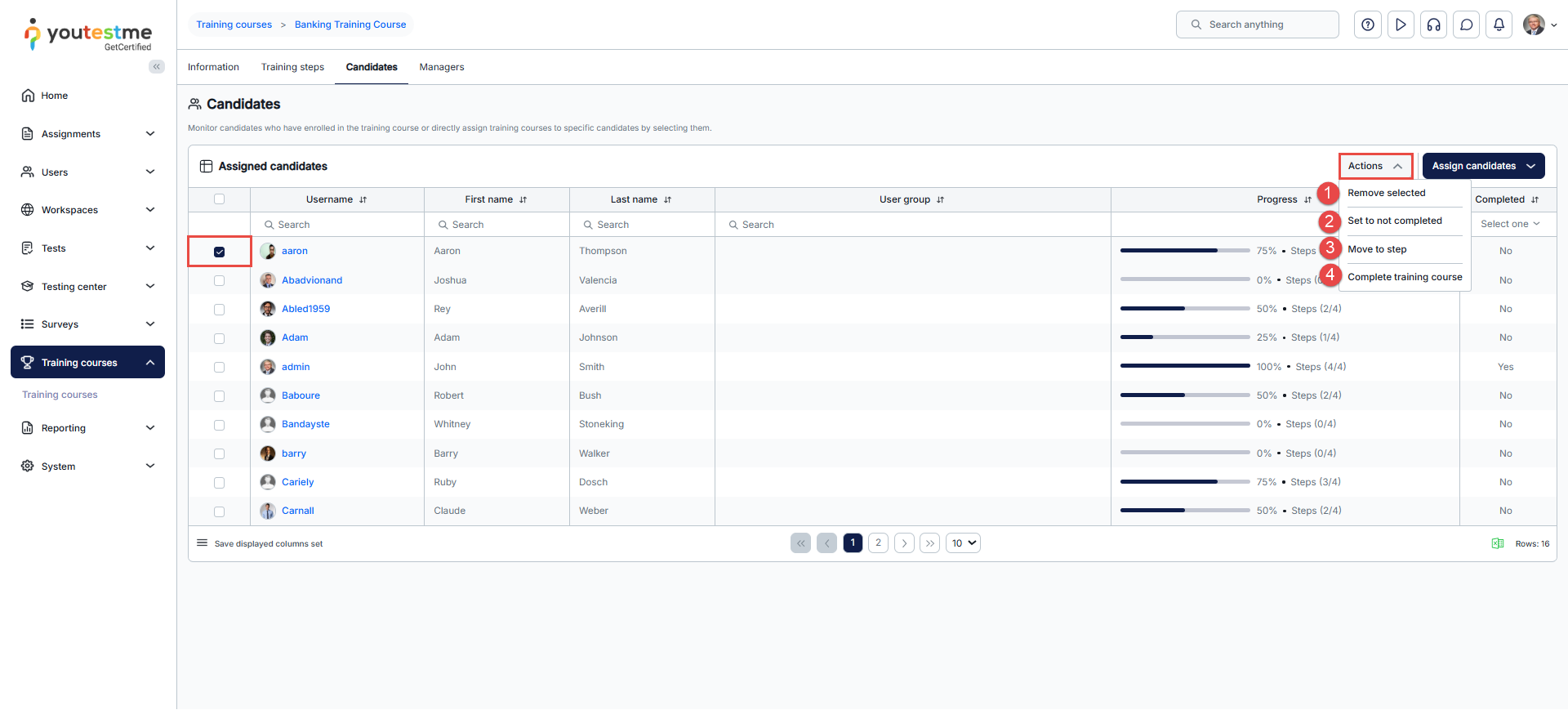
When selecting one or more candidates, an Actions button will appear in the table header, offering the following options:
- Remove selected – Use this option to unassign a candidate from the training course.
- Set to not completed – Use this option to allow the candidate to return to the training course and redo it.
- Move to step – Use this option to move the candidate to a specific step within the training course.
- Complete training course – Use this option to mark the candidate’s progress as completed.
Note: This option is available only when the candidate has met all requirements for completing the training course. If the candidate has not attempted an assigned test or has failed any required test, the course cannot be marked as completed.
For more related instructional materials, please visit:
For a video tutorial on how to assign candidates to the training course, please watch the video.






