Article verified for Release 14.1 on February 17, 2025.
This article explains how to create shared links that allow seamless test access from the external system.
It takes just a moment to generate personalized sharing, often called external links. These URLs are a convenient way to test people without requesting them to log in or giving them a username and password. Therefore, your candidates may seamlessly start a test from any external system since the link contains the encrypted authentication parameters.
Creating a test
To generate the shared test links, you should create a test and assign candidates to testing sessions. For detailed instructions on how to create a test, please refer How to create a simple test or How to create a test with sections.
Generating shared test links
Once you create a test and assign candidates to the session, you can generate shared test links.
To generate user-specific (personalized) direct access links:
- Click the “Data transfer” button.
- From the dropdown menu, select the “Export direct testing links” option.
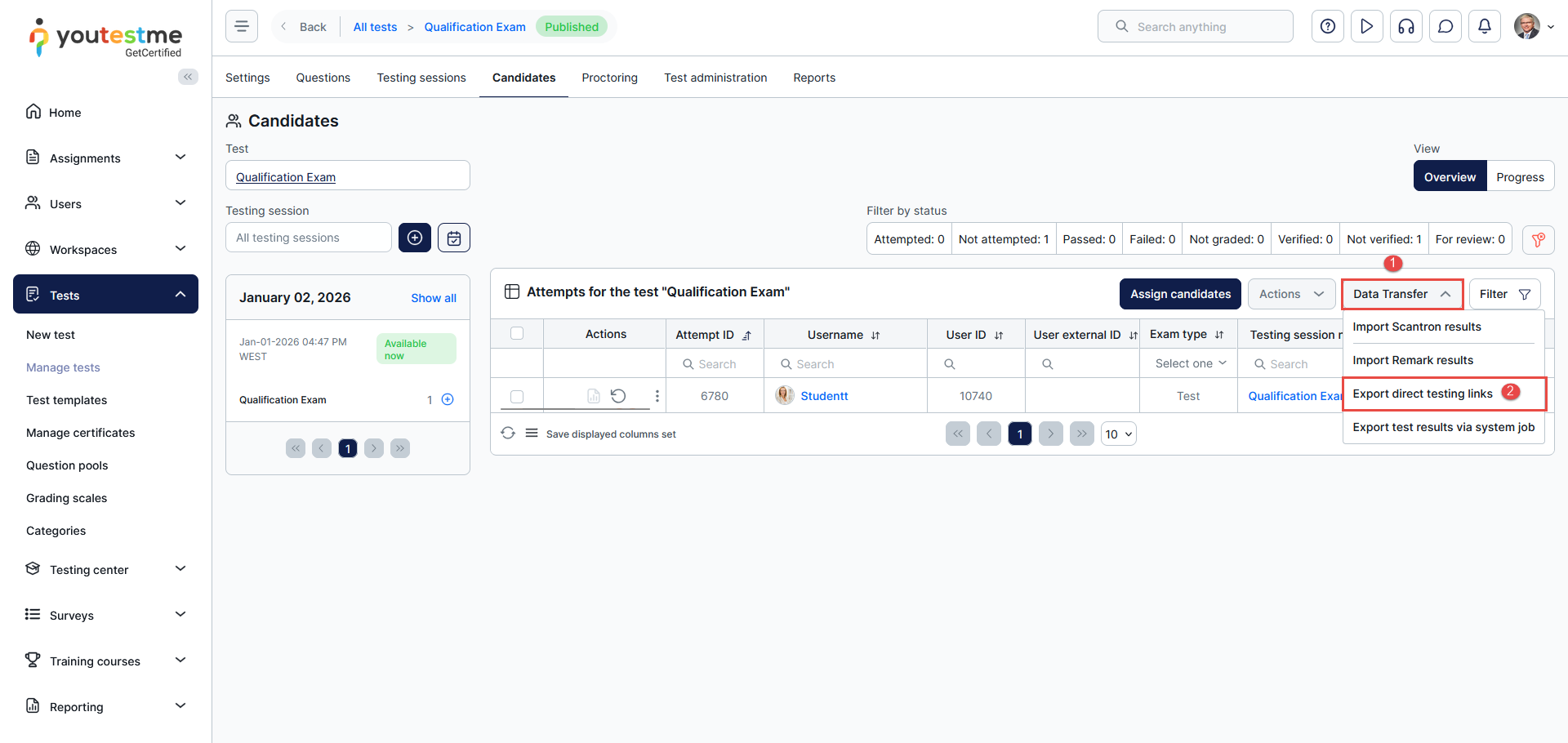
The system will provide the links in an Excel file, allowing you to copy and embed them in an external system, such as emails or an LMS.

Add the Direct Test Link to Email Notifications
To configure email notification:
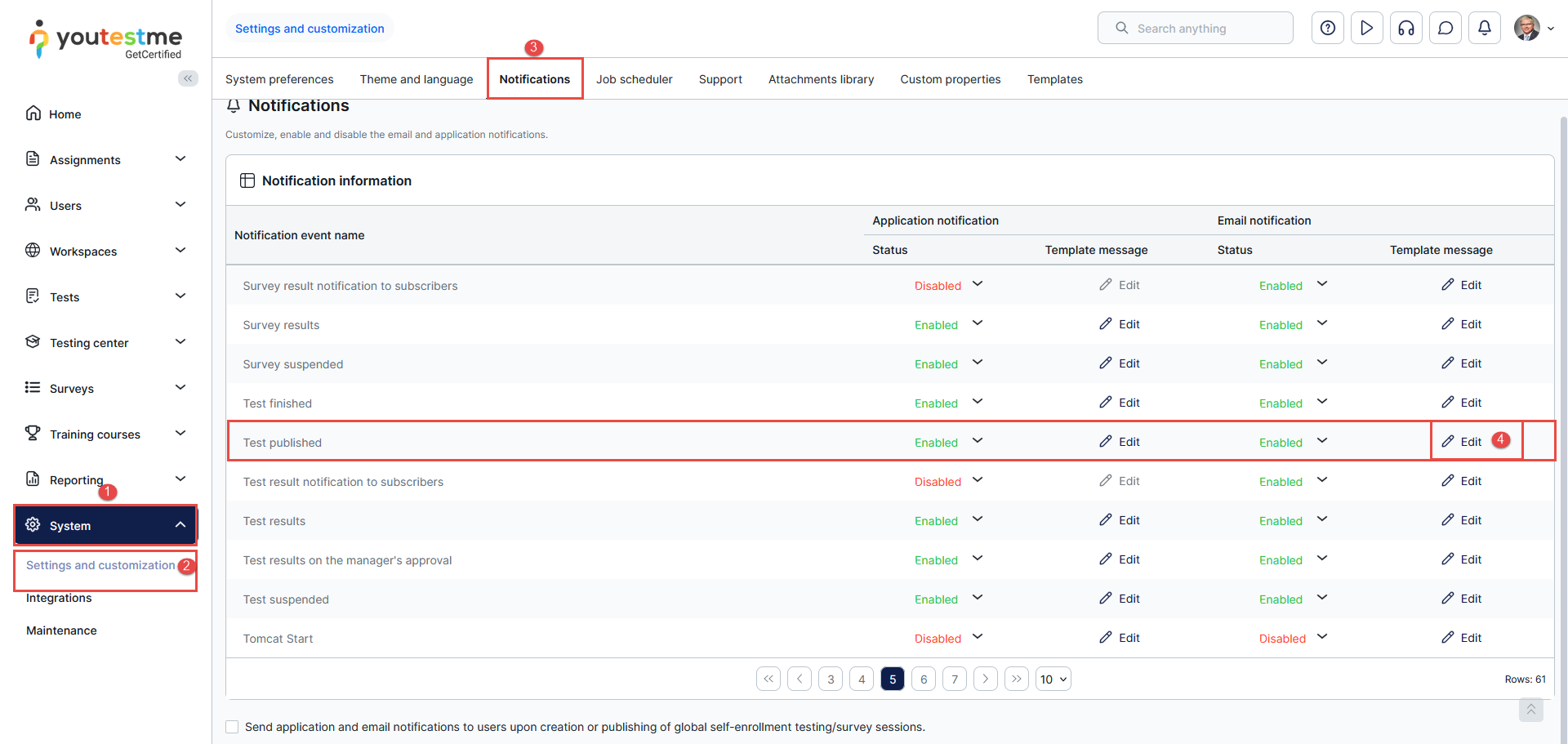
- Select System from the main menu and choose Settings and Customization.
- Navigate to the Notifications panel.
- Find the desired notification and click on the Edit option in the e-mail notification column.
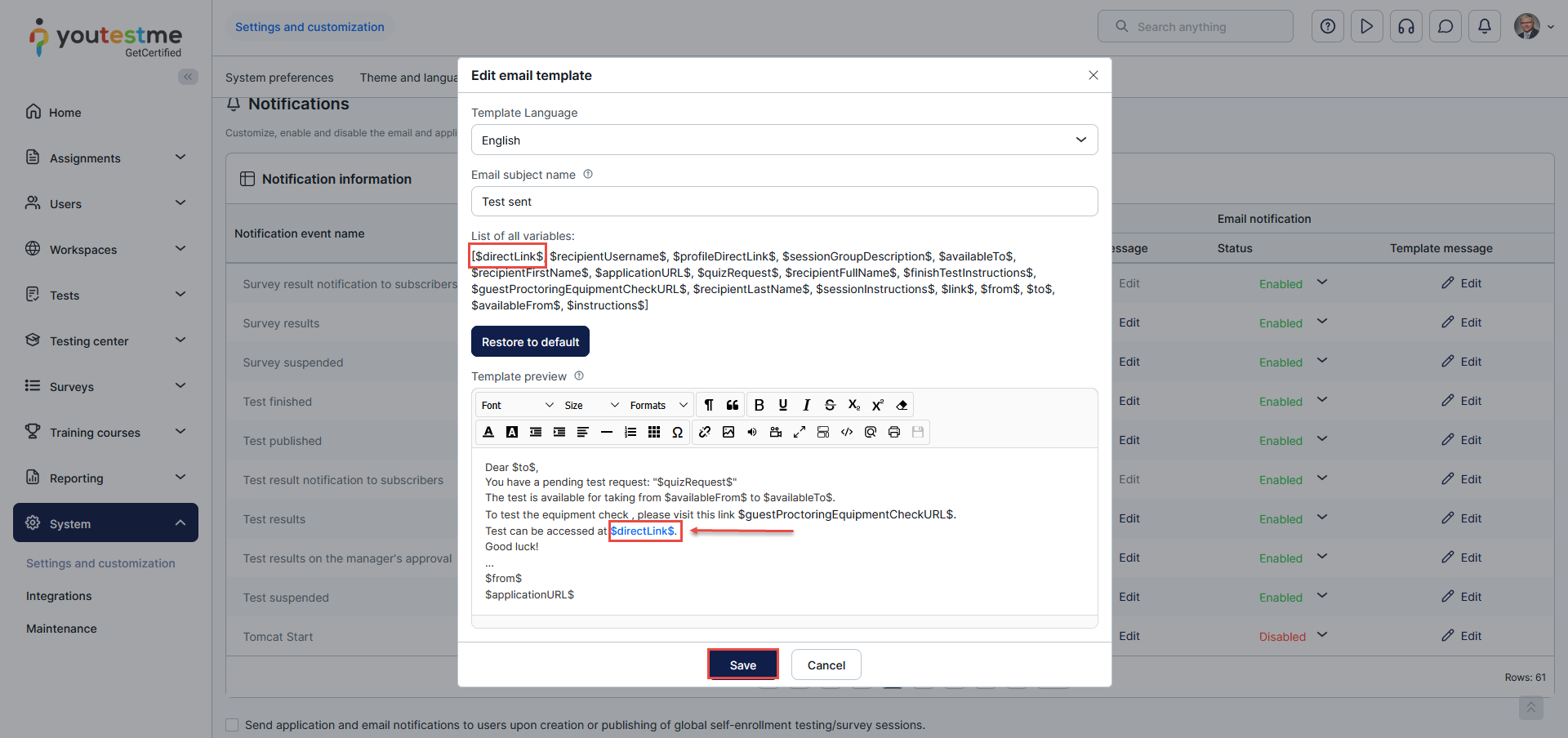
 Include the $directLink$ variable in the email notification template, make the necessary adjustments, and then click the Save button to save the modifications.
 Make sure the email notification is Enabled.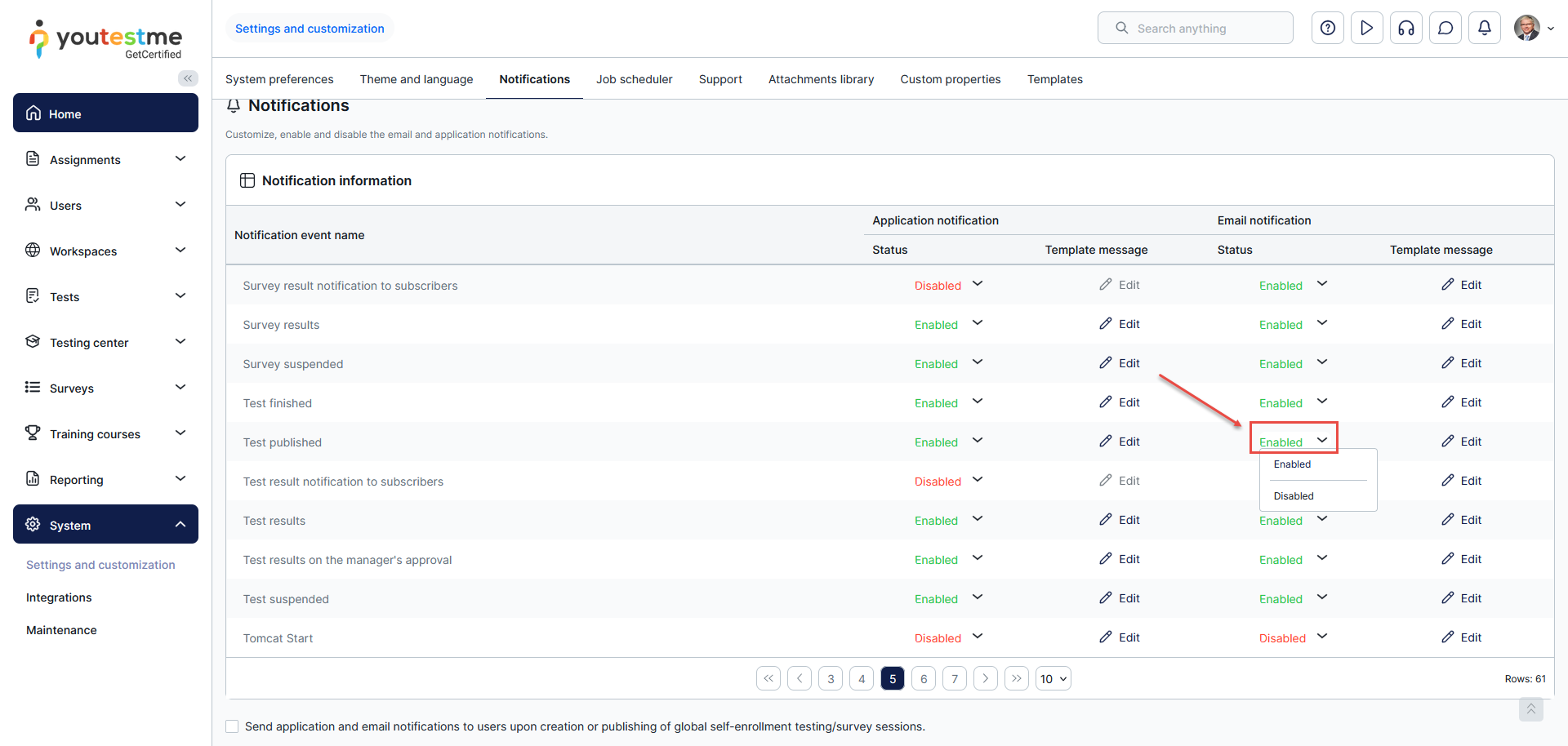
Candidates perspective
Now, once candidates are assigned to a testing session, they will receive an email containing a direct link that provides immediate access to their test, eliminating the need to log into their accounts.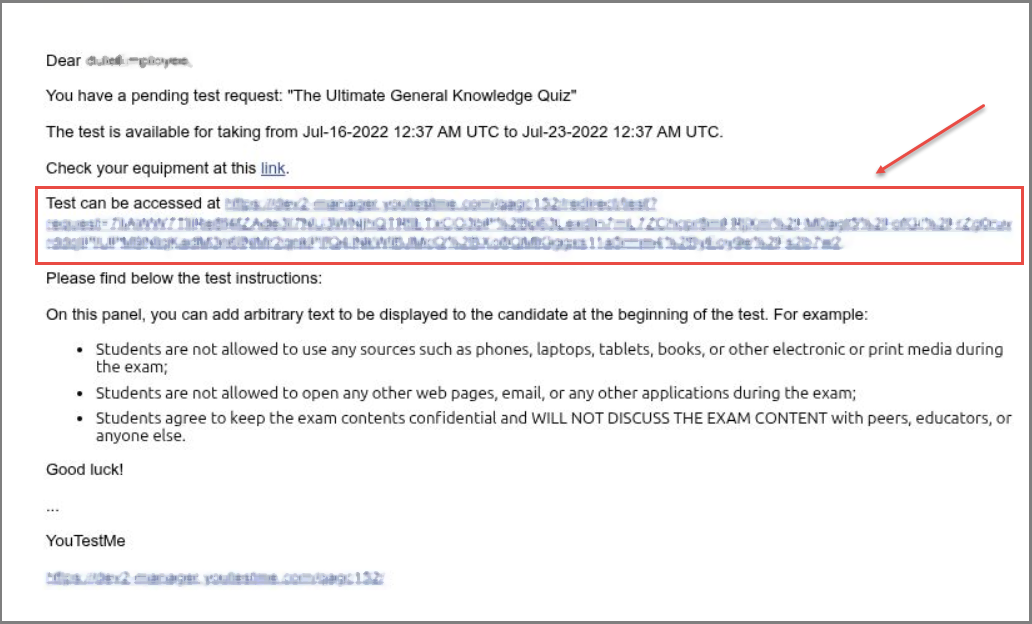
Note: The Excel file will also contain meeting links if the test is proctored using conference tools.






