
Article verified for Release 15.0 on December 13, 2025.
This article explains how to add test and section instructions in multiple languages, enabling the system to automatically display the appropriate version based on the language defined in each user’s profile.
Test Instructions
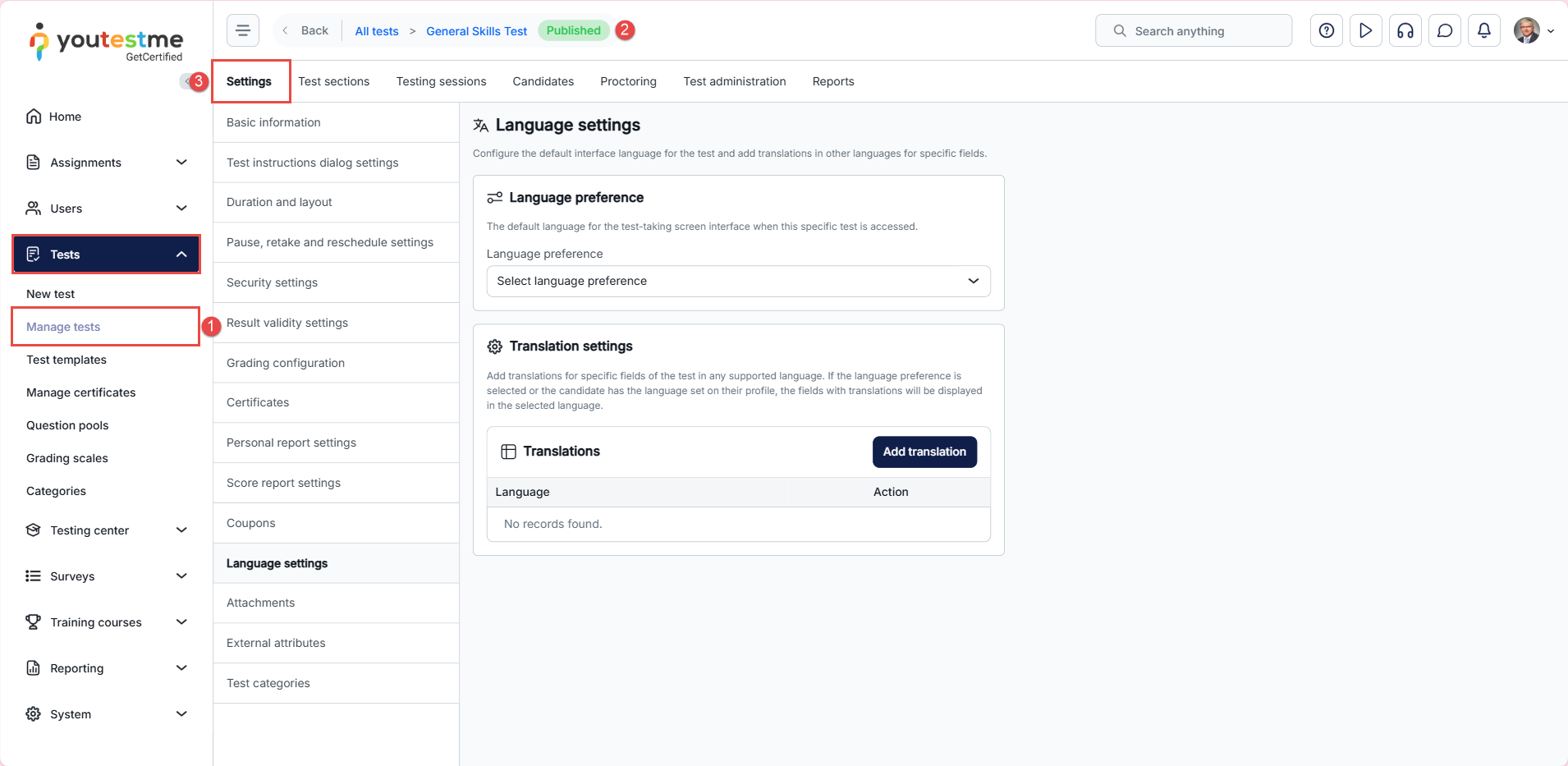
To access the Language settings tab:
- Select the Tests/Manage tests tab.
- Select the desired test.
- Select the test settings.
Adding translations
Navigate to the Language Settings tab to enter the translated test instructions, and then:
- Select the Add translation button.
- In the pop-up dialog, choose the language.
- Add the test name in the preferred language.
- Add the test instructions in the preferred language.
- Select the Save button to save the changes.
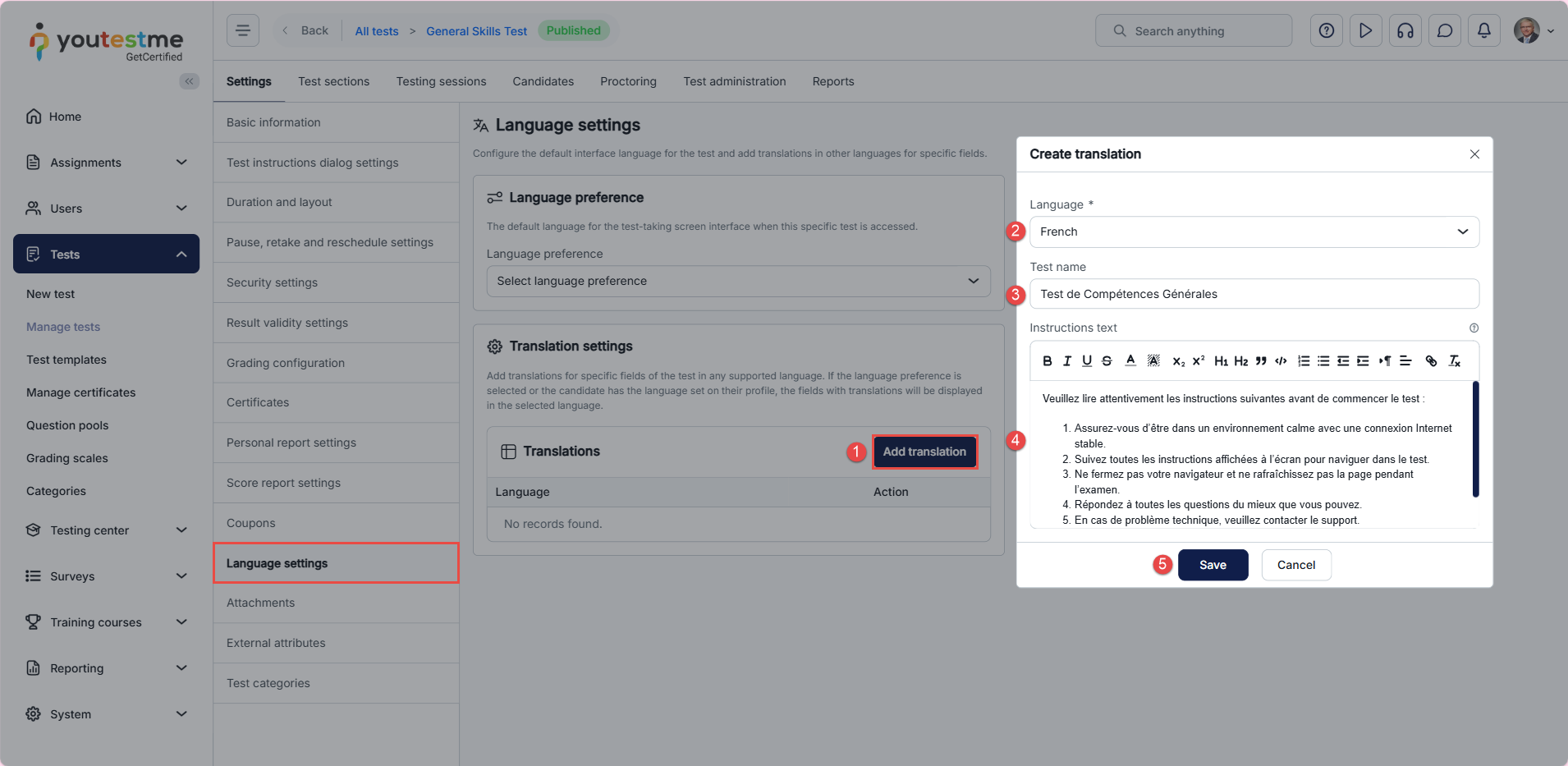
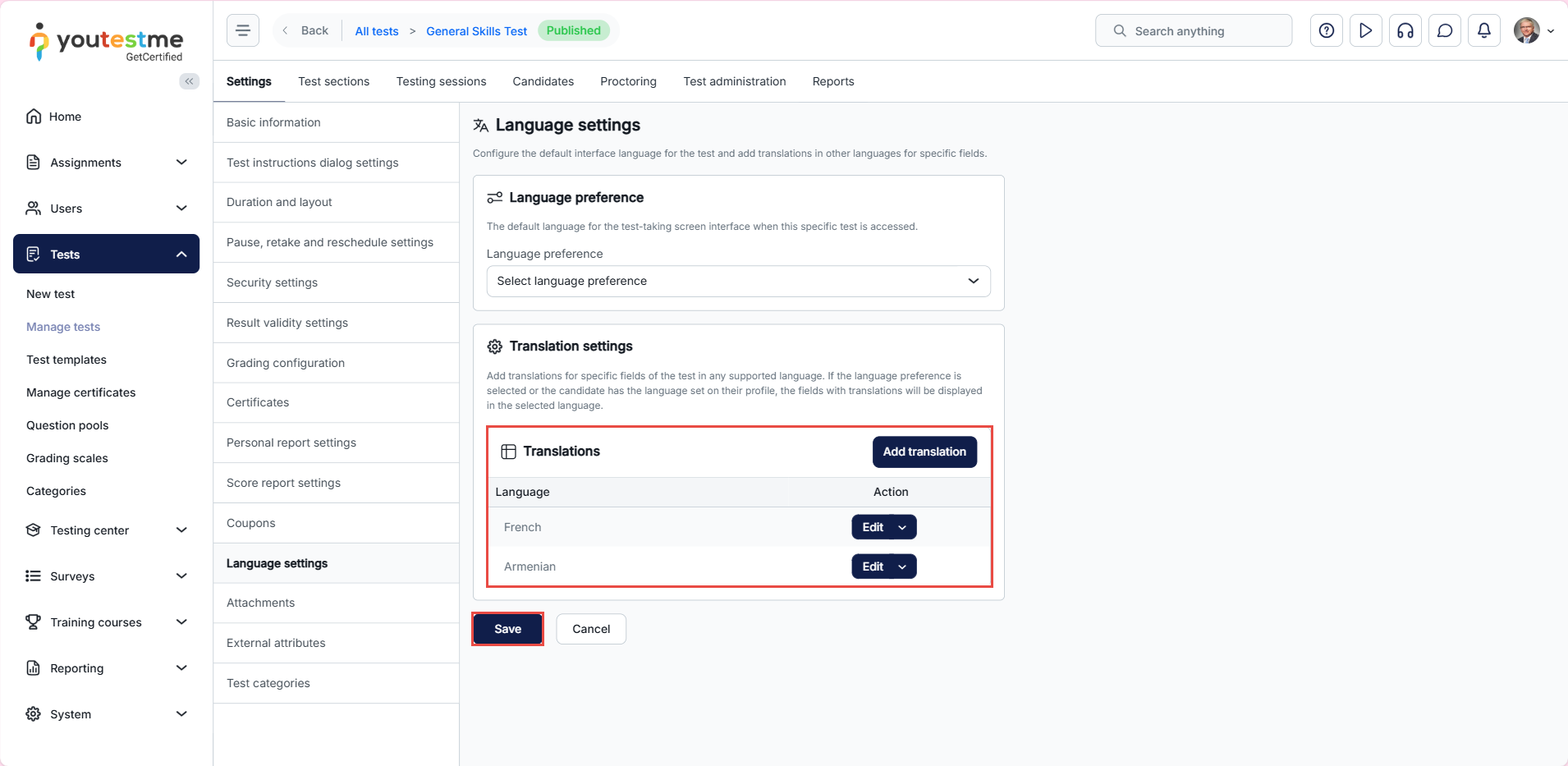
Note: You can add as many languages as needed.
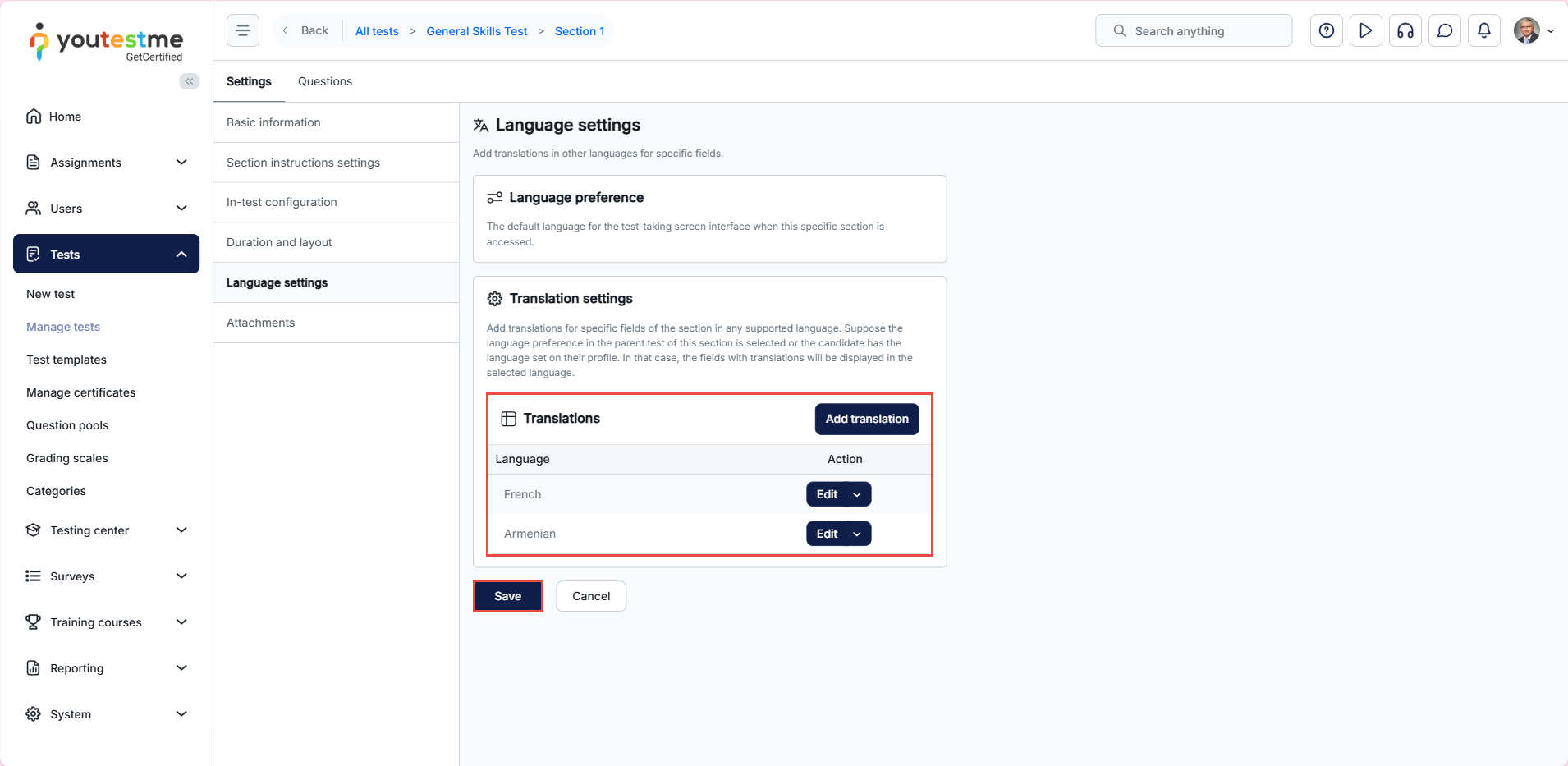
After adding the languages, select the Save button to save the changes.
Section Instructions
If the test includes sections, the same settings apply.
- Select the Test sections tab.
- Click the Details button to access the section settings.
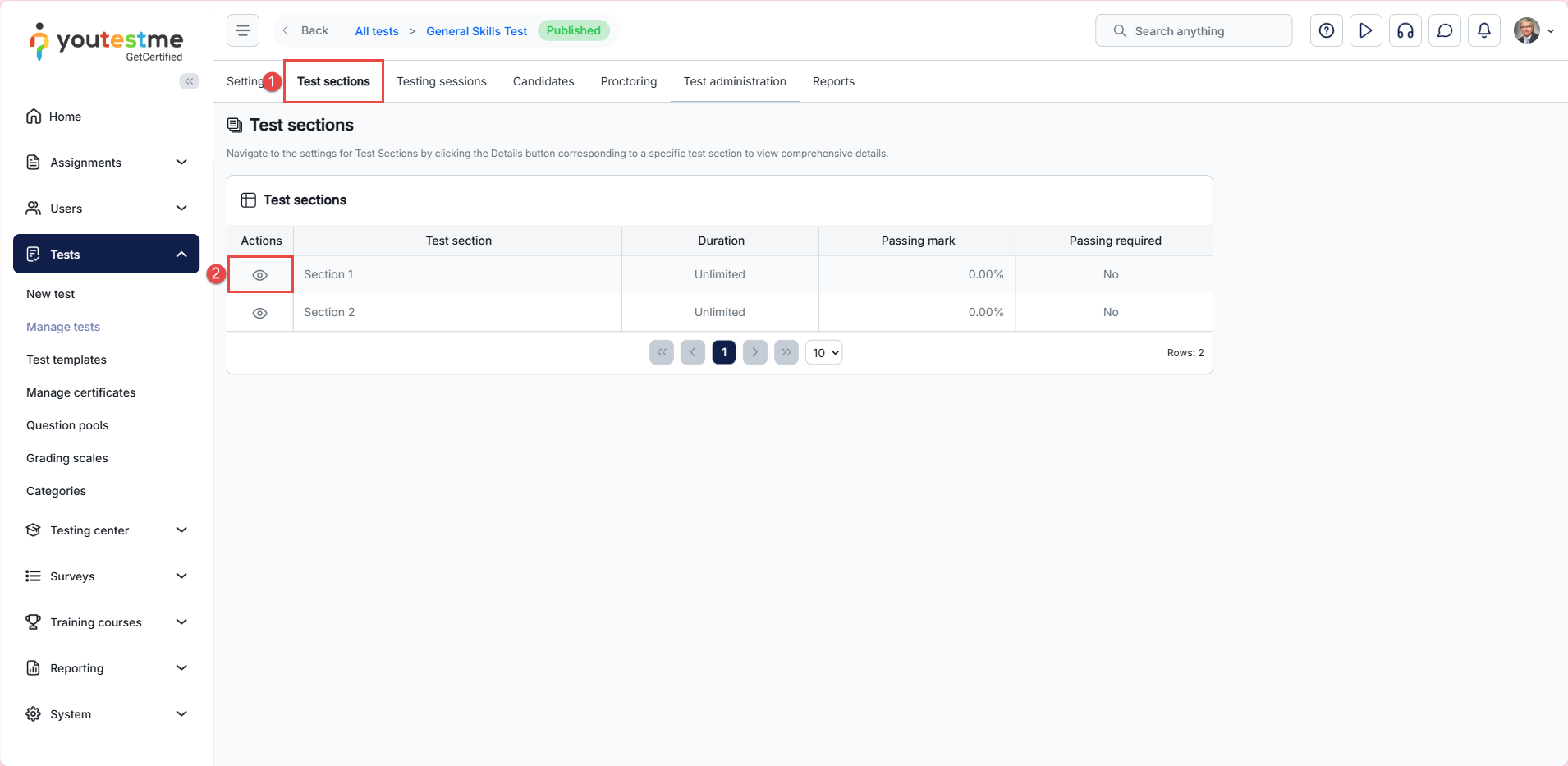
Once in the section settings, navigate to the Language Settings tab, click Add Translation, enter the section instructions in the desired language, and then click Save to apply the changes.
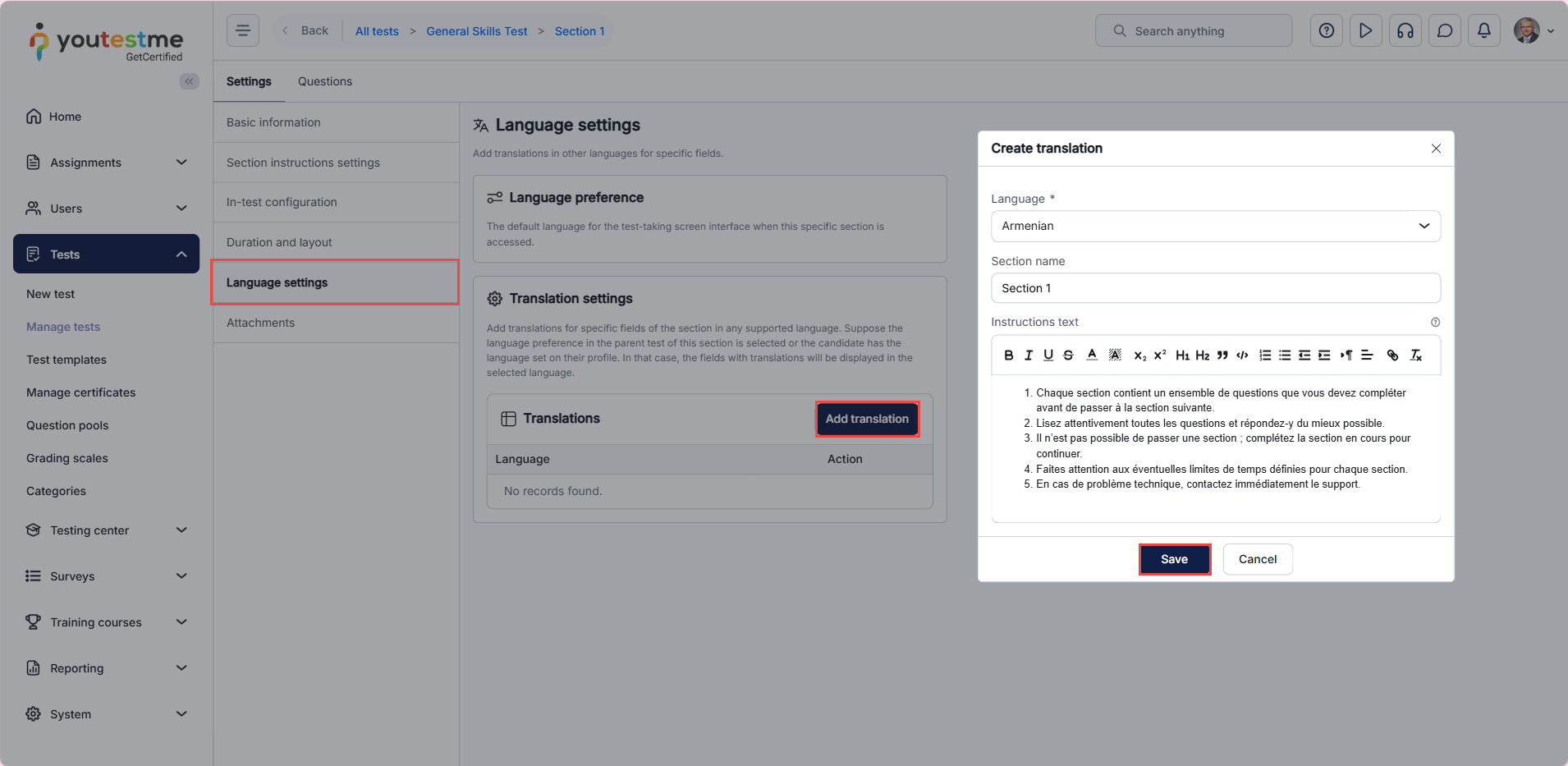
After adding the languages, select the Save button to save the changes.
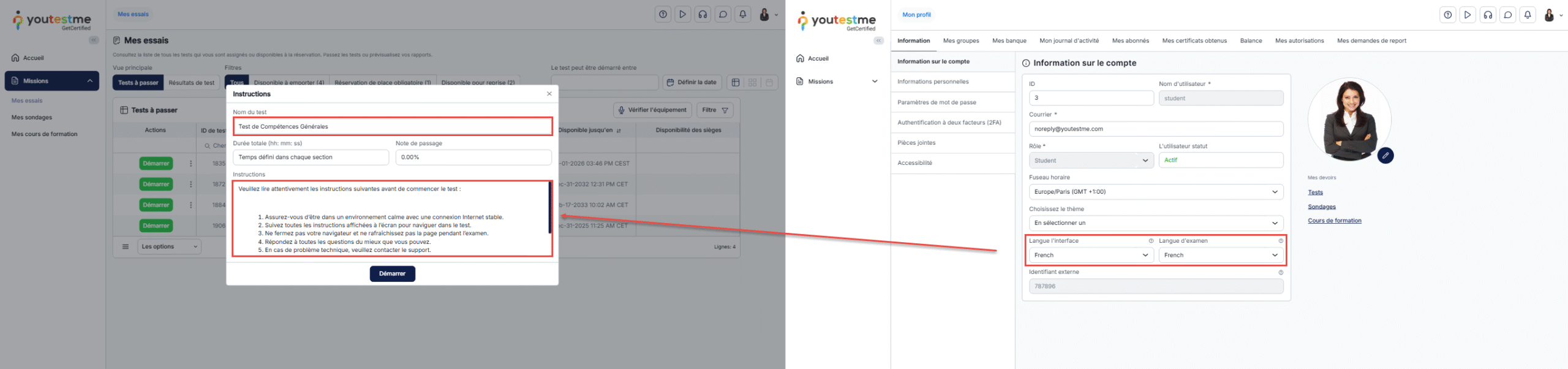
Candidates perspective
Note: The language displayed in the start test dialog for the test/section name and instructions will match the language set in the user’s profile in the “ field.
For additional related articles, see:




