Article verified for Release 15.2 on February 5, 2026.
This article explains how to add and manage section instructions for tests created with sections. Section instructions allow administrators to provide candidates with important information, guidance, or rules that are displayed before a section begins.
Creating a test with sections
From the main menu, select Tests, then click New Test. The Test Creation Wizard will guide you through the entire test creation process.
For more related instructional materials, please visit this article.
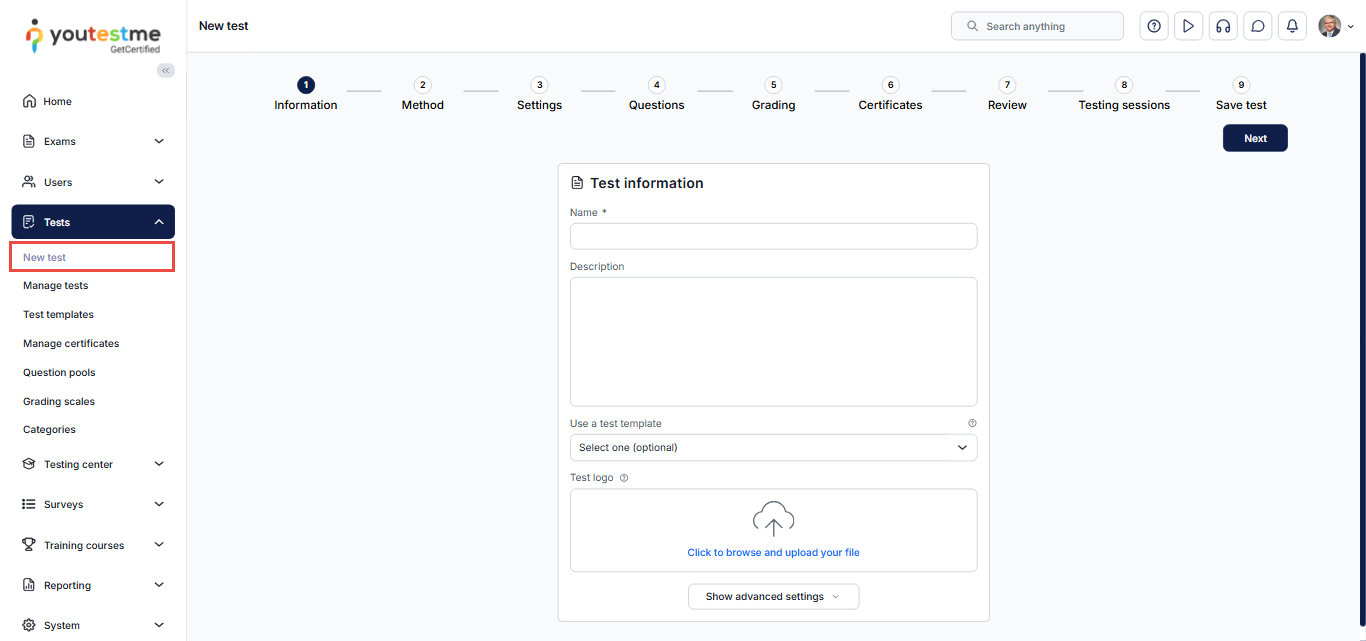
Add Section Instructions from Test Settings
After completing the test creation, you are redirected to the Manage Tests area, where section instructions can be added and managed.
Note: Section instructions can only be created and edited from the test settings. They cannot be added during the Test Creation Wizard.
To add section instructions, follow these steps:
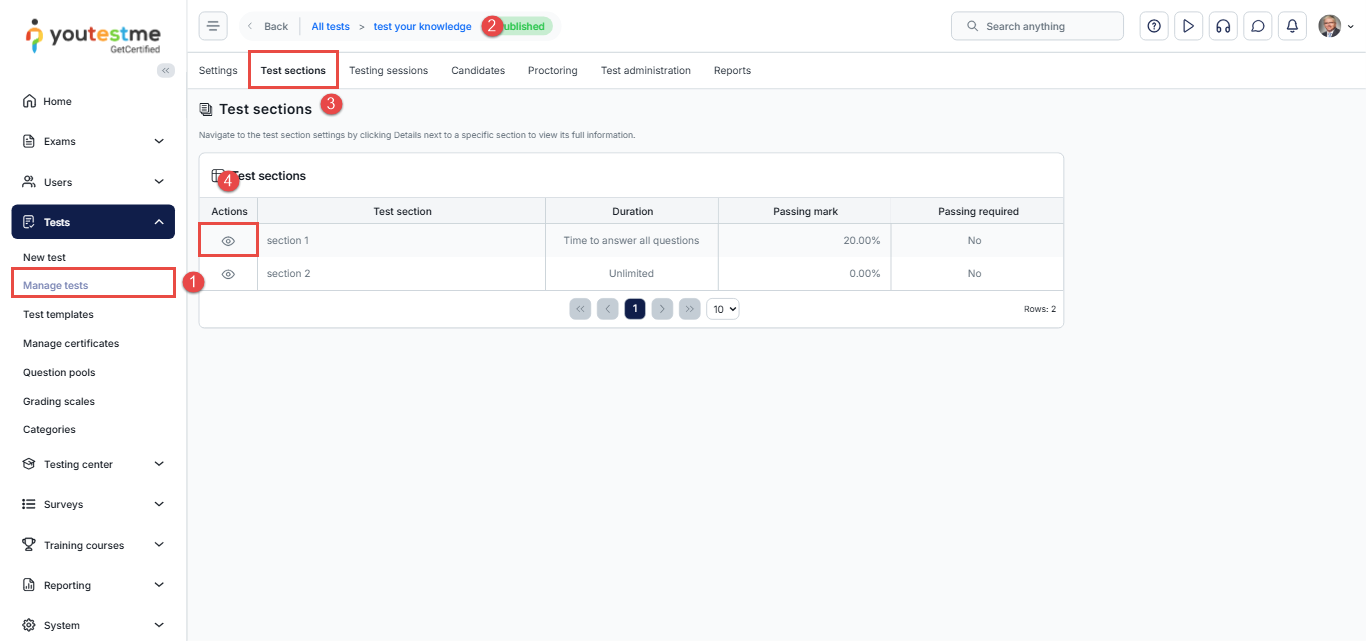
- Navigate to Tests, then select Manage Tests.
- Open the desired test that was created with sections.
- Go to the Sections page.
- Click the View (eye) icon next to the section you want to update
- Open the Section Instructions settings.
- Enter the guidelines or rules that candidates must follow for the selected section.
- Click Save to apply your changes.
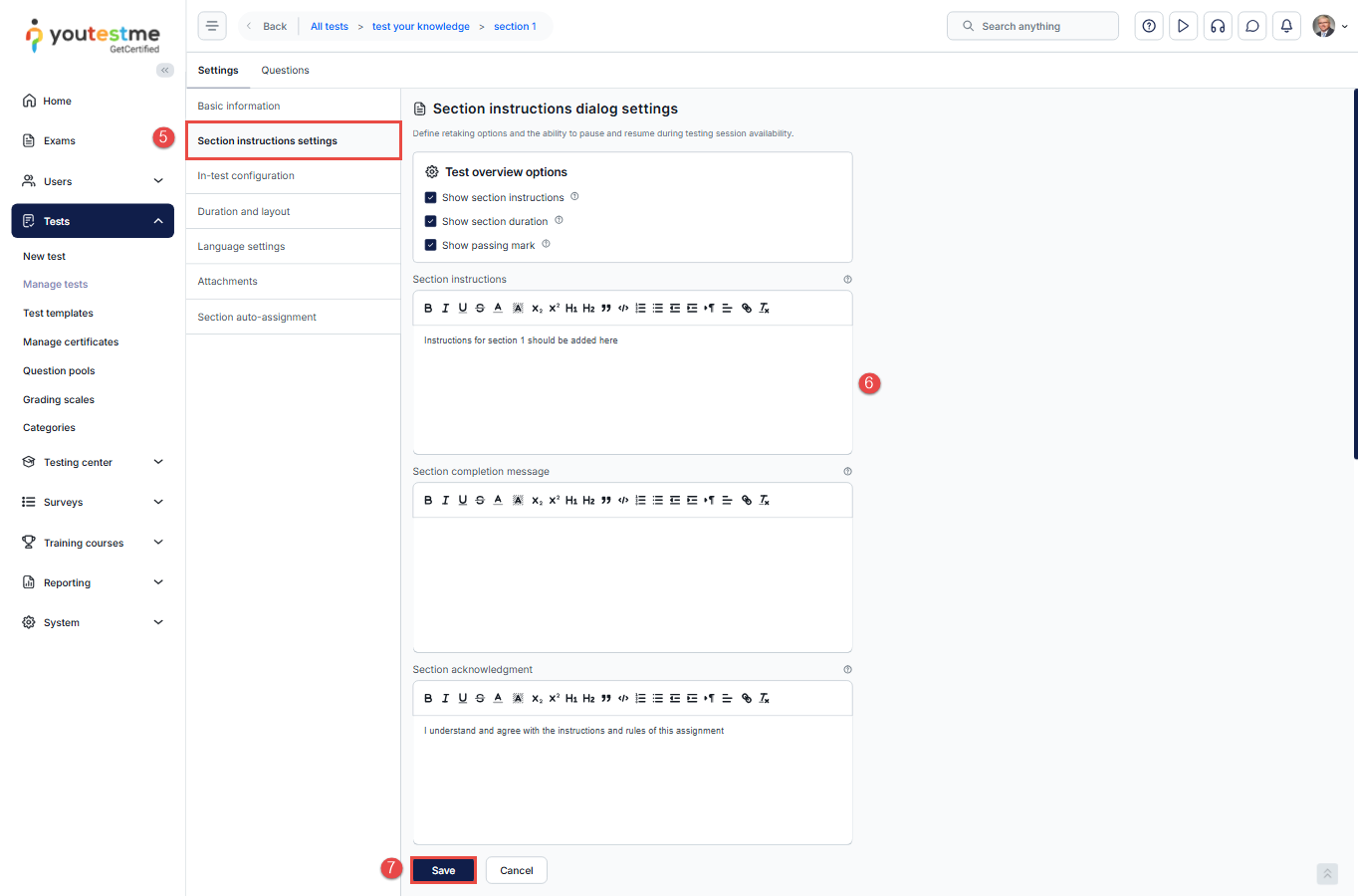
Repeat these steps for each section to add different instructions per section, if needed.
Candidate Perspective
Candidate Perspective
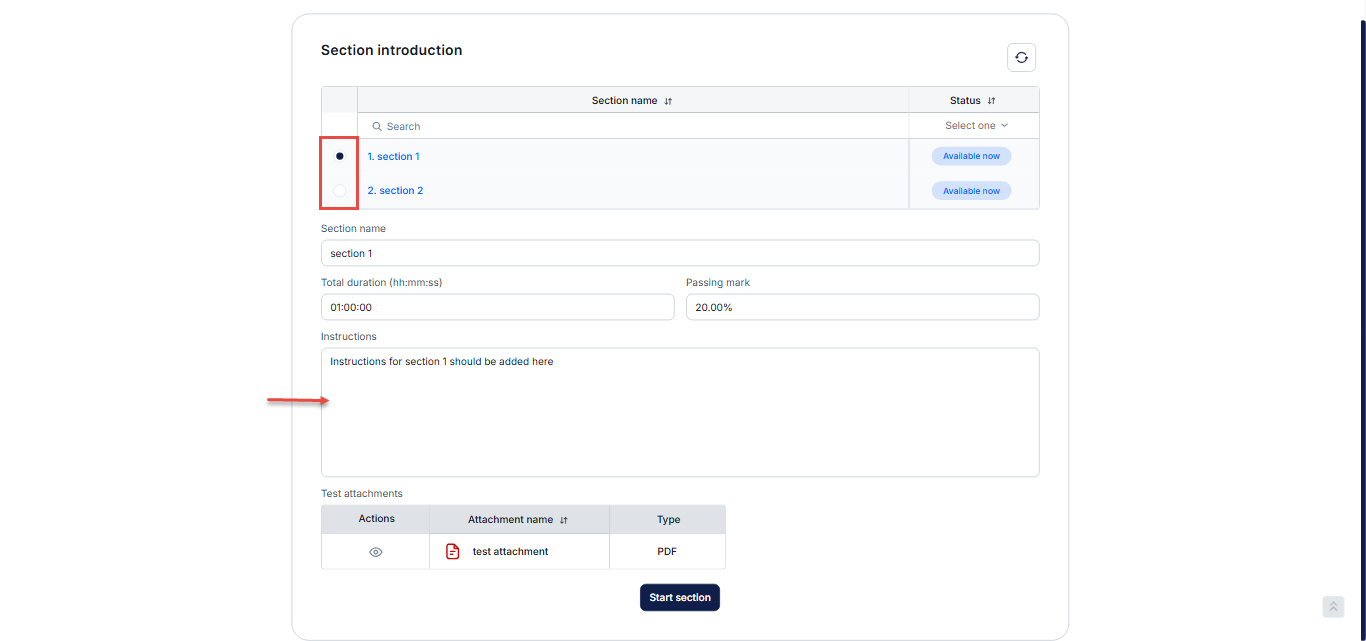
Once the candidate clicks Start Exam, they are redirected to the Section Instructions page, where they can review the instructions for the upcoming section.
Depending on the test configuration, candidates may also switch between sections to view the different instructions before starting each section.
For more related articles, please visit:
- How to Define Availability Periods for Test Sections
- How to Use Test Sections to Set up Mandatory Competencies on Exams
- How to Add Attachments to Your Test, Test section and Individual Questions






