Article verified for Release 15.2 on December 27, 2025.
This article explains how to configure a test so that candidates receive only specific test sections based on their data information. By using section conditions and authorization settings, the system automatically assigns relevant sections to candidates who meet the defined criteria, ensuring a personalized and controlled testing experience.
Create a test with sections
To create a test with sections, please check out this article.
Note: You can create as many test versions as needed and manually assign the desired ones to the candidate.
Create a testing session
To create a testing session, do the following:
- Navigate to the Testing sessions tab.
- Select the New testing session button.
- Fill in all the mandatory fields.
- Enable candidates’ self-enrollment option.
- Enable authorization.
- Select the Save button to save the changes.
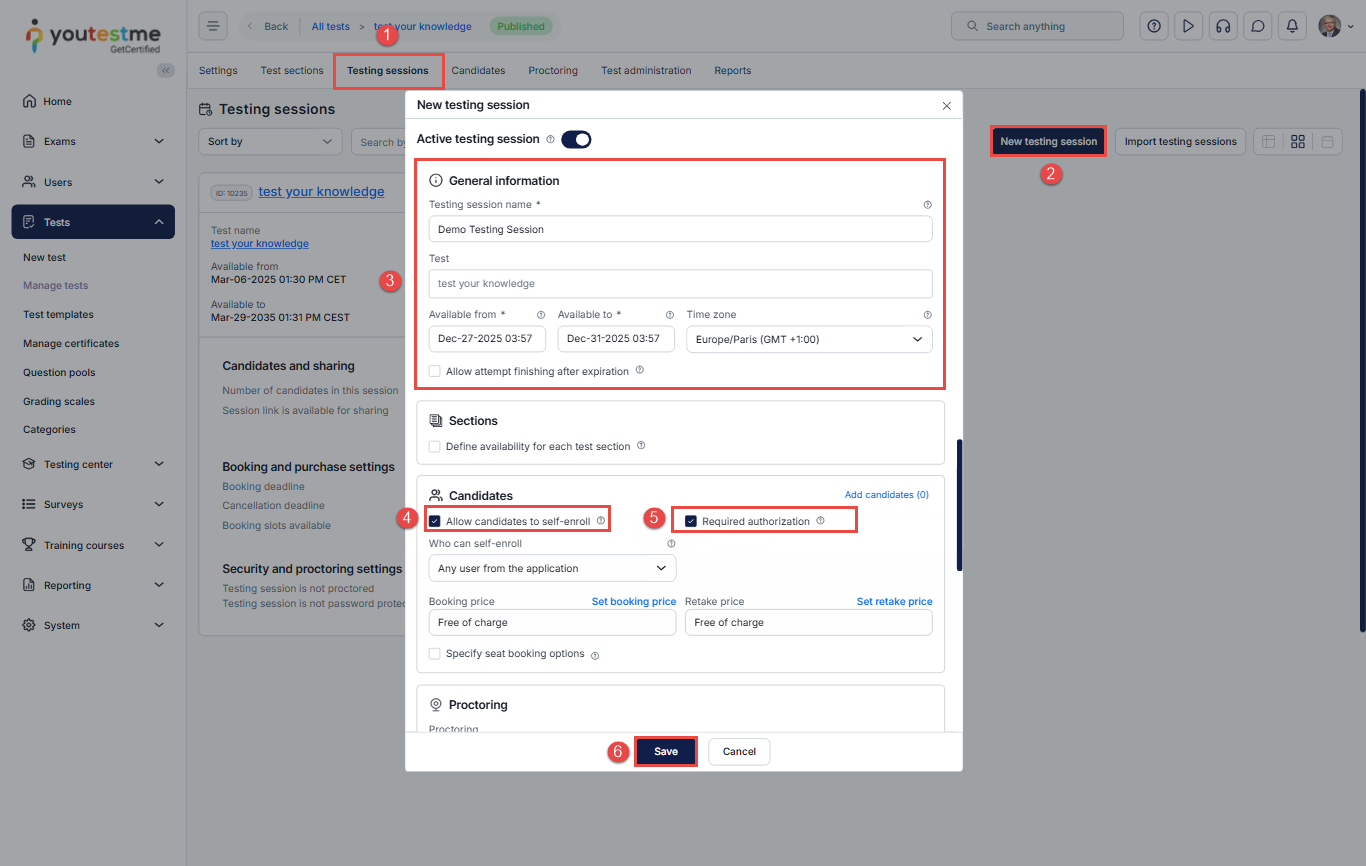
For further details on creating a testing session, please refer to this article.
Setting authorization
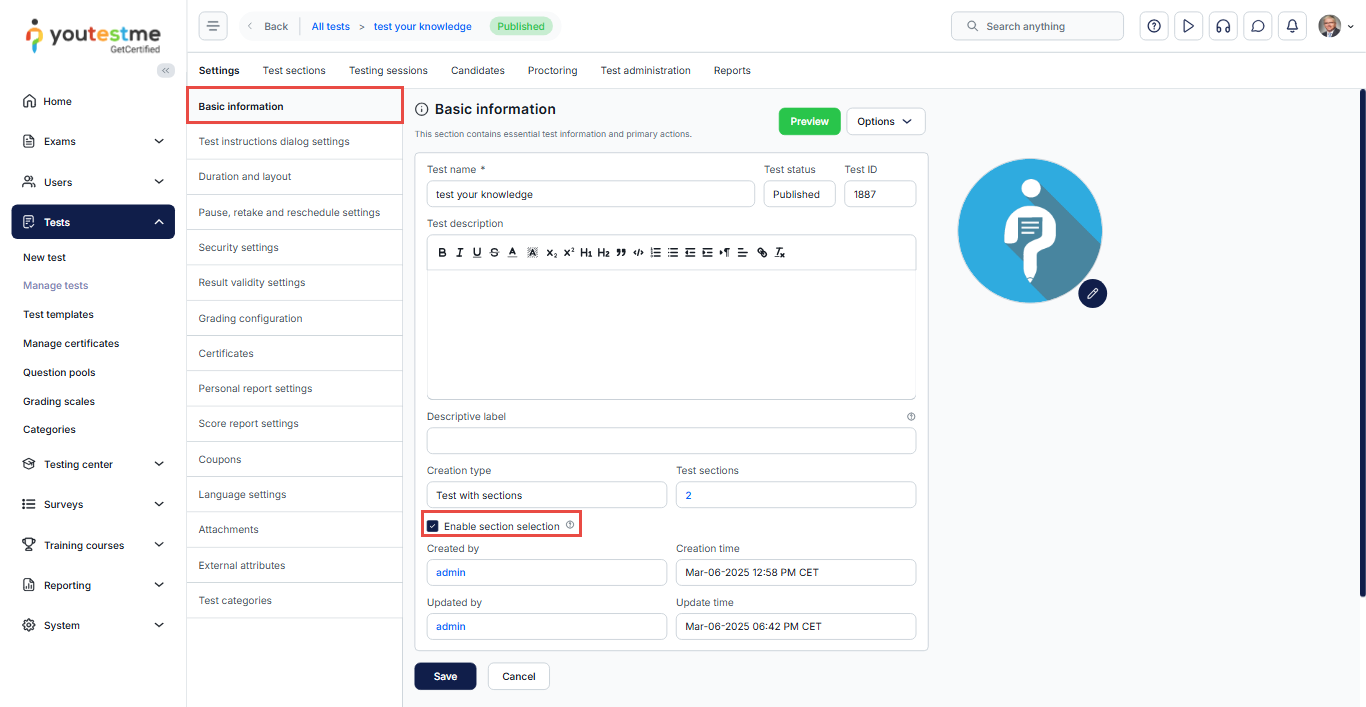
After creating a test with sections, navigate to the test settings, tick the box with the Enable section selection option, and save changes.
Defining conditions for sections
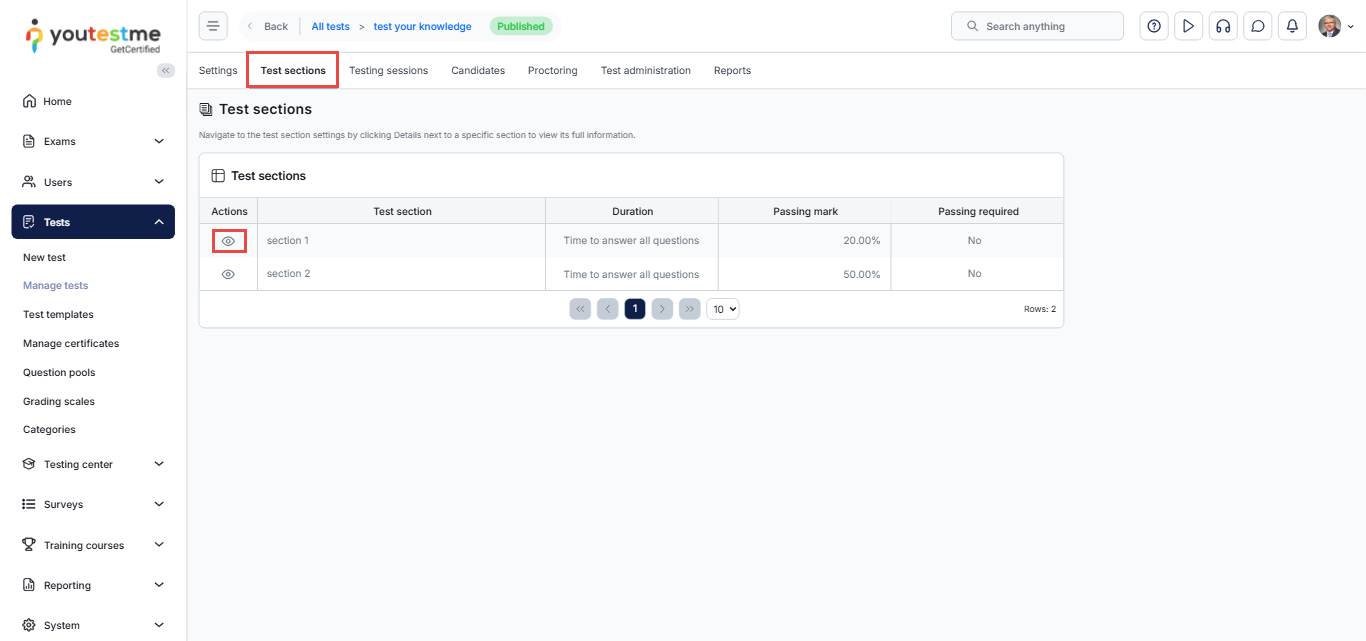
Navigate to the Test sections tab and select the Details option.
In the Settings tab, select the “Section auto-assignment” option and define the desired conditions.
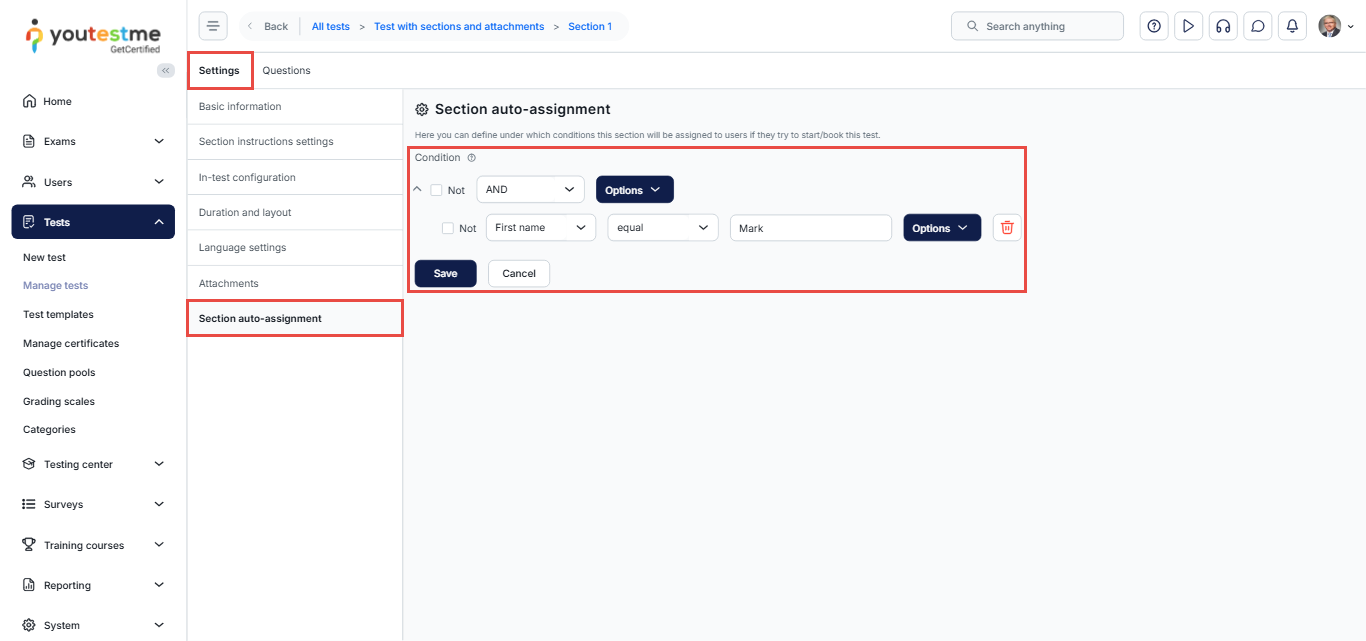
We have defined conditions in both sections. You can define conditions for any desired section.
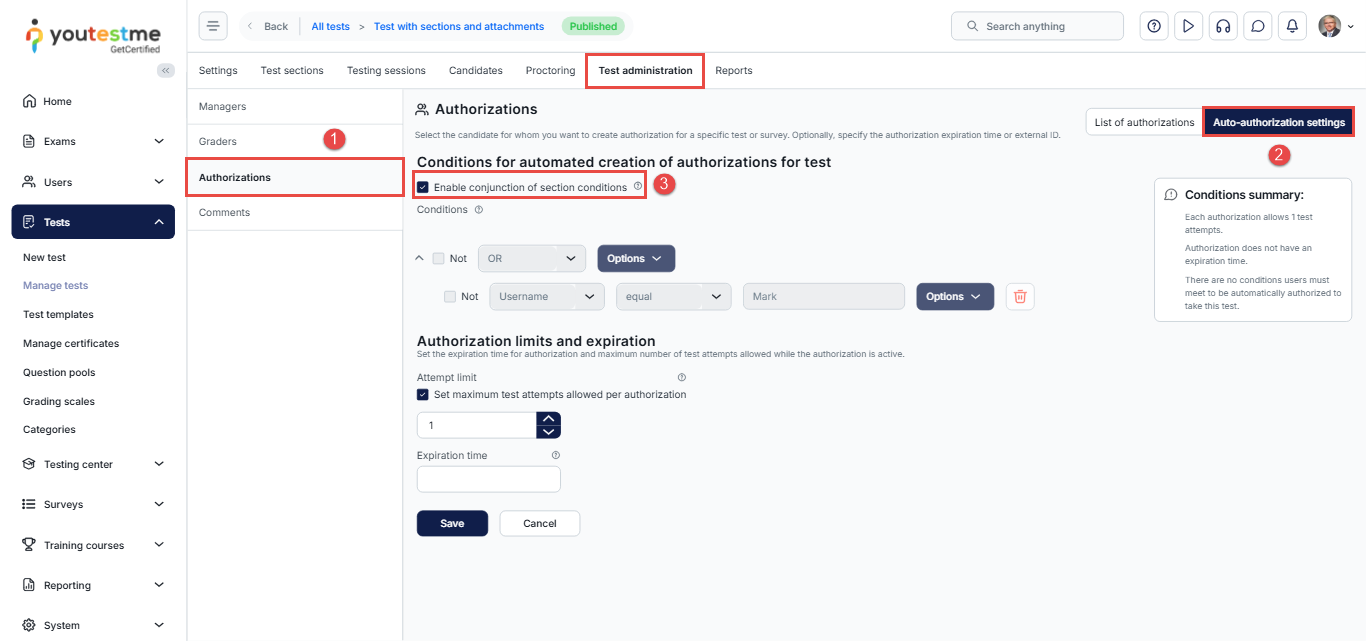
To Enable conjunction of section conditions, you need to:
- Navigate to Test administration > Authorization.
- Select Auto-authorization settings.
- Check the Enable conjunction of section conditions option and Save changes.
Once enabled, the conditions of all sections will automatically apply to the test authorization condition and cannot be modified manually.
Executing the job
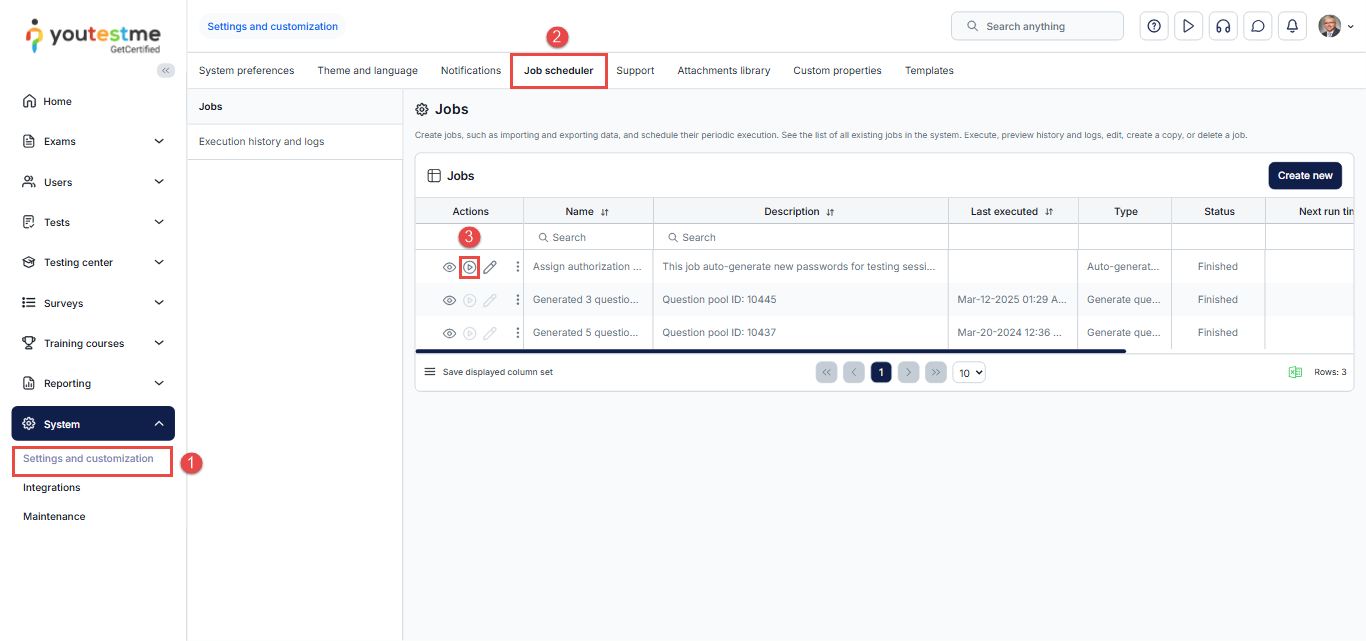
After defining conditions for the desired sections, you will need to execute the job:
- Navigate to System > Settings and Customization.
- Select the Job scheduler tab.
- Select the Assign authorization automatically and Execute job.
To create a new job, please refer to the following article.
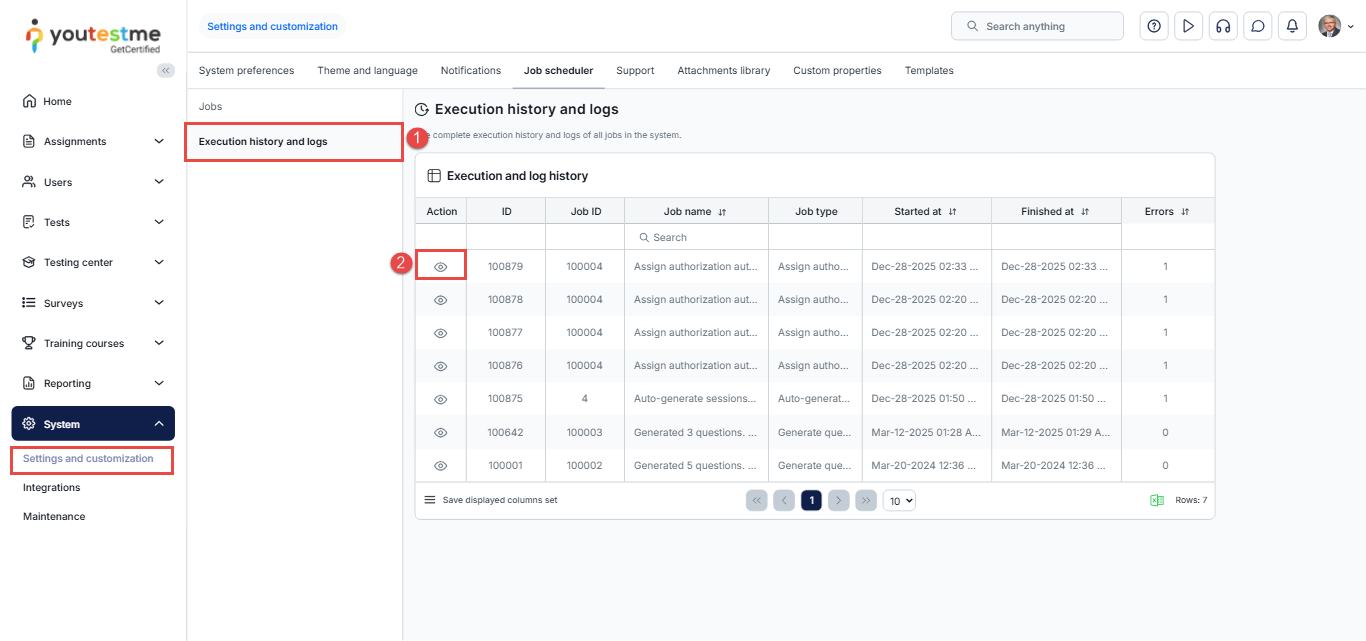
To verify the number of users the authorization was applied to, follow these steps:
- Navigate to the Execution History and Logs section.
- Click the Preview button.
- A detailed list of users and their corresponding IDs will be displayed.
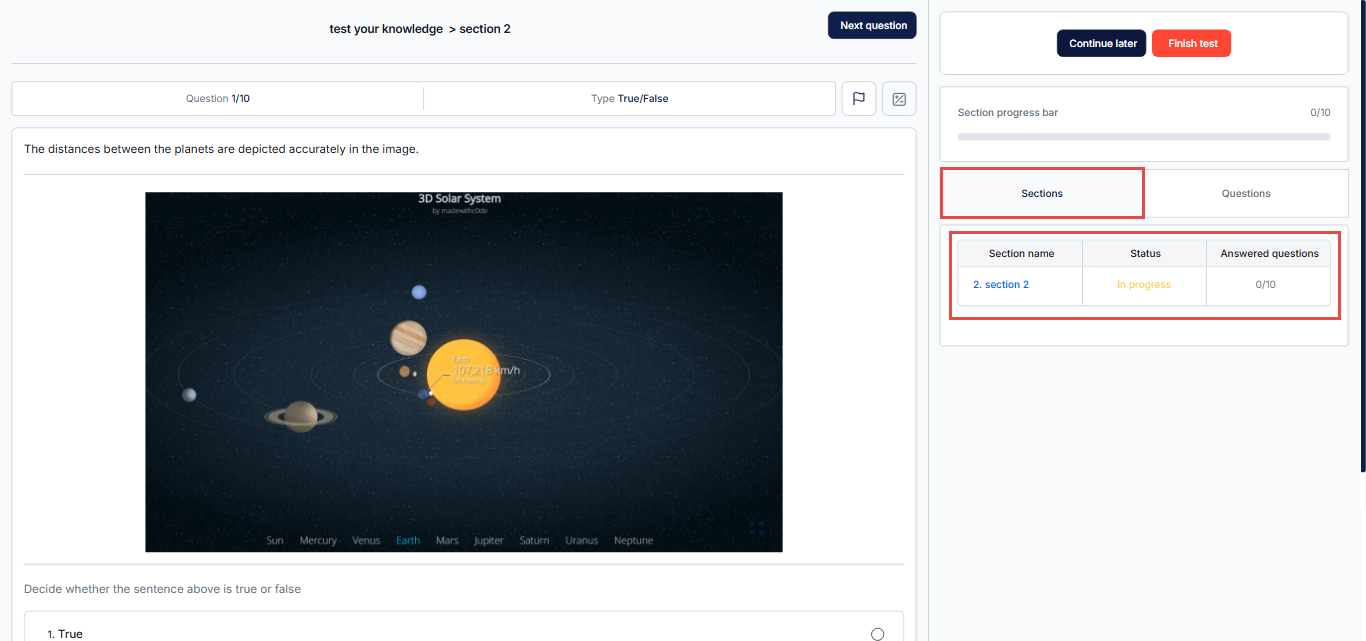
Candidate’s perspective
The candidate will be shown only the sections where they have met the required conditions.
For more related topics, please refer to the following articles:
- How to Create Test with Sections
- How to Create a Generated Test
- How to Create and Use Test and Session Instructions






