
Article verified for Release 16.0 on February 12, 2026.
This article provides a complete overview of how candidates take a Virtual Interview, guiding you through each step, from accessing the interview to submitting your final responses.
The Virtual Interview platform is designed to offer a structured and professional experience while allowing flexibility to complete the interview at your convenience. Throughout the process, you will record verbal responses to predefined questions, which are later evaluated using AI-powered analysis to ensure a fair, consistent, and objective assessment.
By following the steps outlined below, you will understand exactly what to expect and how to complete your interview.
Recommended Browser: For the best performance and full functionality, we recommend using Google Chrome.
Starting Interview Using a Direct Link
Candidates can also access and complete the interview using a direct link. Recruiters may share this link to provide quick and easy access for new candidates.
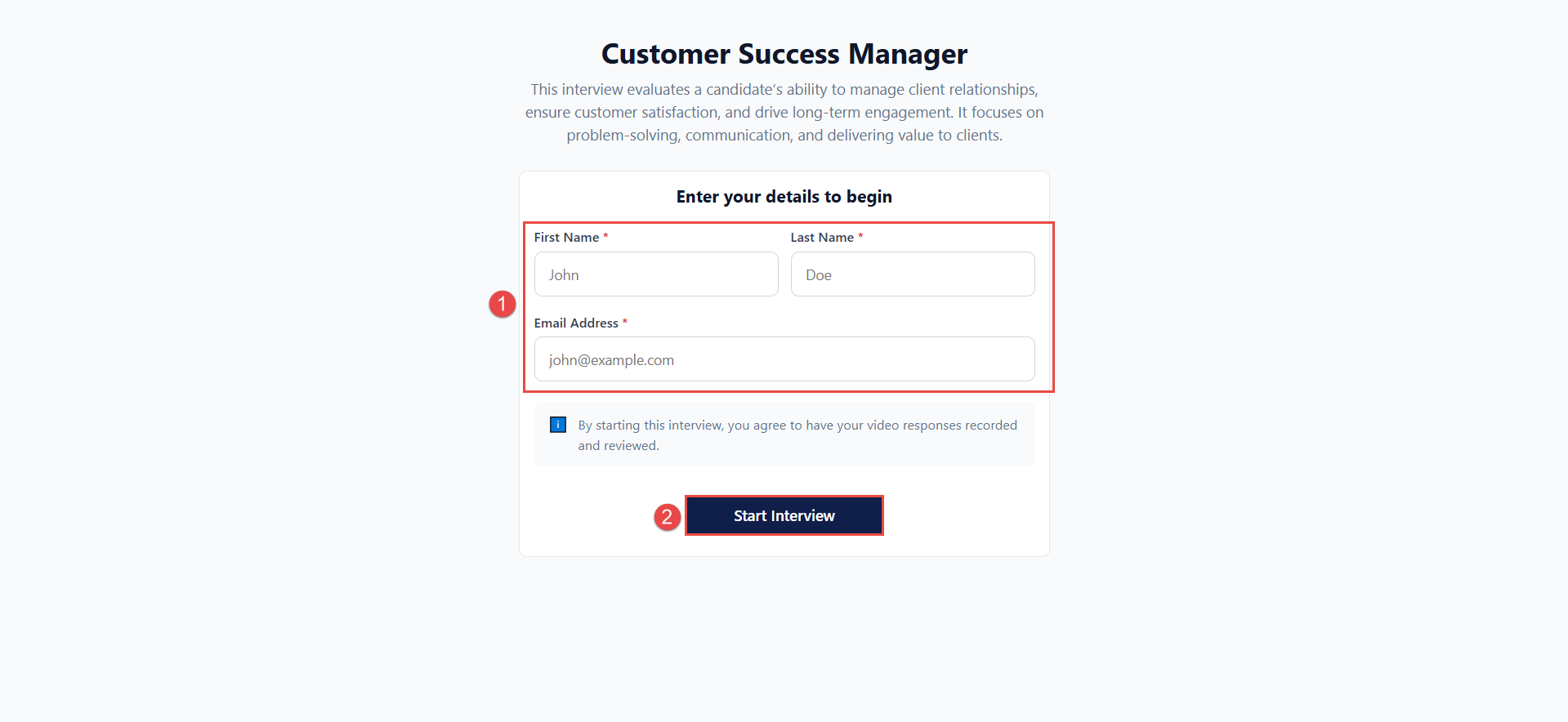
Once the link is opened, candidates will need to:
- Fill in the mandatory fields: First Name, Last Name, and Email Address.
- Select Start Interview to begin the process.
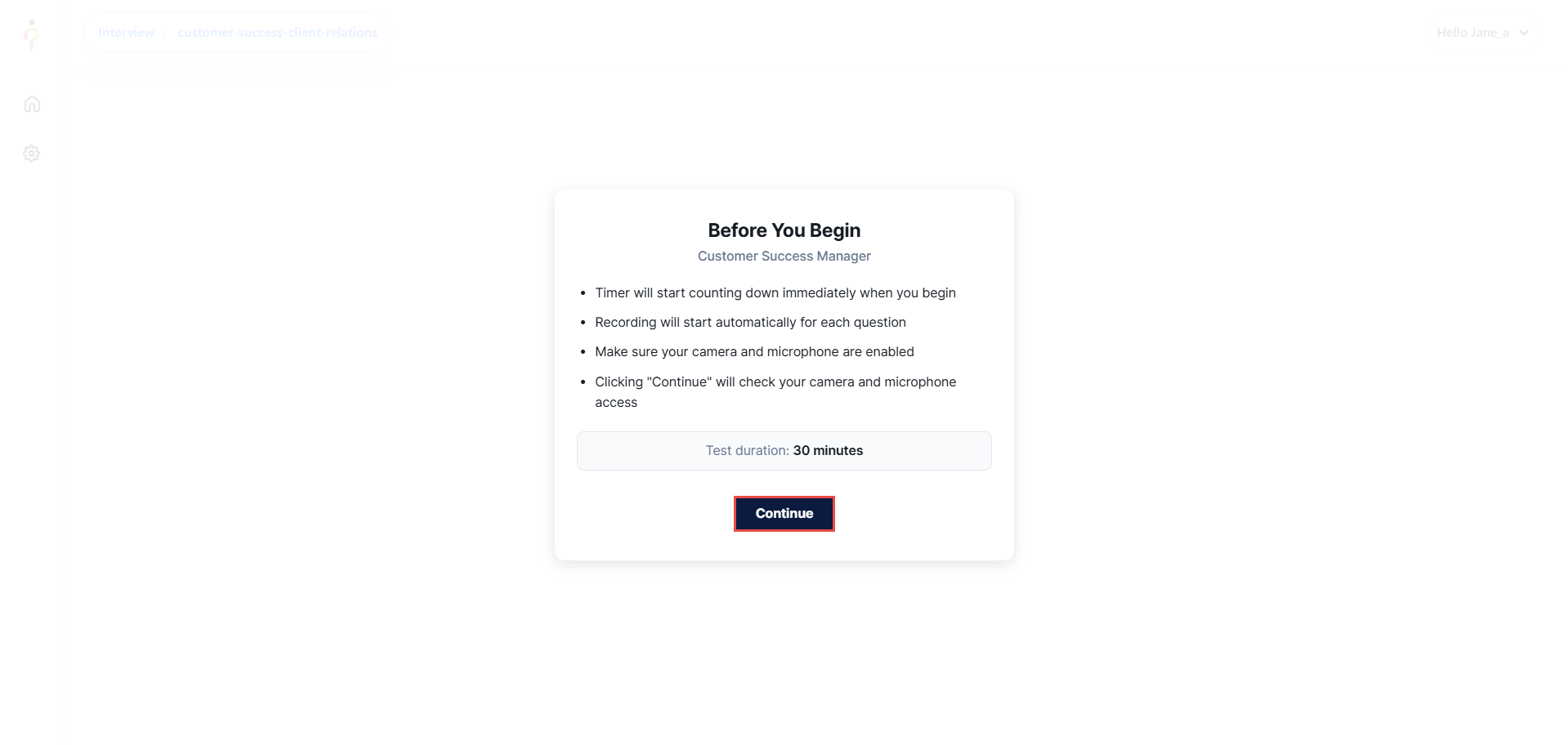
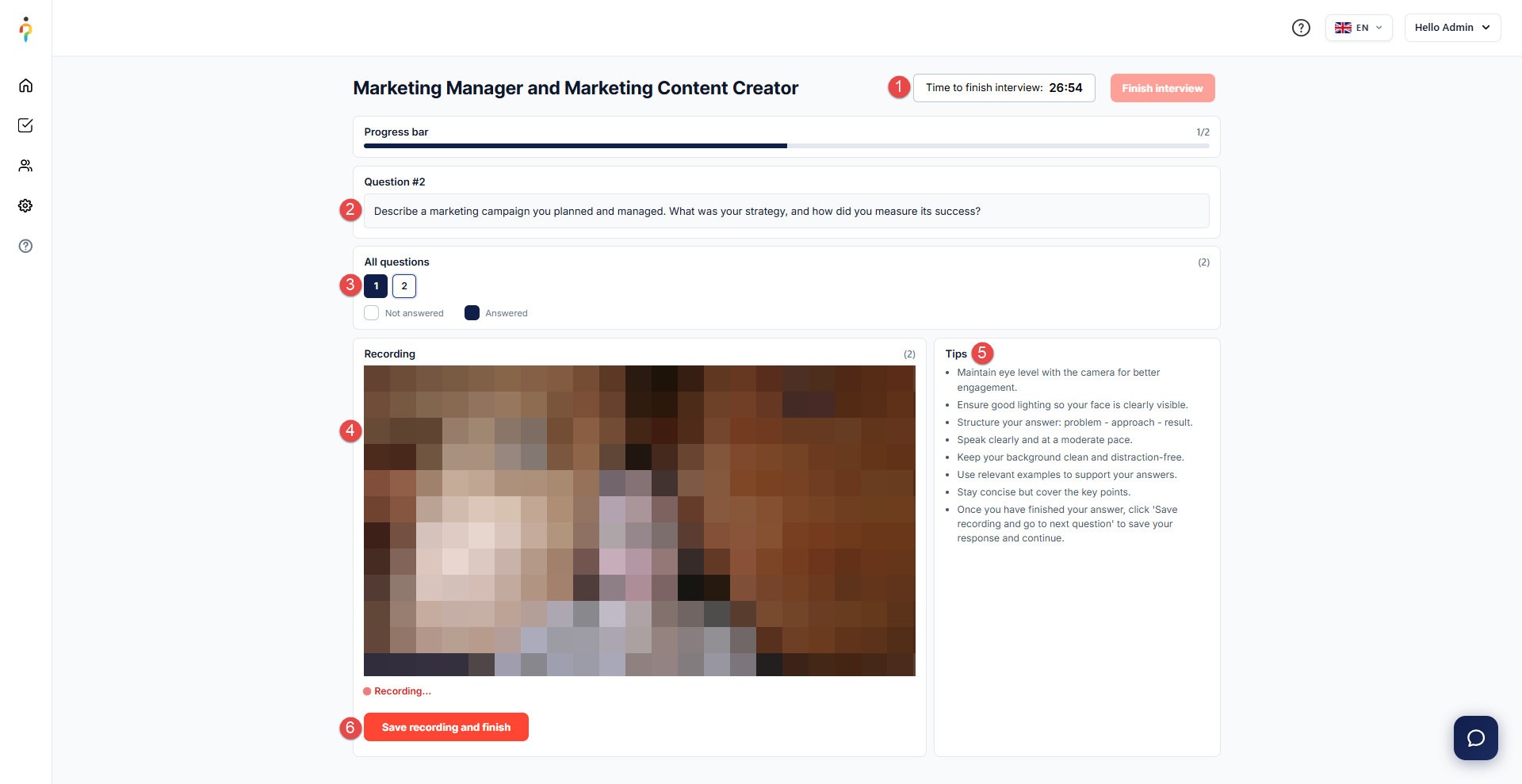
During the interview, the candidate is presented with:
- Interview Duration – The total time allocated for completing the interview.
- Question Text – The current question displayed on the screen.
- Question Overview – The total number of questions and their statuses (answered / not answered).
- Live Camera Recording – A live video showing the candidate while the camera records their response.
- Answering Tips – Guidance on how to structure and deliver an effective response.
- Stop Recording Option – After finishing their response, the candidate can select Stop Recording to complete the answer for that question.
Note: The button label changes depending on the candidate’s progress in the interview:
- Save Recording and Continue – Appears when additional questions remain, allowing the candidate to save their response and proceed to the next question.
- Save Recording and Finish – Appears on the last question, allowing the candidate to save their final response and complete the interview.
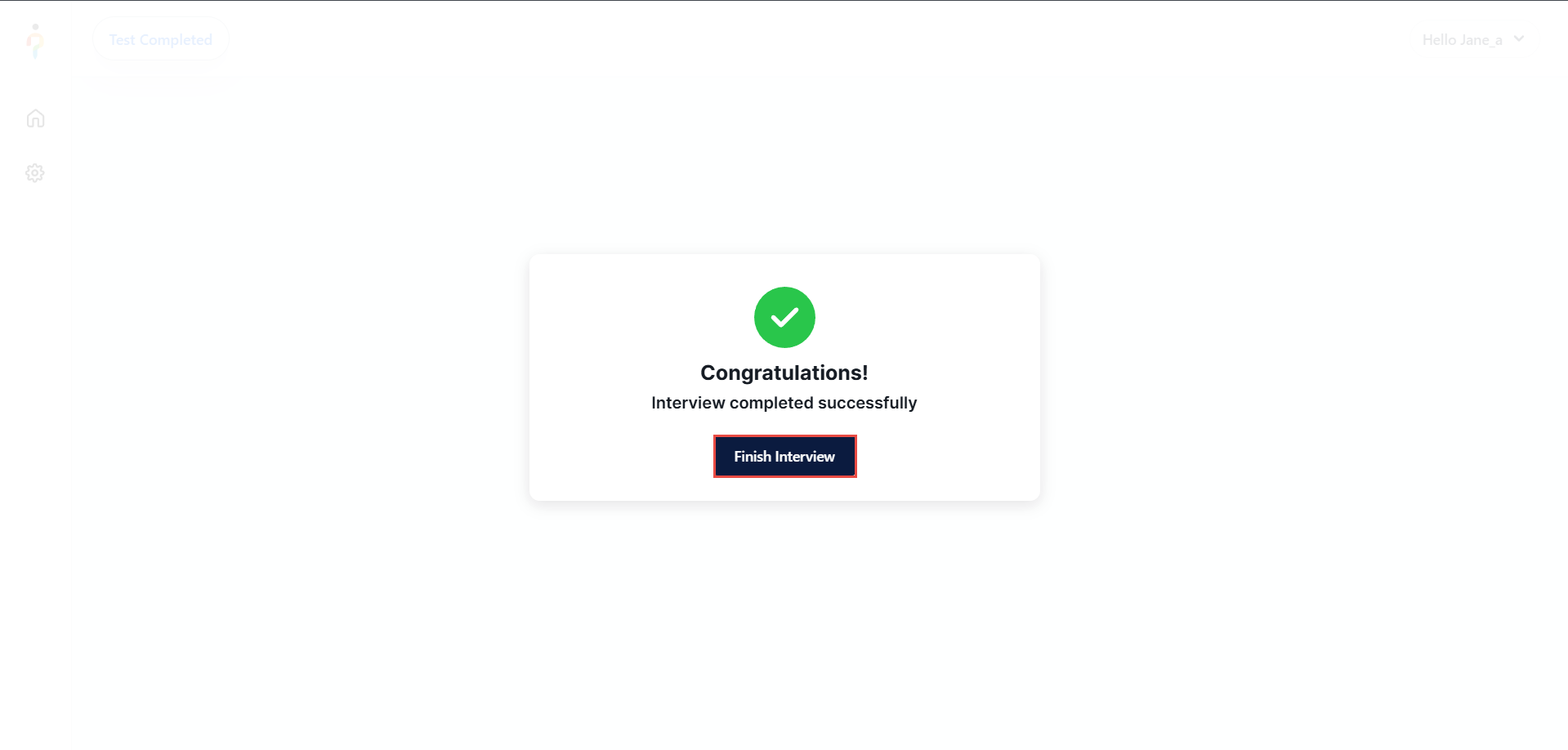
Finally, the candidate will be presented with a confirmation message.
By selecting Finish Interview, the interview session will be closed, and the candidate will be logged out of the application.
Starting Interview From Application
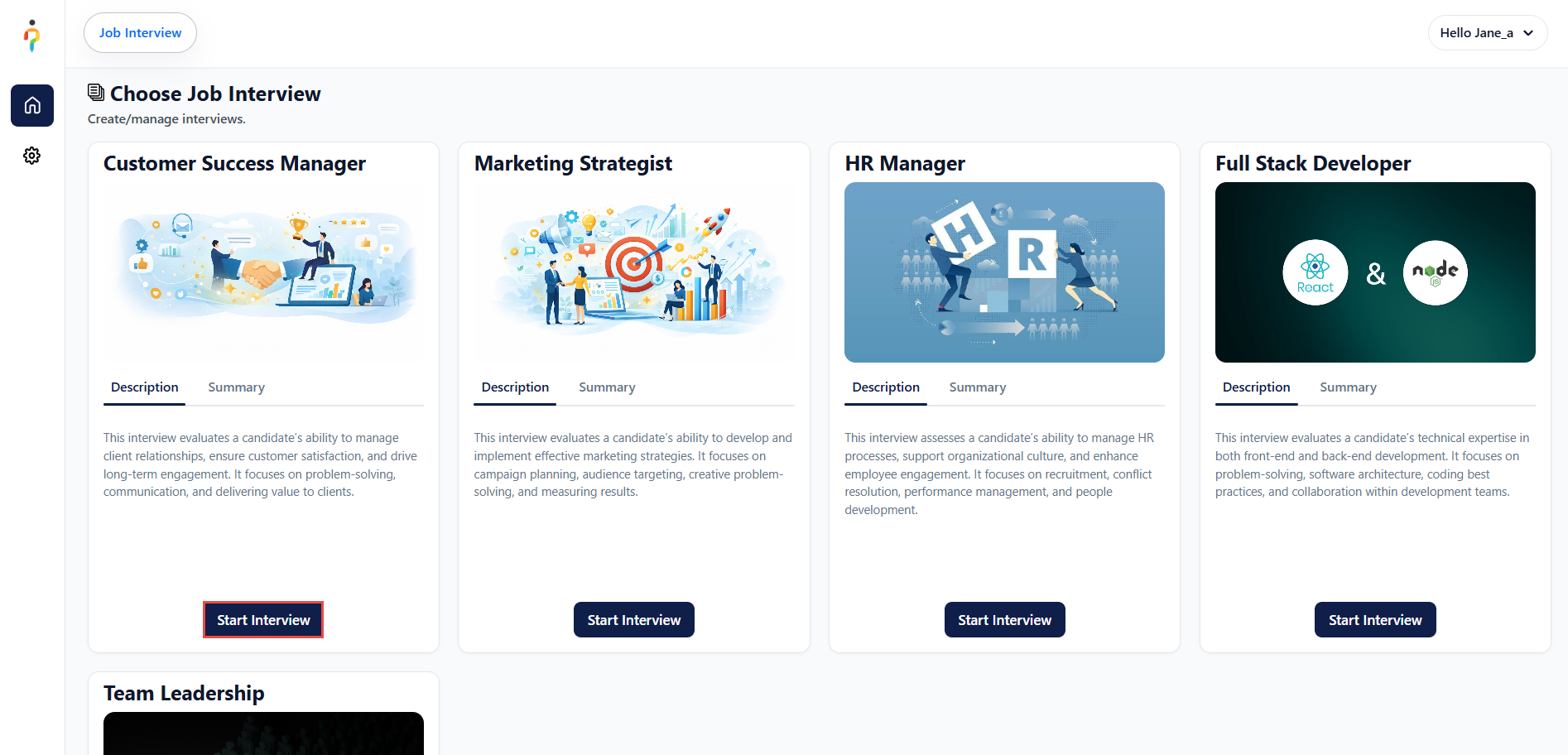
Once the candidate logs into the platform, they will see all available interviews, including their descriptions and summaries.
To begin, select the Start Interview button for the desired interview.
After selecting the Start Interview button, the interview process continues in the same way as when starting the interview using direct link.




