
Article verified for Release 15.0 on September 29, 2025.
This article outlines the steps for students to reschedule their sessions on the YouTestMe platform successfully. Whether due to unavailability or a scheduling conflict, this article provides a clear example of how to reschedule a session with the limitation of only one free attempt and the steps needed to make subsequent rescheduling requests. Check this article for more information on how to book the exam session – purchase, cancel, or reschedule a testing session.
Rescheduling the session
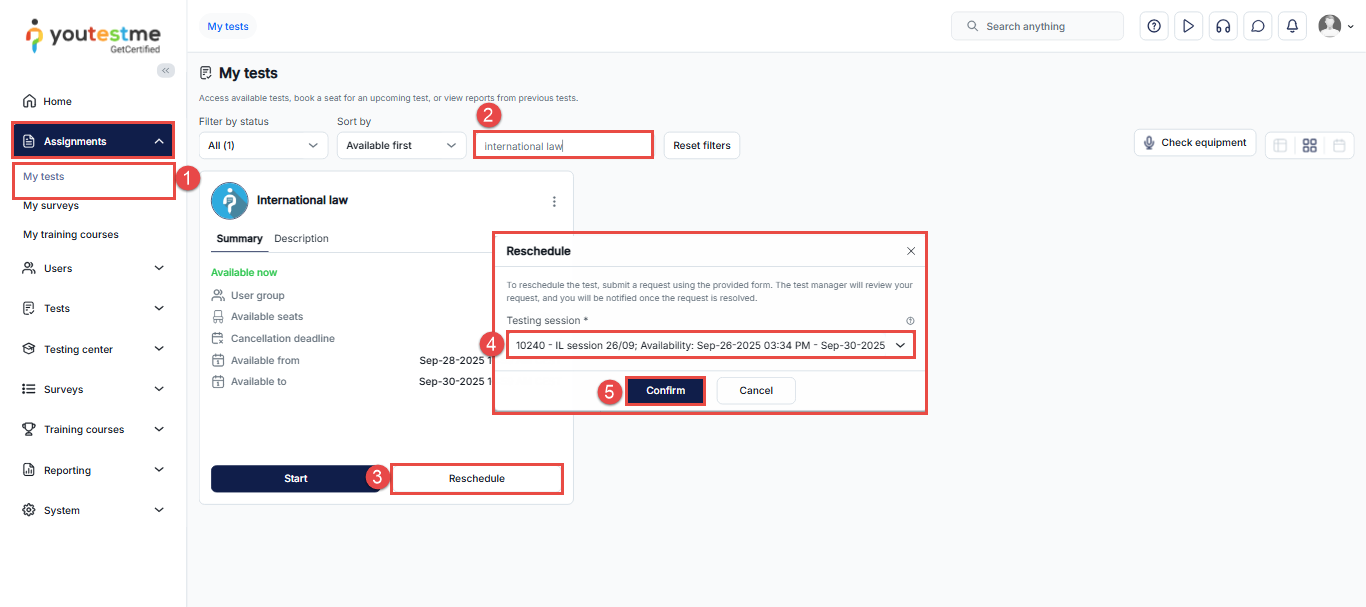
- Navigate to the Assignments/My tests tab.
- Use the search bar to find the desired test.
- Click on the Reschedule button.
Note: In our example, your first rescheduling attempt is free, and you can change the session by choosing a different session: - Select one of the available sessions.
- Click the Confirm button to save the changes.
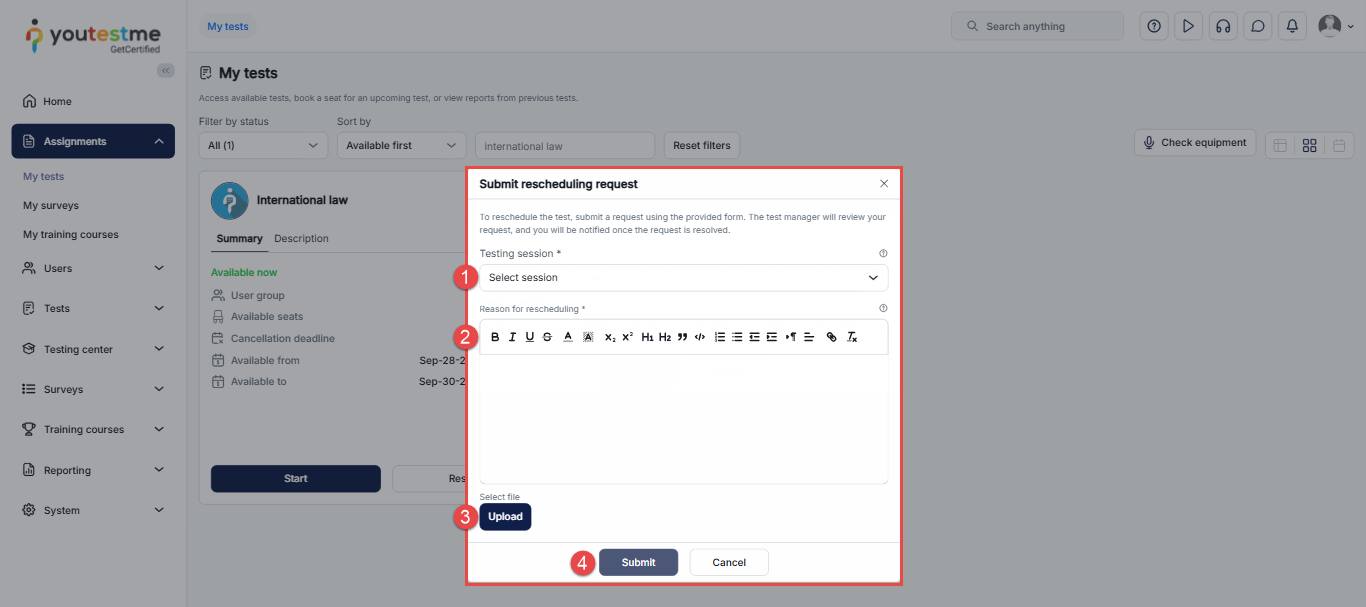
For every subsequent rescheduling, you will need to send a request. Click on the Reschedule button again, and when the pop-up window appears, fill out the necessary information:
- Select the desired session.
- Write the reason in written form.
- Upload the necessary attachment (medical documentation file, etc.)
- Click on the Submit button to forward the rescheduled request.
For more useful instructional materials, please visit:
- How to deactivate questions in the question pool
- How to purchase, book, cancel or reschedule exam session




