Article verified for Release 15.1 on February 23, 2026.
This article explains how to use the All/None of the above answer options when creating questions in the system. These options allow you to provide candidates with a choice that either includes all the listed answers or none of them, making your single-choice or multiple-choice questions more flexible and comprehensive. You will learn how to add these options to a question and how to mark them as the correct answer if needed.
Using the All/None of the above answer option
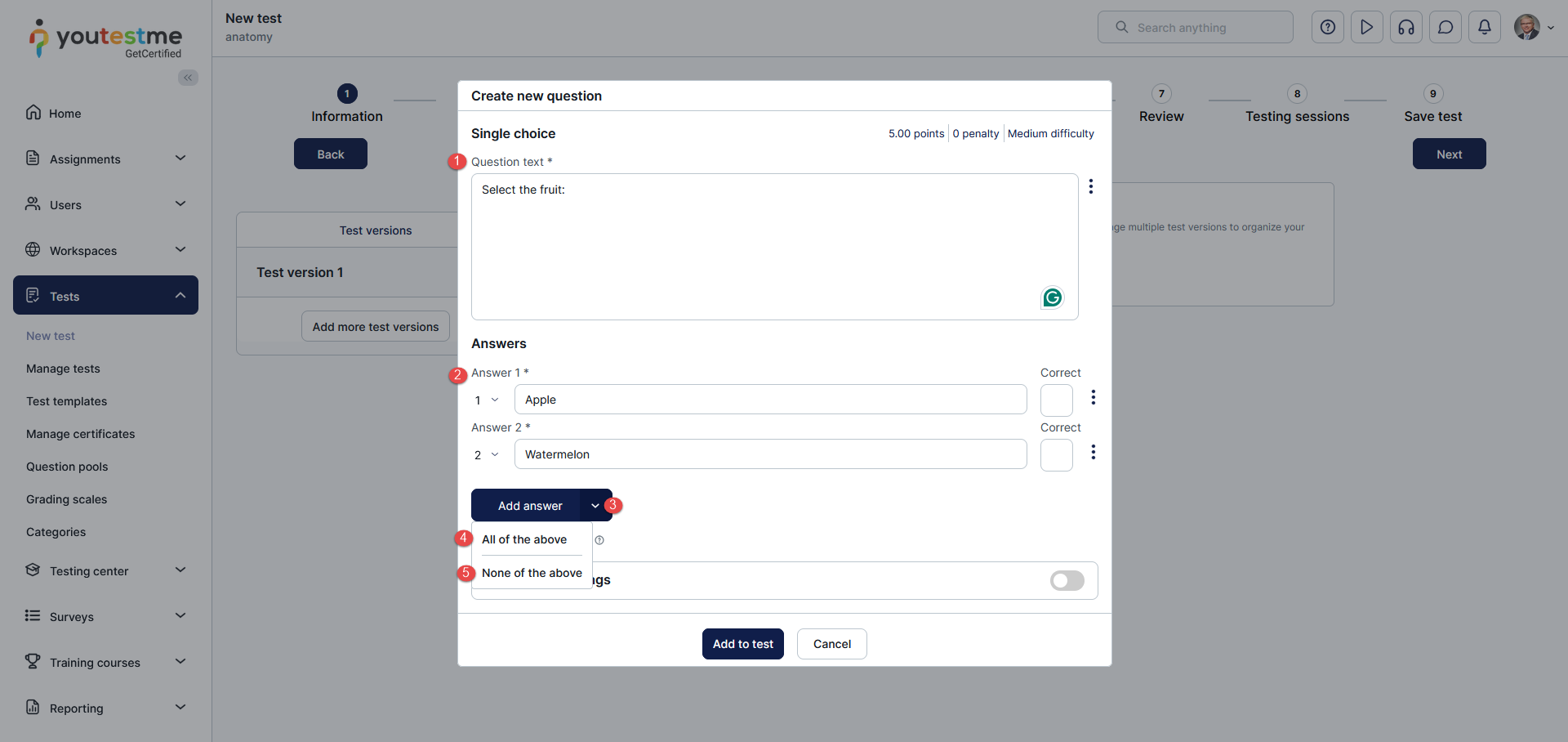
Selecting the All of the above and None of the above options is possible when creating single- and multiple-choice questions. To use these options:
- Enter the question text.
- Enter the answers.
- Click the dropdown arrow next to the “Add answer” button to see additional options.
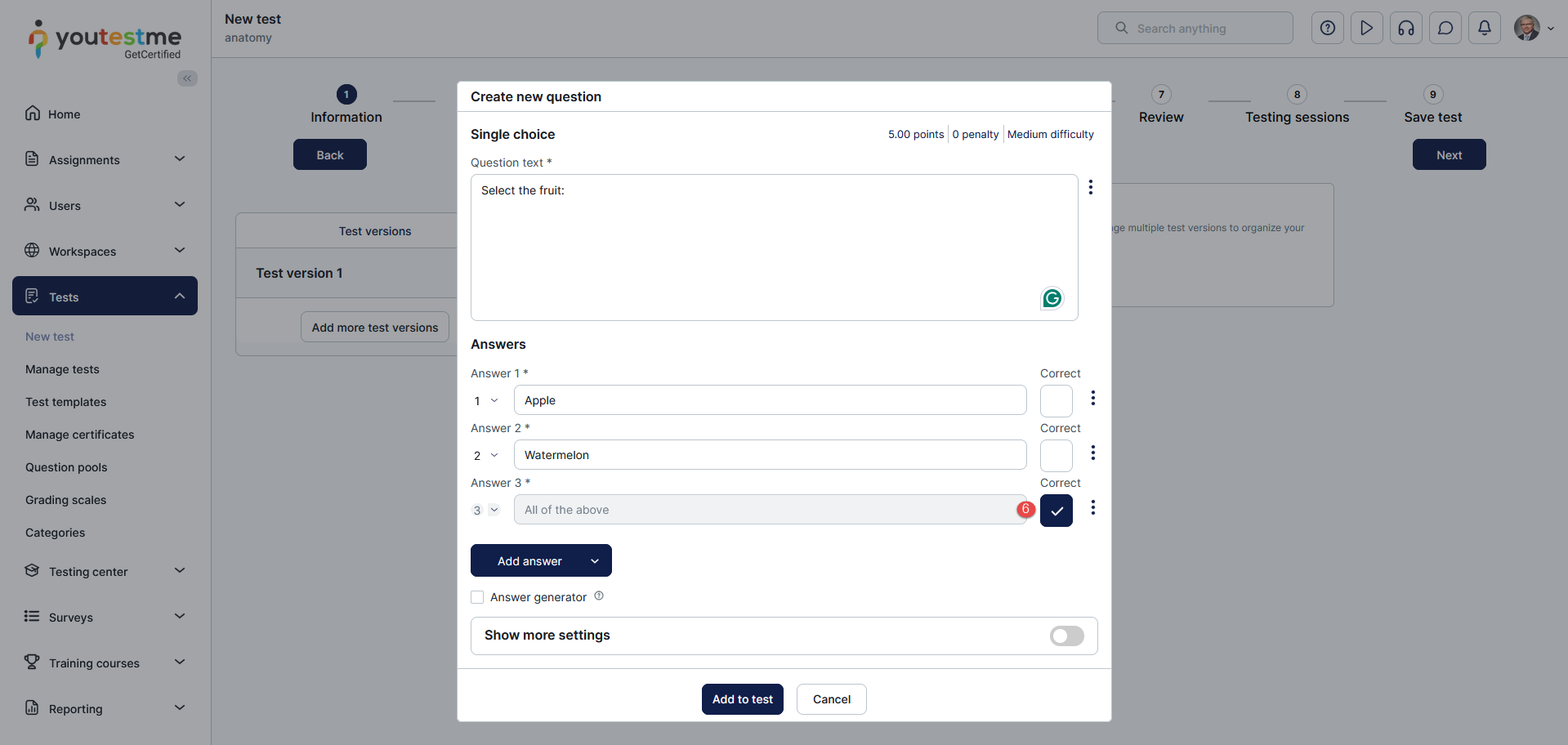
- Select the All of the above option if you want to add it as the offered answer.
- Select None of the above option if you want to add it as the offered answer.

- Check the All of the above or None of the above options if you want it to be the correct answer.