
Article verified for Release 15.2 on February 06, 2026.
This article explains how to schedule automated sending of reports by email at specified time intervals. You can specify what will be included in the report, who will receive the report, and how often it will be sent.
Scheduling a report
To schedule a report and include it in the list, follow these instructions:
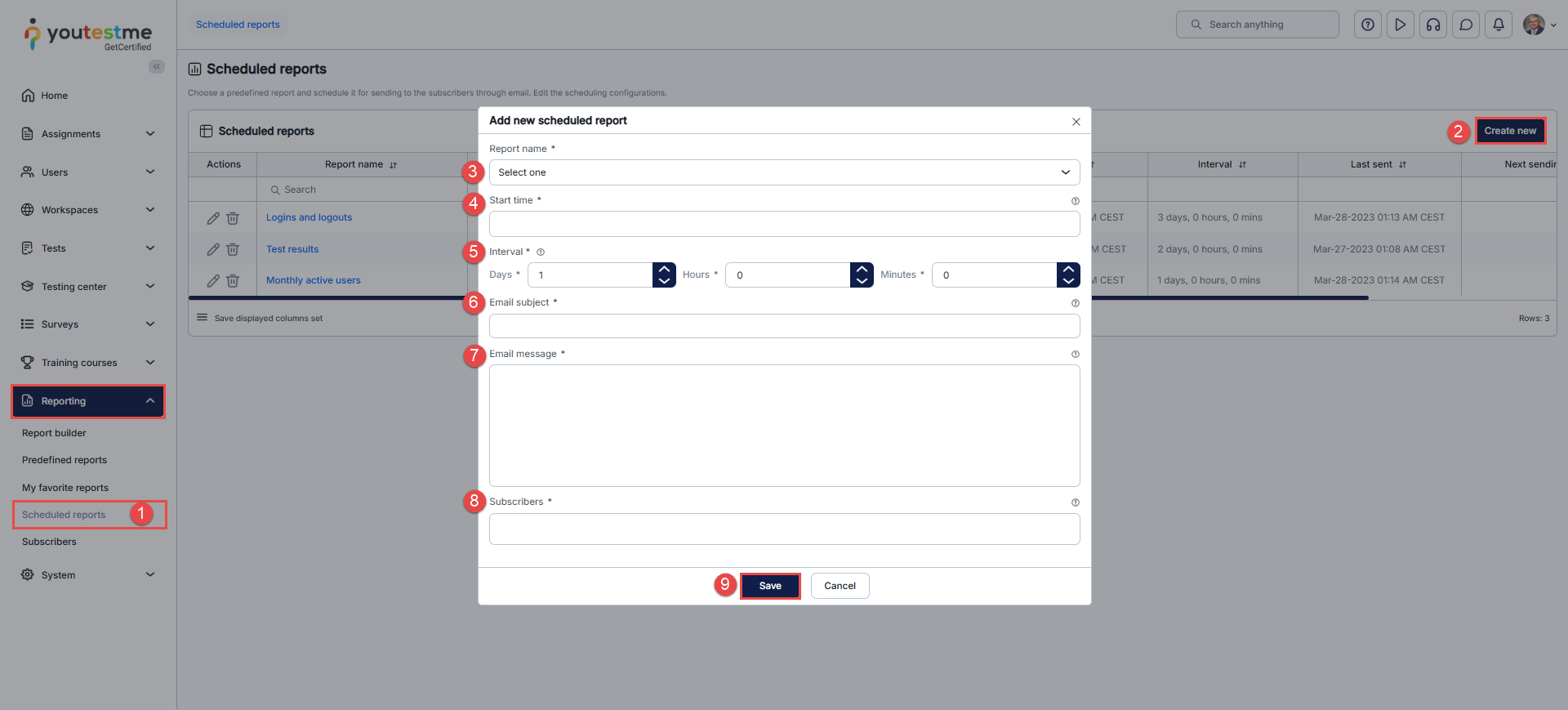
- Select the Reporting tab in the main menu and then select the Scheduled reports tab.
- Click the Create New button.
- Select one of the predefined reports you want to schedule from the drop-down list.
- Set the start date and time – The day and time when the report will be sent for the first time.
- Specify the time interval/frequency (in days) of the automated report sending.
- Define the email subject that subscribers will see when they receive the email.
- Define the email message sent to subscribers.
- Enter the subscribers’ email addresses. After typing each email address, press Enter to add it, then continue adding additional addresses as needed.
- Click the Save button to confirm the new scheduling configuration.
Note: If the report contains no data, it will not be sent to subscribers.
Note: When exporting or scheduling a report that contains a large amount of data, only the first 10,000 rows are included in the output, regardless of sorting or filtering order.
To ensure the exported data is relevant and complete, we recommend applying filters to reduce the dataset before exporting or scheduling the report.
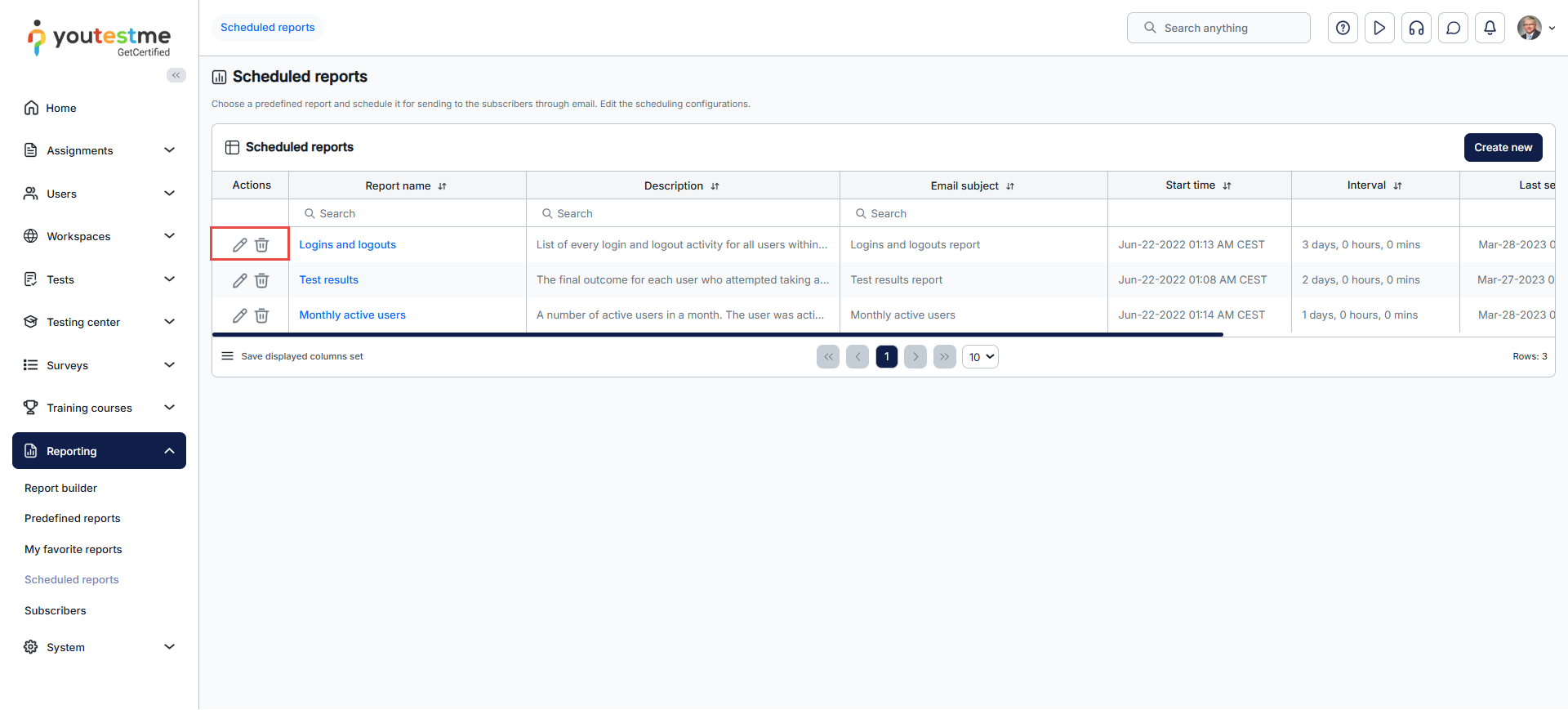
At any moment, you can enable/disable the scheduled reports configuration:
- Click the drop-down list and select the report whose status you want to change.
- Select the Enabled option to activate the automated sending of the scheduled report; the report will then be sent to the subscribers as defined. Alternatively, choose the Disabled option to deactivate the automated sending of the scheduled report. In this case, the report will not be sent to the subscribers until its status is set to Enabled again.

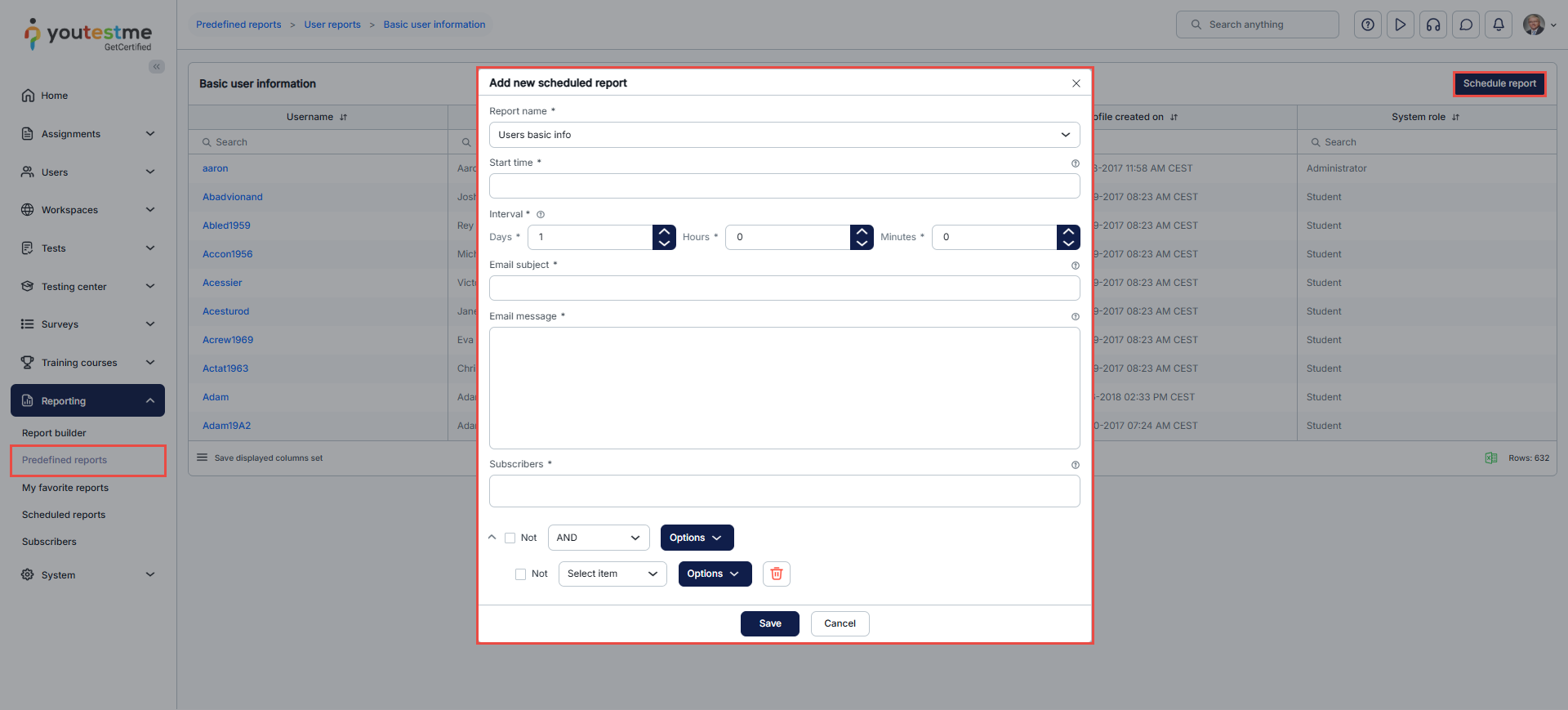
For video instructions on scheduling reports, please watch this video.
For more related instructional materials, please see:




