Article verified for Release 15.1 on December 22, 2025.
This article guides you through the steps to generate a report that shows how many registered users have taken a specific test. It explains how to locate the test, apply relevant filters, and export the report to include only the users you need.
Selecting the test
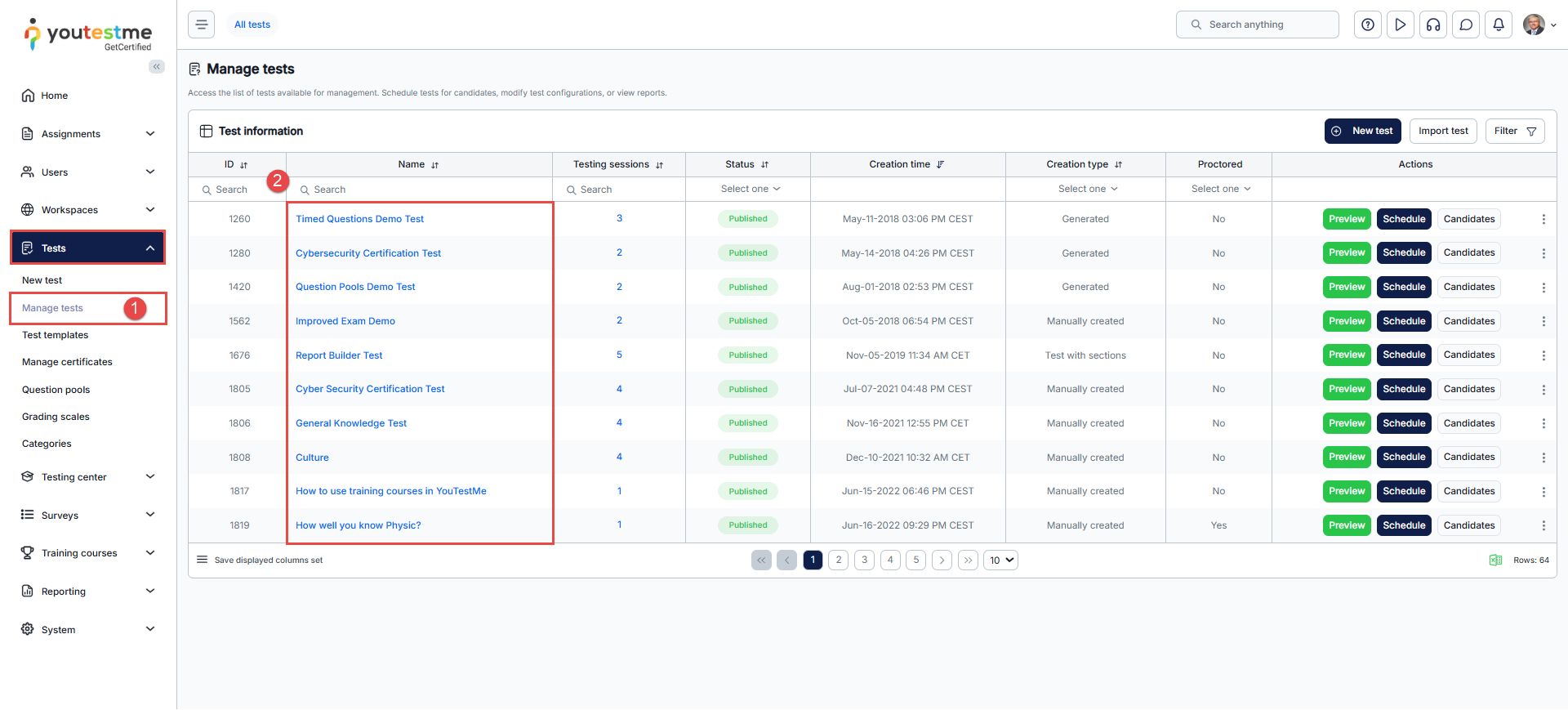
- From the home page, select the Tests tab in the left-side menu and then the Manage tests tab.
- Search test for which you need to generate a report.
Generating the report
To generate a report, do the following:
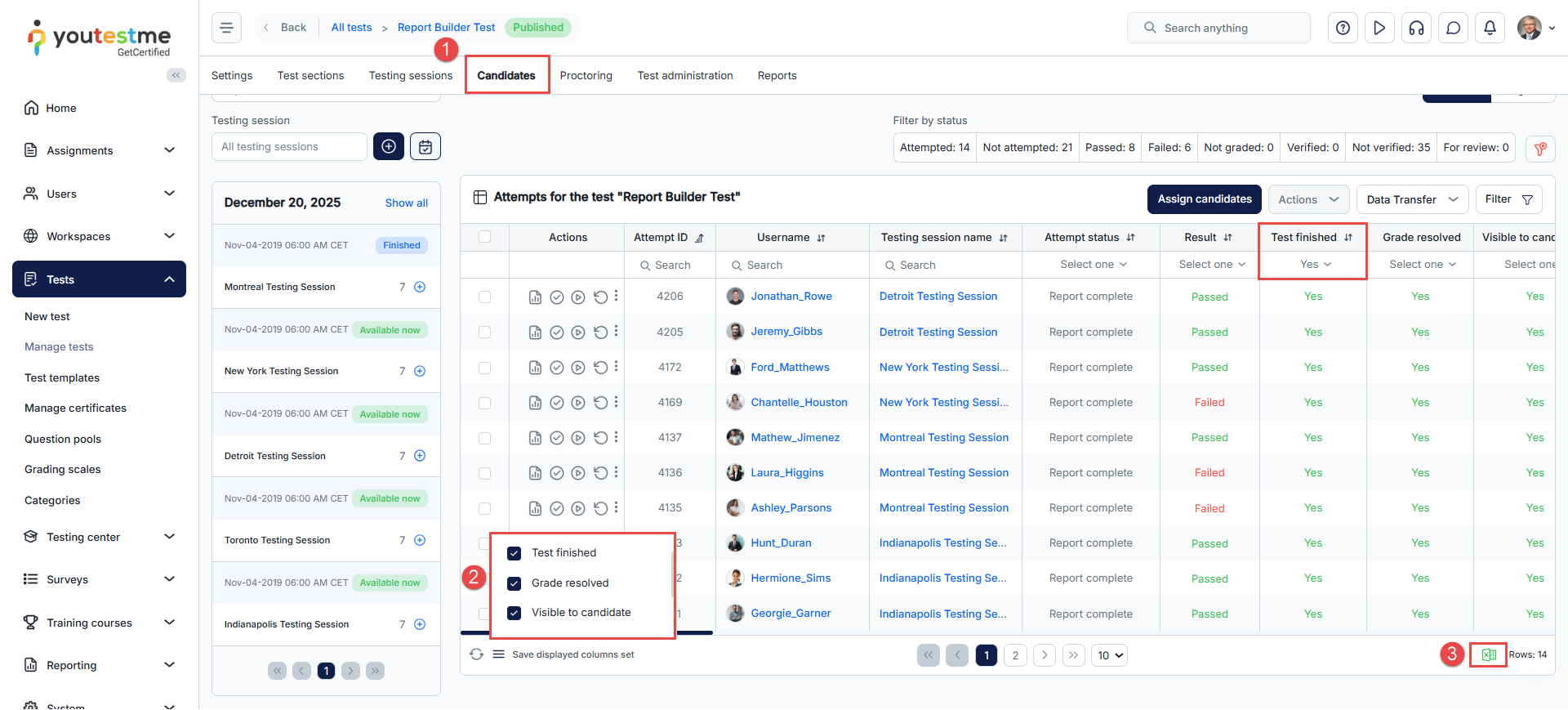
- Go to the Candidates tab.
- Display columns that you need
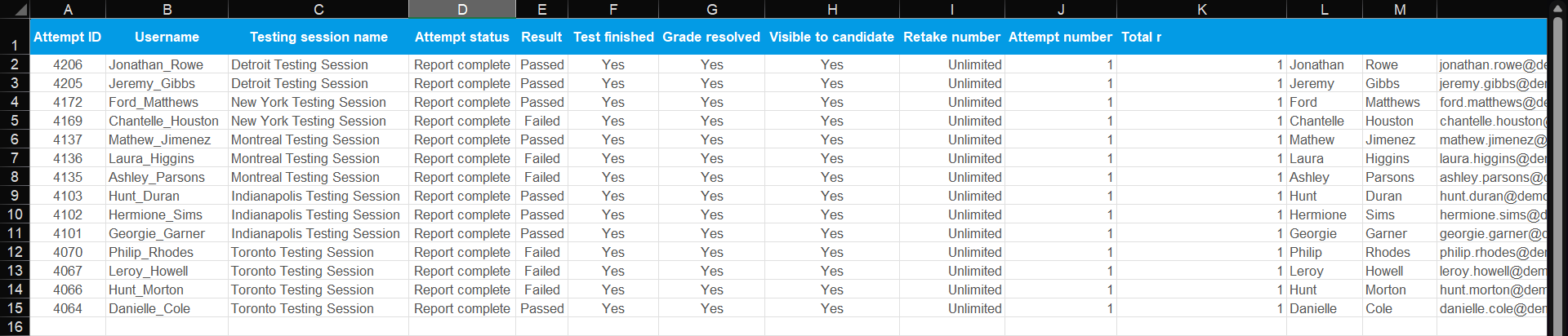
- Click on the icon to export the report. Only reports for the users filtered through the search will be downloaded. In this case, in the displayed column set, we selected the Test Finished filter and set it to Yes, which allows us to view the list of users who have taken the exam.