
Article verified for Release 16.1 on September 29, 2026.
This article explains how to use the Report Builder to create custom reports for tests and surveys. You can select only the columns and data fields you need, optionally apply advanced search filters, and generate a report containing the selected information. Reports can also be saved as reusable templates for future use.
Accessing the Report Builder
To access the Report Builder page, where a list of all tests and surveys is displayed, follow these steps:
- Navigate to Reporting > Report Builder.
- To view the report builder for a specific test, click on the test name.
Note: Users will only be able to view the tests/surveys they manage, provided the “Access Report Builder” permission is enabled. Please refer to this article for more details about Roles and Permissions.

Report Builder Overview
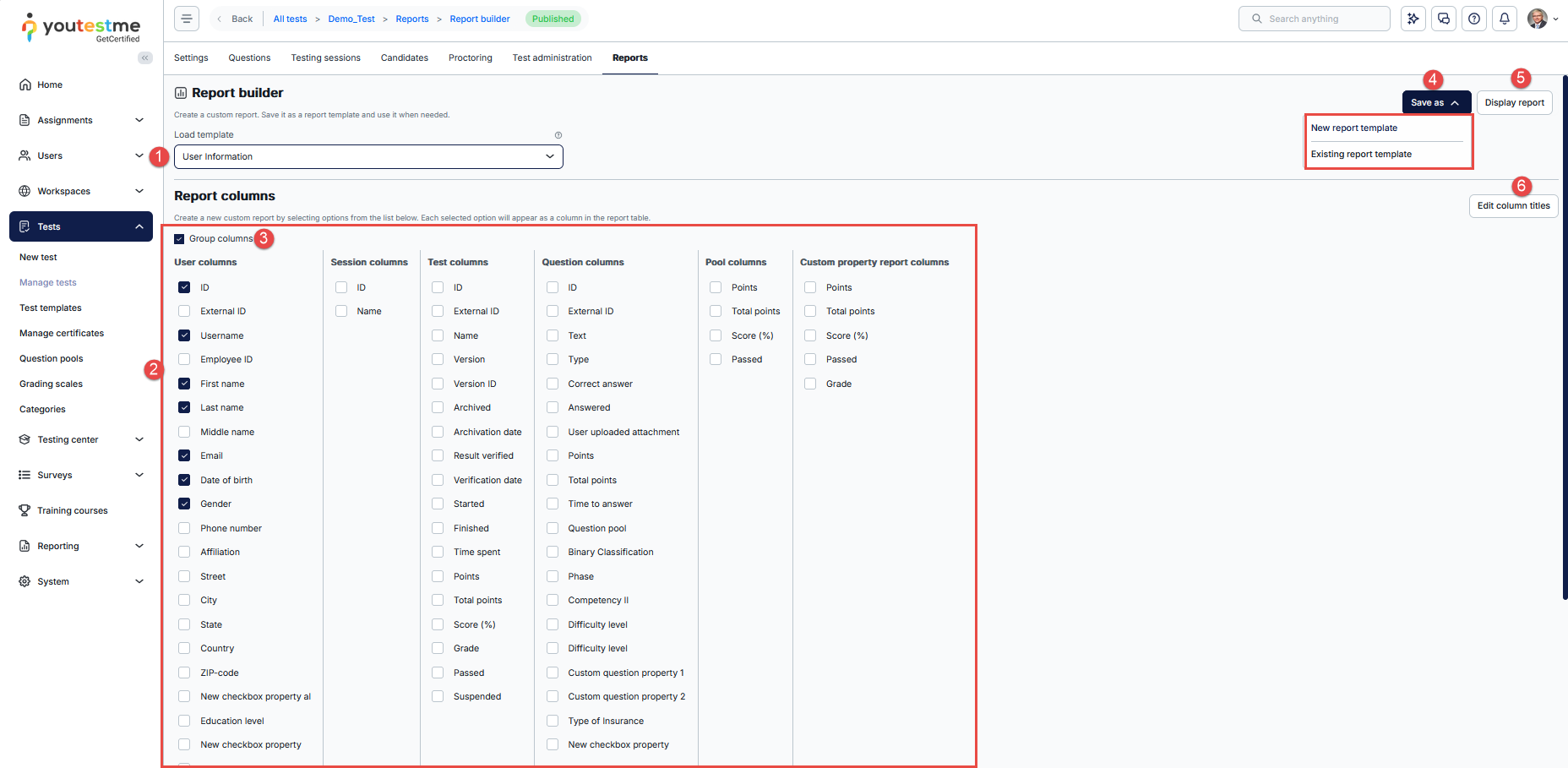
- Load Template: Select an existing report template from the list to load its predefined columns and configuration.
- Report Columns: Select the columns and data fields you want to include in the report. The available columns are organized into categories such as User columns, Session columns, Test columns, Question columns, Pool columns, and Custom property report columns. Each selected option will appear as a column in the generated report.
- Group Columns: Enable Group columns to organize the selected columns into relevant sections in the report. For example, User columns will appear under the User section, while Session columns will appear under the Sessions section.
- Save As: Save the current report configuration as a template:
- New Report Template: Save the selected columns and configuration as a new reusable report template.
- Existing Report Template: Save the current changes to an existing report template.
- Display Report: Display the report with the selected columns and configuration.
- Edit Column Titles: Customize the names of selected columns. When the dialog opens, enter the desired name in the Custom Title field and save the changes.
Building a report using the Advanced Search feature
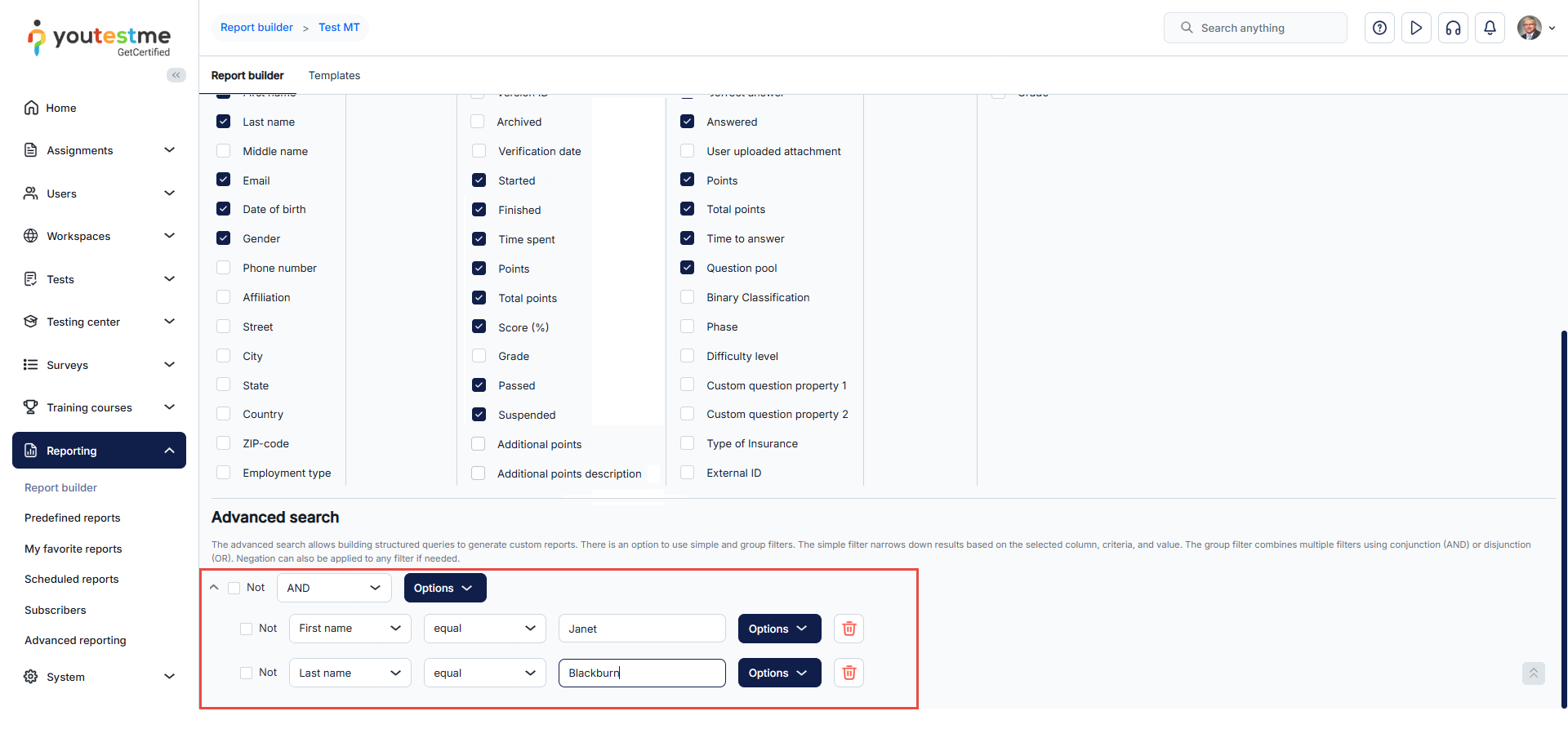
The Advanced Search feature enables you to construct structured queries for more precise results.
- A simple filter displays results based on a selected column, criteria, and value.
- A group filter allows you to combine multiple filters using logical conjunction (AND) or disjunction (OR).
- Negation can be applied to any filter to exclude specific results.
When you click the Display Report option, each selected field will appear as a column in the report table. In this view, you can:
- View grouped columns if the Group Columns option is enabled.
- See all selected columns displayed in the report.
- Export the report in an Excel format.
- Return to the Report Builder at any time to adjust column selections or filters.
- Switch to the Templates tab to browse and manage all available report templates.

An example of a report exported in Excel format:

Building a report using the Test Section Groups feature – Test with sections
This feature allows you to view aggregated results across multiple test sections by creating Test Section Groups. It is available only for tests that include sections.
To create a test section group and view aggregated results, follow these steps:
- Select the options from the list that you want to display in the report.
- Click the Add Section Group button. You can add as many section groups as needed.
- Enter a name for the Test Section Group.
- Choose the Test Sections you want to include in the group for aggregated results.
- Optionally, select a Grading Scale for the section group to present results as grades.
- Set a Passing Mark for the section group. Based on this threshold, the group will be marked as Yes or No, and the result will appear in the Passed column.
- Enable the Inclusive Passing Mark option if you want the section group to be considered passed when the result is greater than or equal to the passing mark.
- Click the corresponding delete icon if you wish to remove a test section group.

By clicking the Display reports button, you can see aggregated results for the section groups you defined:

Managing Report Templates
In the Templates tab, you can view and manage all available report templates. The following actions are available:
- Apply: Use the selected template to generate a report with its predefined column settings.
- Edit: Rename the template as needed.
- Delete: Remove the template from the system.
- Export: Export the report using the selected template in either PDF or Excel format.

Conclusion
The Report Builder is a powerful tool that enables users to generate detailed, customizable reports for tests and surveys. By leveraging features like advanced search filters, custom question properties, templates, and test section groups, you can gain deeper insights into candidate performance and test effectiveness. Whether you need to analyze individual attempts, compare results across sections, or export data for further review, the Report Builder offers the flexibility and control needed to support data-driven decision-making. Make sure you have the appropriate permissions enabled to access and fully utilize all available reporting features.




