
Article verified for Release 15.1 on December 1, 2025.
This article explains how to create question feedback that will automatically display in the personal report for all candidates, without requiring the instructor to add it manually. Automatic question feedback can be added to existing or new questions, regardless of their type.
Creating automatic question feedback
To add automatic question feedback for a specific question, you need to click on “Add question feedback.”

The pop-up window will appear, after which you need to:
- Enter the question feedback that will automatically be shown to all candidates in the personal report. Press the “Save” button.

Remove/Edit automatic question feedback
To delete or edit the previously entered question feedback, you need to click on “Remove/Edit“.

Press the “Save” button.

Automatic question feedback in the Personal Report
Automatic question feedback will be displayed to all candidates in the Personal Report.
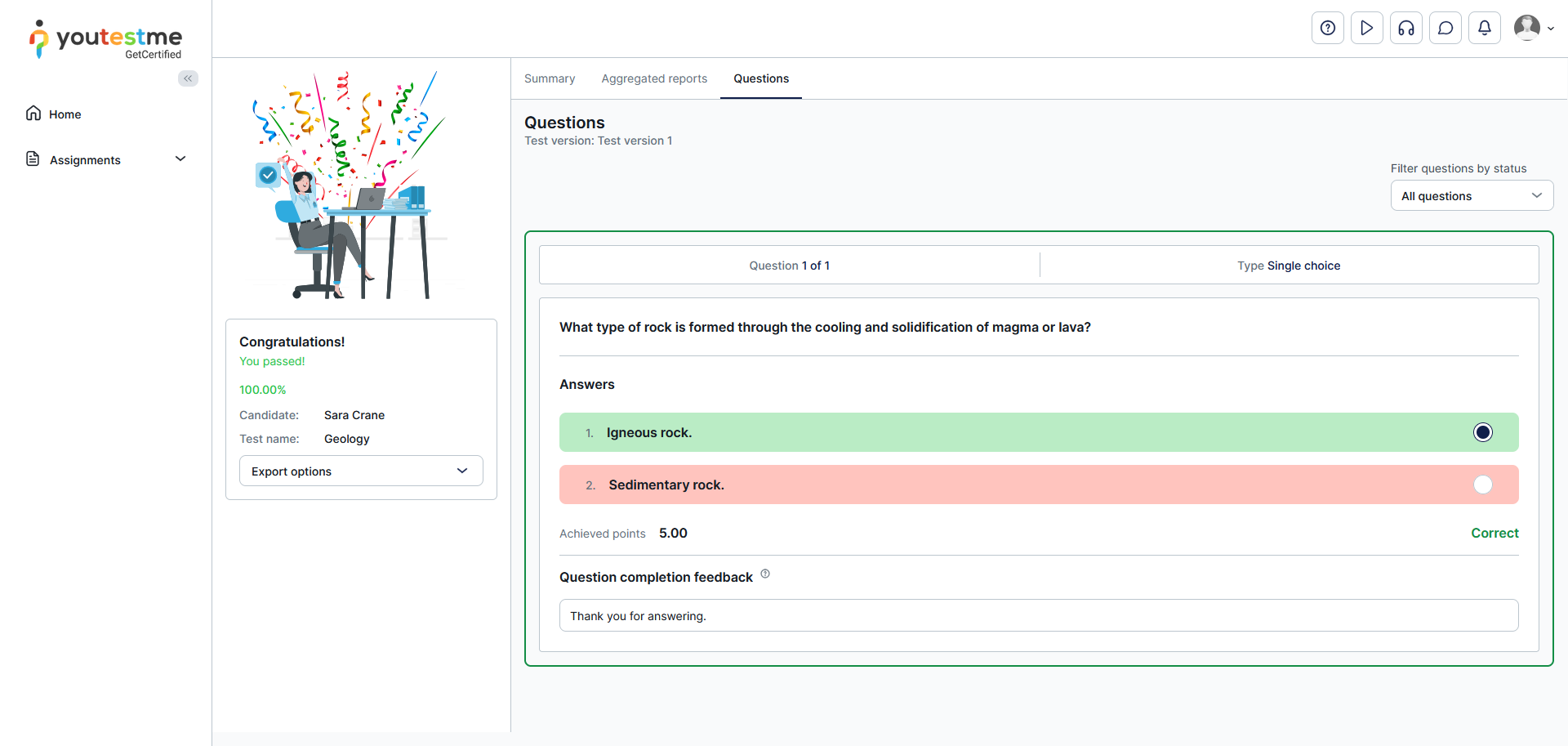
Note: Automatic question feedback is independent of the question feedback that the instructor can enter for each candidate individually.
For more useful instructional materials, please visit:




