
Article verified for Release 15.1 on December 9, 2025
This article explains how to enable question-level feedback during a test, allowing candidates to leave feedback on individual questions and indicate their perceived difficulty. This feature provides valuable insights that help test managers evaluate question quality, adjust difficulty levels, and enhance the overall test design.
Enabling Question Feedback
To allow candidates to add feedback on questions
- Go to the Tests tab.
- Select the Manage tests tab.
- Select the desired test.
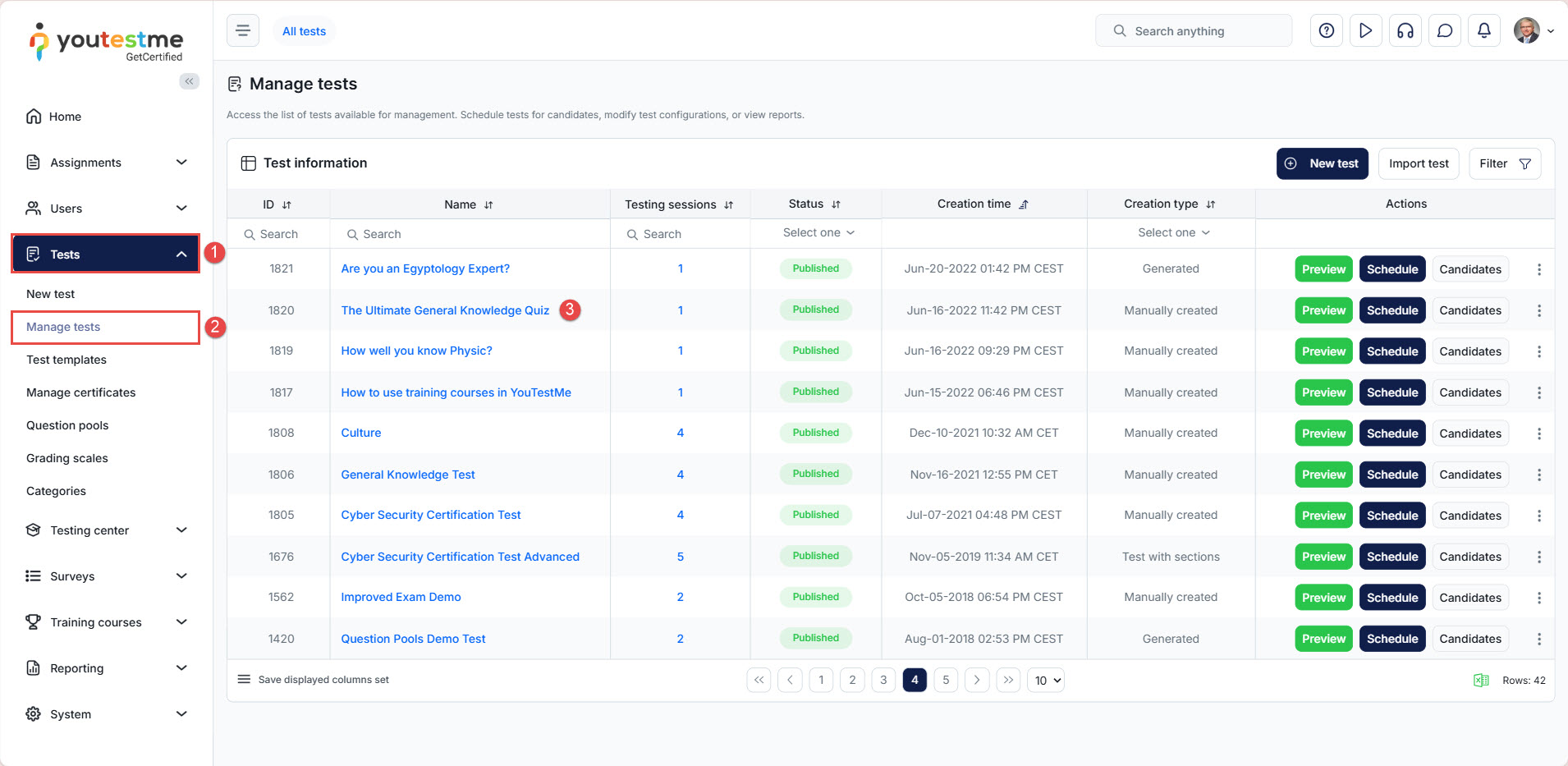
- Go to the Settings tab.
- Select the In-test configuration tab.
- Enable the option Enable candidates’ feedback on all test questions.
- Click on the Save button to save the changes.
Candidate’s Perspective
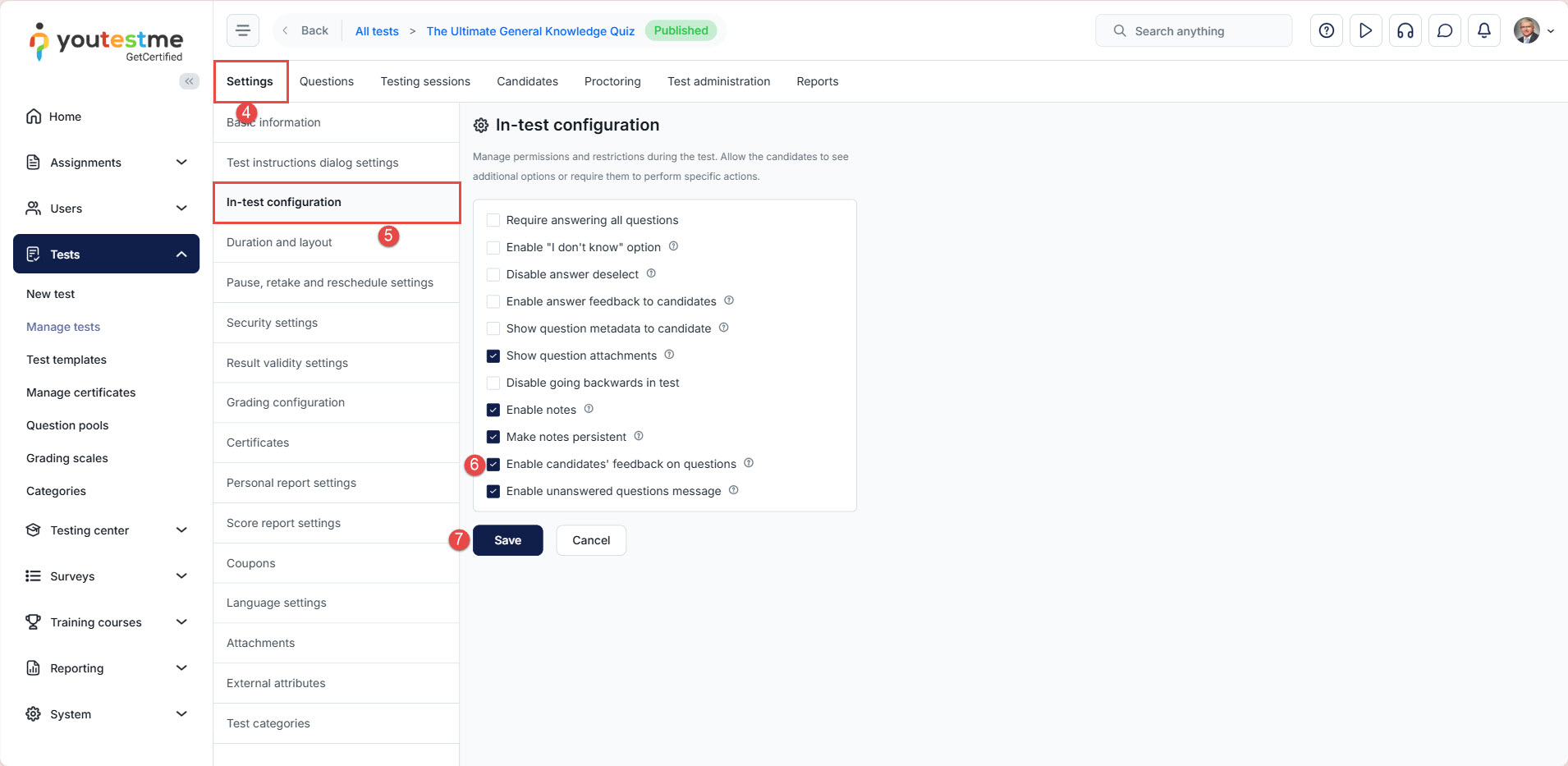
Accessing the test
To write down the feedback for the questions and determine the question difficulty:
- Click the Assignments tab in the main menu.
- Select the My tests option.
- Search for the desired test.
- Click on the Start button.
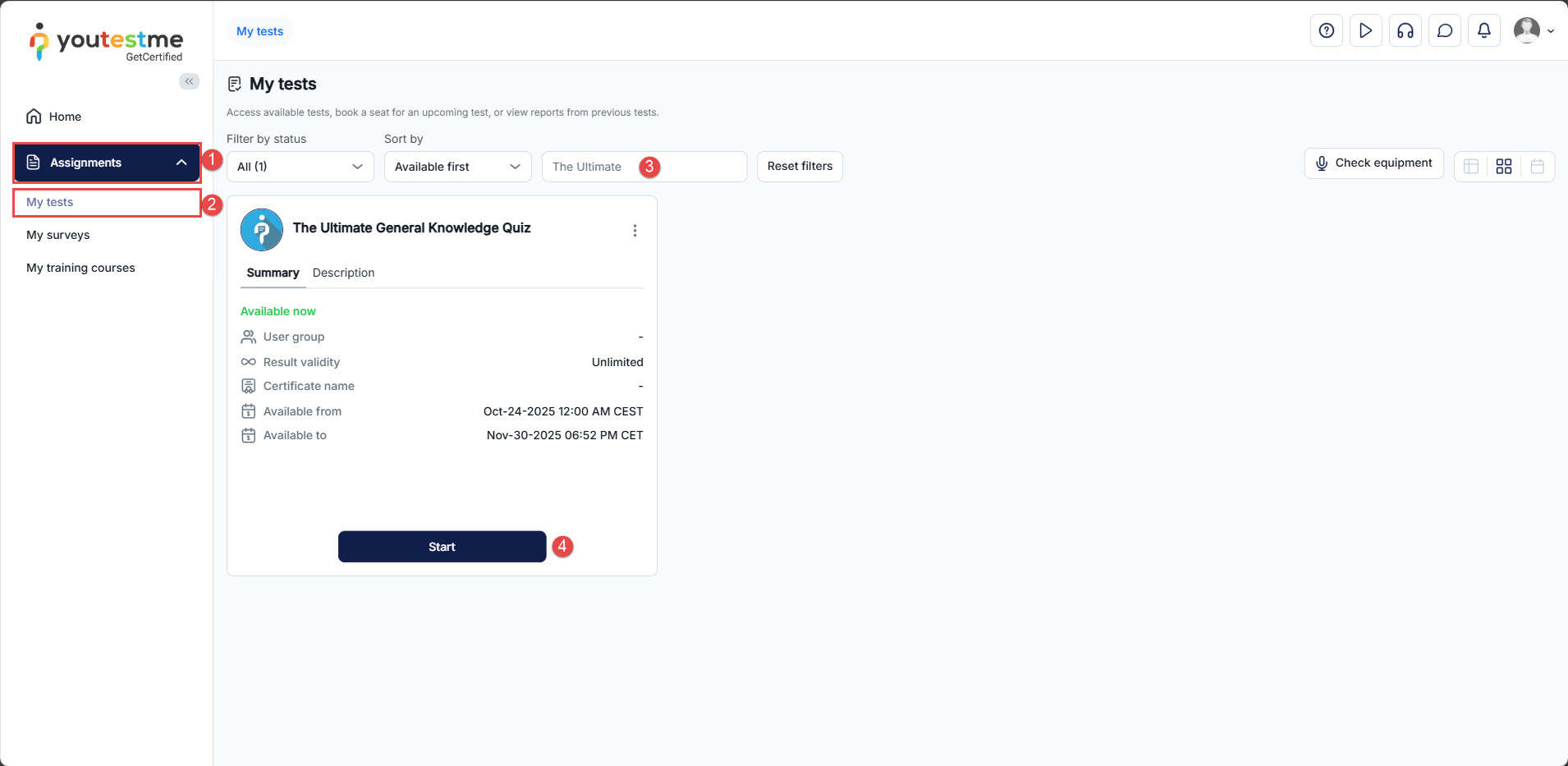
Adding Question Feedback and Determining the Question’s Difficulty
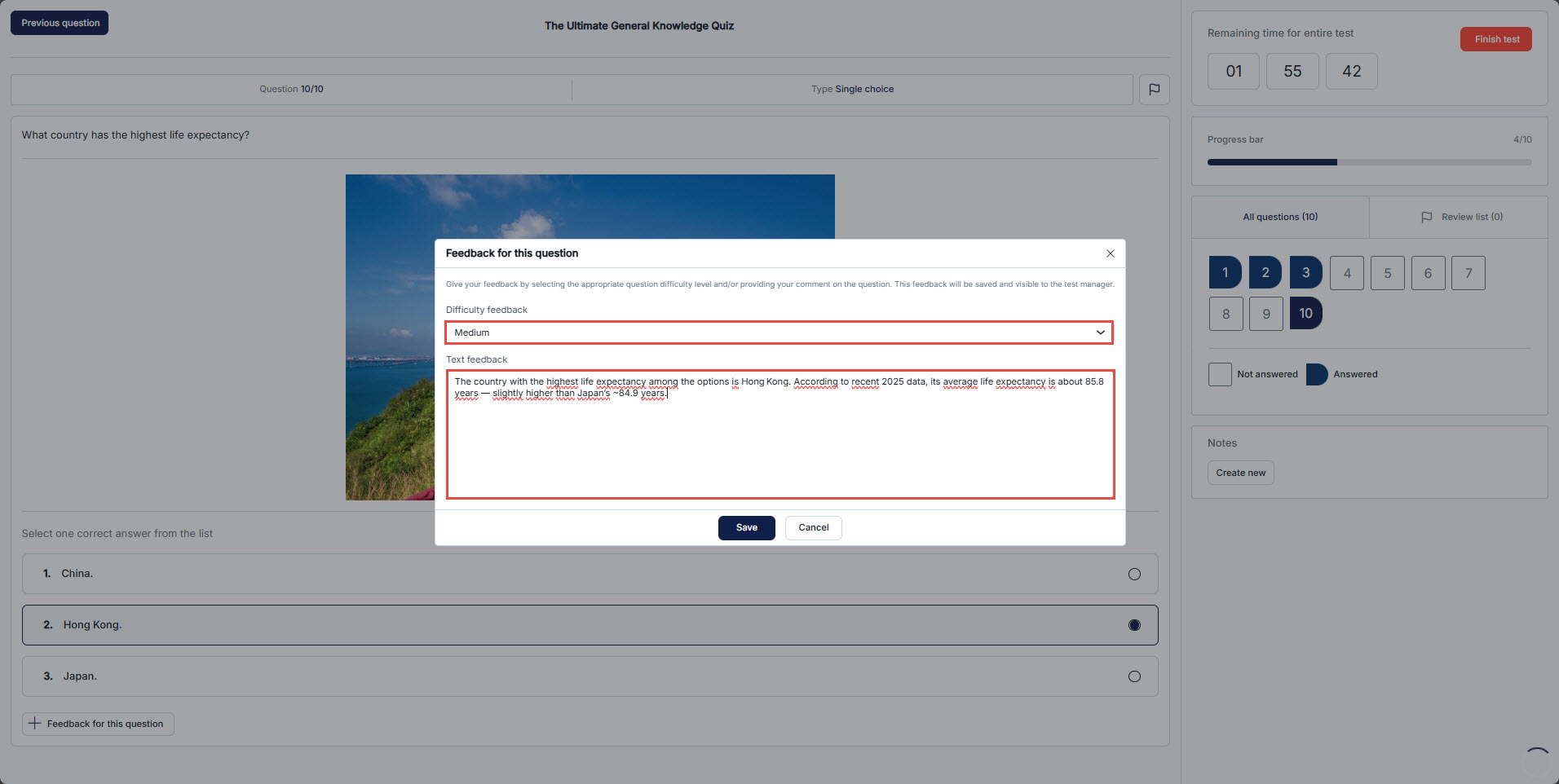
Below each question in the test is a button Add feedback to this question.
Clicking this button opens a dialog where the candidate can:
-
Enter feedback about the question.
-
Indicate the question’s difficulty (Easy, Medium, or Hard).
To see the inserted feedback, navigate to the Questions tab, scroll to the question that has feedback, and click on the Add feedback to this question button.
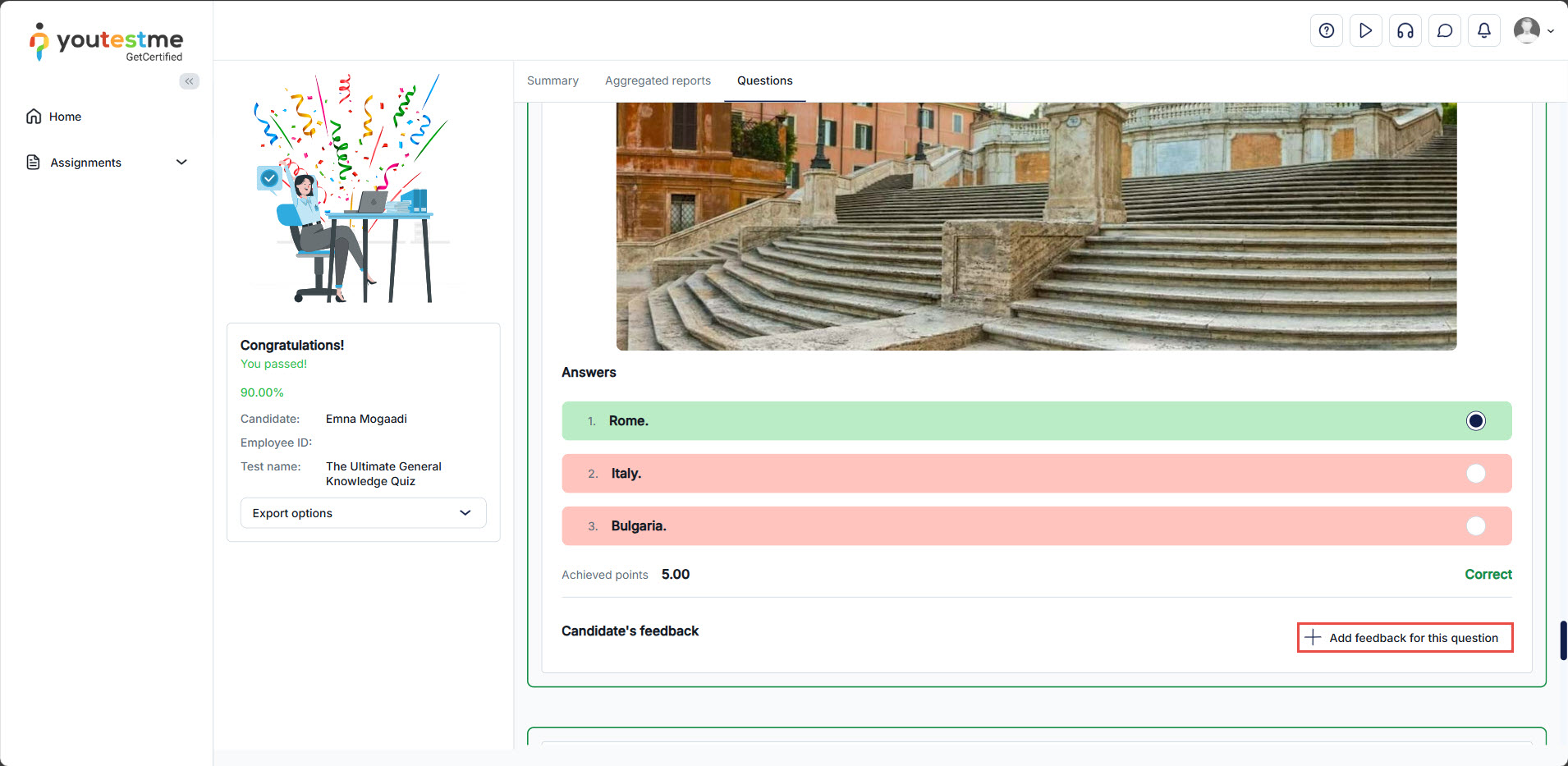
In the personal report, the user’s feedback and the question’s difficulty are displayed in the picture below:
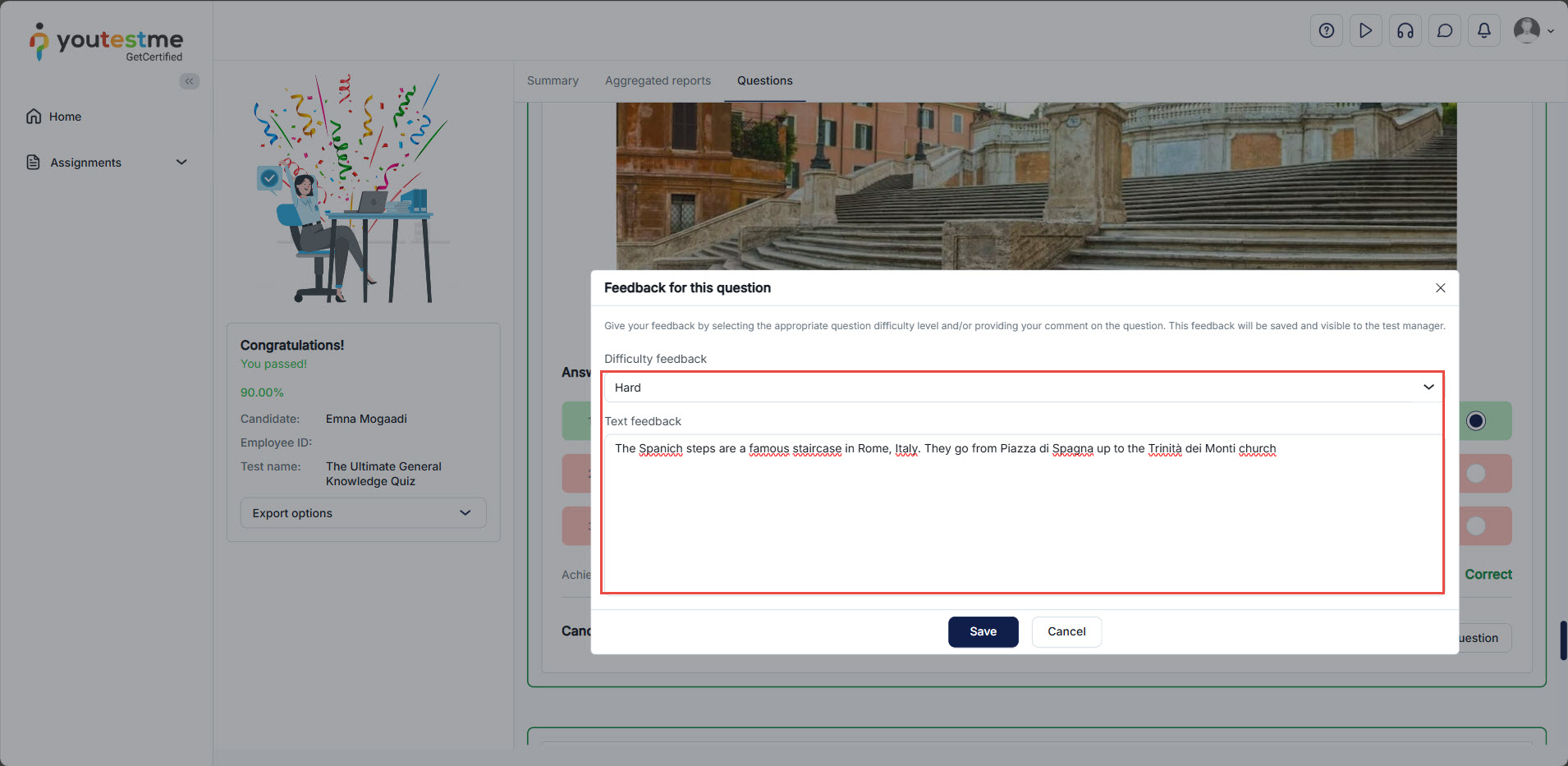
Note: The candidate can edit the feedback in the personal report.
Test manager’s Perspective
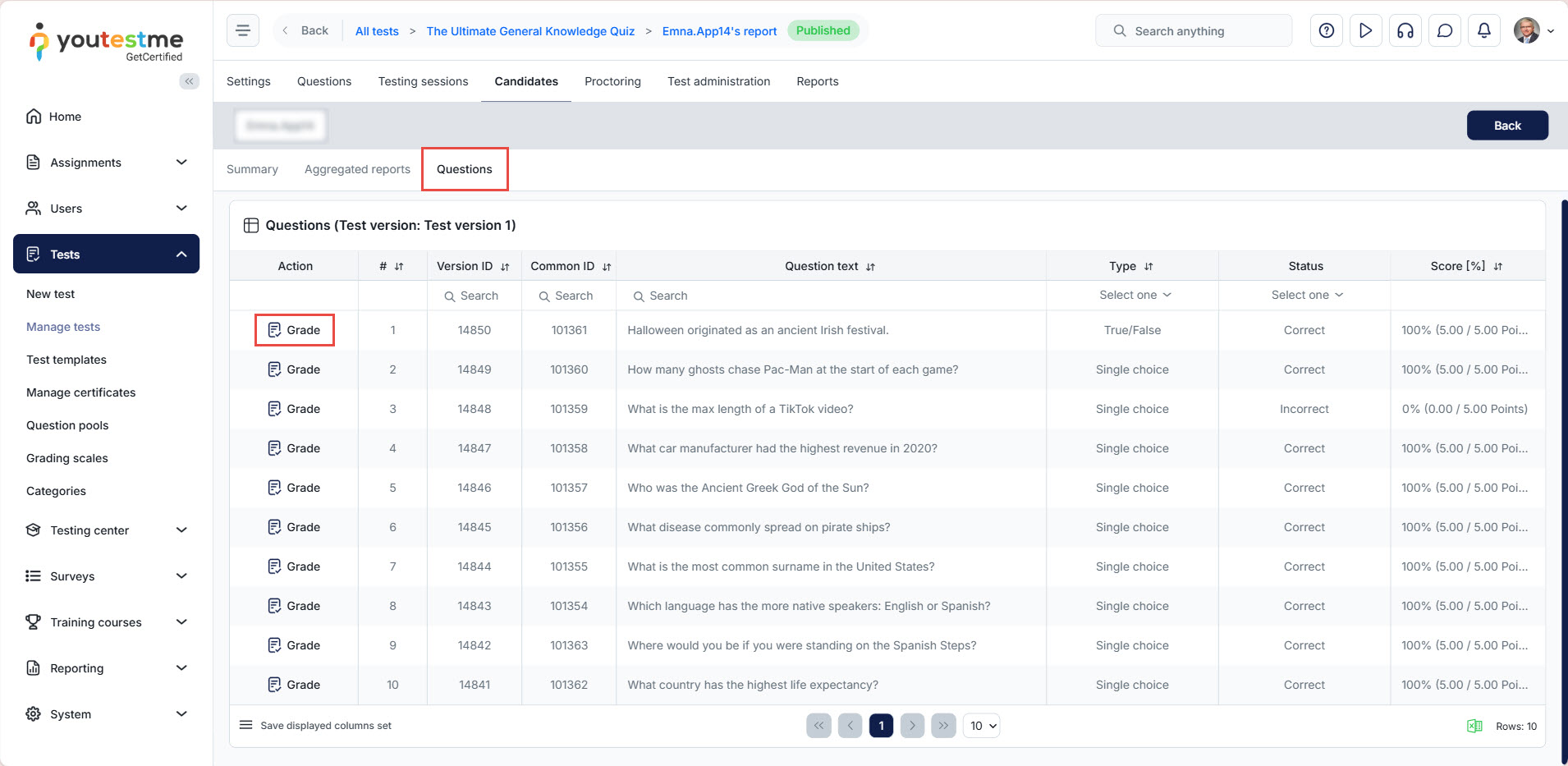
To view the candidate’s feedback, select the Candidates tab, then select the candidate’s report.
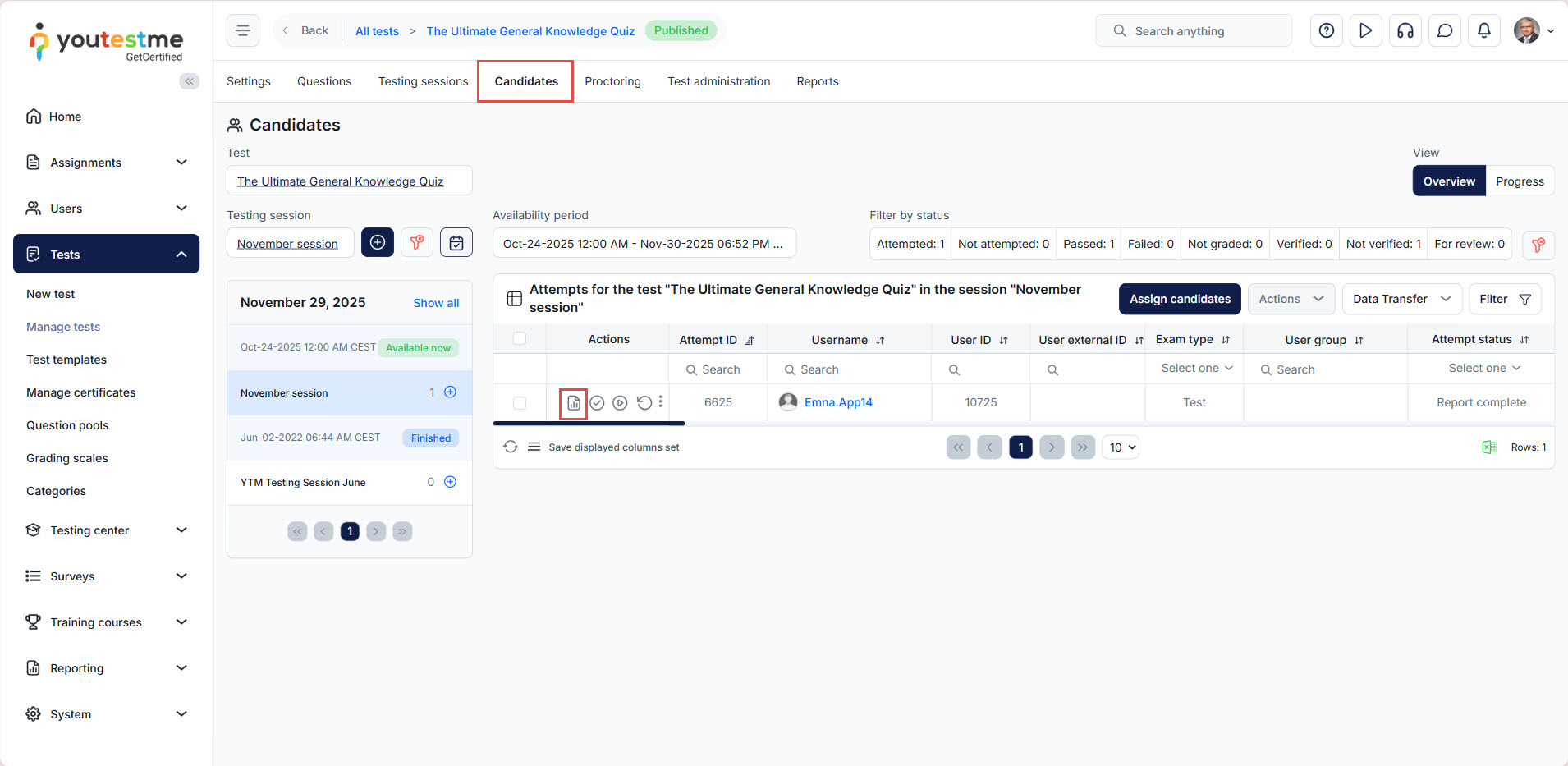
Select the Questions tab and then the Grade option.
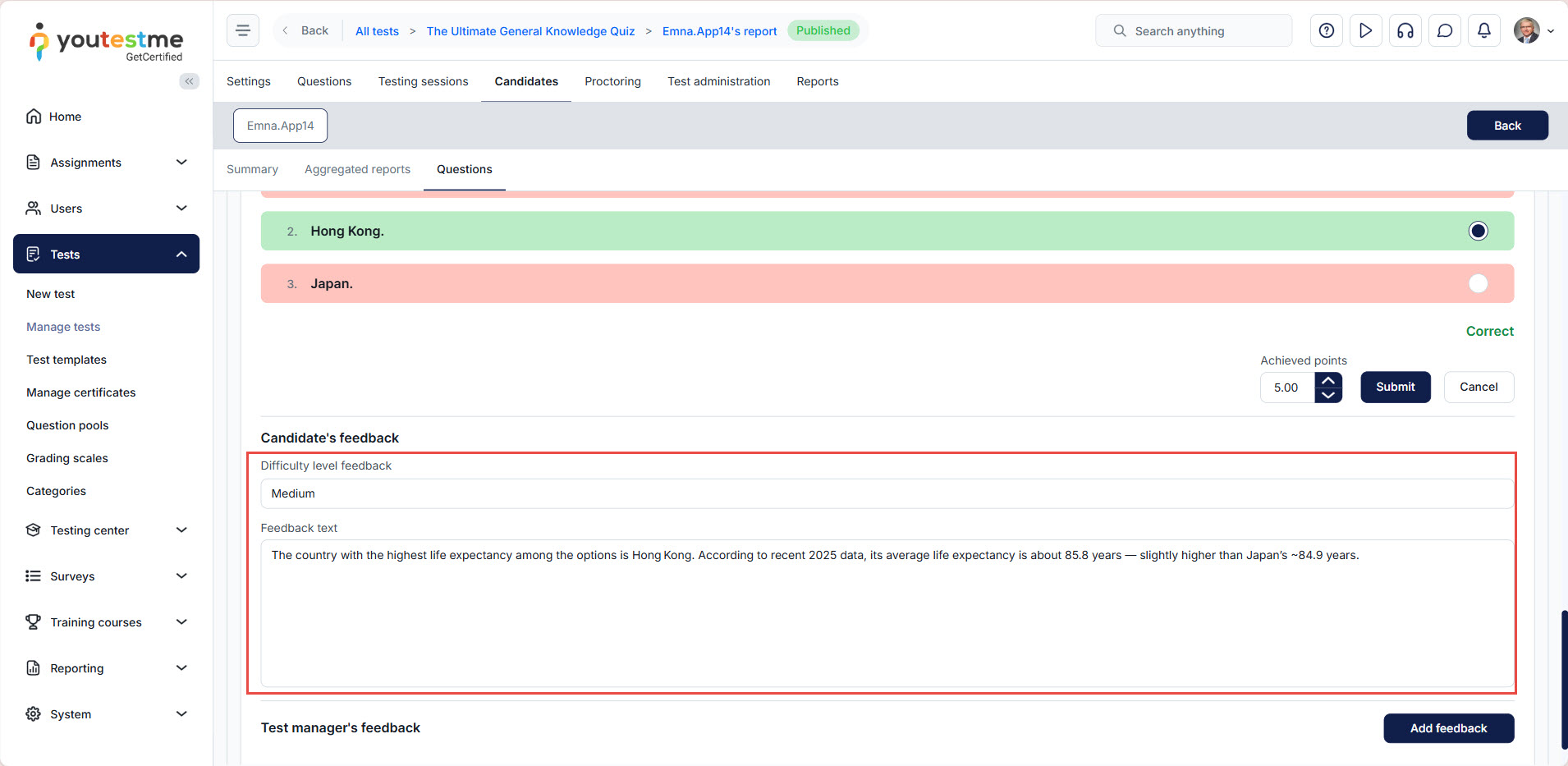
In the Candidate’s feedback section, you will see the difficulty level the candidate selected for that question, along with the feedback they entered.
For more information on accessing question feedback statistics reports, please visit this article.
You might also be interested in watching our video on How to Provide Feedback to Answers.




