Article verified for Release 15.2 on January 20 , 2026.
This article will explain how to enable or disable the export feature of the personal report in PDF and Excel file formats. This customization empowers users to tailor their preferences according to their specific requirements.
Accessing the page
To enable/disable the export options:
- Select the Tests/Manage tests tab.
- Select the desired test.
- Select the Personal report settings tab.
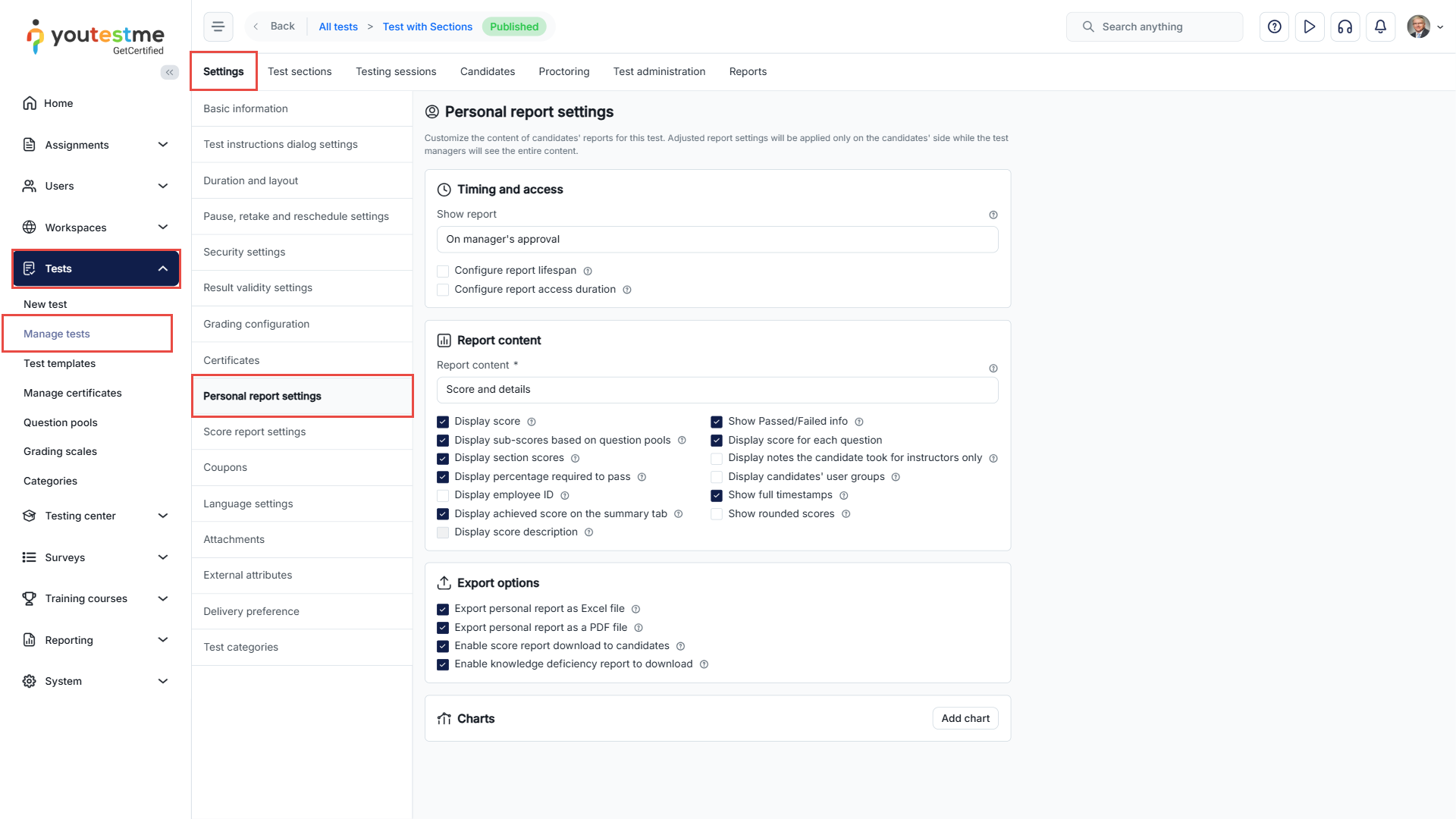
Note: To access these options, it is necessary to enable the Display score for each question option under the Report Content section. This feature also displays the score for each question.
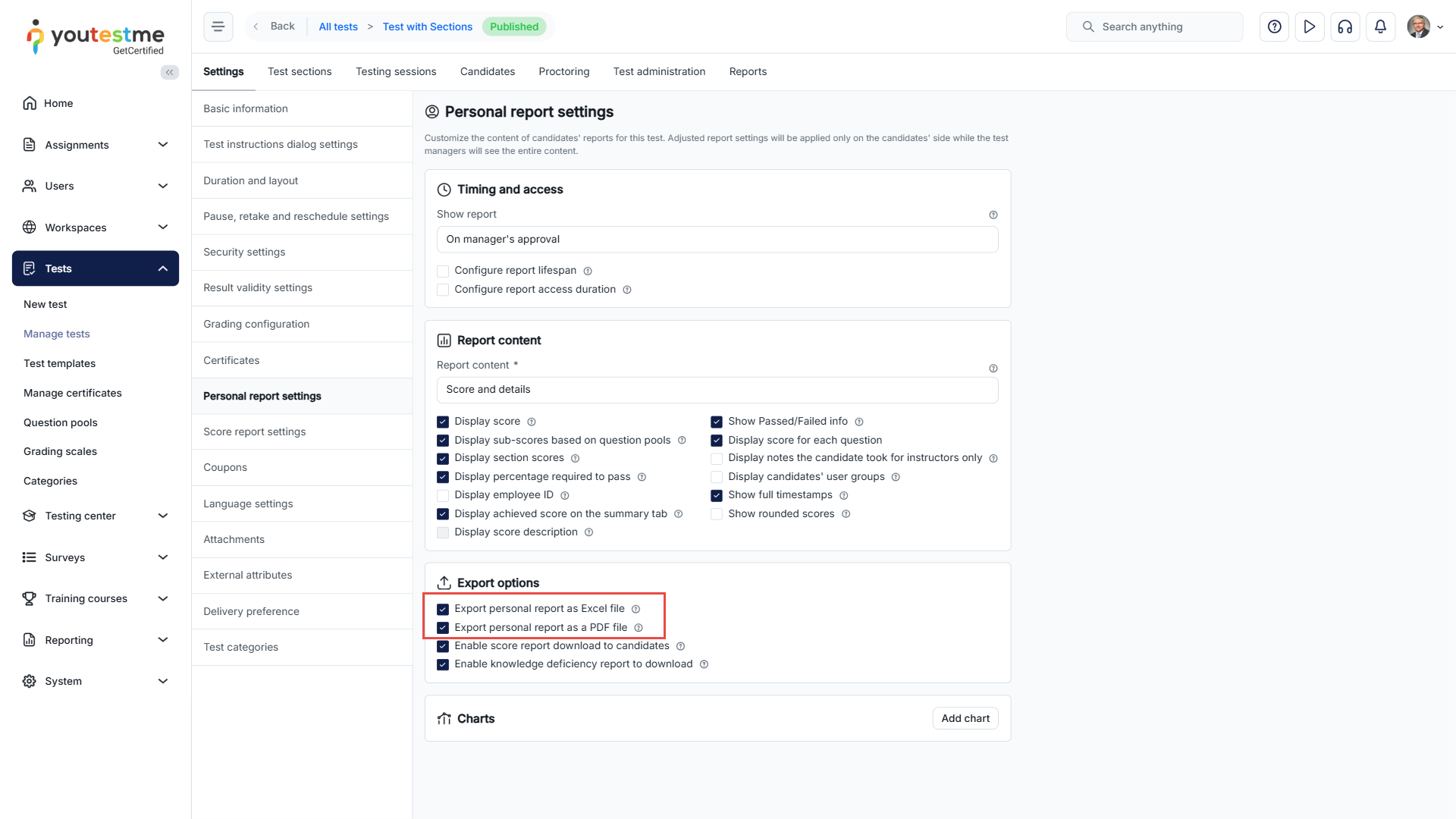
Enable/disable the export of the personal report as PDF or Excel
You can choose whether to enable the PDF export only, the Excel export, or both.
Student’s perspective
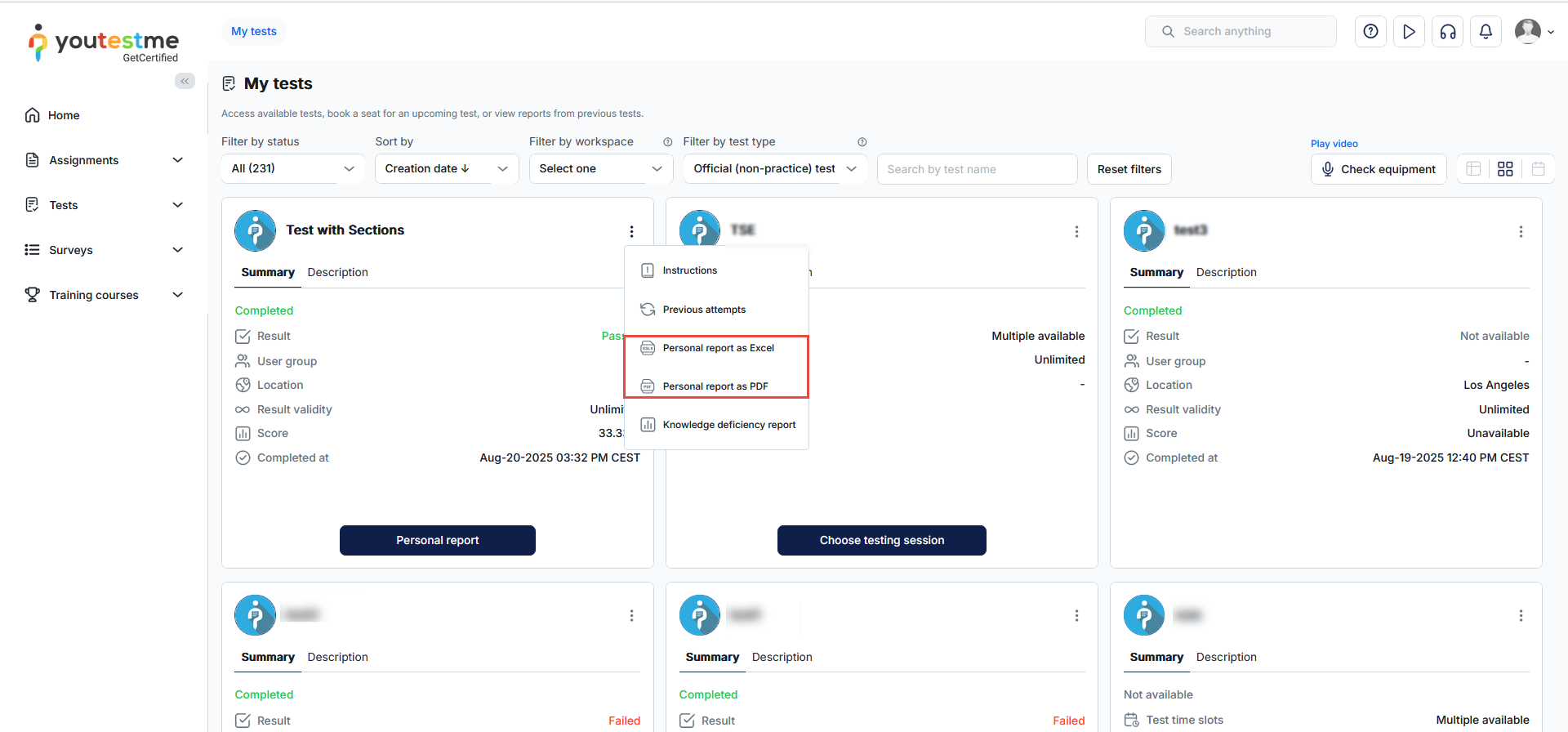
When both options are enabled.
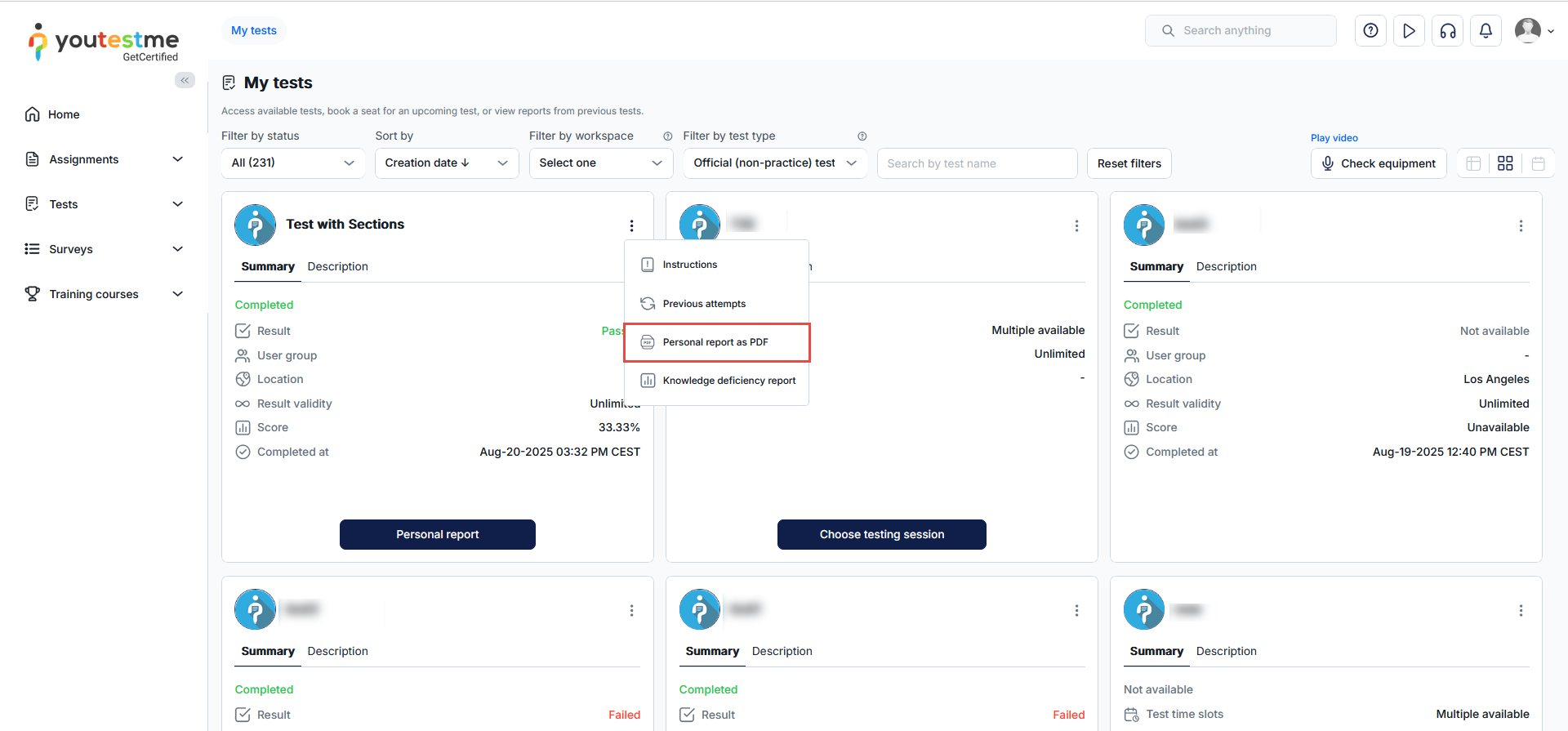
When one of the following options is enabled.
The candidate can also export their report directly from the Personal Report page, as shown in the screenshot below. To see how to access the Personal Report page, please refer to this article.

Enabling the Export Permission
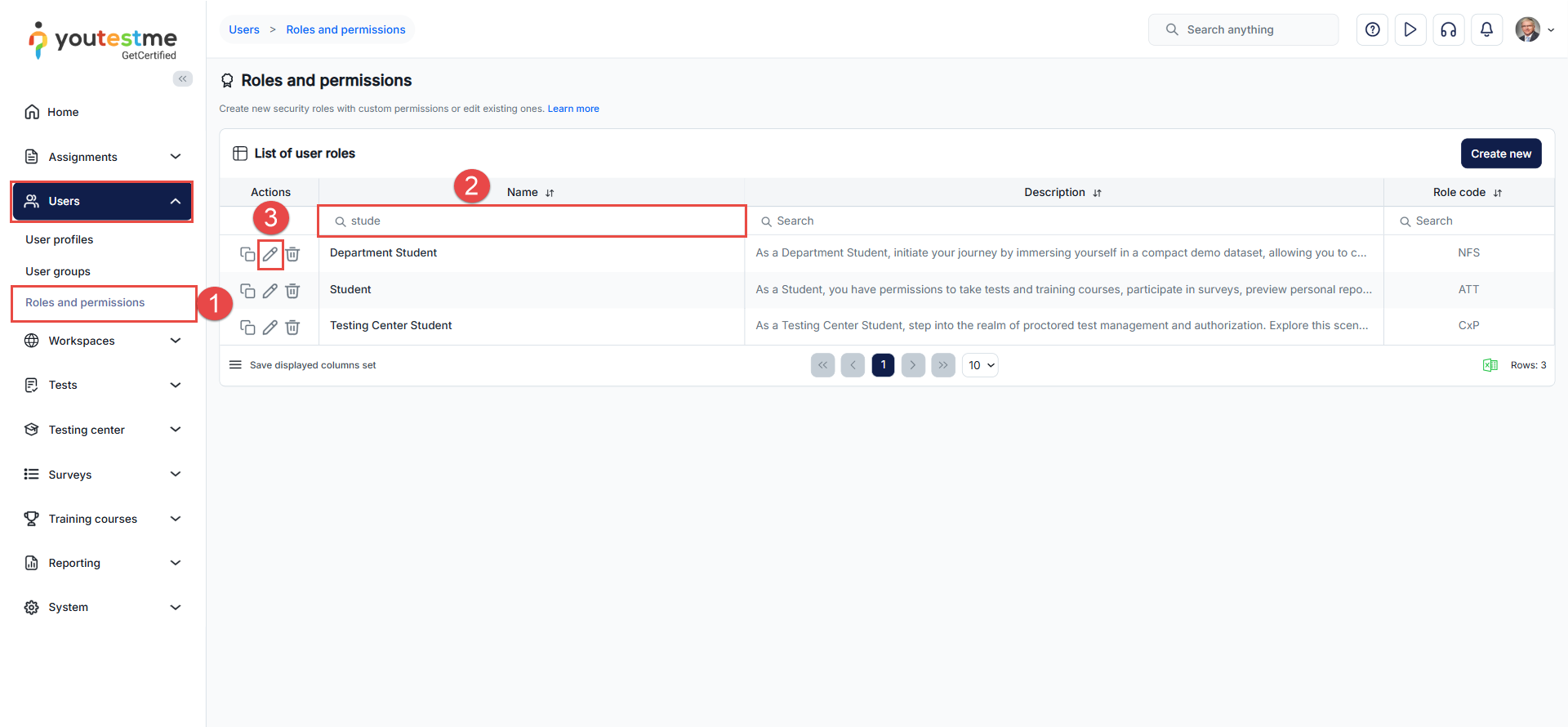
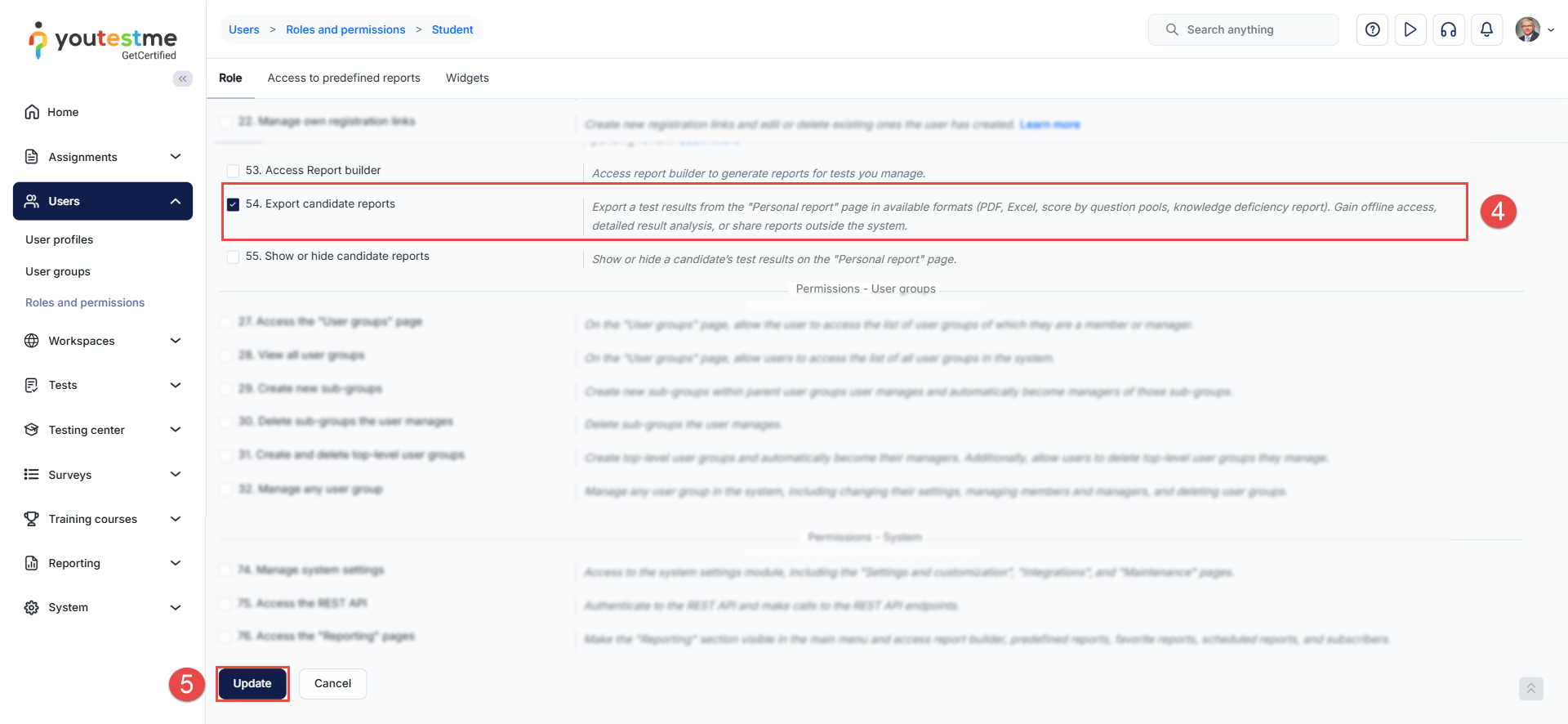
The export options (PDF and Excel) are only available if the Export candidate reports permission is enabled for the user’s role. To enable this permission:
-
Go to the Roles and Permissions module.
-
Search for the role you want to modify.
-
Click Edit next to the role name.
-
In the list of permissions, locate Export candidate reports and enable it.
-
Click Save to apply the changes.
Once this permission is enabled, users with that role will be able to see and use the export options for the personal report.