
Article verified for Release 15.2 on December 13, 2025
YouTestMe allows administrators to customize the welcome (landing) page displayed for each user role upon login.
This article explains how to set a default welcome page so that users are directed to a specific module immediately after logging in.
For more details, please watch our video covering this topic
Accessing the page
To access the page and configure the default welcome page, follow these steps:
- Select the Users tab.
- Select the Roles and permissions tab.
- Select the Edit button for the role you want to set the custom default page.

Setting the default welcome page
From the Default welcome page drop-down list, select the page you want to display when users with this role log in.
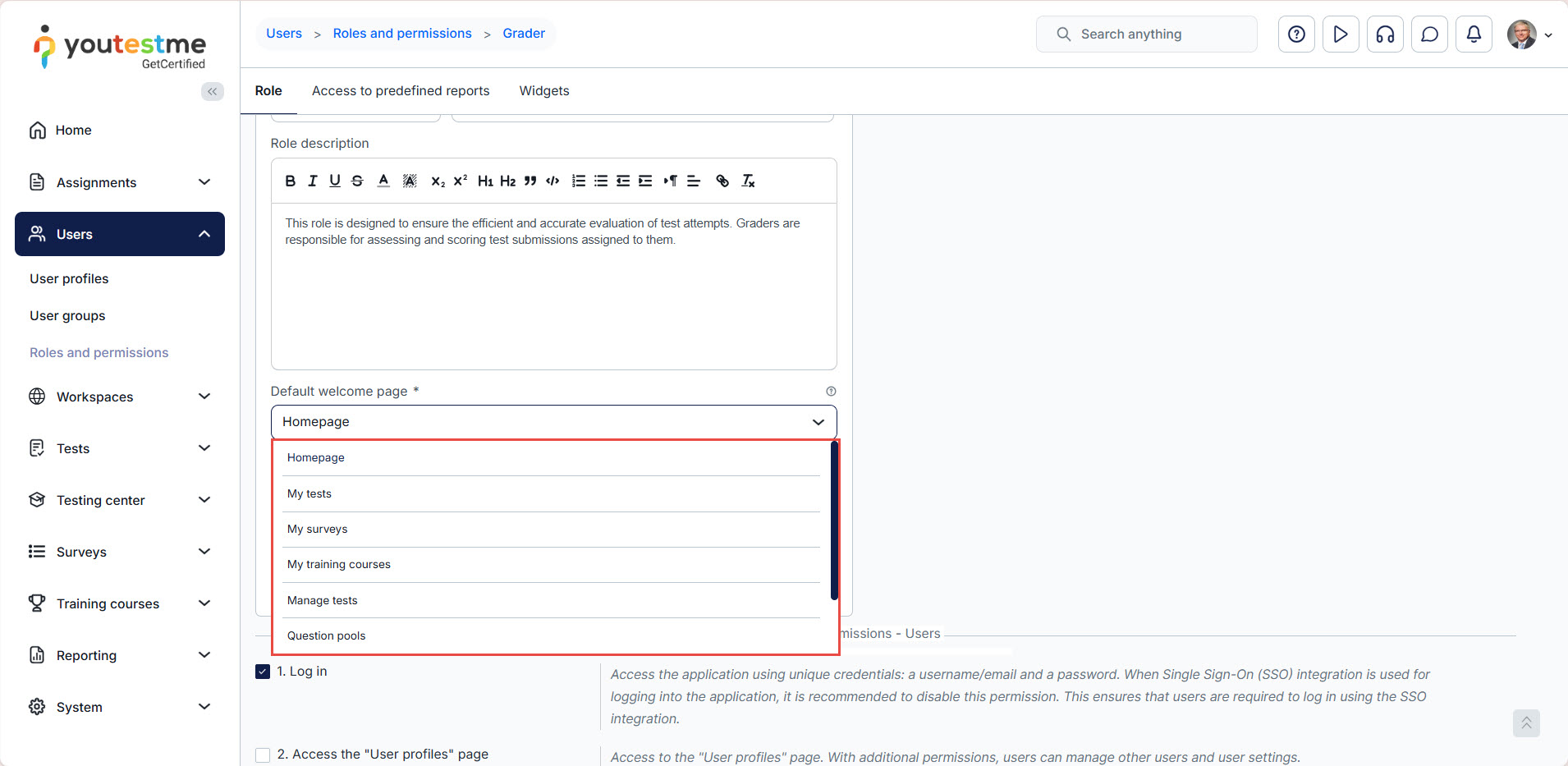
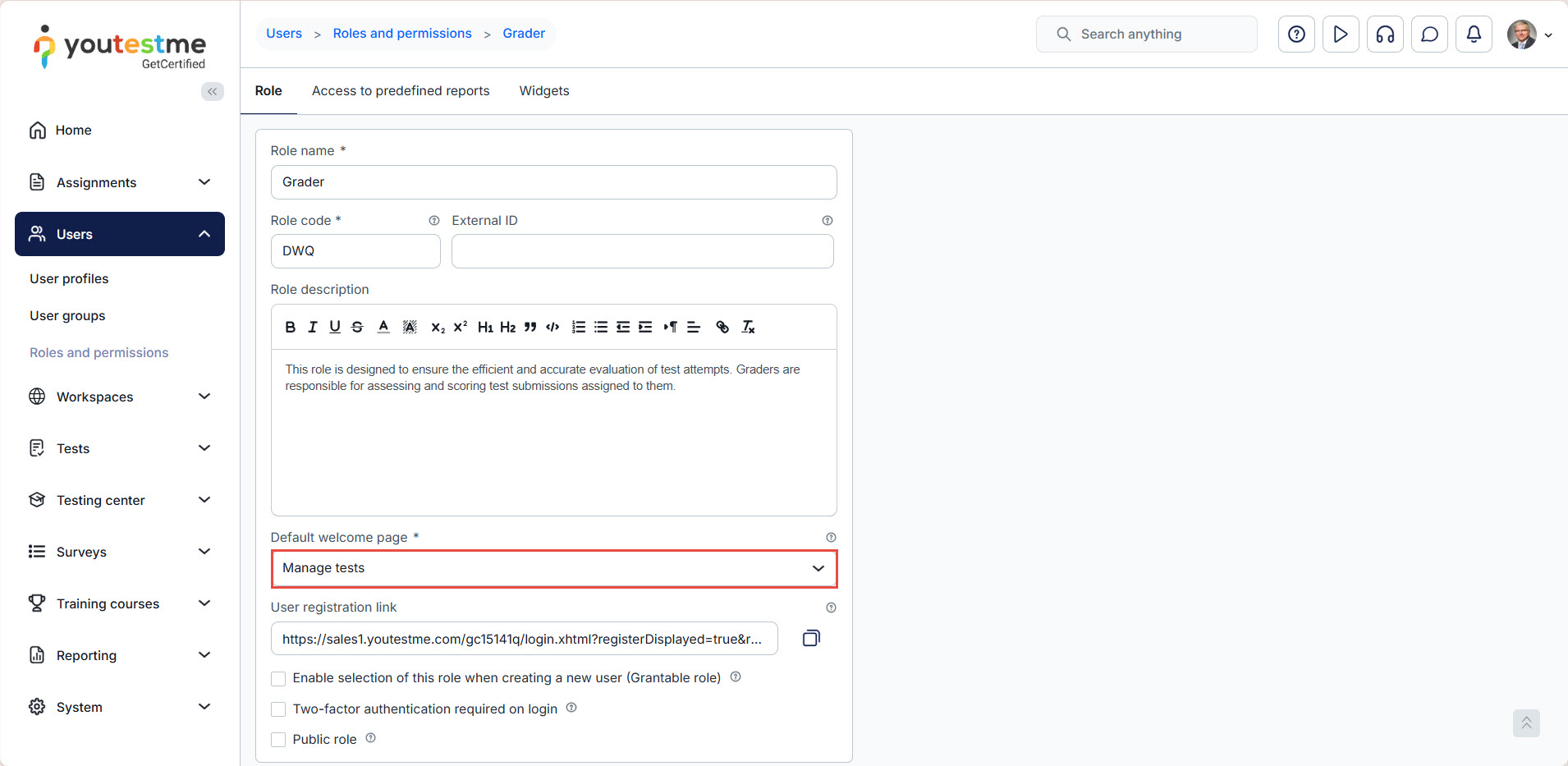
For example, you can choose the Manage Tests page to be displayed as the new default welcome page.
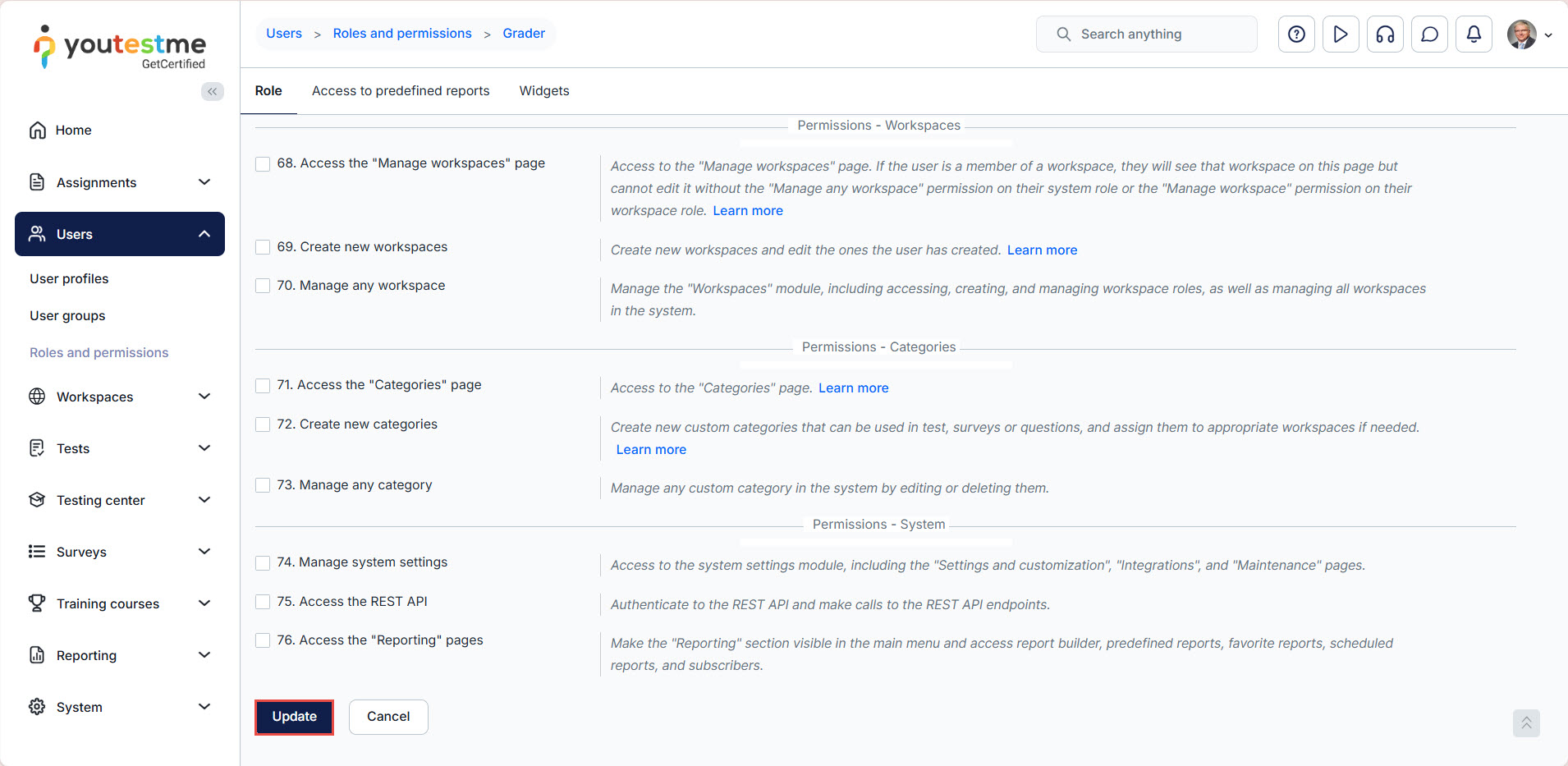
After selecting the page, click on the Update button to save the changes.
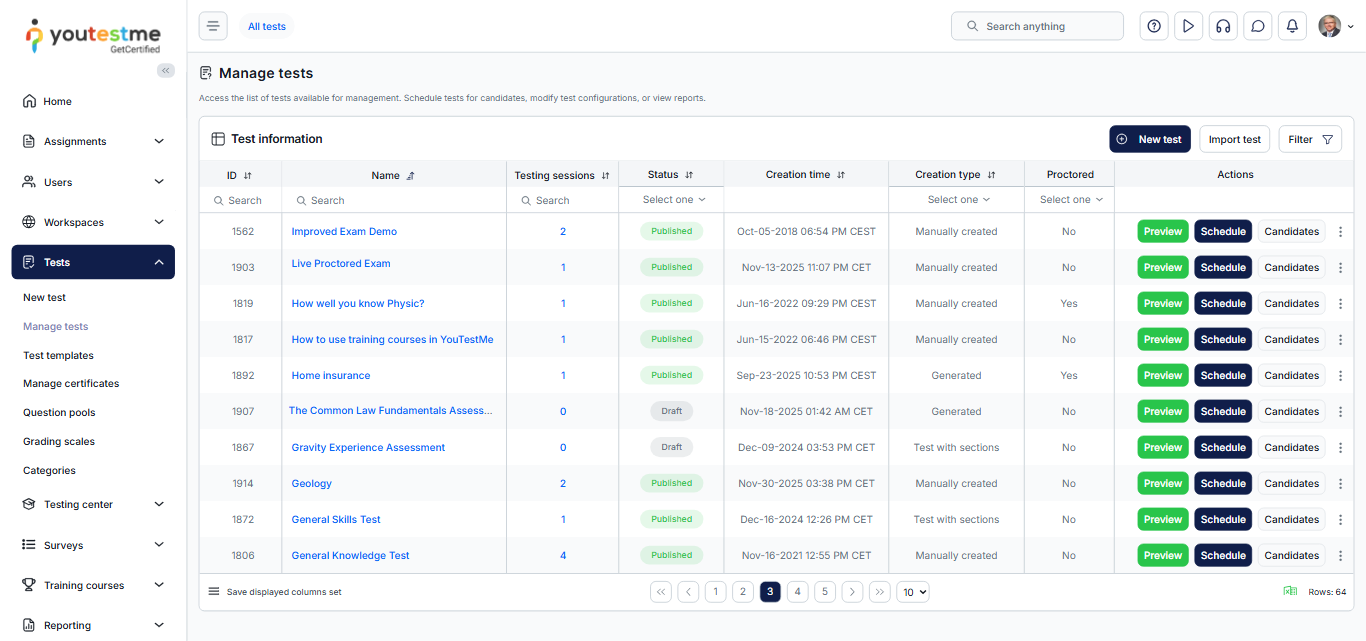
Log out and log back into the application to view the changes. Once configured, users assigned to that role will be automatically directed to the selected default welcome page upon logging in.
For more related articles, please refer to:




