
Article verified for Release 15.1 on November 8, 2025.
This article explains how to create custom reports using Report Builder.
It allows the creation of flexible and unique reports using advanced search filters to obtain detailed insight into test/survey statistics, and compares items by creating customized reports.
Creating a Custom Report for a Specific Test
To create a custom report for a specific test, you first need to access the Report Builder. Follow these steps to open it for the test you want:
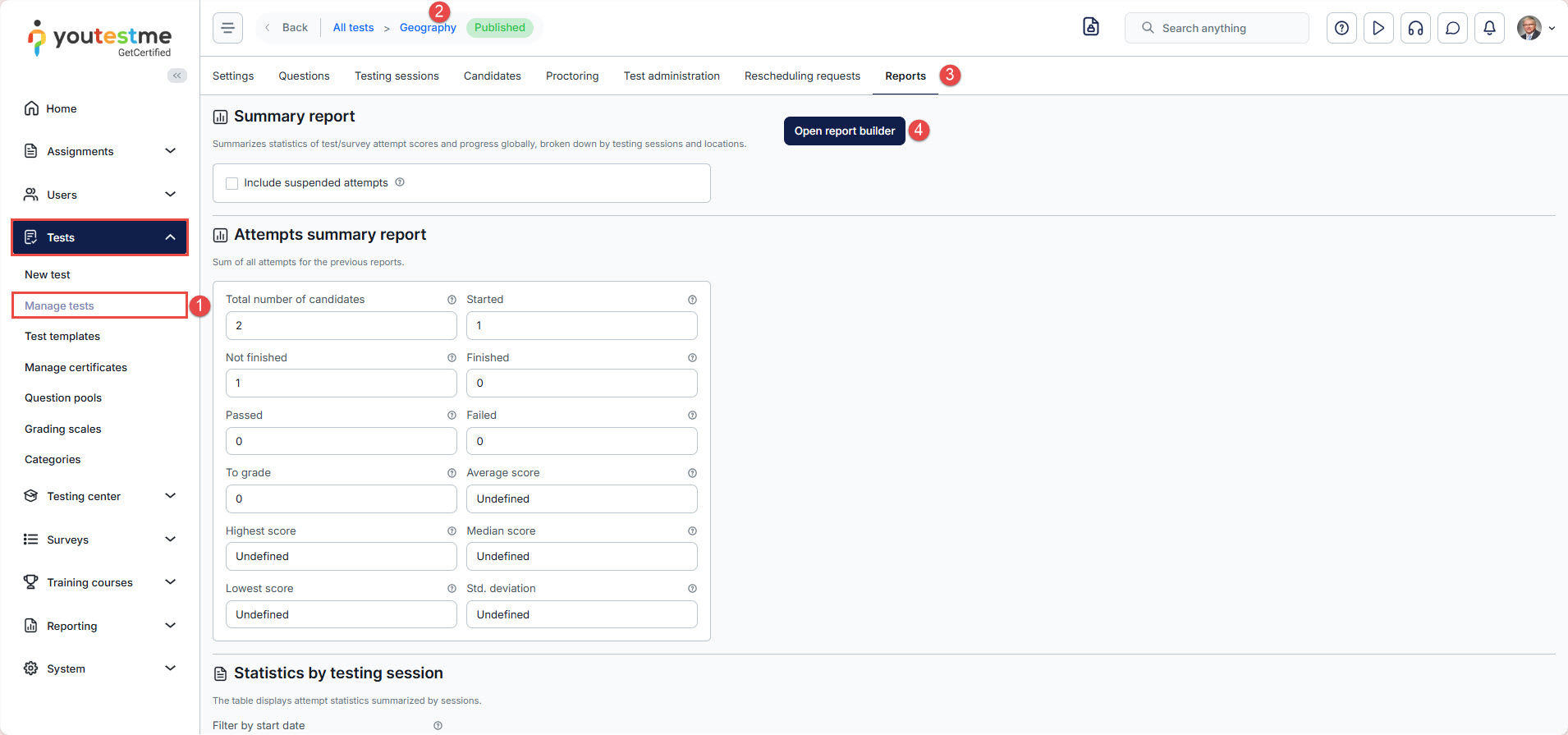
- From the main menu, navigate to Tests and select Manage Tests.
- Click the name of the test for which you want to create a report. You can also use the search box to find the test quickly.
- Once the test opens, go to the Reports tab.
- Click the Open Report Builder button to start creating your custom report.
- Create a new custom report by selecting options from the list and clicking the Display Report button. You can also save a report configuration as a template and reload it later from your saved templates.
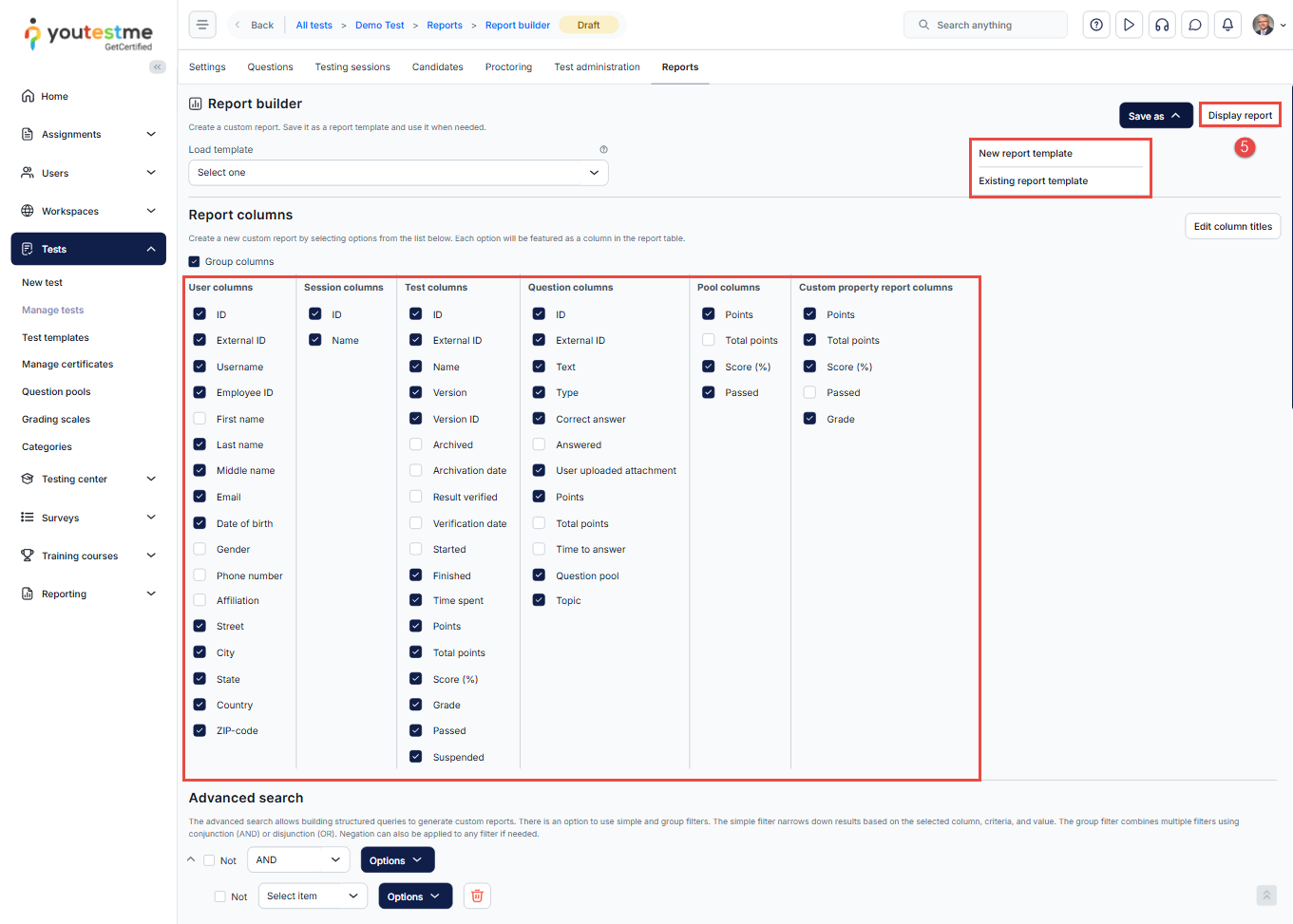
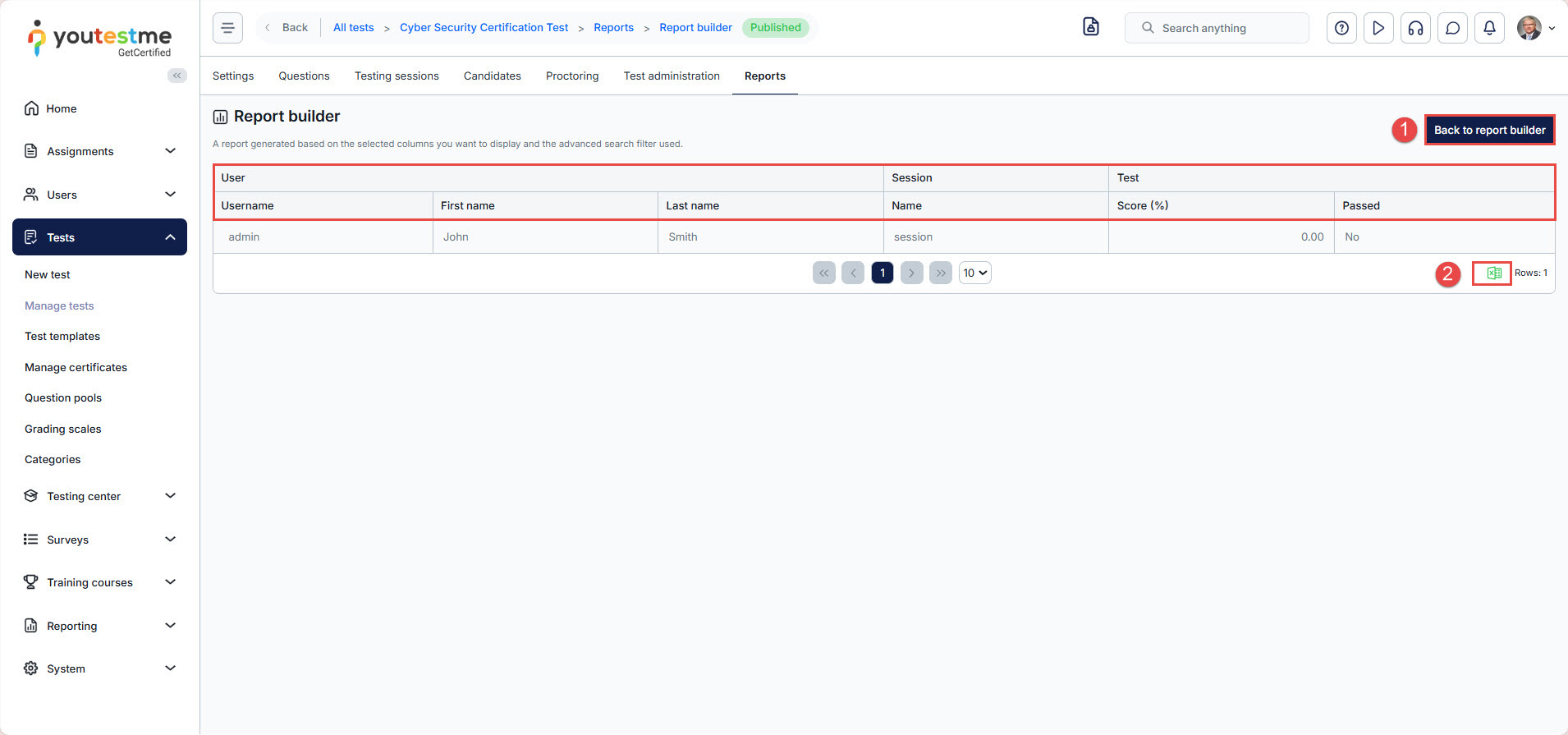
Each selected option will be featured as a column in the report table when you display the report.
-
- You can always go back to the Report Builder and change the option filters you want to display.
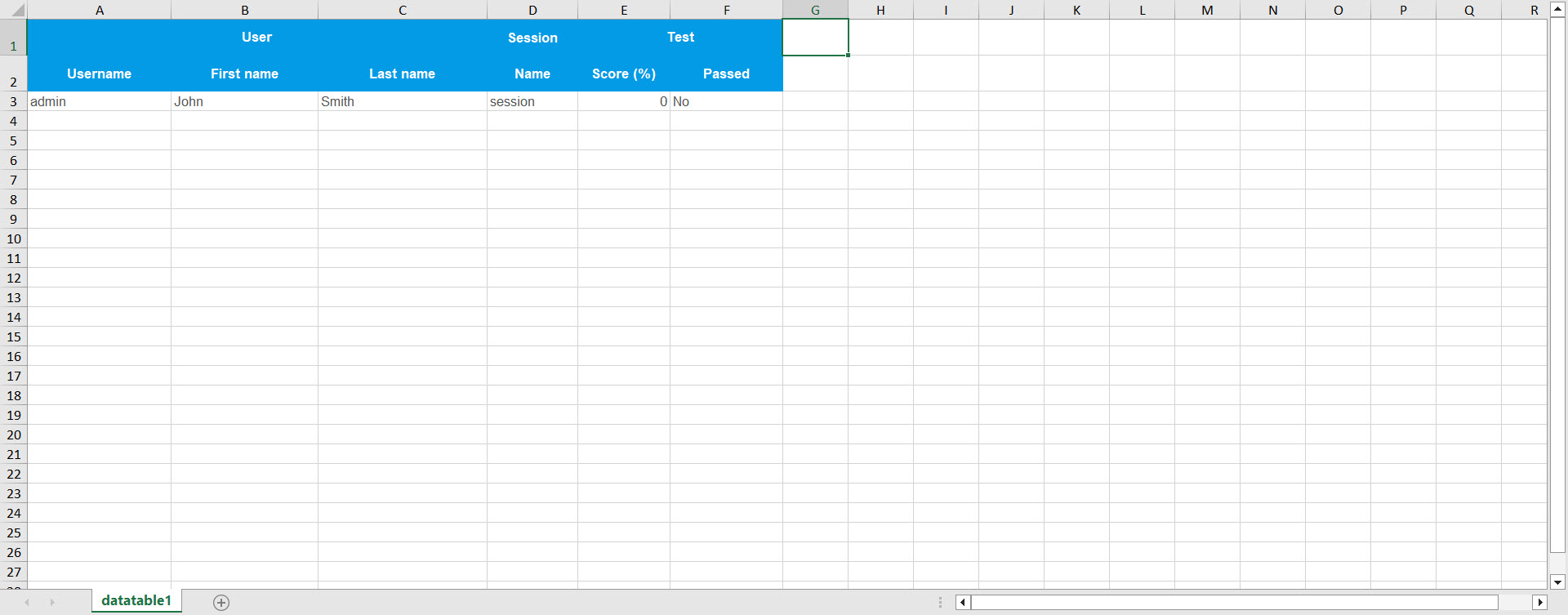
- There is an option to export the report as an Excel file by clicking on the Export as Excel icon.
-
- Exporting a report to Excel lets you save it to your computer and provides a clearer overview of the data.
Accessing Report Builder directly from the main menu
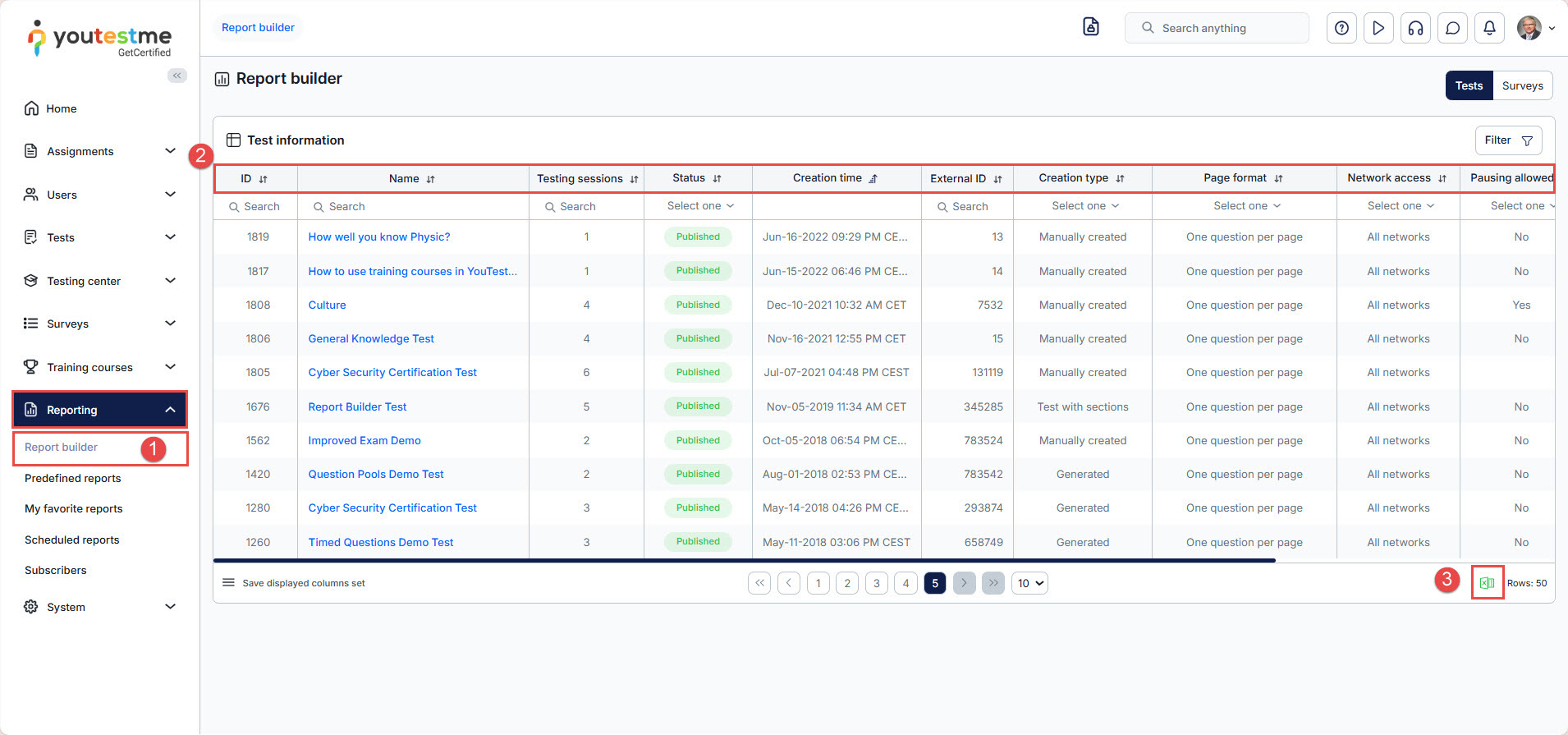
- To access Report Builder from the main application menu:
- Go to the Reporting tab in the left-side menu and select Report Builder.
- Click the test name in the Name column to open Report Builder for that specific test.
-
- To find a test more quickly, use the search function by ID or name.
- The Displayed Columns option lets you choose which details to show for all tests, such as ID, Name, or Date of Creation…
- You can export the list of all tests to an Excel file by clicking the Export as Excel icon.
For video instructions on how to use the report builder, please see this video.
For more useful material, please see:




