Article verified for Release 15.0 on September 8, 2025.
This article will guide you through performing bulk edits on questions in the question pool, providing step-by-step instructions to help you efficiently manage and update multiple questions at once.
Accessing the Question Pools Module
To access the Question Pools Module:
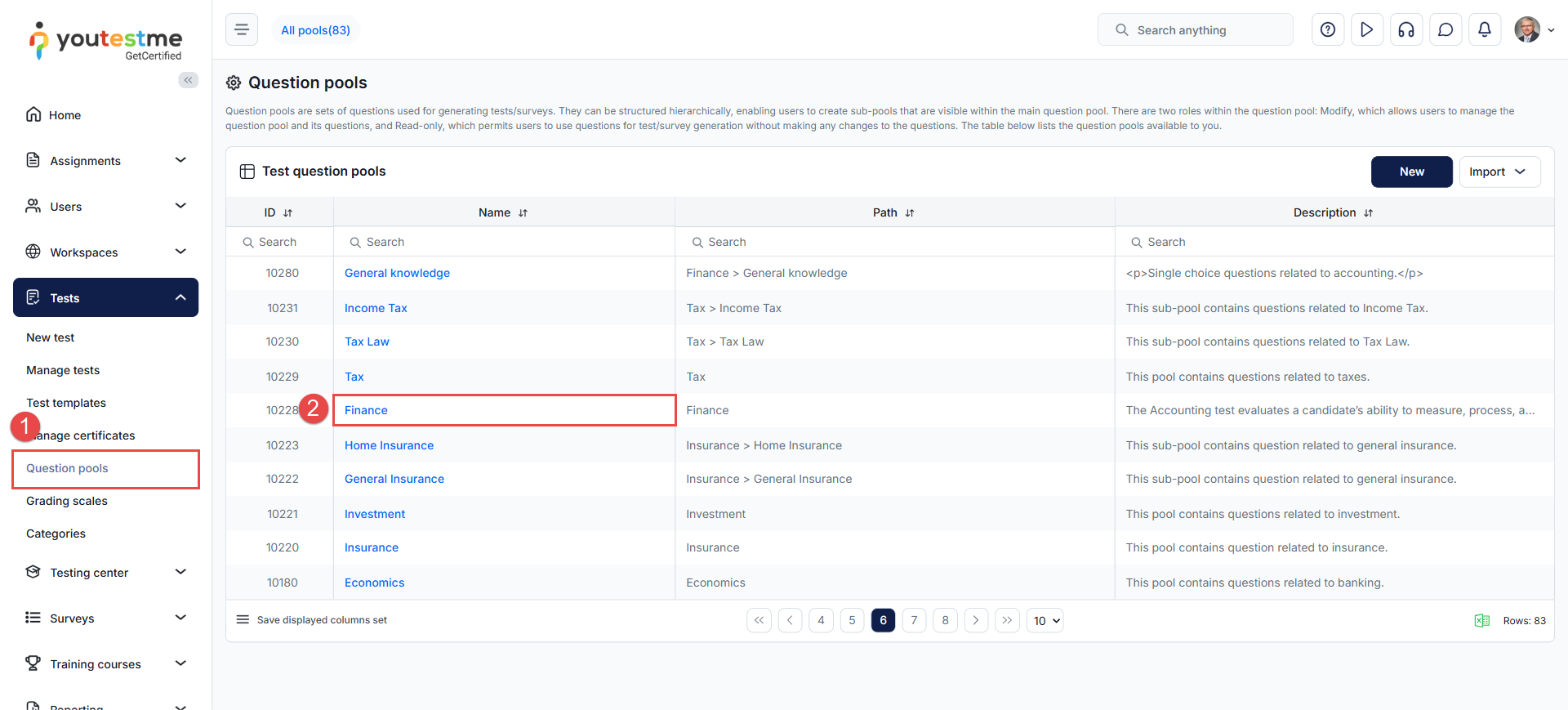
- In the main menu, select the Tests and navigate to the Question pools tab.
- Click the name of the desired question pool.
Bulk editing questions
To bulk edit questions, do the following:
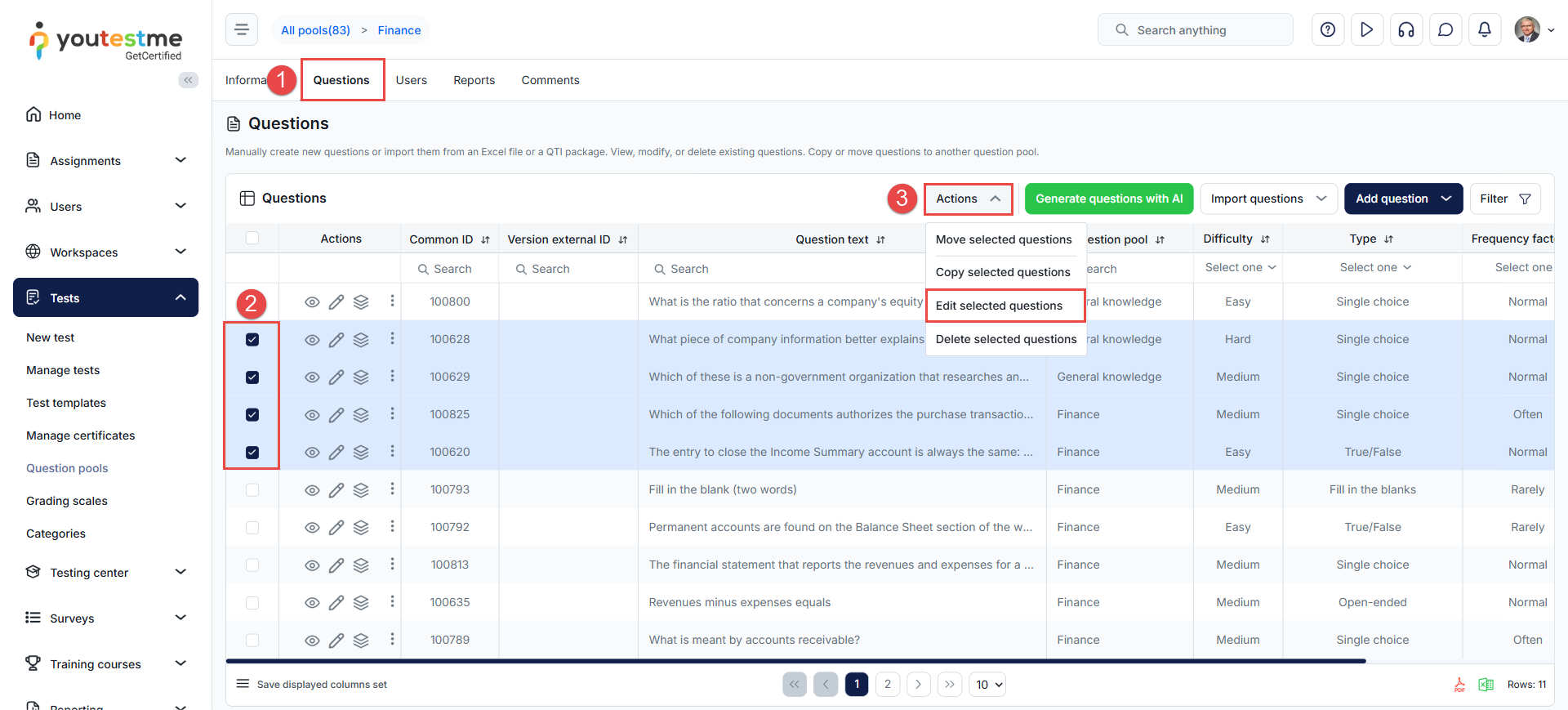
- Navigate to the Questions tab.
- Select the desired questions.
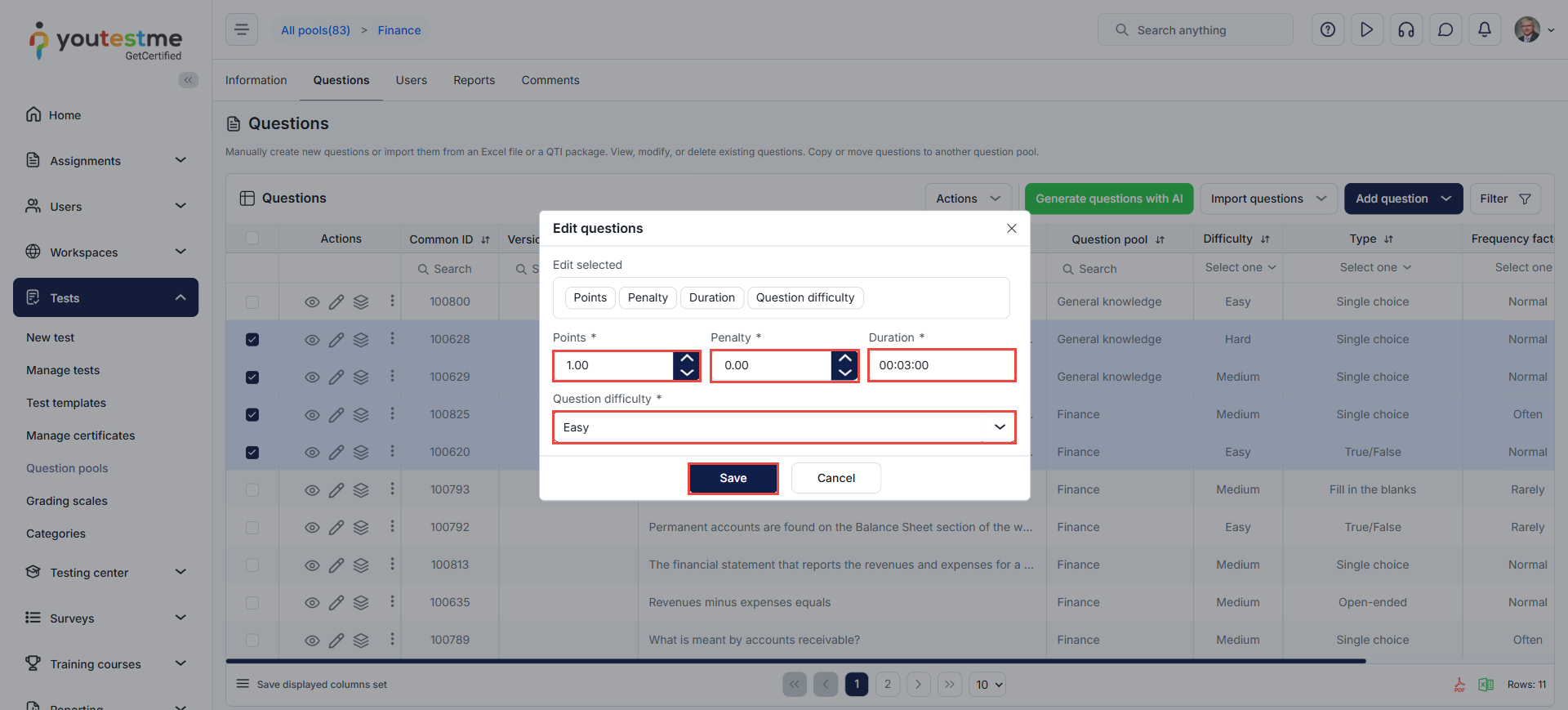
- Click the Actions button and select the Edit selected questions option.
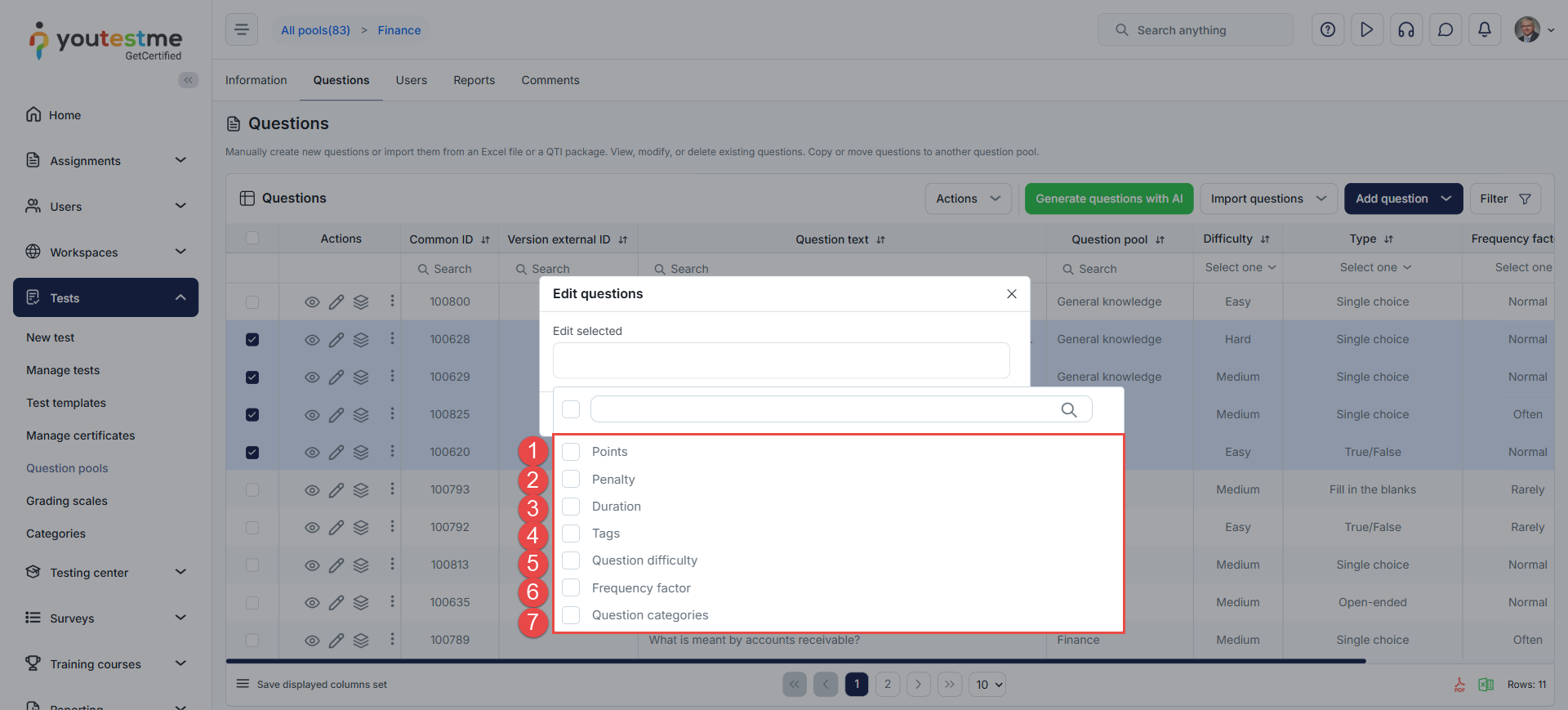
You will be presented with a dialog where you can select the question settings that you can update, including:
- Points
- Penalty
- Duration
- Tags
- Question difficulty
- Frequency factor
- Question Categories
Select the question settings you would like to update by checking the box next to them. You can update multiple settings simultaneously.
You will be presented with the settings dashboard, where you can define the new parameters. Click Save to apply the changes.
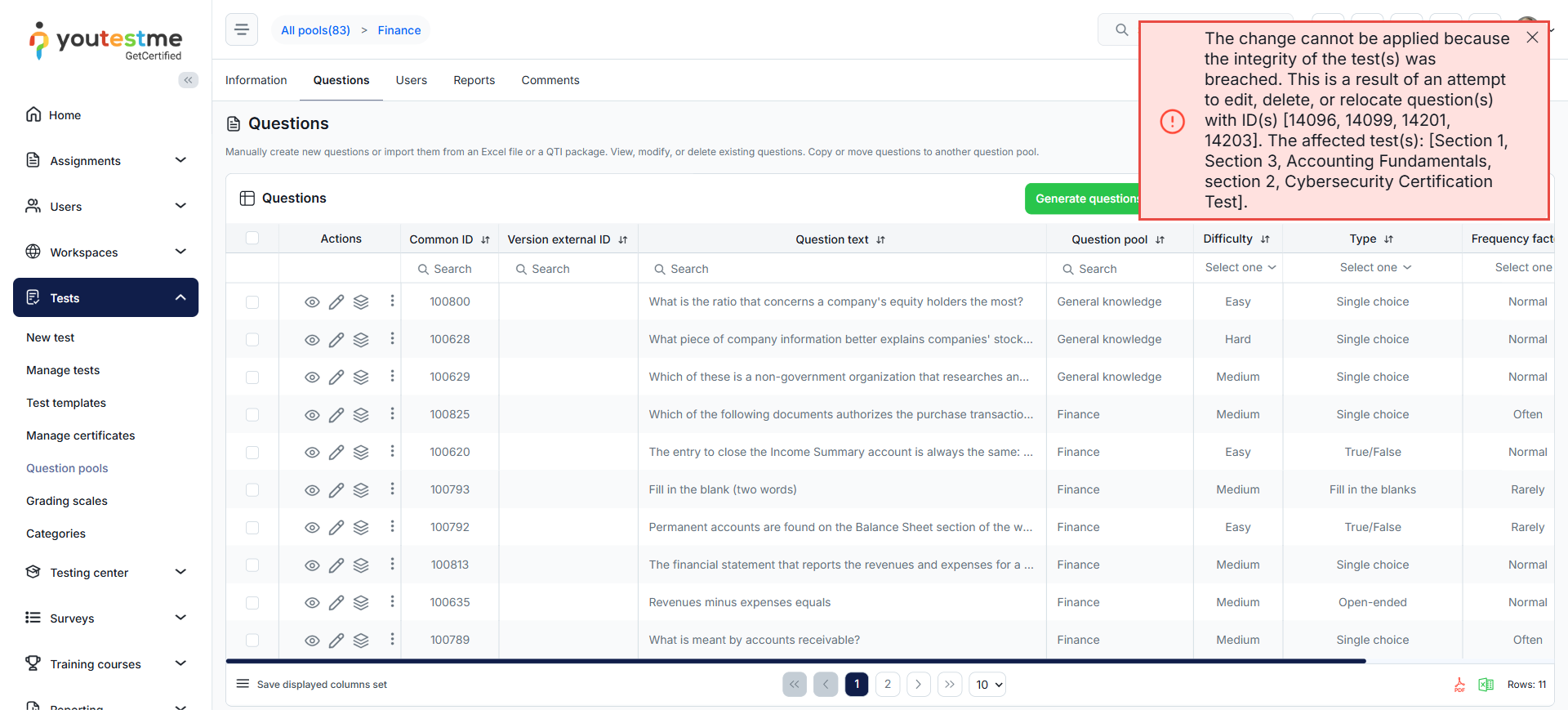
Note: If the ‘Integrity check for generated tests’ option is enabled, attempting to modify or remove questions associated with specific difficulty levels or categories will result in an error. This protects the integrity of tests tied to these parameters. For more information, please visit this article.