
Article verified for Release 15.2 on November 14, 2025.
This article explains how to create a simple test without sections in YouTestMe GetCertified, from configuring the initial test information to adding questions, setting grading criteria, configuring testing sessions, and publishing the test.
It covers the available test creation methods, test settings, question selection and automatic test generation, grading options, certificates, and the steps required to make a test available to candidates.
A simple test presents all questions under a single set of test settings, without dividing them into sections. In contrast, a test with sections organizes questions into separate groups (sections), each with its own settings, duration, and rules. For more details, please watch our video about this topic.
Test Creation
To create a simple test, follow these steps:
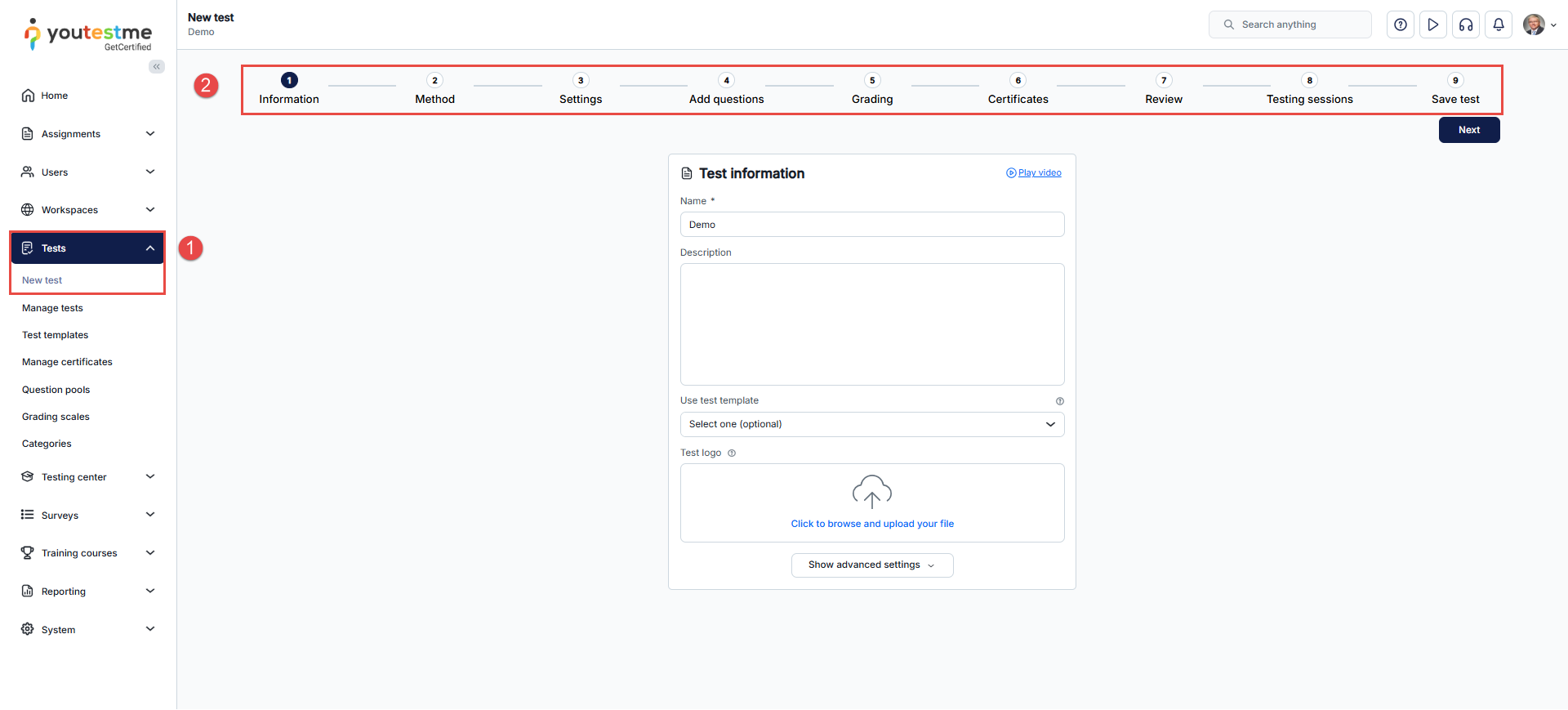
- Select the Tests > New test button.
- When configuring test information, click the Next button to proceed to the next step.Test wizard for tests without sections is divided into several steps: Information, Method, Settings, Add questions, Grading, Certificates, Review, Testing sessions, and Save test. Below, you will discover more details about each of these steps.
Step 1: Information
In this step, you can:
- Enter the Name of the test.
- Enter an optional test description to provide additional details about the test.
- Optionally, you can upload a test logo, which will appear as an image on the candidate’s My tests page when they begin the test. Supported file types include JPG, PNG, and BMP, with a maximum file size of 1 MB. Upload a square image measuring 200 x 200 pixels or larger for optimal presentation.

- After uploading, the file name and size will be displayed. You can remove the uploaded logo by clicking the Delete button if necessary. If no logo is assigned to a test, the application favicon will be used as the test logo.

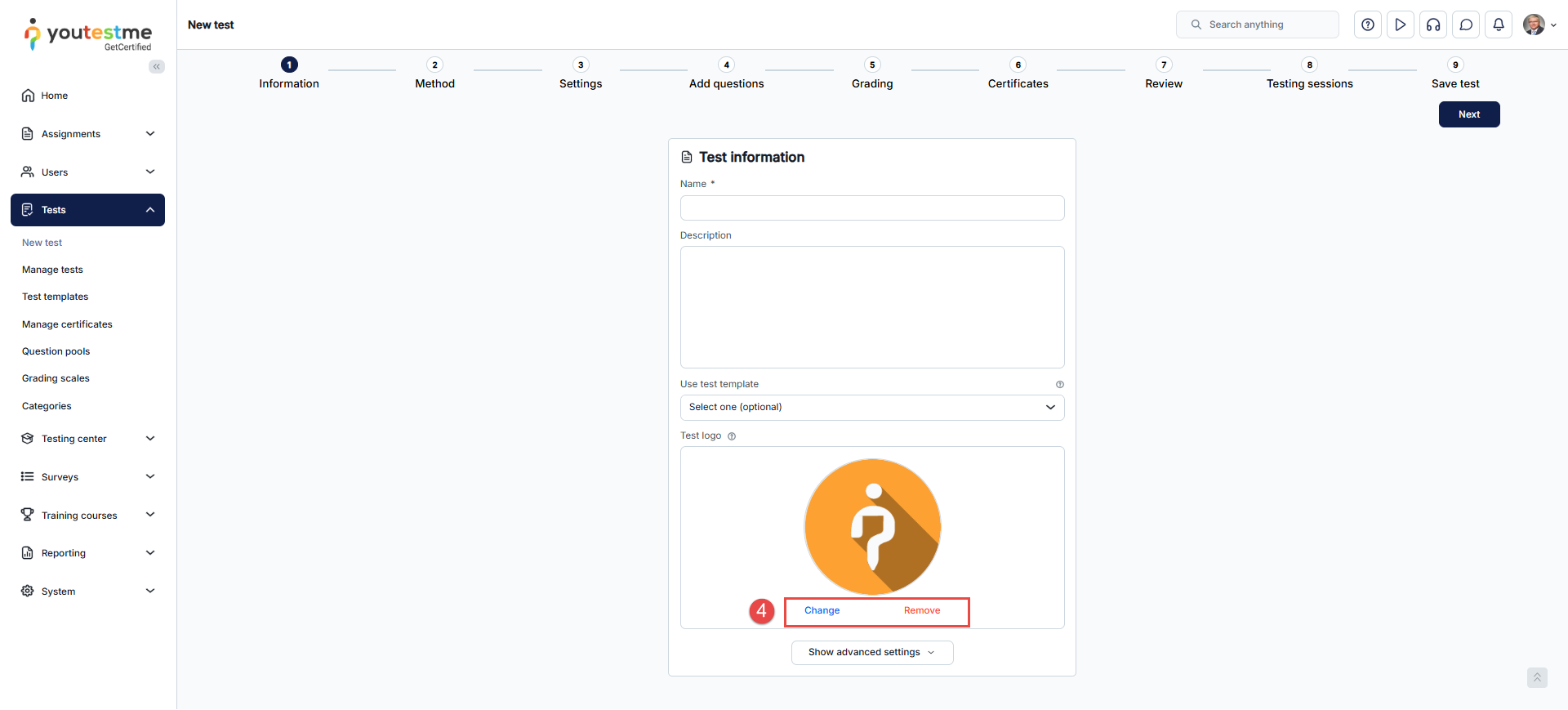
You can preview and modify the advanced test settings by clicking the Show Advanced Settings button.
The advanced settings have the following fields:
-
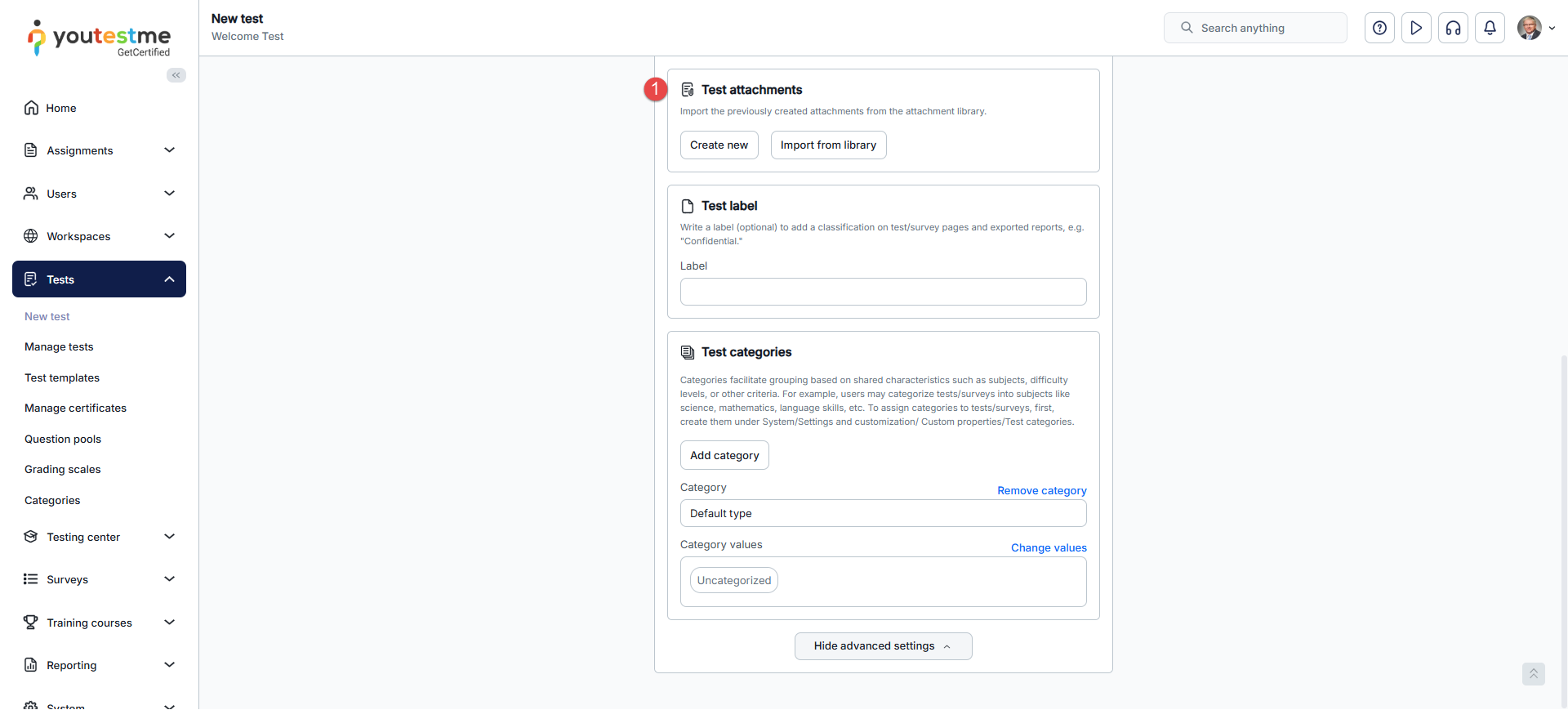
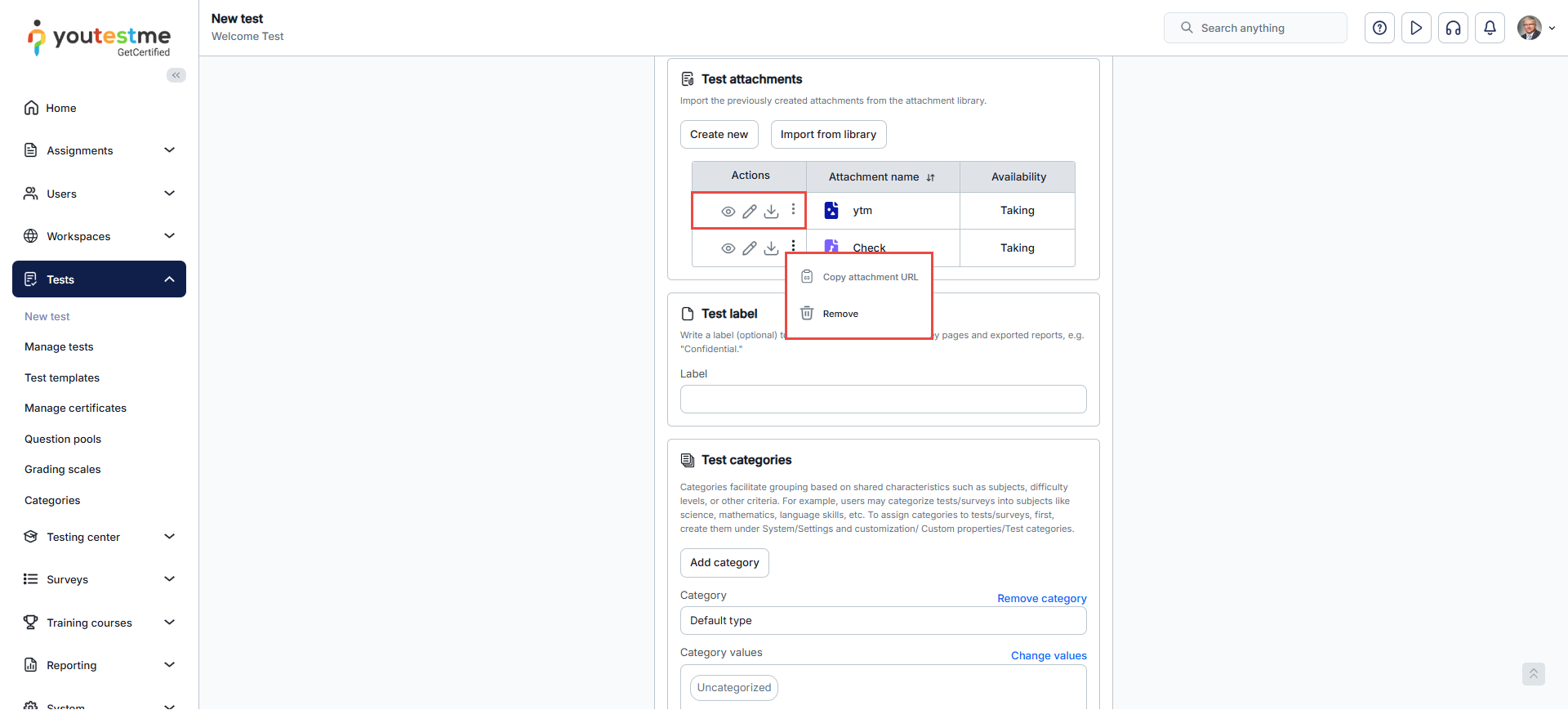
- Test attachments– In this section, you can include test attachments containing instructions or useful materials in various formats. Depending on the test settings, these attachments can be made available at the beginning or throughout the test-taking process. It’s important to note that test attachments are distinct from those attached to individual questions.
-
- To create a new attachment, please consult this article for detailed, step-by-step instructions.
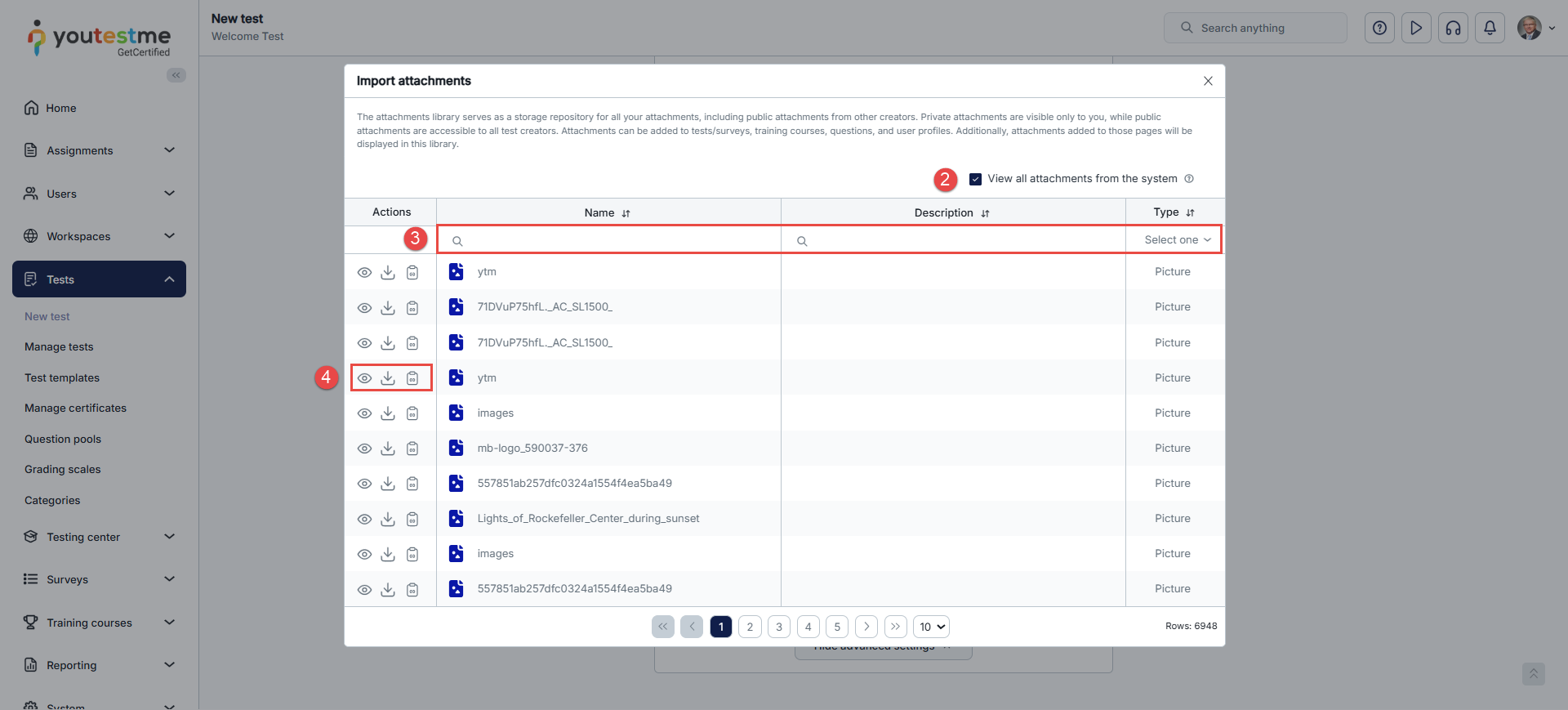
- To import an existing attachment from the library
- Click the Import from Library button.
- You can view all attachments in the system visible to you by checking the View all attachments from the system checkbox.
- Search for a specific attachment by name, description, or type.
- Preview the attachment if needed, and import the ones you find relevant.
-
- After creating or importing an attachment, you can manage it in various ways. Use the provided options to view, edit, download, and remove the attachment from the test.
-
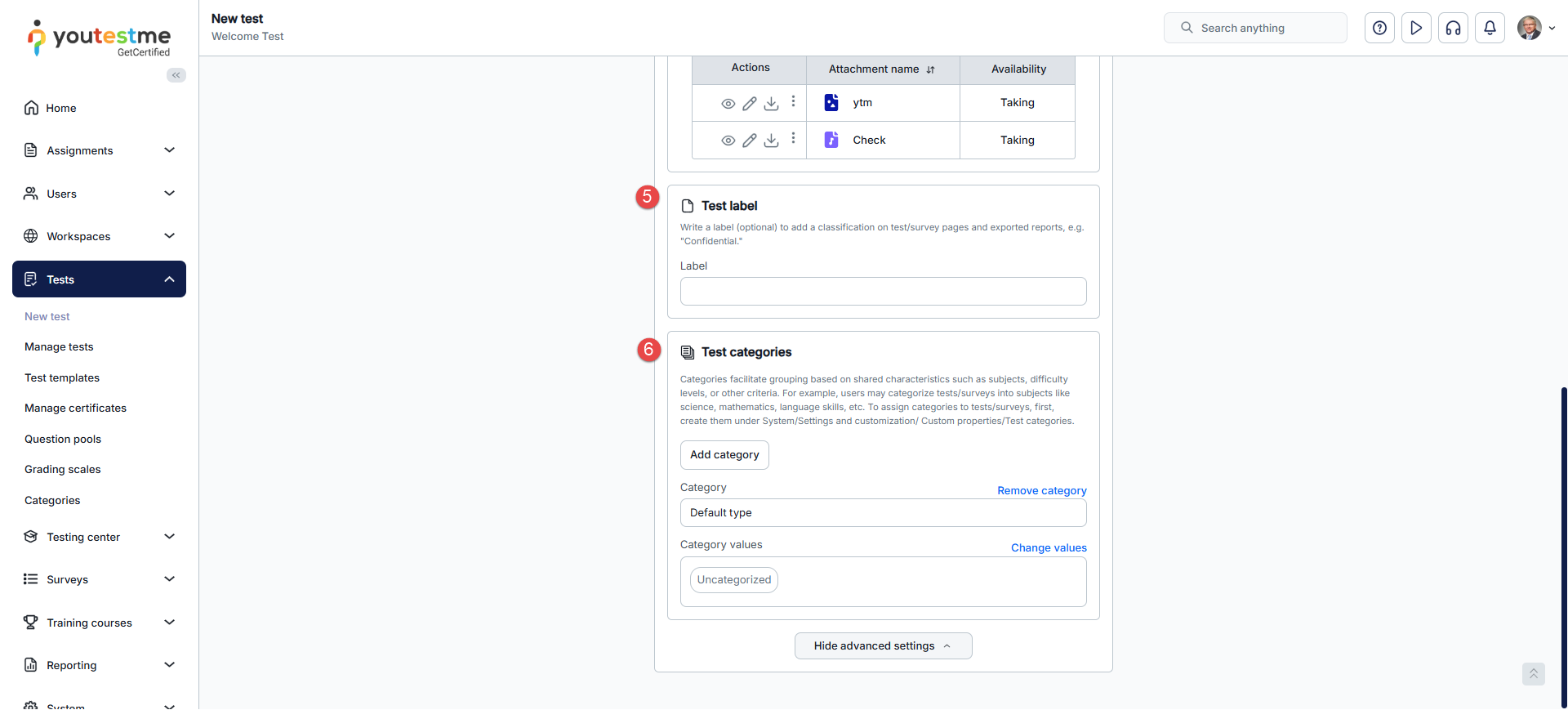
- Test label– Provide a label to categorize and classify test pages and exported reports. For instance, you may use a label such Confidential’.
- Test category type– Test categories group tests with similar characteristics, simplifying the search. Choose the type of category you want to add to the test. It is possible to create new types or add new categories to the predefined ones under System/Settings and Customization/Custom properties/Test categories.
Step 2: Method
In this step, you choose how to create your test. The system offers multiple methods depending on whether you want to build the test manually or generate it automatically. You can select from the following options:
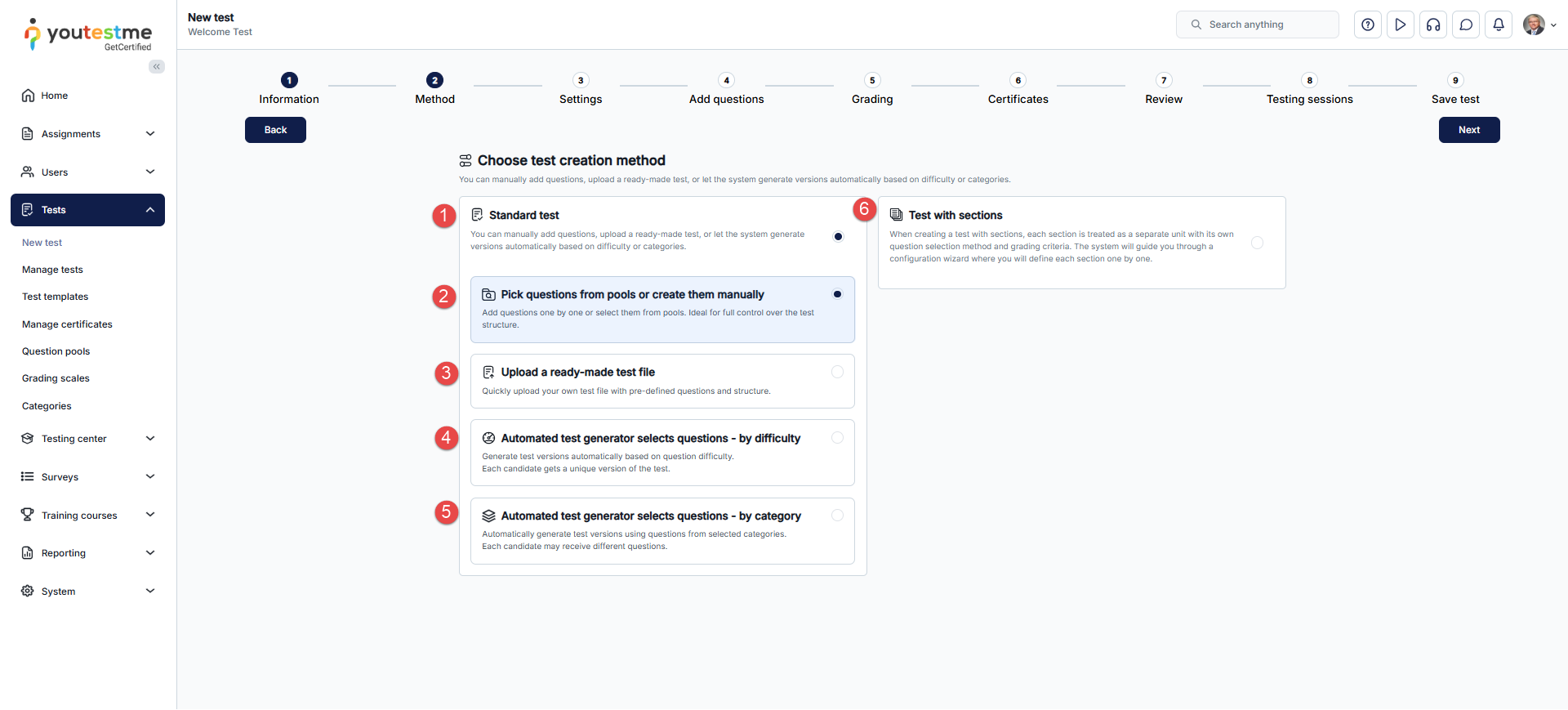
- Standard test – Add questions manually, upload a ready-made test, or let the system generate versions automatically by difficulty or category.
- Pick questions from pools or create them manually – Add questions one by one or import them from question pools. This option gives you full control over the test structure.
- Upload a ready-made test file – Quickly import a pre-defined test file with its structure and questions. If you selected this method, you can import a test directly from an Excel file.
- Automated test generator (by difficulty) – The system generates test versions automatically based on question difficulty. Each candidate receives a unique version.
- Automated test generator (by category) – The system generates test versions based on selected categories. Candidates may receive different sets of questions.
- Test with sections – Create a test divided into sections, where each section is treated as a separate unit with its own configuration.
Note: The difficulty-based and category-based automated test generation methods are separate options and cannot be combined in the same generator configuration.
For further information about the available test creation methods, please visit this article
Step 3: Settings
The Settings step contains the following options for configuring your test:
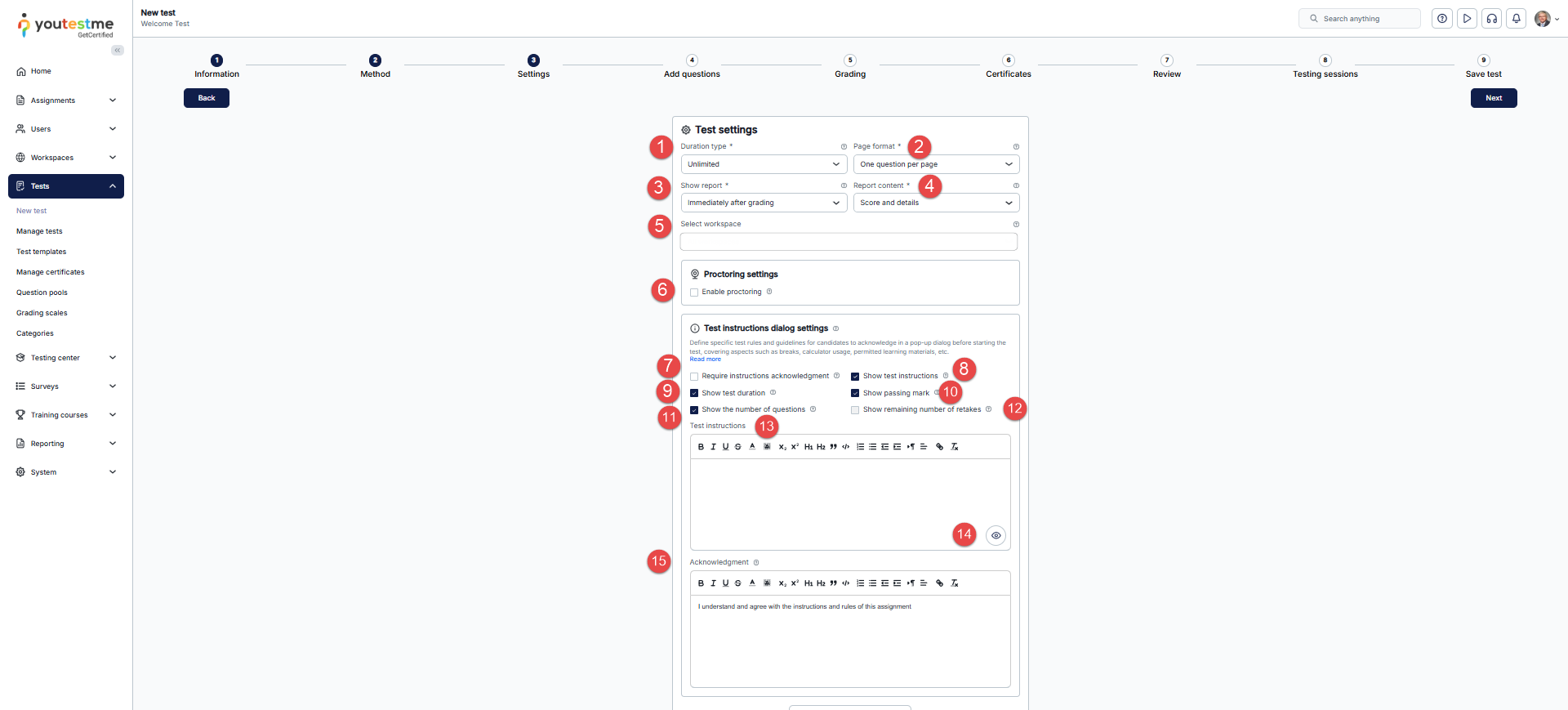
- Duration type– Choose how you want to time-limit your test by selecting the duration type:
- Unlimited– the test will not be time-limited.
- Time per question– each question in the test will have its time limit. The exact time limit for each question can be configured during the question creation process.
- Time to answer all questions– set the time limit for the whole test.
- Page format– set how the questions will be displayed, whether you want to display each question on a separate page, or you want all questions to be displayed at once. You can choose between:
- One question per page
- All questions on one page.
Note: If the test contains branching questions, the option All questions on one page is automatically disabled. This option is recommended for tests up to 20 questions.
- Decide when the report will be available to candidates. Options include:
- Immediately after finishing the test.
- Immediately after the result grading.
- Immediately after result verification.
- On the manager’s approval.
- Real-time grading.
- Report content – define the content of the report that the test-takers will receive. You can choose between two options:
- Score and details– the candidates will see their score and all questions and answer details – e.g., their answer and the correct answer.
- Score only– the candidates will see only the score and basic test details.
- Workspace – If the application is organized into workspaces, you can view the list of all available workspaces here, to which you can assign this test. Optionally select one or more desired workspaces to make them available only to users from those workspaces. Tests set to global can only be accessed by test managers and users with the system role permission Manage any test, survey, or training course. To make the test accessible to workspace instructors, turn off the global property and set the workspace. However, only users with the system role permission to Create test, survey, or training course can manage this property. Furthermore, users with the system role permission can still access the test added to a workspace.
- Proctoring mode – If enabled, a specialized proctoring tool is used to prevent cheating on the test. The system will receive the information from the user’s web camera, microphone, and screen and flag suspicious behavior (e.g., background noise and unauthorized faces in front of the camera). You can also examine the video recording afterward or live to monitor the users. The system will generate the video recording as a PDF report that is available for download. Depending on the application’s integration, the proctoring configuration can be YouTestMe Proctoring or Proctorio.
-
Require instructions acknowledgment – When enabled, candidates must confirm that they have read and agreed to the test instructions before they can start the test.
-
Show test instructions – Displays the written instructions in a pop-up dialog before the test begins, ensuring candidates are aware of the rules and guidelines.
-
Show test duration – If enabled, the total time limit for the test will be visible in the instructions dialog.
-
Show number of questions – Displays the total number of questions in the test to candidates before they start.
-
Show passing mark – Informs candidates of the required score or percentage needed to pass the test.
-
Show remaining number of retakes – If multiple attempts are allowed, this option shows candidates how many retakes they have left.
- Enter the test instructions, which are specific rules or guidelines that students must acknowledge, in a pop-up dialog before starting the test. These instructions can be accessed under the instructions icon during the test-taking process and may cover details such as breaks, calculator usage, permitted learning materials, and other relevant information.
- Click the preview icon to review the test instructions and view the dialog appearing to candidates when they start the test. This allows you to ensure that the instructions are presented as intended and that candidates receive the necessary information before beginning the test.
- Change the acknowledgment text displayed on the instructions screen before the test starts. You can also use the advanced editor for test instructions, allowing you to format the text with bold, italic, underline, and more.
By clicking on the Show Advanced Options button, you can turn the desired options on/off:
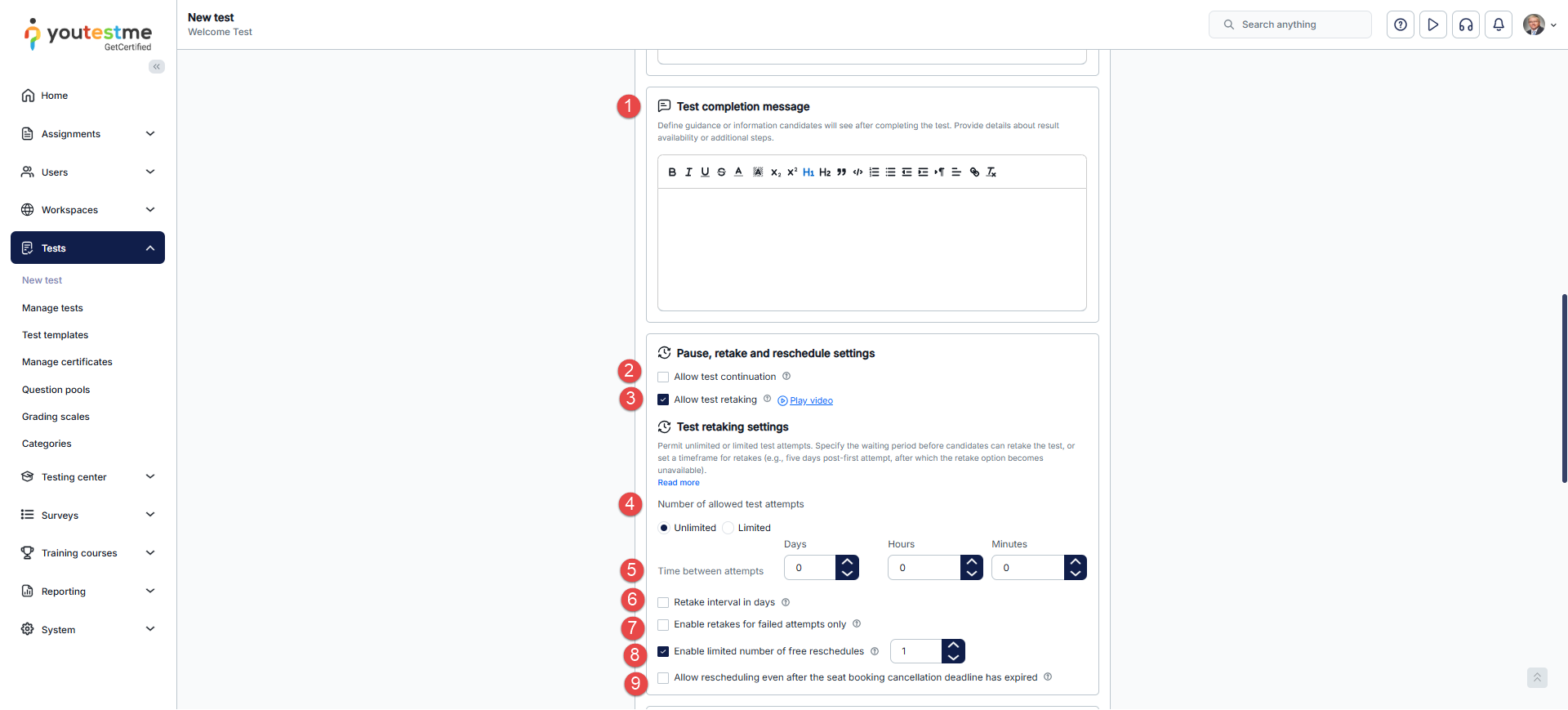
- Test Completion Message – Specify the message or instructions candidates will receive once they finish the test. Include information about when results will be available or any next steps they should follow.
- Allow test continuation– Enabling this option will allow users to save their answers, pause, and continue the test within the test’s availability period. The availability period is set later in the testing session creation process.
- Allow test retaking – Select this option to let users retake the test during the test availability period. To restrict retakes, set the Number of allowed test attempts and the time between attempts.
- Number of allowed test attempts – Choose one of the following options:
- Unlimited – Candidates can retake the test any number of times.
- Limited – Candidates can retake the test up to the number of attempts you set.
- Time between attempts– set the time required to pass between two test attempts.
- Define retake availability in days– Define a time frame during which candidates can retake. For instance, if set to 2 days, retakes can only be done within the following 2 days after the initial attempt.
Note: This option will only be available if the Allow test retaking option is enabled. - Allow test retaking only for failed attempts – The retake option won’t be available for candidates who passed the test initially or who passed after the retake.
- Enable limited number of free reschedules– Set a limited number of free reschedules users can use. After spending all of the free reschedules, they will have to send a request to reschedule again.
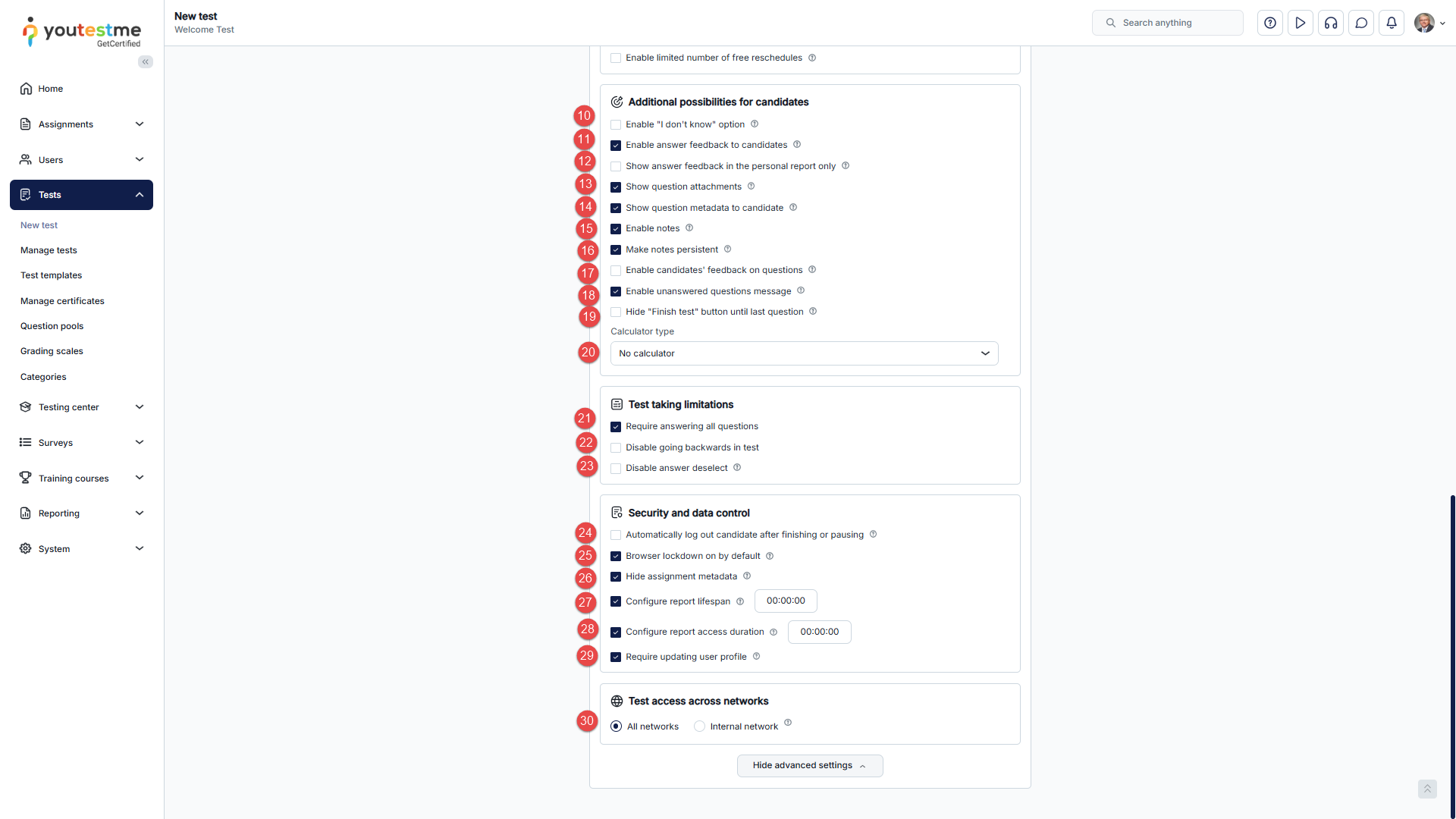
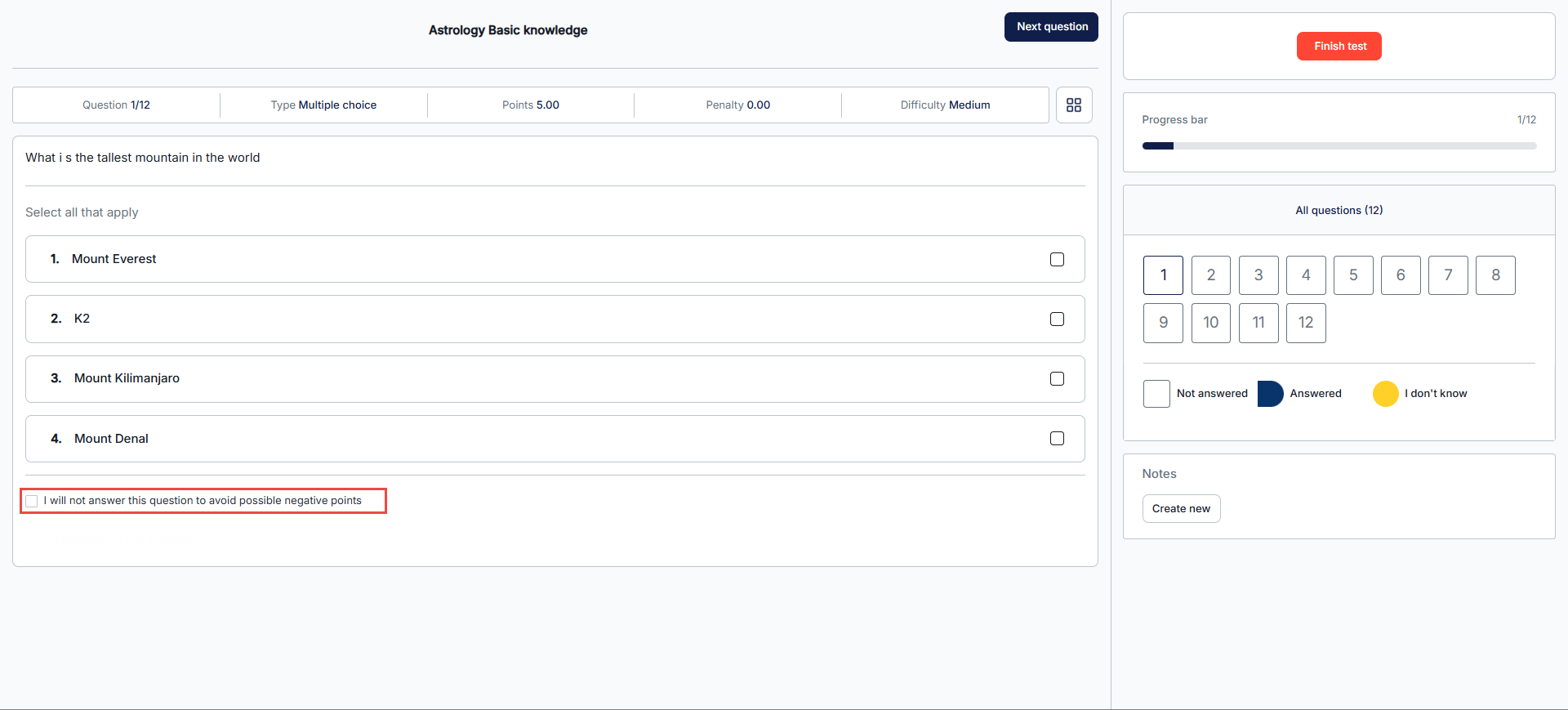
- Enable “I don’t know” option – test-takers can check the I don’t know box when answering the question to avoid negative points.
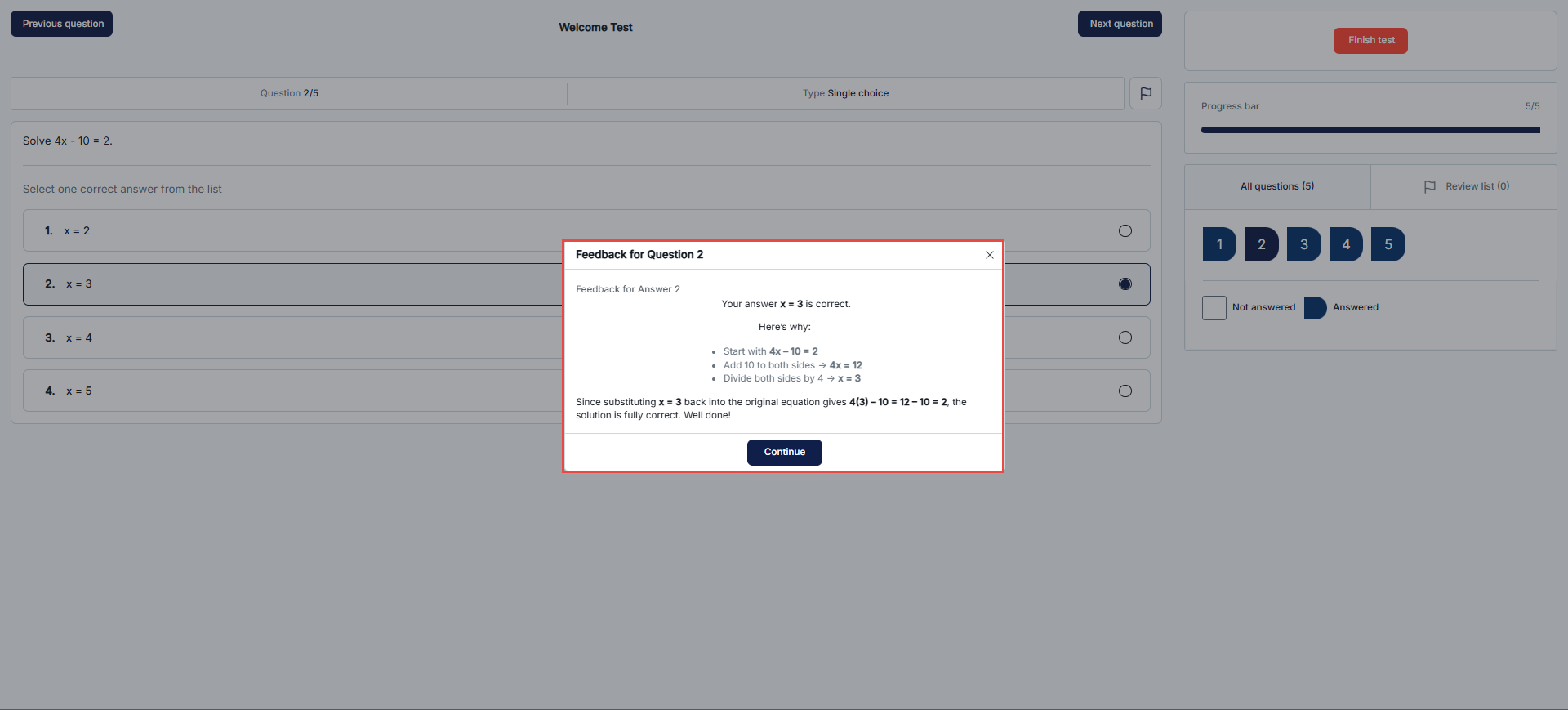
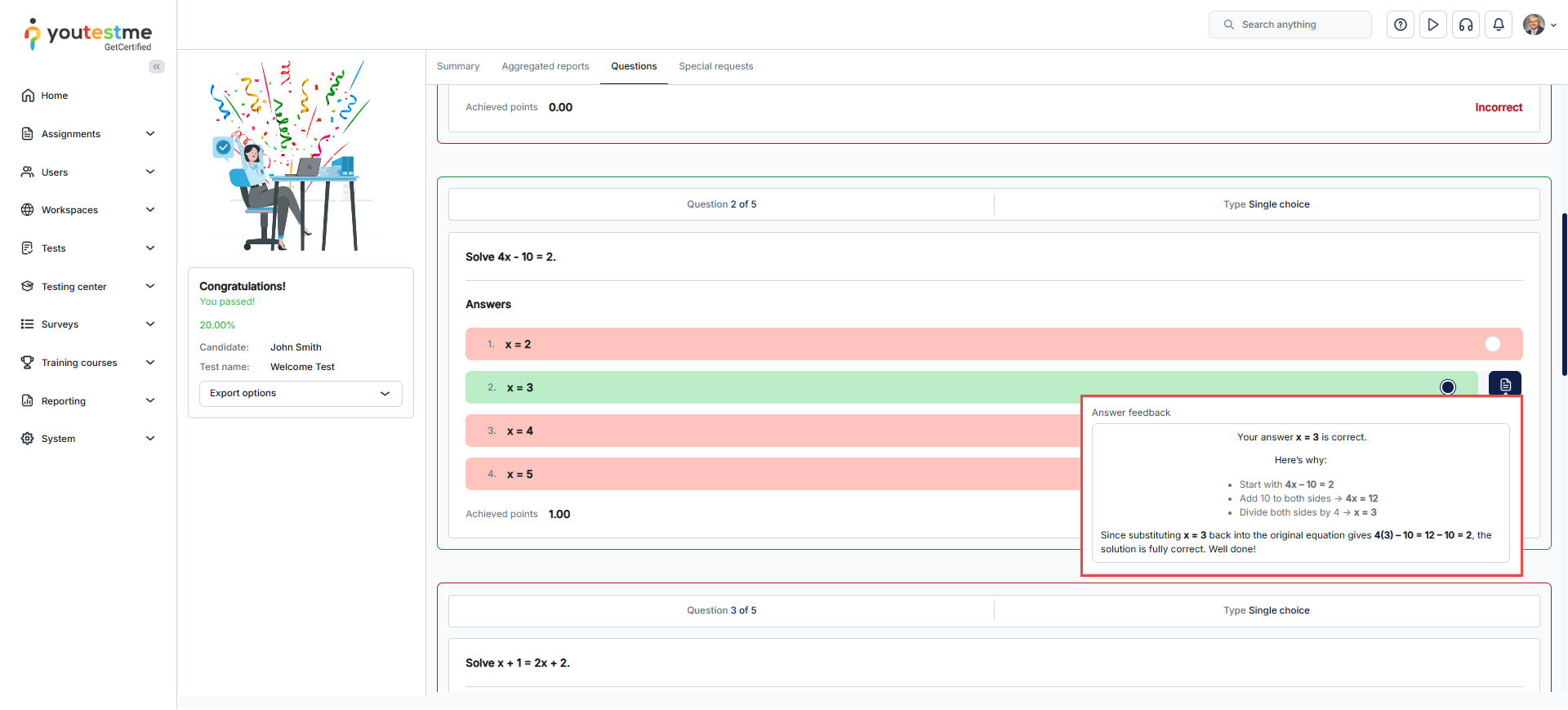
- Enable answer feedback– This option enables feedback for the selected answers during the test-taking process, which will be displayed upon moving on to the next question. Feedback should be defined during the question creation process.
- Show answer feedback in the personal report only– Feedback won’t appear during the test, but will be shown in the personal report afterward.
- Show question attachments – Show question attachments to candidates during the test-taking process.
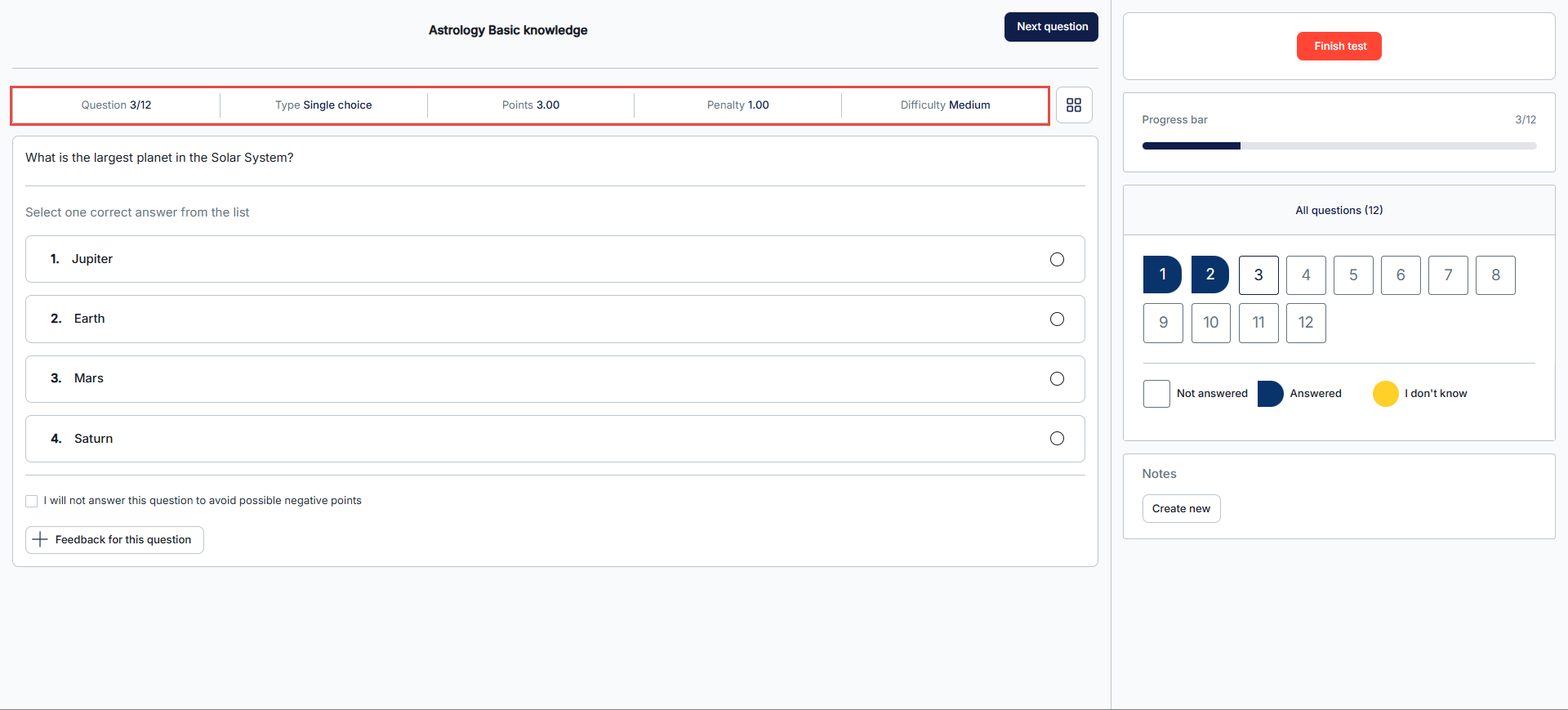
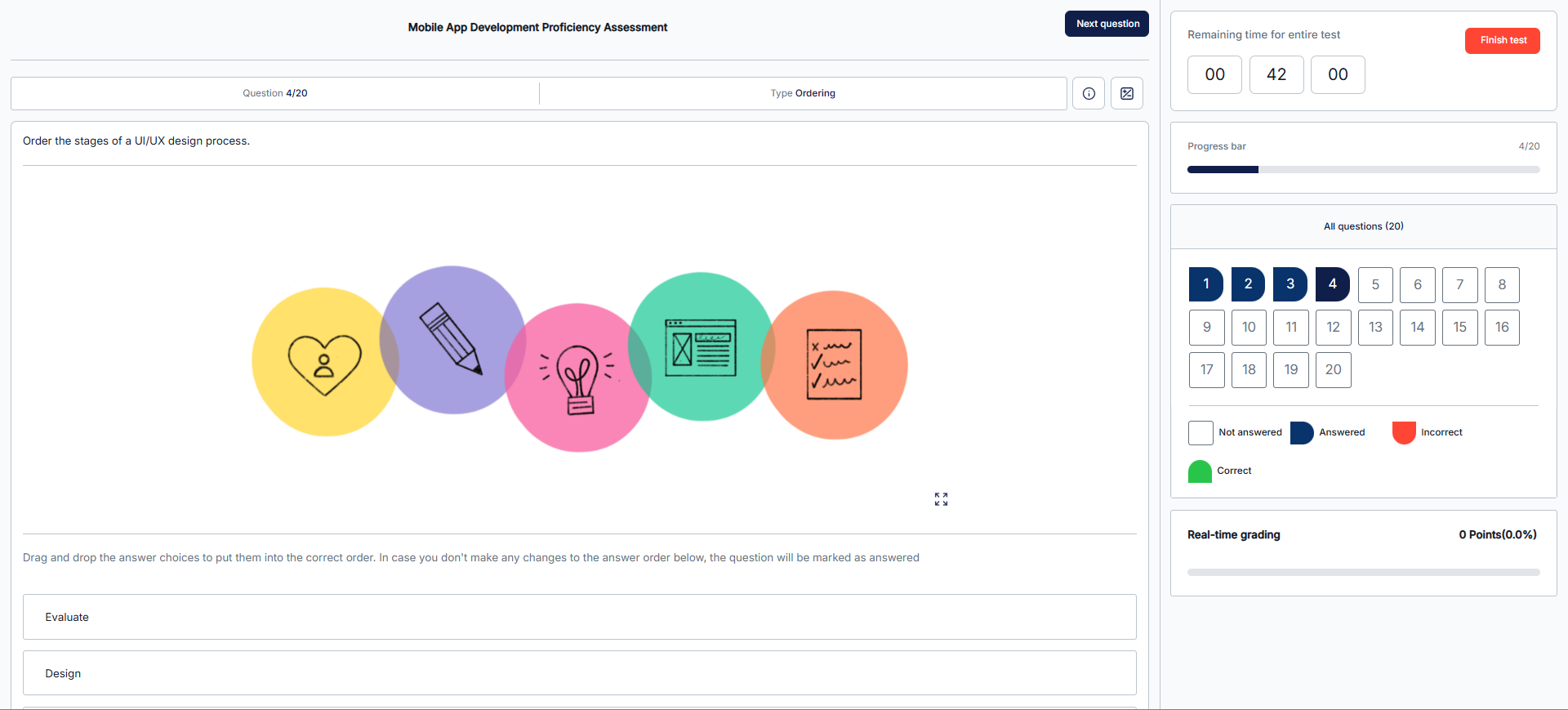
- Show question metadata to candidate– test-takers will be shown question points, type, and difficulty level during the test-taking.
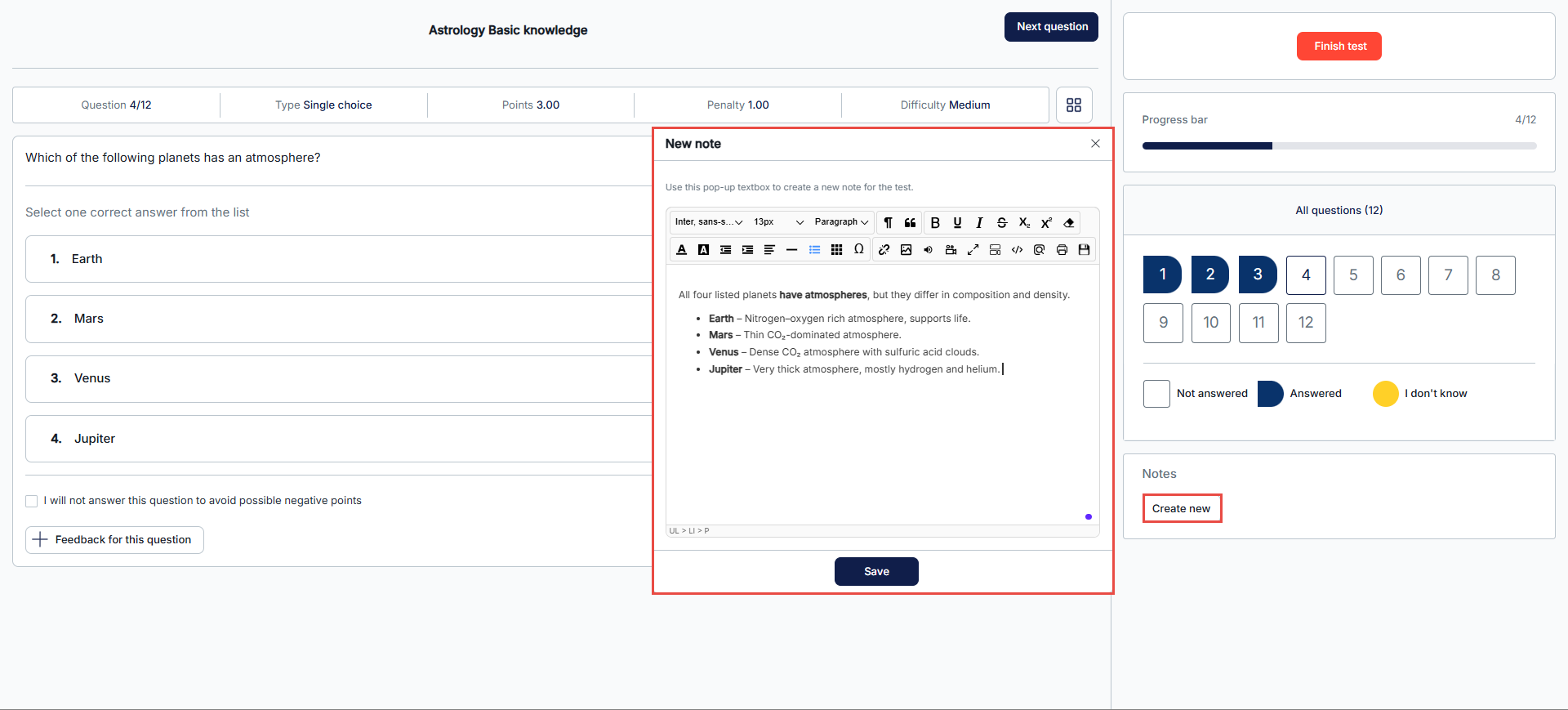
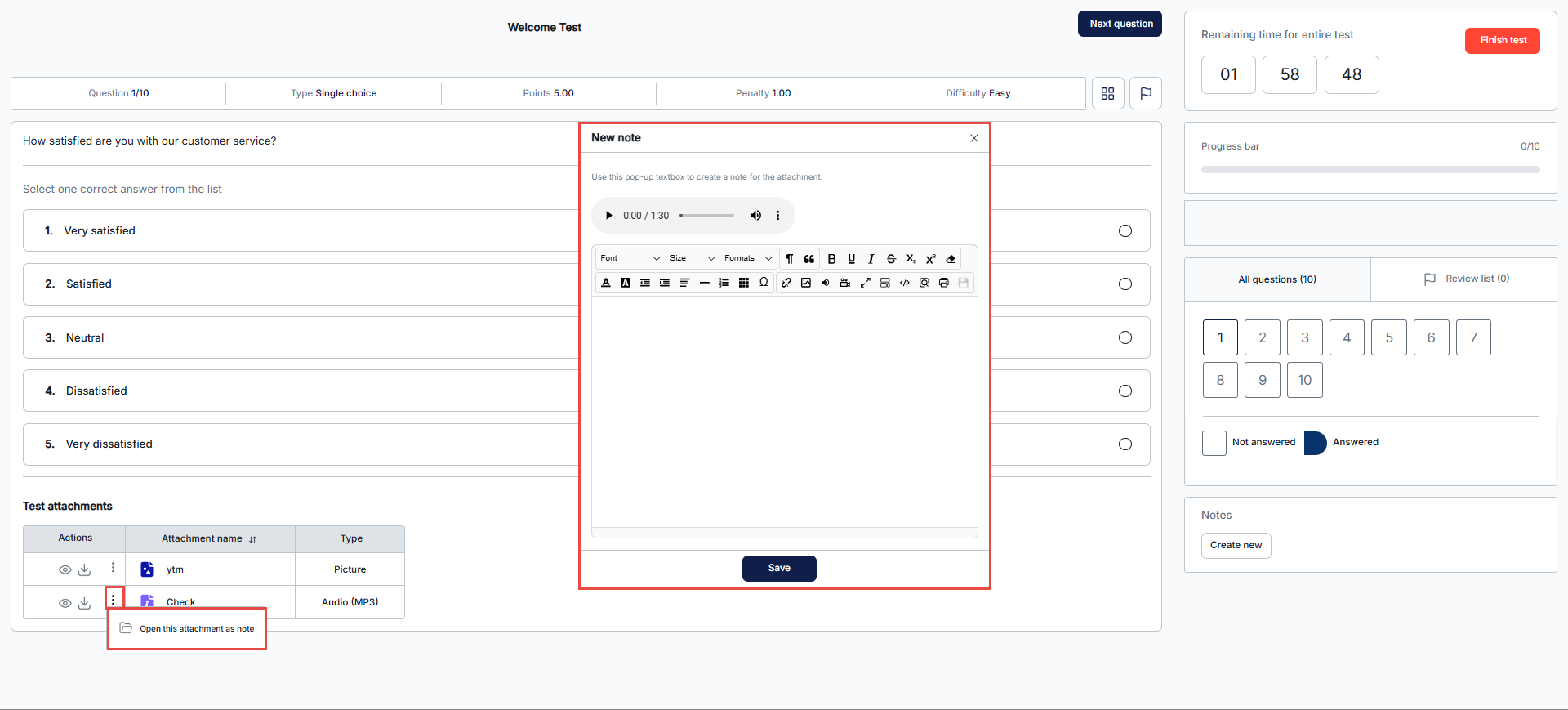
- Enable notes– Allow test-takers to take notes during the test-taking. They will be presented with a text editor where they can write formatted and styled text. This option will only make the notes visible to the candidate during test-taking. If the test contains sections, you must enable notes on each one. Further, if the test or question has attachments, the test-taker can open the attachment as a note and write text underneath it by selecting the Open this attachment as note option.
- Make notes persistent – If checked, the notes will be saved and presented in the report for both instructors and candidates.
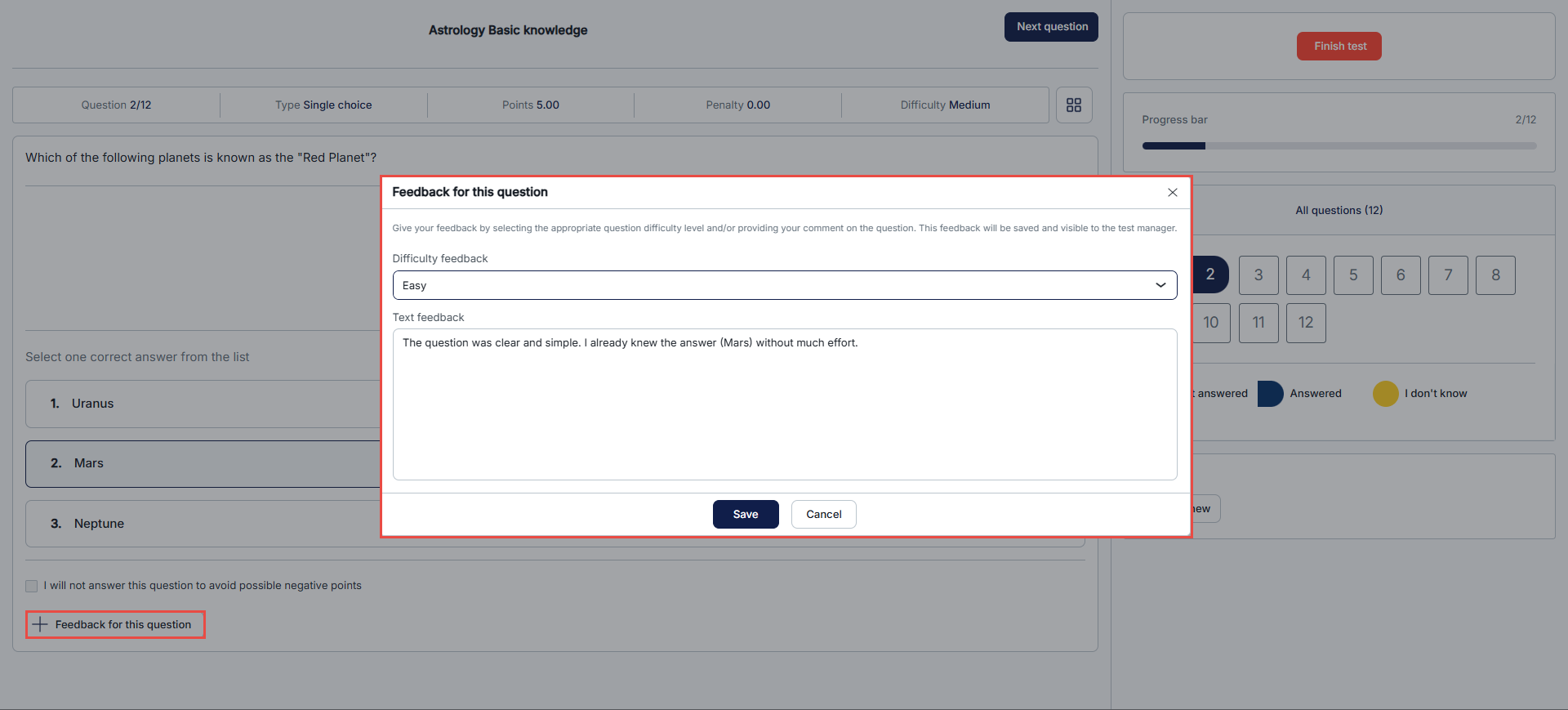
- Enable candidates’ feedback on questions– Allow candidates to leave feedback on each question during the test-taking process.
-
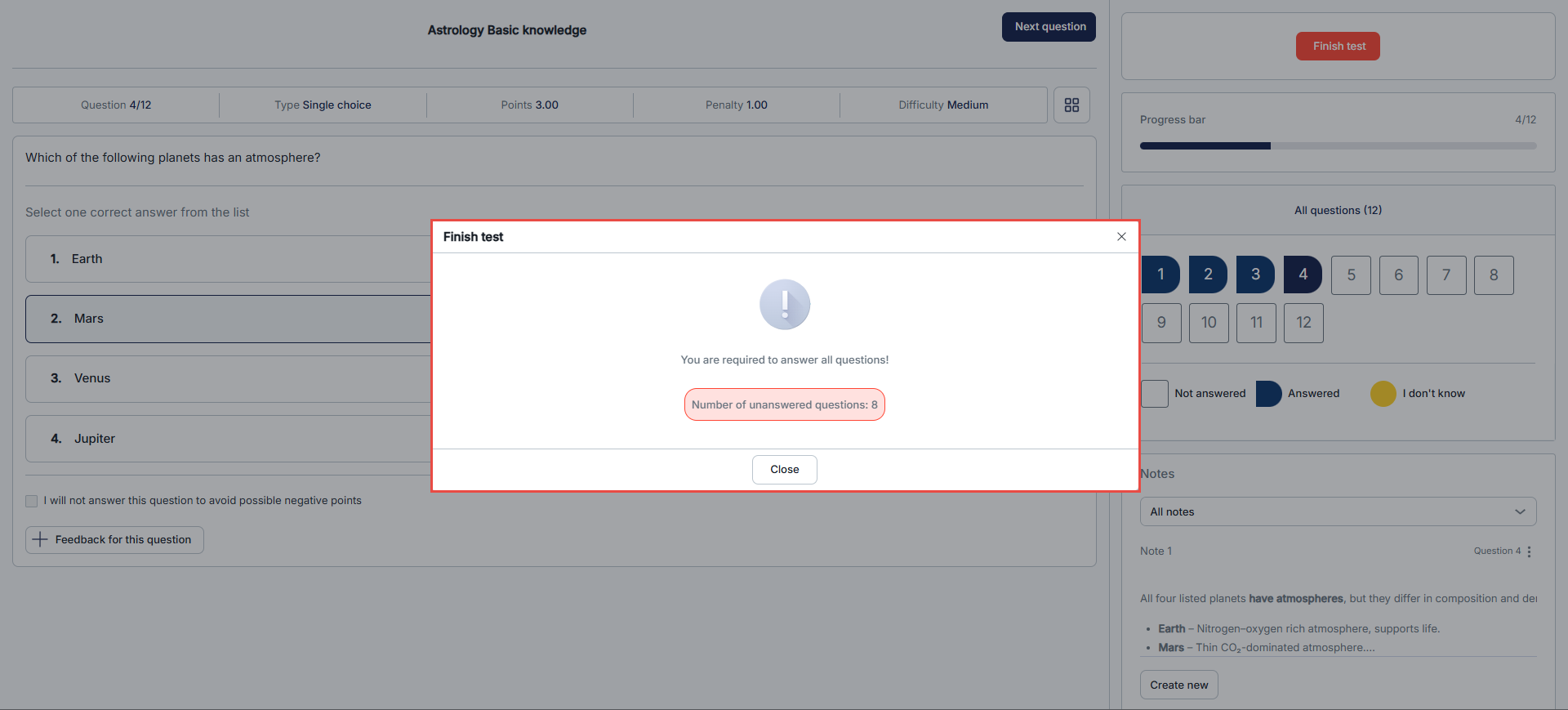
Enable unanswered questions message– Displays a notification if a candidate tries to finish the test with the number of unanswered questions.
-
Hide “Finish test” button until last question– Prevents candidates from submitting the test until they reach the final question.
-
Calculator type– Defines whether a calculator is available during the test (none, basic, or scientific).
- Require answering all questions– If you choose this option, candidates will be notified that it is required to answer all questions before finishing the test.
- Disable going backward in the test– Test-takers cannot go back to the previous questions while taking the test, if you check this option.
- Disable deselect– Do not allow the test-takers to deselect their answers once selected. This applies to the single-choice, multiple-choice, and true/false questions.
- Automatically log out candidates after finishing– The candidates must log out of the application after test completion.
- Enable browser lock-down– The test-takers cannot cut, copy, save, or print anything from the screen during the test-taking process. Also, the web browser will be in full-screen mode, and if the users try to minimize it, the test attempt will be terminated.
- Hide assignment metadata – Enable this option to hide metadata on the Assignments page (logo, assignment type, location, certificate name, etc.).
- Configure report lifespan – Set how long the question details are visible to the test-takers after they open their personal report for the first time.
-
Configure report access duration – Defines the time frame within which candidates can open and view their report after receiving access. For more information, see How to set up report content.
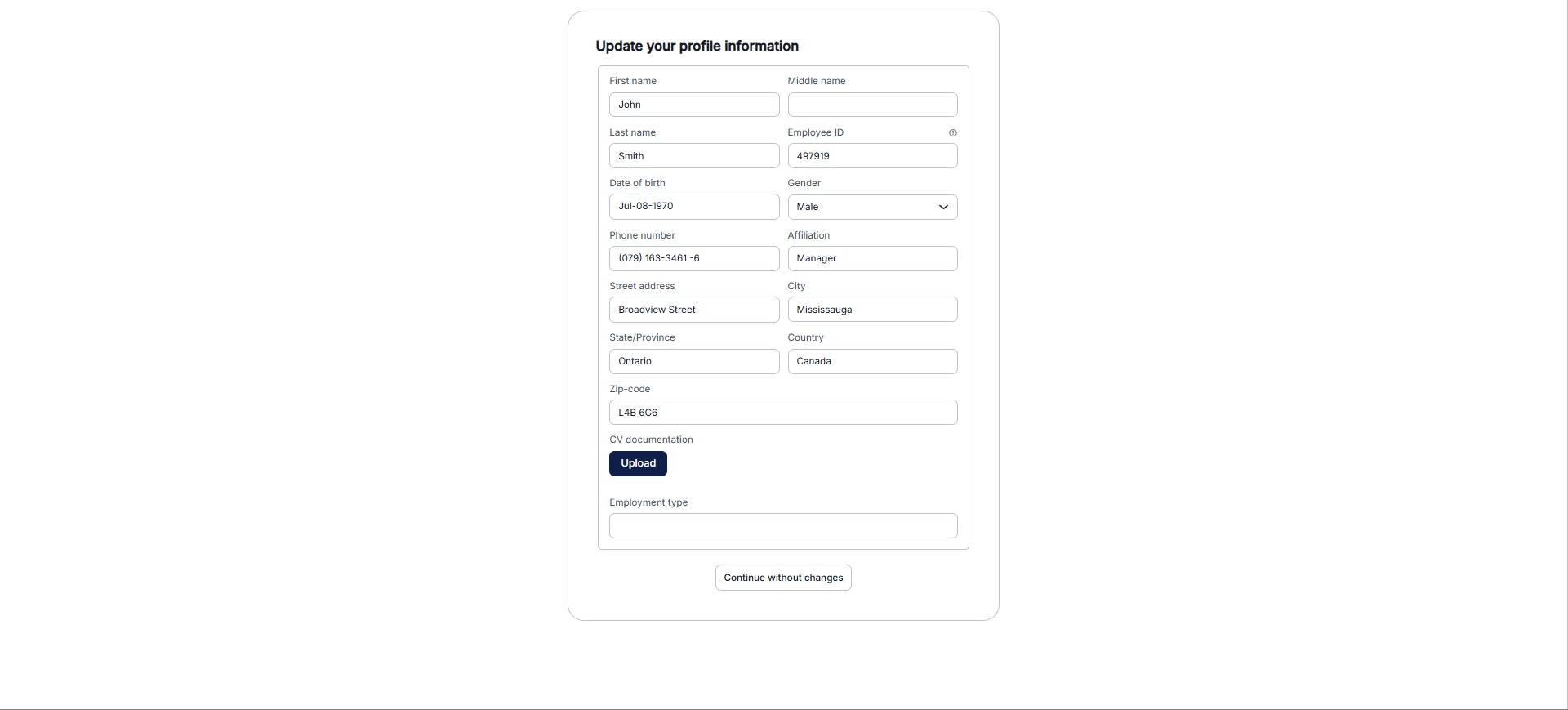
- Require updating personal information – When initiating the test, a form with the test-taker’s personal information will appear. The test-takers can update their personal information before starting the test.
- Network access – You can limit access to the test only to people within your local (internal) network, you can define the local network in system settings, or leave it open to all networks if no restrictions are required.

Step 4: Adding questions
What you see here depends on the test creation method you selected earlier in the Method step:
1. Pick questions from pools or create them manually
Within this method, you have two options:
- Add New Question – Manually create a question using the desired format and type.
- Import from Pools – Select a question pool and import the required number of questions.
Note: If the test contains any linking questions, the penalties associated with those questions will not be reflected in the total score shown in the table, as the points are distributed across linked items.
In the following steps, we will demonstrate how to manually add questions to your test.
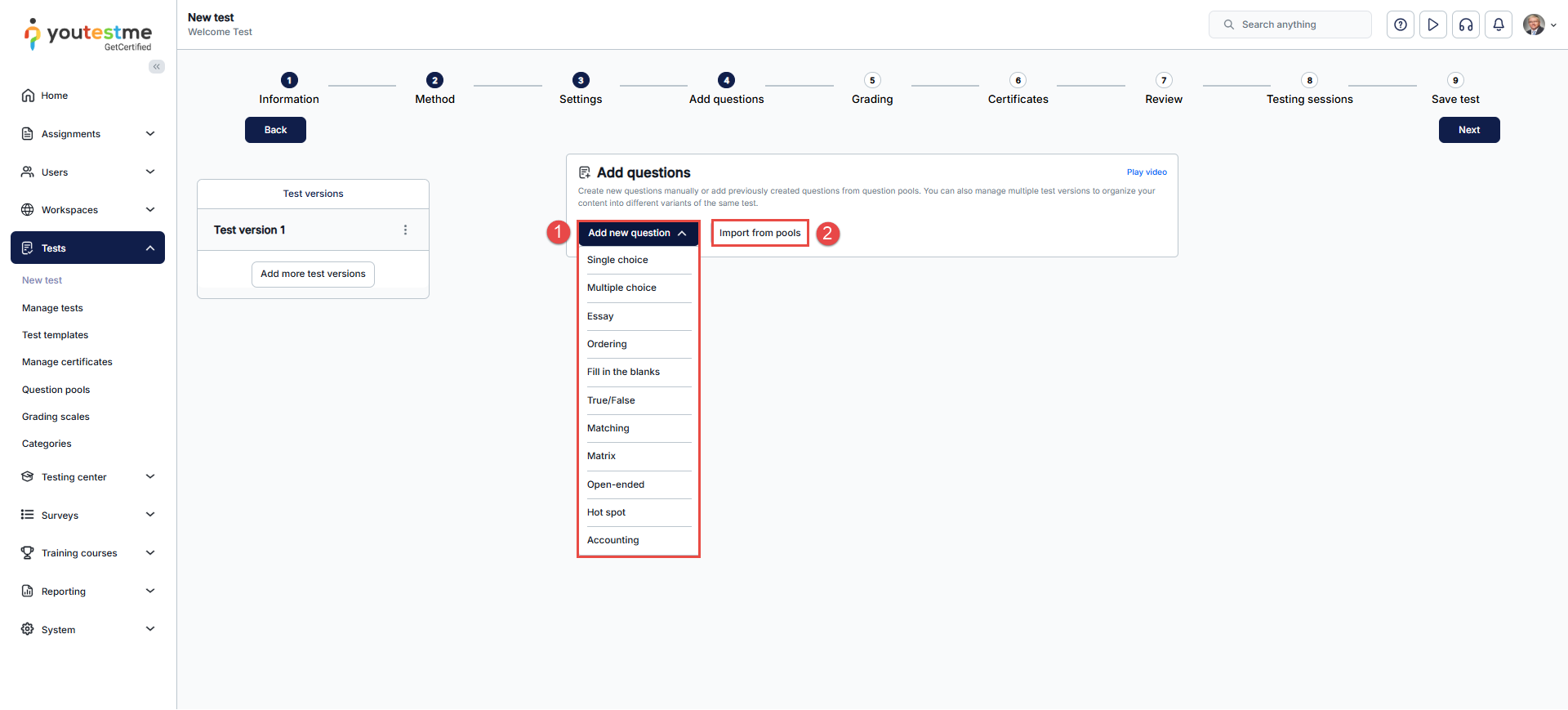
Here is an example of how to add a single-choice question.
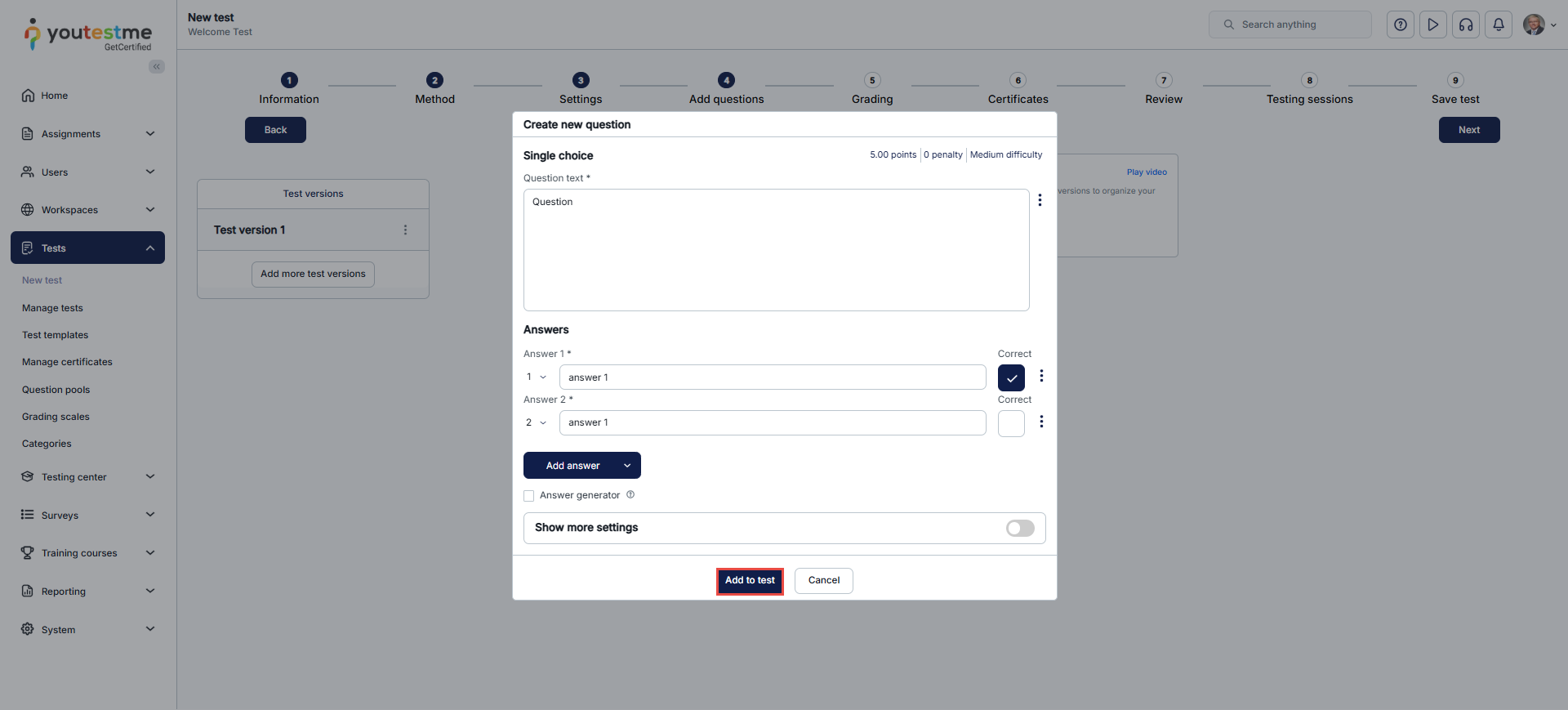
Once you fill in the question text field, add answer choices, and select the correct answer. Add the question to the test by clicking the Add to Test button at the bottom of the page.
2. Automated generator by difficulty
If you selected this method, the system creates tests automatically based on question difficulty.
- Start by clicking Select question pool.
- You’ll see how many easy, medium, and hard questions are available.
- Enter how many of each difficulty level you want included in the test.
- Save your setup.
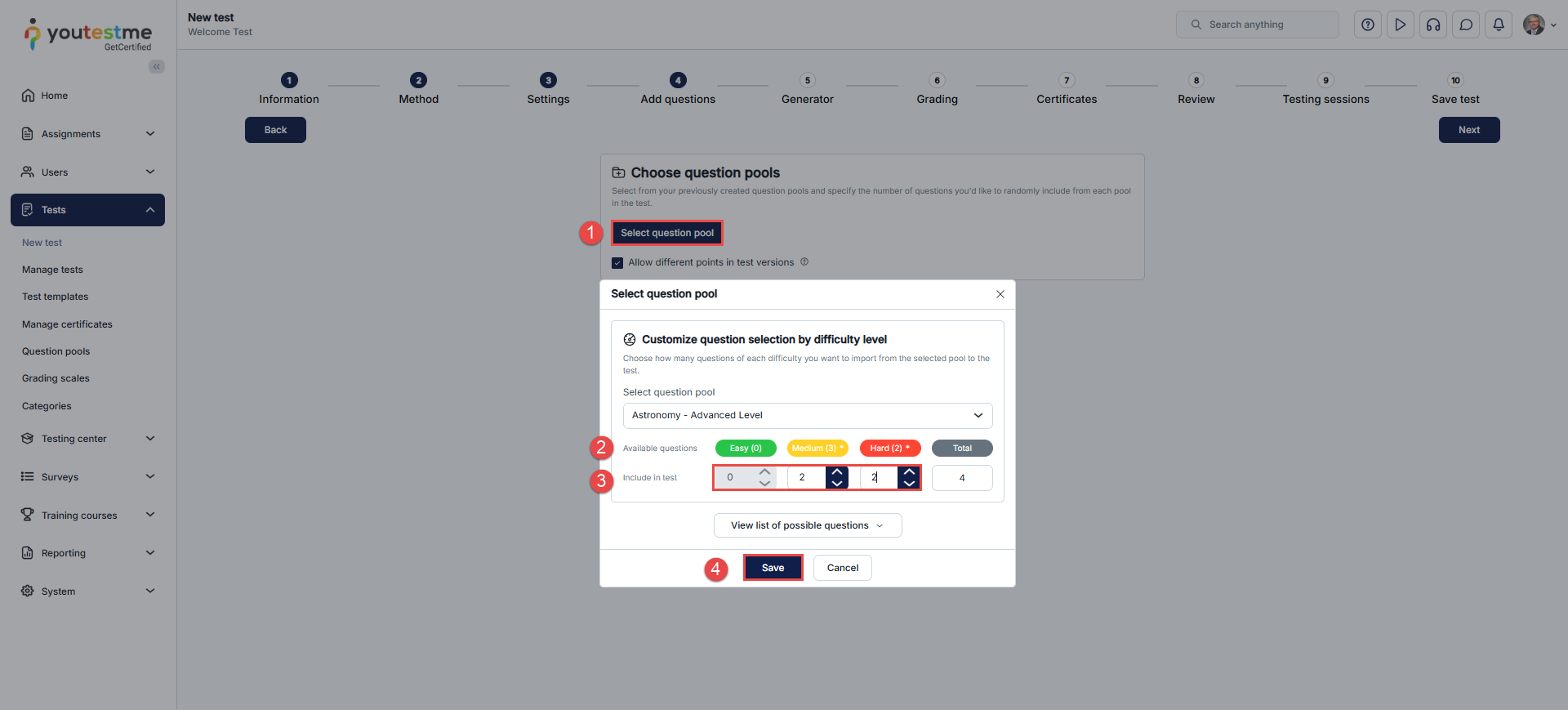
The system will then generate different versions of the test, so each candidate gets a unique set of questions.
3. Automated generator by category
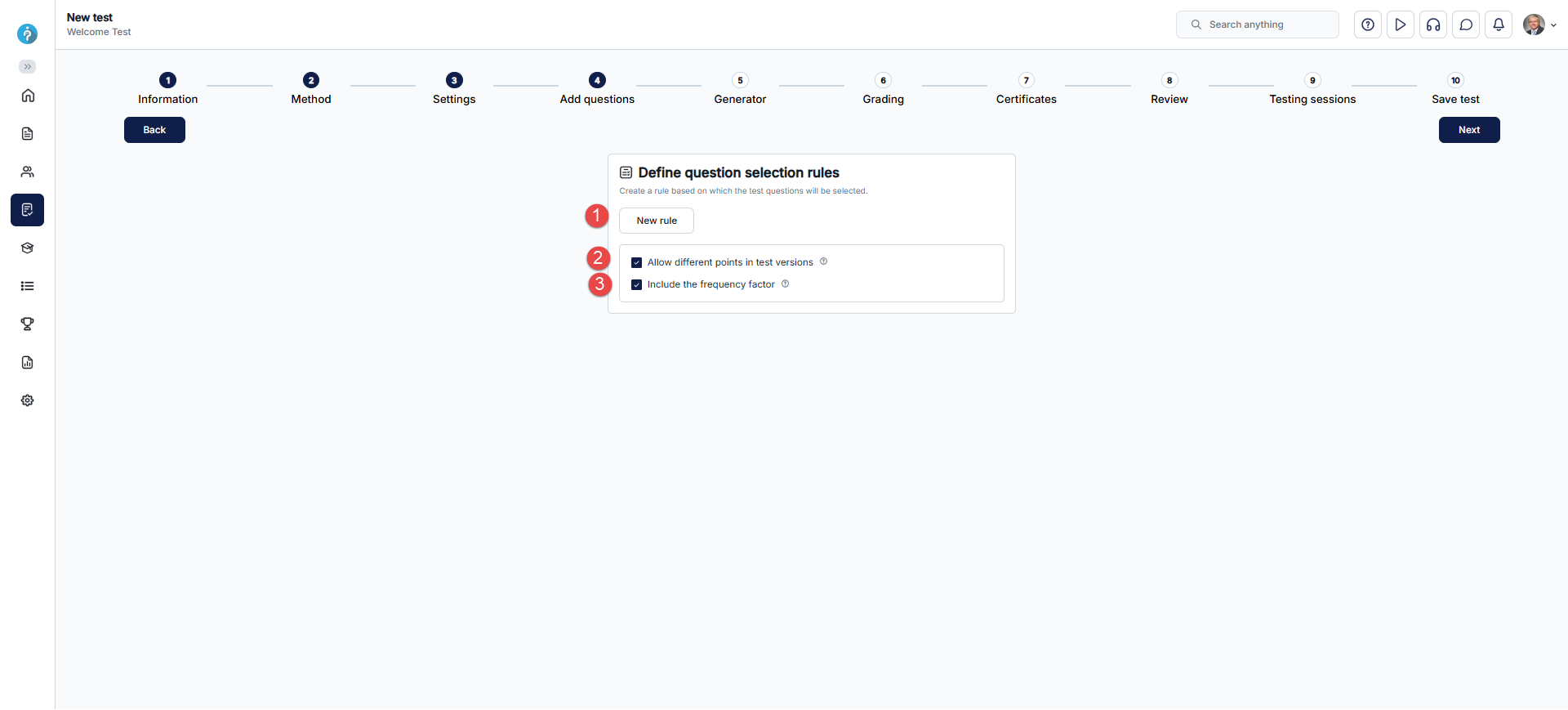
If you selected this method, you create rules that define how questions are drawn from pools and categories.
- Add a new rule
- Click Add new rule to begin setting up question selection.
- Allow different points in test versions (optional)
- If enabled, each question keeps its own score and penalty values.
- This means different versions of the test can have questions with different scoring.
- Include frequency factor (optional)
- If enabled, the system considers the frequency setting of each question.
- Questions with higher frequency values will appear more often across generated test versions.
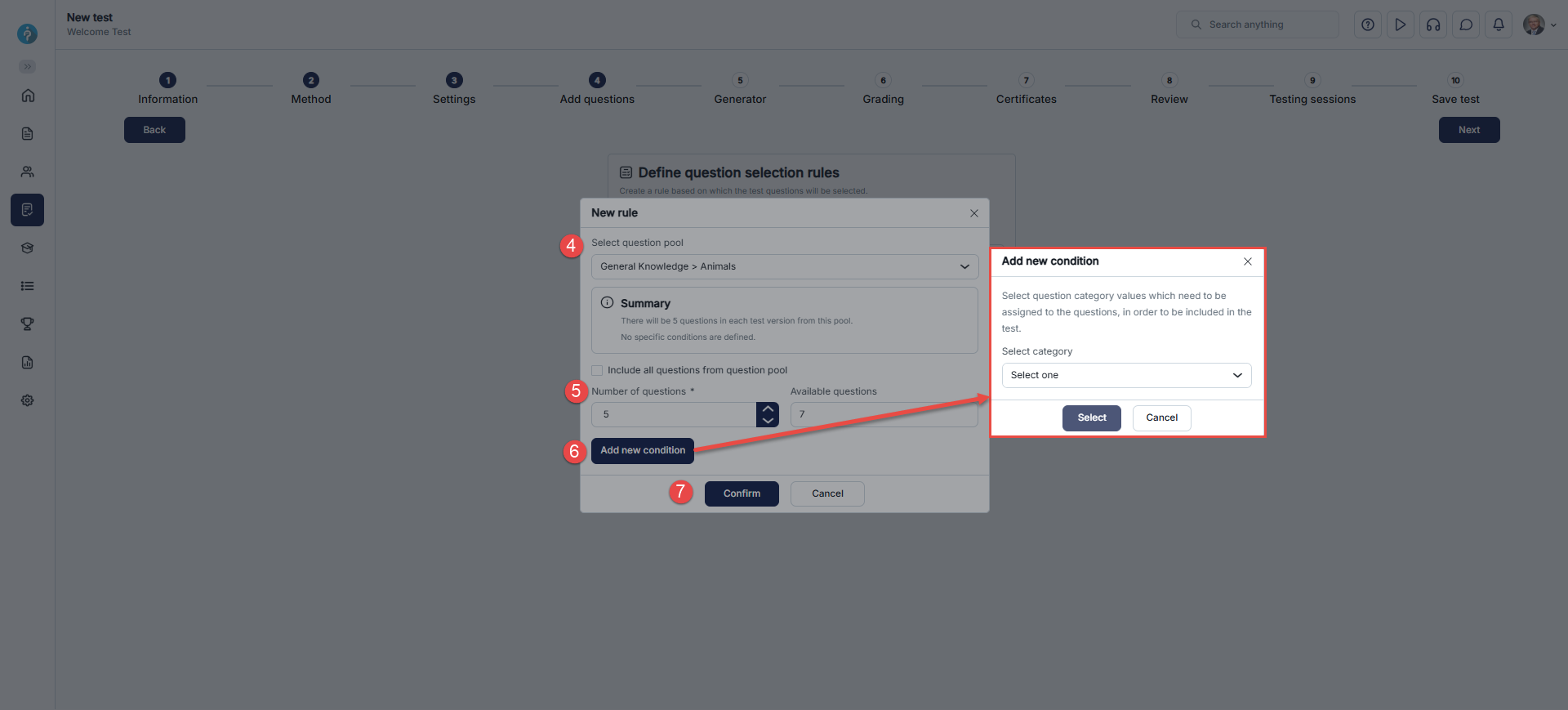
- Select a question pool
- Choose a pool from the dropdown list.
- Set the number of questions
- Enter how many questions should be taken from the selected pool.
- The system displays how many are available.
- Decide whether to include all questions from the pool or only a defined number.
- Add conditions (optional)
- Click Add new condition to filter by categories.
- In the pop-up window, select a category and choose the required values.
- Only questions matching these values will be included in the test.
- Confirm and save the rule
- A summary shows how many questions will be included under this rule.
- You can add multiple rules if your test requires questions from different pools or categories.
Step 5: Grading test
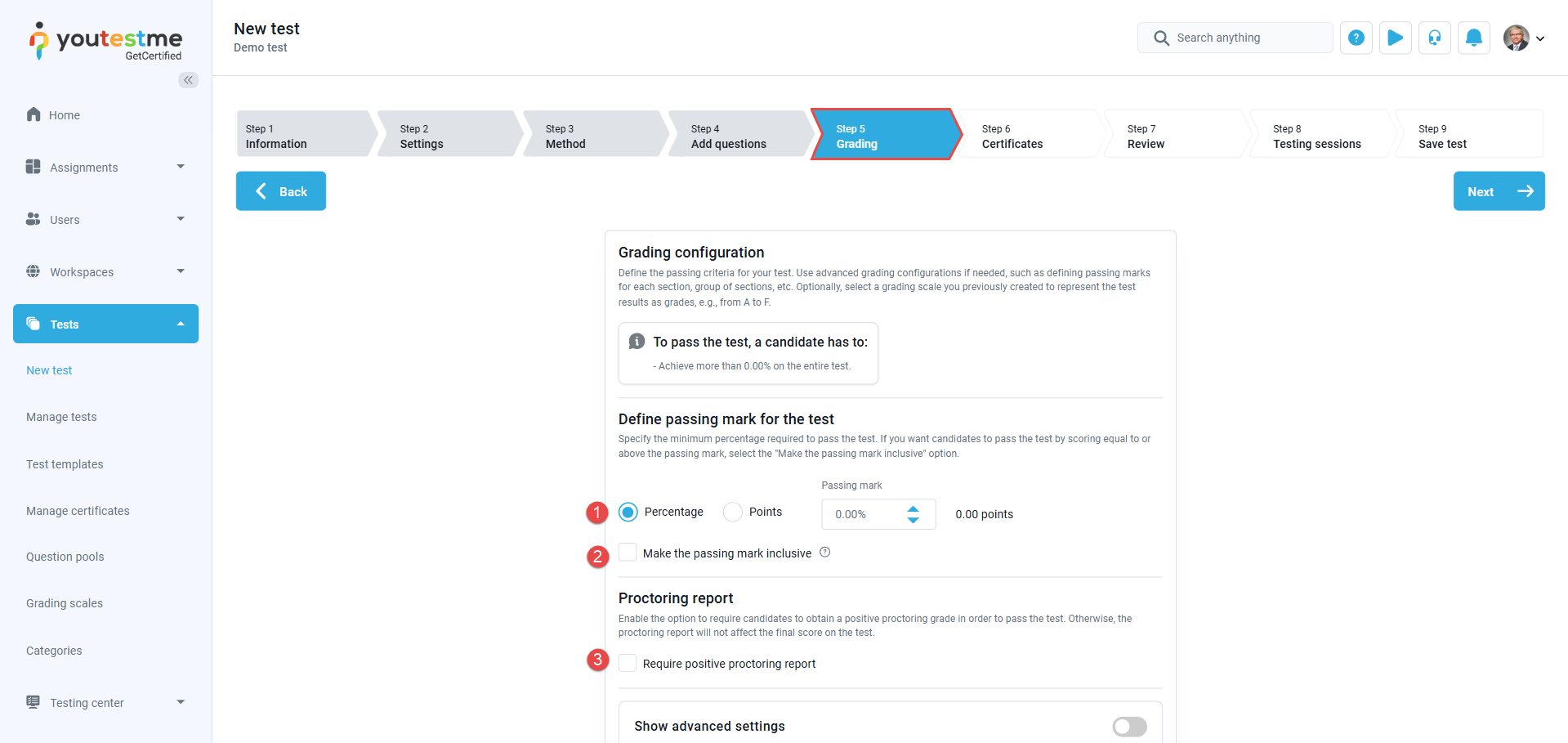
On this step, you can define the passing criteria for your test. Use advanced grading configurations if needed, such as defining passing marks for each section, group of sections, etc. Optionally, select a grading scale you previously created to represent the test results as grades, e.g., from A to F.
-
Set passing mark – Define the passing mark in percentage or points.
-
Make the passing mark inclusive, and candidates will pass the test if they gain a score equal to or higher than the passing mark.
-
Enable the option to require candidates to obtain a positive proctoring grade in order to pass the test. Otherwise, the proctoring report will not impact the final score of the test.
-
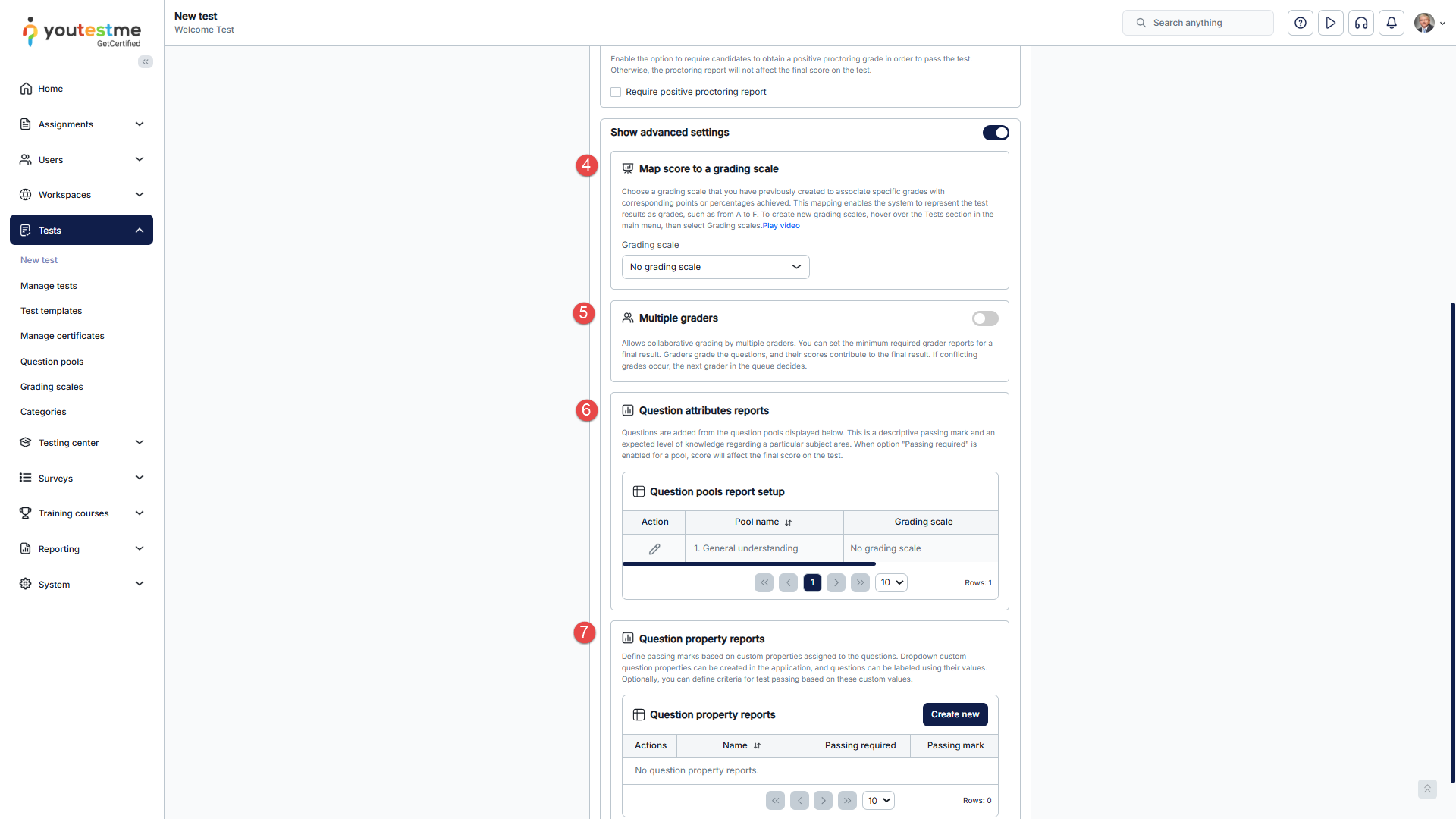
Select a grading scale that you have previously created to link specific grades with corresponding points or percentages achieved. This mapping allows the system to represent the test results using grades, for example, from A to F.
-
Allows collaborative grading by multiple graders. You can set the minimum required grader reports for a final result and enable automatic grader assignments. With auto-assign enabled, the system automatically dispatches grading requests to the specified number of graders based on the minimum required grader reports configuration. Alternatively, you can manually add graders for each candidate’s attempt. In both cases, graders are chosen from the list defined under the Test administration page.
Once a candidate completes the test, the assigned grader for that specific version, first in the queue, receives a notification. If a grader declines the request, it moves to the next in the queue until the minimum accepted reports are received. Graders assess the questions, and their scores contribute to the final result. In cases of conflicting grades, the next grader in the queue makes the decision. For more detailed information, refer to the Grader report article.
-
View the list of all question pools used in the test and define passing marks for each. These passing marks represent the expected level of knowledge for a particular topic but do not affect the final score on the test, unless “Passing required” is checked. In that case, the achieved percentage has to be greater than the passing mark in order to pass the test. Option “Inclusive passing mark” allows the achieved percentage equal to or greater than the passing mark.
Ability to define a grading scale for each pool in the Question Pools Report Setup. This feature allows setting specific grading scales per pool, providing a detailed performance overview for each topic. It helps assess student performance in each area independently, offering insights into strengths and weaknesses.
-
Define passing marks based on custom properties assigned to the questions. Dropdown custom question properties can be created, and questions can be labeled using their values. Optionally, you can define criteria for test passing based on these custom values.

Step 6: Certificates
In this step, you can either create a new certificate or use an existing one. This step is optional.
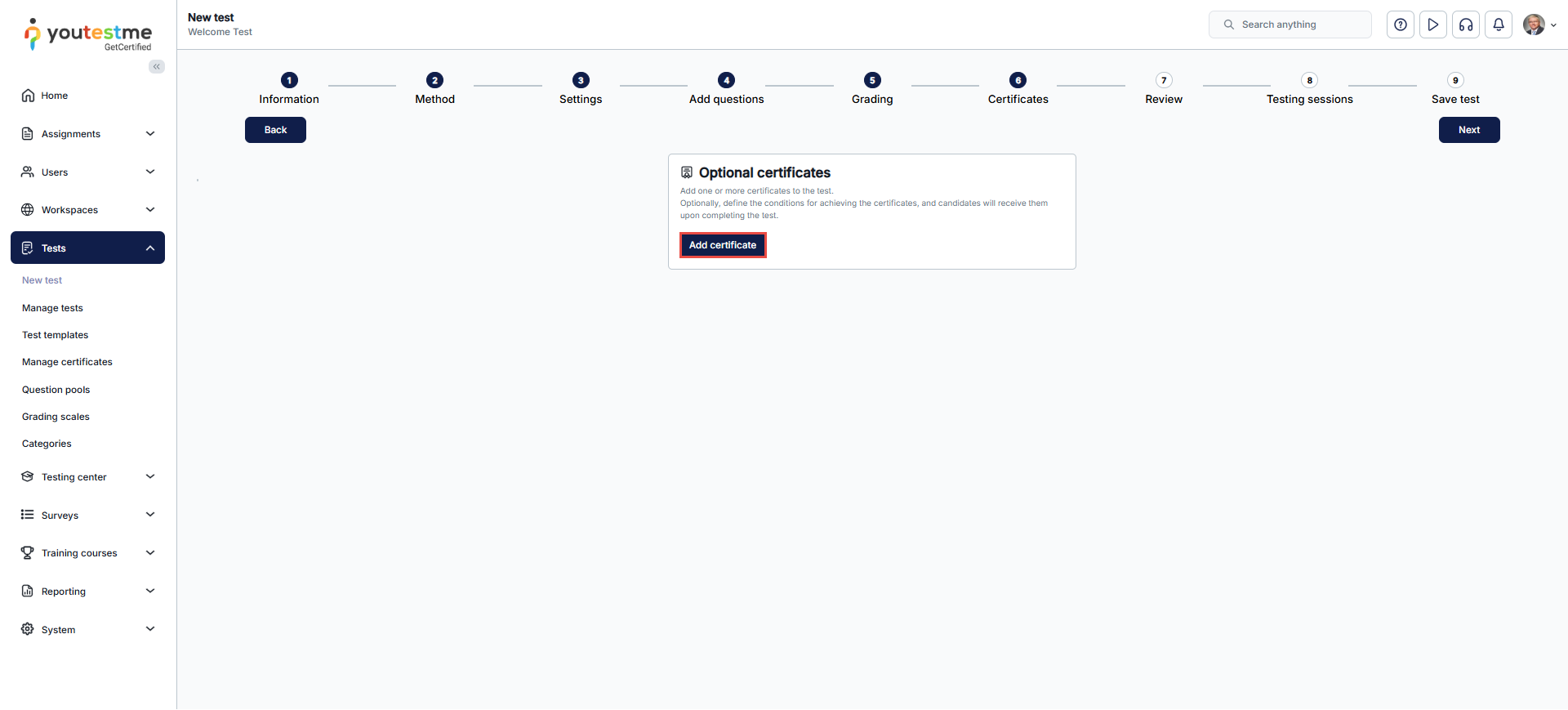
For detailed instructions on how to create a certificate, please refer to this article.
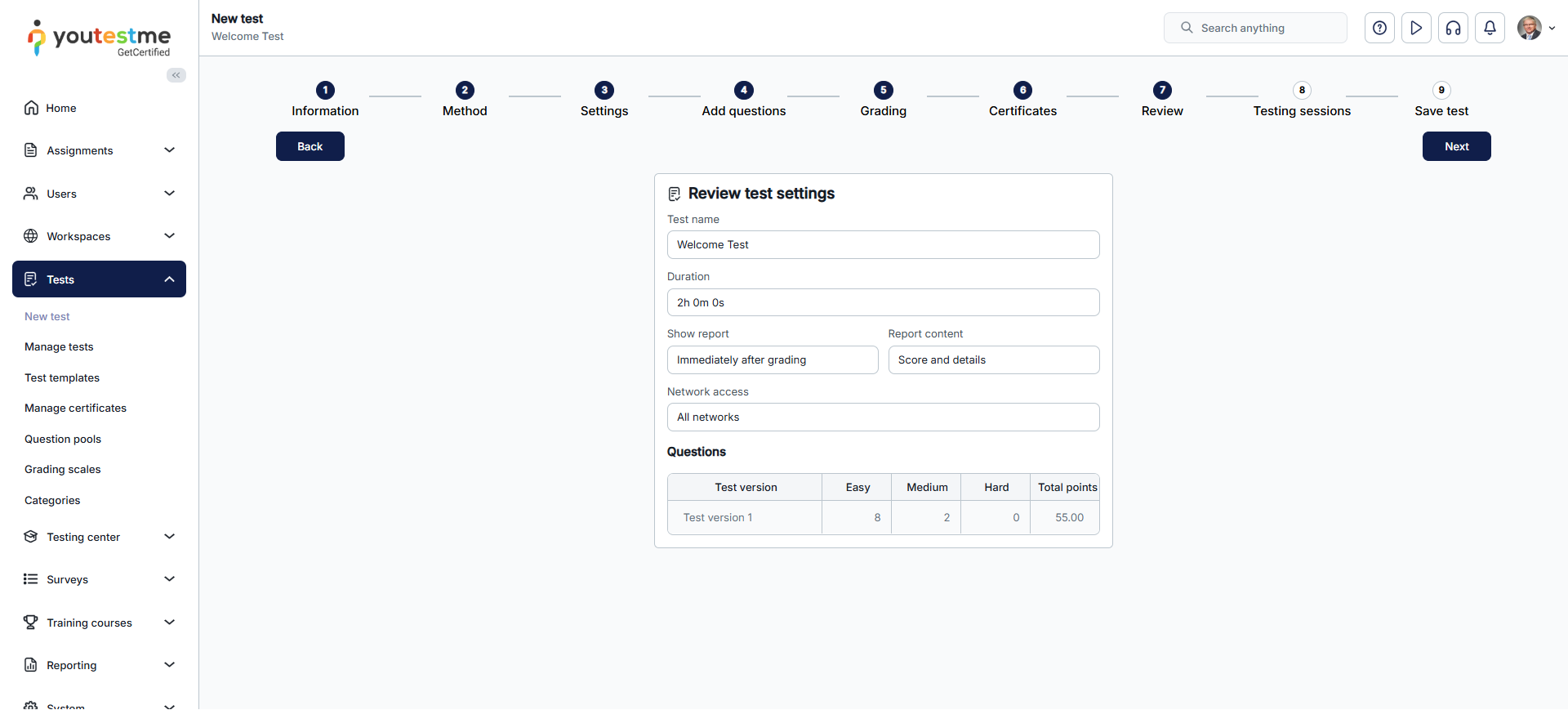
Step 7: Review a simple test
The next step in the test creation process is Review. It summarizes the test settings and lists the questions or question pools used. If you are satisfied with your test settings, you can press the Next button to continue the test creation process. If you want to change the existing tests, you can still go back and edit them.
Step 8:Testing sessions
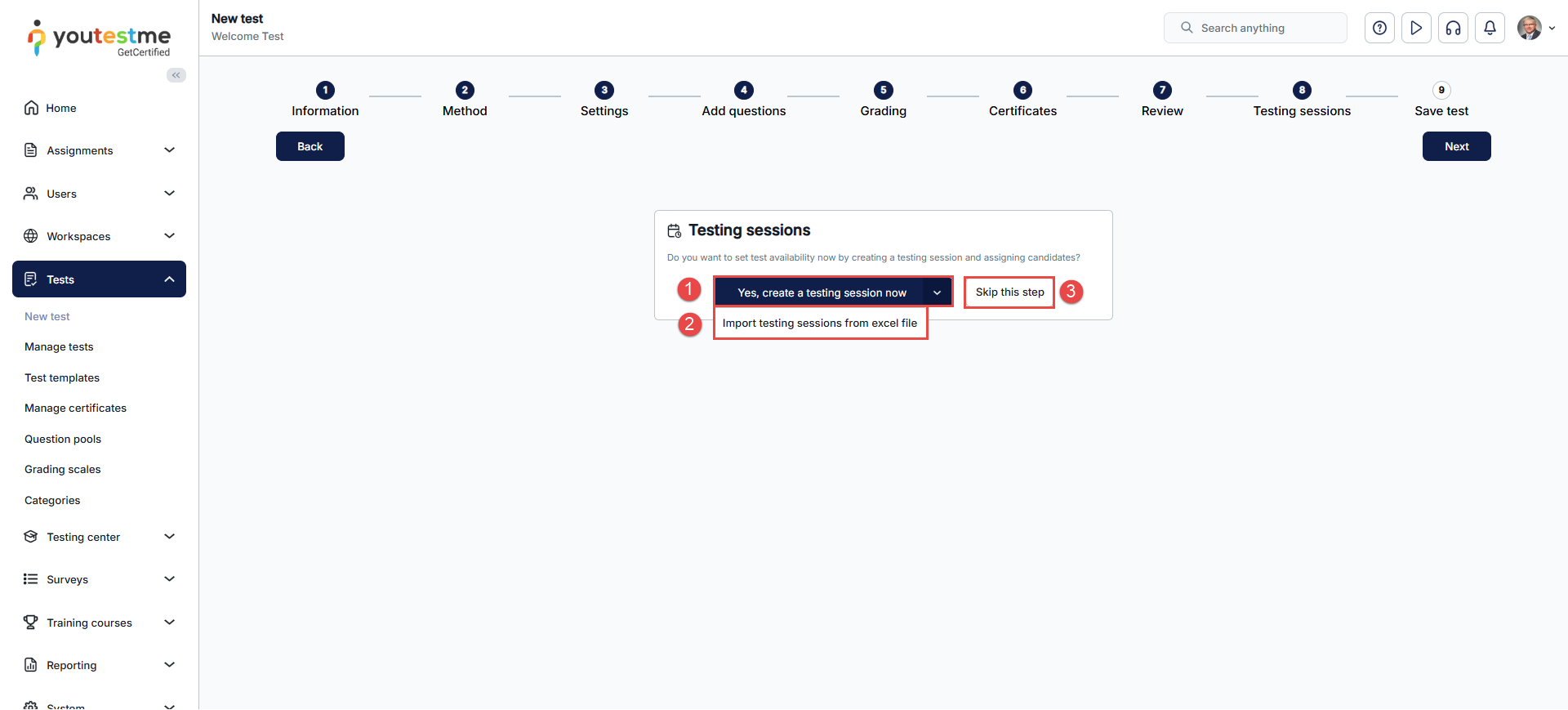
In this step, you have the option to create testing sessions. The testing sessions allow you to organize tests for candidates located at different locations (e.g., different time zones, states, continents, etc.).
- Manually create a testing session – For step-by-step instructions, please refer to this article.
- Import testing sessions via Excel – Upload an Excel file to import multiple testing sessions and assign candidates to each session directly within the file. For detailed guidance, see the article.
- Skip this step – Since this step is optional, you can skip it and proceed to the final step.
Step 9: Save test
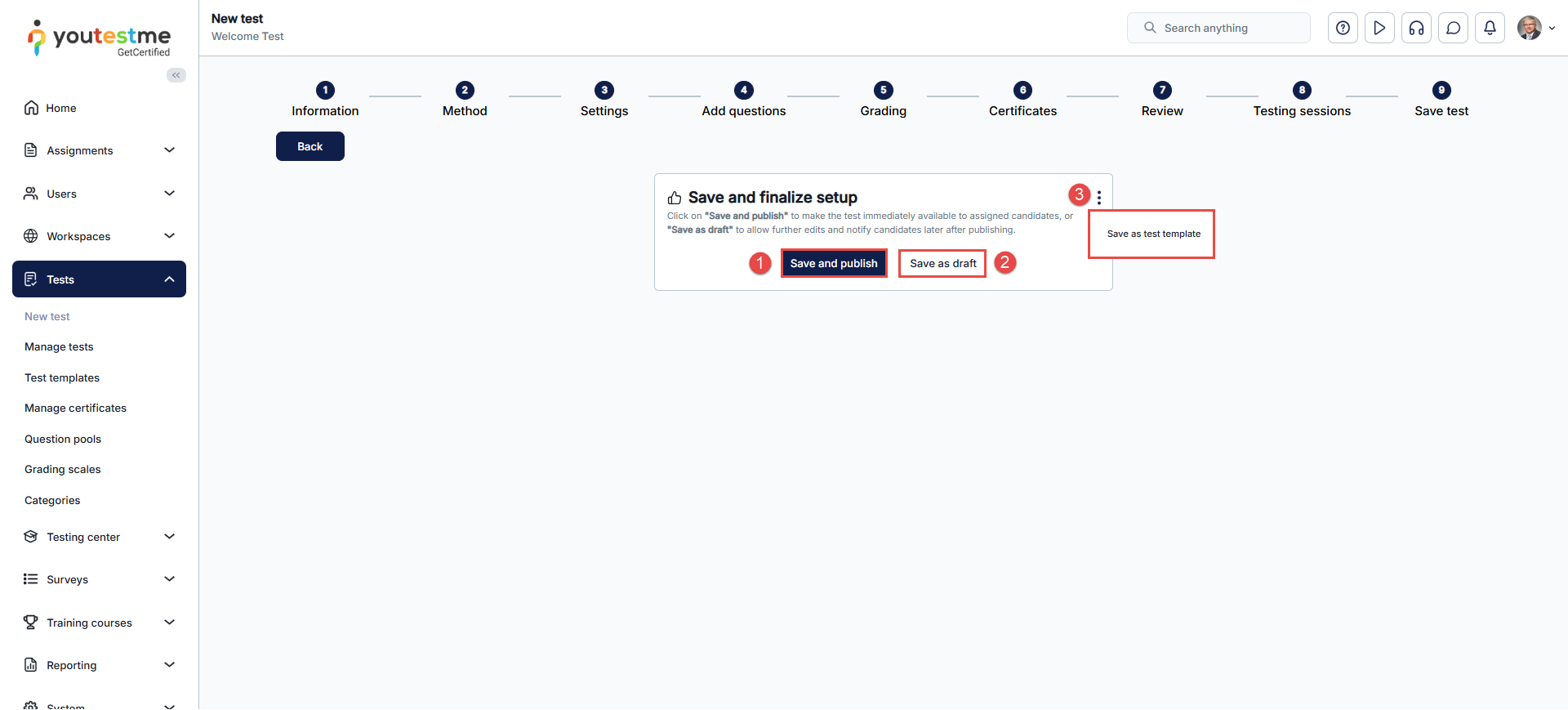
The final step in the test creation process is saving your test:
-
Click Save and Publish to make the test available to candidates. If a testing session has already been created and configured accordingly, the test will immediately become visible.
-
Click Save as Draft to save your test without publishing it. Even if testing sessions have been created, the test will remain hidden from candidates until it is published.
- Click on the Save as test template button to save the test settings as a test template.
Important: Candidates cannot access or start a test while it is in Draft status. The test must be Published and have an appropriately configured Testing Session before it becomes available to candidates.
If a test—whether a simple test or a test with sections—is in Draft status, you can return to the wizard to adjust its settings and change the creation method. However, if the test has already been published, some settings and the creation method cannot be modified directly. In that case, you need to create a copy of the published test. The copy will be in Draft status, allowing you to return to the wizard and make the necessary modifications.
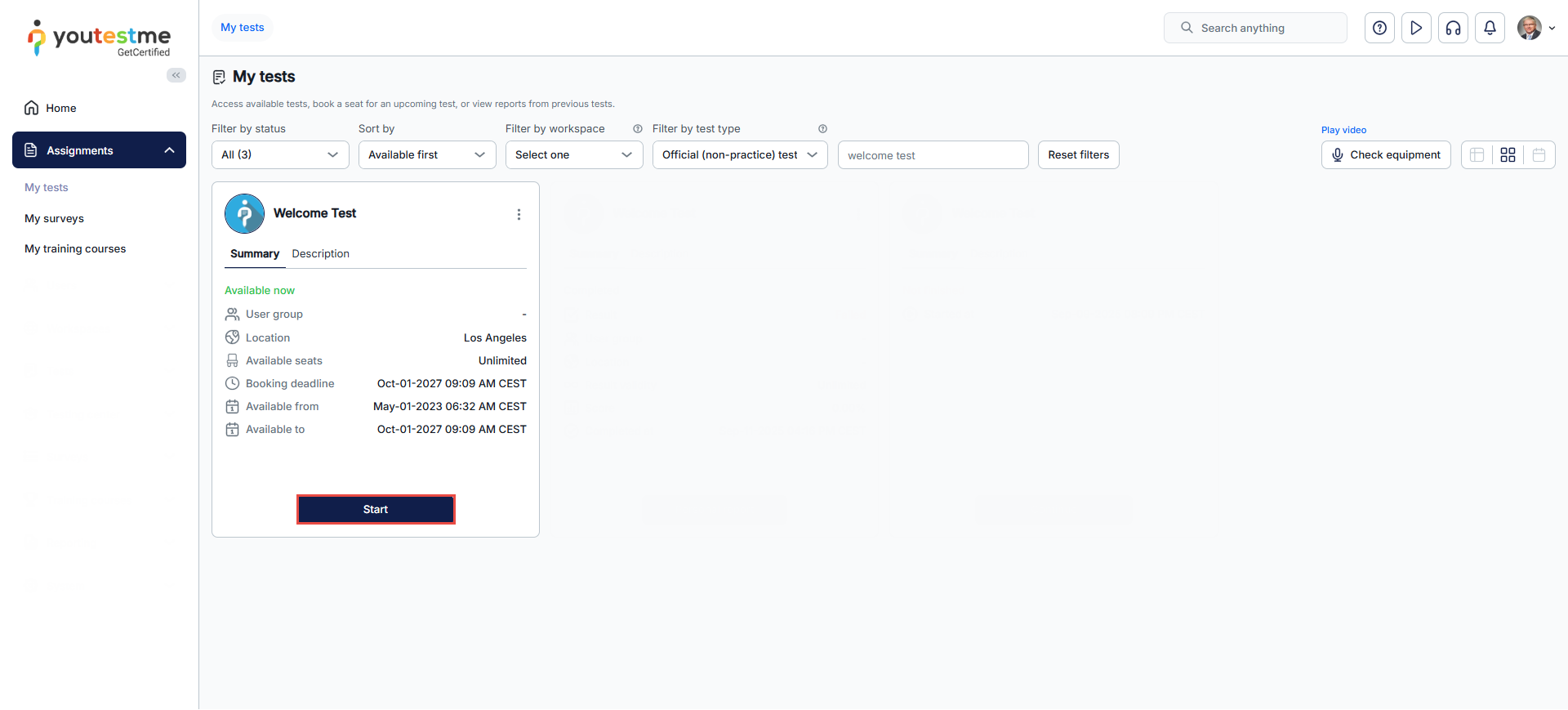
Starting the simple test as a student
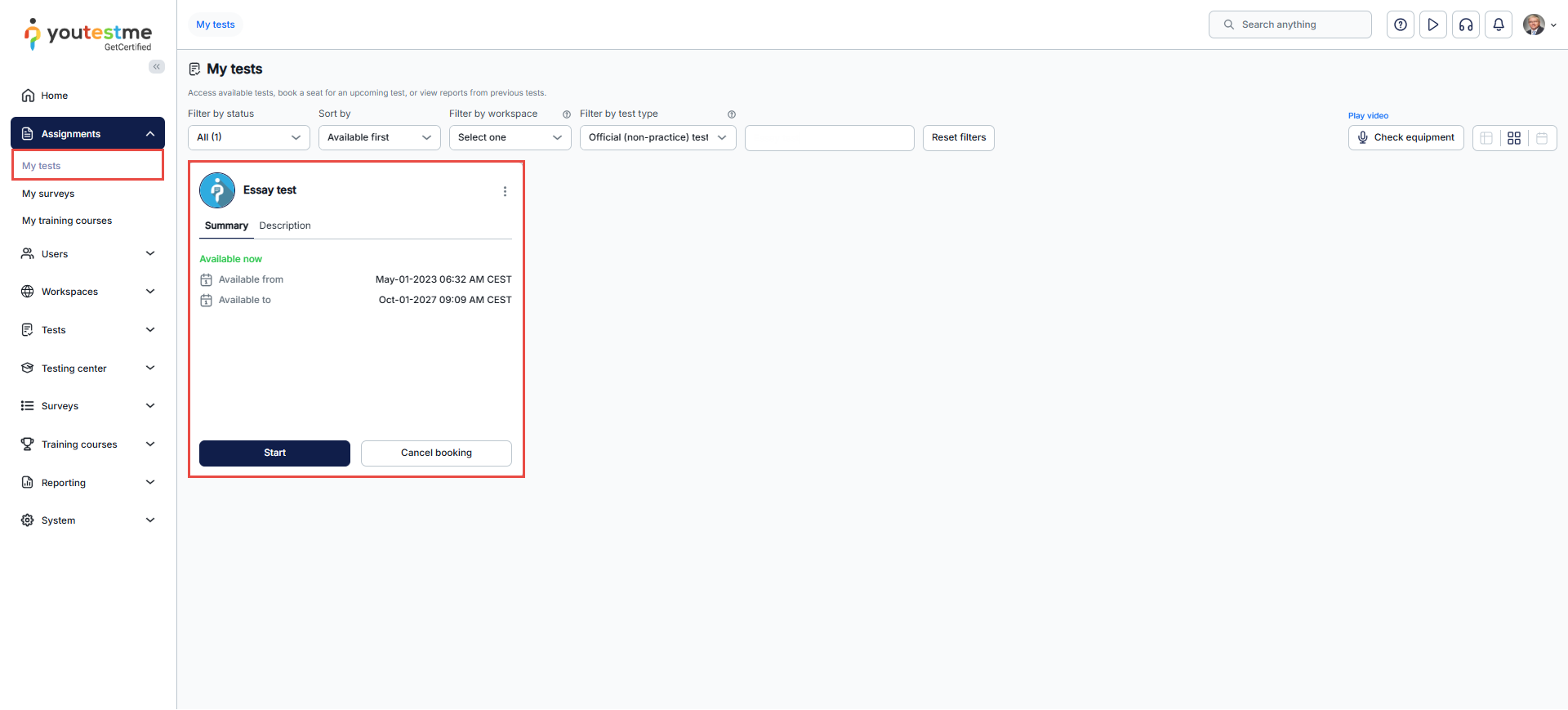
- Select the Assignments tab and then the My Tests tab.
- In the search bar, search for the desired test and select the Start option from the list of assignments for the test you want to take.
Note: For further information, please watch this video tutorial on creating a simple test without sections and assigning candidates.




