
Article verified for Release 15.2 on December 5, 2025.
In the YouTestMe – GetCertified application, you can assign extra points to an individual candidate by creating a test authorization. This allows you to grant special scoring adjustments without modifying the overall test settings for everyone.
Follow the steps below to create an authorization and add additional points.
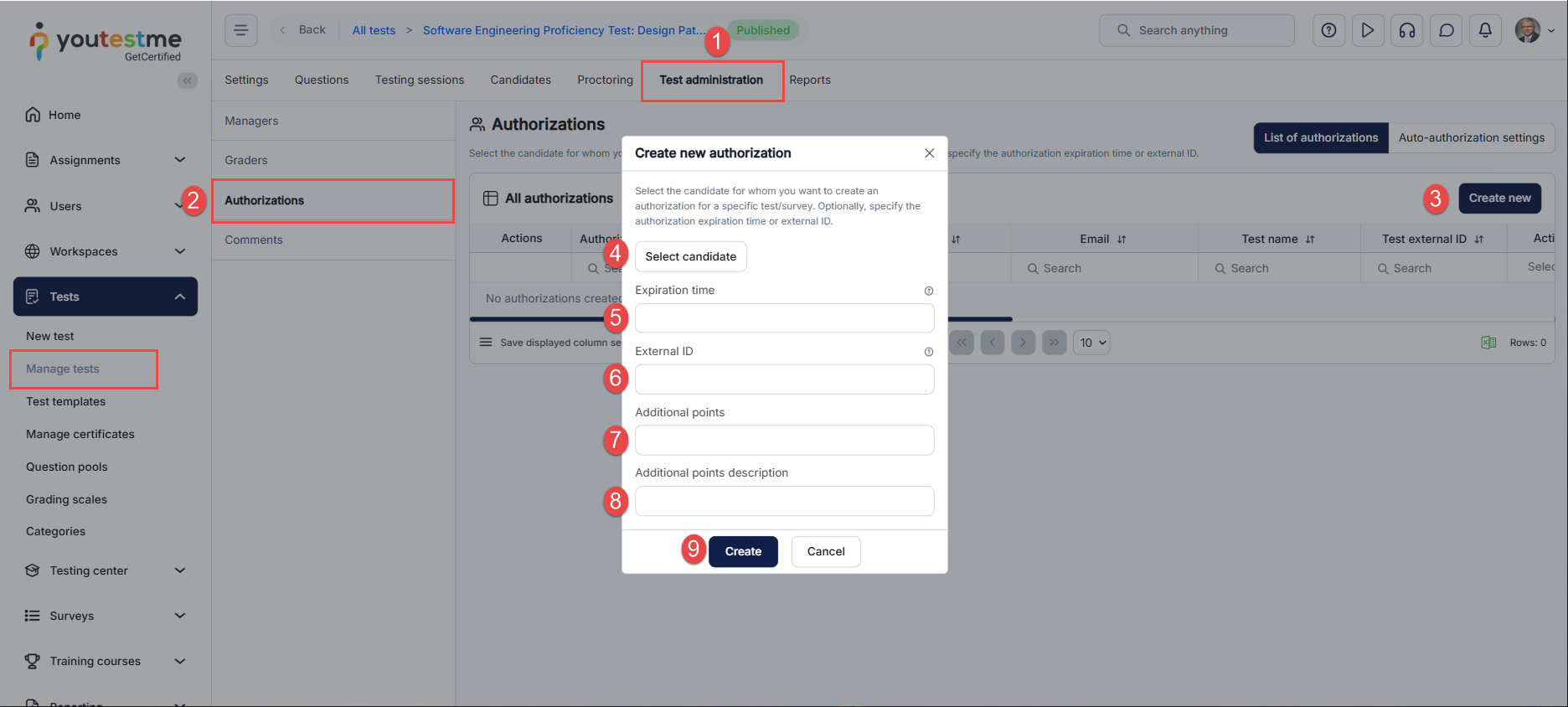
- From the list of tests, open the desired test. At the top of the page, switch to the Test administration tab.
- In the Test administration menu on the left side, click Authorizations to open the authorization list.
- In the top-right corner of the Authorizations page, click Create new to open the authorization window.
- Click Select candidate and choose the test taker for whom you want to create the authorization.
- Set expiration time
- Add an external ID
- In the Additional points field, enter the number of extra points to grant to the selected candidate.
- Provide a short explanation in the Additional points description field (recommended for record keeping).
- Click Create to finalize and apply the authorization.
Note on Applying Additional Points
Additional points are not always applied automatically and depend on the candidate’s achieved score in relation to the passing score:
- Additional points are awarded only if the attempt passes based on the raw score (points earned from test questions, before any additional points are applied).
- If the candidate has more than the passing score, additional points are applied in full.
- If the candidate’s score is below the passing score, additional points are not applied, even if the score is near the passing threshold.
- If the candidate achieves the exact passing score, additional points are awarded only if the “Make the passing mark inclusive” option is enabled.
- Additional points are applied only up to the maximum possible score, meaning the total score cannot exceed the defined maximum.
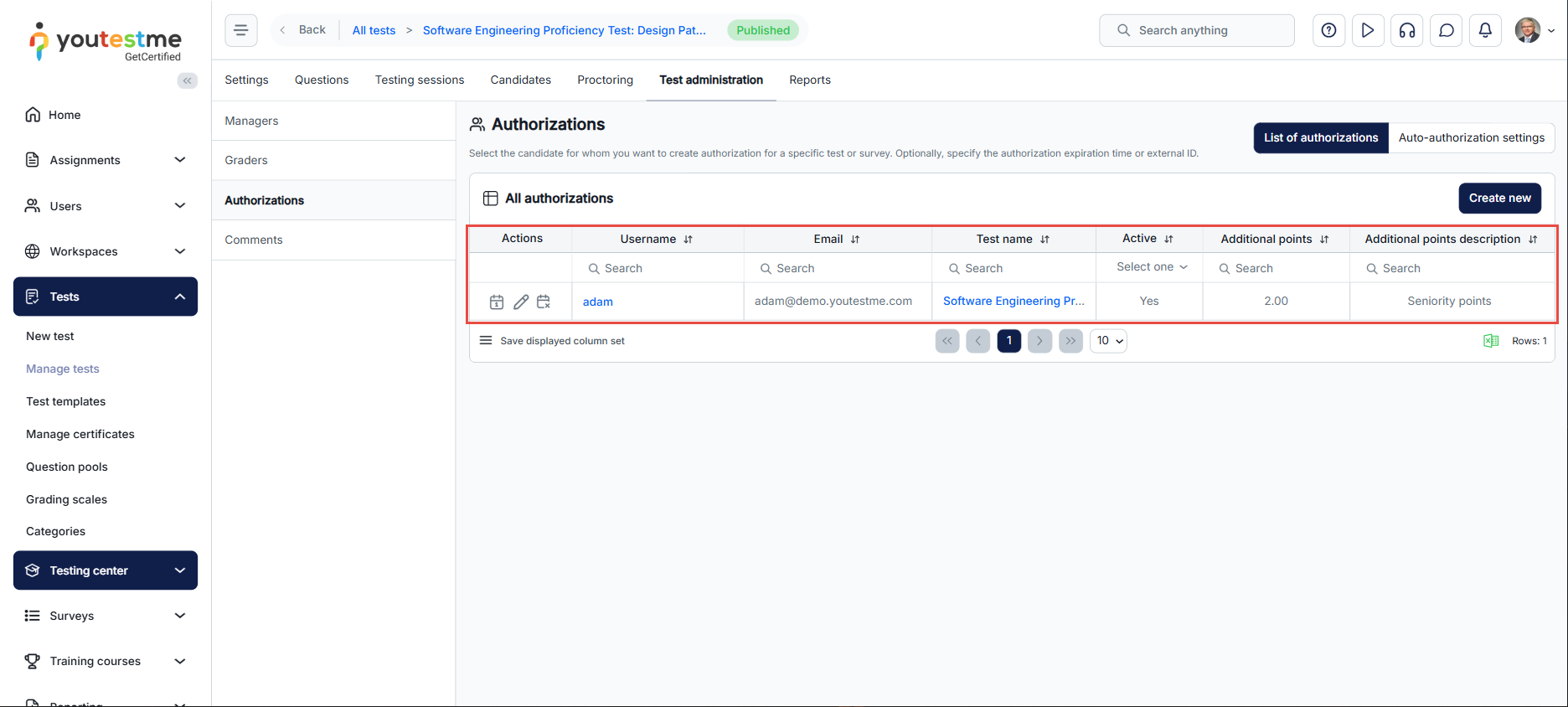
How Additional Points Are Displayed in the Candidate Personal Report
When a candidate receives extra points through authorizations, both the candidate and the admin have clear visibility into how these points affect the test results. This ensures transparency and accurate record-keeping.
Candidate View
In the candidate’s personal test report, additional points are displayed prominently in the Summary Report section. Candidates can see:
- Passing score – the minimum points required to pass the test.
- Achieved points – total points after including any additional points.
- Achieved score – the percentage score relative to the maximum possible points.
- Raw points – points earned from completing the test questions.
- Additional points – extra points awarded via authorization, along with the description.
- Result – the final status (Pass/Fail) after all points are calculated.
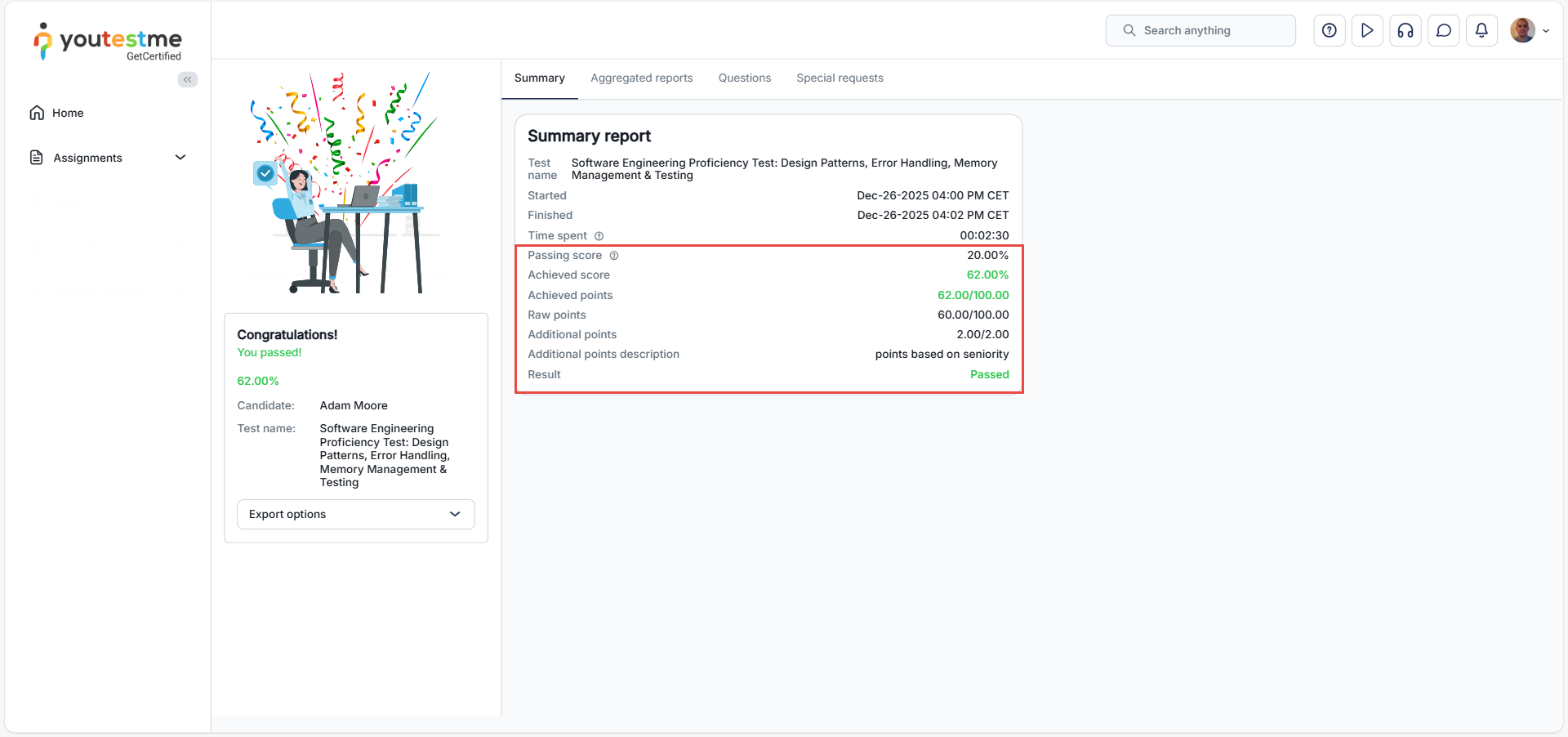
This allows candidates to understand exactly how their final score was determined and why they might have received a higher result than the raw points earned from the test questions alone.
Admin View
For administrators, the summary report provides a detailed breakdown of all scores, including additional points. The key fields include:
- Passing score – the minimum points required to pass the test.
- Achieved points – total points after including any additional points.
- Achieved score – the percentage score relative to the maximum possible points.
- Raw points – points earned from completing the test questions.
- Additional points – extra points awarded via authorization, along with the description.
- Result – the final status (Pass/Fail) after all points are calculated.
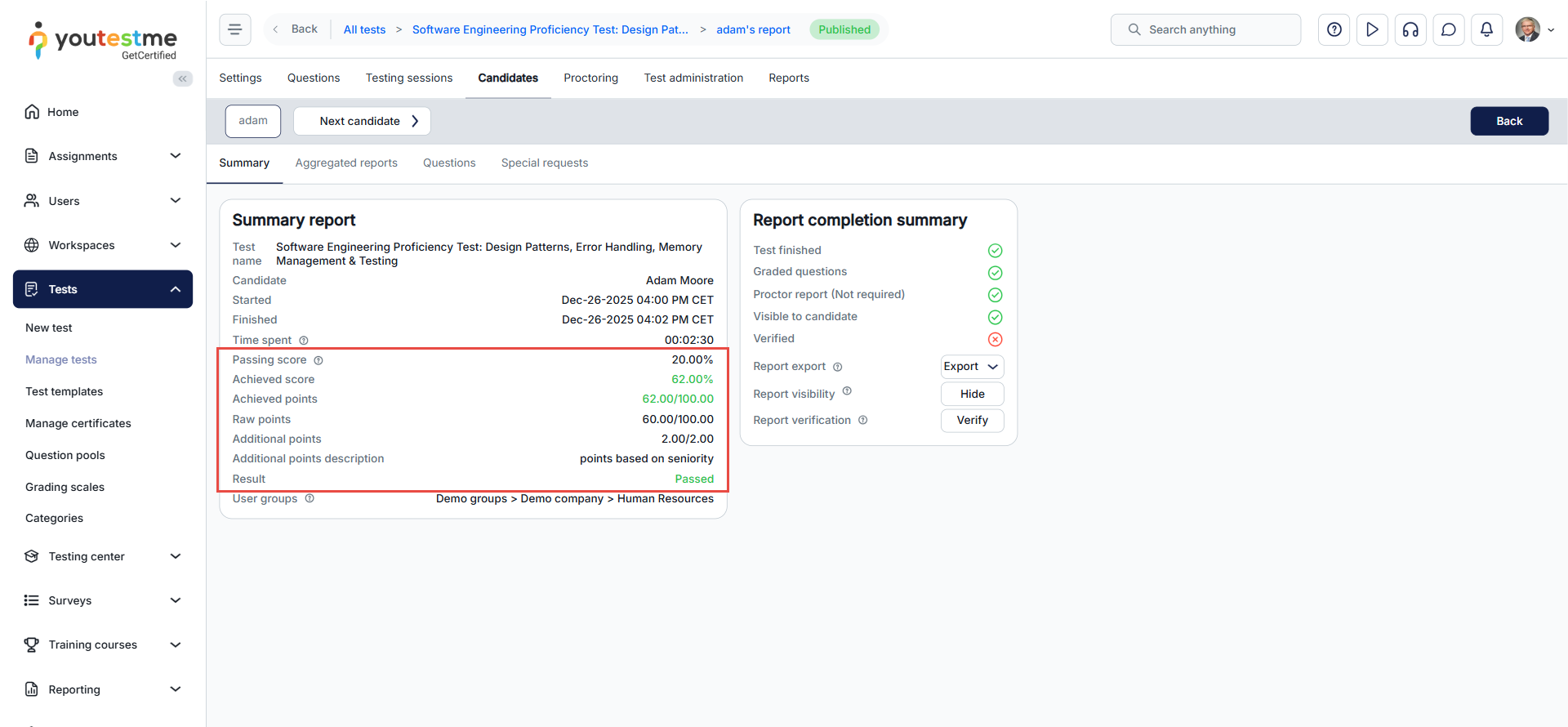
This transparent reporting enables admins to track adjustments to a candidate’s score and maintain accurate performance records.
Note: When a candidate’s average is close to the maximum grade, additional points are added only partially, up to the maximum grade.
For instructions, you can access the following materials:
-
How to create an authorization: Watch this video
-
How to access the Personal Report: Read this guide




