Article verified for Release 15.1 on February 23, 2026.
This article explains how to enable and customize the automatic Test Finished email notification sent to candidates after they complete a test attempt.
When enabled, the system automatically sends a confirmation email immediately after submission, regardless of whether the test report is available at that time. This helps confirm successful completion, provides next-step instructions, and ensures clear communication.
Administrators can fully customize the email content to match their organization’s communication style and workflow.
How to Configure Test Finished Email Notification
If you wish to provide candidates with automatic email confirmation upon completing their test, follow these simple steps:
- Hover over the System option in the main menu.
- Select Settings and customization.
- Navigate to the Notifications tab.
- Enable the Test finished notification.
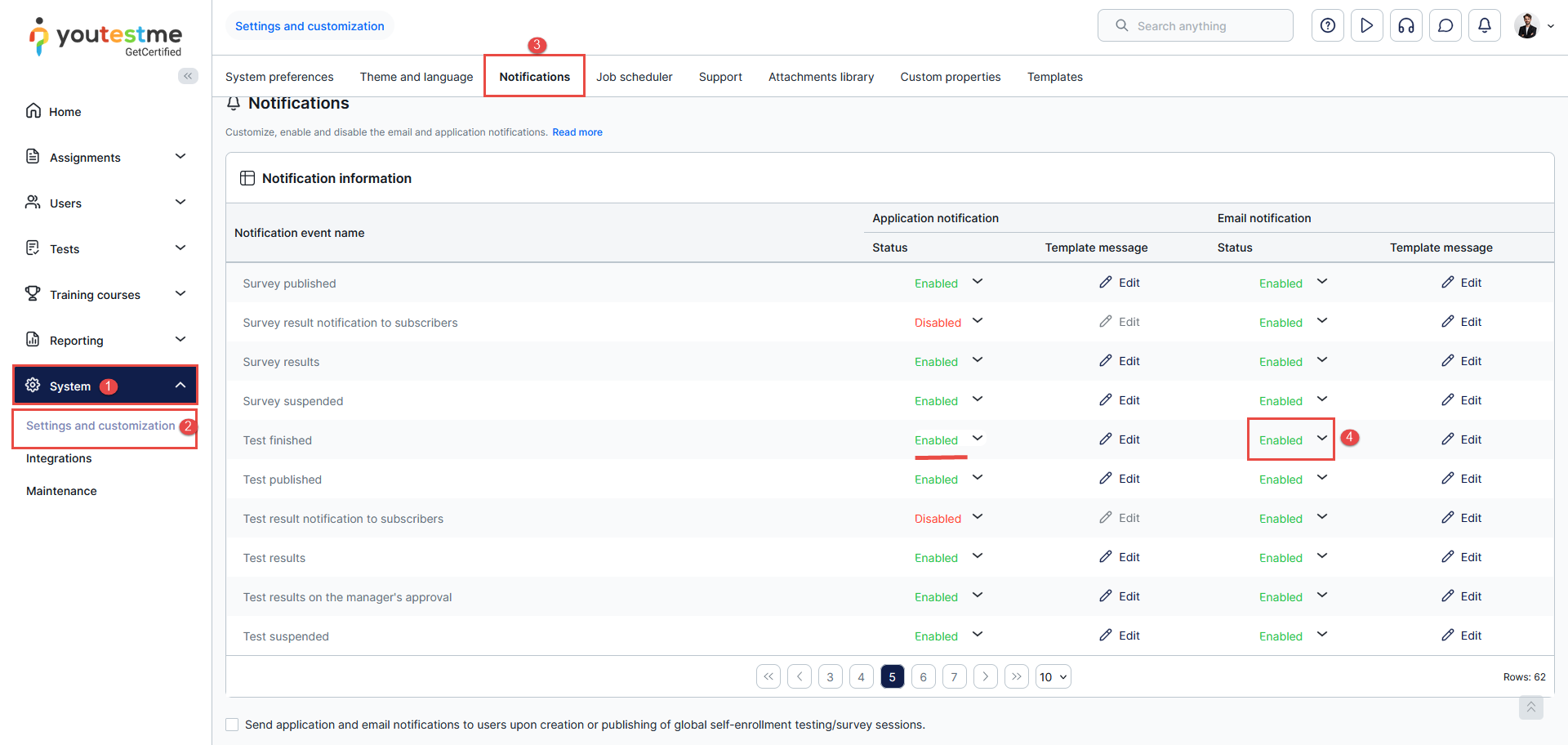
Note: This email notification will be sent regardless of whether the test report is available at that moment or not.
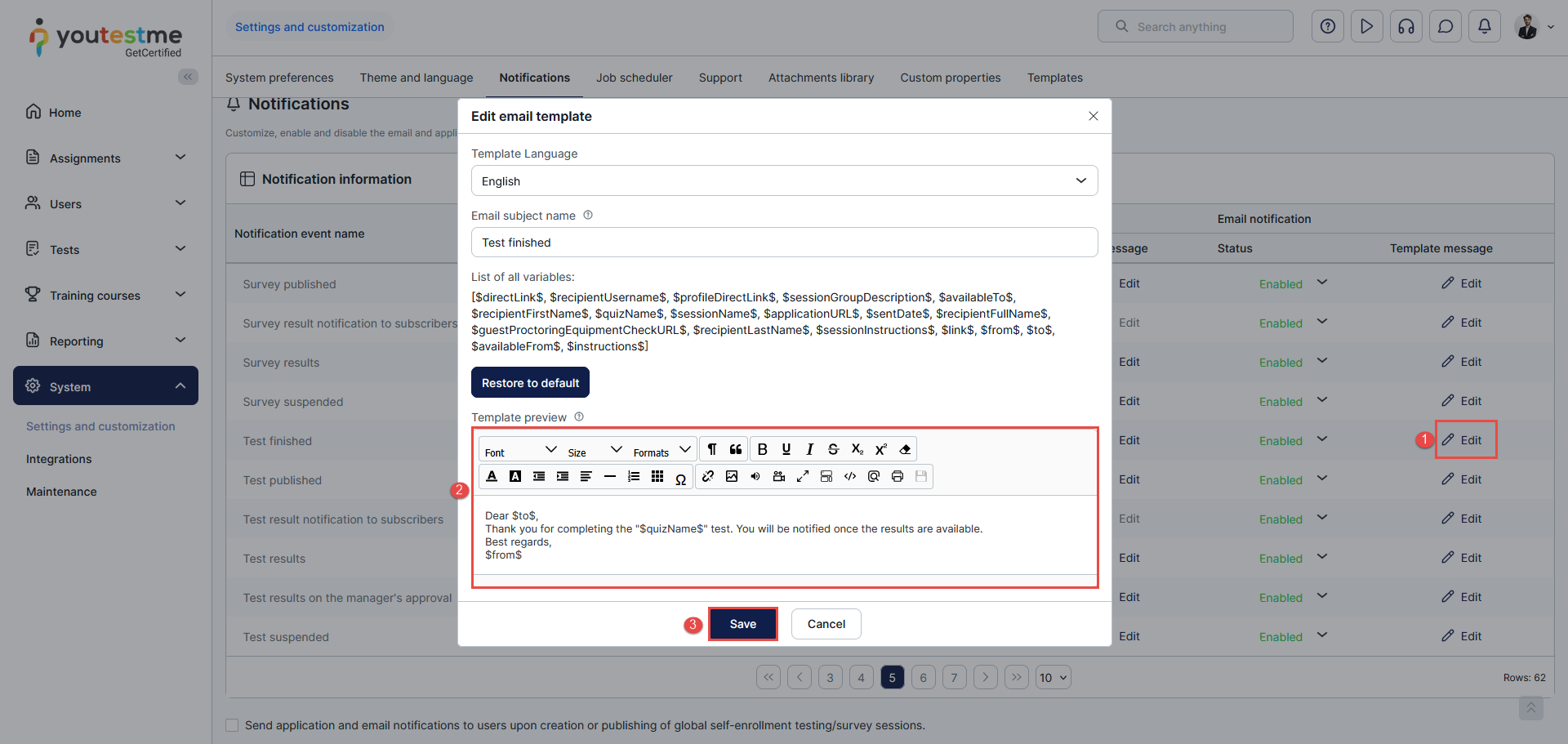
To customize the text in the email, follow these steps:
- Click on Edit.
- Add the desired email content.
- Click the Save button.
Candidate’s Perspective
Once a candidate finishes their test attempt, a predefined email is automatically sent to the email address set in their profile.
An example:

Additionally, if the user has subscribers, such as a teacher or any other role, all emails, including the test finished email, will be forwarded to them as a blind carbon copy (BCC).
Conclusion
Enabling and customizing email confirmations for test completion is highly beneficial for both candidates and administrators. It enhances the candidate experience by providing immediate feedback and acknowledgment of their efforts. Administrators can also use this feature to keep other relevant parties in the loop, ensuring everyone stays informed about the candidates’ progress. Overall, this feature streamlines communication and improves the efficiency of the testing process.






