Article verified for Release 15.2 on January 05, 2026
In this article, we will explain how candidates can securely log in to their accounts using Two-Factor Authentication (2FA). 2FA adds an extra layer of security by requiring not only a password but also a code generated by an authentication app. This process ensures that only the rightful owner of the account can gain access.
Setting Up 2FA for the First Time
When candidates log in for the first time after 2FA is enabled on their account, they will be prompted to complete the setup process. They can choose one of two setup options:
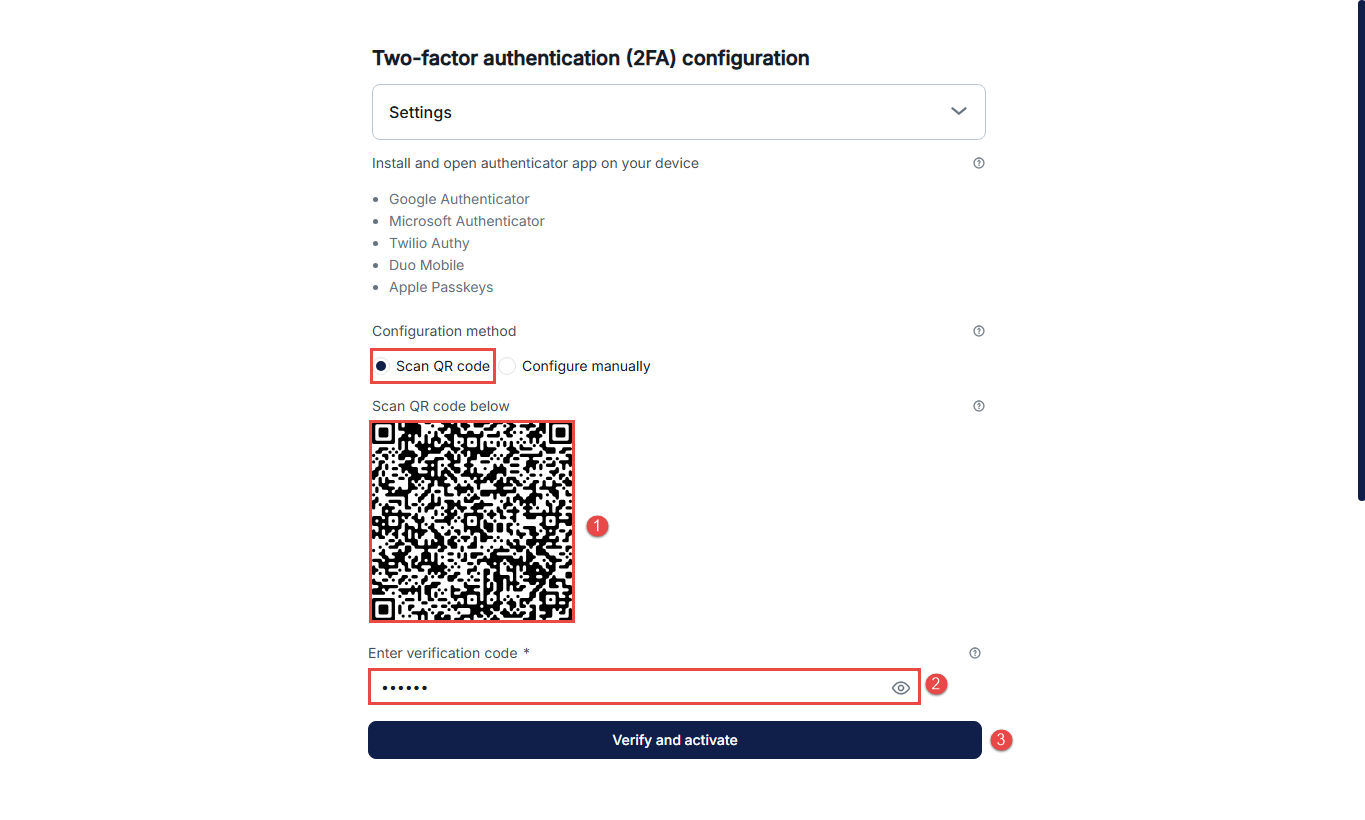
Option 1: Using a QR Code
- Scan the QR code displayed on the screen using your preferred authentication app (e.g., Google Authenticator, Microsoft Authenticator, Authy, etc.).
- Enter the 6-digit code generated by the app into the provided field.
- Click Verify and activate to complete the setup and log in to your account.
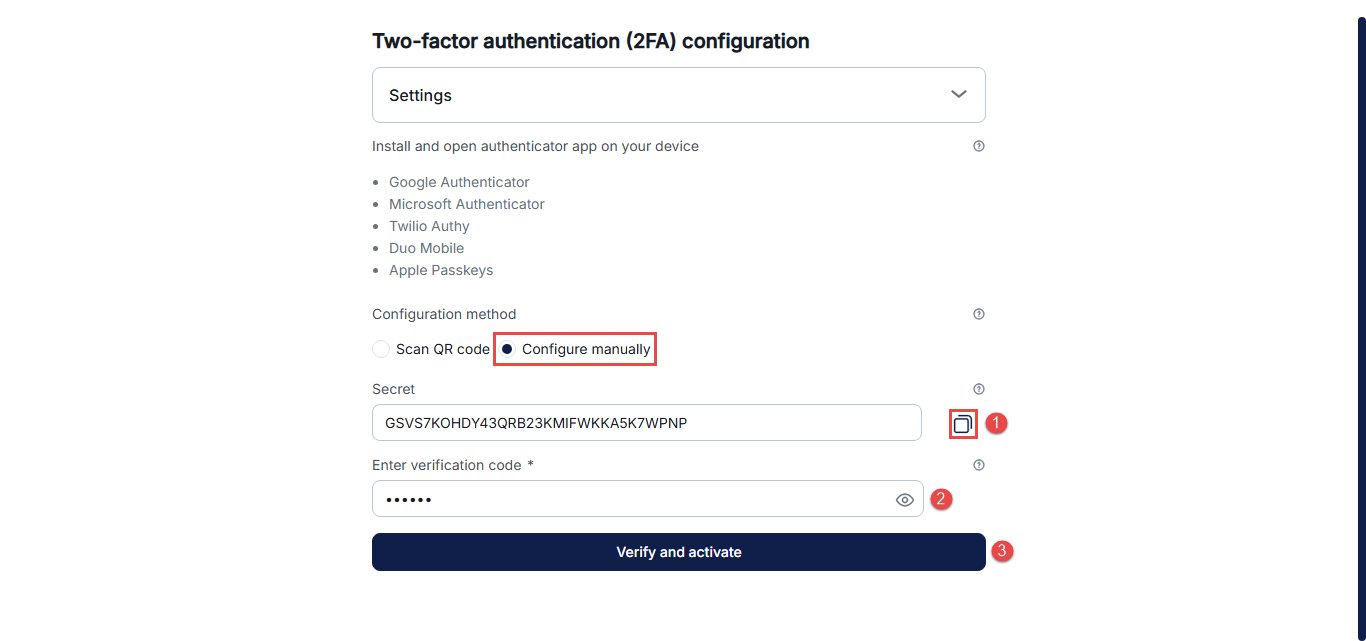
Option 2: Using a Manual Secret Key
- Copy the secret key displayed on the screen. Open your authentication app and manually enter the key to add your account.
- Enter the 6-digit code generated by the app into the provided field.
- Click Verify and activate to complete the setup and log in to your account.
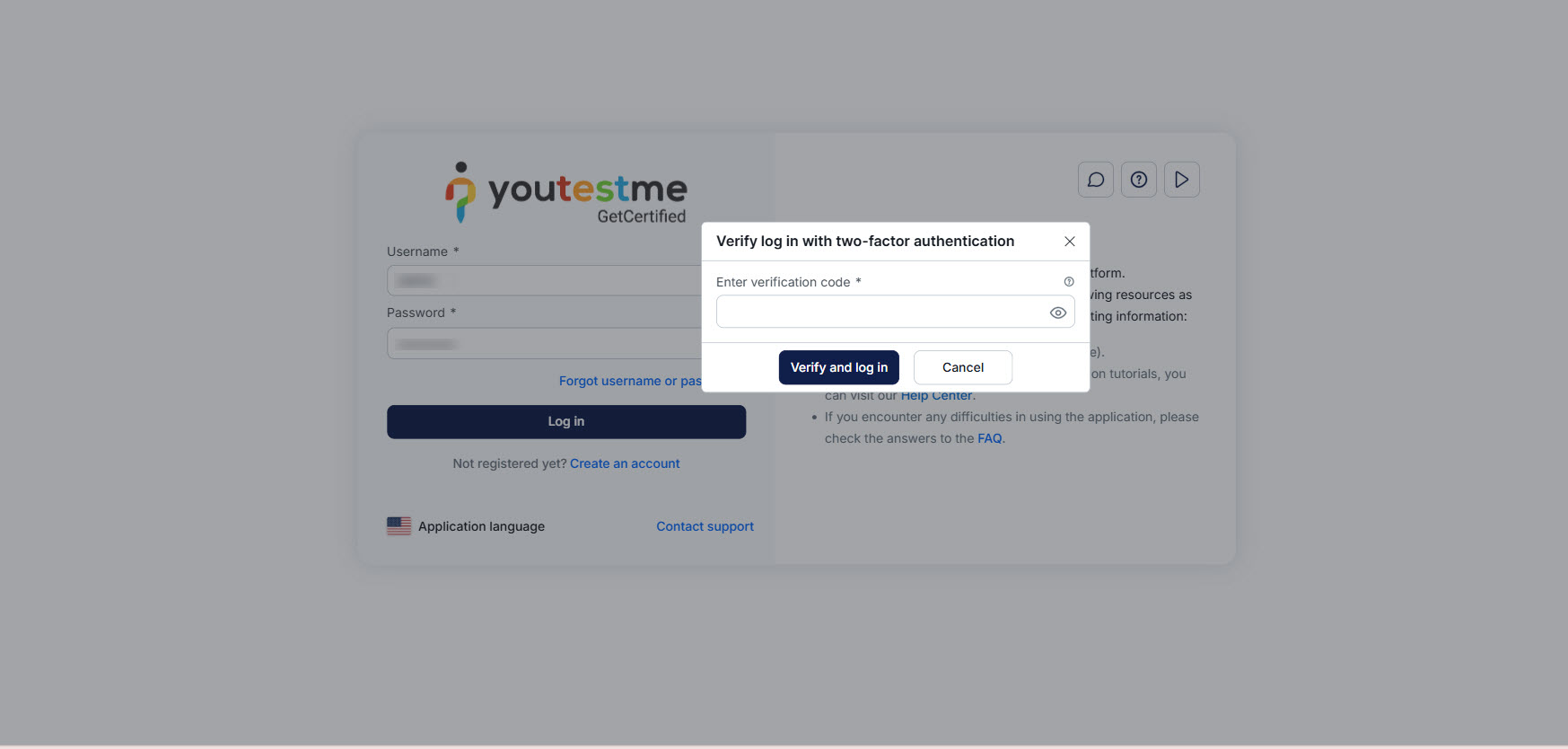
Logging In After 2FA Setup
On every subsequent login, after entering their username and password, candidates will be prompted to enter the 6-digit verification code generated by their authentication app. No further setup is required unless the 2FA configuration is reset.
Important note:
Do not delete your account from the authentication app!
Once two-factor authentication (2FA) is set up, the QR code and secret key are not displayed again. If you delete your account from the app, you will no longer be able to generate the required login codes and may be locked out of your account. In this case, you will need to contact your account administrator to regain access.
For related articles, please visit:






