
Article verified for Release 15.2 on September 20, 2025.
This article explains how to adjust the report builder format and header names.
To see how to use Report Builder, please see How to Create Custom Reports Using Report Builder article.
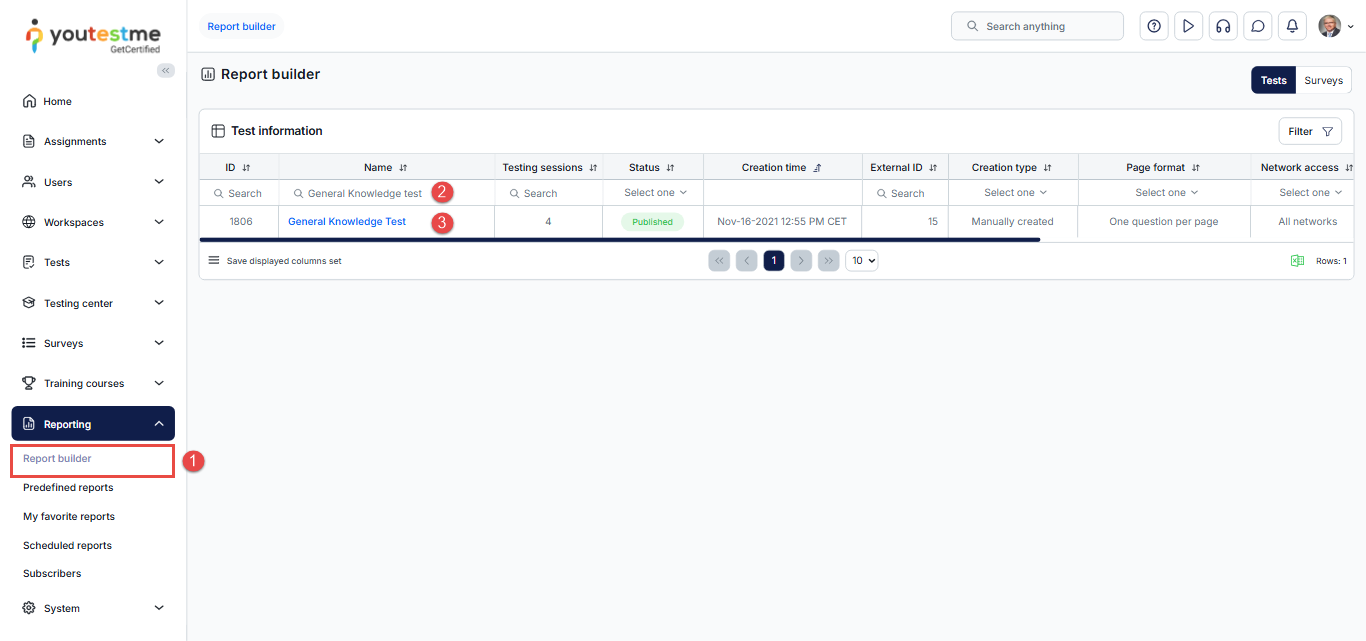
Accessing the Report Builder
- From the main menu, select the Reporting tab and then choose Report Builder.
- In the list of available tests, use the search box to find the test you want to preview.
- Click the test name to open it.
Report Builder Before Adjusting
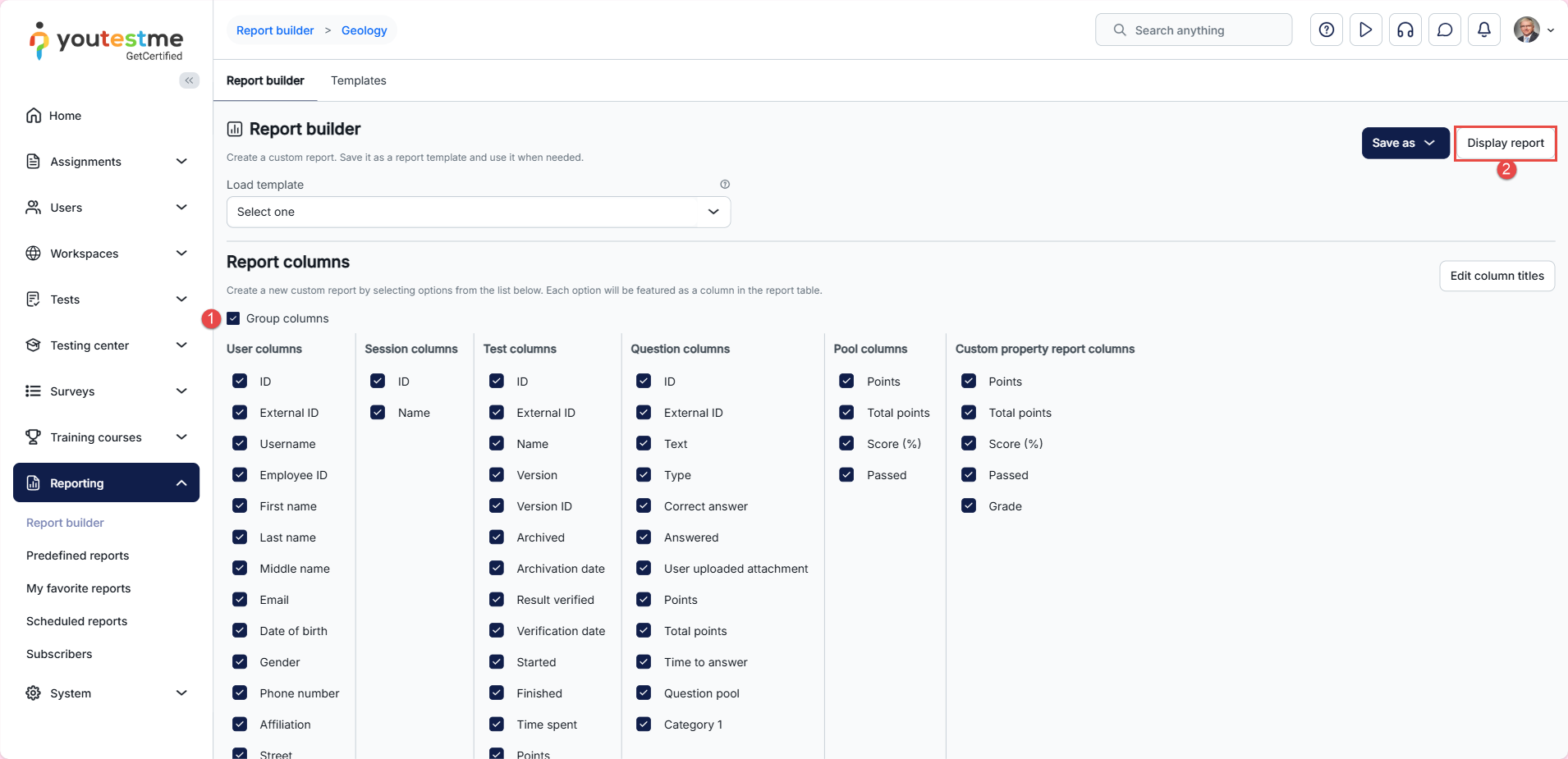
- The Group columns option is checked by default, and when displaying the report, columns will be grouped
- Click Display report to see an example of the report when columns are grouped.
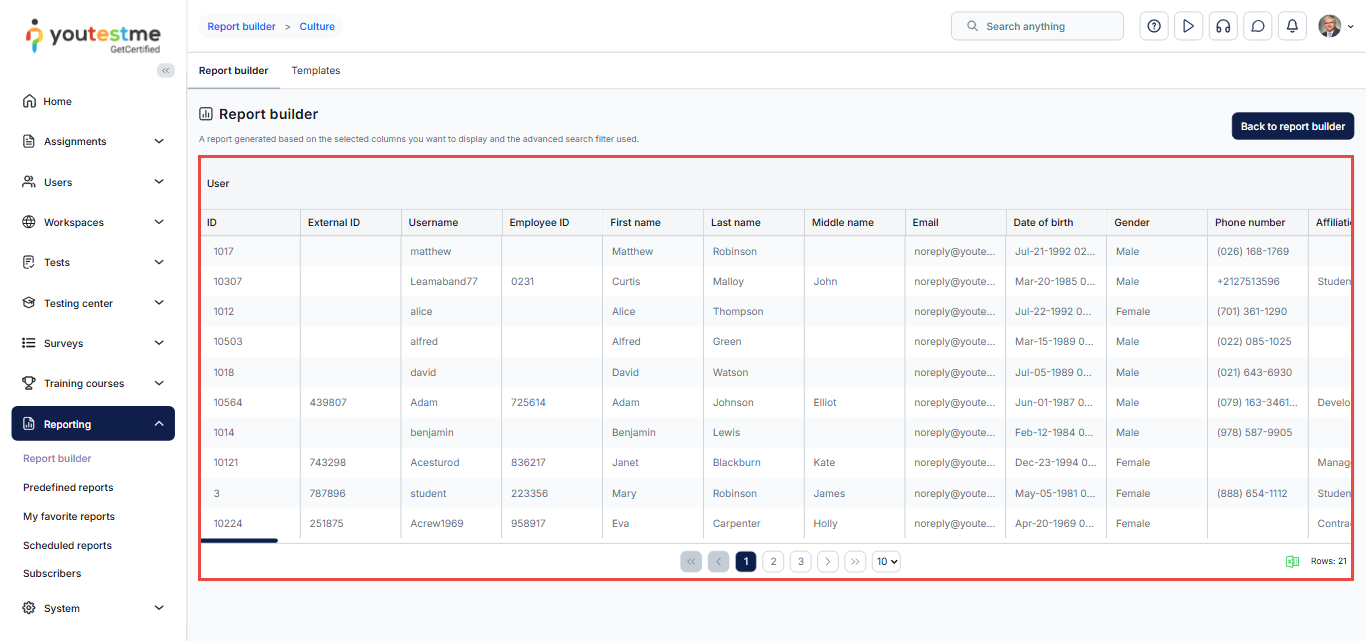
All columns related to user information are grouped within the User category.
Adjusting the Report Builder
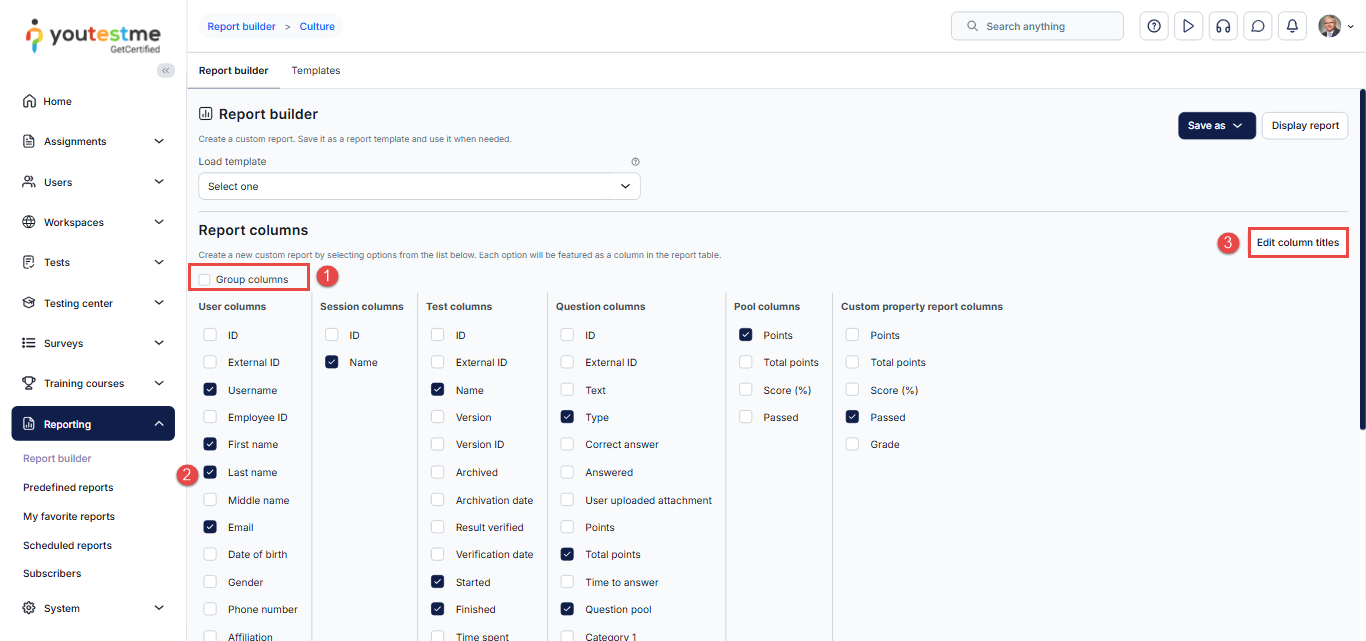
If you want to adjust the Report Builder Format per New Samples and exclude the column grouping
- Uncheck Group columns.
- Select the desired columns for your specific report.
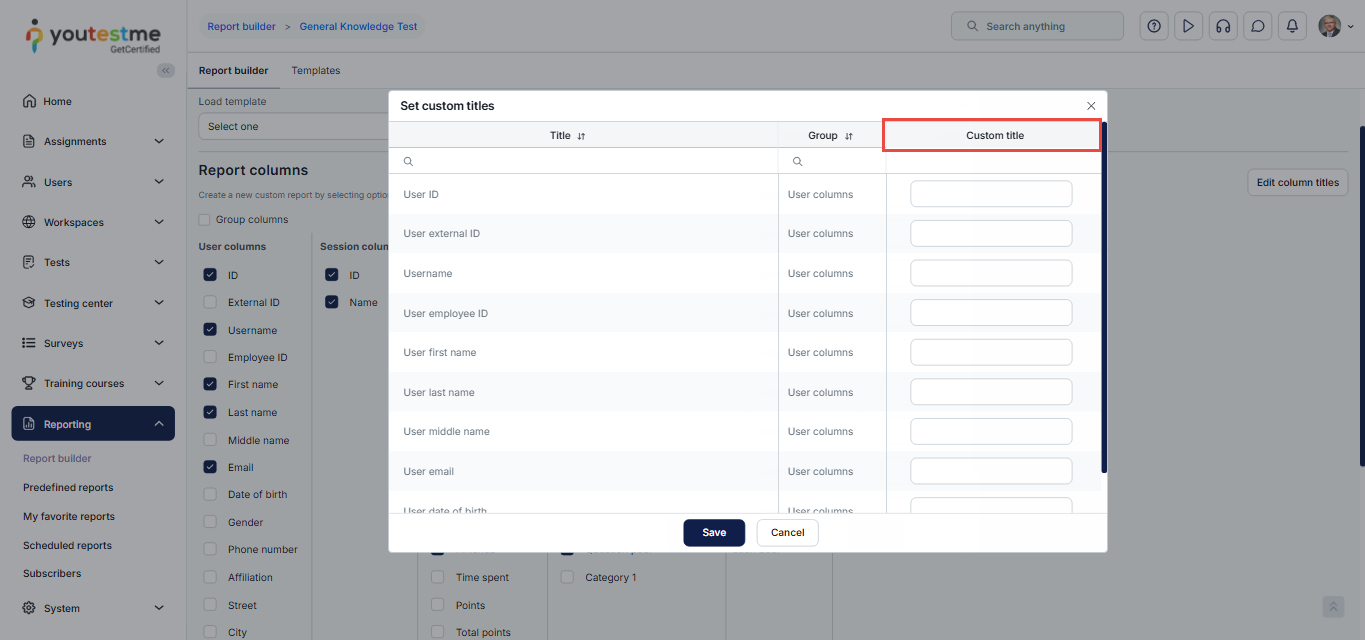
- Click Edit column titles to modify the column names if needed.
Adjusting Header Names
In the pop-up window, you can use the Custom title column to change the header names according to your preferences.
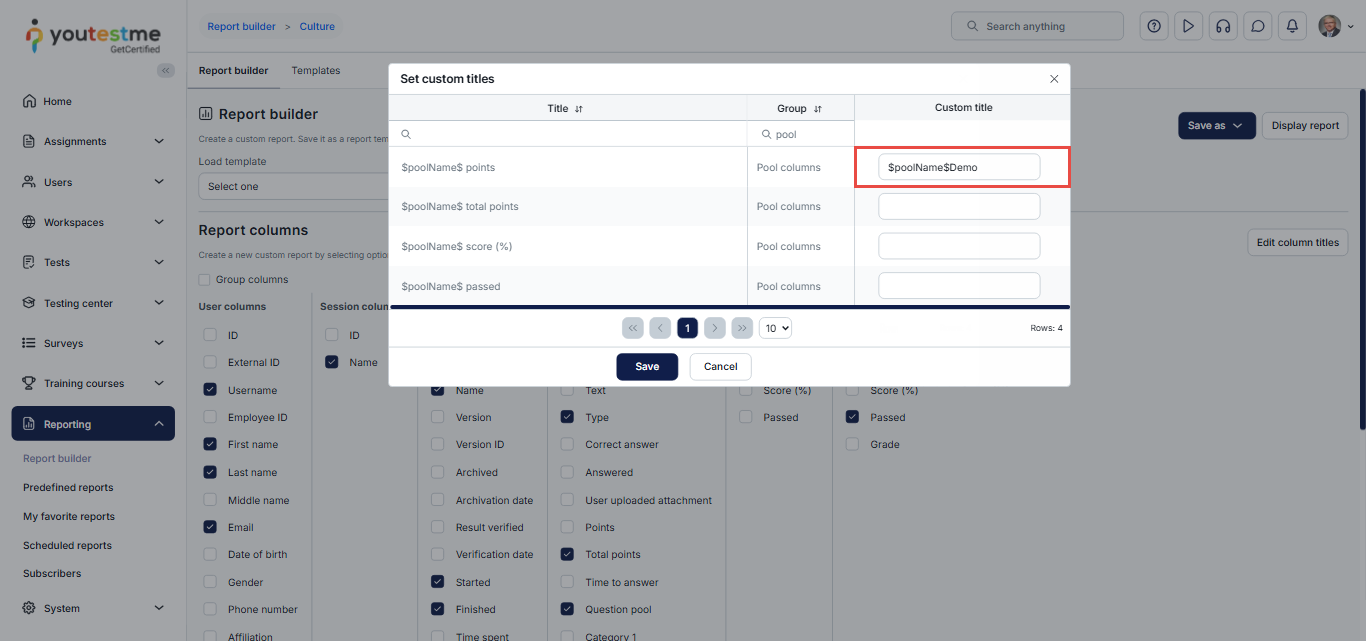
Note: When changing question pool column title names, you can use parameters enclosed between $ signs to display the exact pool name dynamically. You can also add static text before or after the parameter if needed.
Saving Adjusting as a template
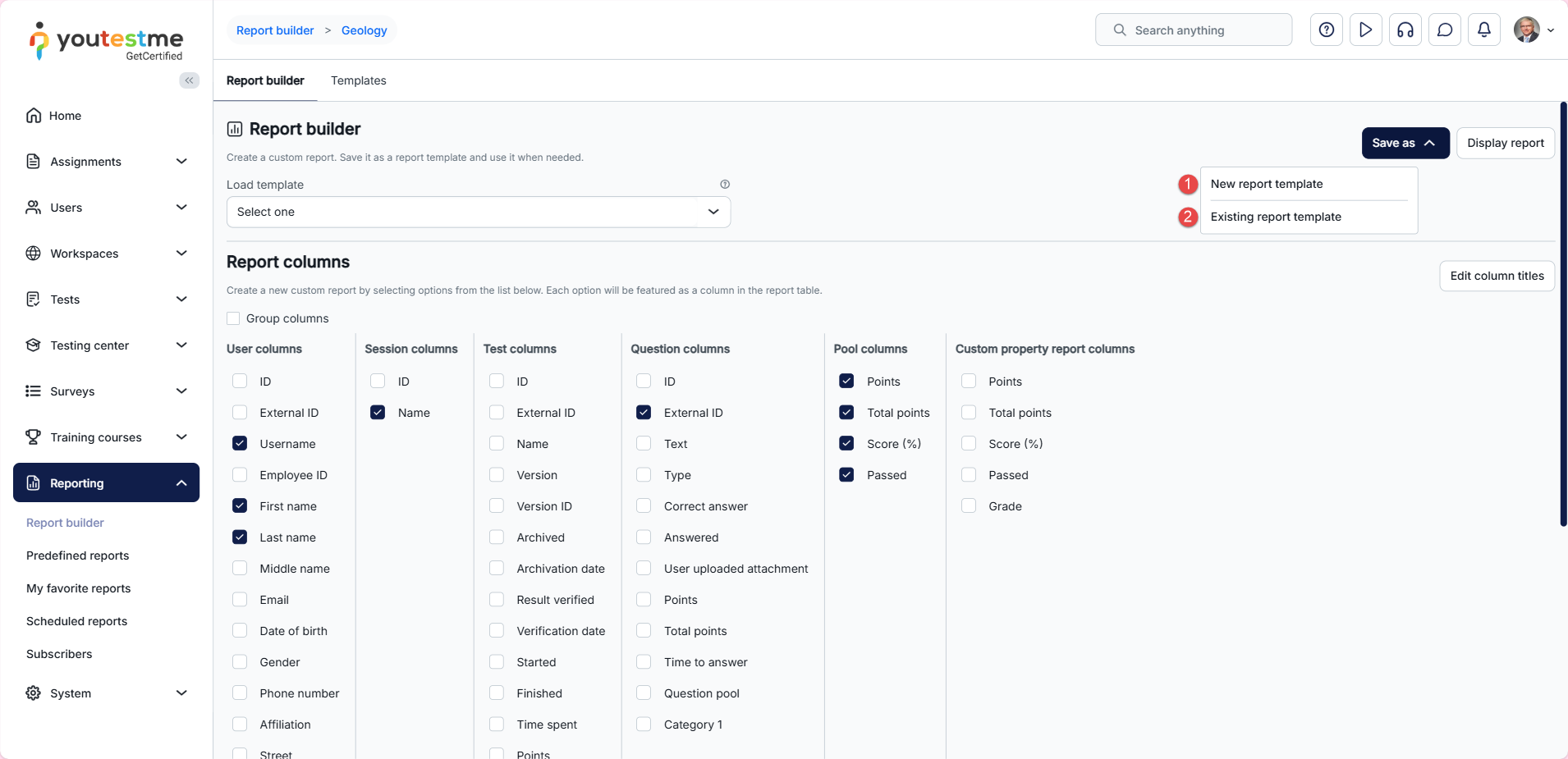
You can save all your configurations and use them as a template for future tests. Click on Save as and choose:
- To create a new report template.
- Save as existing report template.
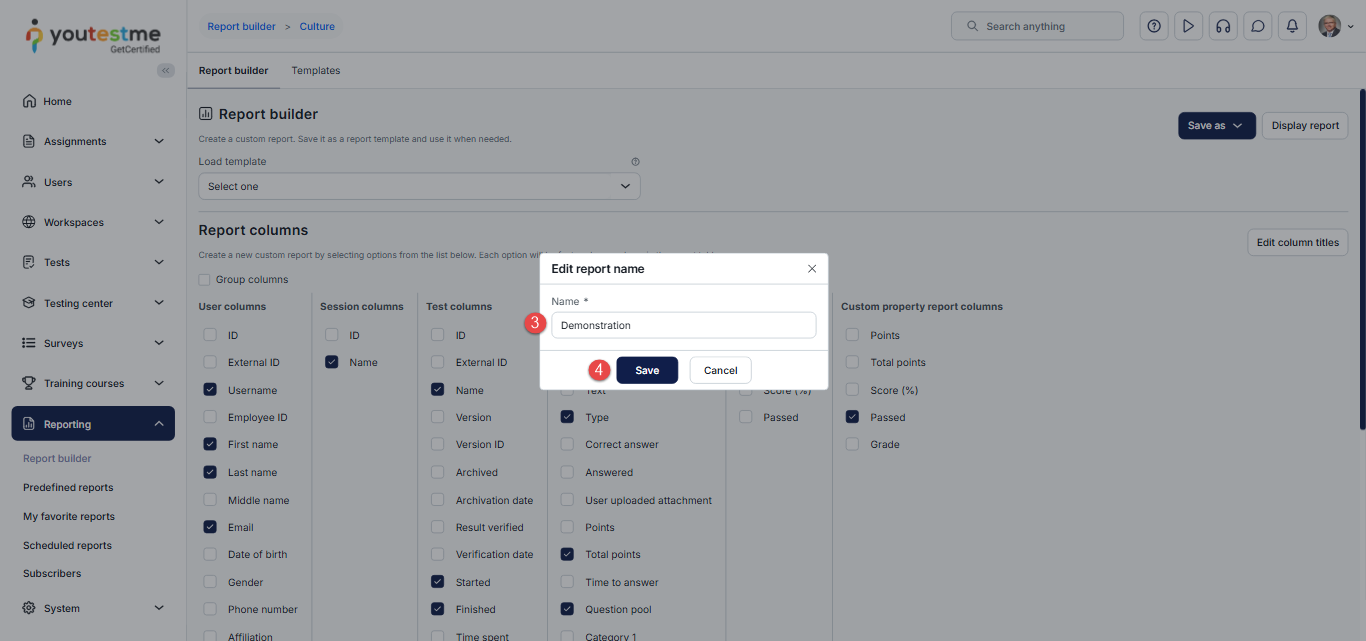
- Enter the name of the template.
- Click the Save button.
Preview of the Adjusted Report Builder
- First, click on the Load template dropdown and then find the previously saved template
- Click the Display report button.
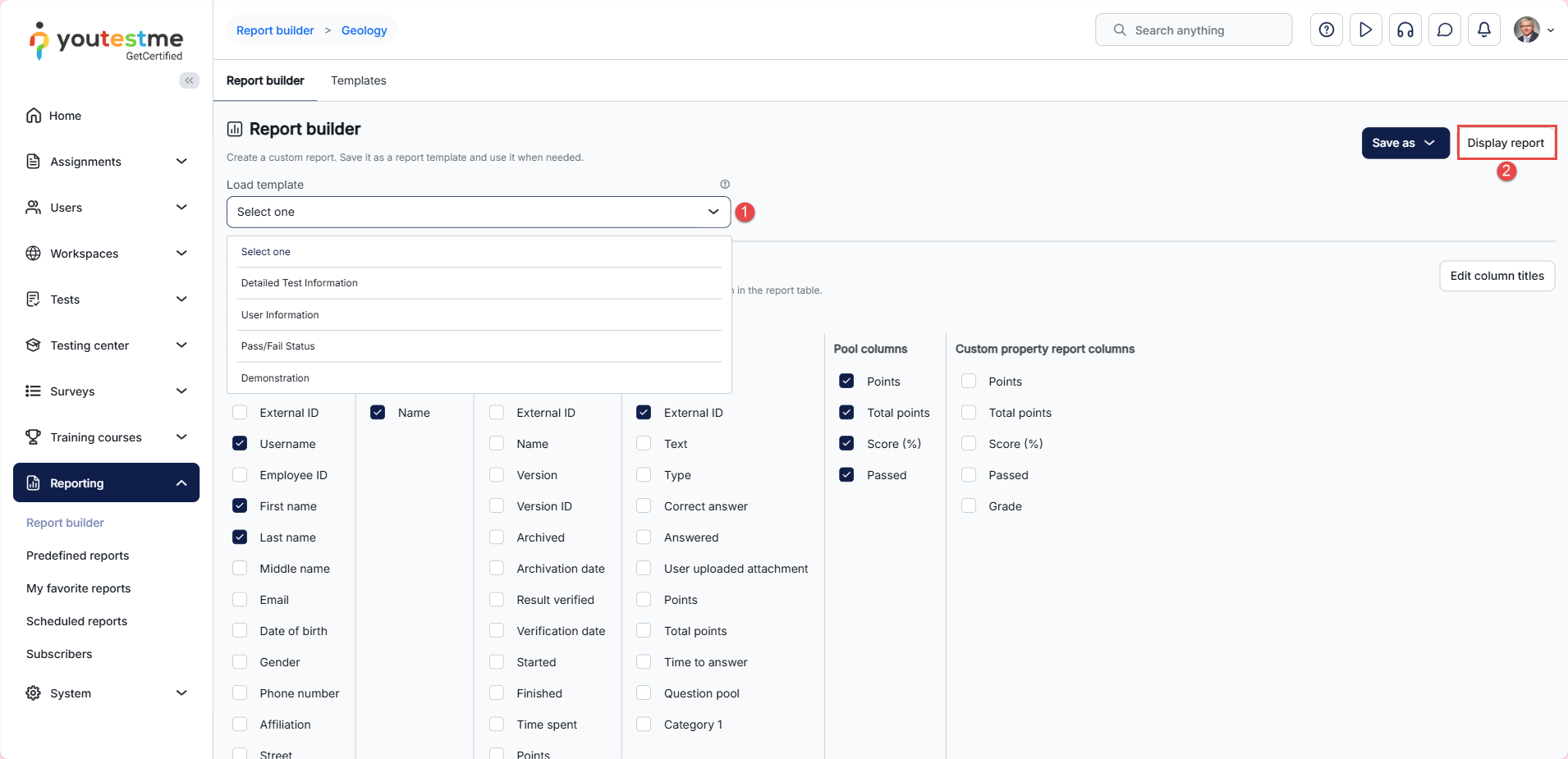
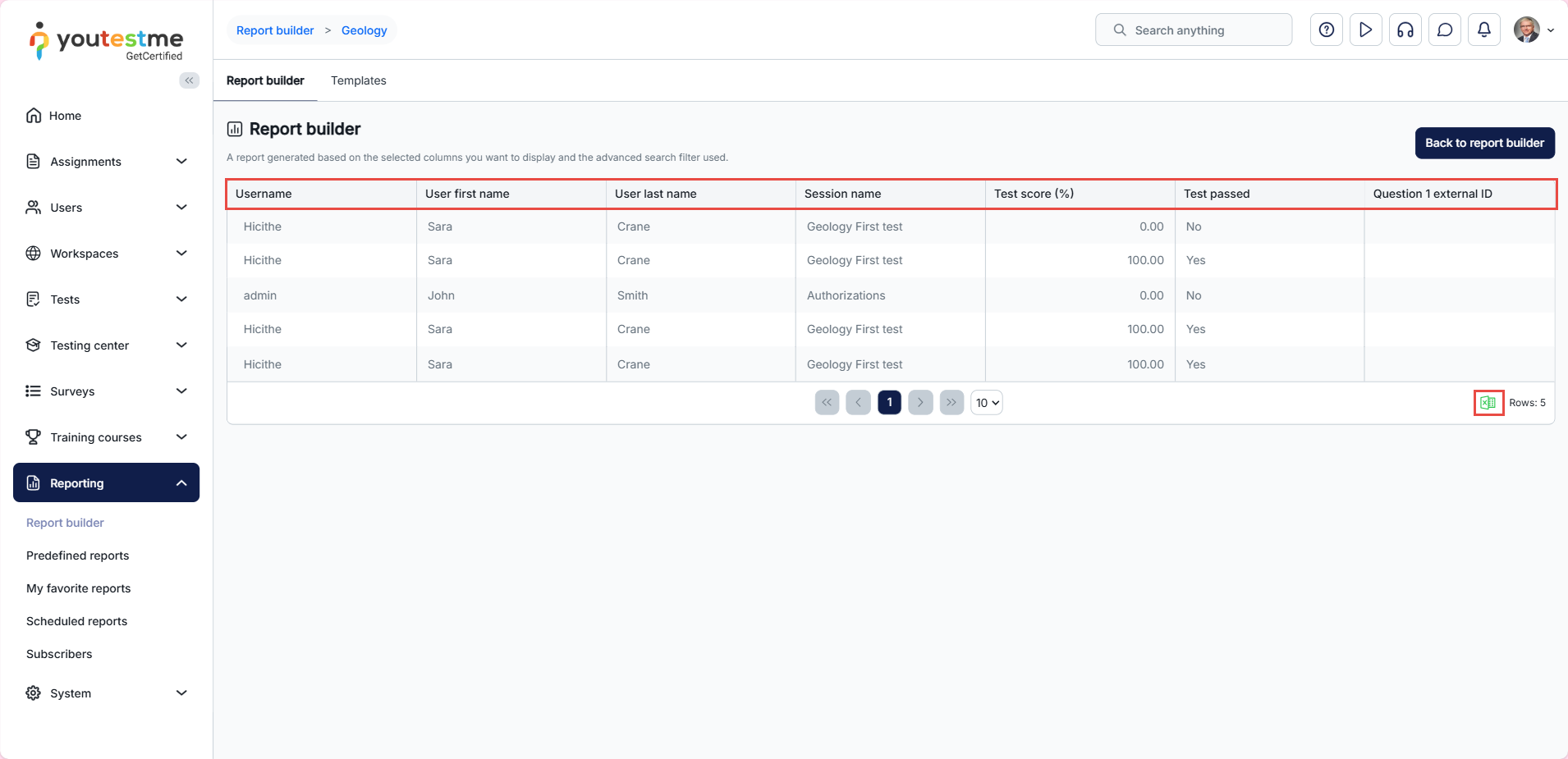
Therefore, the columns are no longer grouped, and the column headers are displayed according to your changes.
To download the report, select the Excel icon.
For more related articles, please visit:




