Article verified for Release 15.1 on December 1, 2025.
This guide explains how administrators can analyze candidate performance using the Test Results report. It focuses on understanding the report layout, the key information displayed for each candidate, and the difference between viewing a Personal Report and analyzing the overall Test Results report.
Test Results report
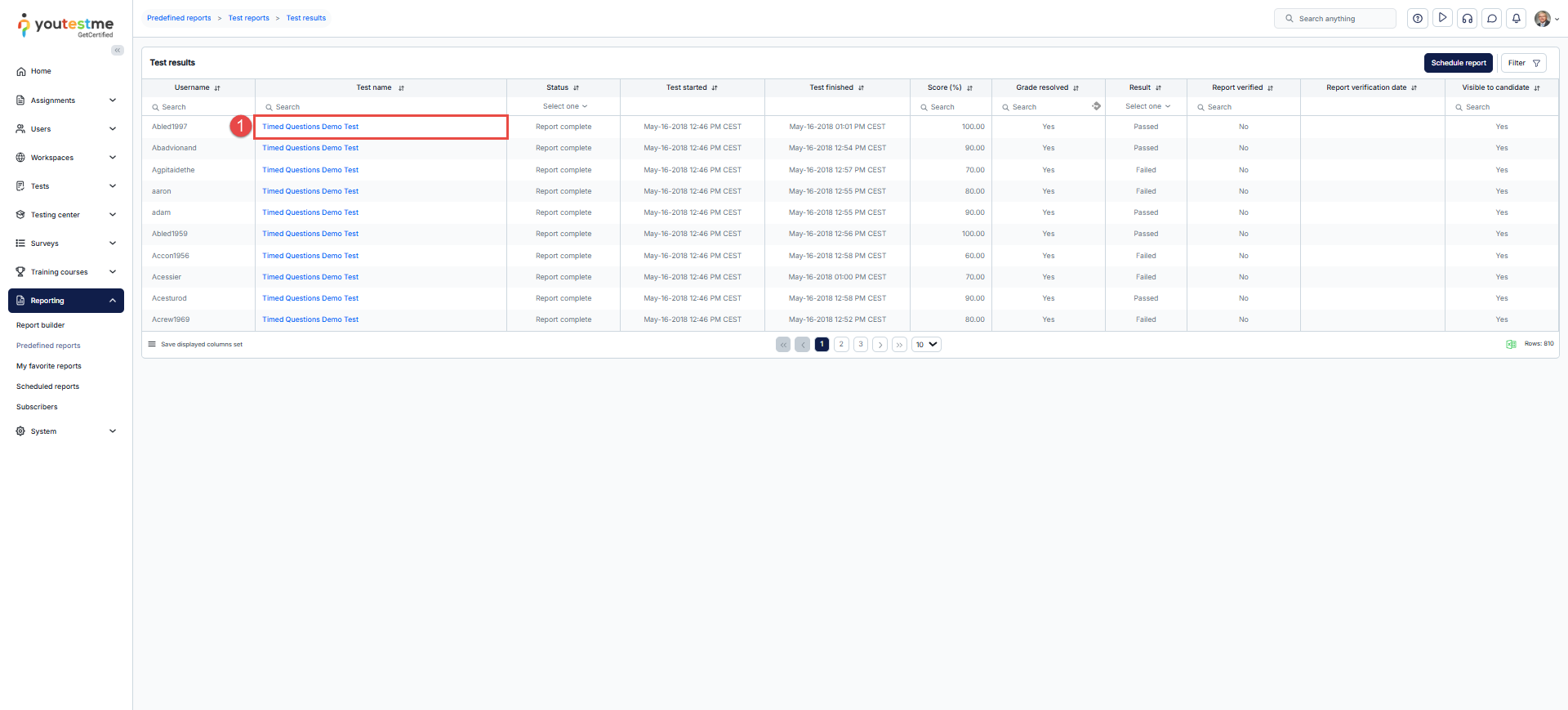
The Test Results report is a predefined report that provides an overview of candidate performance across one or more tests. It allows administrators to quickly review attempt statuses, completion progress, scores, and verification details in a single table.
To access this report:
- Navigate to Reporting → Predefined Reports.
- Select Test Reports.
- In the Report Name column, choose Test Result.

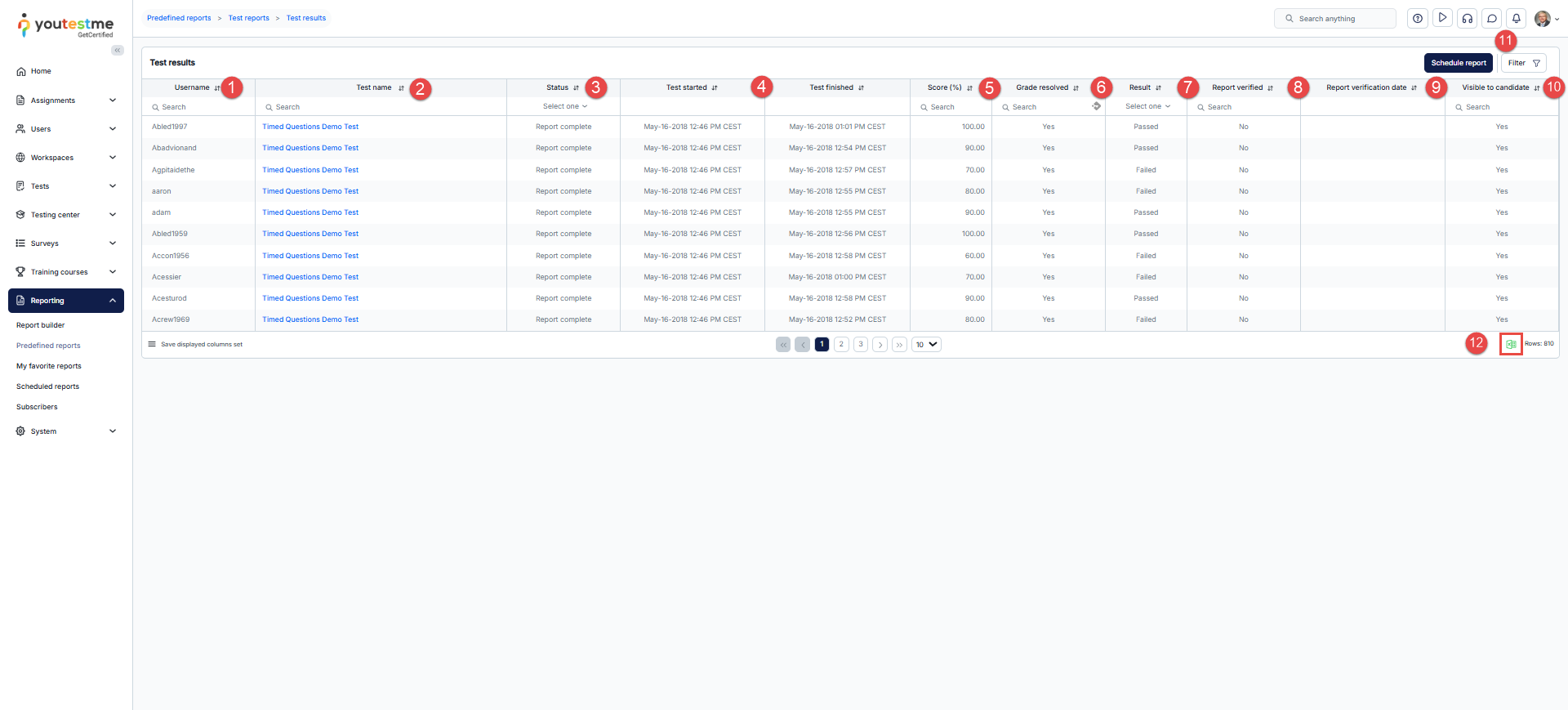
The table displays the following information for each candidate:
- Username.
- Test Name.
- Status: Current status of the attempt (Not Attempted, In Progress, Disconnected, Ready to Continue, Report Incomplete, Report Complete, Suspected, Ready to Modify, Did Not Show Up, Refused, NDA).
- Test Started / Test Finished: Date and time of the test attempt.
- Score (%): The percentage the candidate achieved on the test.
- Grade Resolved: Shows whether the entire report has been fully graded. This includes question grading and, if the test was proctored, the proctoring report.
- Results: Displays the final test outcome. The two possible values are Passed or Failed.
- Report Verified: Indicates that the responsible test administrator has verified the score. Once verified, no further score changes can be made.
- Report Verification Date: The timestamp showing when the test administrator verified the candidate’s results.
- Visible to Candidates: Specifies whether the score and personal report are currently available for the candidate to view.
- Filter: Apply custom filters to refine the displayed results.
- Export as Excel: Download the table for offline analysis.
Scheduled Reports
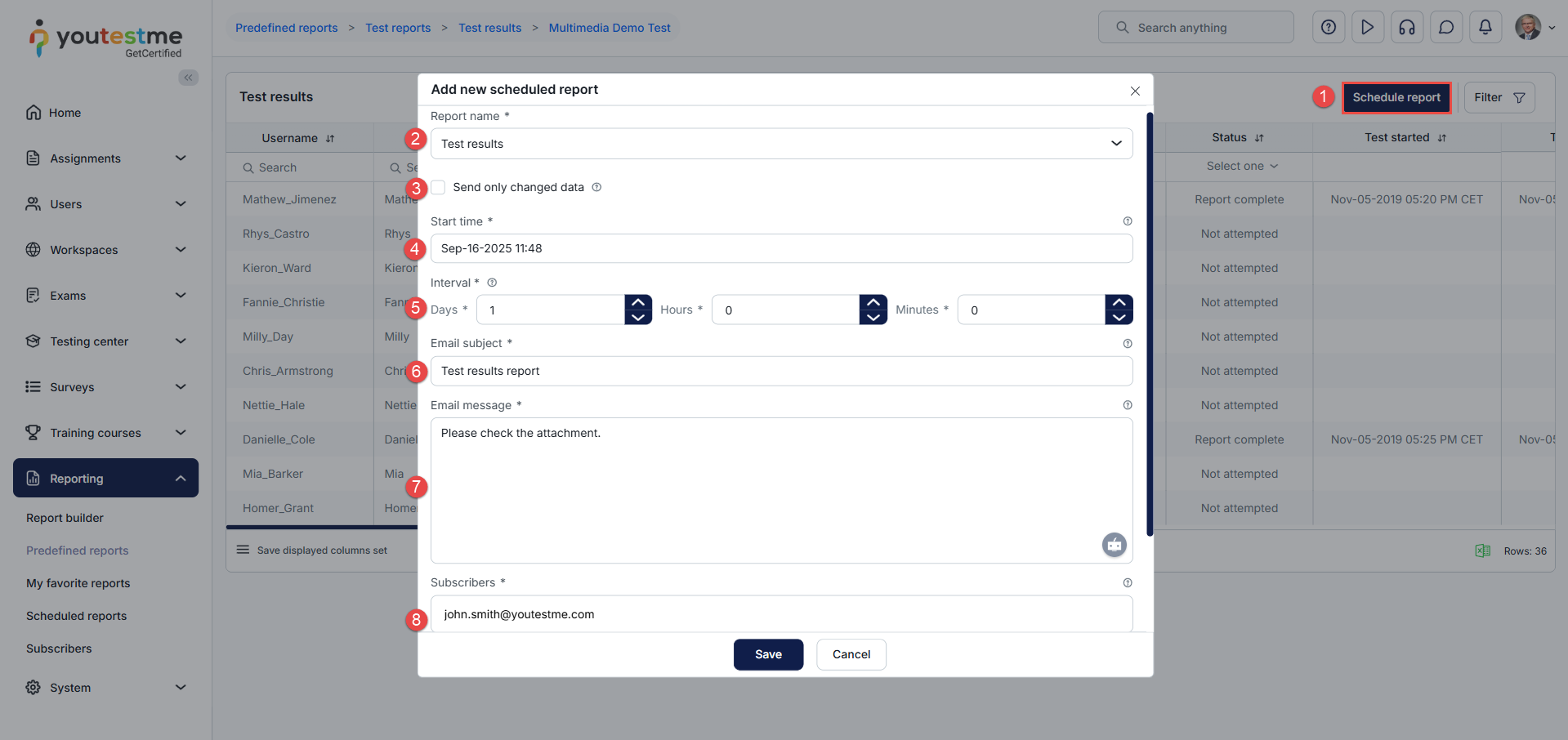
To schedule a report, do the following:
- Select the Schedule report button.
- The report’s name is selected from the previous action (Open).
- Only new or changed records are sent if checked compared to the last report.
- Define the start time.
- Define the interval.
- Enter the email subject.
- Enter the email message.
- Define the subscribers that will receive the predefined report.
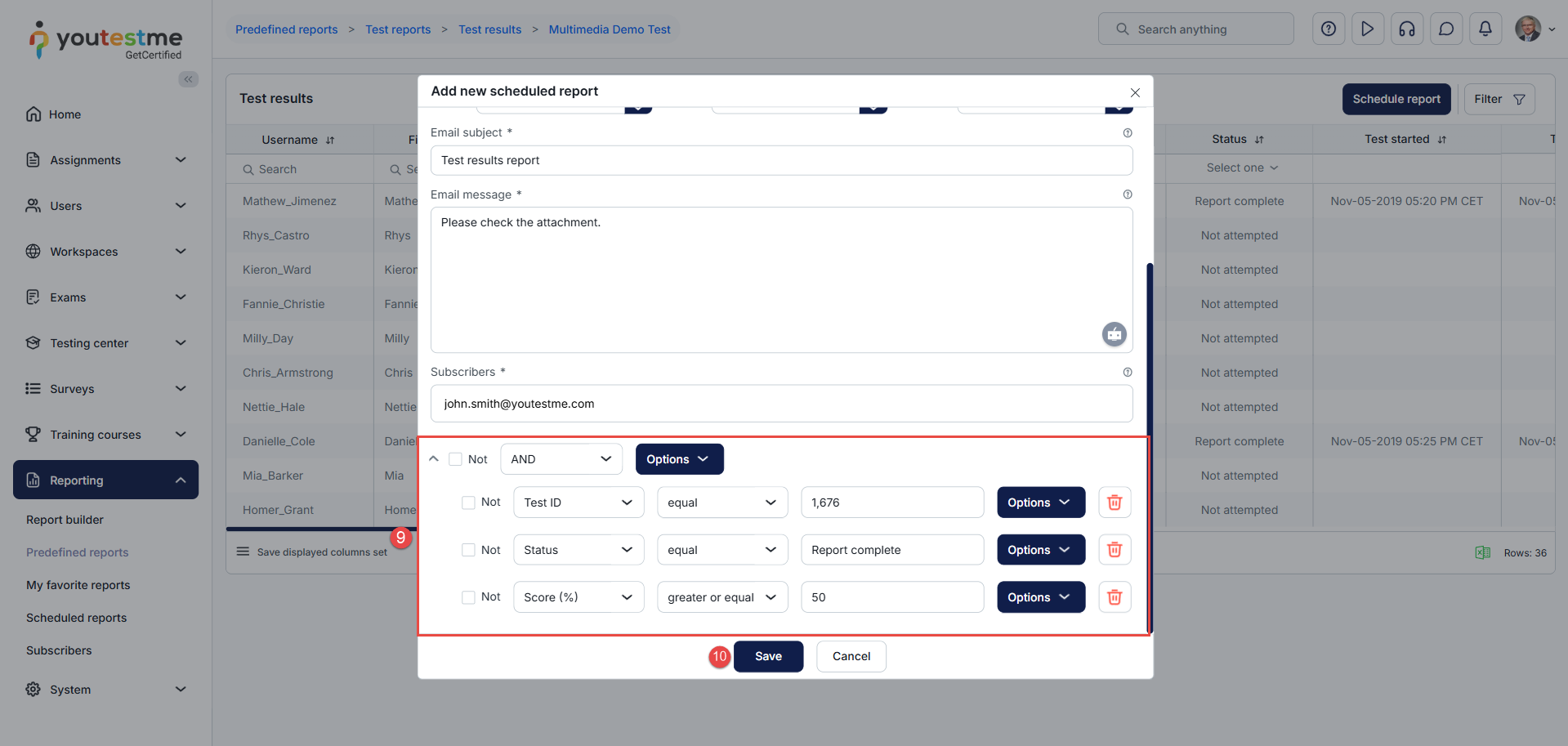
- Set the conditions for the predefined report.
- Click on the Save button to save the changes.
After scheduling the report, it will be delivered to the defined email address.
Accessing a Candidate’s Personal Report
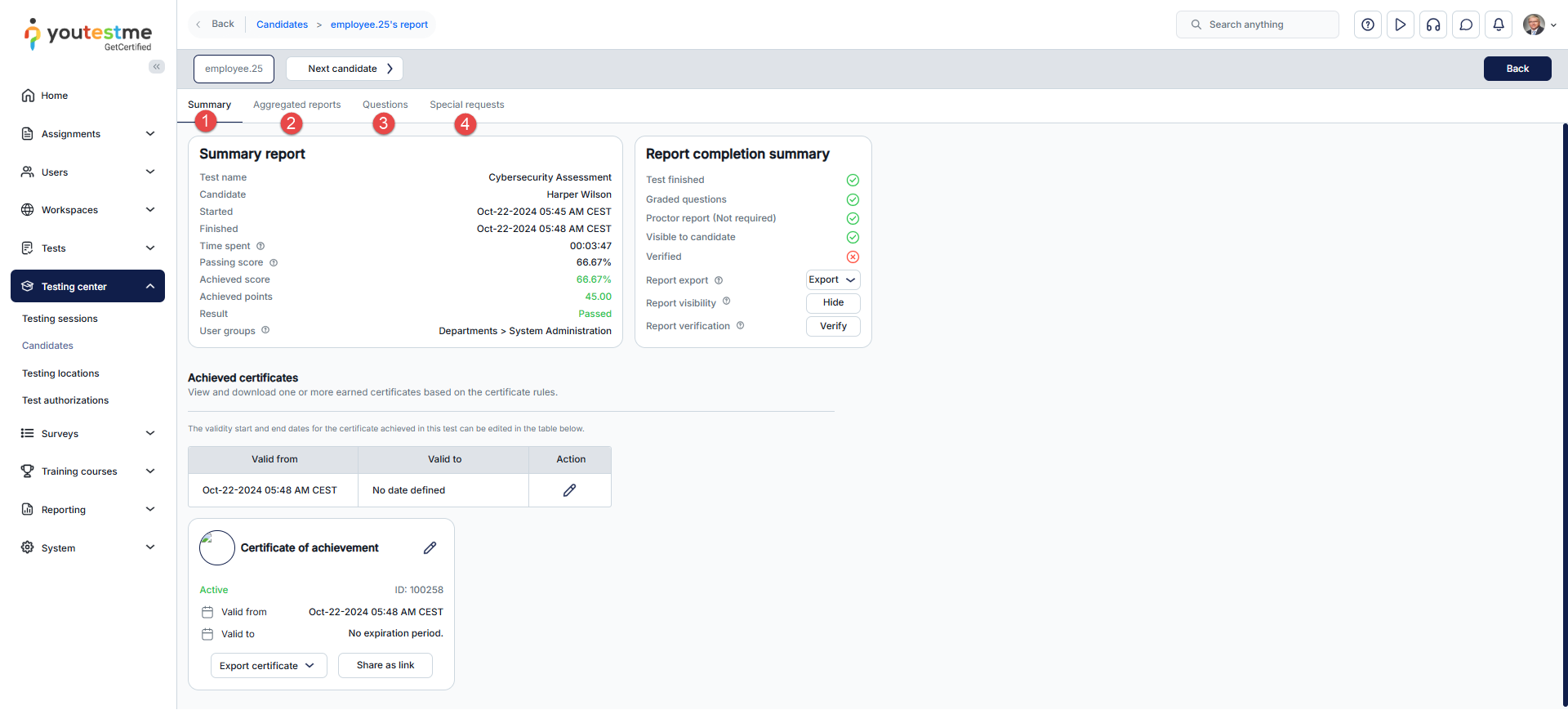
In addition to reviewing results through the Test Results report, administrators can also open an individual candidate’s Personal Report. This view is used when you need to examine a single candidate’s performance in detail, such as their time spent, score breakdown, or certificate information, rather than analyzing results across multiple candidates. It provides a focused, candidate-specific summary rather than the broader overview in the Test Results report.
To view detailed results for an individual candidate:
- Click the Test Name in the table.

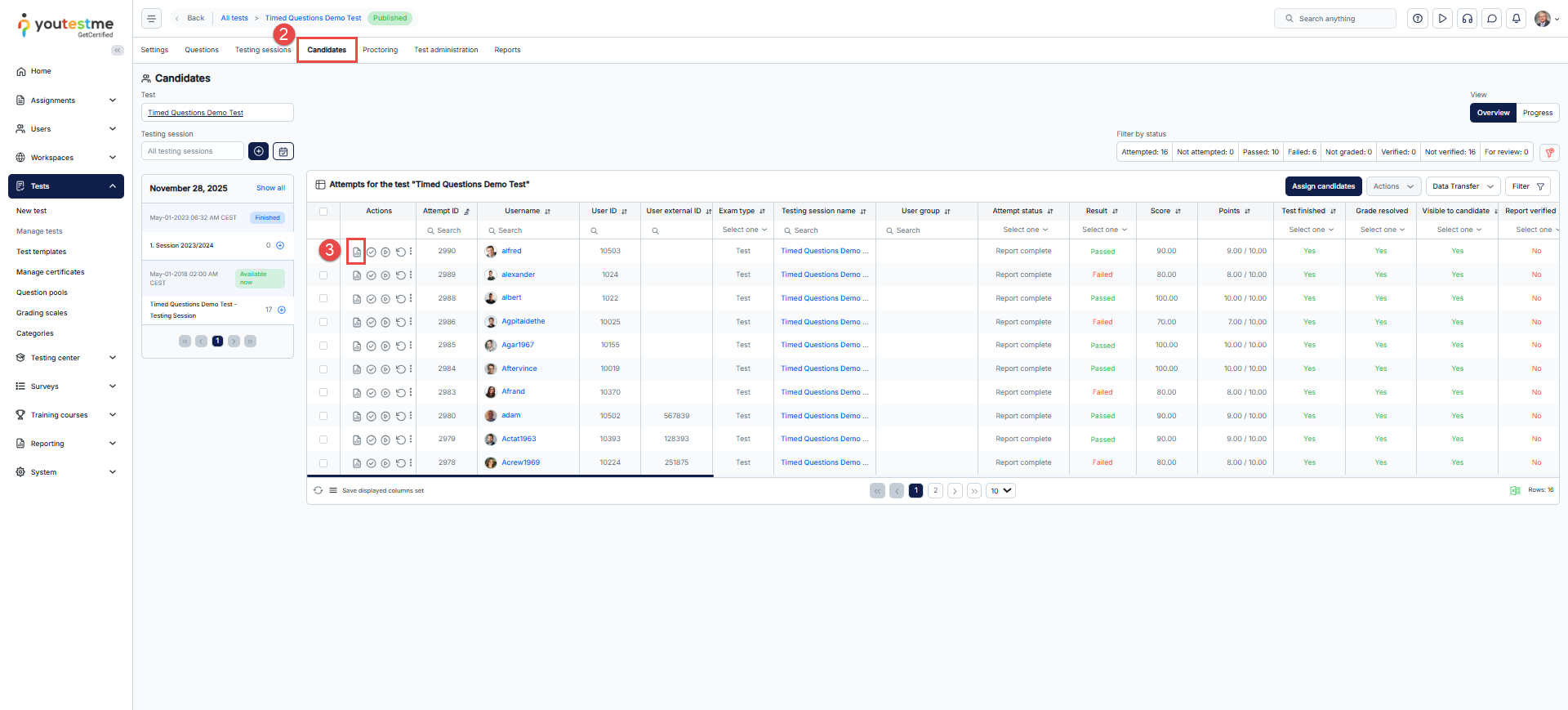
- Navigate to the Candidates tab.
- Click Personal Report for the selected candidate.
The Summary tab includes:
- Summary Report:
- Confirms the candidate and test.
- Shows start and finish times, total time spent, and passing criteria.
- Displays achieved score, points, and pass/fail status.
- List user groups if applicable.
- Report Completion Summary
- Confirms test completion and whether any questions require manual grading.
- Displays proctoring information if applicable.
- Shows visibility to the candidate and verification status.
- Provides options to export the report (PDF/Excel).
- Achieved Certificates
- Shows certificates earned, validity period, ID, and status.
- Options to export or share certificates.
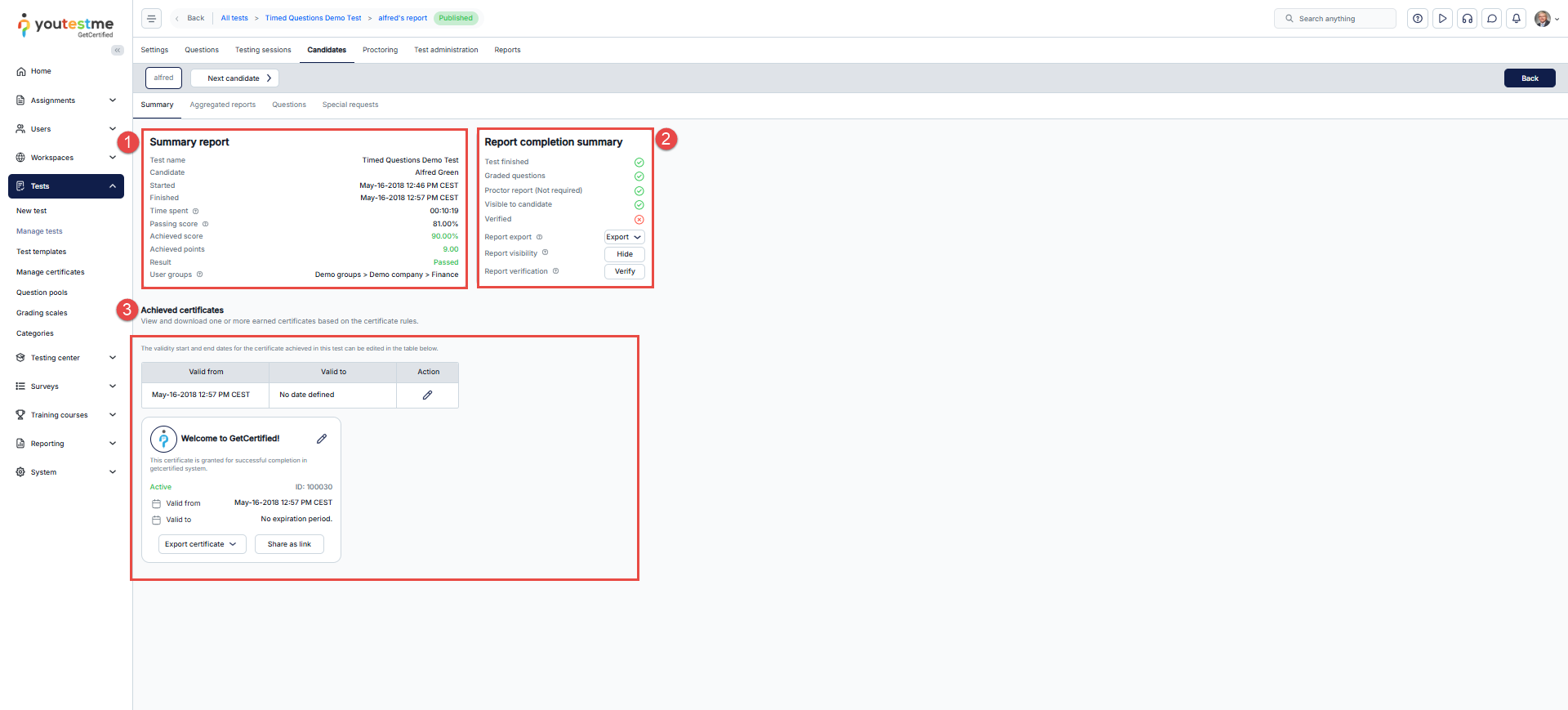
The Personal Report focuses on a single candidate’s attempt, including detailed completion and certificate information. The Test Results report provides an aggregated view for multiple candidates, highlighting overall performance and completion status.
Additional resources: