Article verified for Release 16.1 on March 13, 2026.
Account Security Policy Configuration allows administrators to enforce password and account protection rules that ensure user privacy and secure access to the system. These policies help protect accounts by controlling password complexity, login attempts, session duration, and account inactivity.
Security policies can be configured at two levels:
- Global level – applies globally to all users in the system.
- Role level – allows different security policies to be applied to specific roles.
This flexibility enables administrators to define stricter policies for sensitive roles while maintaining general policies for other users.
Configuring Account Security Policy at Global Level
To configure security policies globally, follow these steps:
- Navigate to System > Settings and Customization.
- Open Account Security Policy Configuration.
- Configure the available security parameters.
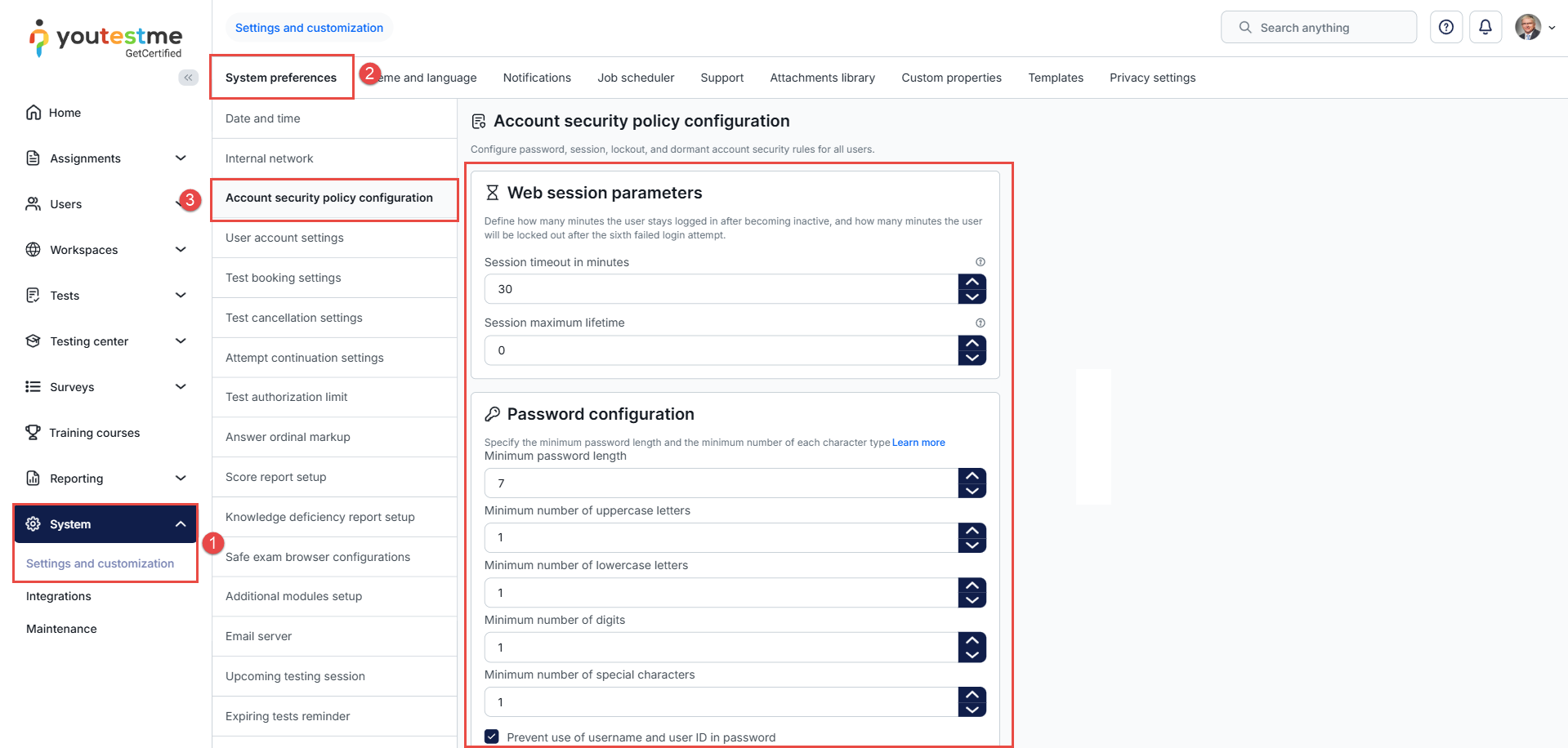
The following configuration sections are available:
Web Session Parameters
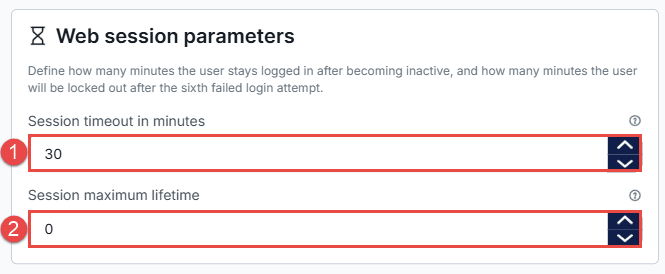
The Web Session Parameters section allows administrators to define how long a user session remains active and when reauthentication is required.
- Session Timeout in Minutes – Defines how long a user can remain logged in without activity. If no action is performed within the specified time, the session expires, and the user must log in again.
-
Password Configuration
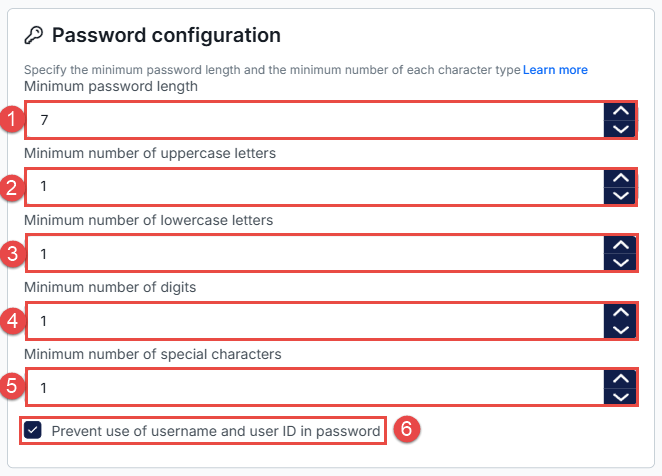
The Password Configuration section defines password complexity requirements to ensure stronger account security.
- Minimum Password Length – Defines the minimum number of characters required for a password.
- Minimum Number of Uppercase Letters – Specifies how many uppercase letters (A–Z) must be included in the password.
- Minimum Number of Lowercase Letters – Specifies how many lowercase letters (a–z) must be included in the password.
- Minimum Number of Digits – Specifies how many numeric characters (0–9) must be included in the password.
- Minimum Number of Special Characters – Defines the required number of special characters (e.g., !, @, #, $, %, etc.) in the password.
- Prevent Use of Username and User ID in Password – Prevents users from creating passwords that contain their username or user ID. This helps reduce the risk of easily guessable passwords.
Password Lifecycle
The Password Lifecycle section allows administrators to configure password history and password age restrictions.
- Password History Length – Defines how many previously used passwords cannot be reused.
- Minimum Password Age – Defines the minimum time (in minutes) that must pass before a password can be changed again.
- Maximum Password Age – Defines the maximum time (in minutes) a password can be used before it must be changed.

Account Lockout
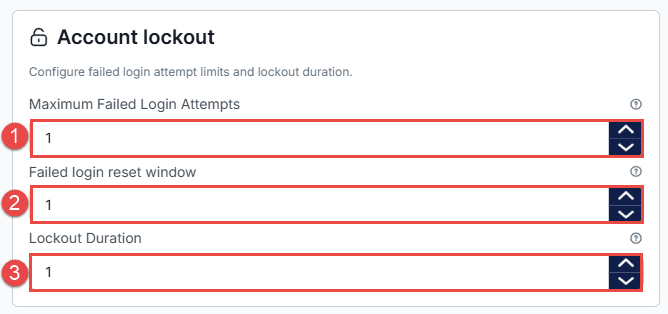
The Account Lockout section allows administrators to configure failed login attempt limits and lockout duration.
- Maximum Failed Login Attempts – Defines the maximum number of consecutive failed login attempts allowed before the account is locked.
- Failed Login Reset Window – Defines the time window (in minutes) after which failed login attempts are reset.
- Lockout Duration – Defines how long the account remains locked (in minutes) after too many failed login attempts.
Dormant Account
The Dormant Account section allows administrators to configure inactivity thresholds for dormant accounts.
- Dormant Inactivity Period – Defines the period of inactivity (in minutes) after which the account is marked as dormant.
- Dormant No-Reactivation Period – Defines the period (in minutes) after which a dormant account can no longer be reactivated.
Note: The dormant account check is executed automatically by a scheduled job every day at 12:00. During this process, the system evaluates user inactivity and applies the configured dormant account rules.

Configuring Account Security Policy at Role Level
Security policies can also be configured for specific roles, allowing administrators to apply customized security requirements.
To configure security policies for a role:
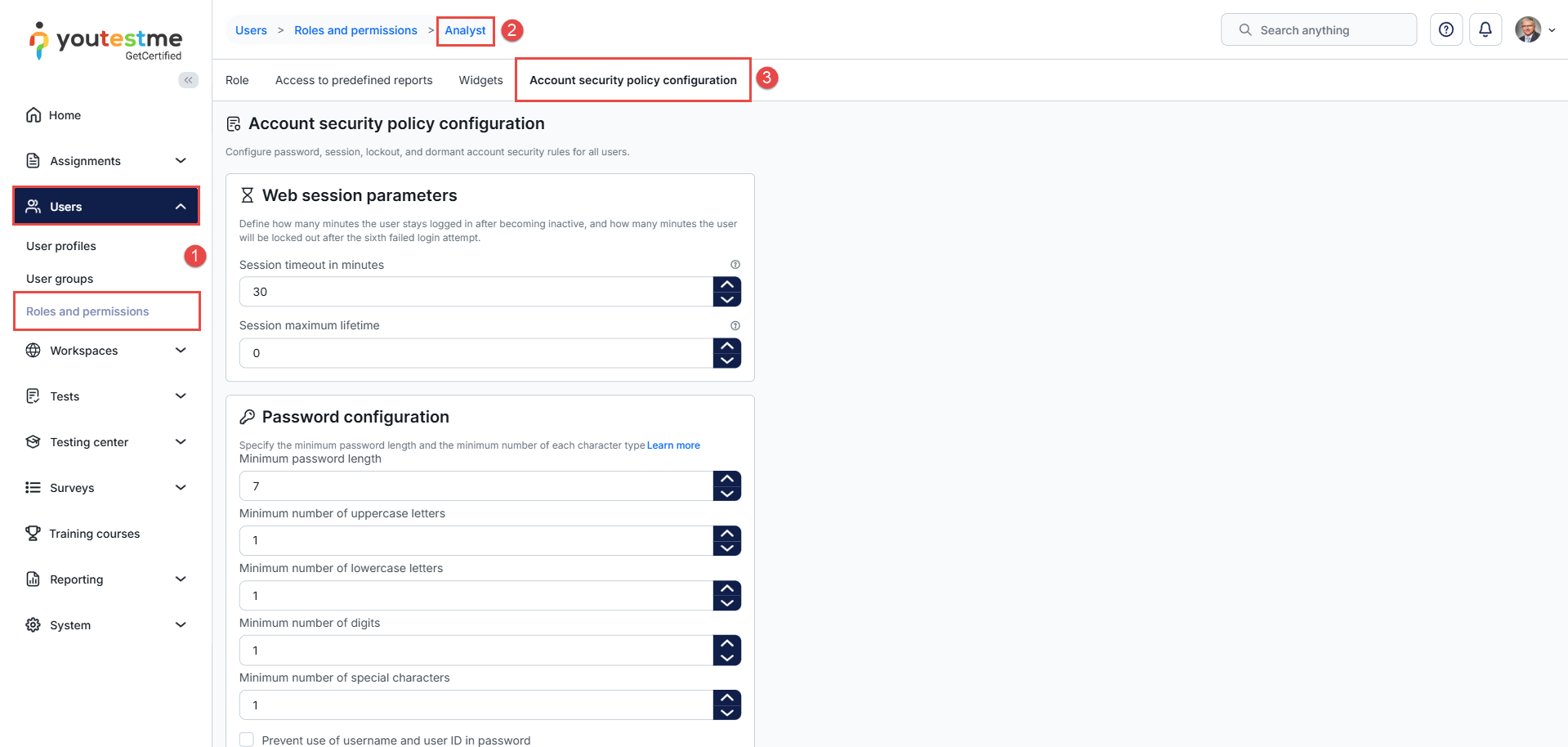
- Navigate to Users > Roles and Permissions.
- Select the desired role. Click the Edit (pencil icon).
- Open the Account Security Policy Configuration tab.
The same configuration sections are available as on the system level:
- Web Session Parameters
- Password Configuration
- Password Lifecycle
- Account Lockout
- Dormant Account
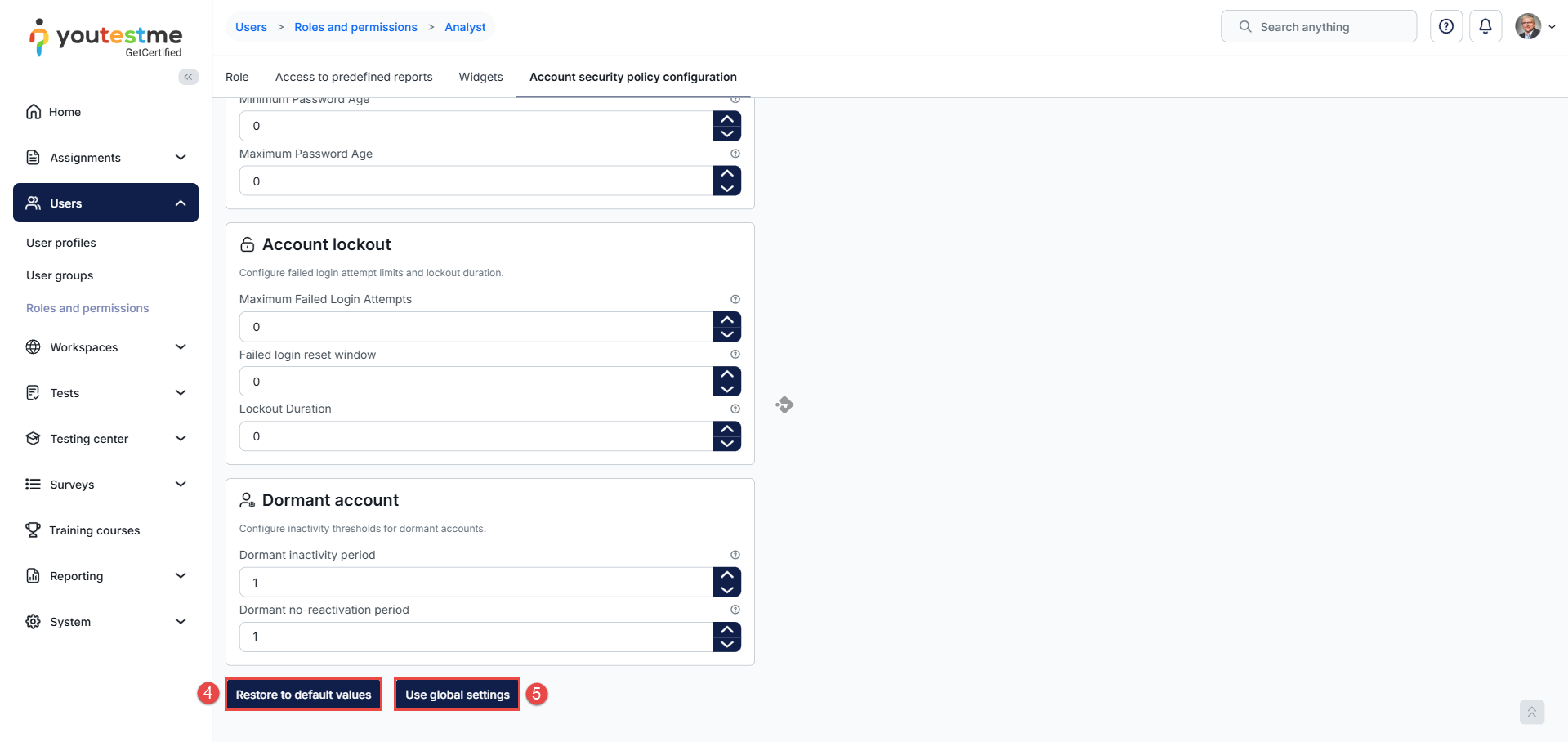
- Restore to Default Values – Resets the role security policy to its original configuration.
- Use Global Settings – Applies the security policy configured at the system level. This option becomes available after a role-level modification has been saved and allows administrators to revert the role to follow the global system policy.
User Creation and Password Setup
Regardless of the method used to create a user account, the user will receive an email notification containing a password setup link.
Note:
- Administrators cannot set a password when manually creating a user.
- Administrators cannot define passwords when importing users.
- Administrators cannot change a user’s password directly from the user profile.
An example of an email that users will receive:
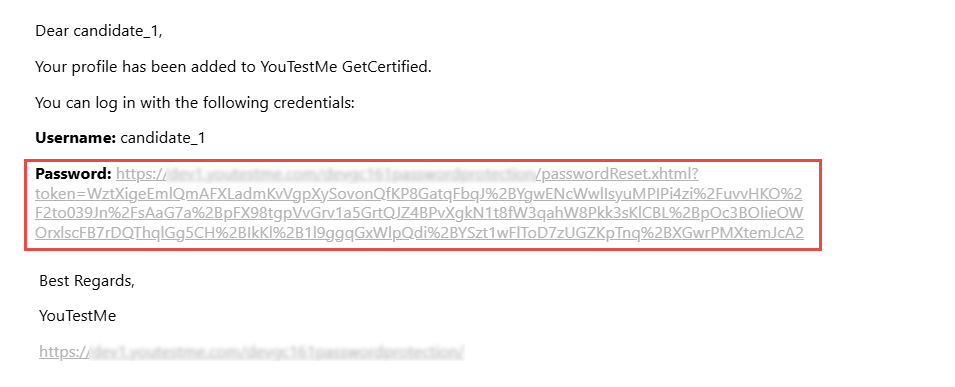
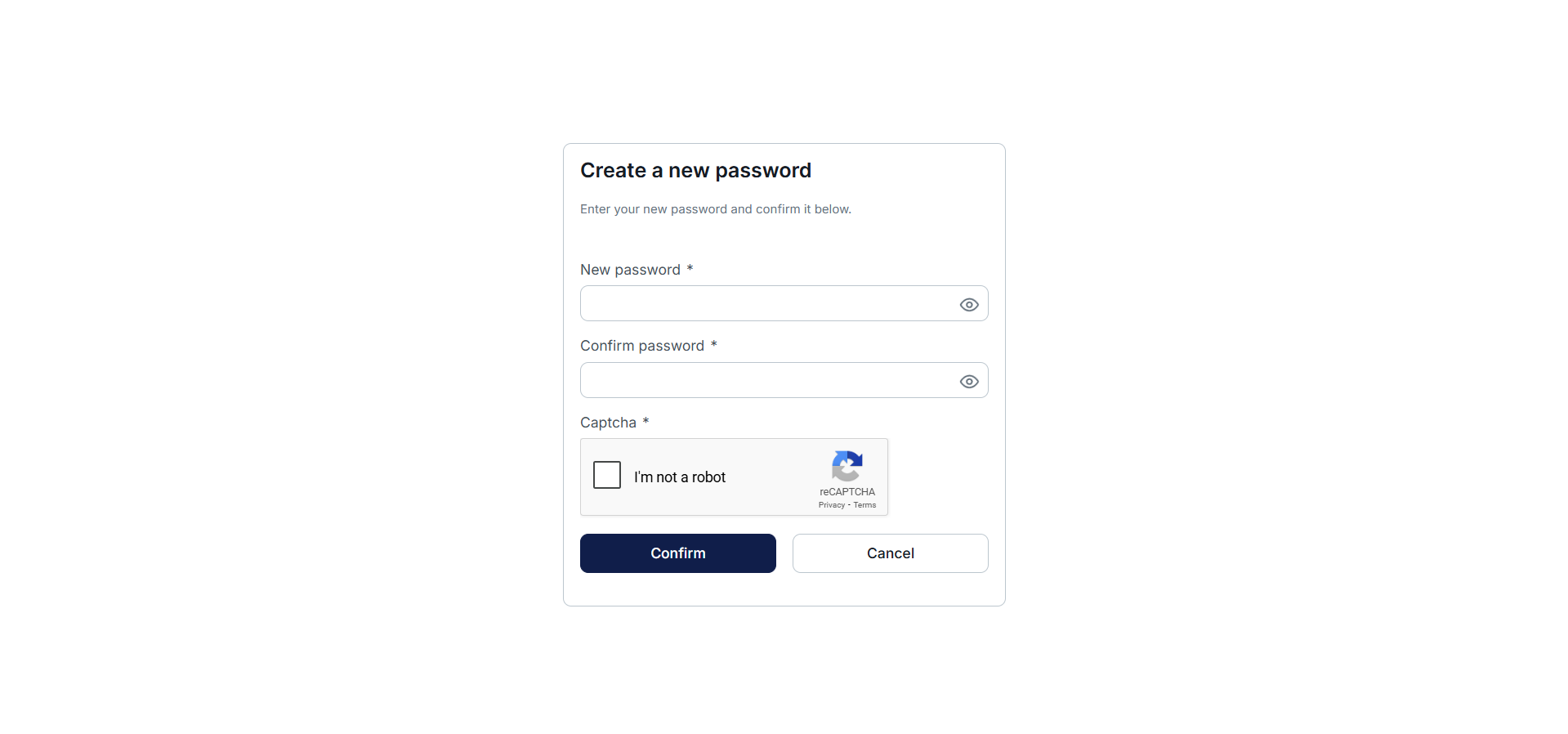
Through this link, users must create their password before accessing the platform.
Additional resources:






