
Article verified for Release 15.2 on February 2, 2026.
This article explains the existing default roles in the system and how to create a new, custom group manager security role.
Accessing the page
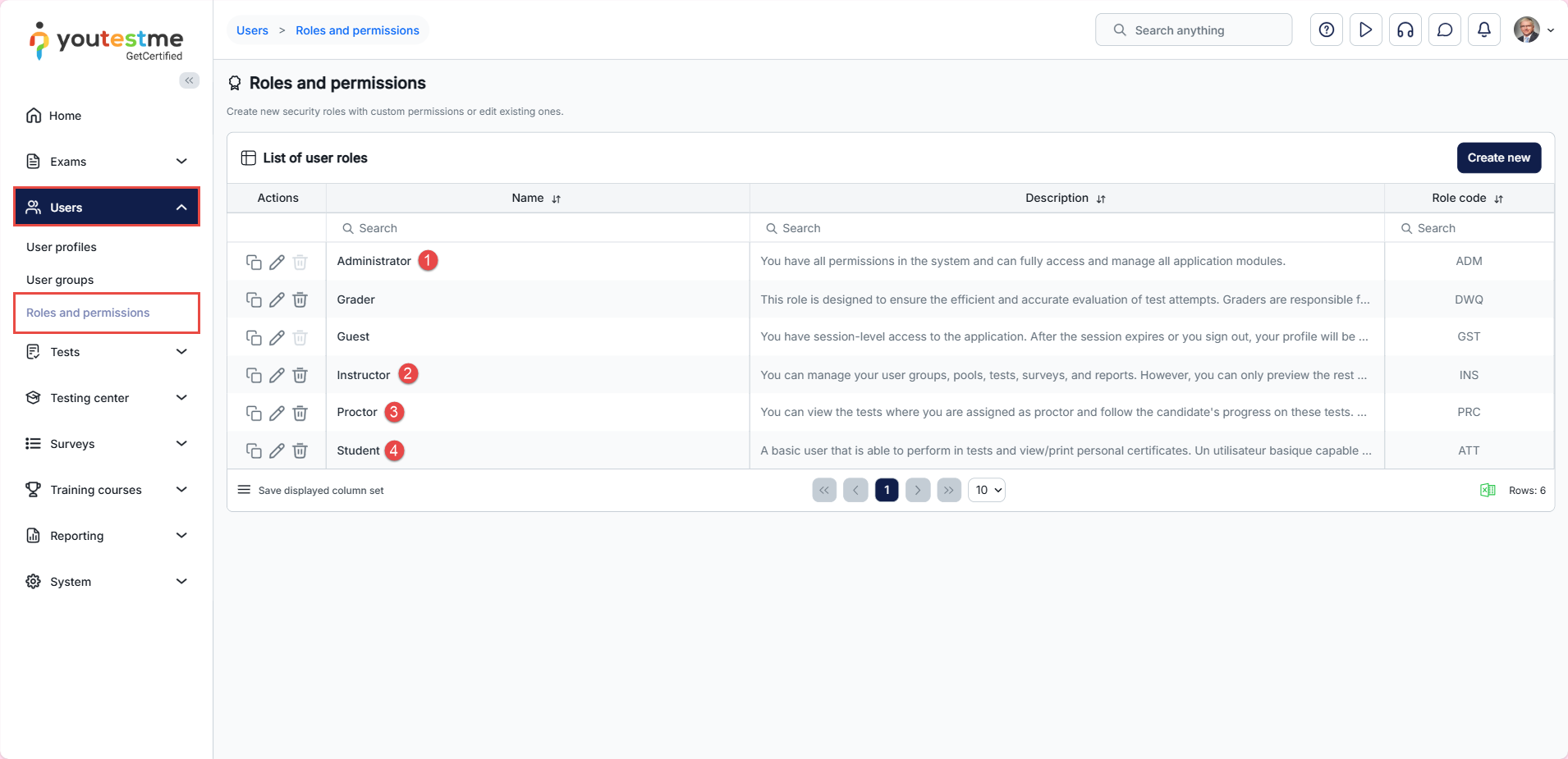
To access the Roles and permissions page, navigate to Users → Roles and Permissions. The system includes four predefined roles, each with a different level of access:
Predefined roles
- Administrator – A role with all permissions in the system that can fully access and manage all application modules.
- Instructor – A role with higher-level permissions than a regular user. Instructors can manage their groups, question pools, tests, and reports, while only previewing content they do not manage.
- Student – A primary user who can take assigned tests, surveys, and training courses and view/print personal certificates.
- Proctor – Proctors can monitor candidate progress on tests and supervise them in real time.
Creating a group manager security role
To create a new, custom role using permissions:
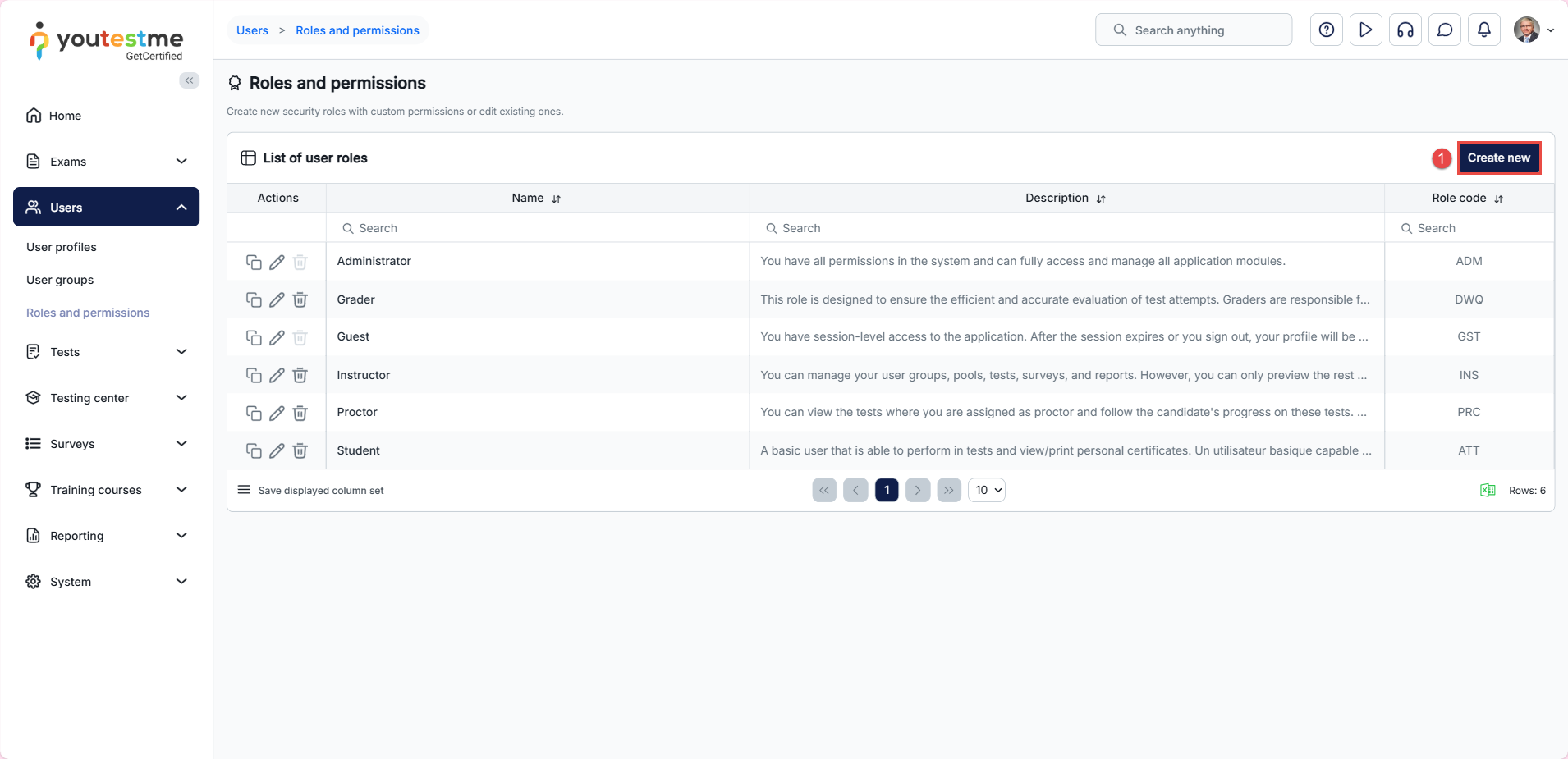
- Click the Create New button.
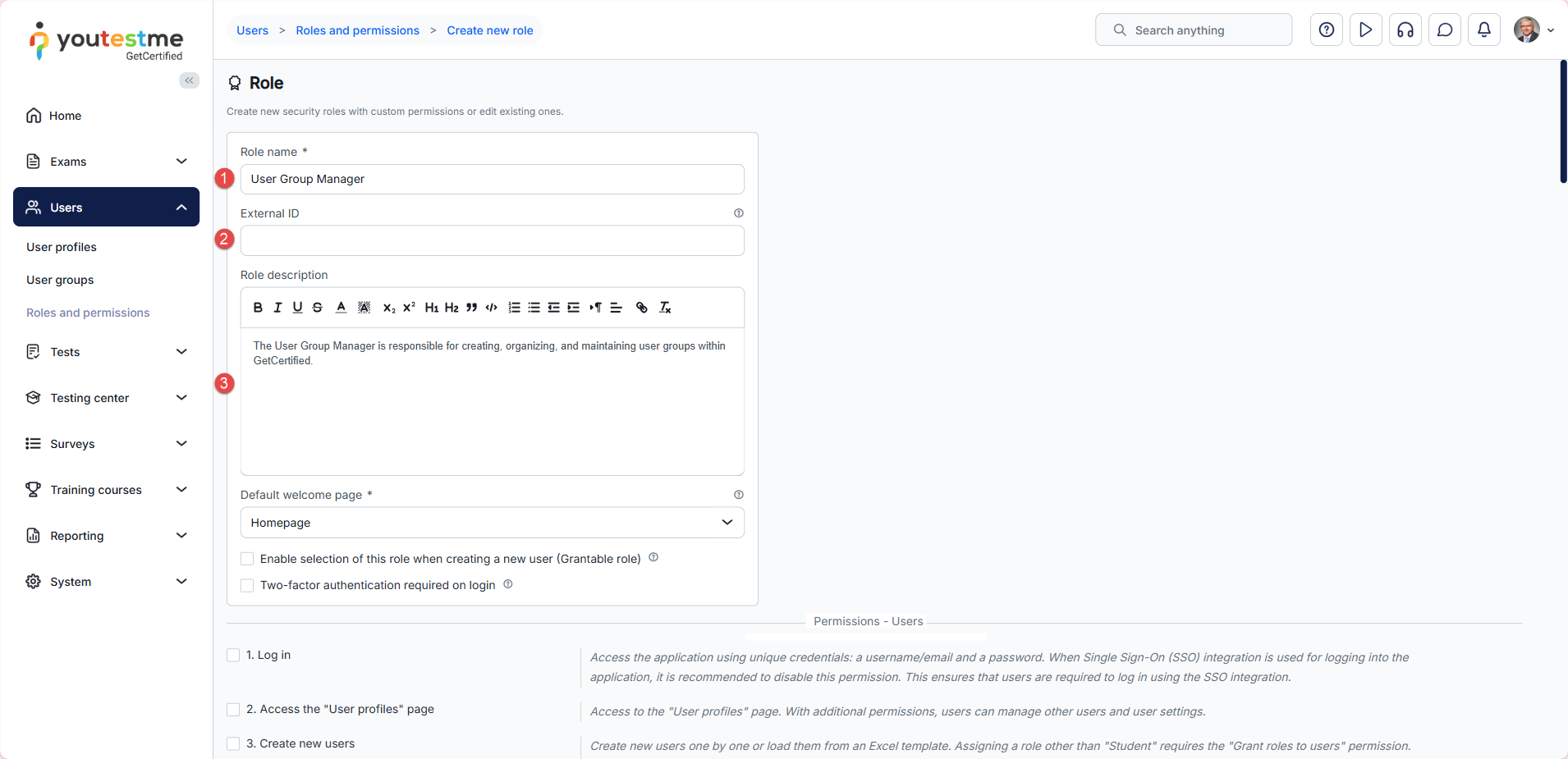
- Enter the role name.
- Enter the external ID (optional).
- Enter a description (optional).
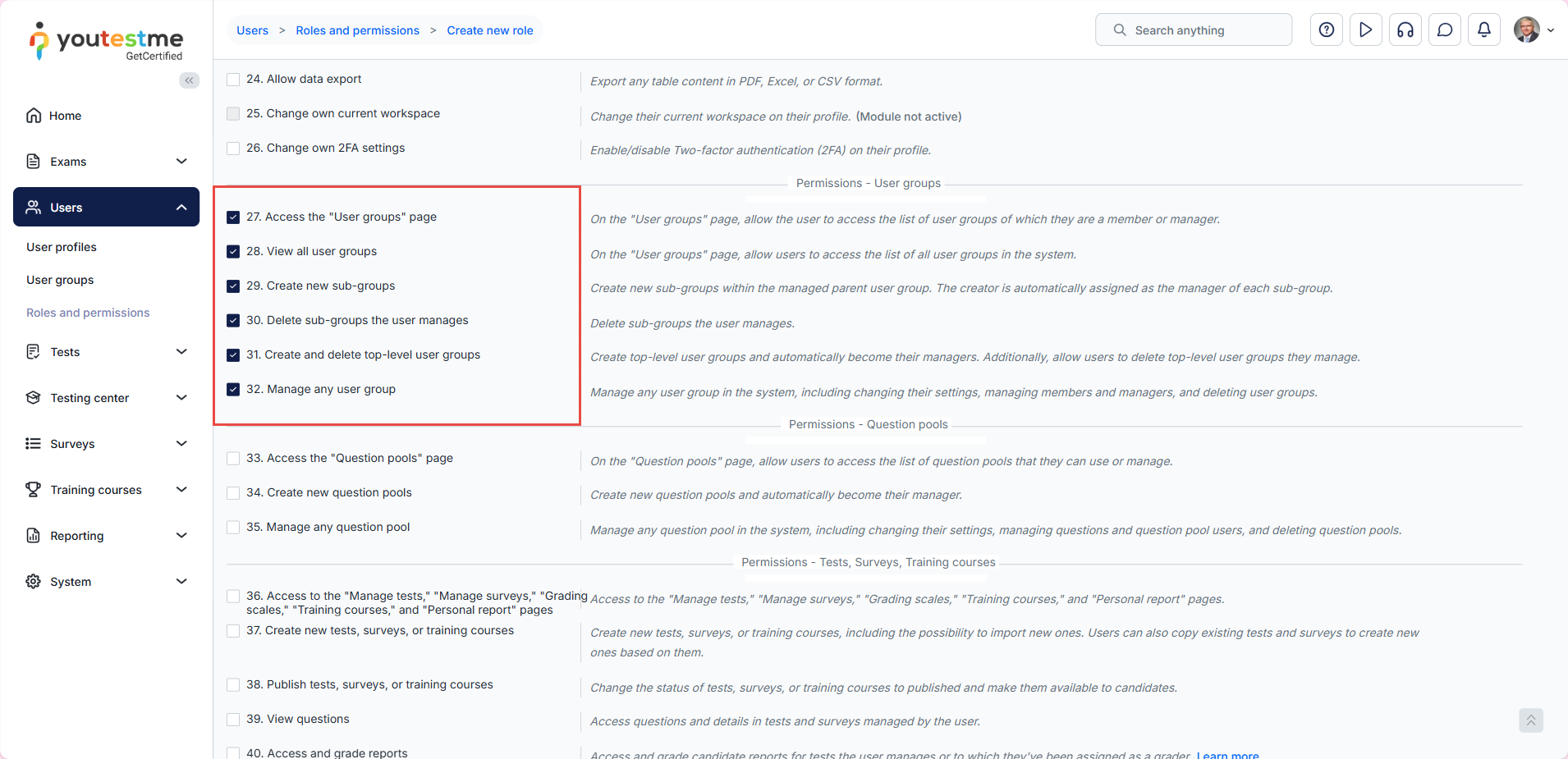
- Select the permissions you want the group manager to have. We suggest choosing permissions from 27 to 32. Permission 1 is selected by default.
- Click the Save button.
Assigning the group manager role to users
Once you create a group manager role, you can assign it to the user:
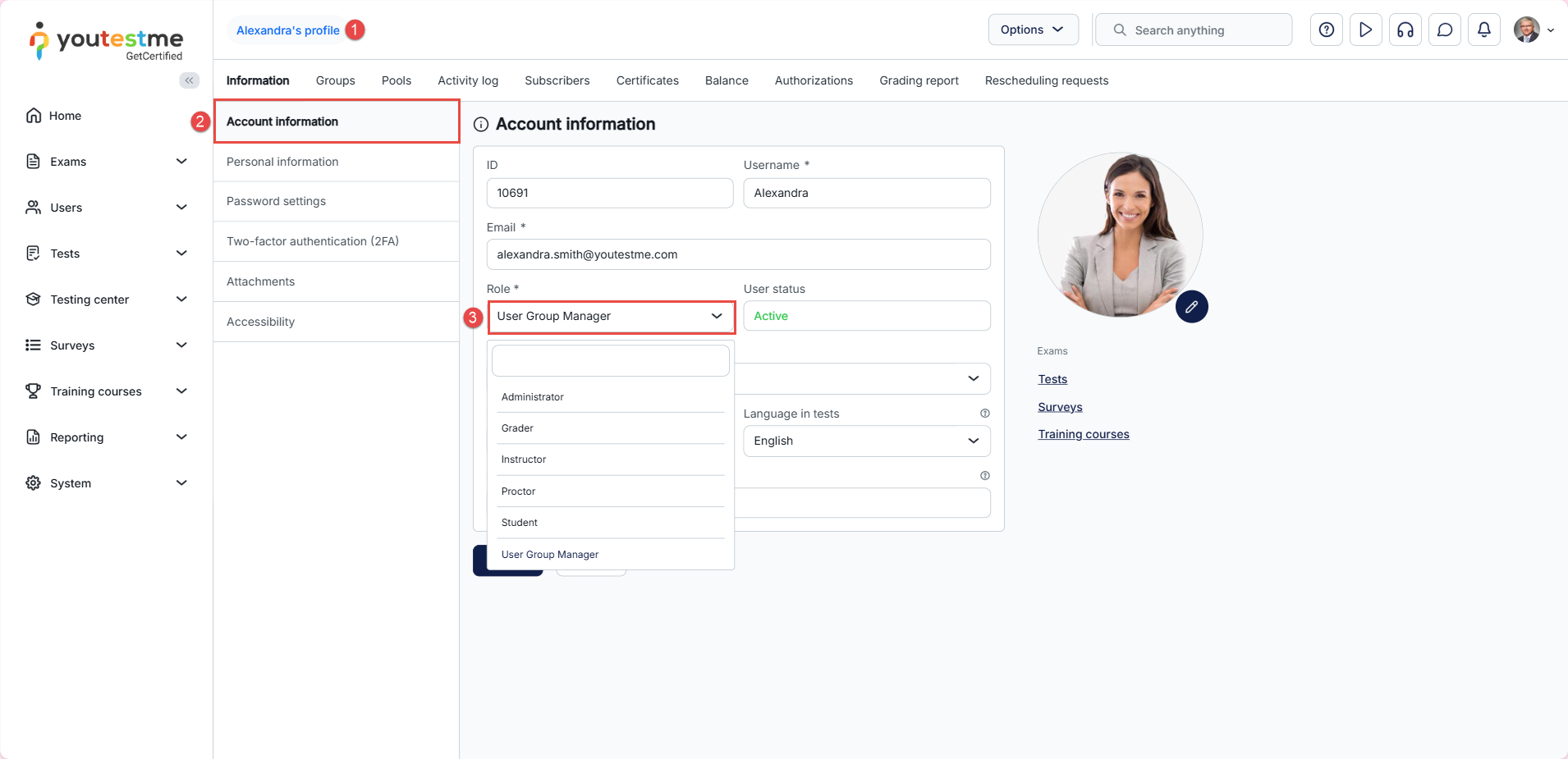
- Open the user’s profile to which you want to assign the group manager role.
- In the Information tab, select Account information from the side menu.
- Change the user’s role by selecting User Group Manager from the drop-down menu.
- Click the Save button.
For a video tutorial on how to create a user group manager role, please watch the video.
For more useful instructional materials, please visit:




