Article verified for Release 15.0 on December 15, 2025.
This article’s purpose is to explain how to add users to training in GetCertified via Zapier integration. Zapier integration with GetCertified makes it easy to set up an action that adds users to training.
Using the “Add users to training” Zapier action, all you need to do is fill in the Google Sheet with the necessary data. This action allows you to add existing and new users to the appropriate course in the application.
Click the “Make a Zap” button, and the Zap creation process will start.
Trigger
A trigger is an event that starts your zap.
Choose app & event
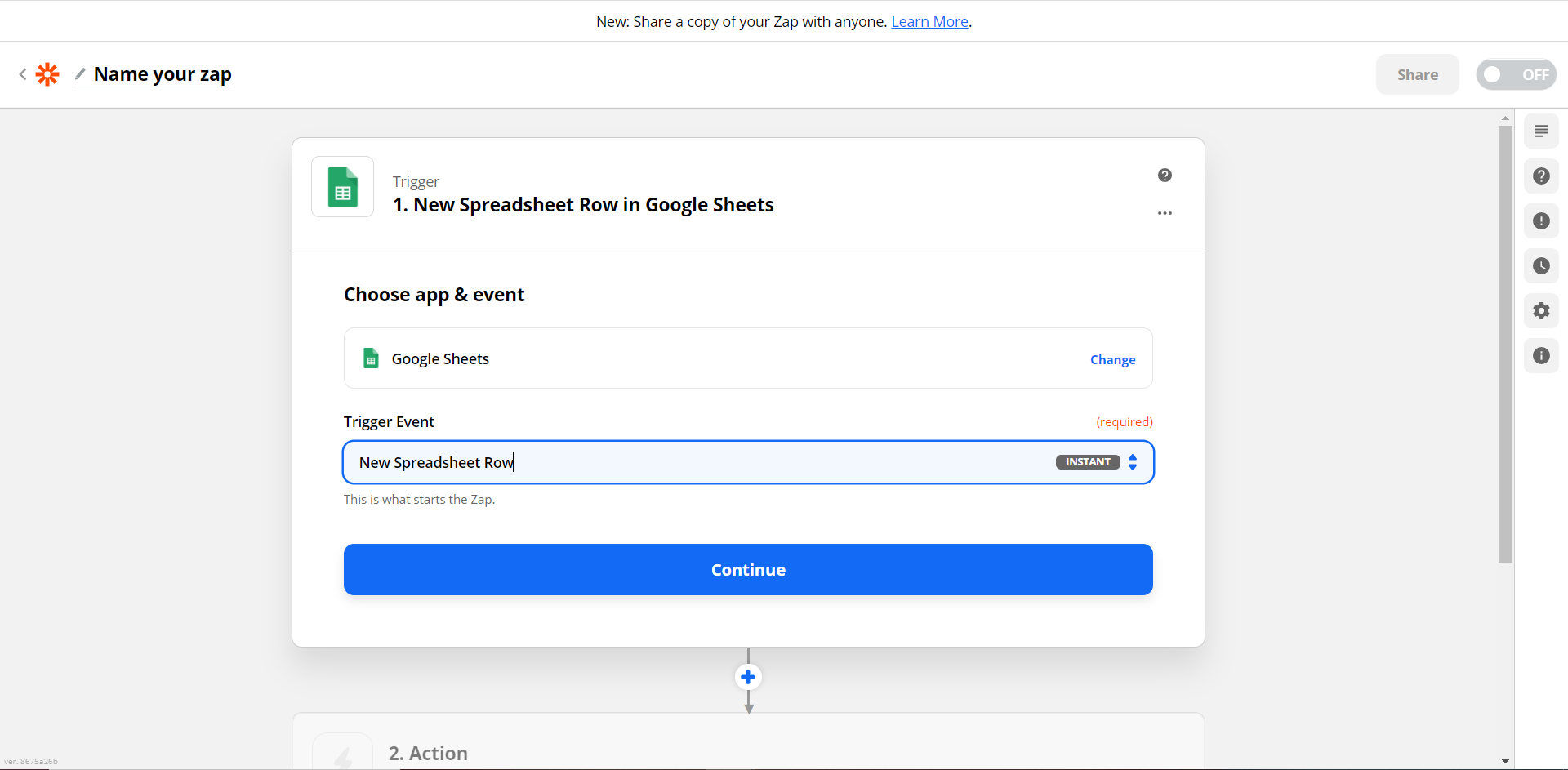
Choose the App Event – Select Google Sheets

Choose the Trigger event – Select “New Spreadsheet Row.” The user will be added to training when you add a new row to the bottom of a spreadsheet.
Choose account
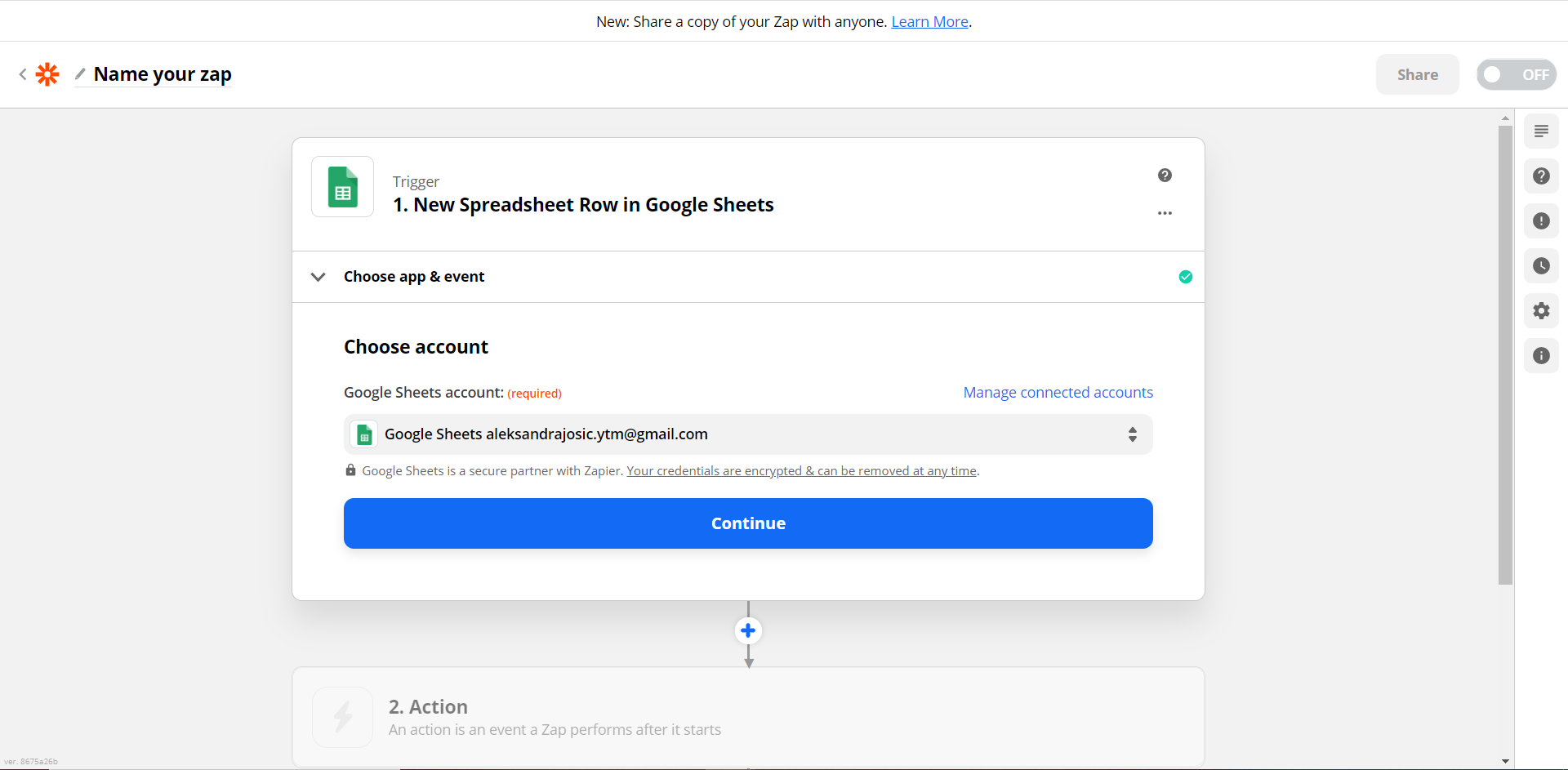
Choose the Google Sheets account.
Fill in the Spreadsheet with the necessary data
Insert the following user data:
- Training ID
- Username

Set up a trigger
- Choose the Spreadsheet.
- Choose the Worksheet.
- Click “Continue.”

Action
An action is an event that a Zap performs after it starts
Choose app & event
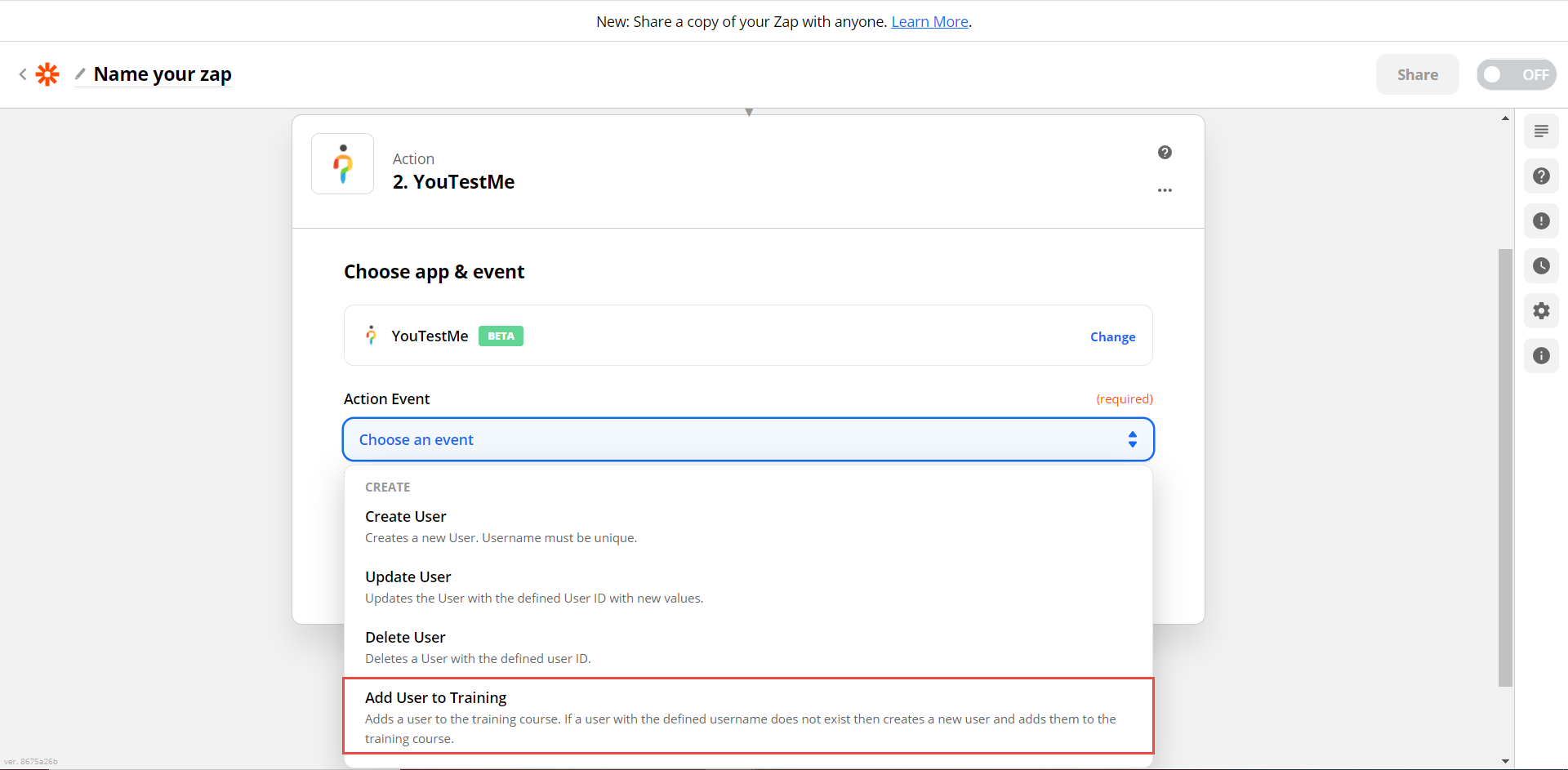
Choose YouTestMe as an App Event

Select the “Add Users to Training” action event and then click “Continue.”
Choose account
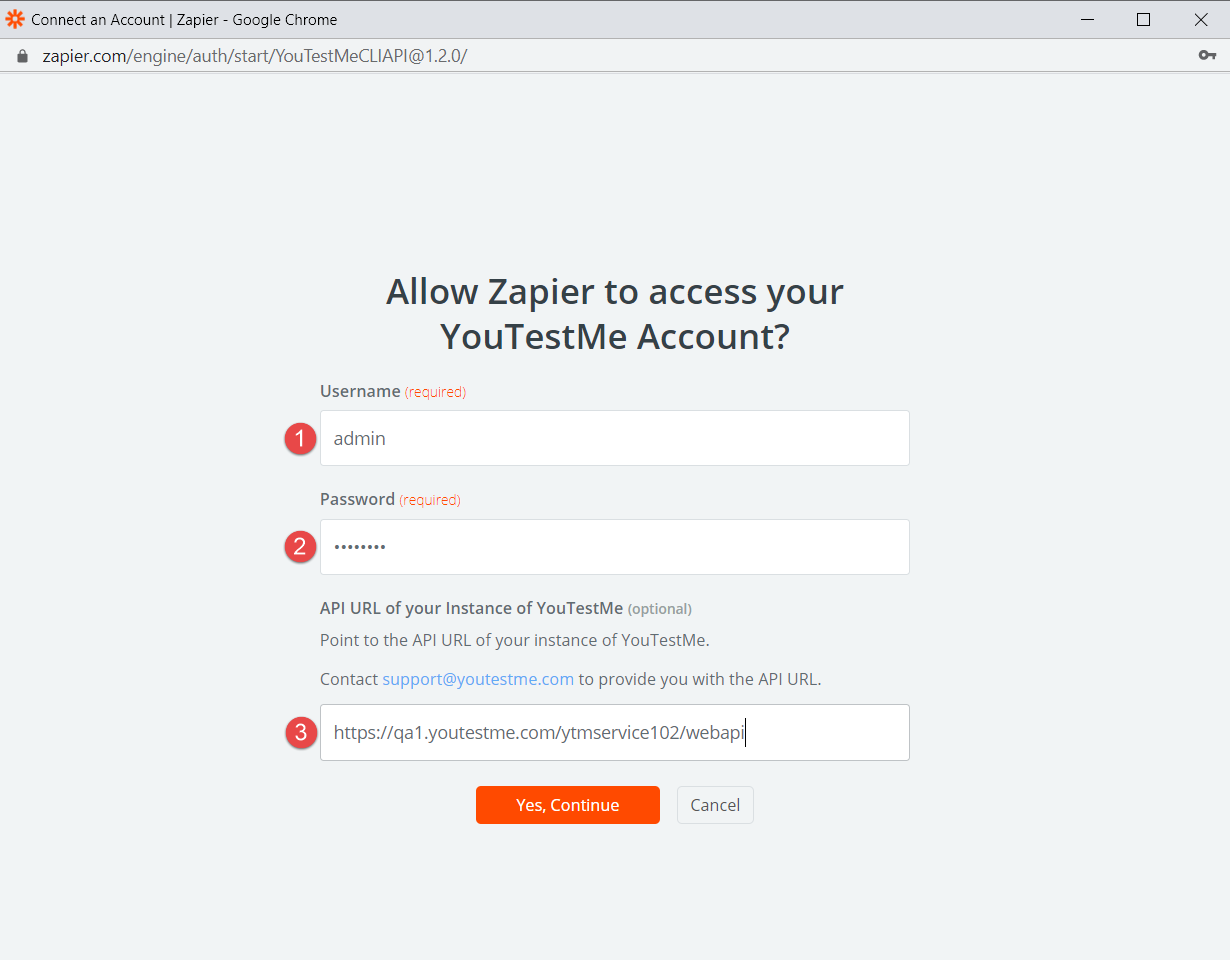
Click to choose an account and then on “Connect a new account.”
 In the pop-up window:
- Enter username.
- Enter the password.
- Enter the API URL (Contact support@youtestme.com to provide you with the API URL)
Set up Action
- Training ID – choose the desired column from a spreadsheet. To see how to export the list of all training courses and their IDs, please see How to export a list of all training courses with their descriptions and creation details.
- Username – choose the desired column from a spreadsheet.
- Status – choose Active, Inactive, Suspended, Locked, or Pending.
- Role – choose the user’s role
- Email – choose the desired column from a spreadsheet.
- Continue

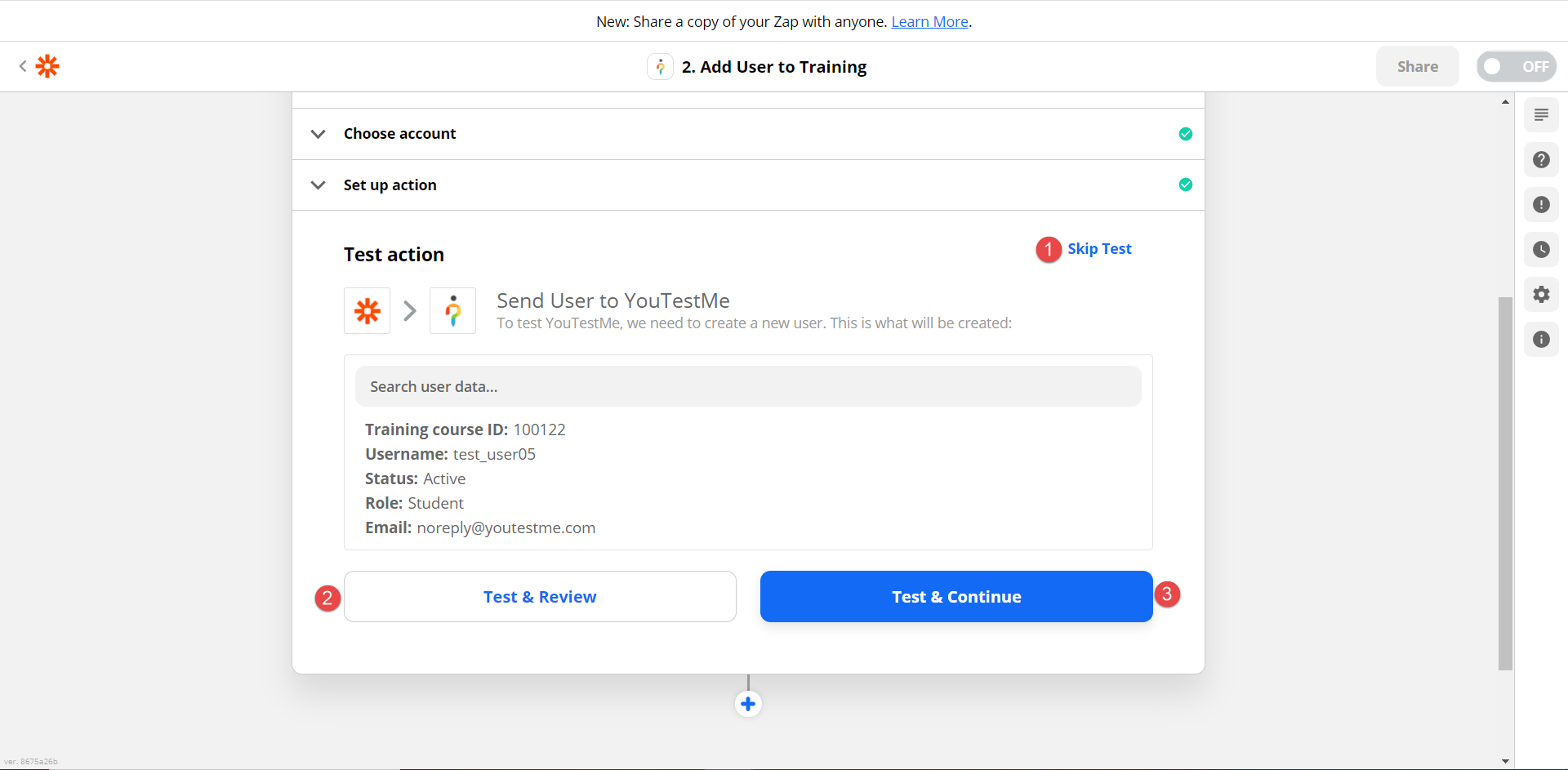
Test Action
After the Zap setup is finished, you can test adding users to the training action. If you test the action, one of the users will be added to the training for testing purposes. You can:
- Click “Skip test” to avoid adding users to the training set when creating or editing a Zap.
- Click “Test & Review,” add users to the training command, and then review your settings.
- Click “Test & Continue” and add users to the training command, which will be issued, after which you can turn on Zap and finish with the Zap setup.
Now you can turn on this Zap so that whenever you insert a new row in the spreadsheet, a user is automatically added to the training course.
- Click “Retest action” to retest the action.
- Click the “Turn on Zap” button, and the Action will trigger whenever you add a new row containing the user data.

To see how to set up a testing session so that all candidates added as candidates to the training course will automatically have open access to that test, please see “How to set up a session for the test in the training course” article.






