Article verified for Release 15.2 on November 28, 2025
In this article, you will learn how to create and manage user consents that appear to candidates during registration and login. These consents help organizations enforce important policies, such as privacy, security, and terms of use, before users access the system.
You can create as many consents as needed, and each consent works independently, meaning users must accept each one only once.
How to Create a Consent
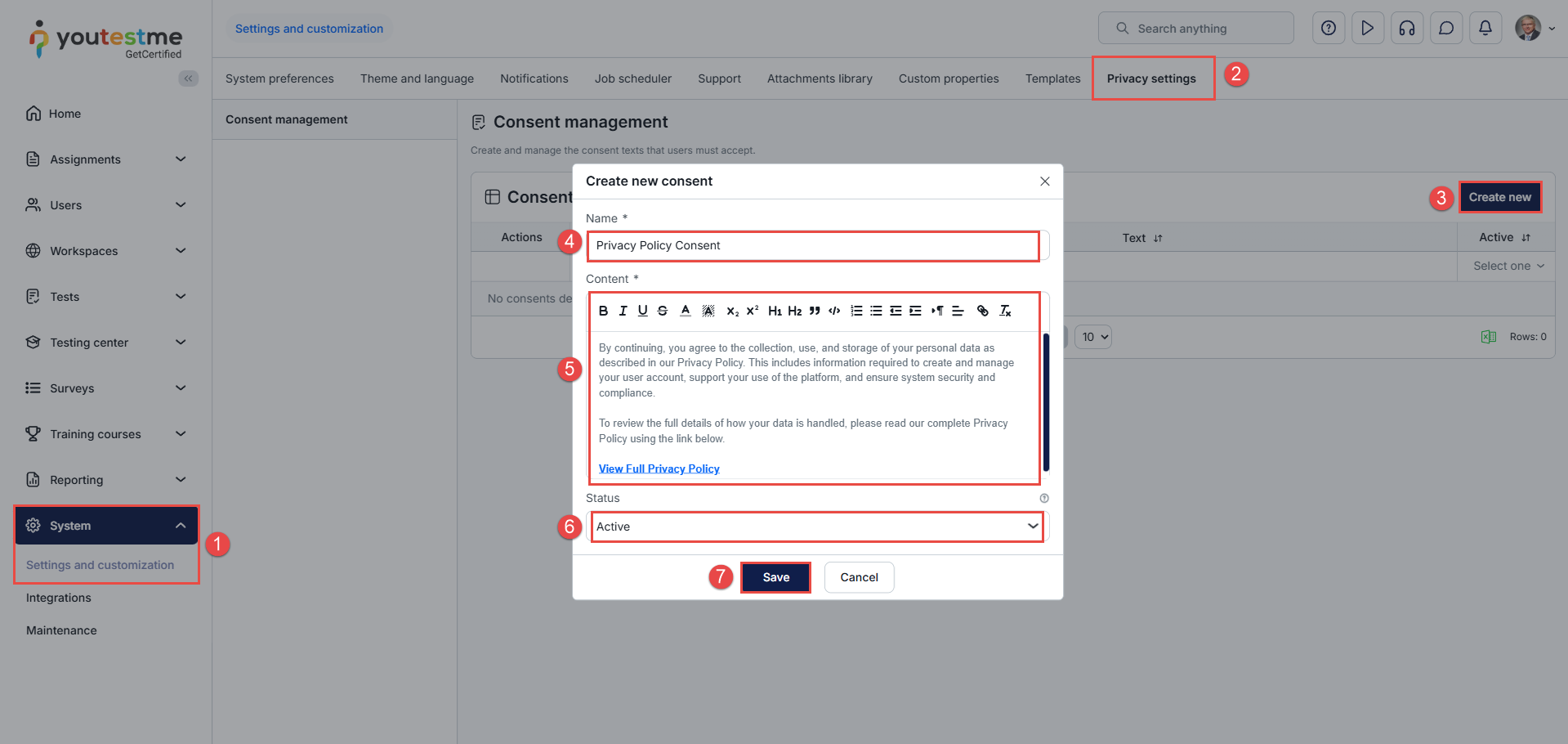
To create a new consent, follow these steps:
-
Navigate to System > Settings and customization.
-
Select Privacy settings.
-
Click the Create new button.
-
Add a name for the consent.
-
Add a description – You can use hyperlinks in this field to link to full policies, external documents, or terms.
-
Set the status to Active or Inactive.
-
Active: The consent will be displayed to users.
-
Inactive: The consent will be hidden and will not appear to users.
-
-
Click Save.
Managing Consents
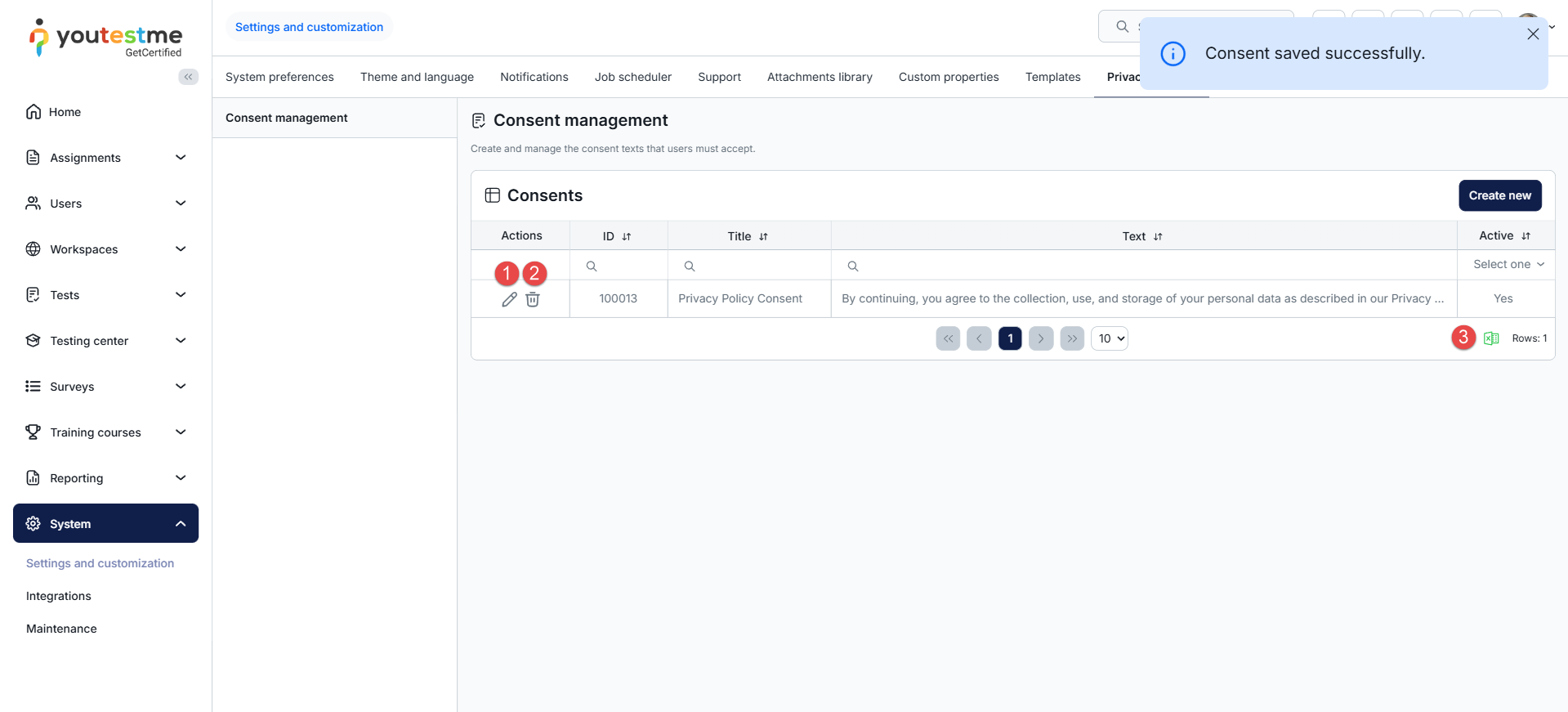
Once the consent is saved, it appears in the table on the same page. From here, you can:
-
Edit – You can edit only the status (active/inactive).
-
Delete permanently – The consent will be removed from the system and from all users who previously accepted it.
-
Export as Excel – Download the list of consents in Excel format.
Note: Set consent to Inactive if you want to retain the history of users who agreed to it. Use Delete permanently only when this history is no longer needed, as it removes the consent from the system and from all users who previously agreed to it.
Candidate’s Perspective
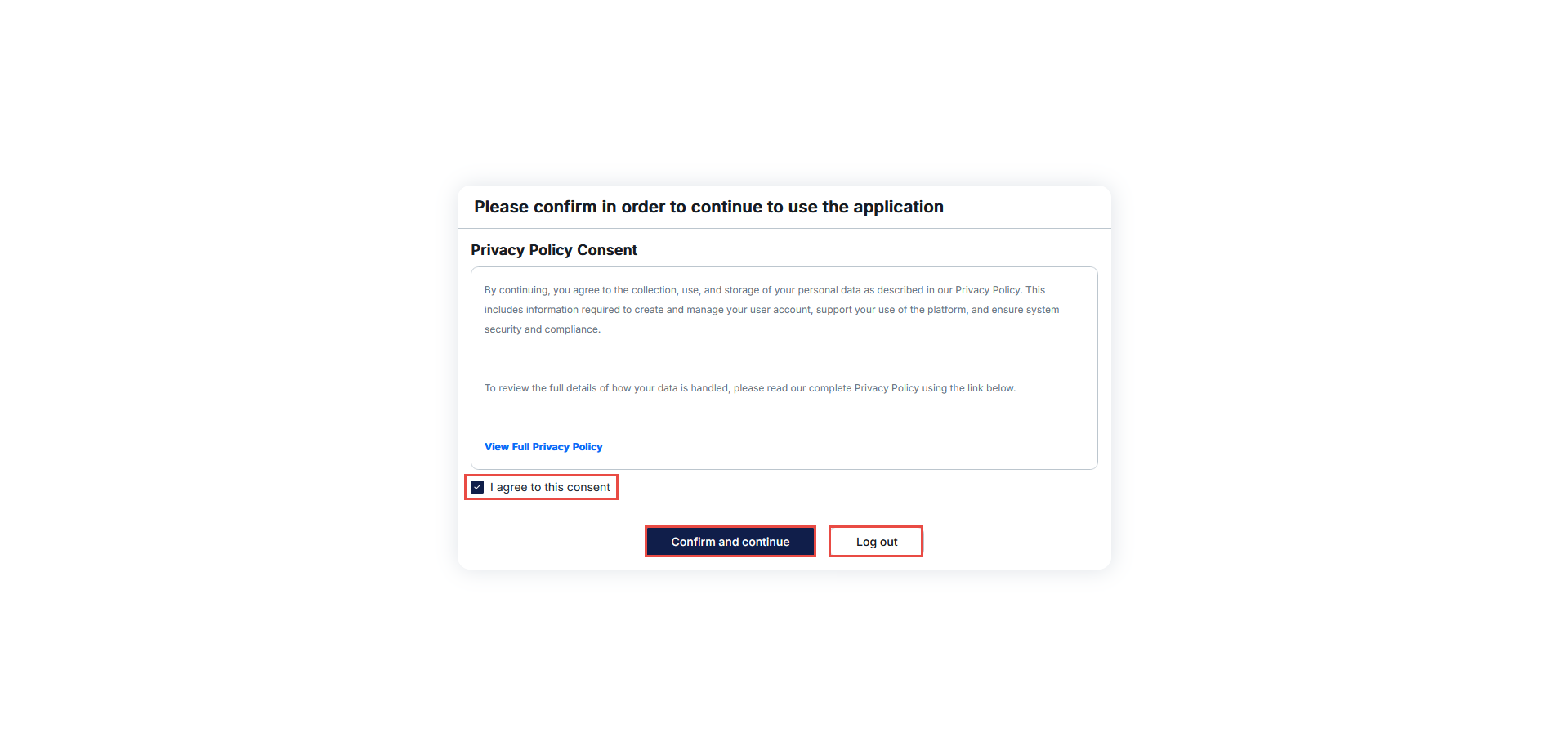
When a consent is set to Active, candidates and newly registered users will see a dialog requiring acceptance:
-
During registration – Users must accept all active consents to complete account creation.
-
During login – Existing users are prompted only for any new consents they have not previously accepted.
Candidate behavior:
-
If the user agrees, they can proceed into the system by selecting Confirm and continue.
-
If the user disagrees, they may log out, but they cannot continue into the system.
Once a user accepts a consent, it will never be shown again, unless the consent is deleted and recreated.
How to View Accepted Consents
To access this information:
-
Navigate to My profile.
-
Open Information > Privacy consent.
A list of all accepted consents will be displayed.

Additional resources:






