
Article verified for Release 15.1 on October 24, 2025.
In this article, we explain the Matrix question type.
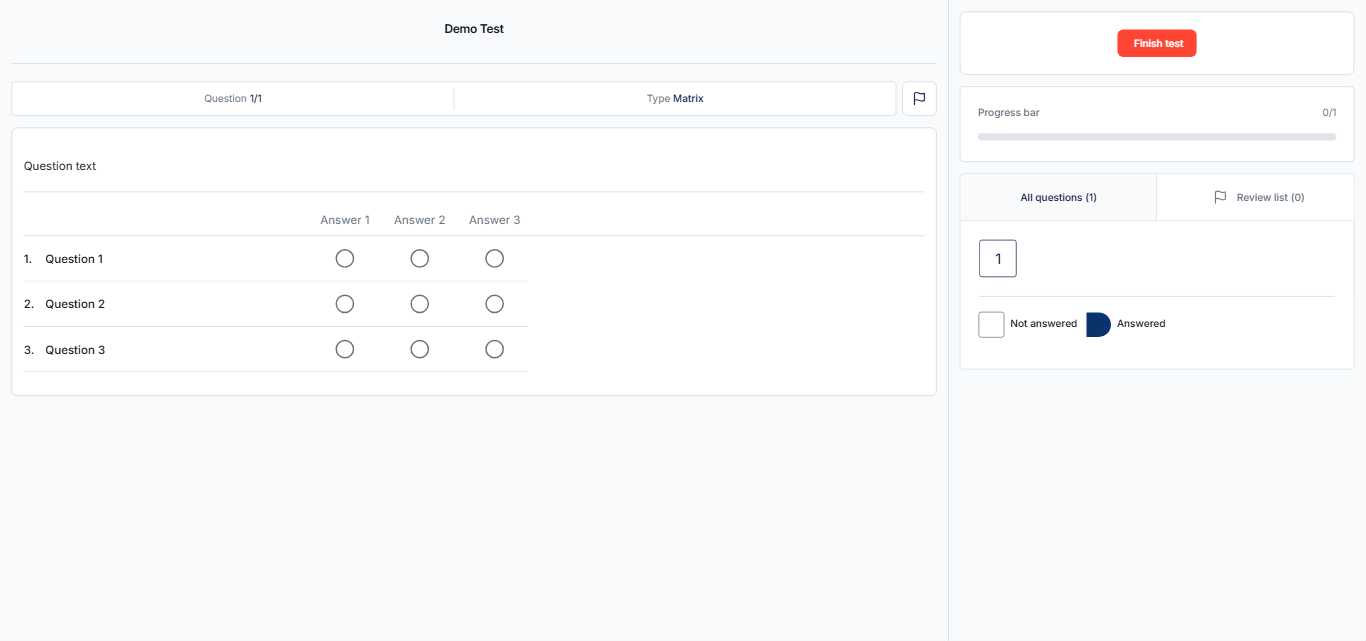
This question type presents multiple related sub-questions arranged in rows, with a shared set of possible answers displayed in columns. Candidates must select one answer for each sub-question, making this format suitable for evaluating multiple statements against the same criteria in a structured and consistent way.
Creating a Matrix Question
Matrix questions present multiple sub-questions in rows, with a shared set of possible answers in columns. Candidates select one answer for each sub-question.
To create a matrix question, follow these steps:
- From the main menu, navigate to Tests, then select Question pools.
- From the list of pools, select the desired question pool where you want to add the matrix question. Alternatively, you can create a new question pool. For more details on how to create and use Question Pools, visit this article.
- Open the Questions tab.
- Click the Add question button.
- From the list of question types, select Matrix.

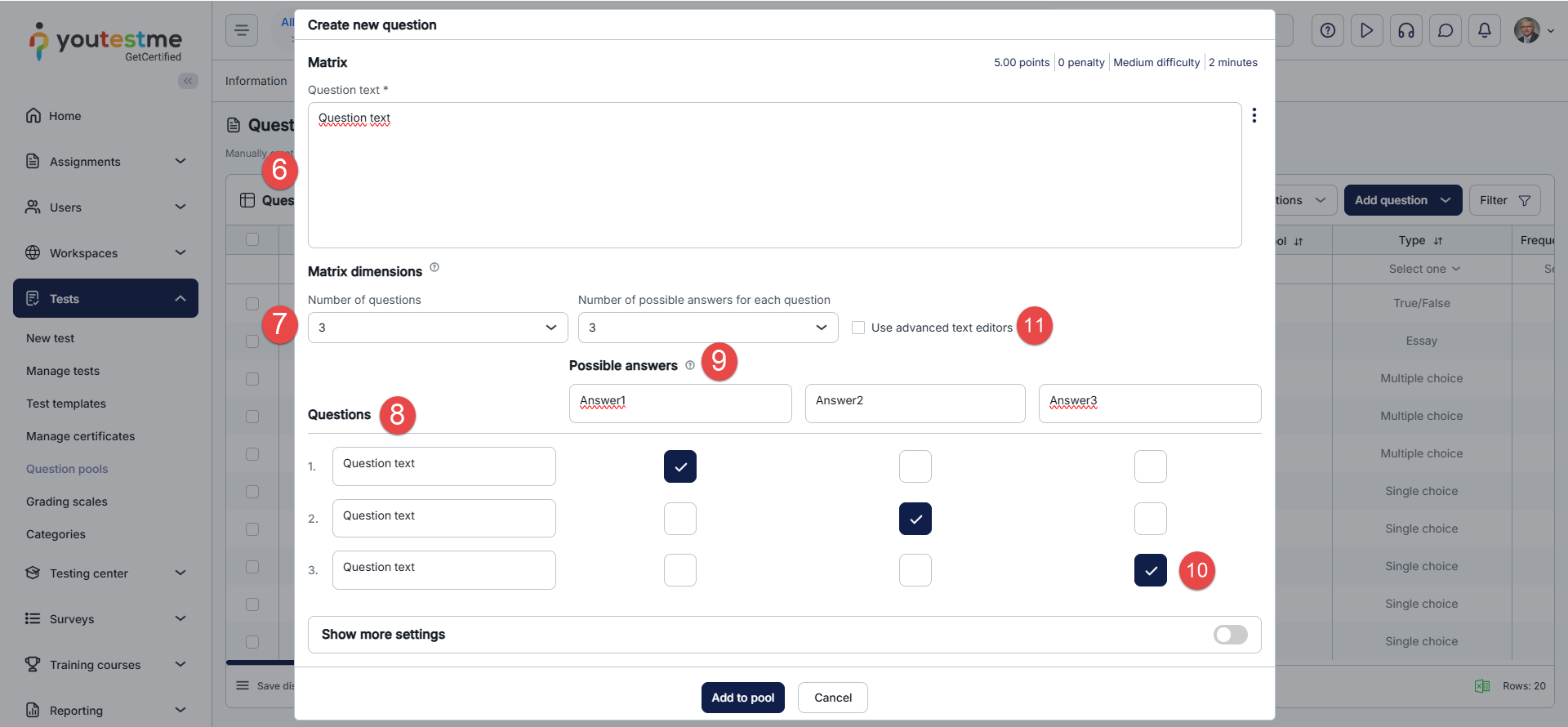
- Enter the question text.
- Specify the number of sub-questions and the possible answers for each sub-question.
- Enter each sub-question.
- Enter the possible answers for the sub-questions.
- Select the correct answers.
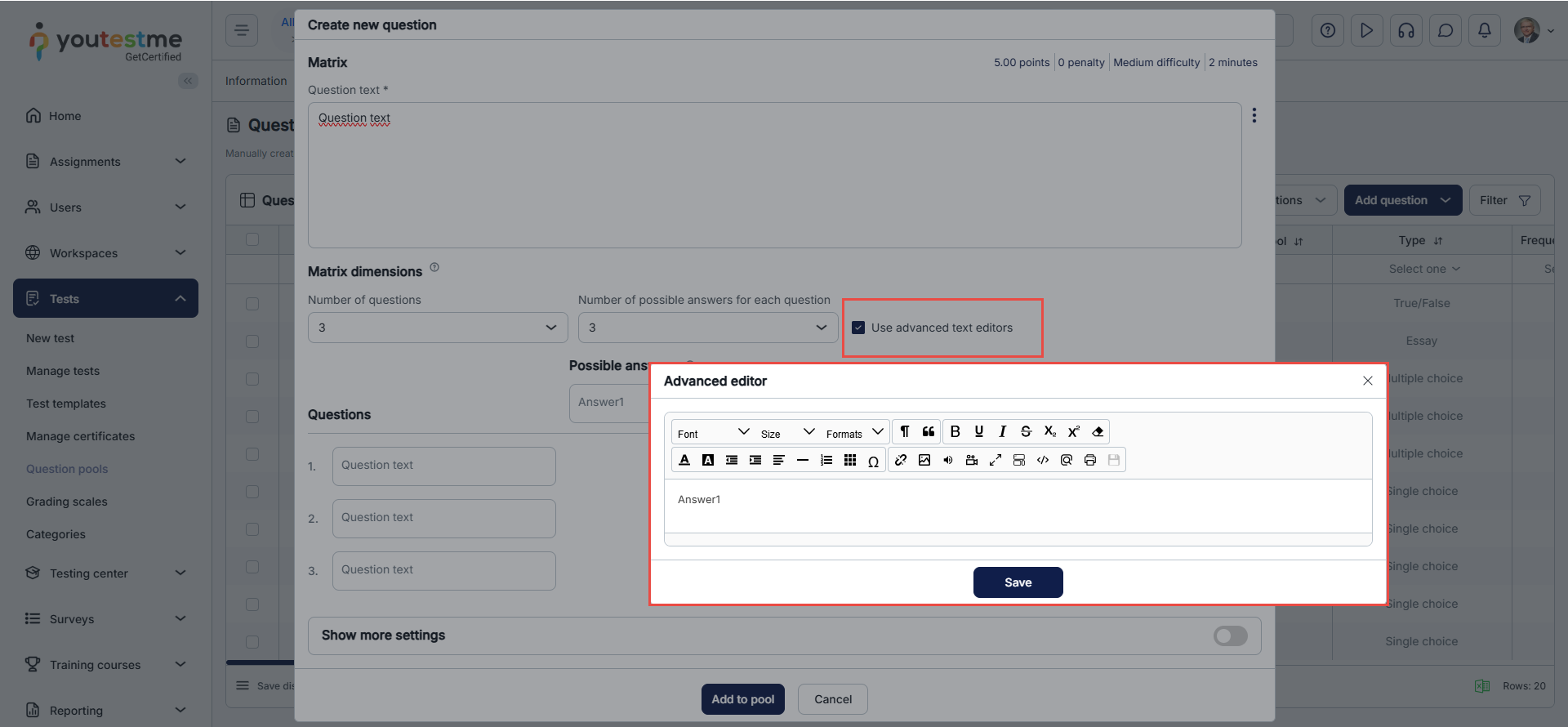
- If you check the Use advanced text editors option, click on the field where you want to use the advanced editor. A pop-up window will appear, allowing you to add or format the question or answer text using advanced editing tools.
Advanced Question Setup
After selecting the correct answers, you can configure additional settings for the matrix question.
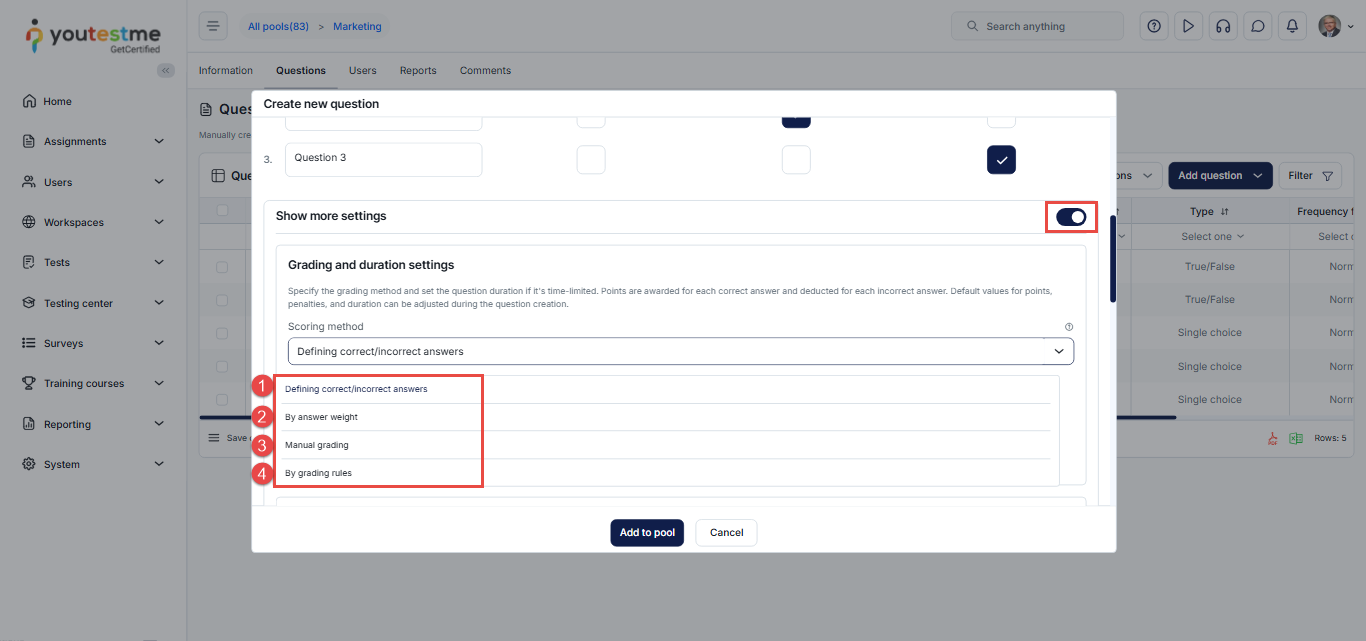
Toggle the Show more settings button to access the advanced options.
Scoring Method
When creating a matrix question, you need to choose a scoring method. From the Scoring method dropdown menu, you can select one of the following options:
- Defining correct/incorrect answers – The candidate must select all correct answers to receive points. Partial points are not awarded.
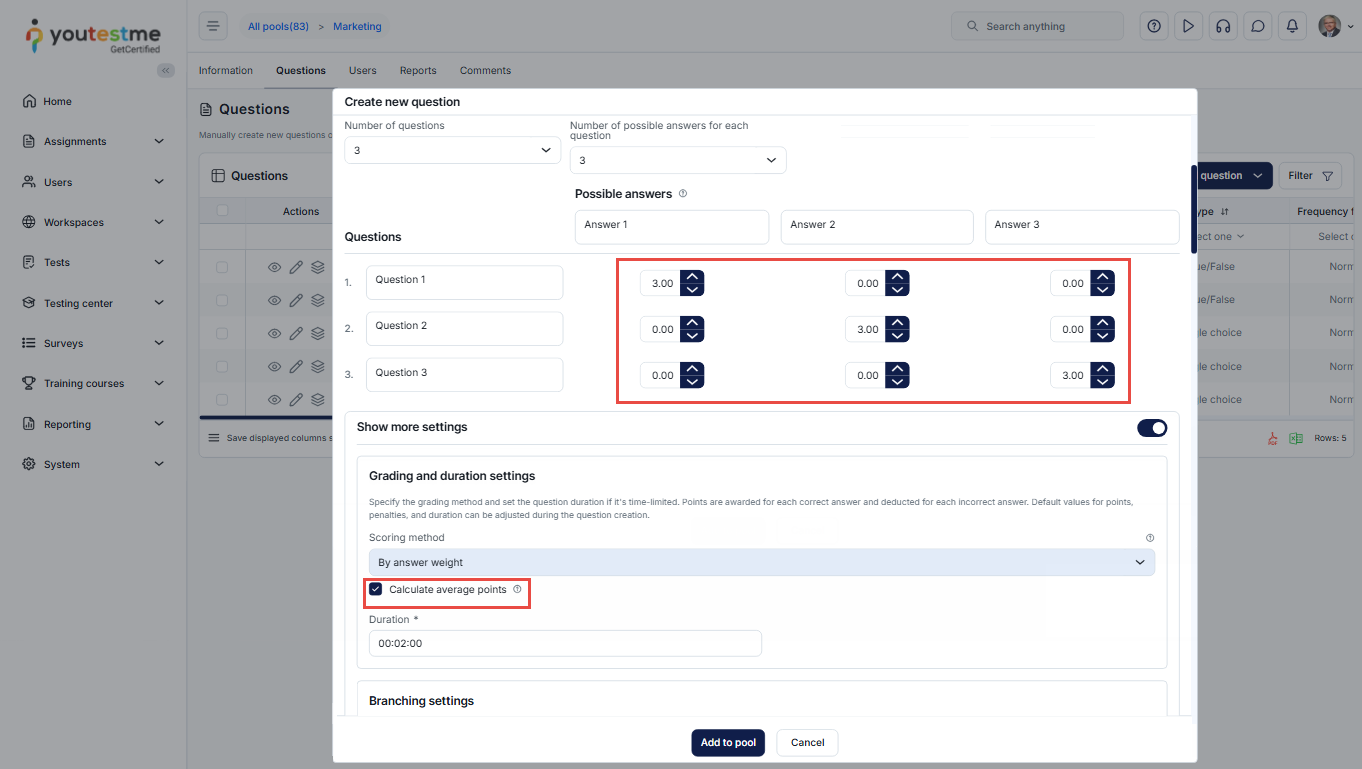
- By answer weight – Each answer carries its own point value.
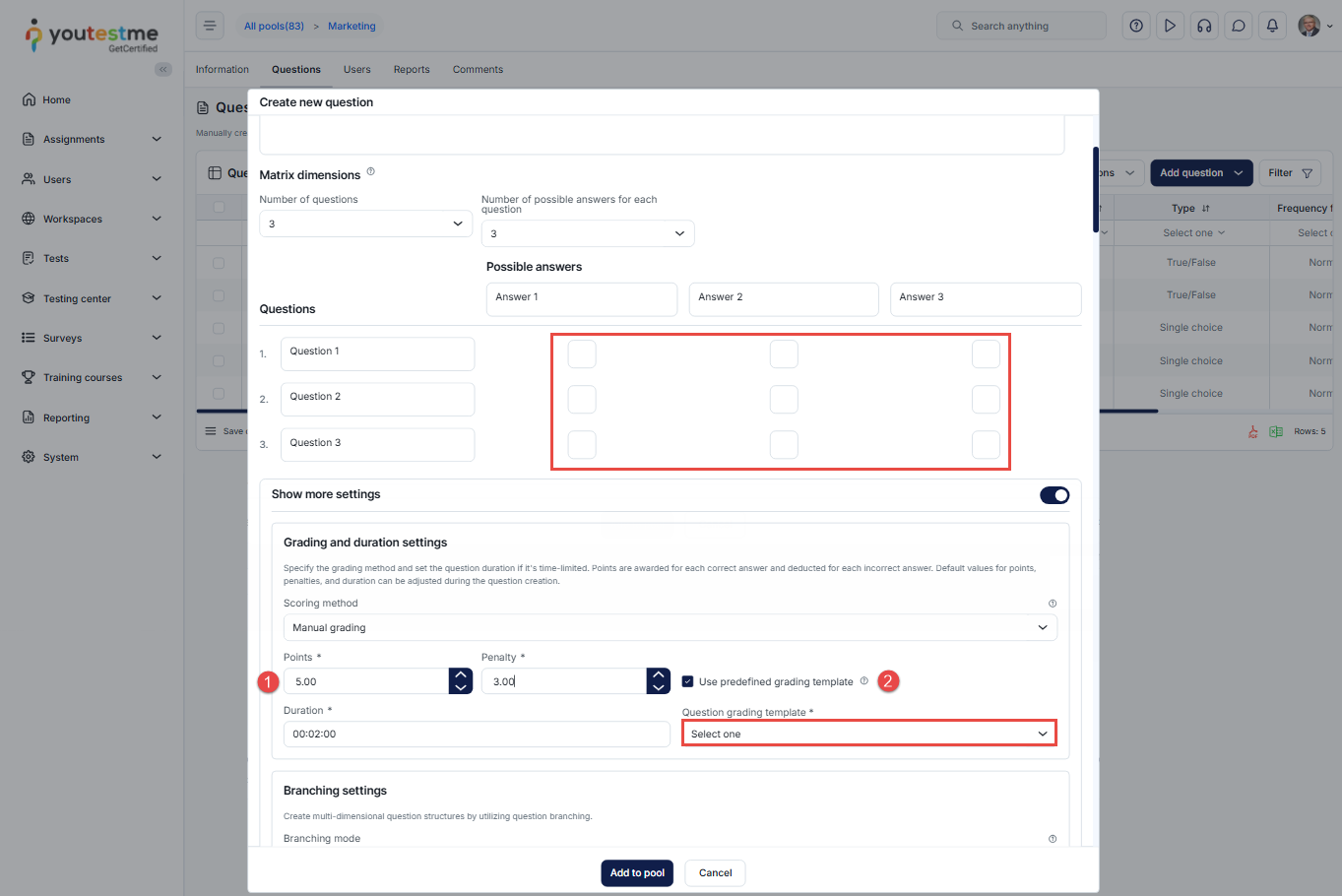
- Manual grading – The question is graded manually by a test manager or a grader.
- By grading rules – Define specific rules to assign points based on the number of correct answers a candidate selects.
Define the correct/incorrect answers scoring method
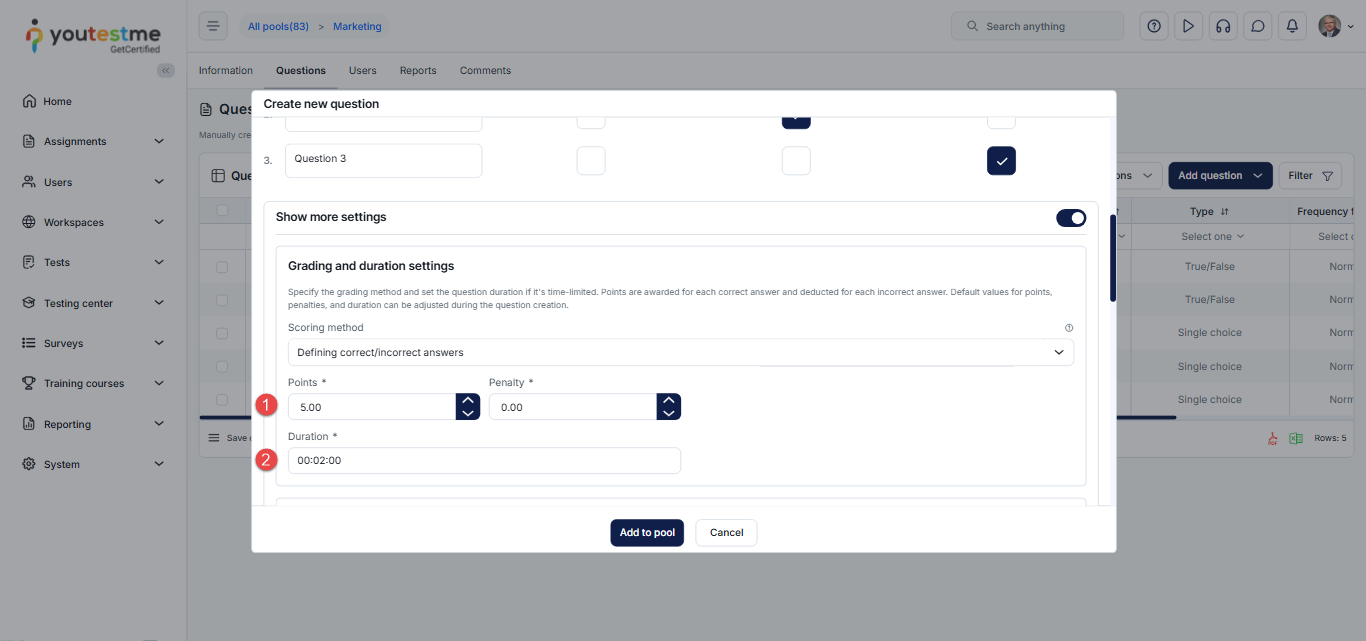
If you select Defining correct/incorrect answers, you can:
- Specify the number of points awarded for a correct answer and the penalty points for an incorrect answer.
- Set the question duration if the question is time-limited.
By answer weight
By enabling the By answer weight scoring method, you can specify the points for each answer.
If you select the Calculate average points option, the points earned for the question are calculated by summing the points of all selected answers and dividing the total by the number of selected answers.
Manual grading
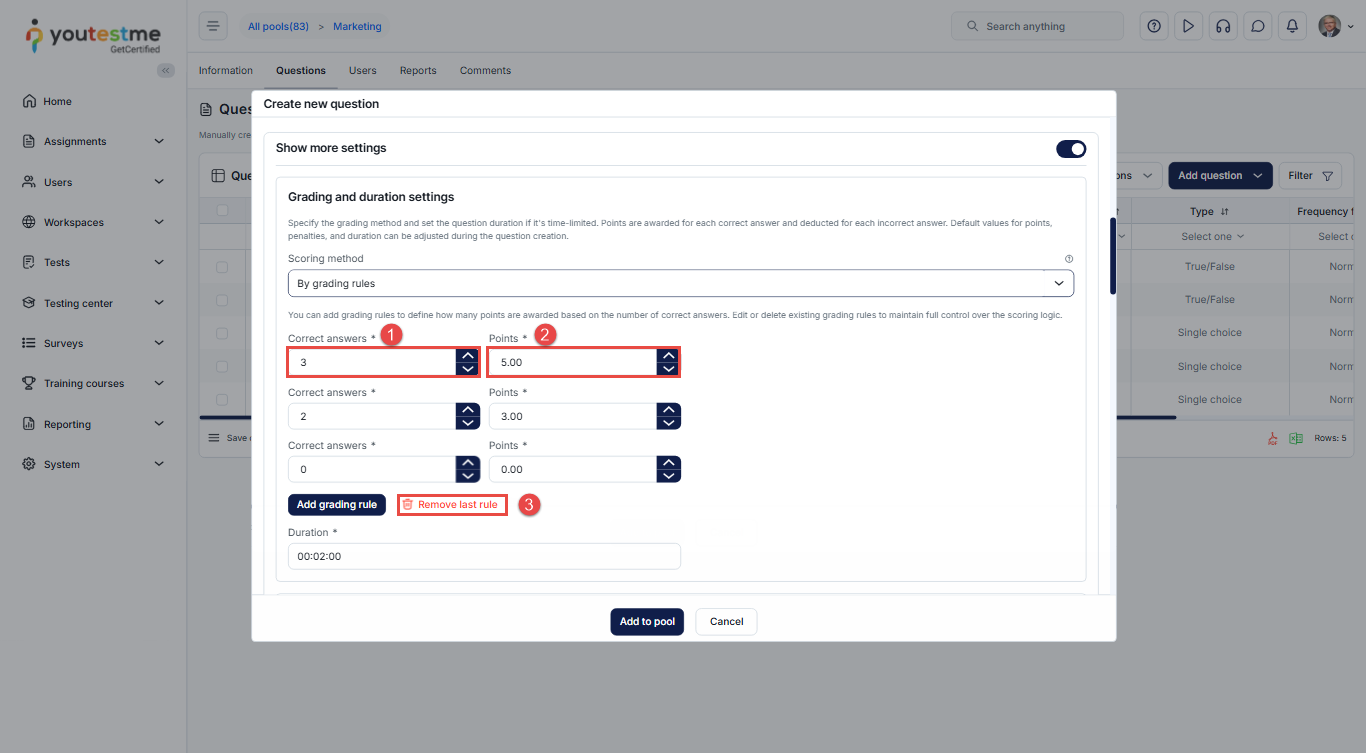
Other Configuration Options
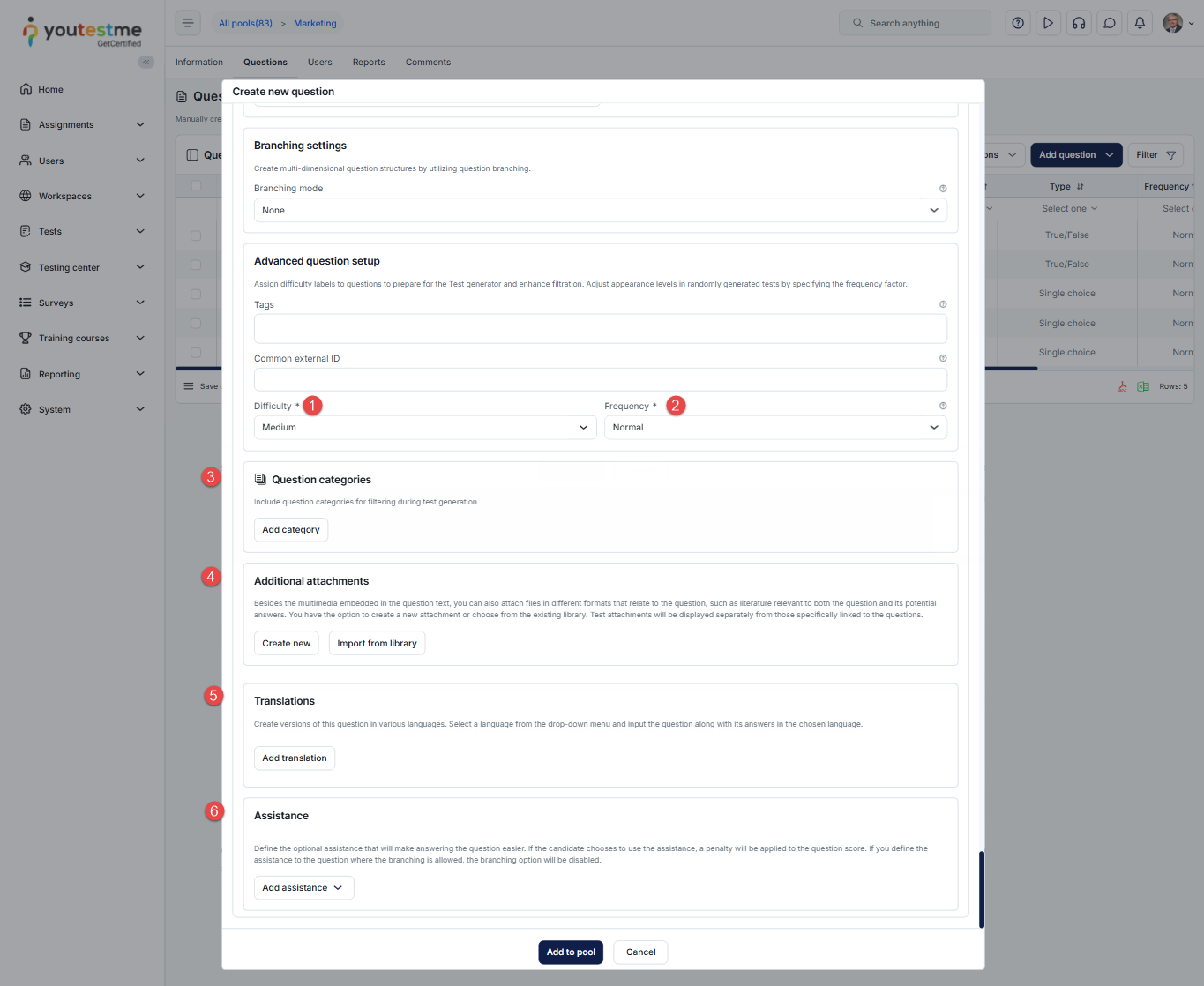
In addition to scoring and grading, you can configure the following advanced settings for matrix questions:
- Define question difficulty – Open the dropdown menu under the Difficulty section and select one of the available values: Easy, Medium, or Hard.
- Set question frequency – Use the Frequency dropdown menu to define how often the question appears in tests: Never, Rarely, Normal, Often, or Always.
- Add question categories – Assign categories for easier filtering during test generation.
- Attach files – Upload supporting files in various formats related to the question.
- Add translations – Provide translations of the question to support multiple languages.
- Add assistance – Include hints or assistance for candidates if needed.
Matrix Question from the Candidate’s Perspective
For additional related topics, please refer to the following articles:




