Article verified for Release 15.1 on November 25, 2025
This article explains how to enable and disable Accessibility mode in YouTestMe GetCertified. Accessibility mode is designed to improve navigation and usability for users who rely on keyboard controls or assistive technologies. The steps below outline how to turn this feature on or off and how to use the keyboard to navigate the application effectively.
Enabling/disabling accessibility mode
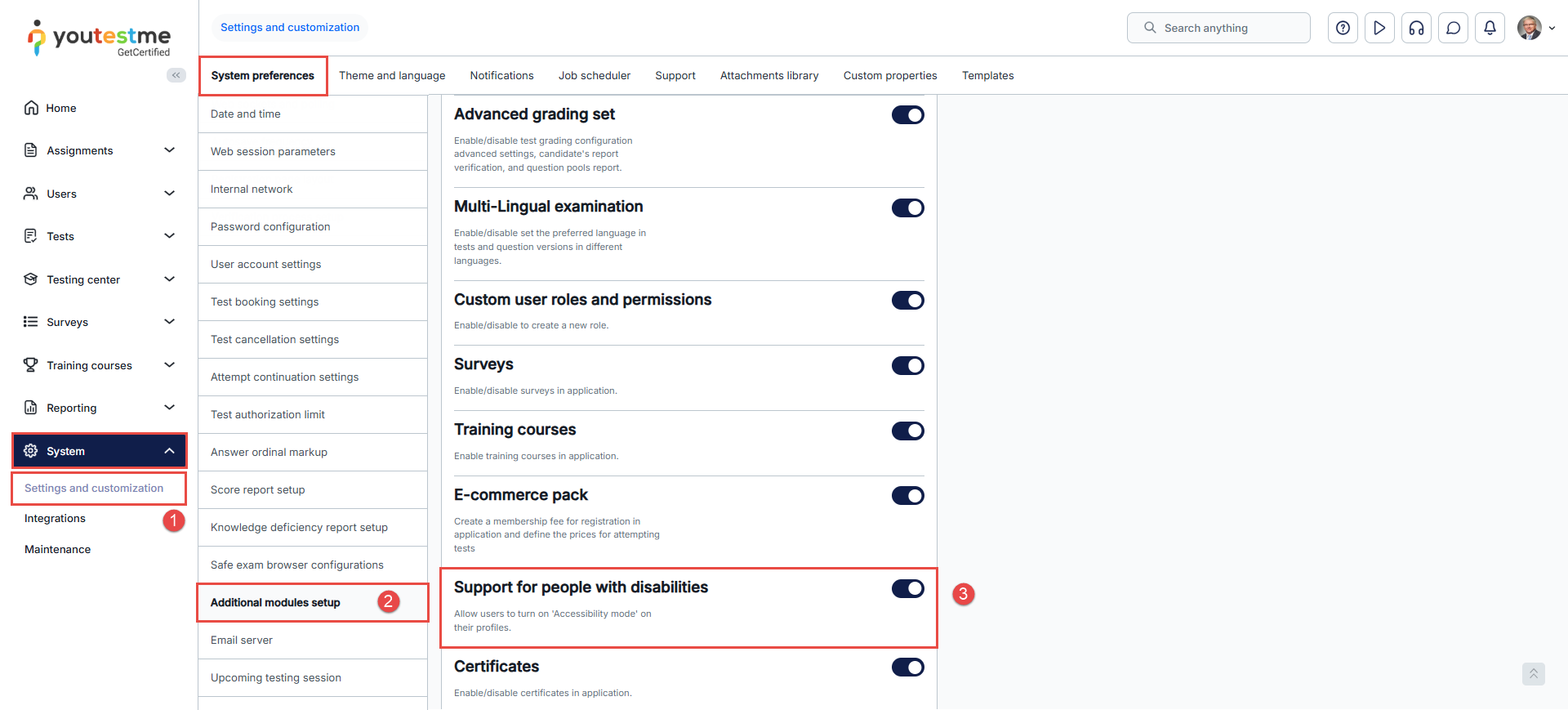
- Select the System tab and then the System and customization tab.
- Select the System preferences tab and then the Additional modules tab.
- To turn the accessibility mode on or off, scroll down to Support for people with disabilities.

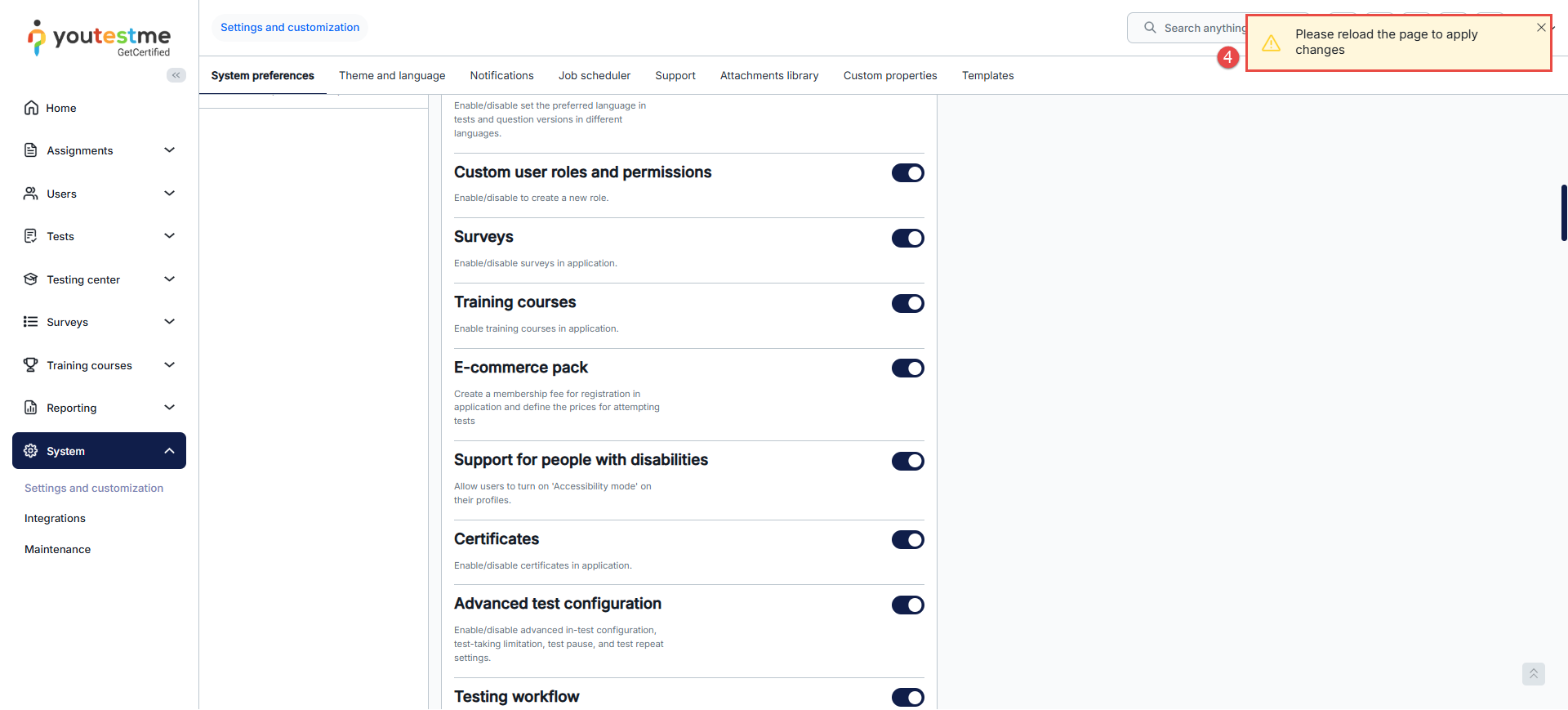
- After enabling the option, you will receive a system notification to reload the page.
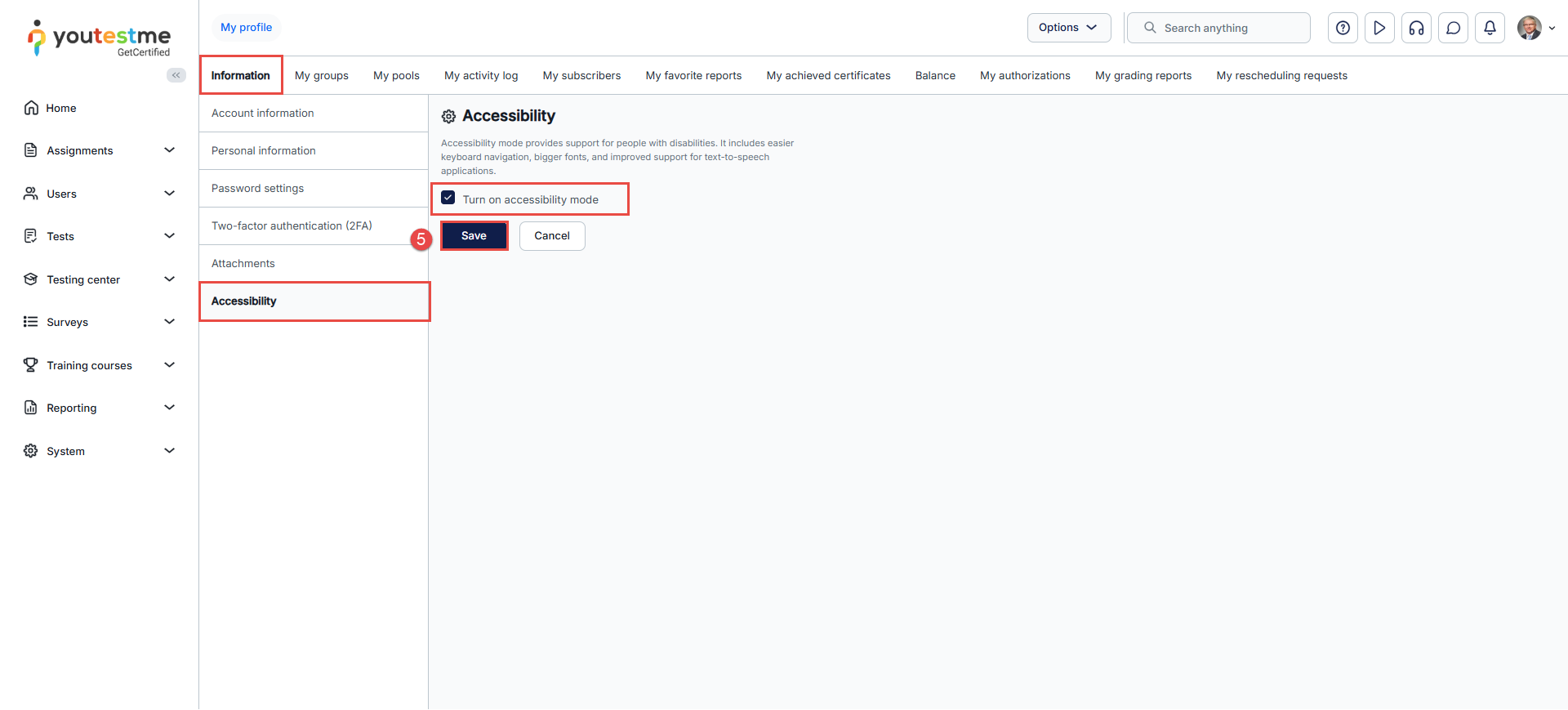
- After navigating to My profile, you will see the tab Accessibility. Tick the box to enable accessibility mode, then save the changes.
Navigate the application using the keyboard
To navigate the application using only a keyboard:
-
-
Use TAB to advance the cursor to the next tab stop.
-
Use SHIFT+TAB to advance the cursor to the previous tab stop.
-
Use UP/DOWN to switch items in the text field of the main menu.
-
Use ALT+UP/DOWN for the main menu to list items in the list view.
-
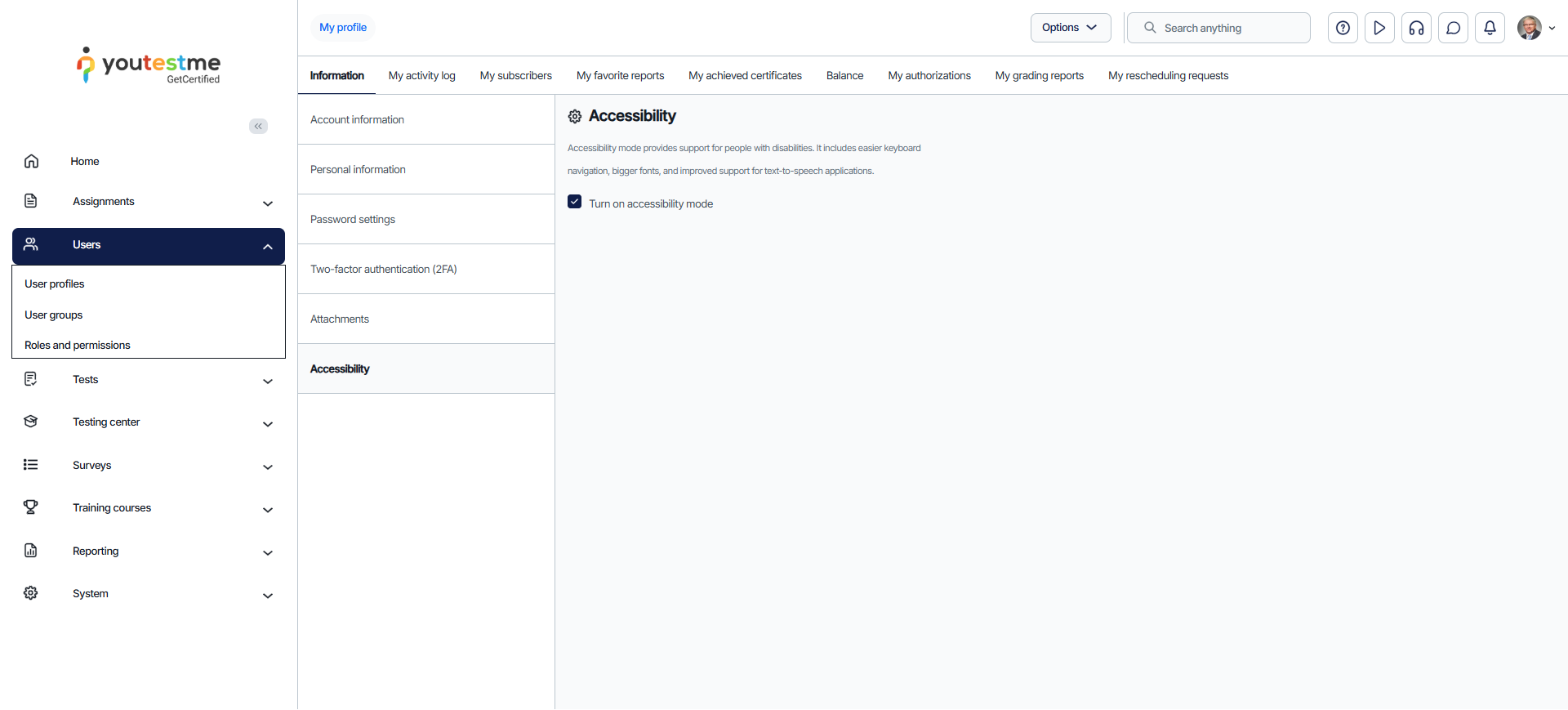
Temporarily activate Accessibility mode by pressing the TAB button. Options will appear in the side menu; press ENTER to enable it. Upon re-logging in, this option will be disabled.






