Article verified for Release 15.2 on January 04, 2026.
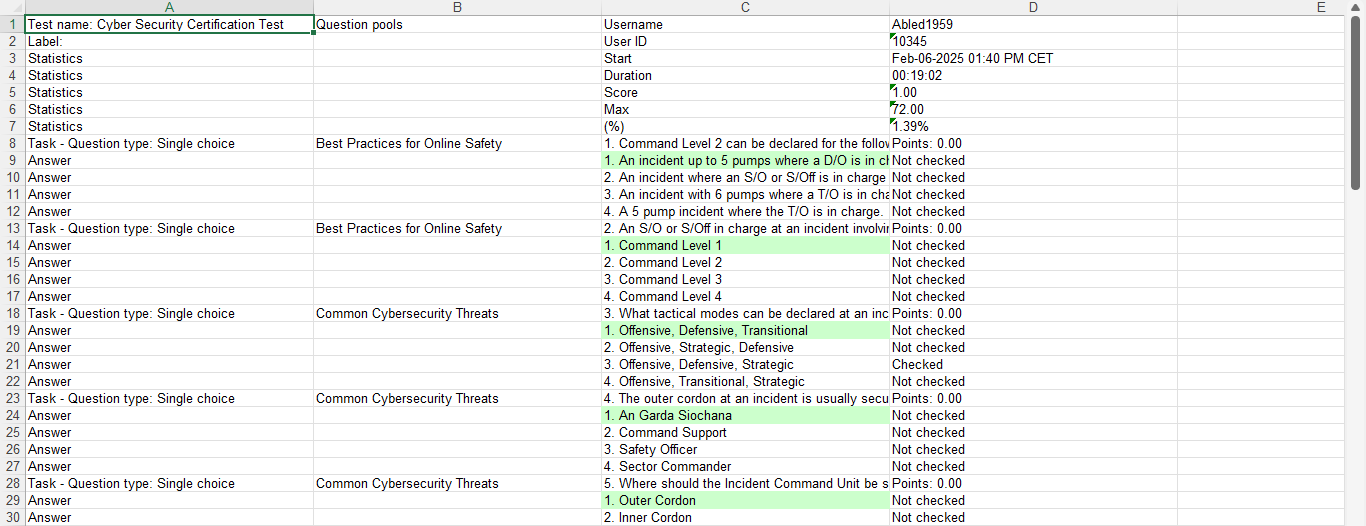
This article explains how to export a candidate’s personal report as an Excel file. The exported report includes all test questions, offered answers, and the candidate’s selected answers.
Accessing the personal report
To export a personal report, follow these steps:
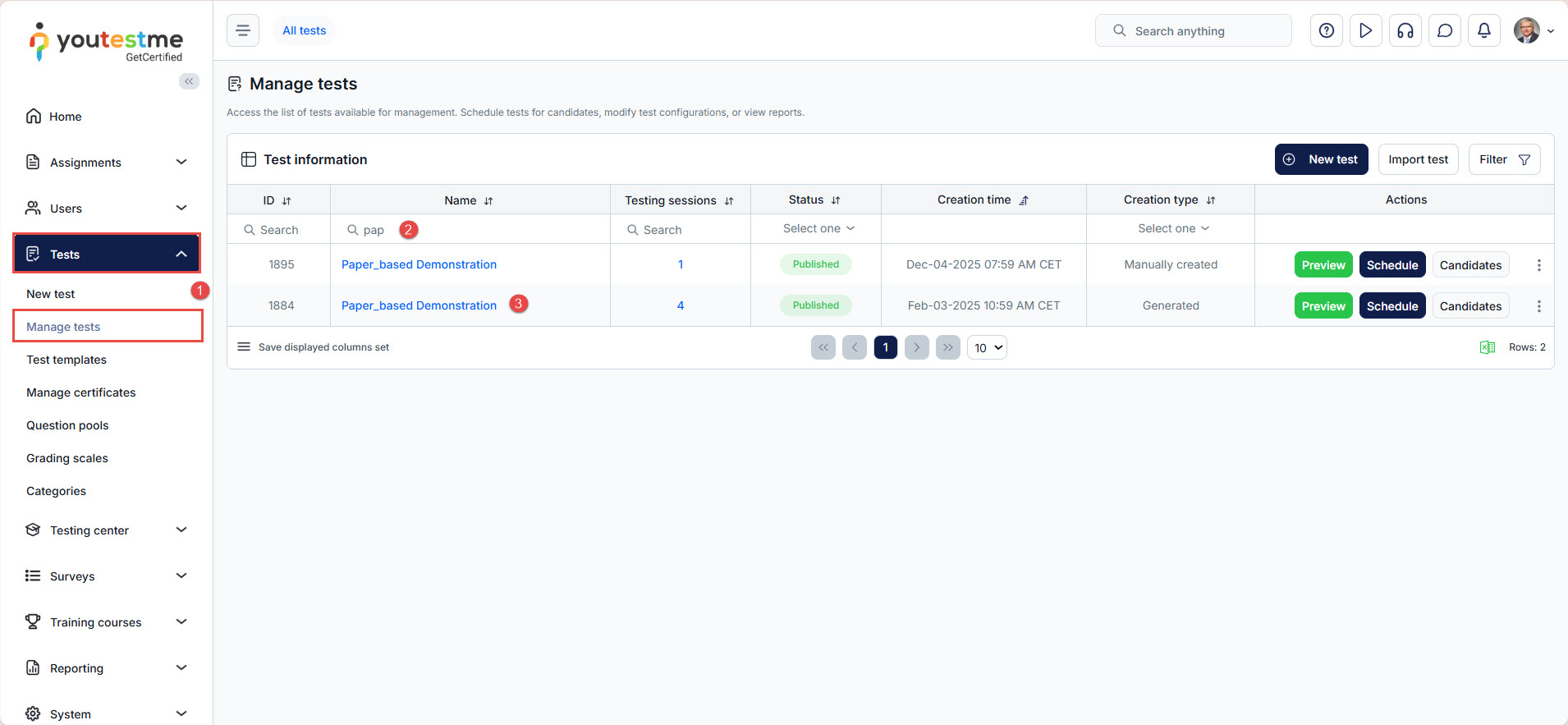
- Go to the “Tests” tab in the main menu and select “Manage test“.
- On the Manage tests page, use the search box to find the test you want to review.
- Click on its name to open it.
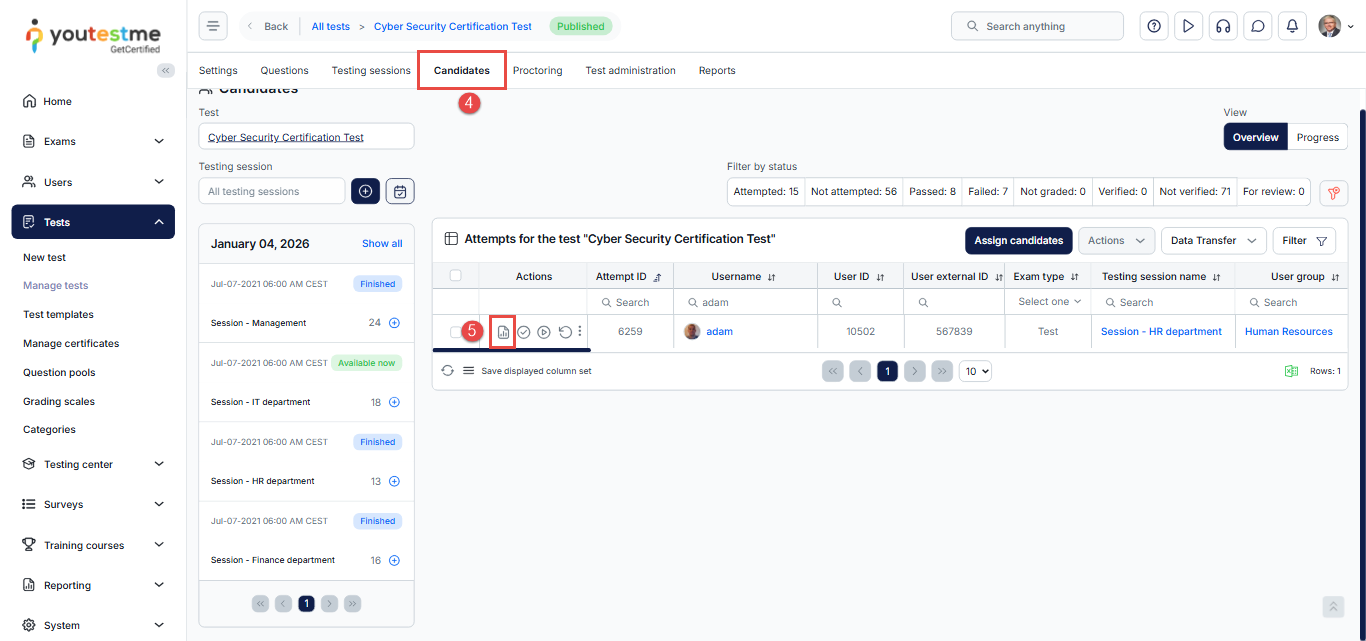
- Navigate to the “Candidates” tab.
- Locate the candidate with the status Report complete. Click the fourth icon in the column Open personal report for this candidate.
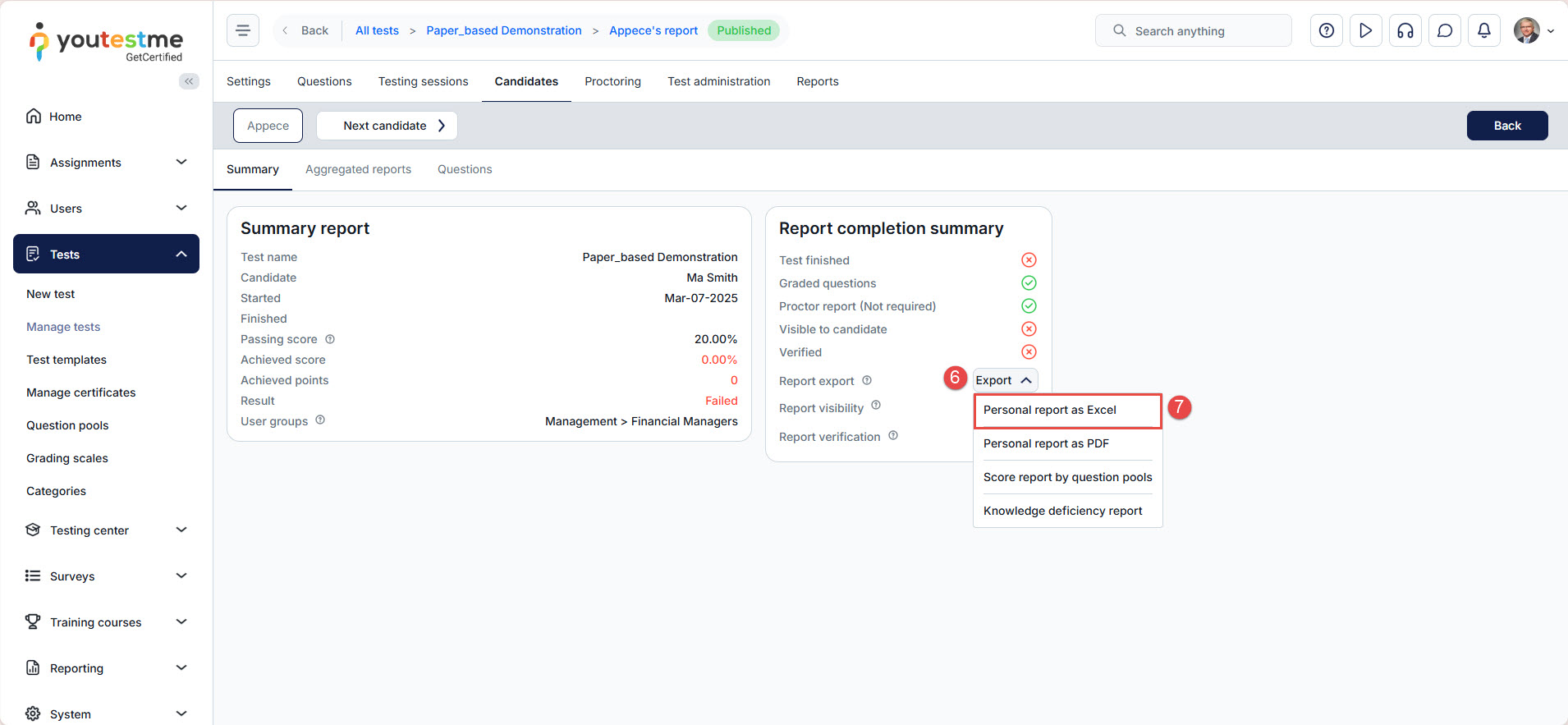
- In the personal report view, click the Export drop-down menu
- Select the “Personal report as Excel.”
The system will generate and download the Excel file containing the candidate’s personal report.
Example
An example of an exported personal report is provided below.
For more useful instructional materials, please visit:






