
Article verified for Release 15.1 on November 27, 2025.
This article outlines the process for evaluating Proctorio proctoring reports within YouTestMe GetCertified. After a candidate completes a proctored test, Proctorio automatically analyzes the session and highlights any irregular behavior. The proctor is then responsible for reviewing these indicators, validating their relevance, and assigning an informed final evaluation of the candidate’s compliance with testing rules.
Accessing the Proctored Exam Recordings (Proctoring Reports)
As a proctor, you need to follow the steps below to access and review the candidates’ recordings:
- Go to the Testing center and select Candidates.
- Open the Proctoring tab at the top of the page.
- Select the relevant test and testing session.
- In the Attempt status column, choose Report incomplete.
- In the Proctor Comment Added column, select No.
- Click the camera icon in the Actions column to open the Proctorio Gradebook and review the recording.

Proctorio Gradebook
After clicking the camera icon, the Proctorio Gradebook will open in a new browser tab. This page displays all candidates who completed the selected test along with key monitoring details, such as submission time and suspicion level.
To review a candidate’s recording, select their name from the list. This will open the full proctoring report, where you can watch the test session, check flagged events, and evaluate the candidate’s behavior.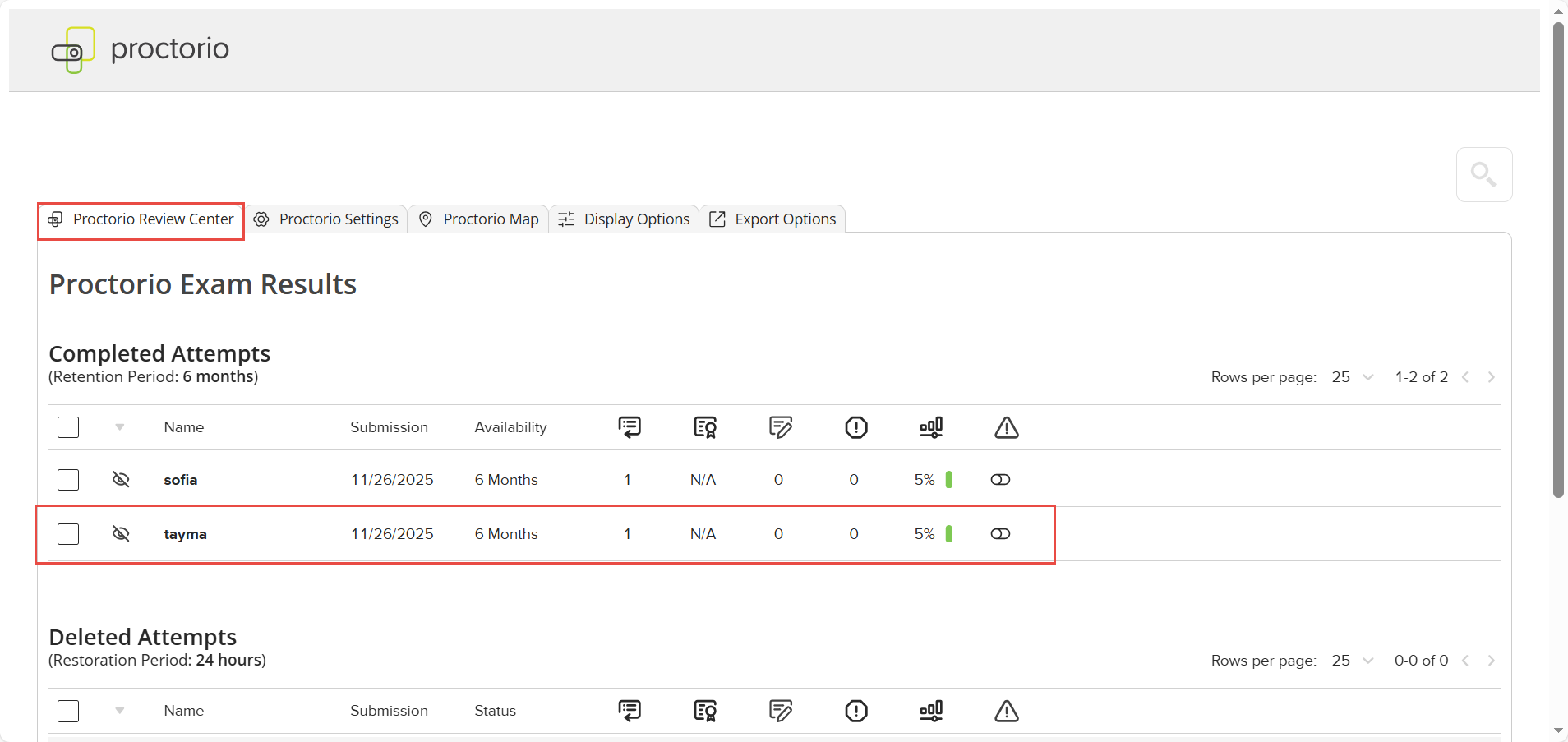
In the review interface, you can access several monitoring and verification tools. Each option opens a detailed panel related to the candidate’s exam session.
- Incident Log – Displays all automatically flagged events detected during the exam. The log scrolls in sync with video playback, so reviewers can easily follow incidents as they occur.
- Screen Recording – Provides a full recording of the candidate’s screen during the exam. Depending on the Proctorio configuration, this may include screenshots, monitor detection, or other desktop activity logs.
- Location Information – Shows the candidate’s city, country, and time zone as captured during the exam.
- Annotations – Allows reviewers to add notes to specific frames. Click the annotation icon on the desired frame, type your message, choose a color, and save. Existing annotations can be edited by selecting the same frame again.
- Identification – Displays the identity-verification information. Proctorio checks the institution-approved ID card against the live webcam image to confirm the test taker’s identity. This feature is enabled or disabled by exam administrators.
- PDF Export – Enables export of the entire report to a PDF file. Reviewers can choose which elements (logs, screenshots, annotations, etc.) to include in the final export.
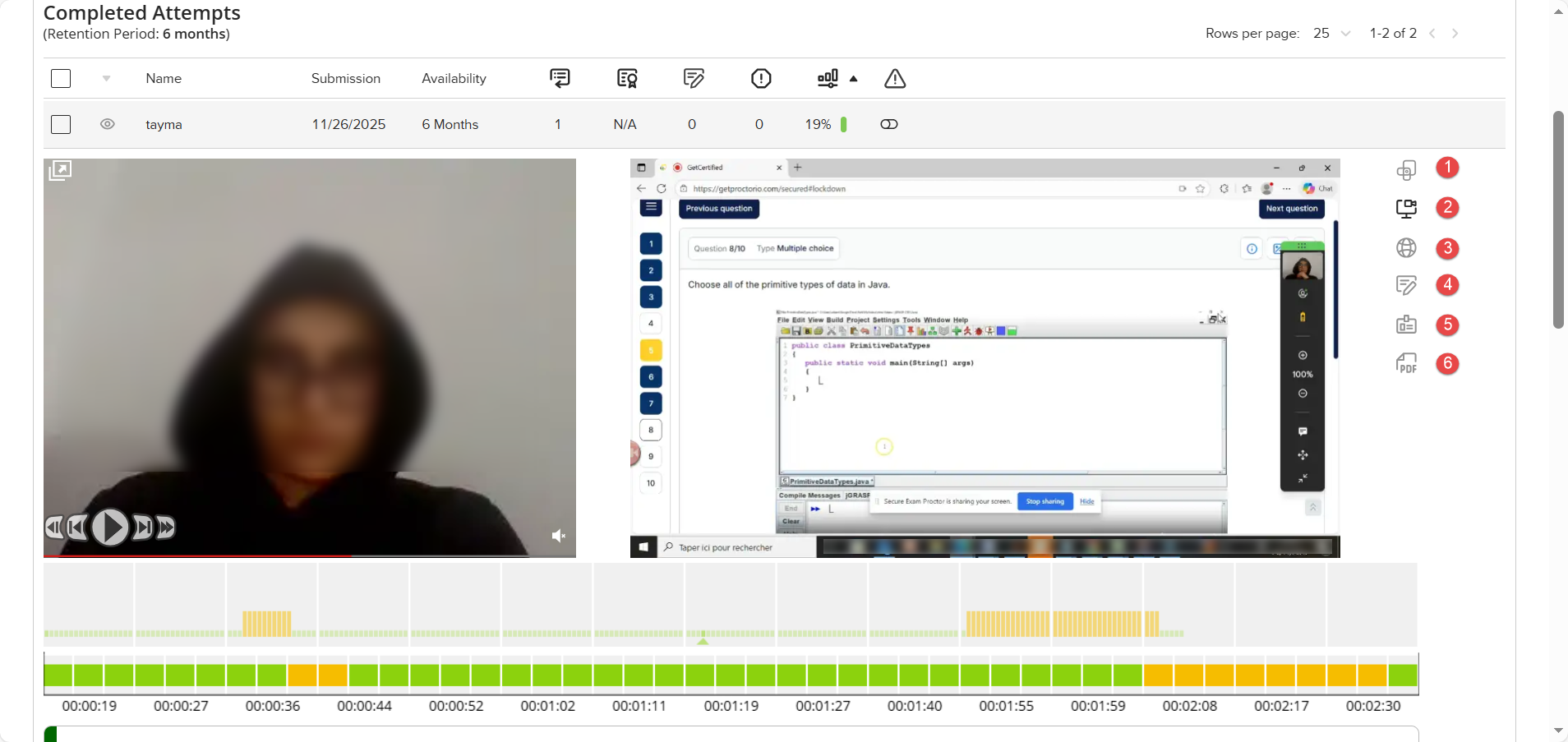
Note: Additional verification and monitoring options—such as Room Scan, Web Traffic Monitoring, Audio Recording, or other Proctorio tools—may appear in this sidebar depending on the configuration selected by the institution.
For more information about available features, visit the official Proctorio website.
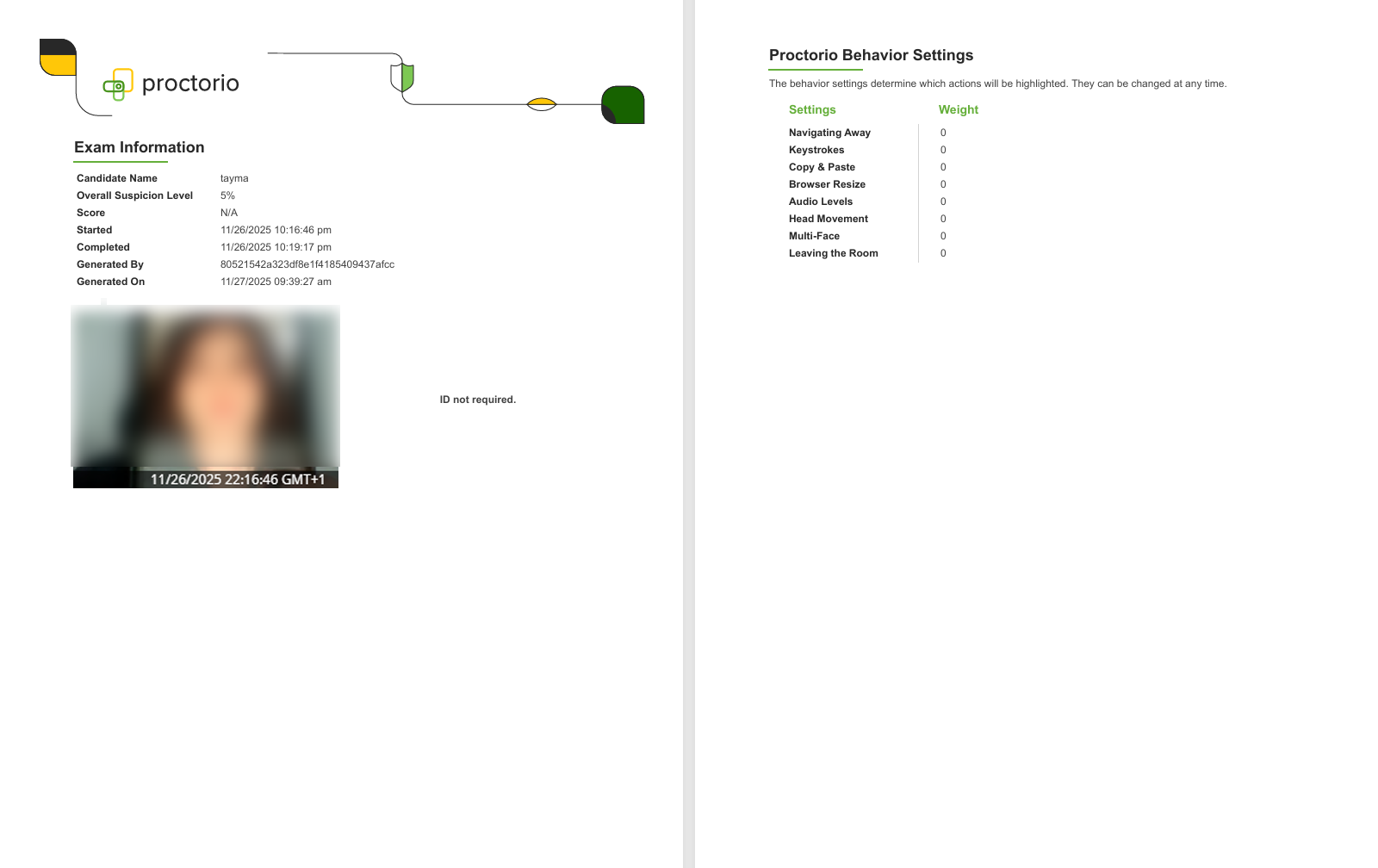
A sample of the exported PDF is provided for reference.
Providing Proctoring Report
After completing the review, return to the YouTestMe GetCertified tab.
- Click the Report icon in the Actions column to open the proctoring report for the selected attempt.
- In the Rate dropdown menu, select one of the available options: Positive, Neutral, or Negative.
- Enter your notes or observations in the Comment field.
- Click Save to submit the proctoring report.
Once the report is saved, the Proctor Comment Added status in the table will automatically update to Yes.

Note: A positive proctoring report is required to pass; failure to obtain one will result in automatic exam failure.
For more related instructional materials, please see:




