Article verified for Release 15.2 on December 5, 2025.
In this article, you will learn how to enable and use the Linking Results feature.
This option allows candidates to reuse answers across multiple tests that contain the same questions and are delivered within the same common session.
When enabled, if a candidate completes one test and then begins another test that shares identical questions, the system will automatically transfer their previously selected answers. This eliminates repeated work for the candidate and ensures a smoother testing experience, especially when multiple related tests are taken together.
How to Enable Linking Results
To enable this feature, follow the steps below:
-
Navigate to System > Settings and customization.
-
Open System preferences > Additional modules.
-
Enable Linking results.
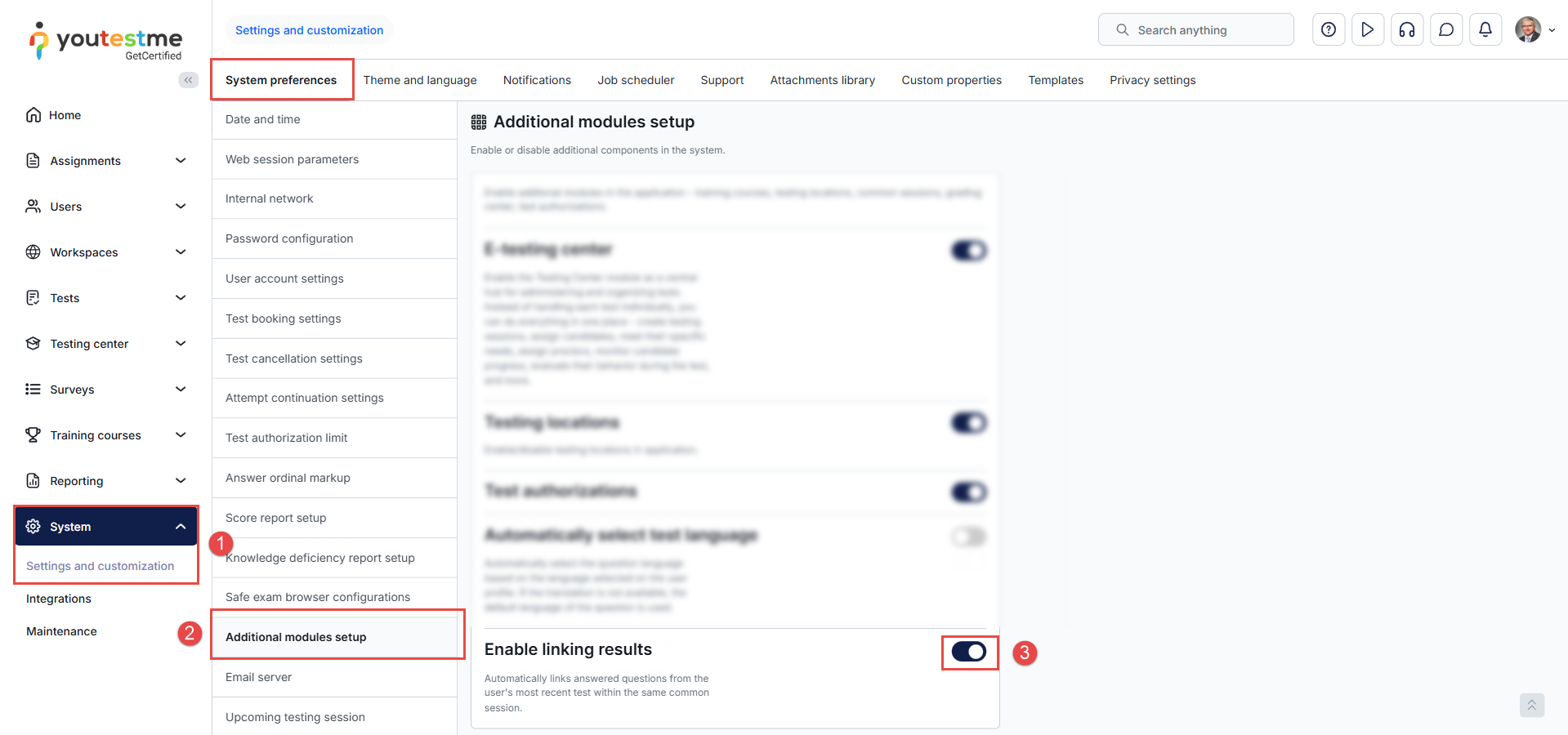
Once this option is enabled, the system can recognize and reuse answers for identical questions across tests in the same common session.
Creating Tests With Shared Questions
For linking to work properly, the tests must contain questions with the same Version IDs.
-
If two questions have identical content but different Version IDs, the system will treat them as separate questions, and the answers will not be transferred.
-
Therefore, the Version ID must match exactly across all tests where answer reuse is expected.
To learn how to create tests, refer to the following articles:
These guides explain how to structure your tests and reuse question pools to ensure consistent IDs.
Create a Common Session
The Linking Results feature works only if the tests are part of the same common session.
A common session groups multiple tests so the candidate can take them consecutively under a single session setup.
To learn how to create a common session, please refer to the article How to Create a Common Session.
Once tests with shared questions are assigned to a common session, the system can reuse submitted answers.
Candidate’s Perspective
When a candidate completes the first test and then starts the second test within the same common session, the system will automatically transfer all progress. Each question will have one of the following statuses:
-
Answered questions (blue)
These are questions the candidate answered in the first test. They appear in blue in the second test. -
Questions marked as “I will not answer this question to avoid negative points” (yellow)
These answers are transferred exactly as selected and displayed in yellow. -
Questions marked for review (flag icon)
If a question was marked for review in the first test, it will have a small flag icon in the second test as well. -
Unanswered questions (white)

This creates a seamless experience when taking multiple related tests back-to-back.
Conclusion
The Linking Results feature streamlines multi-test assessments by allowing candidates to reuse answers across tests that share identical questions.
By enabling the feature, ensuring matching Version IDs, and placing the tests in the same common session, organizations can significantly reduce repeated effort and improve the testing flow. If configured correctly, the process is fully automatic for candidates and supports consistent, efficient assessment delivery.






