Article verified for Release 15.0 on November 25, 2025.
This article outlines how to oversee and review all test attempts from a single, streamlined page within the Candidates tab. From this central location, you can perform every aspect of candidate management for any test or testing session, including adding or removing participants, accessing test results, and proctoring exams.
Accessing All Test Attempts
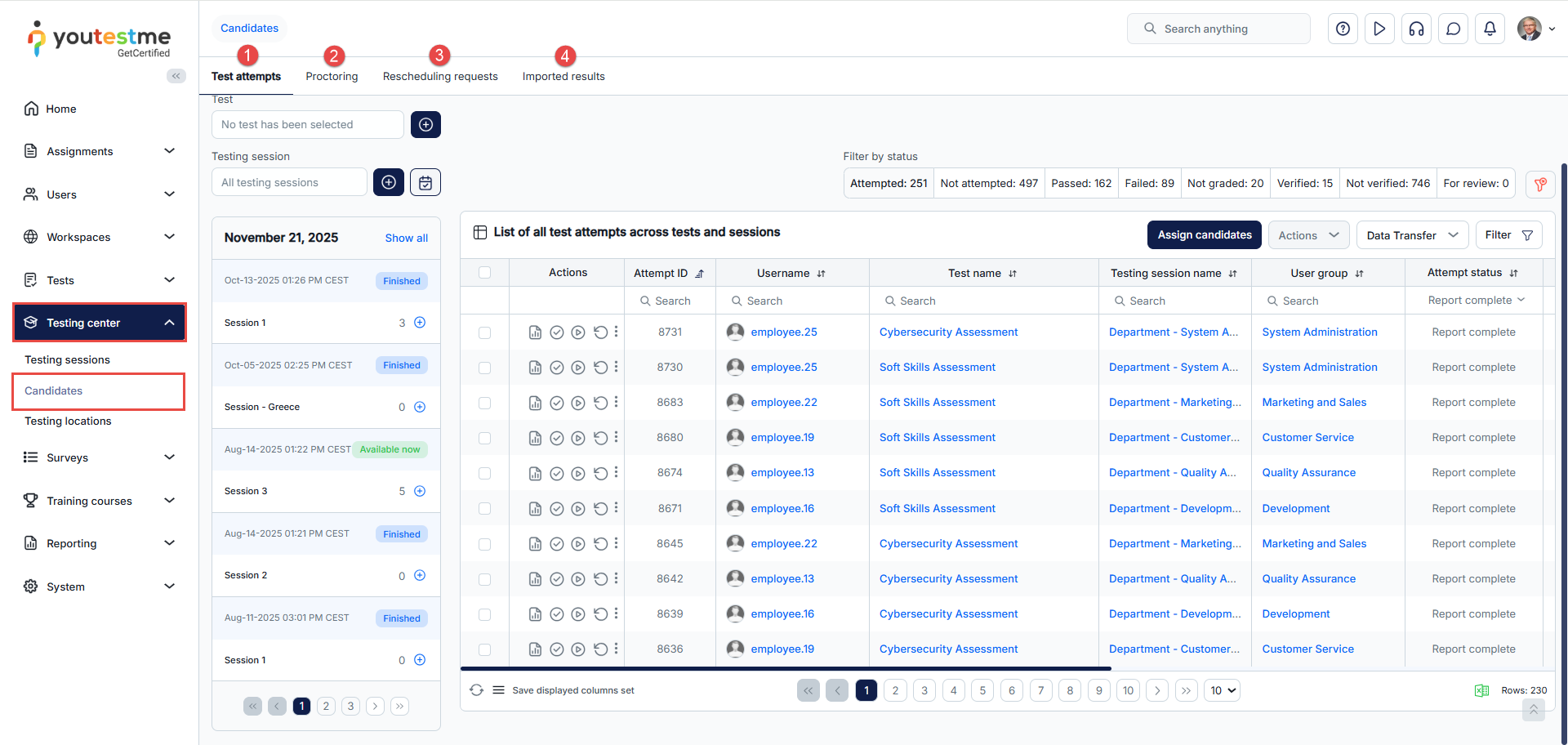
Navigate to the Testing center in the main menu and select Candidates tab. Once this page is open, the following tabs are available:
- Test attempts – Assign candidates to testing sessions or remove those already assigned, view their test attempts and grade them accordingly.
- Proctoring – Efficiently manage and monitor test attempts from all tests on one page. Review candidate recordings and grade them as a proctor, handle special accommodation requests, and create and review special requests sent to candidates.
- Rescheduling requests – Manage candidate requests to reschedule the testing session for taking the test.
- Imported results – Process and view all staged import batches.
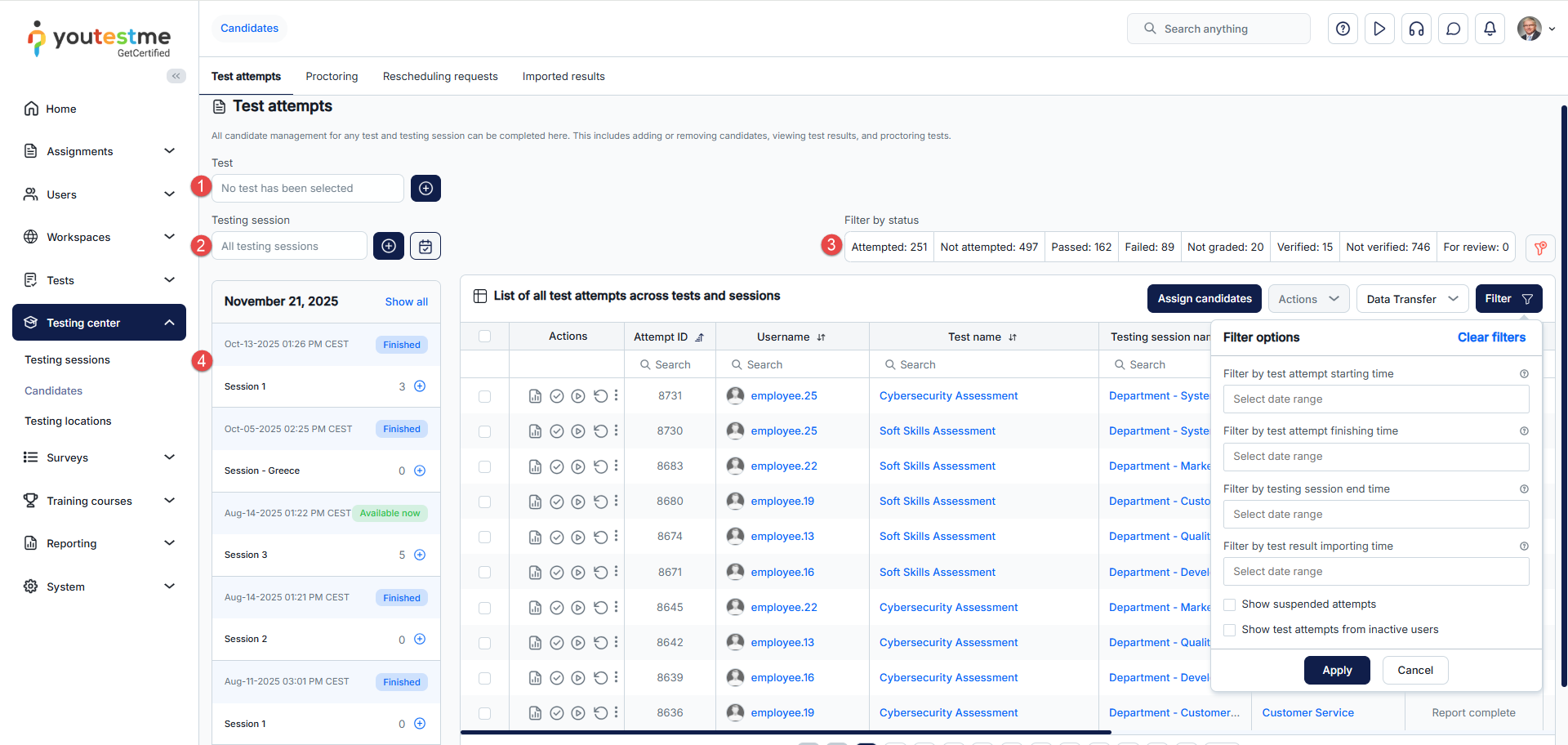
In the Test Attempts tab, there is a table that displays the list of all test attempts across tests and sessions.
To filter the test attempts:
- Choose the specific test for which you want to see test attempts. Click the plus icon to change the test, and you can remove filters as needed.
- Select the testing session for which you want to see test attempts. Click the plus icon to change the testing session, and you can remove filters as needed.
- Filter by statuses – Quickly filter test attempts by their statuses.
- Select a testing session to display only test attempts taken during its availability period, or click Show all to remove testing session filtering.
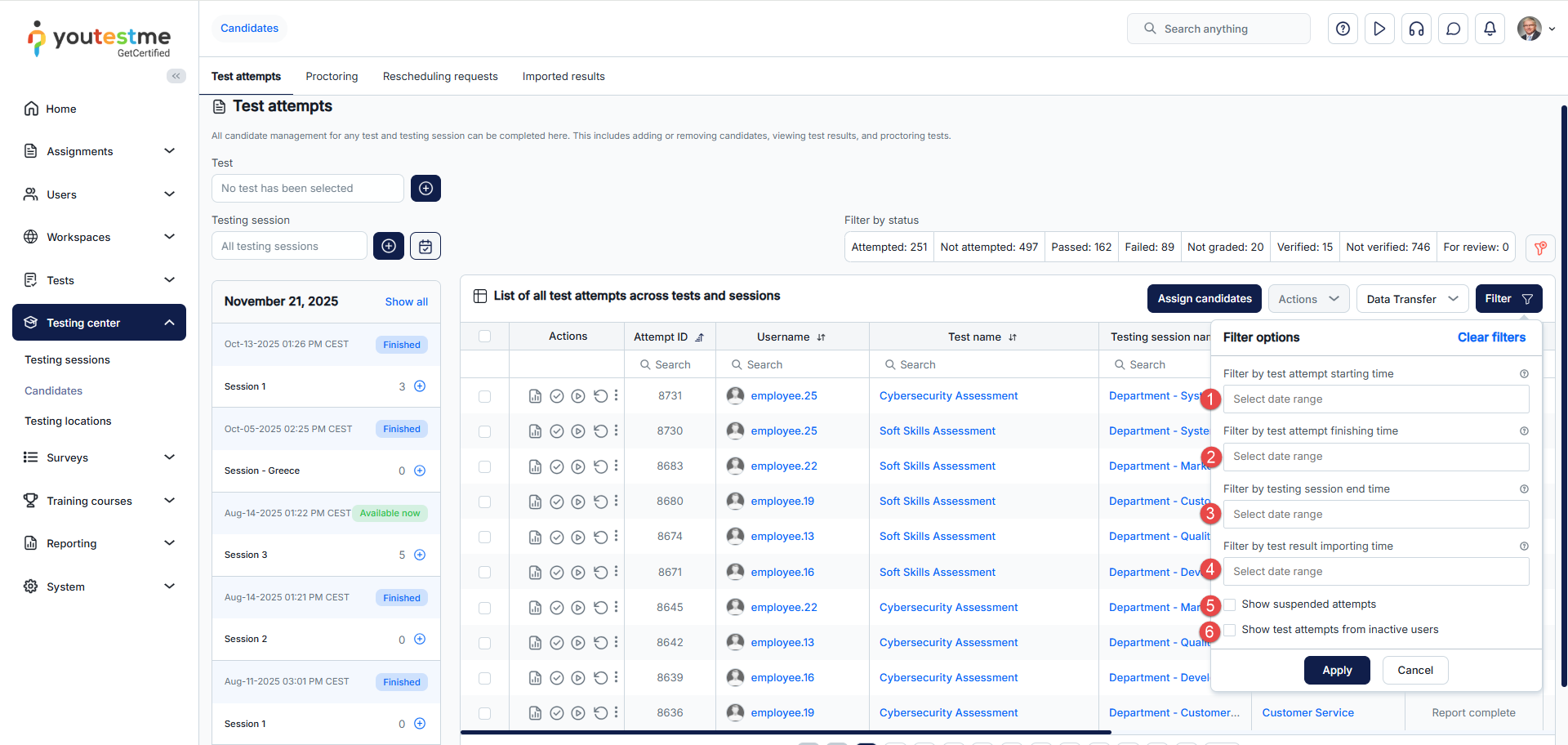
Also, you have additional filters under the table header:
- Filter by test attempt starting time – Display the test attempts that started within a specific date and time range.
- Filter by test attempt finishing time – Display test attempts completed within the selected date range.
- Filter by testing session end time – Display test attempts that belong to testing sessions completed within the selected date range.
- Filter by test result importing time – Display test attempt results imported within the selected date range.
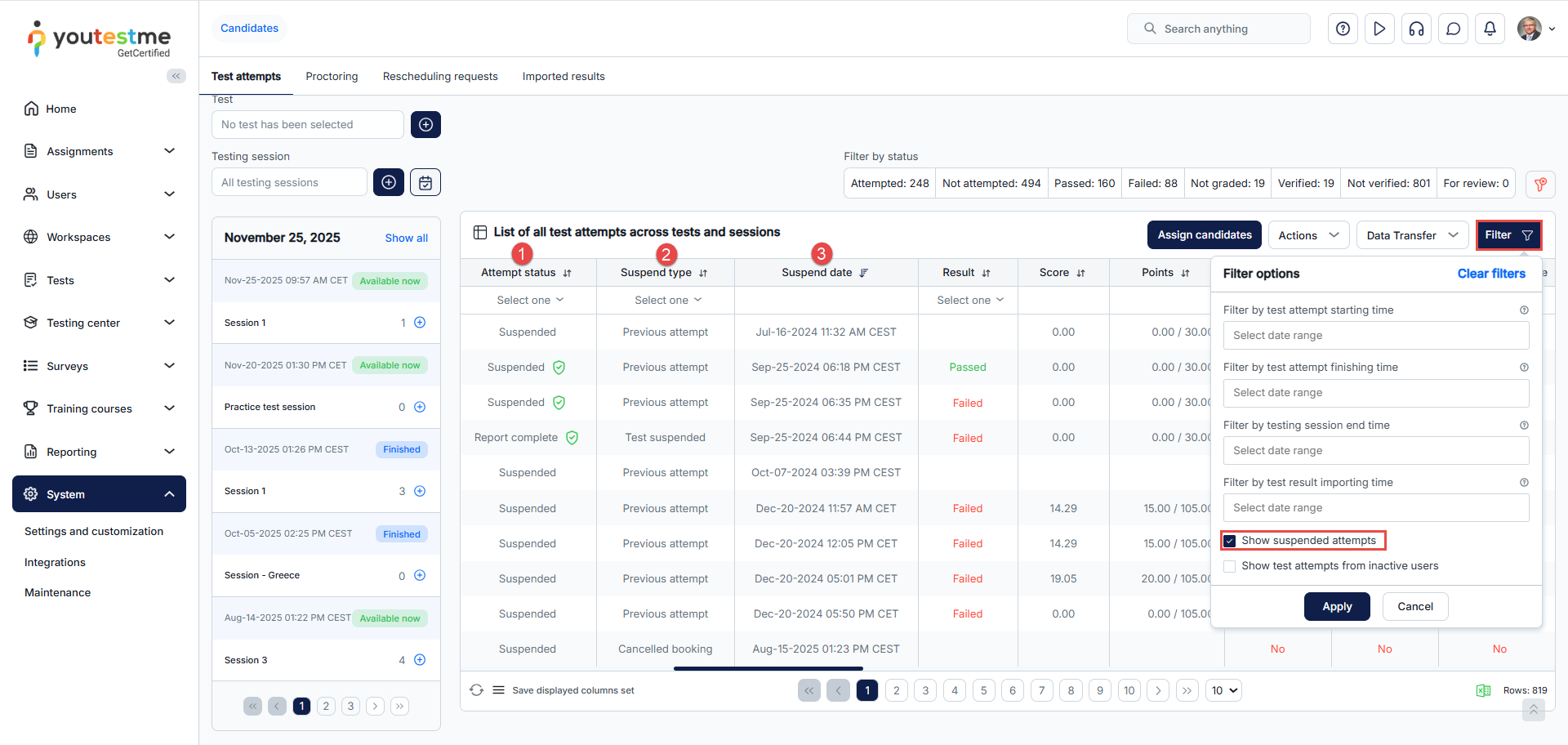
- Show suspended attempts in the table.
- Show test attempts from inactive users – Include test attempts of users whose profile is inactive.
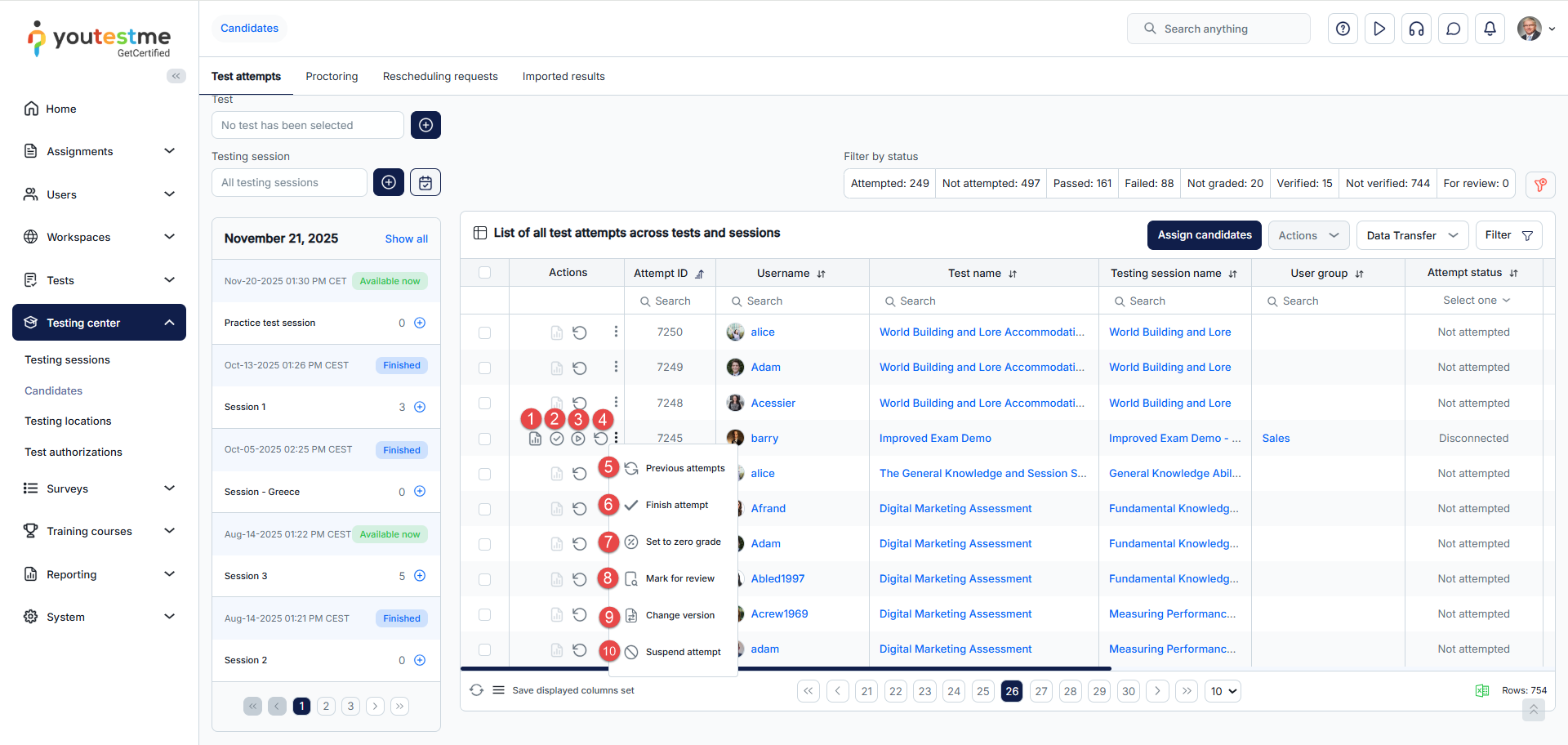
In the table of test attempts, the first column, labeled Actions, provides access to the following options:
- Open the candidate’s personal report.
- Verify the test attempt for the candidate. Once verified, changing the grading setting will not affect the candidate’s score.
- Allow the candidate to continue their test attempt if they accidentally close the window or encounter technical issues. Users with permission to Manage any testing session or test managers can allow this by selecting this option. The candidate must initiate the test continuation during the testing session availability period; otherwise, the test cannot be continued. However, if the testing session concludes during the attempt, the candidate can finish the test without any interruption.
- Reset the test attempt for the candidate. After the reset, the candidate can initiate the test again within the testing session availability period.
- Preview the candidate’s previous attempts. Optionally, open the desired report for a specific previous attempt.
- Finish the test attempt for the candidate. For example, you can use this option if violations are noted during test monitoring, allowing for an immediate test interruption.
- Set to zero grade – Overwrite the candidate’s current score and set it to zero. This action cannot be undone.
- Mark for review the candidate’s test attempt.
- Change version of the test for the candidate.
- Suspend attempt – In cases involving test-taking violations, network disruptions, or other irregularities, the active candidate attempt may be suspended, with the option to authorize a subsequent retake.

- Allow the candidate to modify their test attempt and change answers. The candidate must initiate test modifications during the testing session availability period; otherwise, modifications cannot be made.
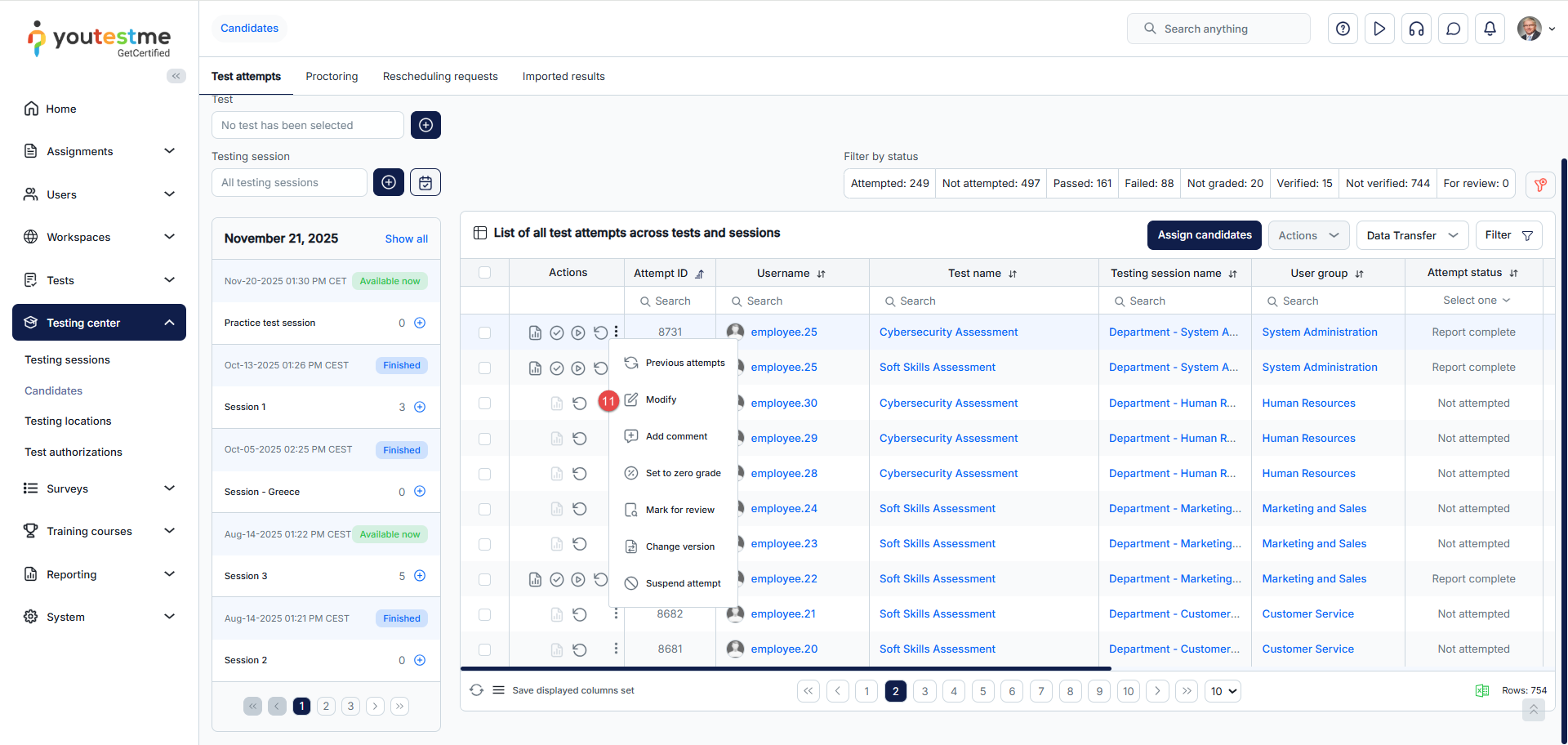
- Add comment for the selected candidate’s attempt. Should be used to provide feedback. The comment will be visible to the candidate on the personal report.
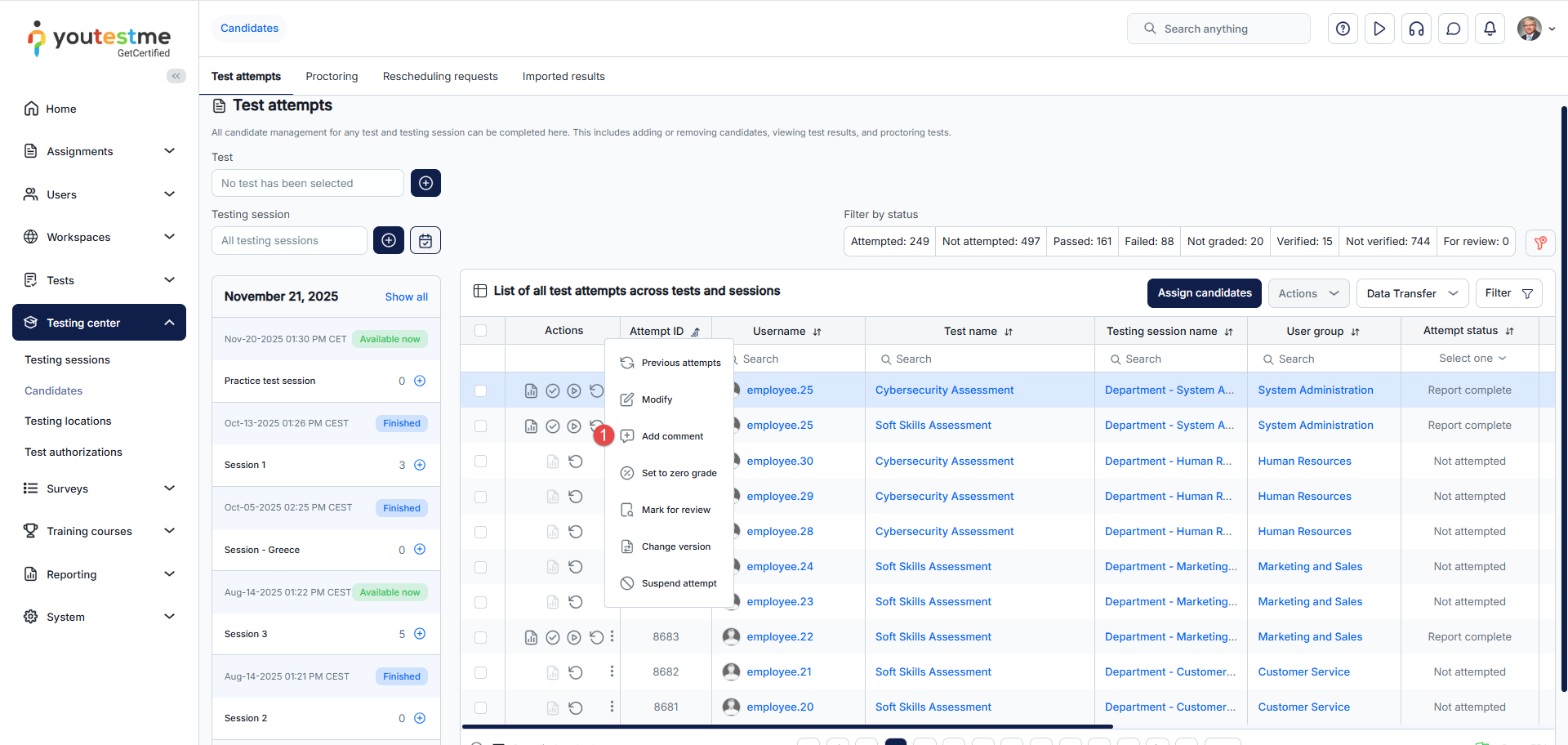
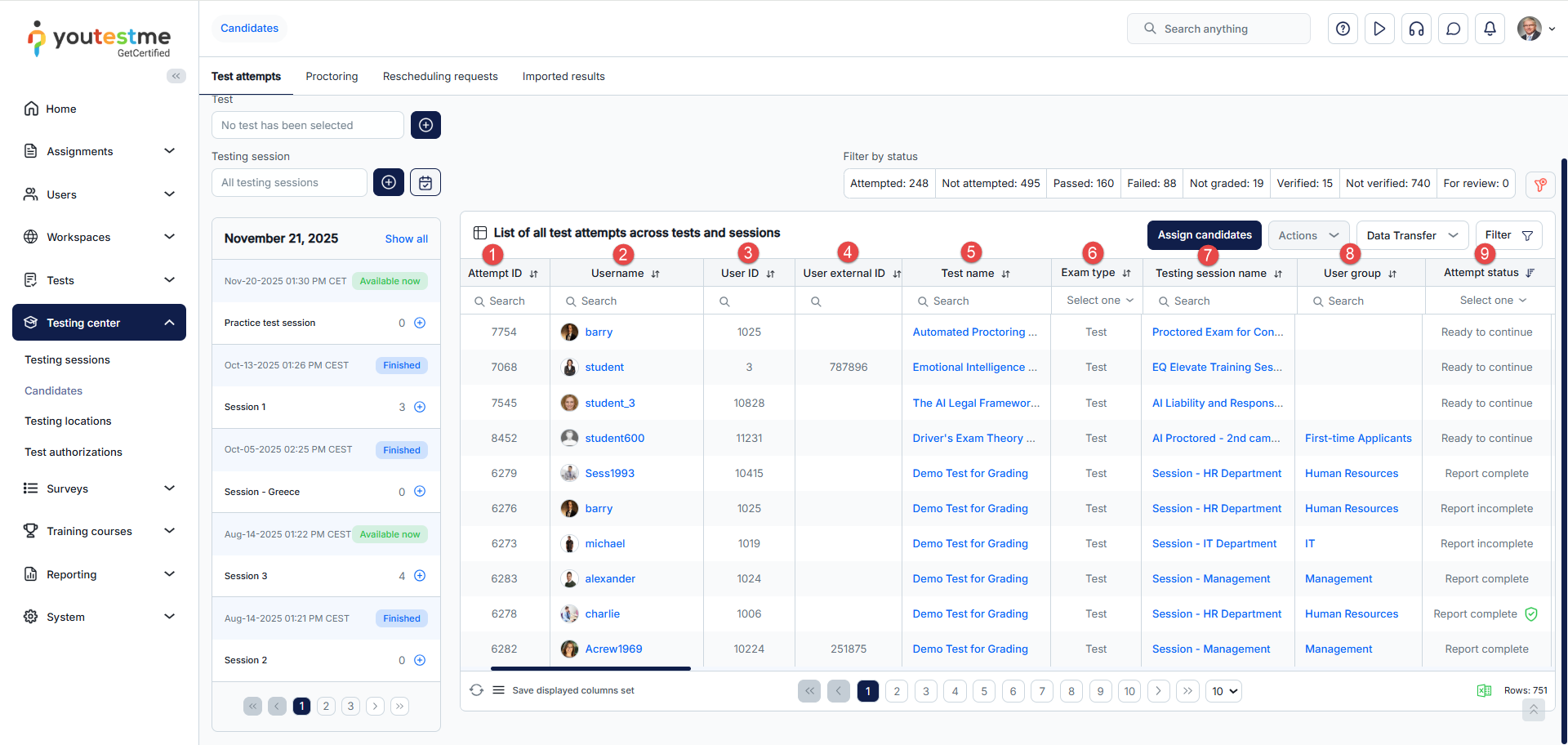
Following the Actions column, the subsequent columns are:
- Attempt ID – Unique identifier assigned to each test attempt made by a user. It distinguishes one test attempt from another.
- Username – Unique identifier a user enters to log in to their account.
- User ID – Unique numeric or alphanumeric identifier assigned automatically to each user account in the system.
- User external ID – Identifier for a user coming from another system, used to map them correctly in YouTestMe.
- Test name – Title or label of a specific test or exam.
- Exam Type – Test or Survey
- Testing session name – Specific instance or scheduled occurrence of a test
- User group – Collection of users grouped together.
- Attempt status – The current state or outcome of a user’s test attempt. It shows whether a test attempt is:
-
- Not Attempted – The user has not started the test.
- In Progress – The user has started the test but has not yet completed it.
- Disconnected – The user was actively taking the test but got disconnected (e.g., lost internet connection).
- Ready to Continue – The test is paused or interrupted, and the user can resume from where they left off.
- Report Incomplete – The test is finished, but the results/report have not been fully processed.
- Report Complete – The test has been finished, and the results/report are fully processed.
- Suspended – The test attempt was temporarily halted by an administrator or system.
- Ready to Modify – The test/report can still be edited by the user or administrator.
- Did Not Show Up – The user was scheduled for the test but did not attend.
- Refused NDA – The user declined to agree to a Non-Disclosure Agreement required to start the test.
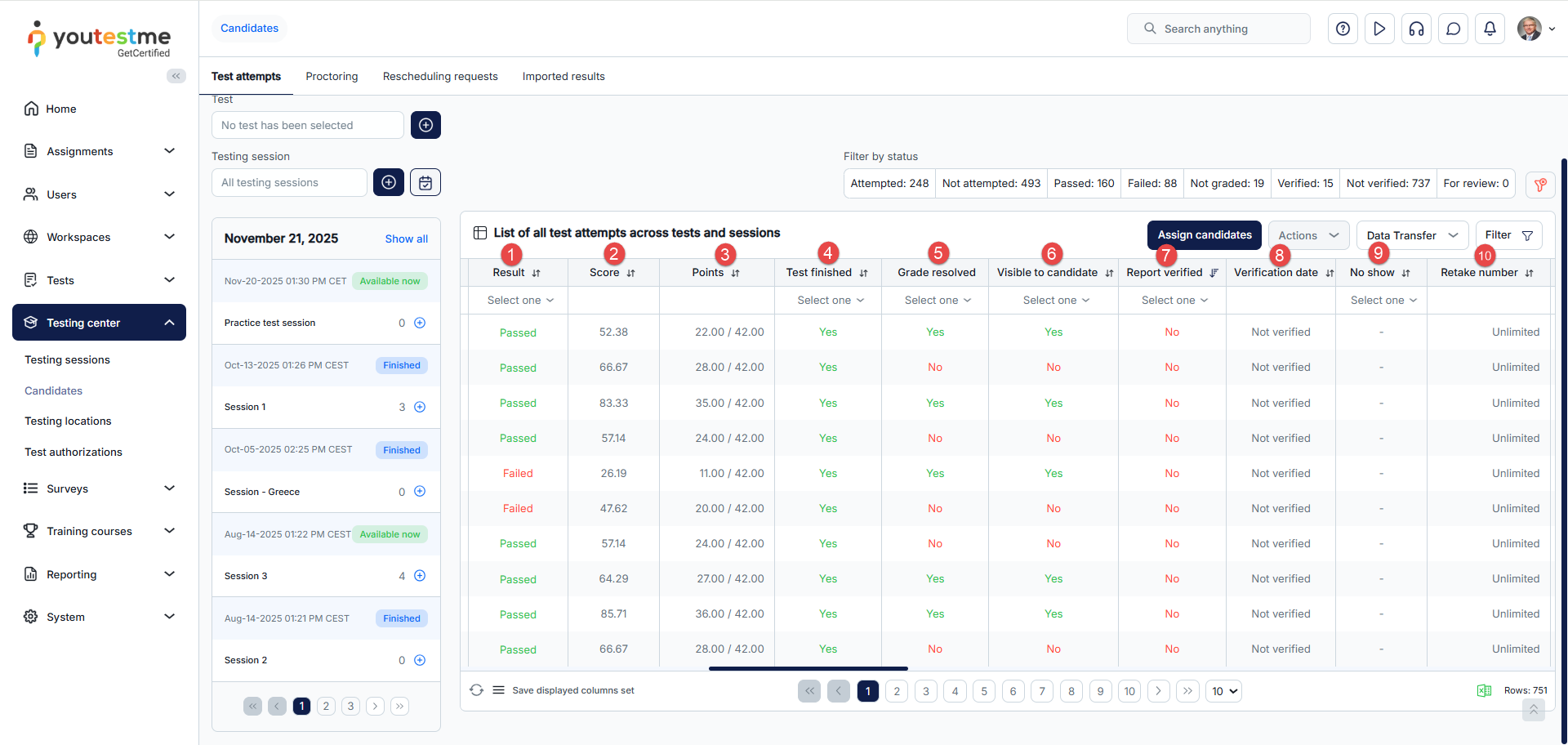
The next columns are:
- Result – The outcome of the test attempt (e.g., Pass/Fail).
- Score – The percentage or fraction of correct answers.
- Points – The total points earned in the test.
- Test finished – Indicates whether the user completed the test.
- Grade resolved – Shows if the system or admin has finalized the grade.
- Visible to candidate – Specifies if the user can see their results/report.
- Report verified – Indicates whether an administrator has checked and confirmed the report.
- Verification date – The date when the report was verified.
- No show – Marks users who were scheduled but did not attend the test
- Retake number – Shows how many times the user has retaken the test.
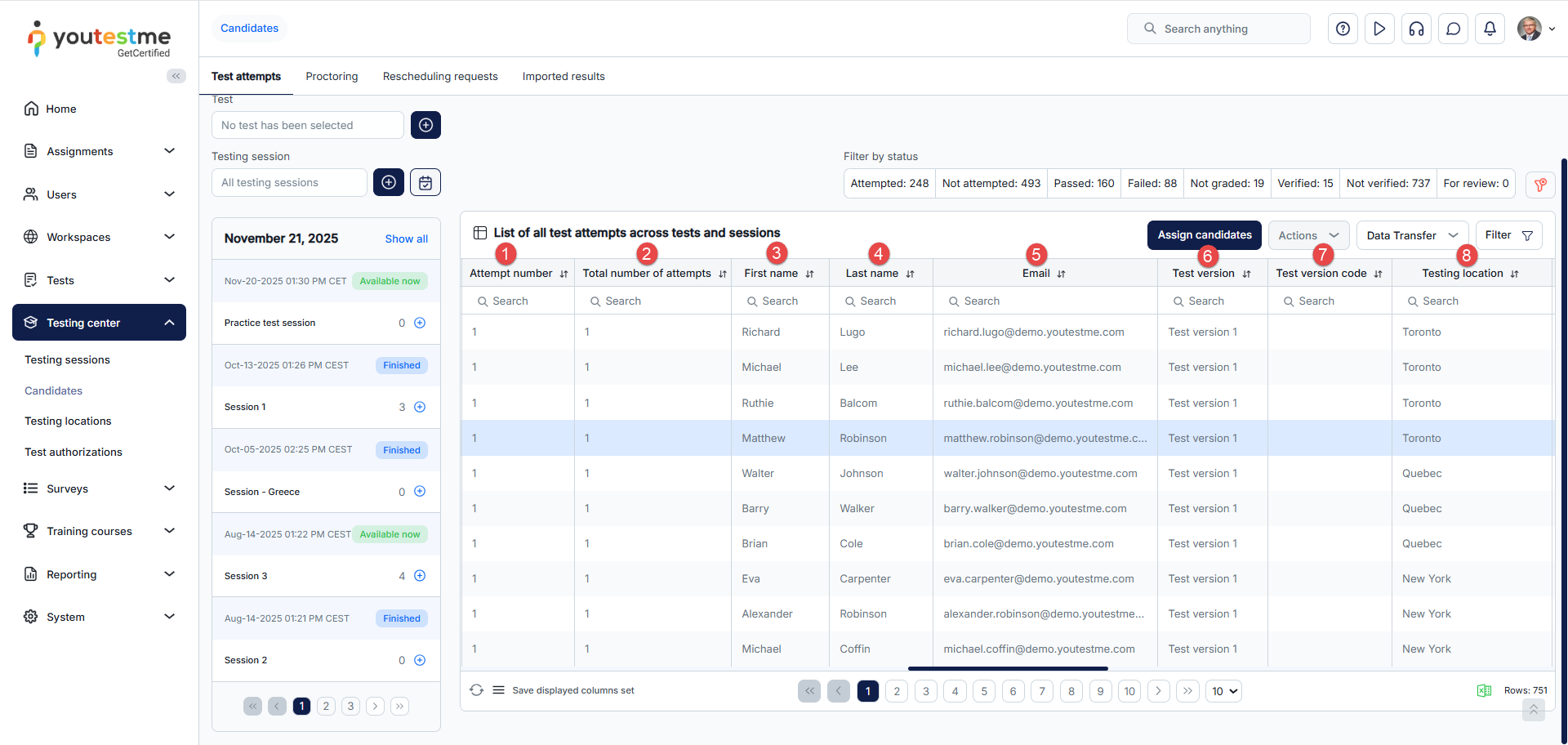
Then, the next columns are:
- Attempt number – The sequence number of the user’s current test attempt.
- Total number of attempts – The total times the user has attempted this test.
- First name
- Last name
- Test version – The specific version or variant of the test the user took.
- Test version code – The unique code identifying the test version.
- Testing location – The place or environment where the test was taken
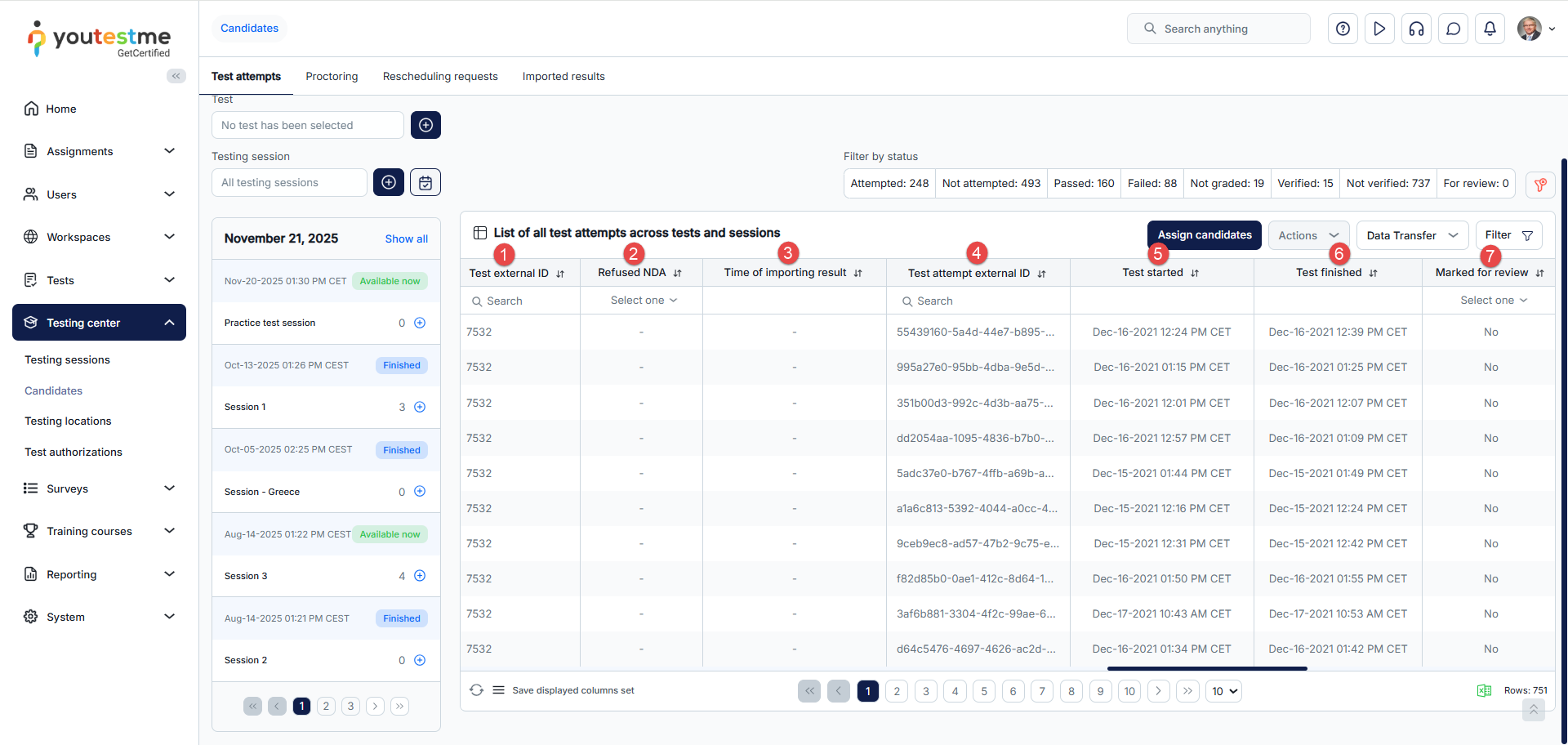
After that, the columns are:
- Test external ID – Identifier of the test from an external system, used for integration or import purposes.
- Refused NDA – Marks users who declined to sign the Non-Disclosure Agreement required to start the test.
- Time of importing result – The timestamp when the test result was imported into the system.
- Test attempt external ID – Unique identifier for the test attempt from an external system.
- Test started – The date and time when the user began the test.
- Test finished – The date and time when the user completed the test.
- Marked for review – Indicates that the test attempt has been flagged for review by the test manager.
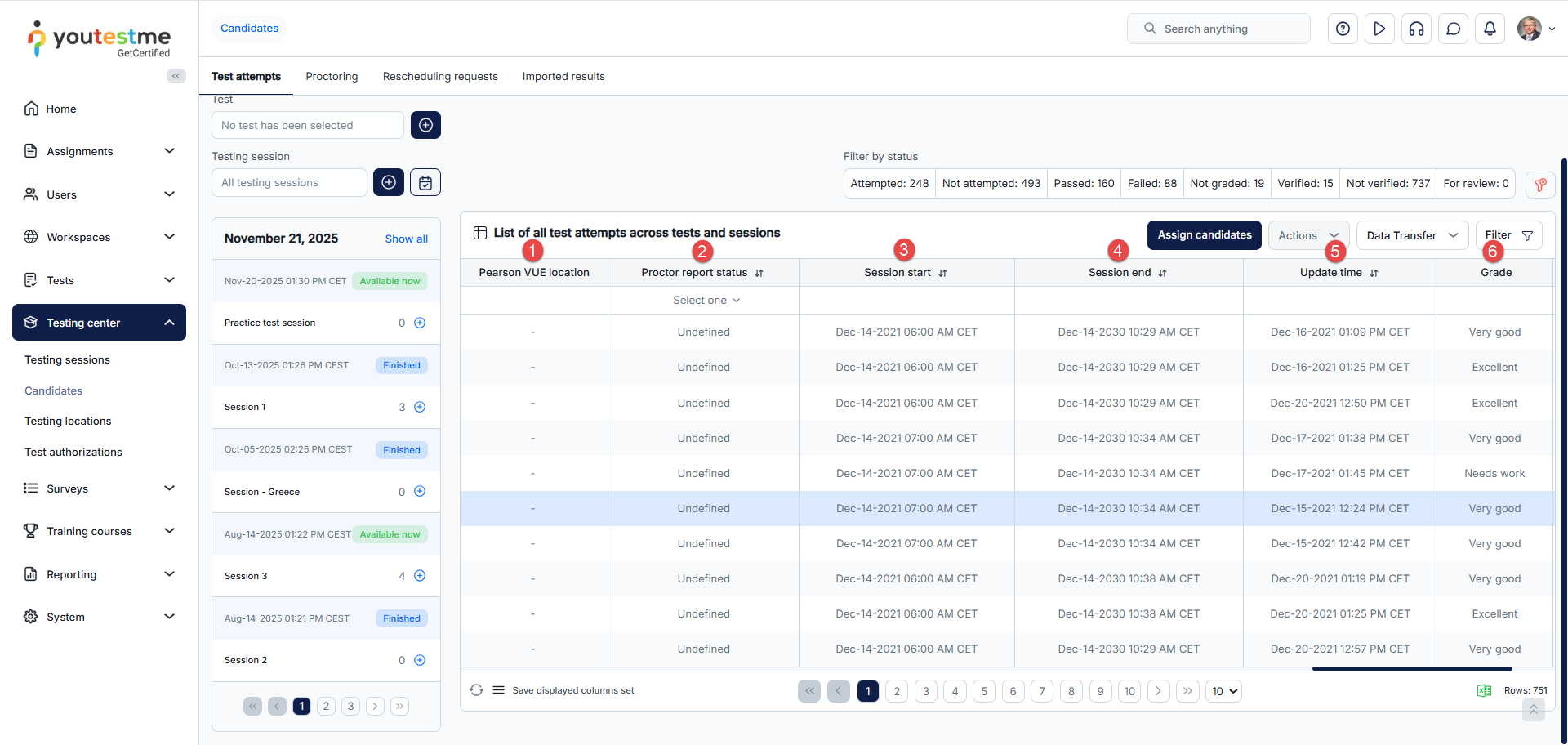
The next columns are:
- Pearson VUE location – The testing center or location if the test is administered through Pearson VUE.
- Proctor report status – The status of the proctor’s review or report for the test session.
- Session start – The date and time when the testing session began.
- Session end – The date and time when the testing session ended.
- Update time – The timestamp of the last update to the record or result.
- Grade – The final evaluated score or level assigned to the test attempt.
The last two columns are:
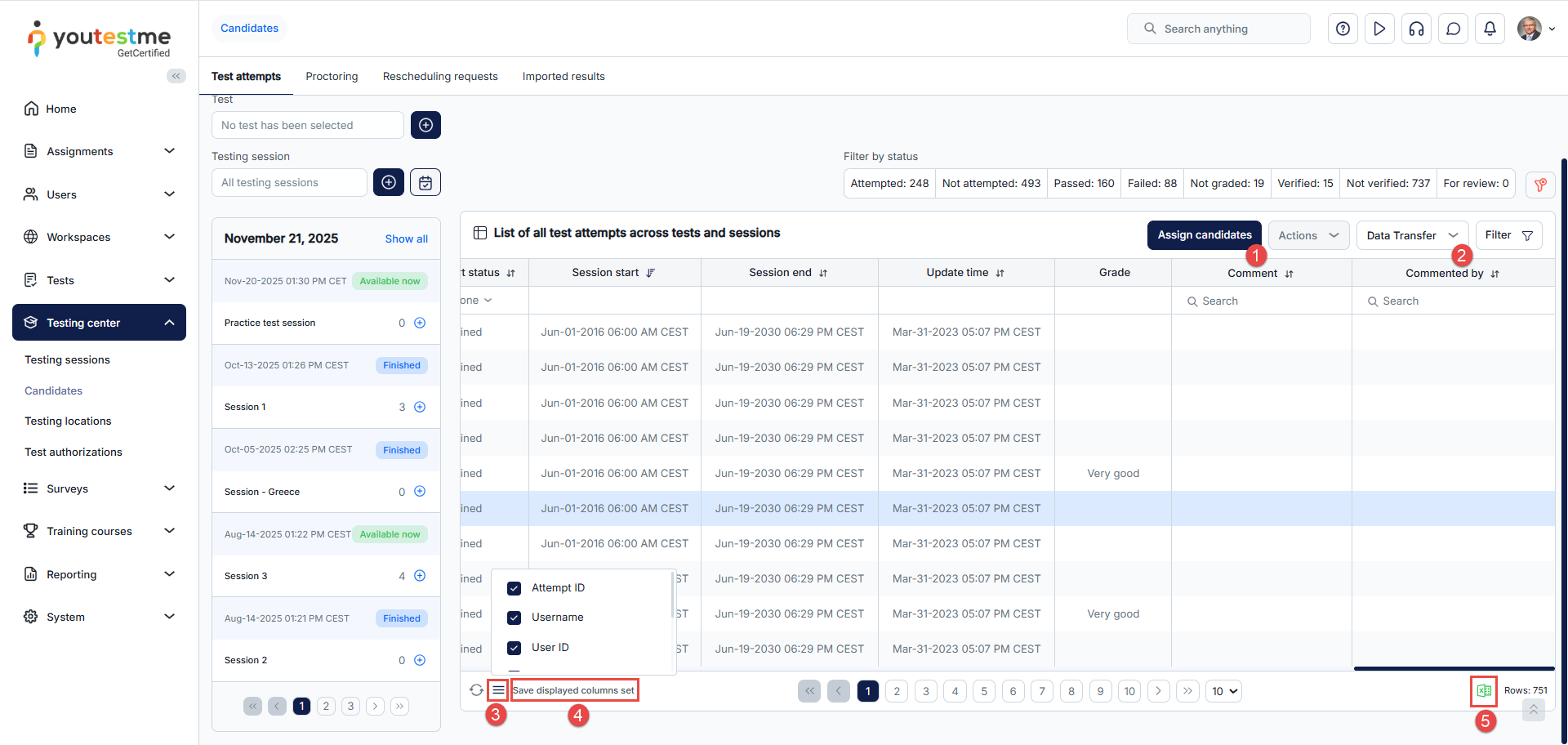
- Comment – Any note or remark added regarding the test attempt, user, or result.
- Commented by – The name of the person (administrator, proctor) who added the comment.
- The table columns can be added or removed by navigating to the option at the bottom of the table and checking the desired boxes.
- When columns are selected, click Save displayed columns set to keep the chosen columns in the table.
- The table with the selected columns can be exported as an Excel file. Users can select which columns they want to include, apply filters to the data, and export the customized dataset.
Three additional columns are added in this table if the filter Show suspended attempts is applied, such as:
- Attempt status – Current state of the test attempt (e.g., in progress, completed, or suspended).
- Suspended type – Reason why the attempt was suspended. There are several reasons why the attempt can be suspended:
- Previous attempt – The attempt is suspended because a prior attempt exists.
- Cancelled booking – The attempt was suspended due to a cancelled booking.
- Test suspended – The test was temporarily paused or suspended.
- Suspended by user – The user manually suspended the attempt.
- Authorization deactivated – The attempt was suspended because the user’s authorization was revoked.
- Suspended by job – The system or automated job suspended the attempt.
- Suspend date – The date and time when the attempt was suspended.
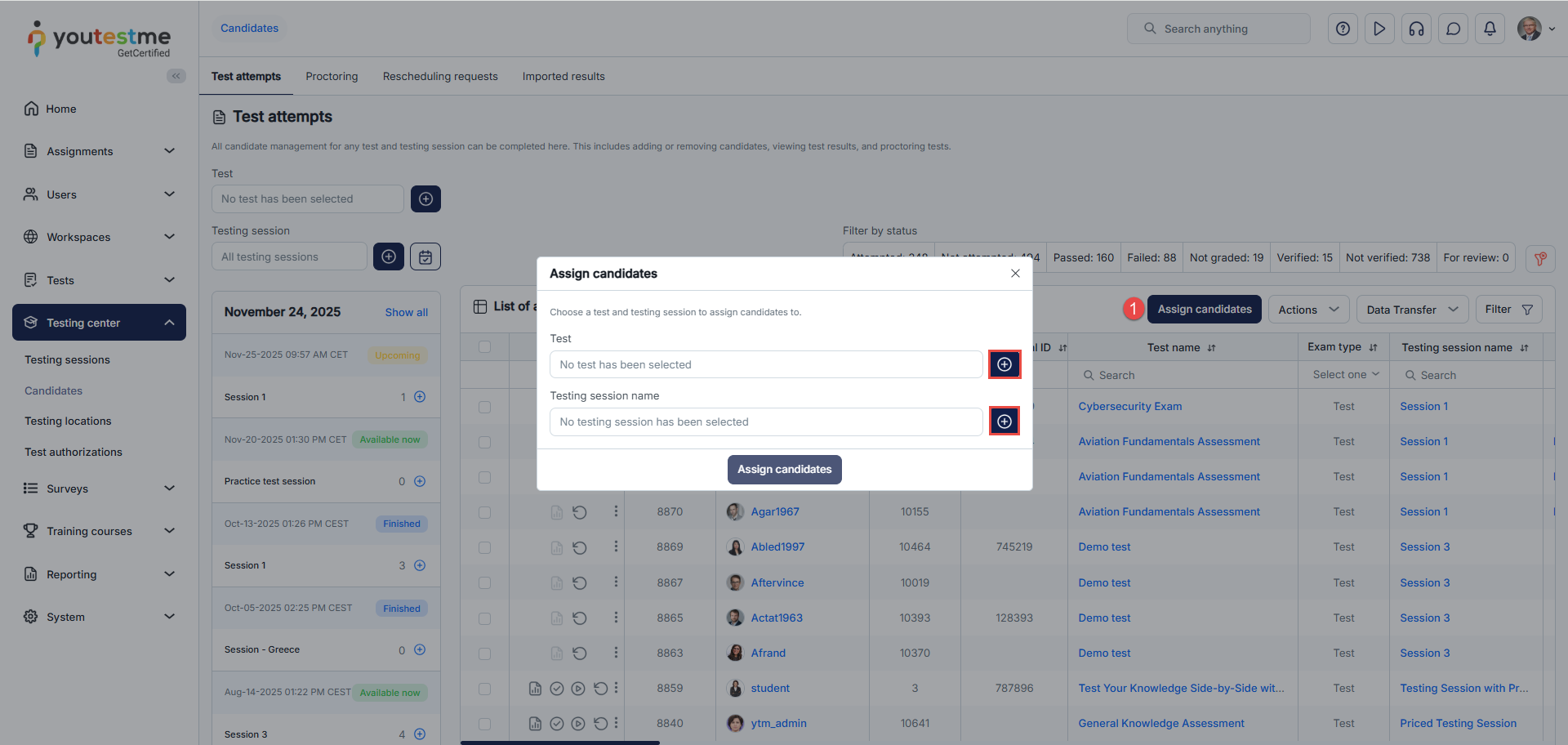
The additional option is:
- Assign candidates to the selected test scheduled in the chosen testing session.
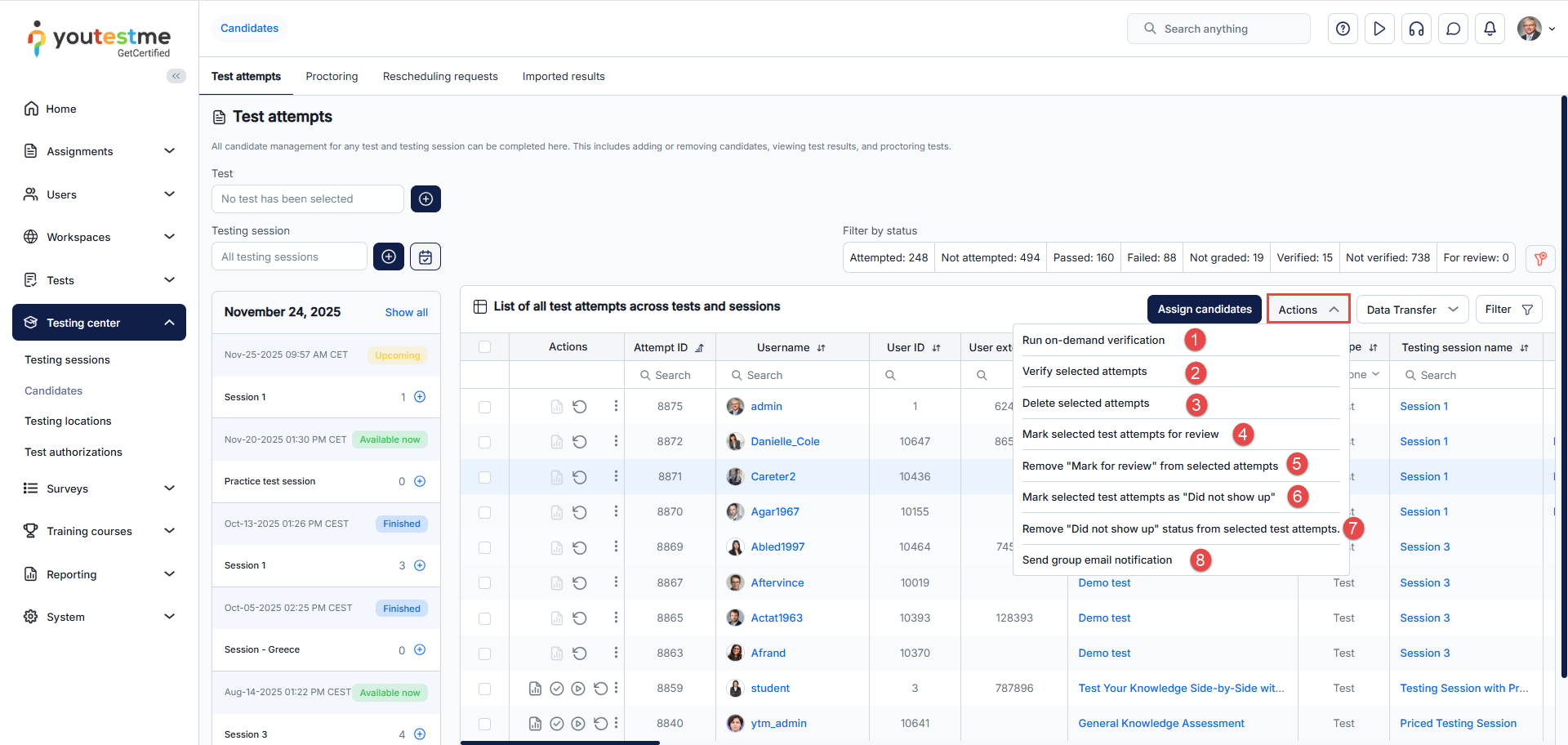
The following option is Actions, which allows users to make bulk changes to the selected attempts, such as:
- Run on-demand verification by holding criteria for all non-verified attempts in the selected test. Criteria are defined under System/Settings and customization/System preferences/Verification process setup.
- Verify selected attempts. Once verified, changing the grading setting will not affect candidates’ scores.
- Delete selected attempts
- Mark selected test attempts for review – Set the attempt to be Marked for review and optionally specify the review notes so that other managers can see the details of the attempt analysis.
- Remove “Mark for review” from the selected attempts.
- Mark selected attempts as “Did not show up” if candidates didn’t take the test within the allotted time. Only attempts with the status Not attempted can be set as Did not show up.
- Remove “Did not show up” status from the selected test attempts.
- Send group email notification. Define the subject and text of the email to be sent to selected candidates.
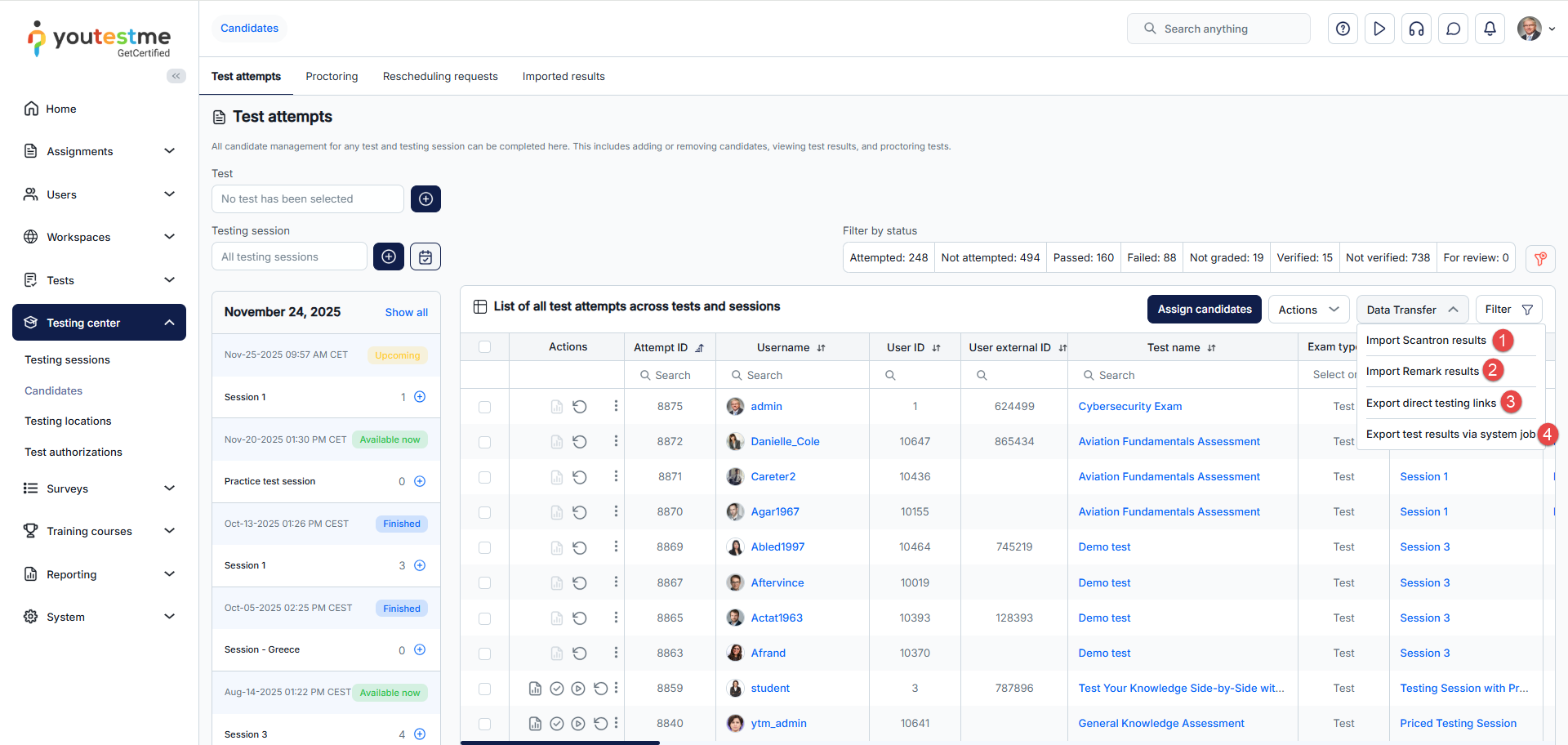
User can also transfer the data, as follows:
- Import Scantron results – Ensure you’ve selected the test before importing results. If you don’t see this option, the test may contain unsupported question types. Results can be imported only for single-choice, multiple-choice, and true/false questions in tests without sections. Import is possible only for test attempts with the Not attempted status. Refer to this article for more information on importing test results.
- Import Remark results – Check this article for more information.
- Export direct testing links – Use these URLs to test users without requiring registration or providing a username and password. The system will generate links in an Excel file for you to copy and embed in an external system, such as emails. The Excel file will include meeting links if the test is proctored using conference tools. Upon completing the test, candidates are redirected to the specified URL, and results are saved in the system for instructor review. You can specify the redirect URL, under System/Settings and customization/System preferences/Finish Test URL.
- Export test results via system job. The Export data job type must be created first under System/Settings and customization/Job Scheduler. Only verified results will be sent.