
Article verified for Release 15.1 on December 11, 2025.
This article explains how to grant users access to system settings by adjusting their role permissions. It outlines where to find these settings and how to enable the required permission.
Permit user access to system settings
To permit any user access to the system settings, regardless of the security role they have in the system:
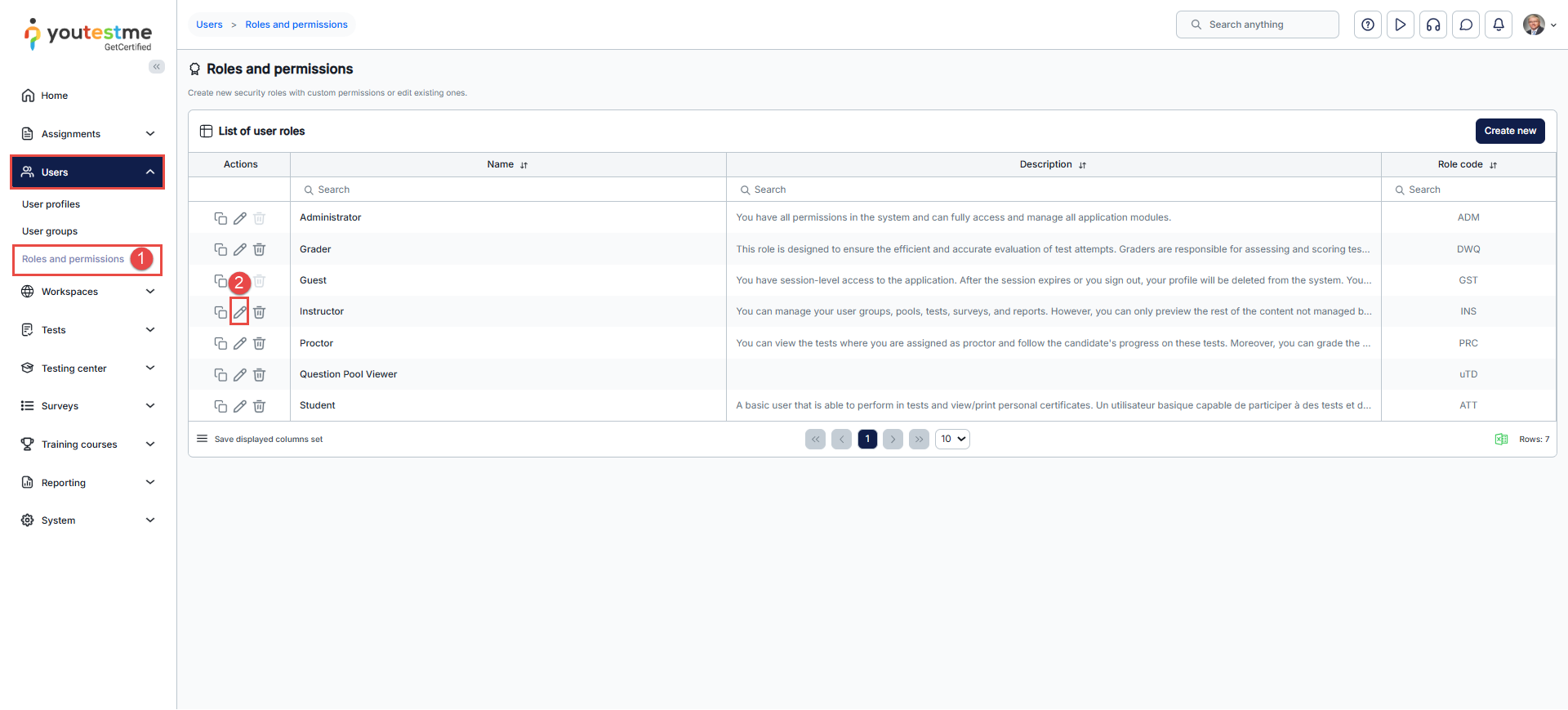
- Navigate to Users and then to the Roles and Permissions tab.
- Click the Edit option.
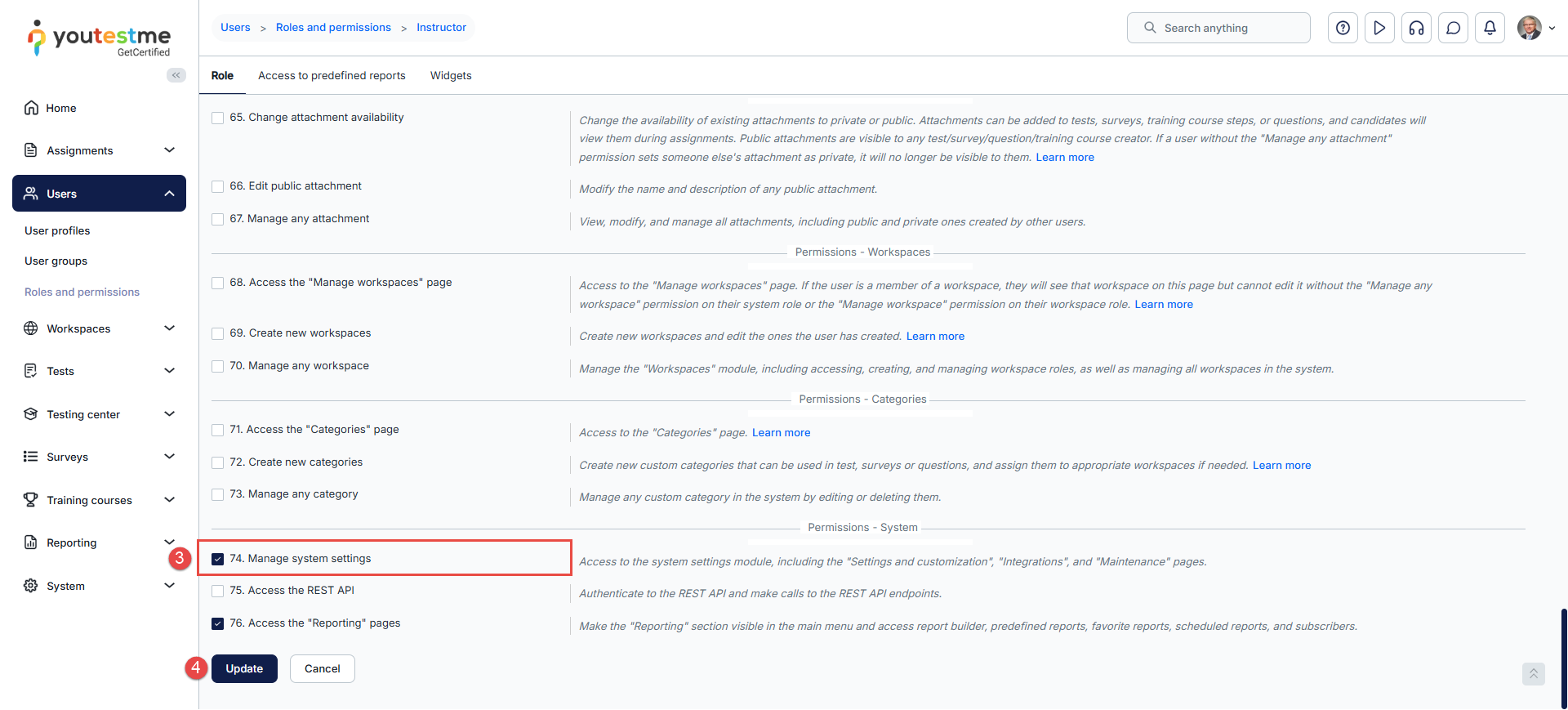
- From the set of permissions, choose the adequate ones. In this case, that is permission number 74. Manage system settings.
- Click the Update button to save the changes.
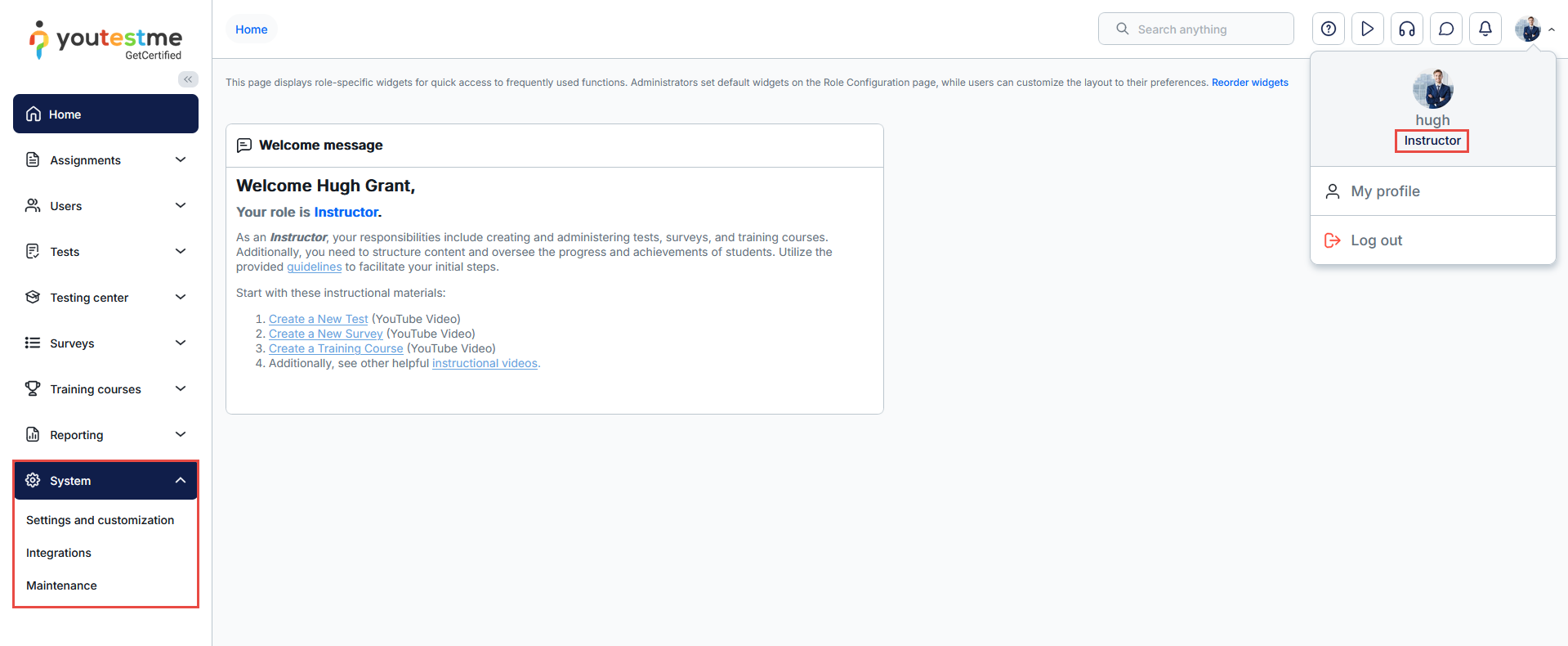
Note: Each user in the system with the Instructor role will have permission to view and manage system settings.
Take a look at the picture below. You can see that the user with the Instructor role now has permission to access the system settings.
Additional resources:




