
Article verified for Release 15.1 on December 11, 2025.
This article describes how enabling self-enrollment automatically makes training courses available to all application users. When self-enrollment is active, users can independently access and begin the training course without requiring manual assignment.
Note: If a training course belongs to a workspace, only members of that workspace will see it. Even when self-enrollment is enabled, candidates who are not part of the workspace will not have access to that course.
Enabling the Self-Enrollment Option
To make a training course available for any user, please follow the steps below:
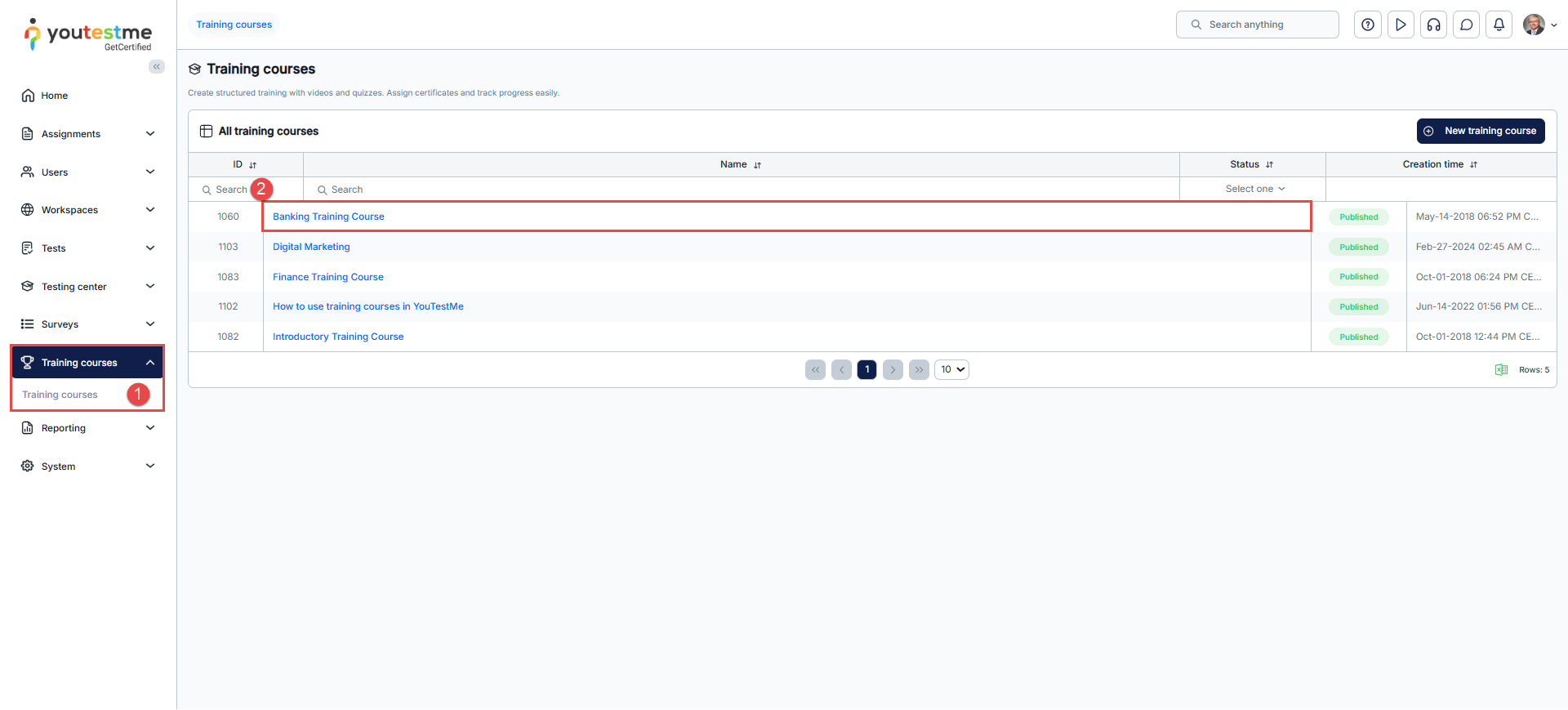
- Click the Training Courses panel, then select the Training Courses option.
- Click the desired training course or create a new one.
For instructions on creating a new training course, please see: How to create training courses.
- On the training course panel, navigate to the Information tab and enable the Self-enrollment option.
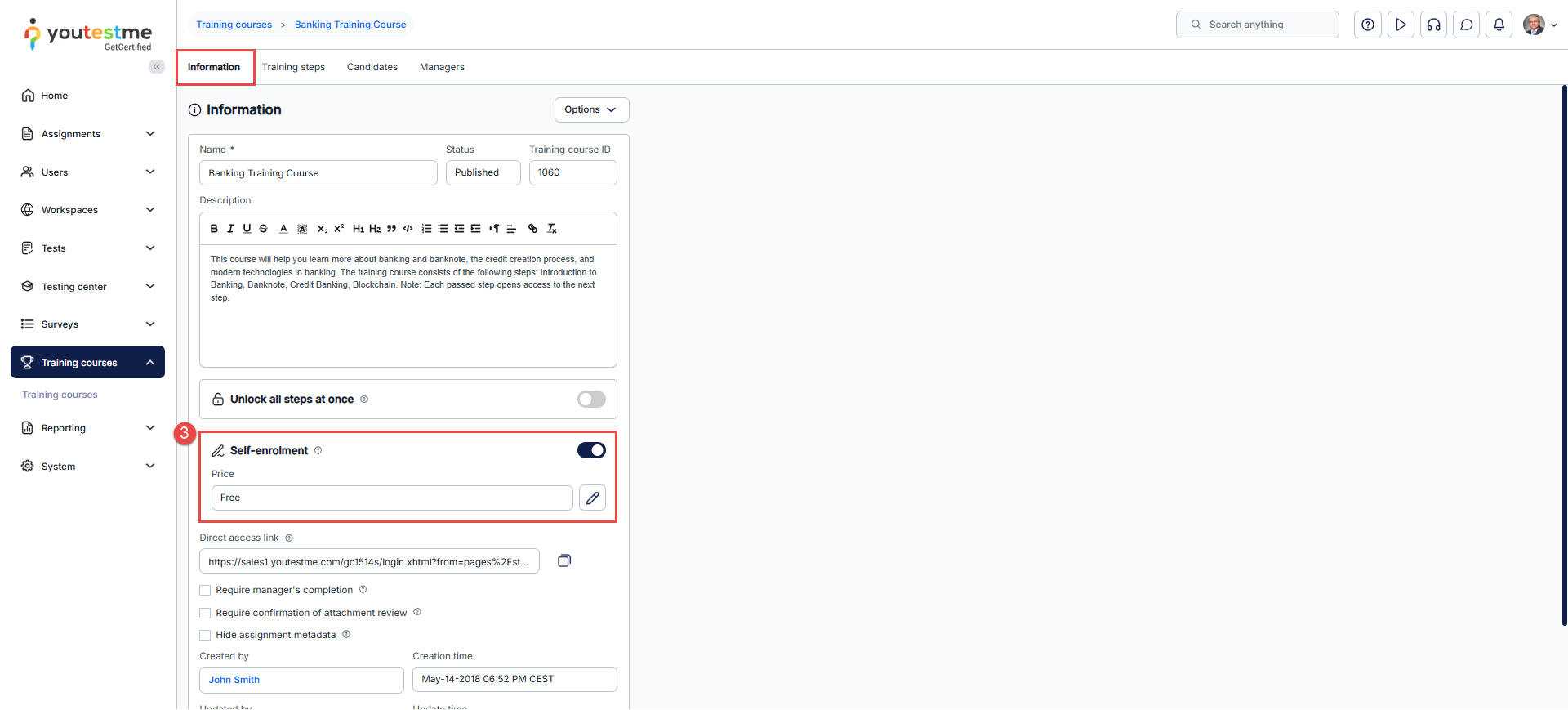
Once you enable the option, click Save to apply the changes.
Enabling this option will make the training course visible to all application users on their My Training Courses screens.
If you need to assign the training only to selected candidates, ensure that Self-Enrollment is disabled, and follow the manual assignment instructions in this article.
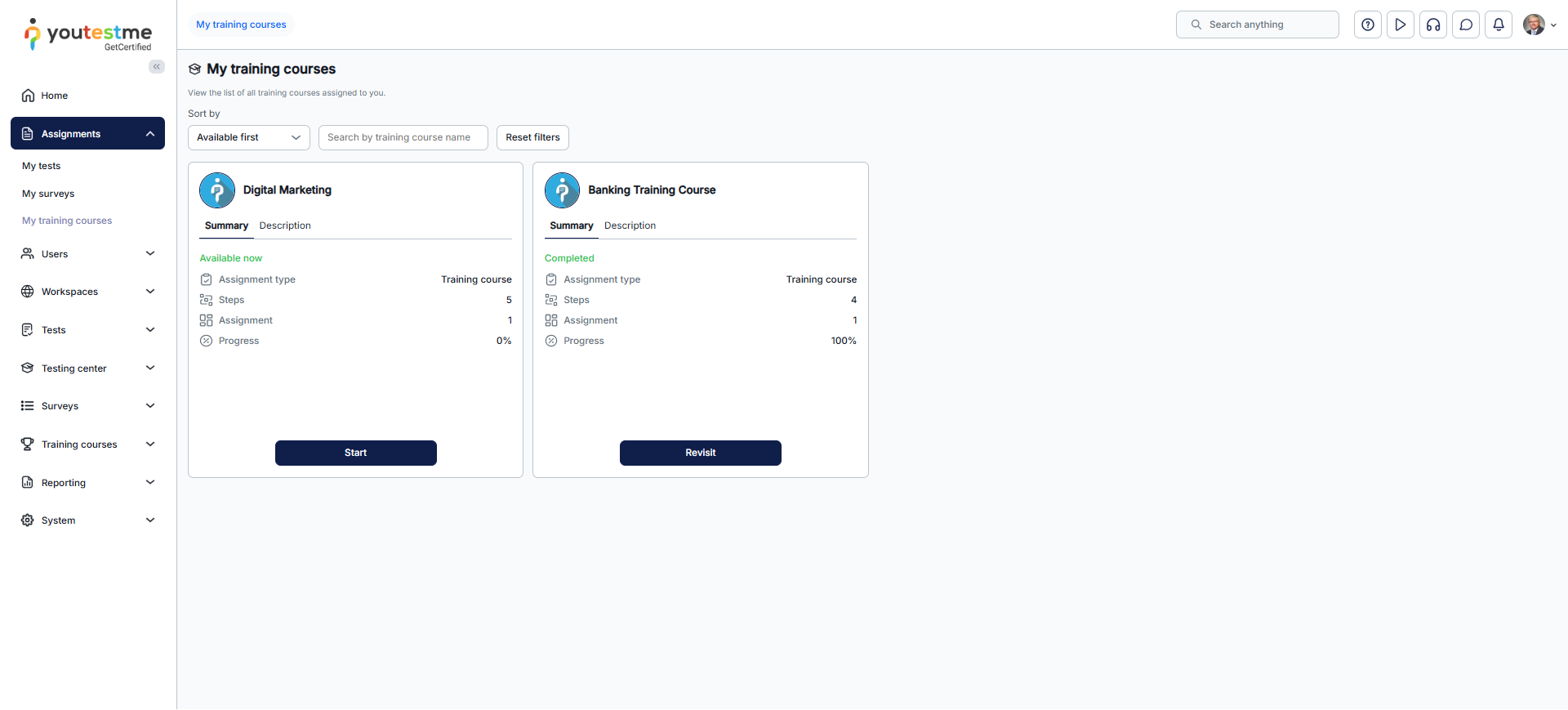
Preview of a training course on the Assignments/My Training Courses tab
Once the self-enrollment option is enabled, the training course will appear automatically on the Assignments / My Training Courses tab for every user in the application.
Note: If a training course includes a test, the testing session must have a self-enrollment option enabled so a student can complete the training course, or a testing session must be assigned to that training course. Otherwise, candidates will be able to access the training but will not be able to start the test until they are assigned to the session.
For more related instructional materials, please visit:




