Article verified for Release 15.1 on November 11, 2025.
This article outlines the process for registration, login, and accessing the desired test.
How to register and log in
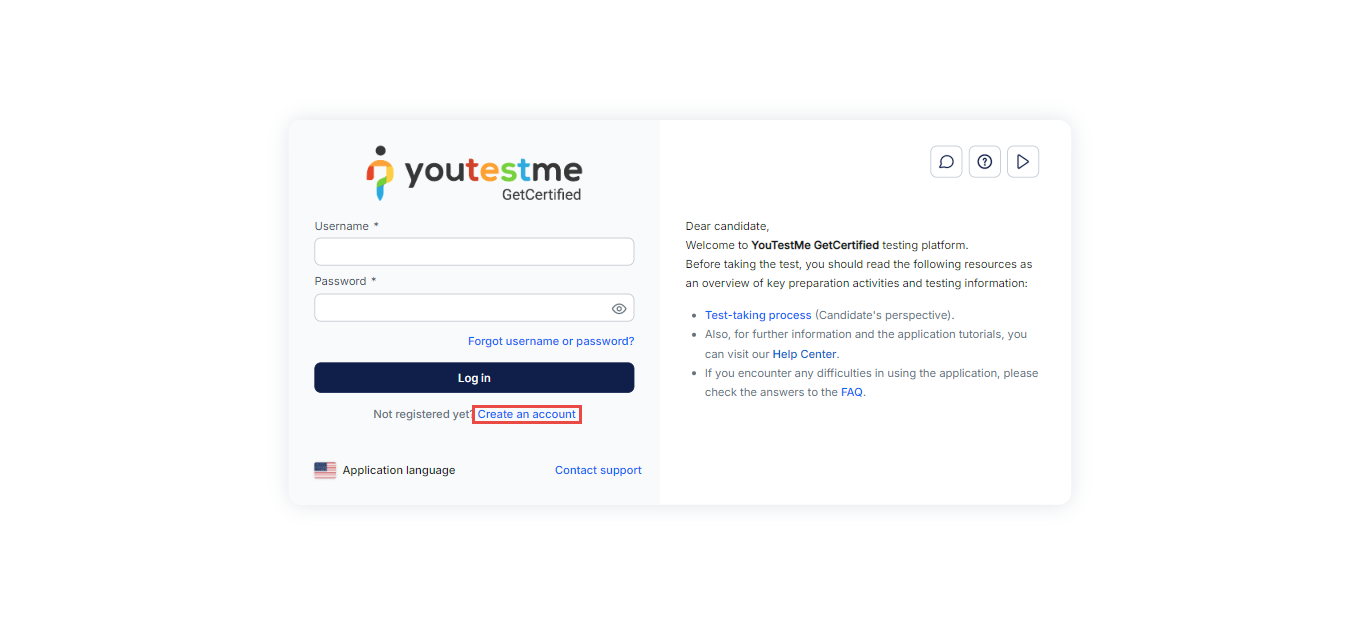
On the login page, click “Create Account” to begin the registration process.
Note: This option is available only if the Administrator has enabled self-registration. Depending on the configuration, you may either:
- Receive your login credentials immediately at the email address associated with your new account, or
- Need to wait for the Administrator to review and approve your registration request before gaining access.
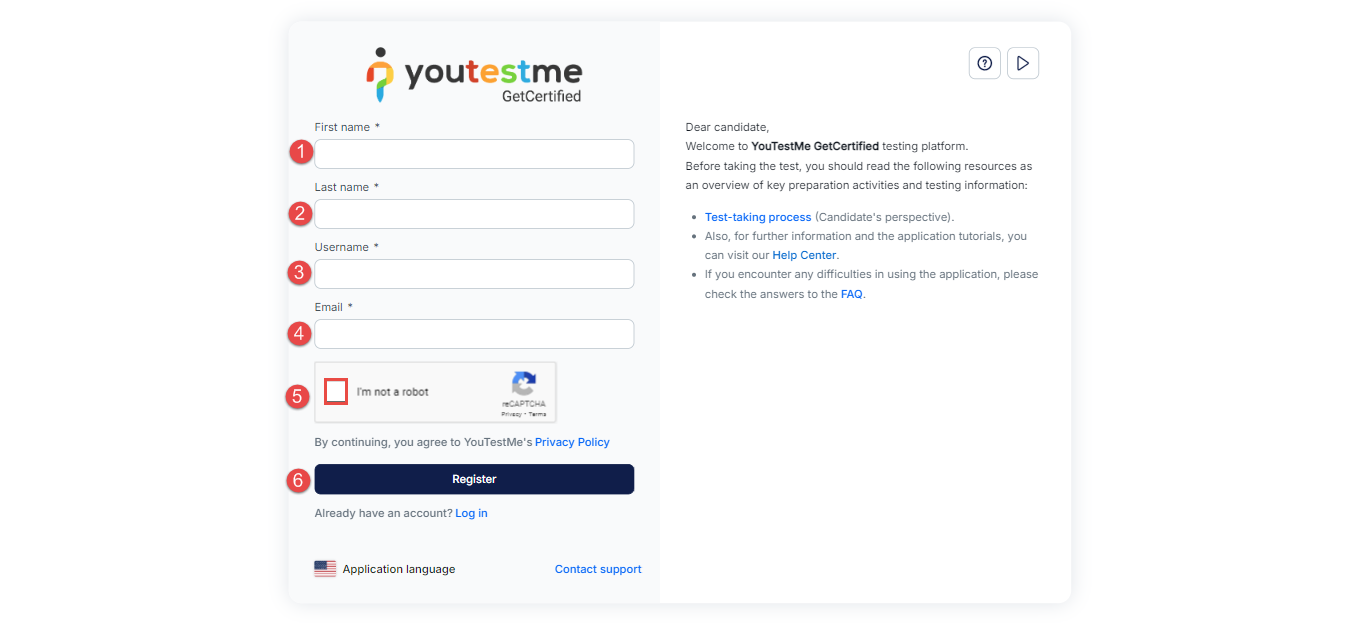
In the registration form, you will be prompted to provide the following information:
- Enter your first name.
- Enter your last name.
- Choose a username.
- Provide a valid email address.
- Check the “I’m not a robot” checkbox.
- Click the Register button to complete the registration.
Note: Please note that additional fields may be required based on the settings of the registration form.
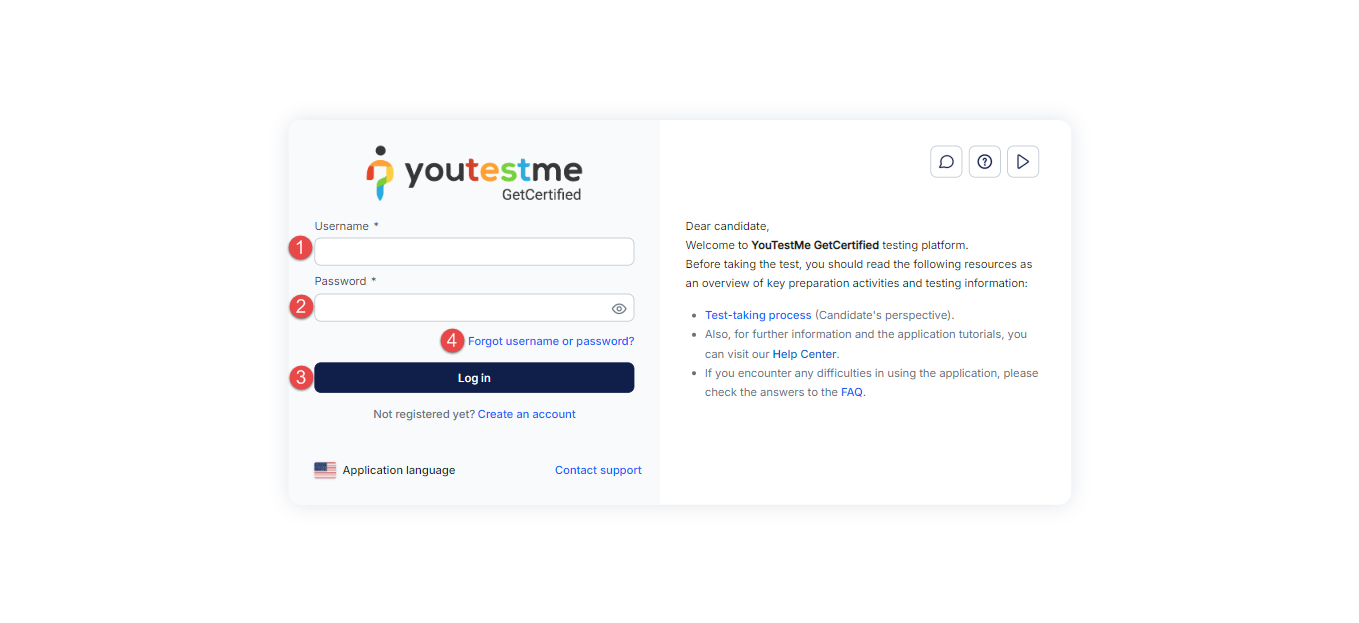
Once you receive your credentials, navigate to the login page:
- Enter your username in the designated field.
- Enter your password.
- Click the Log in button to access your account.
- If you have forgotten your credentials, click Forgot username or password?.

Starting the Test
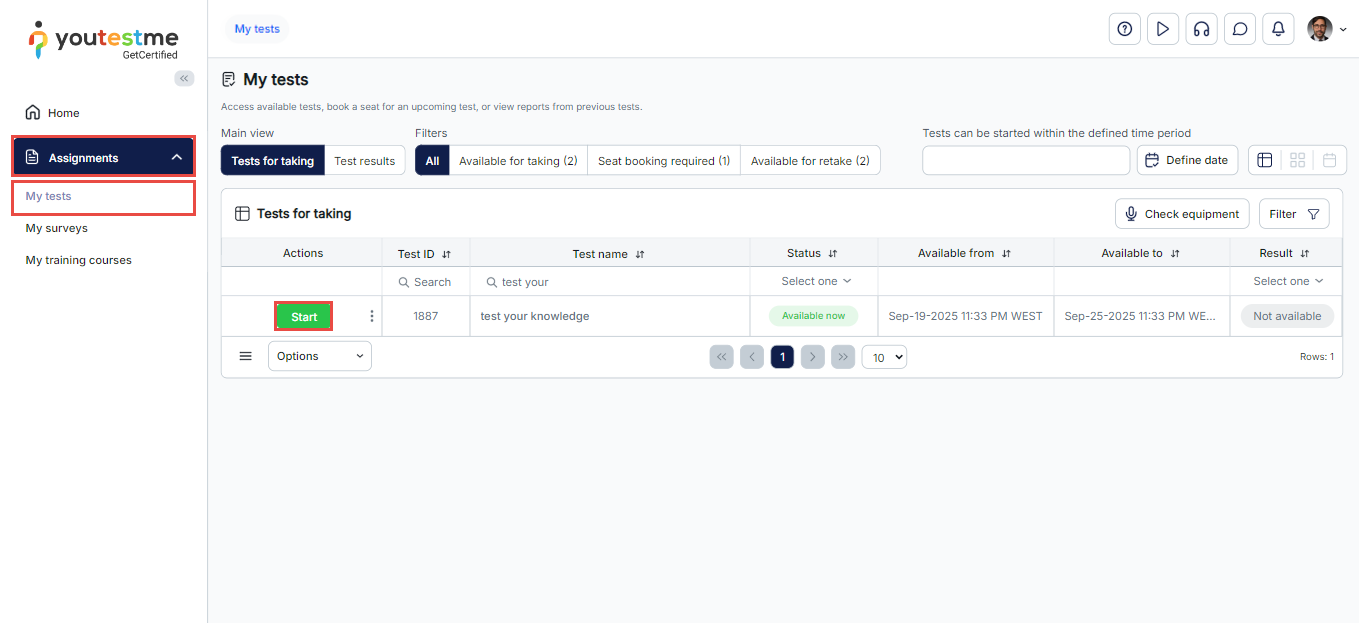
You can begin your test by going to Assignment > My Tests, using the filters to search for the test by its availability or name, and then clicking the Start button.