Article verified for Release 15.2 on November 28, 2025.
In this article, we will explain how to review pricing, manage credits, track billing cycles, and review payments within the application.
The Billing module is an optional feature that, when enabled, allows authorized users to see how actions are charged, monitor credit usage, and review pricing and payment history.
Important note: Access to the Billing module is controlled through permissions. Any role that has the Manage system settings permission will be able to access Billing. By default, only the Admin role has this permission, as it includes all system-level permissions. However, this access can be granted to other roles if needed by assigning the Manage system settings permission. For more information on roles and permissions, please see this article.
Pricing Configuration
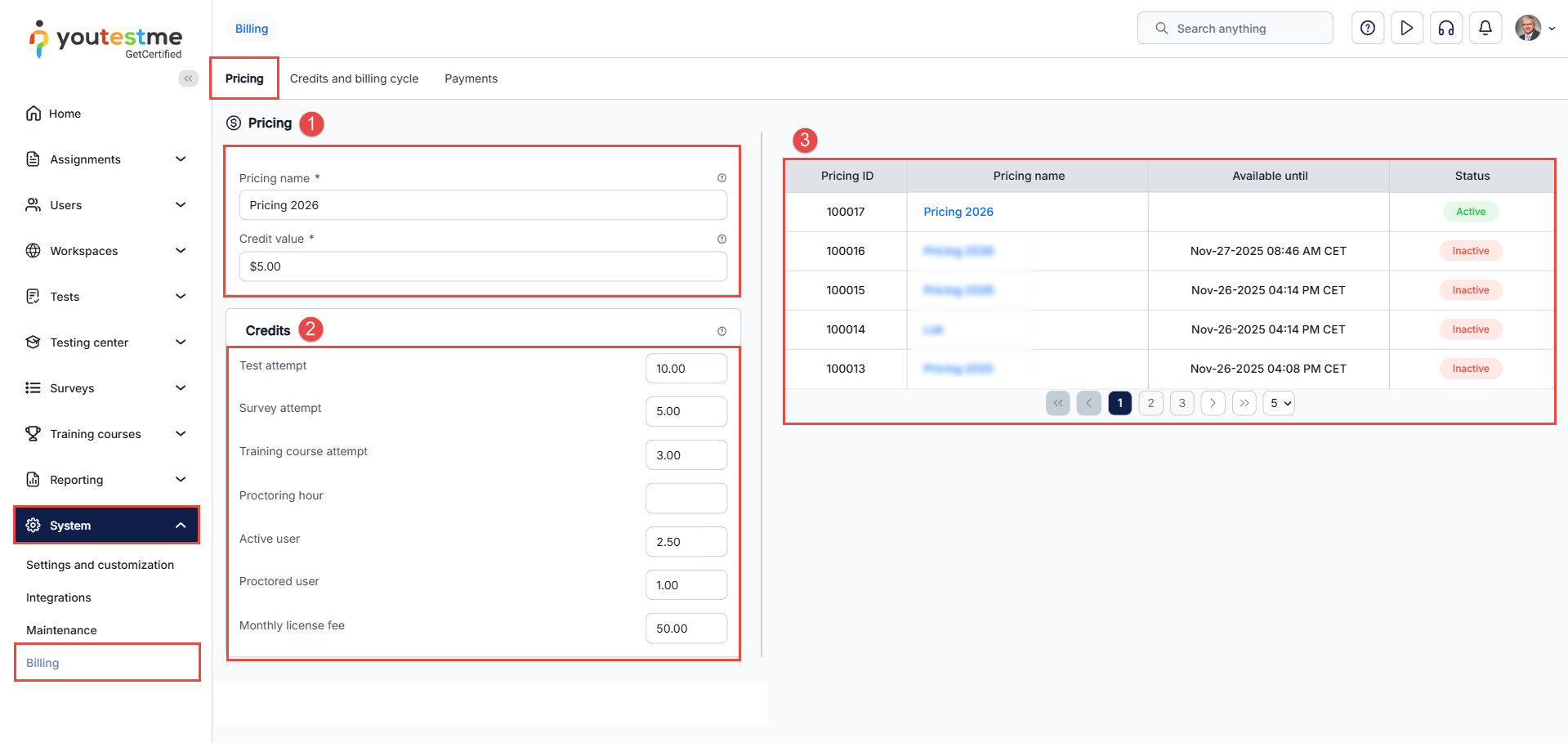
In the Pricing tab, administrators can view all pricing details defined by the provider. This section displays:
-
A history of previous pricing configurations — Only one pricing configuration can be active at a time.
These settings help organizations understand how their credit balance is spent and plan future credit purchases.
Note: The system now supports configuring and using two separate Stripe accounts.
Credits and Billing Cycle
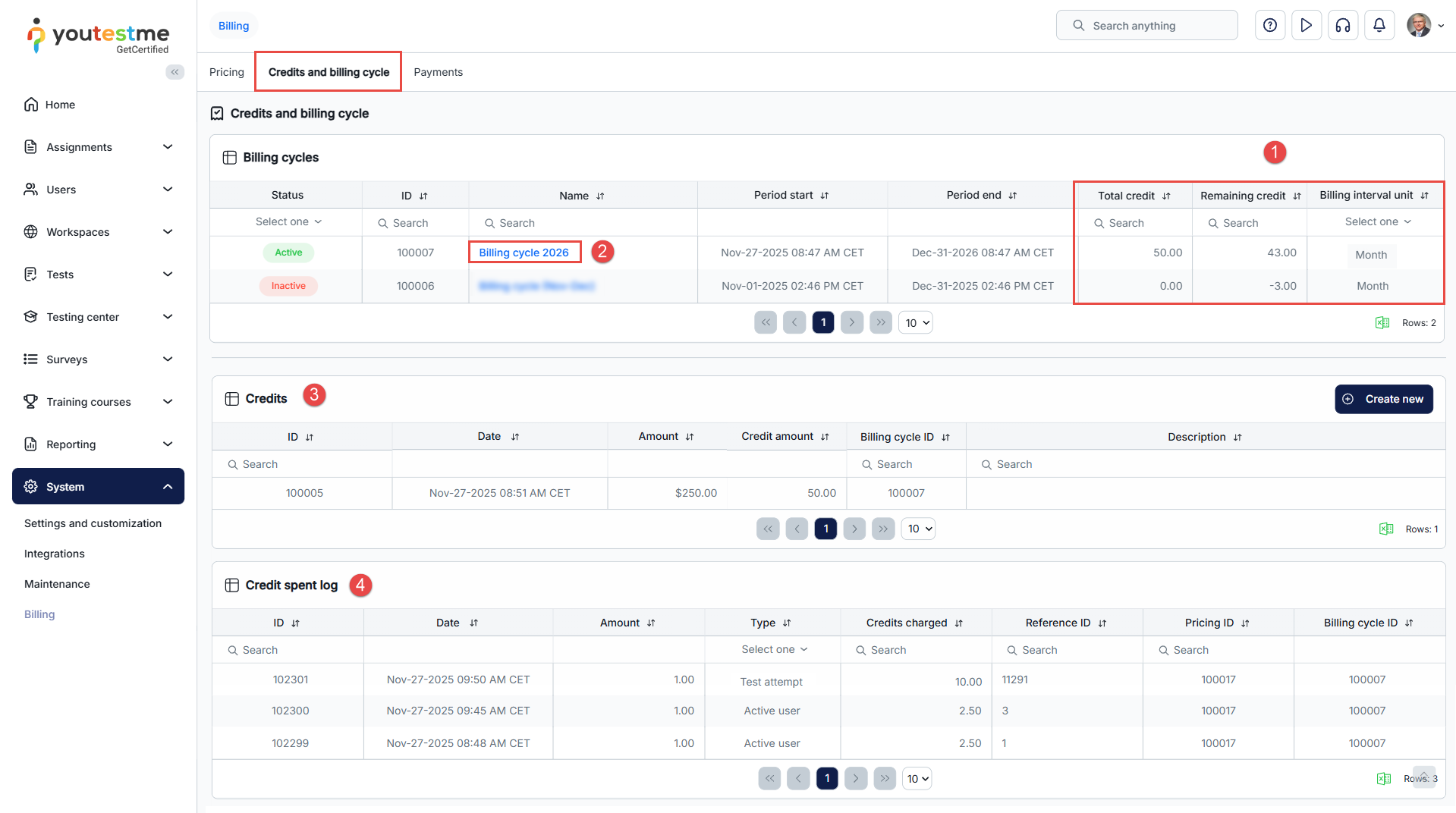
The Credits and Billing Cycle tab provides an overview of all billing cycles, with the current billing period highlighted. All billing cycles are created and managed by the provider, and only one billing cycle can be active at a time.
Billing cycles help organizations understand how credits are consumed over time and ensure that they maintain a sufficient credit balance for ongoing activity.
This page shows:
-
Viewing the Current Billing Cycle
When a billing cycle is opened, the system displays detailed usage and consumption metrics, including:
-
- Total credits used – Shows the total number of credits consumed so far.
- Remaining credits – Displays the number of credits left in the balance and indicates if the account has entered a negative balance.
- Billing interval unit – Indicates how often billing occurs (monthly, half-yearly, or annually).
This information helps organizations track spending and anticipate when additional credits may be required.
- Select the desired billing cycle to view credits and the credit spend log.
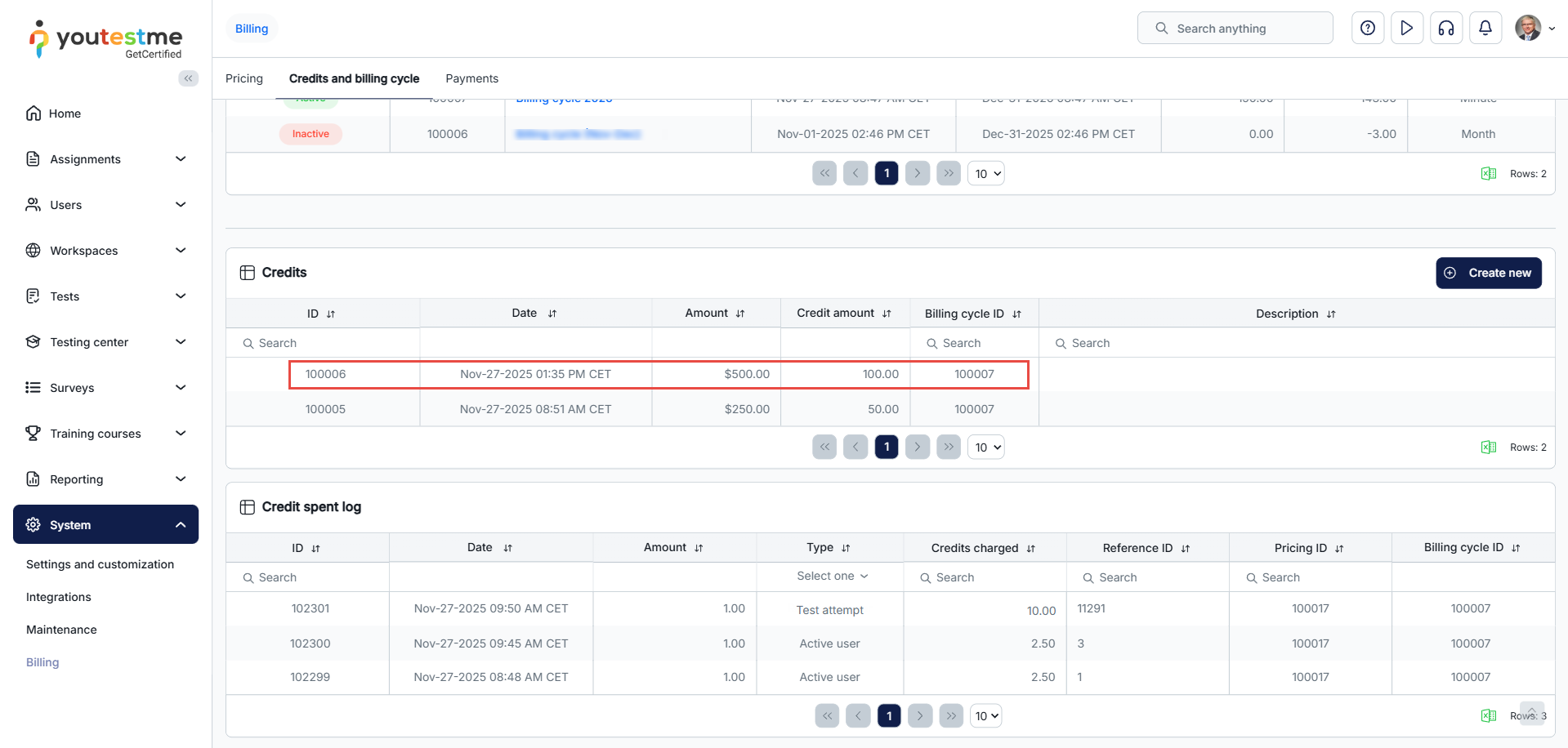
- Credits – A table that shows all credit top-ups added to the selected billing cycle. For each row you can see the credit ID, Date of the top-up, monetary Amount paid, Credit amount (number of credits issued), Billing cycle ID, and Description. You can use the search fields in the header to find specific entries or narrow down the list.
- Reviewing credit spent history – This section displays a detailed table of all events where credits were consumed within the selected billing cycle. Each row represents a charging event and includes the ID, date, amount of credits before charging, type of consumption (such as monthly license, test attempt, or active user), credits charged, and additional reference details like Reference ID, Pricing ID, and Billing Cycle ID. This log provides a clear overview of when, how, and why credits were deducted.
Inside an active billing cycle, the user can view a detailed breakdown of which actions consumed credits, such as test attempts, survey attempts, training course enrollments, and more.
This provides transparency and ensures accurate credit usage reconciliation.
Purchasing Additional Credits
Within the billing cycle details, users can purchase additional credits at any time.
To buy credits:
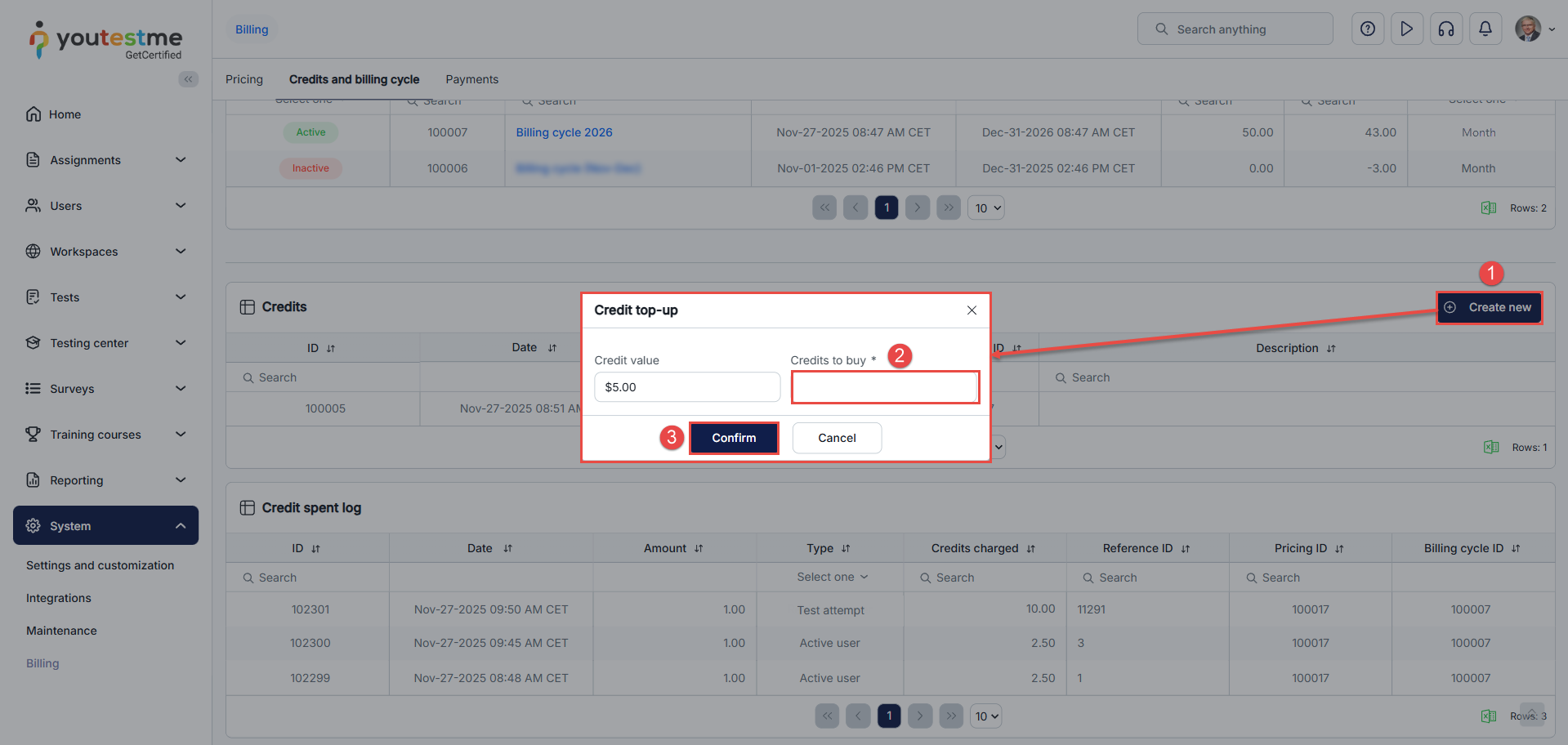
- Select Create new.
- Enter the desired quantity of credits.
- Confirm the purchase.
-
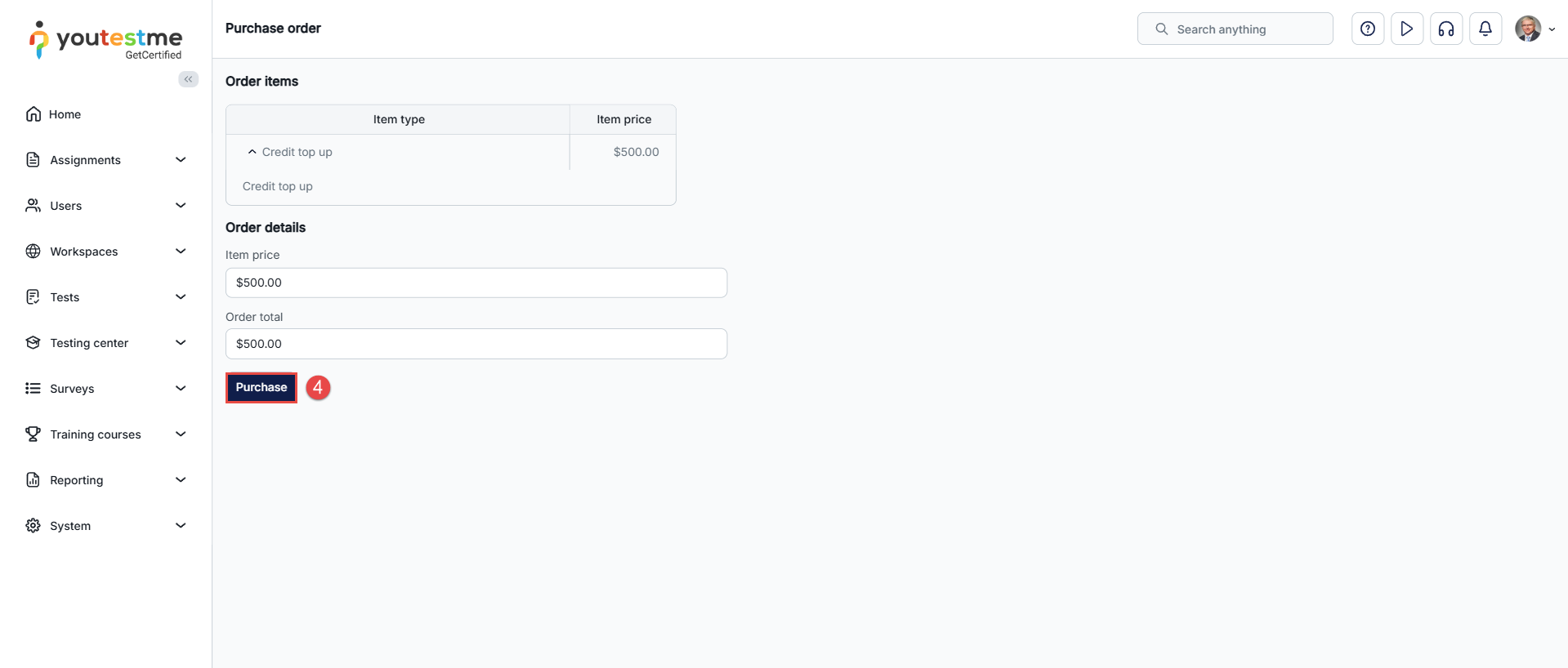
Select Purchase.
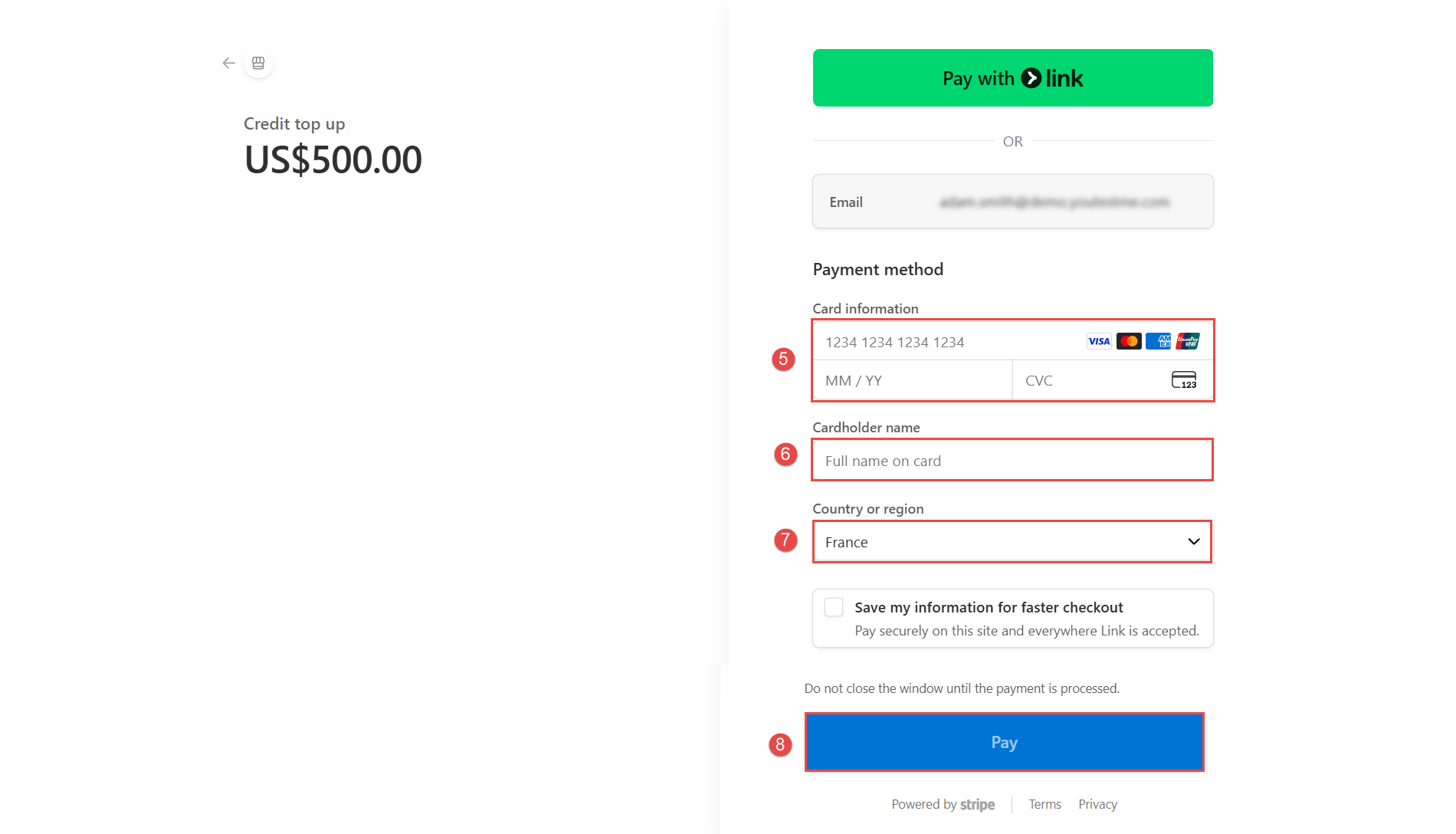
- Enter your credit card information.
- Enter the full name associated with your card.
- Select your country or region.
- Select Pay to complete the purchase.
Your purchased credits will appear in the Credits table under the active billing cycle.
Payments
In the Payments section, you can see all completed or pending payments.
Here you can:
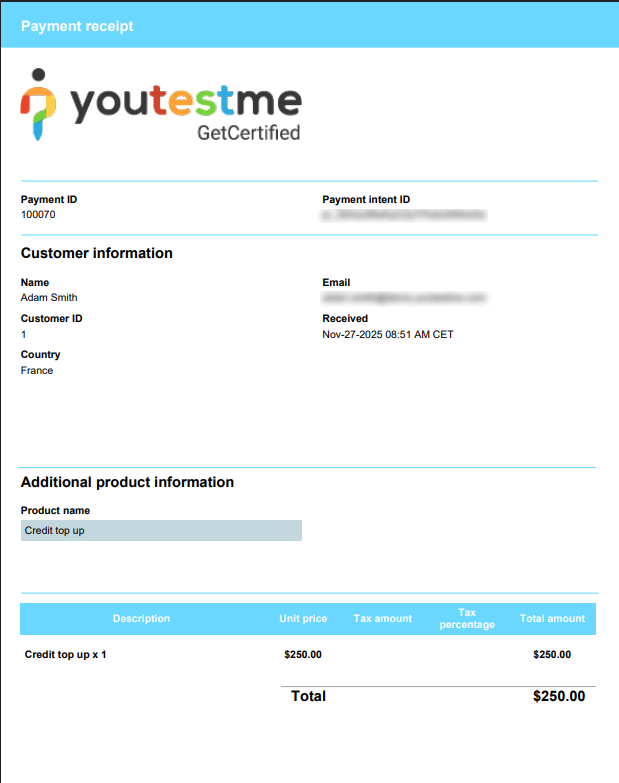
- Download each receipt for completed purchases as a PDF.
- Export the entire table as an Excel file for reporting or auditing purposes.

An example receipt is displayed below for reference. For details on how to customize receipt labels, please refer to the related article.
Additional resources:






