Article verified for Release 15.1 on November 26, 2025.
This article provides a comprehensive, step-by-step guide on creating and managing a common testing session using the YouTestMe Testing Sessions feature.
A common testing session allows you to organize multiple tests under a single session, making it easier to schedule, manage, and monitor them in one place. This approach is especially useful when several tests need to share the same availability period, proctoring rules, access settings, or supervision.
Creating a common testing session
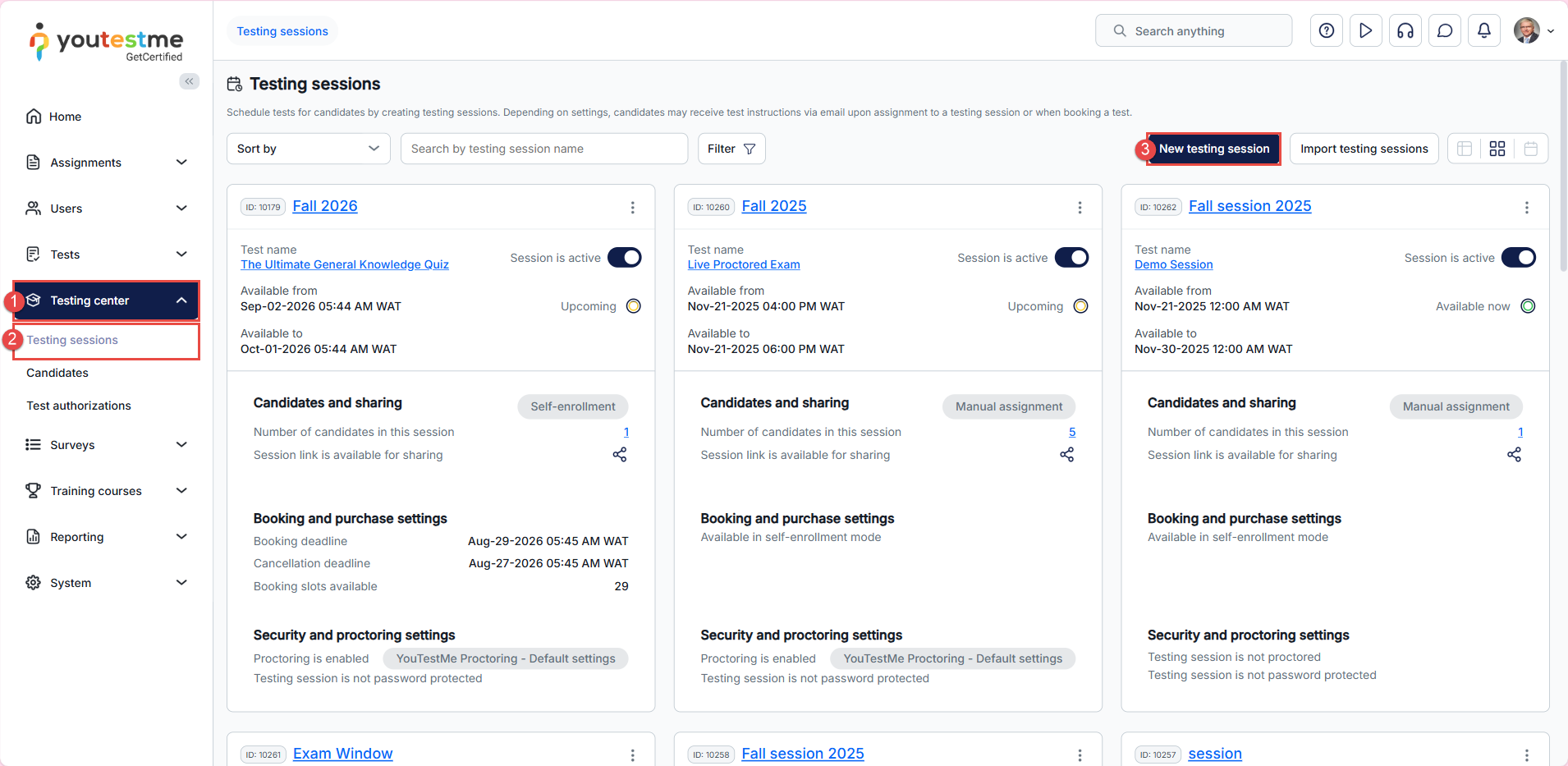
To create a common testing session, navigate to the Testing center page in the left-side menu, select the Testing sessions option, and click on the New testing session button.
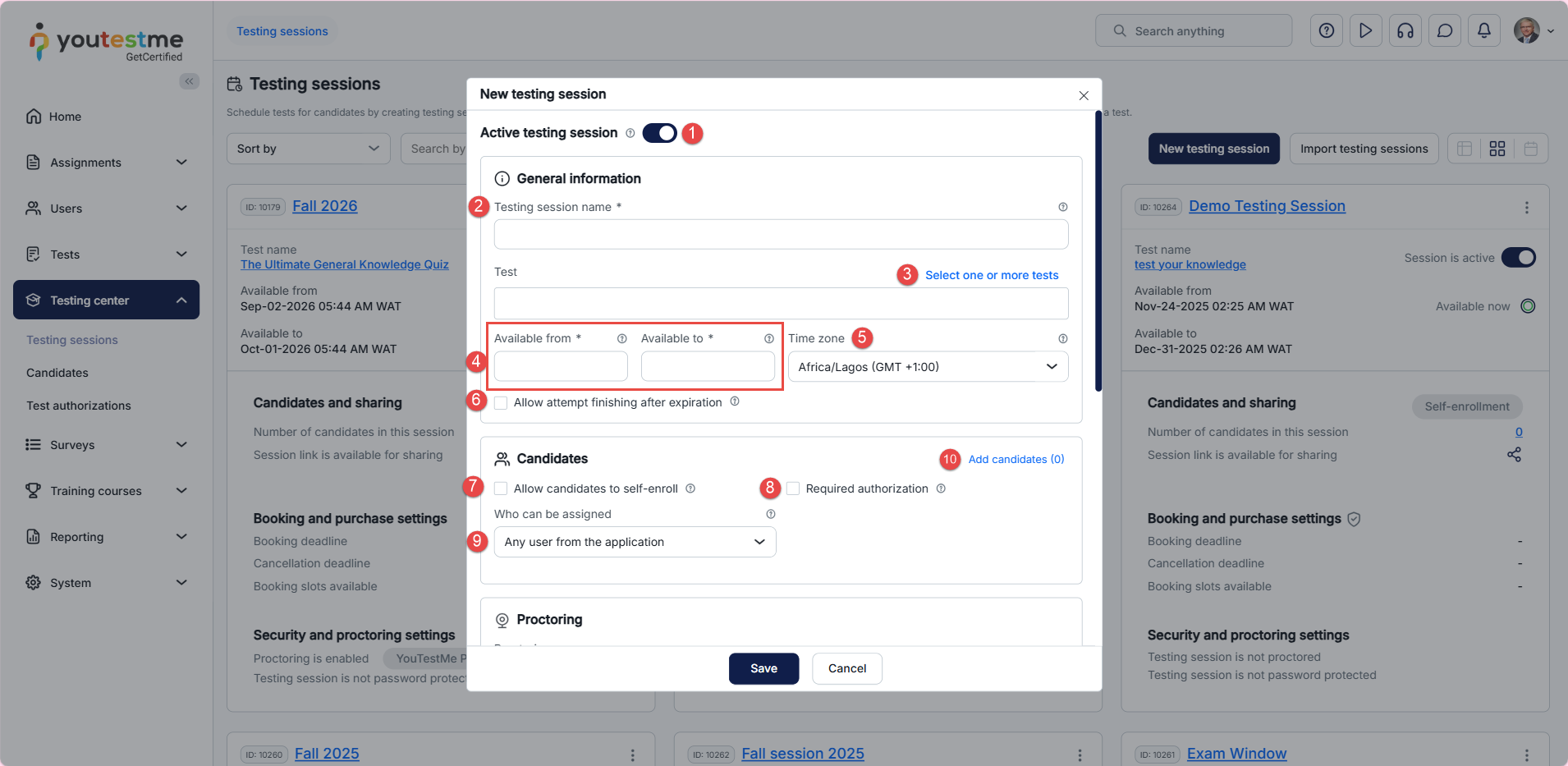
The pop-up window will show up where you should:
- Session Status: Choose whether the session is active or inactive. An active session will be visible to candidates once the test is published, while an inactive session will remain hidden until it is manually activated.
- Session Name: Enter a name for the session to identify it easily.
- Test: Select one or more tests to include in the testing session. For more details on test creation, please refer to this article.
- Availability Period: Define the time frame during which the test will be available for taking.
- Time Zone: Set the time zone for the session. The availability period will be automatically converted and displayed to test-takers based on the time zone defined in their profile settings.
- Allow attempt finishing after expiration: When this option is enabled, test-takers are permitted to continue the exam even after the session has expired.
- Required Authorization: Activate this option if authorization is required for test-takers to access and take the test. For more details on the authorization feature, please refer to this article.
- Access Control: Specify who can find and take the test:
- Any user from the application: The test will be available to all users.
- Member of a user group: Select this option to restrict access to specific user groups. You will be prompted to choose the desired group.
- Member of a training course: Select this option to limit access to users enrolled in a specific training course. You will be prompted to choose the course.
- Member of a workspace: Select this option to limit access to users who belong to a specific workspace. You will be prompted to select the workspace.
- Candidates: Manually add candidates to the testing session by selecting users from the list of all users or a specific user group.
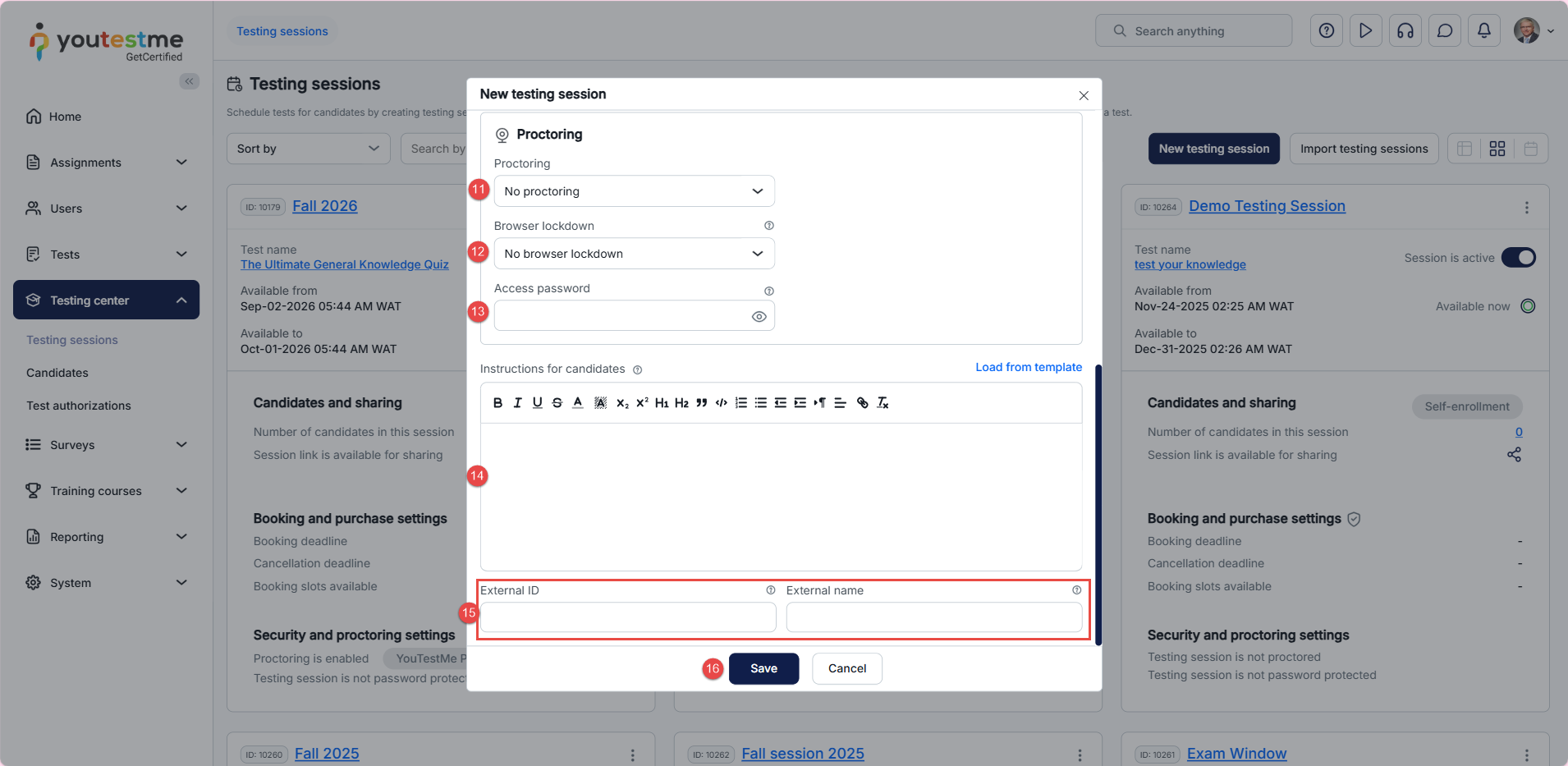
- Proctoring: From the drop-down menu, you can choose one of the following options:
- No Proctoring: Select this option if you do not require proctoring for the test.
- AI Professional Proctoring: Select this option to enable AI-based proctoring for the session if you would like to create a live, proctored exam or an AI-monitored exam.
- Proctoring Using Conferencing Tools (Google Meet, WebEx, etc.): Select this option if you prefer to monitor candidates using third-party conferencing tools.
- Browser Lockdown: From the drop-down menu, you can select one of the following options:
- No Browser Lockdown: Choose this option if you do not wish to enable browser protection.
- Built-in Protection: Select this option to use the YouTestMe Browser Lockdown feature. For more details, please refer to this article.
- Safe Exam Browser: Opt for this option if you want to conduct the exam using the Safe Exam Browser. For more information, refer to this article.
- Access Password: You can choose to secure the session with a password. Test-takers will need to enter the password to start the test. Ensure the password is communicated to candidates beforehand or at your discretion. This feature is particularly useful for exams conducted in testing centers or classrooms.
- Testing Session Instructions: Enter the testing session instructions in this field. You can customize the email notification sent by the system upon enrollment by including a variable that will automatically be replaced with the session instructions. Additionally, you can load a predefined instructions template if one has already been created in the system. For guidance on creating instruction templates, please refer to this article.
- External ID and Name: Here, you can enter the external session ID and name to cross-reference with any external system.
- Click on the Save button to create the session.
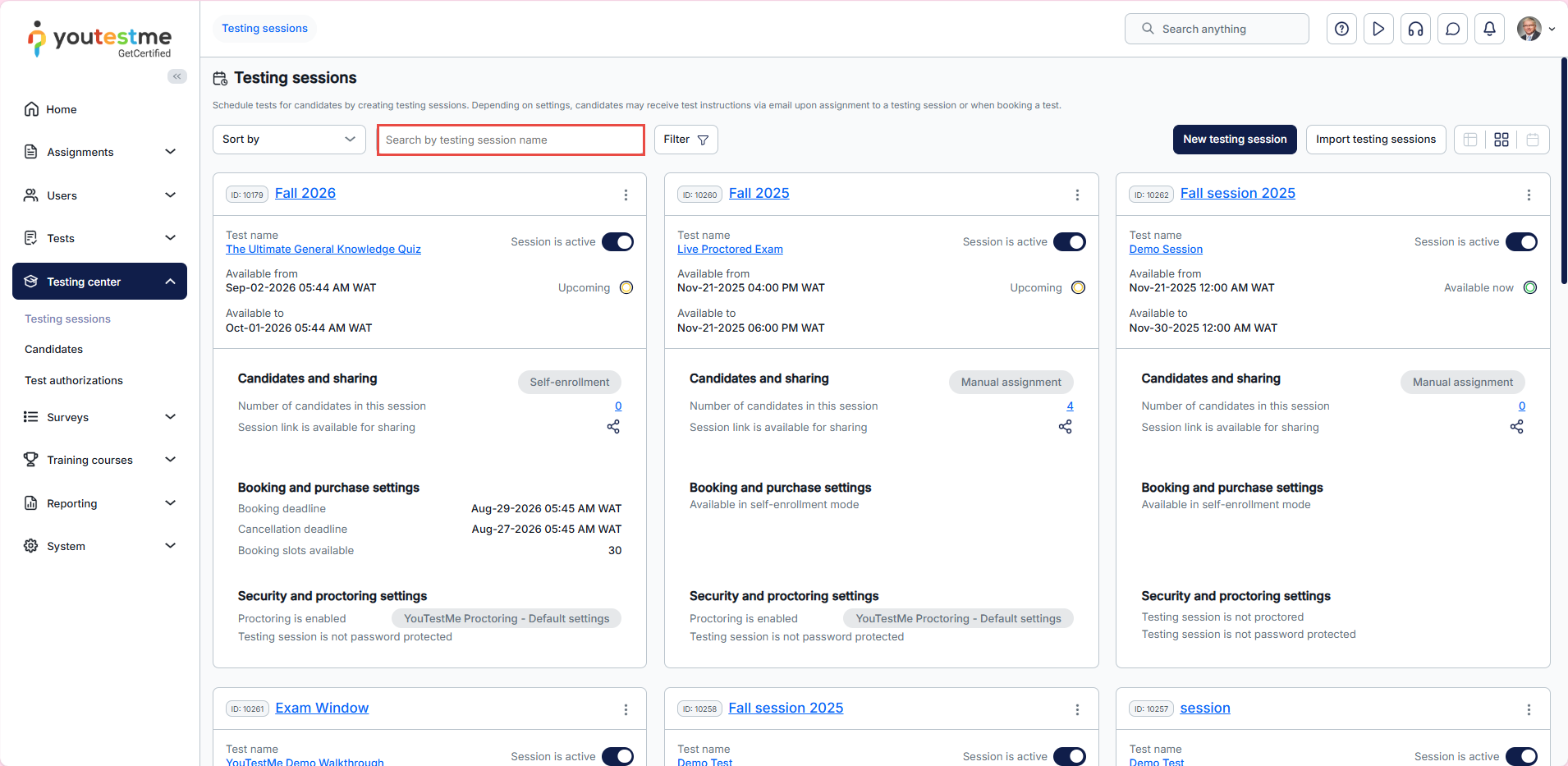
Once the session is created, it will appear on the Testing sessions page, where you can use the search bar to find the desired session.
Managing an existing session
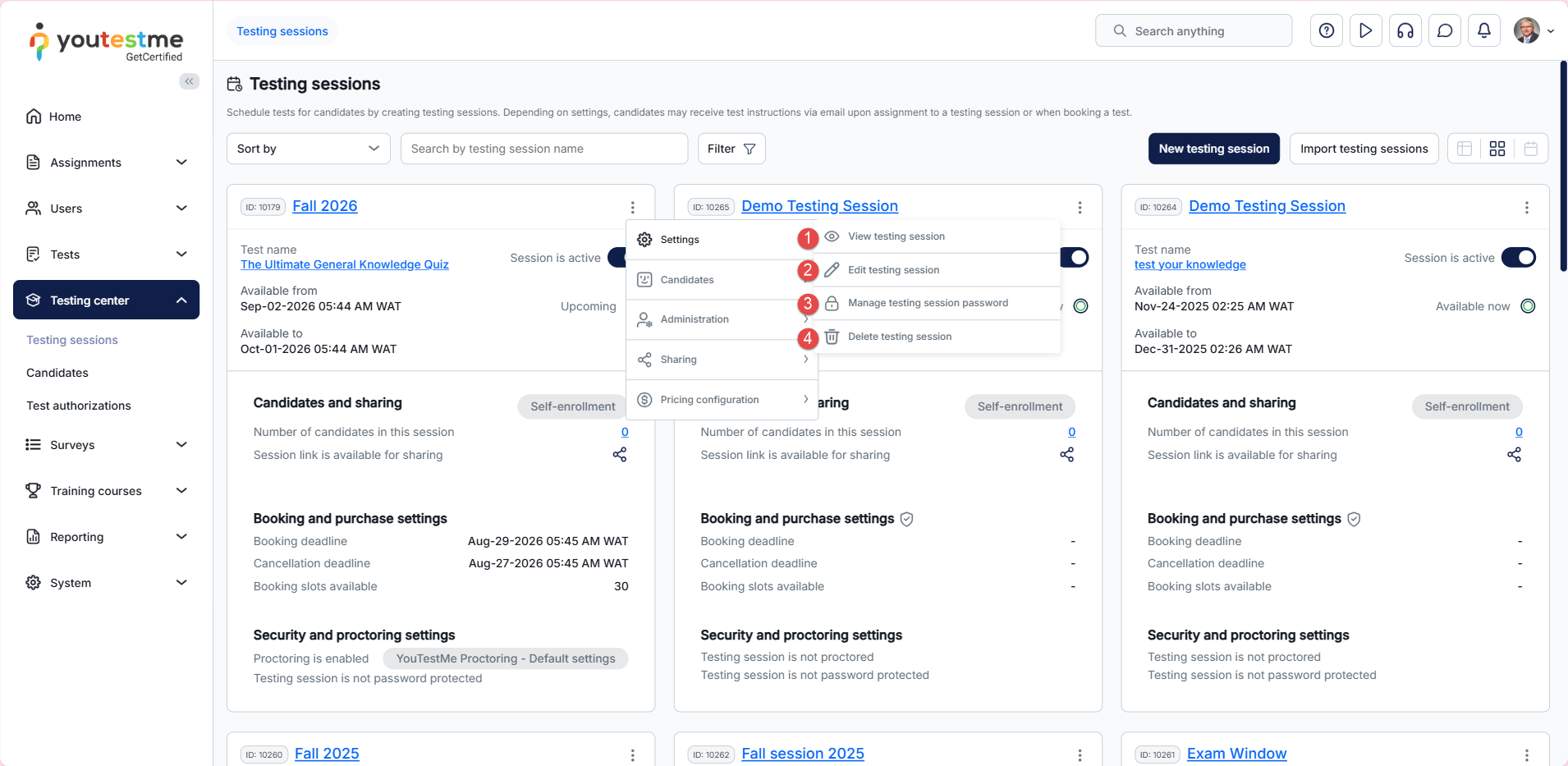
To manage an existing testing session, click the three dots in the top-right corner of the session you want to manage, then select Settings.
- View testing session: Open the testing session overview to review all its details.
- Edit session: Choose Edit testing session to open the edit window. You can update any session settings except who can self-enroll.
- Manage session password: Choose how the password is handled:
- No password
- Enter a password manually
- Auto-generate a password
- Delete session: Permanently remove the testing session from the system. The session can be deleted only if no candidates are assigned.
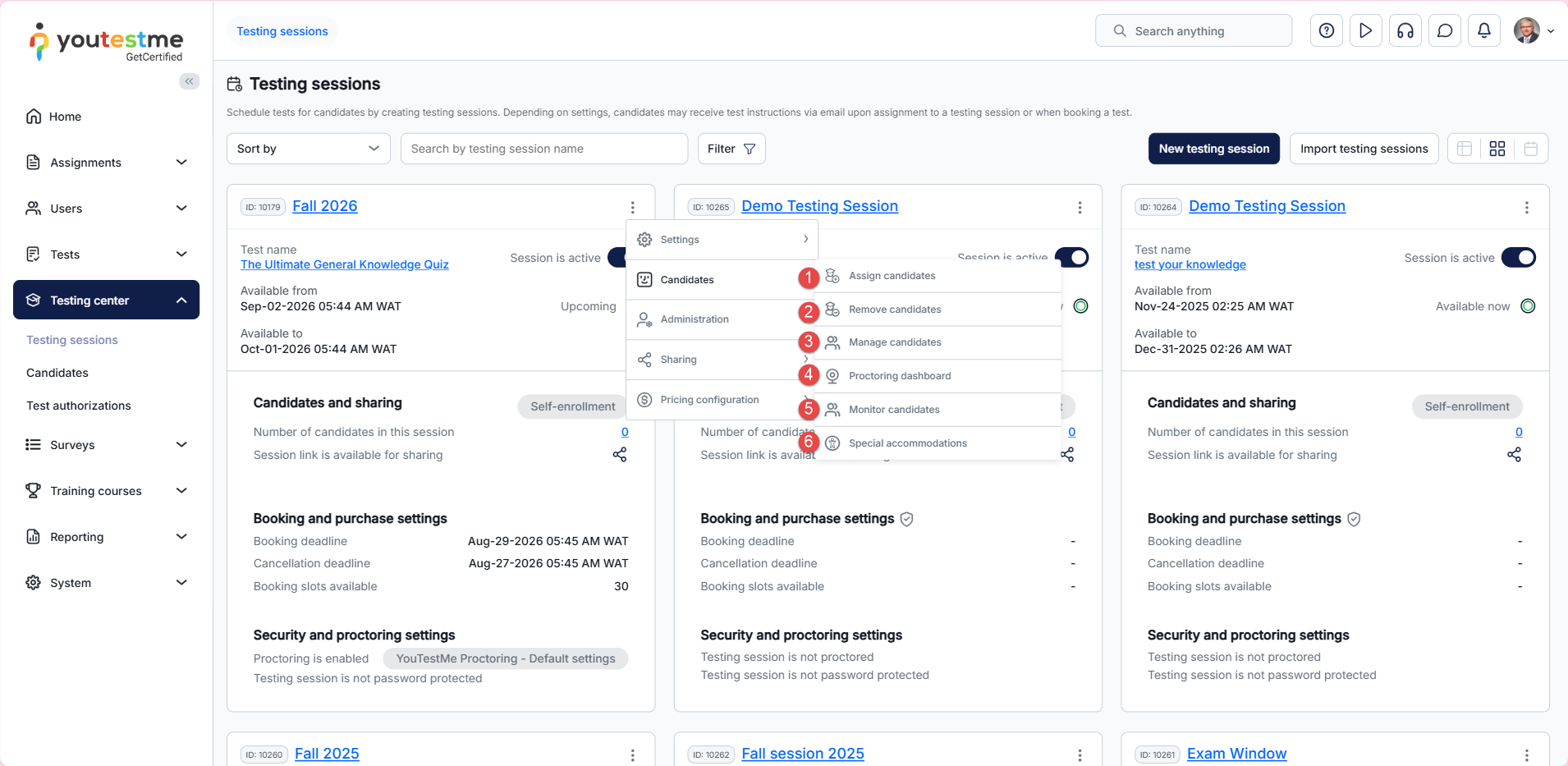
To manage candidates in an existing testing session, click the three dots in the top-right corner of the session, then select Candidates.
-
Assign candidates: Manually assign new candidates to the session. For more details, see the related help article.
-
Remove candidates: Manually remove candidates from the session.
-
Manage candidates: Access the Candidates tab to review candidates’ attempts, assign new candidates, or remove them from sessions.
-
Proctoring dashboard: Access the live proctoring dashboard to supervise active exams or review and grade completed proctoring sessions.
-
Monitor candidates: Go to the Monitoring tab to track candidate progress, pause or resume sessions or individual tests, and provide special accommodations when required.
-
Special accommodations: View and manage any special accommodations assigned to candidates—for example, extra time or other support measures. For more details, see the related help article.
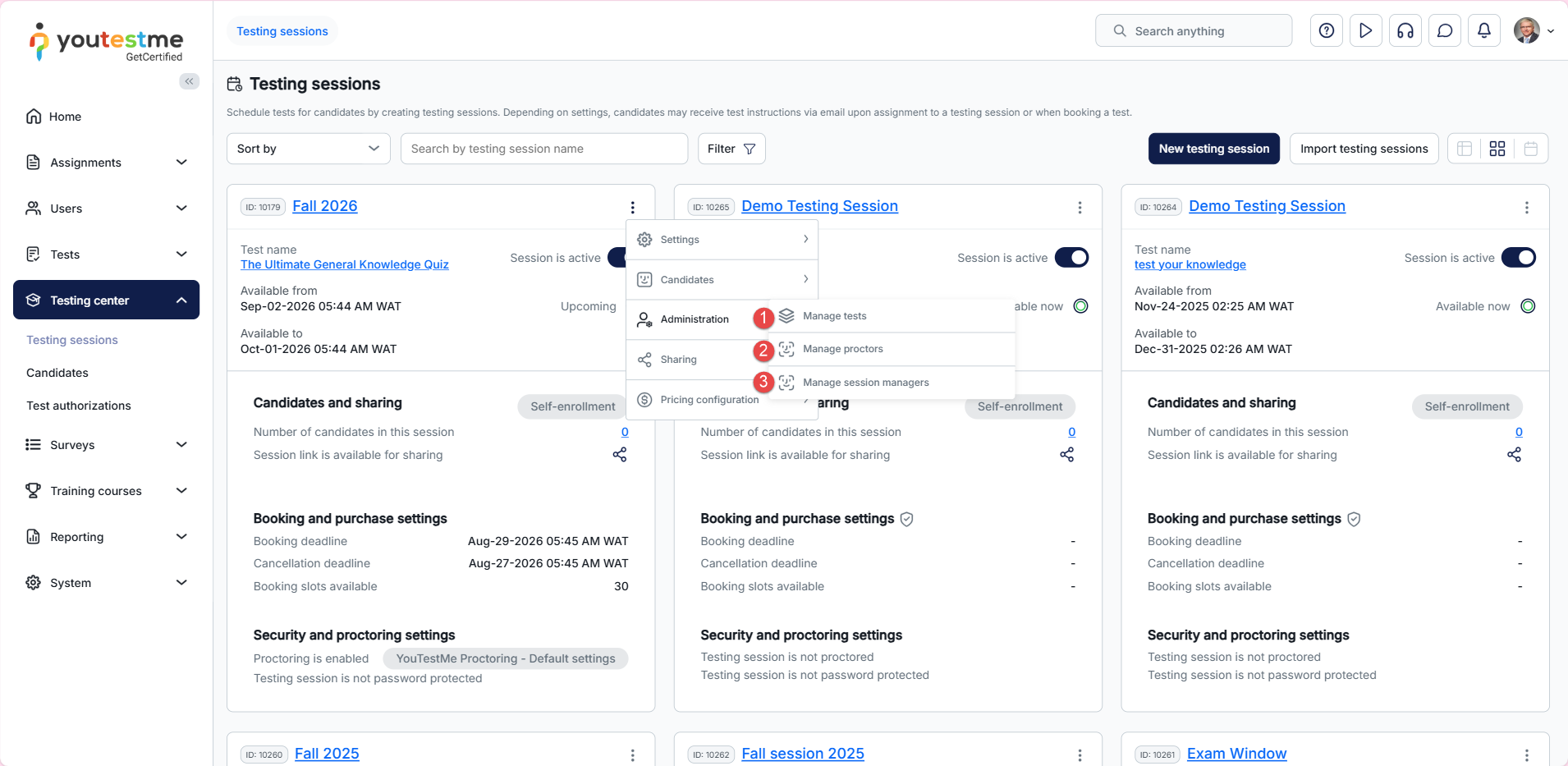
To manage tests, proctors, and session managers, click the three dots in the top-right corner of the session, then select Administration.
- Manage tests: View the list of tests available in this testing session.
- Manage proctors: Assign new proctors to monitor the session or remove existing ones from the list. After the pop-up window appears:
- Click the Assign proctors button to display the list of users.
- Check the users you want to assign as proctors.
- Click the Confirm button.
- Click on the Save button. Note: If the session is associated with a certain location, only proctors assigned to that location will be available to choose from.
- Manage session managers: Assign new managers to edit session settings, its proctors and candidates, or remove existing ones from the list.
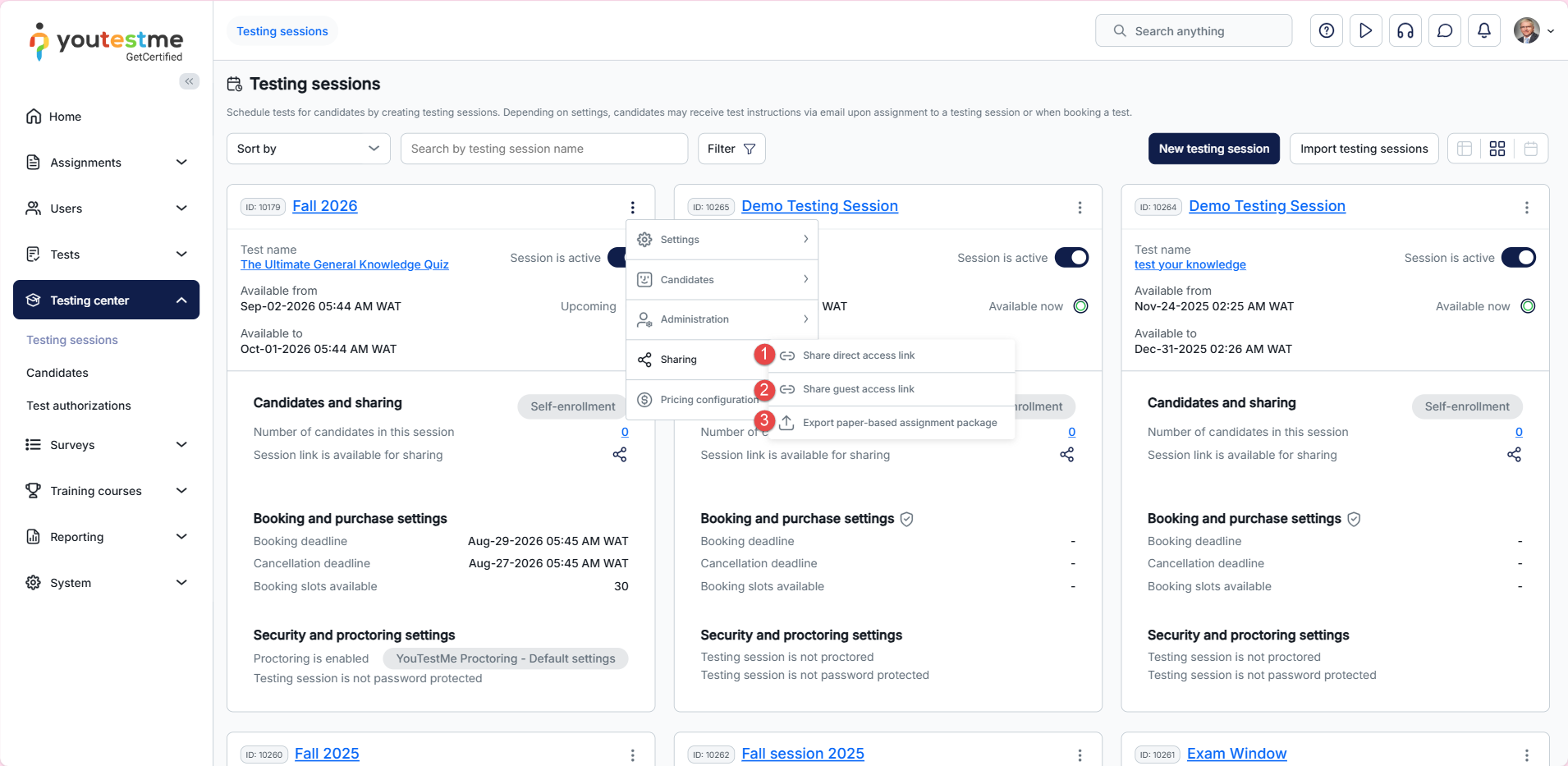
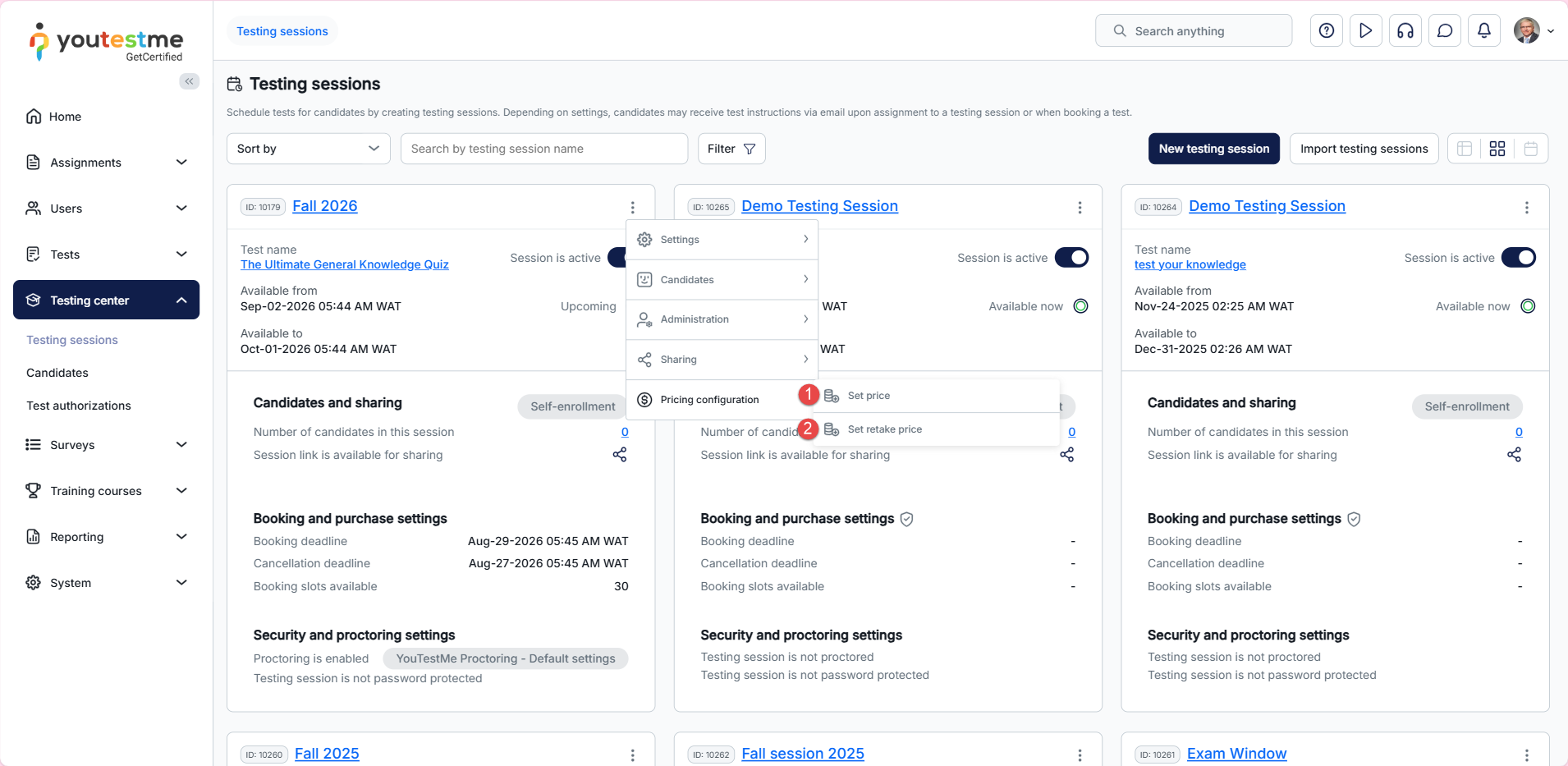
To share the testing session, click the three dots in the top-right corner of the session, then select Sharing.