Article verified for Release 15.1 on February 18, 2026.
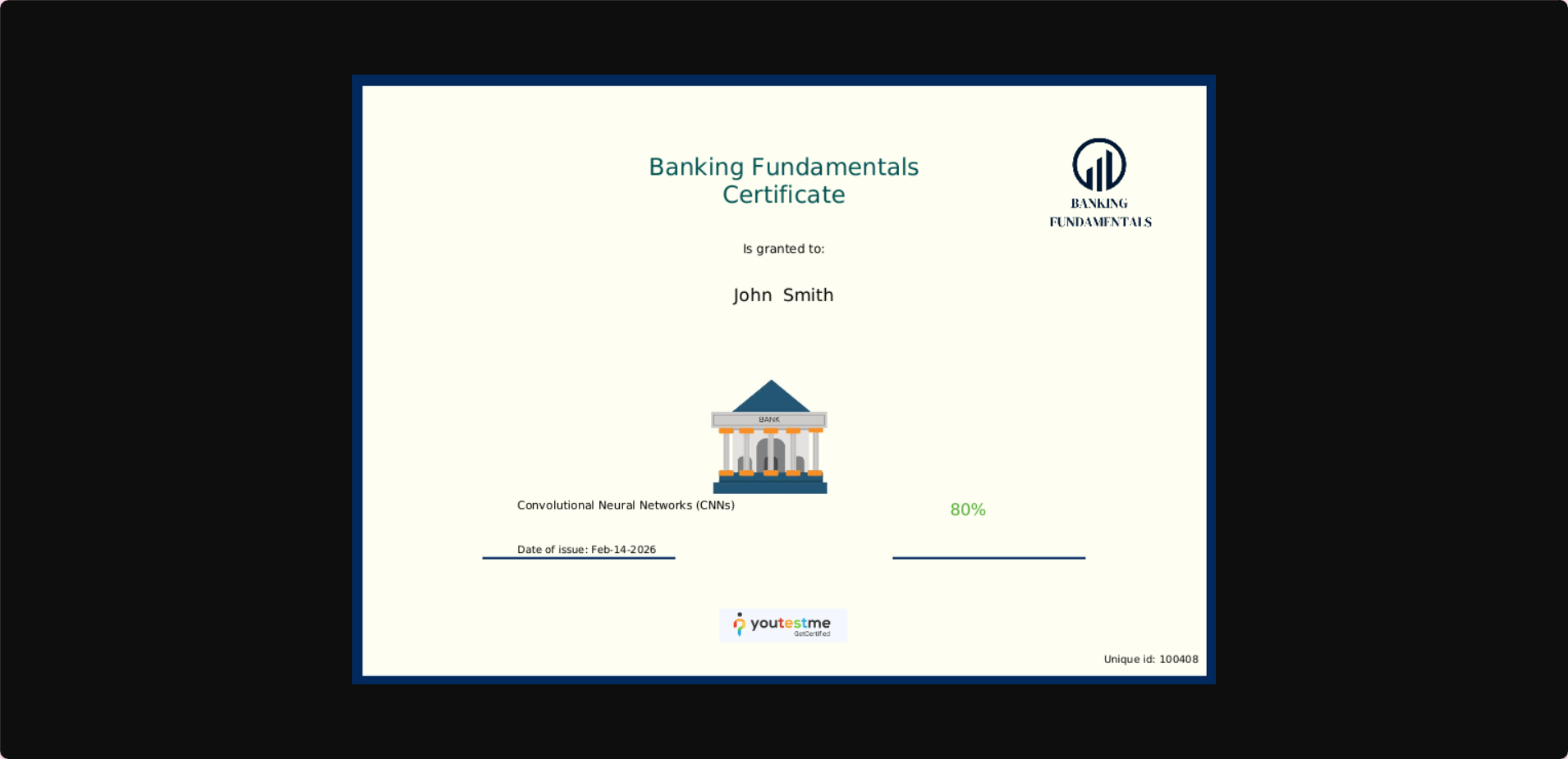
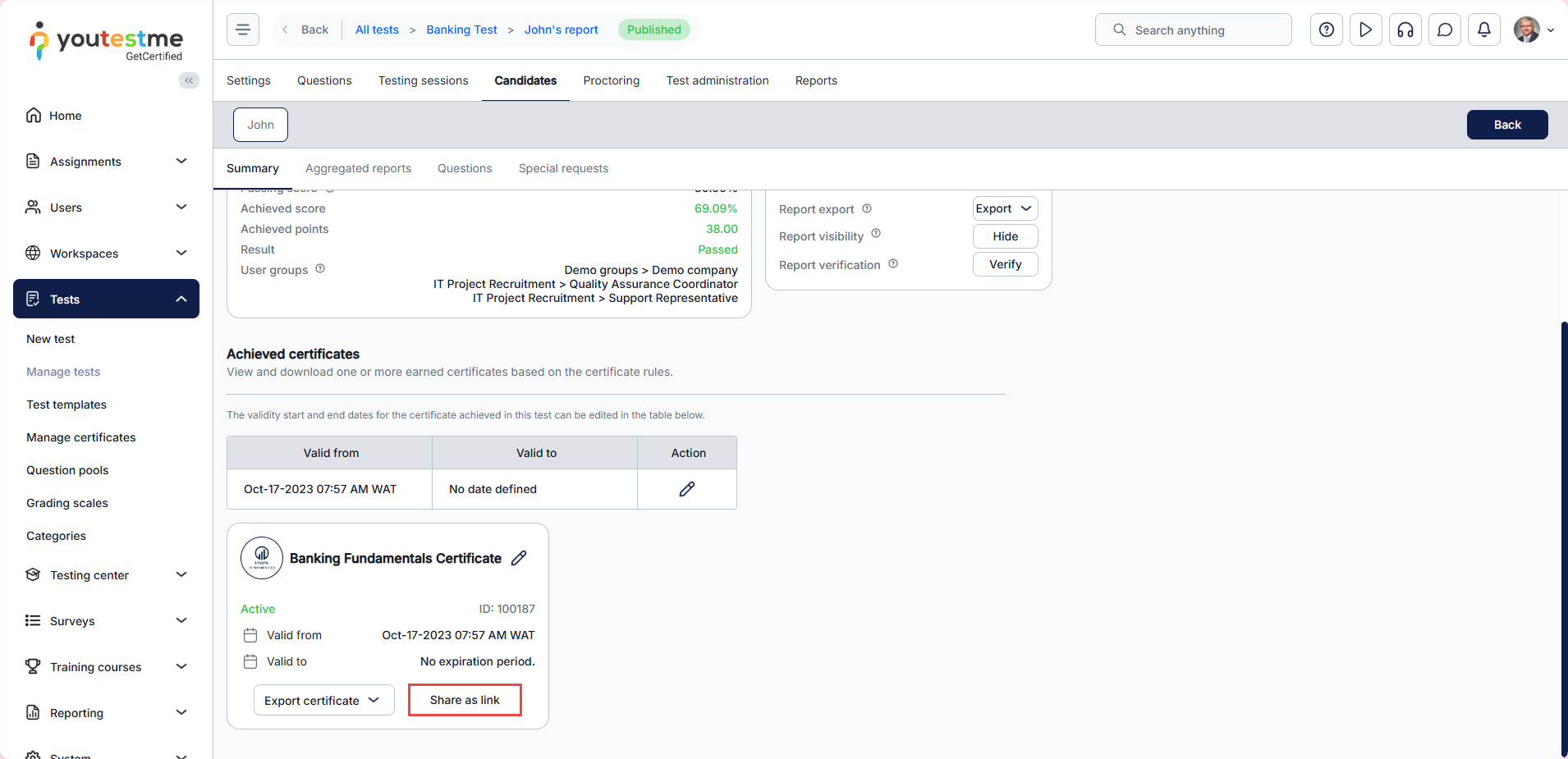
This article explains how to generate and share a candidate’s certificate as a public link. The generated link allows the certificate to be easily shared on social media platforms (such as LinkedIn), included in email signatures, or sent directly to third parties for verification purposes.
Sharing certificates as links provides a simple and professional way for candidates to showcase their achievements while maintaining controlled and secure access to the issued certificate.
Accessing personal reports and certificate
After a candidate completes a test, you can access their personal report and share the certificate link by following these steps:
-
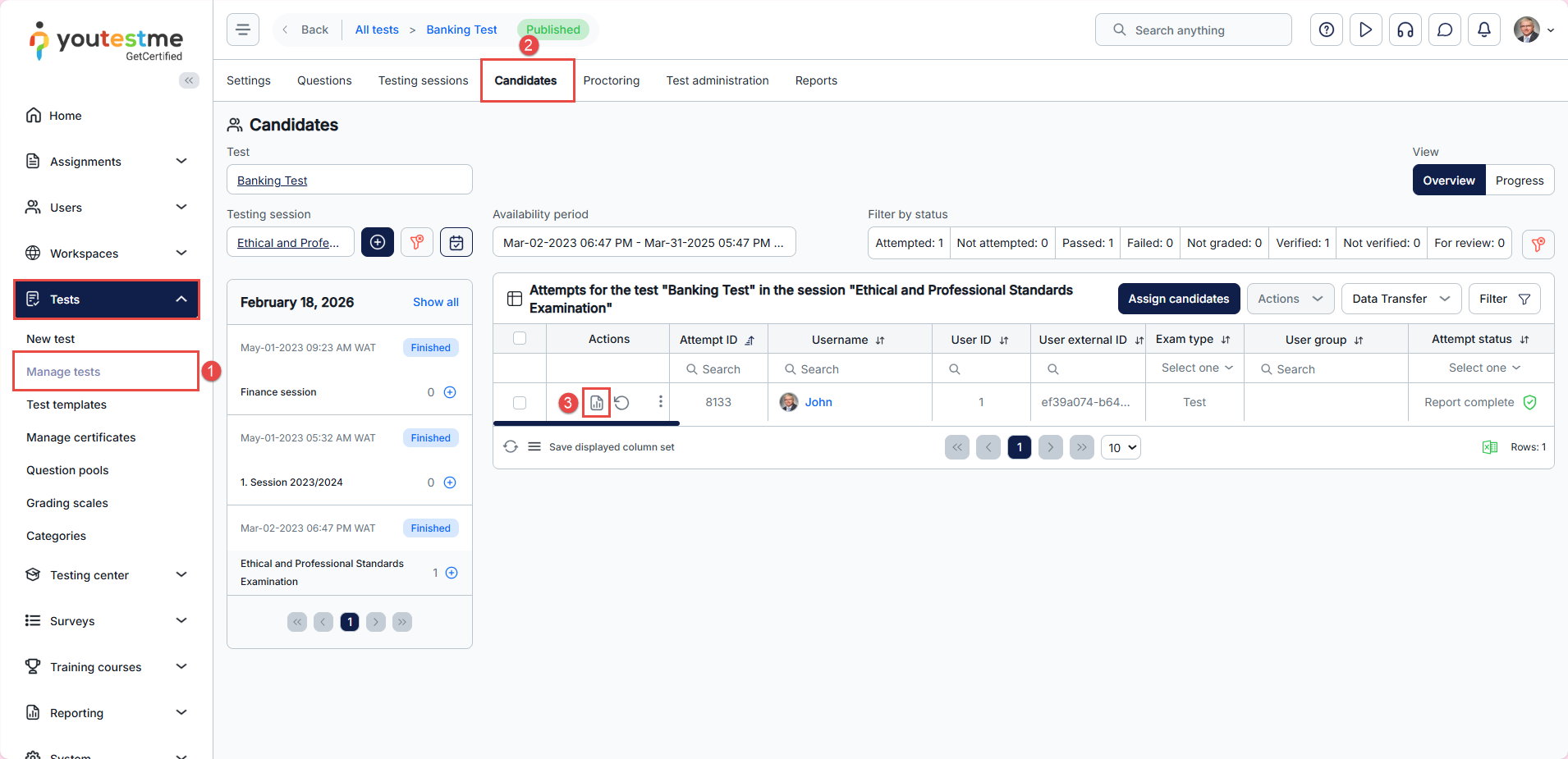
From the left-side menu, go to Tests > Manage Tests and select the relevant test.
-
Open the Candidates tab.
-
Find the desired candidate and click the Personal Report button.
Scroll down to the Achieved Certificates section, and click Share as link to copy the certificate link.
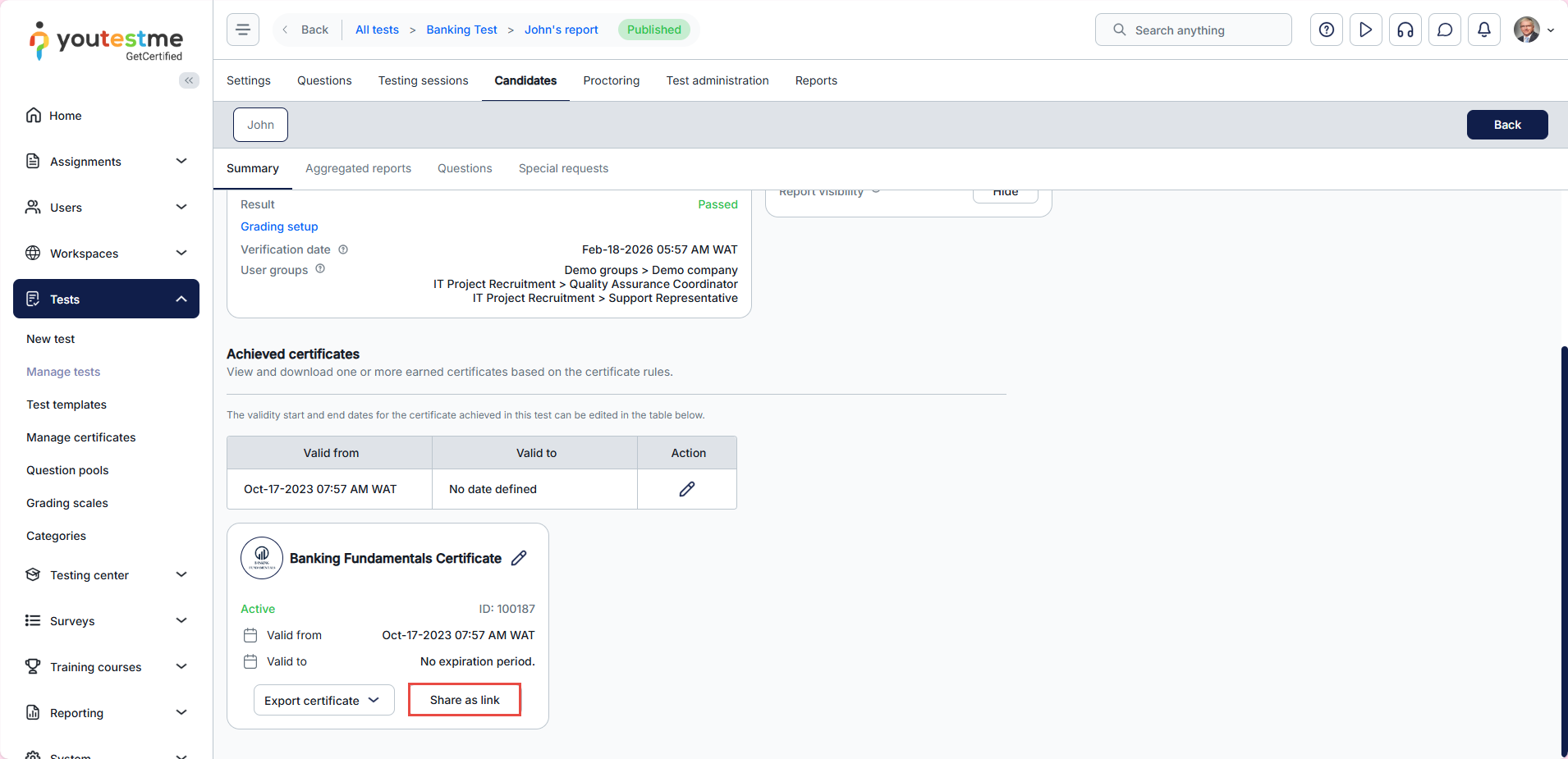
You can now send the copied link to the candidate so they can share it on social media.