Article verified for Release 15.1 on November 28, 2025.
This article provides a detailed guide for users assigned the Grader security role in YouTestMe GetCertified. It explains how graders can access the tests they are responsible for, review test attempts, and leave grades and feedback while working within the permissions assigned to their role.
Grading process from the Grader’s perspective (1st scenario)
- Log in as a grader in the application.
- Next, navigate to Tests and select Manage tests.
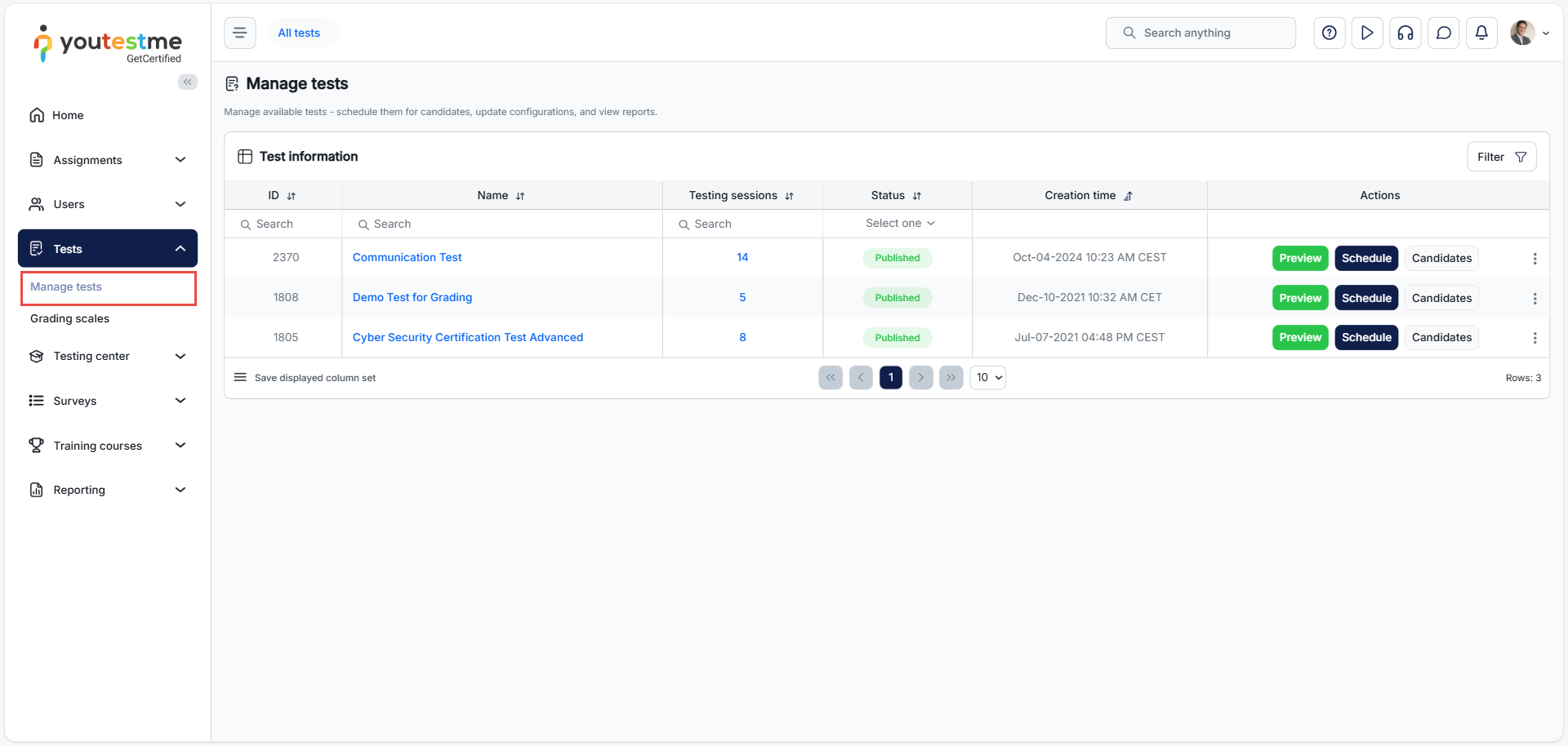
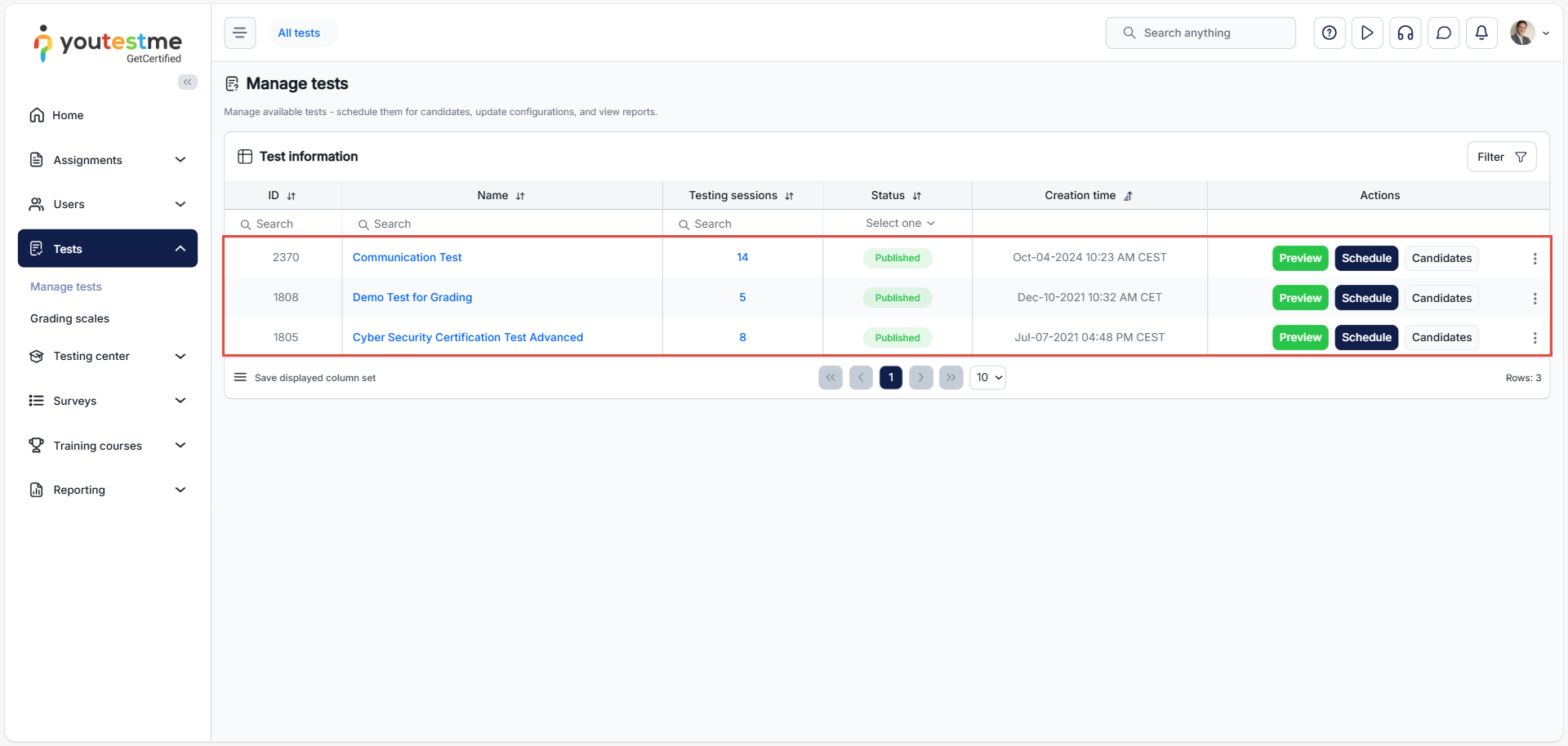
- Here, you can only see tests that this grader can manage. Select one of those tests.
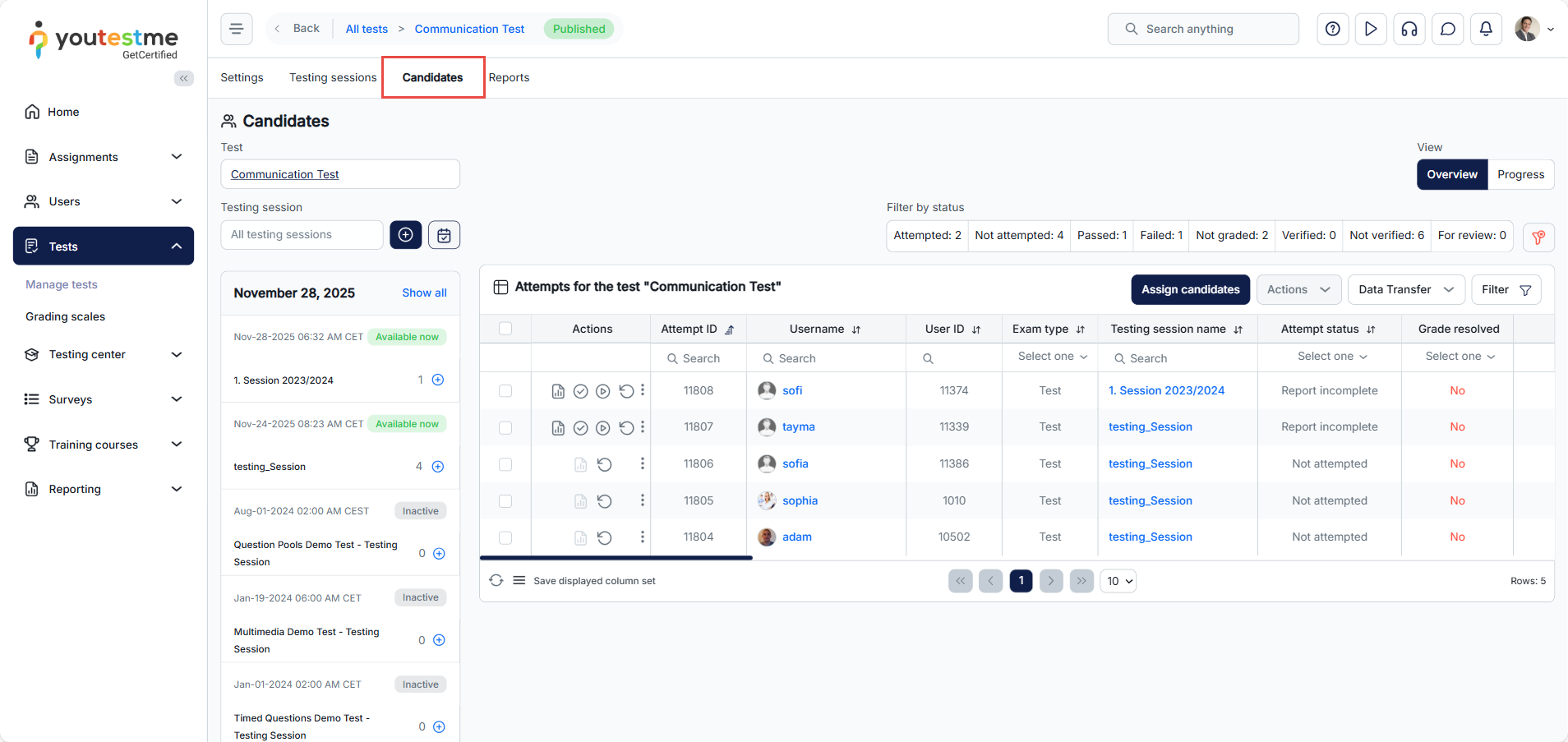
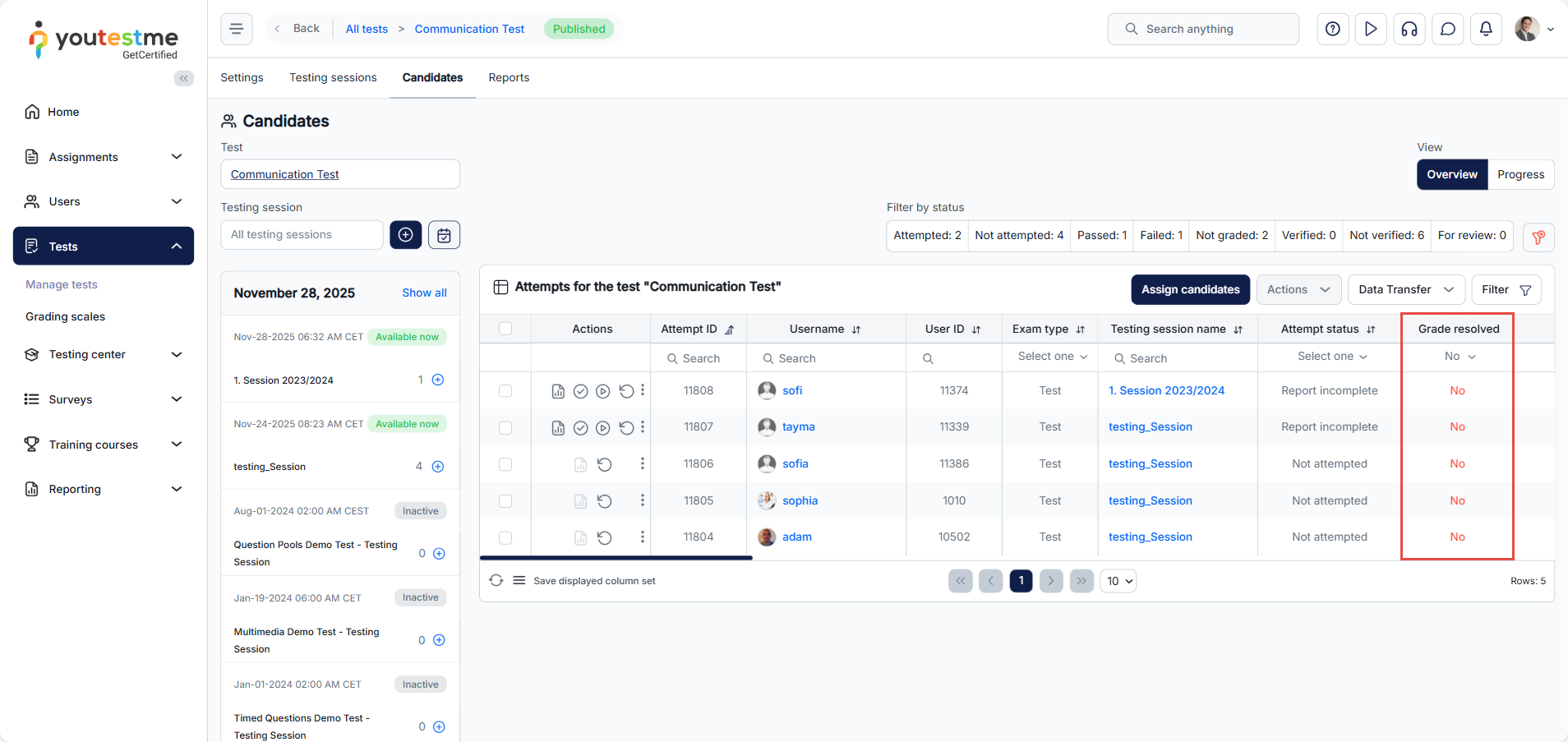
- When you select the Candidates tab, you can see candidates in the testing session of the user group this grader manages and their reports of test attempts:

- You can see which candidates have unresolved grades.
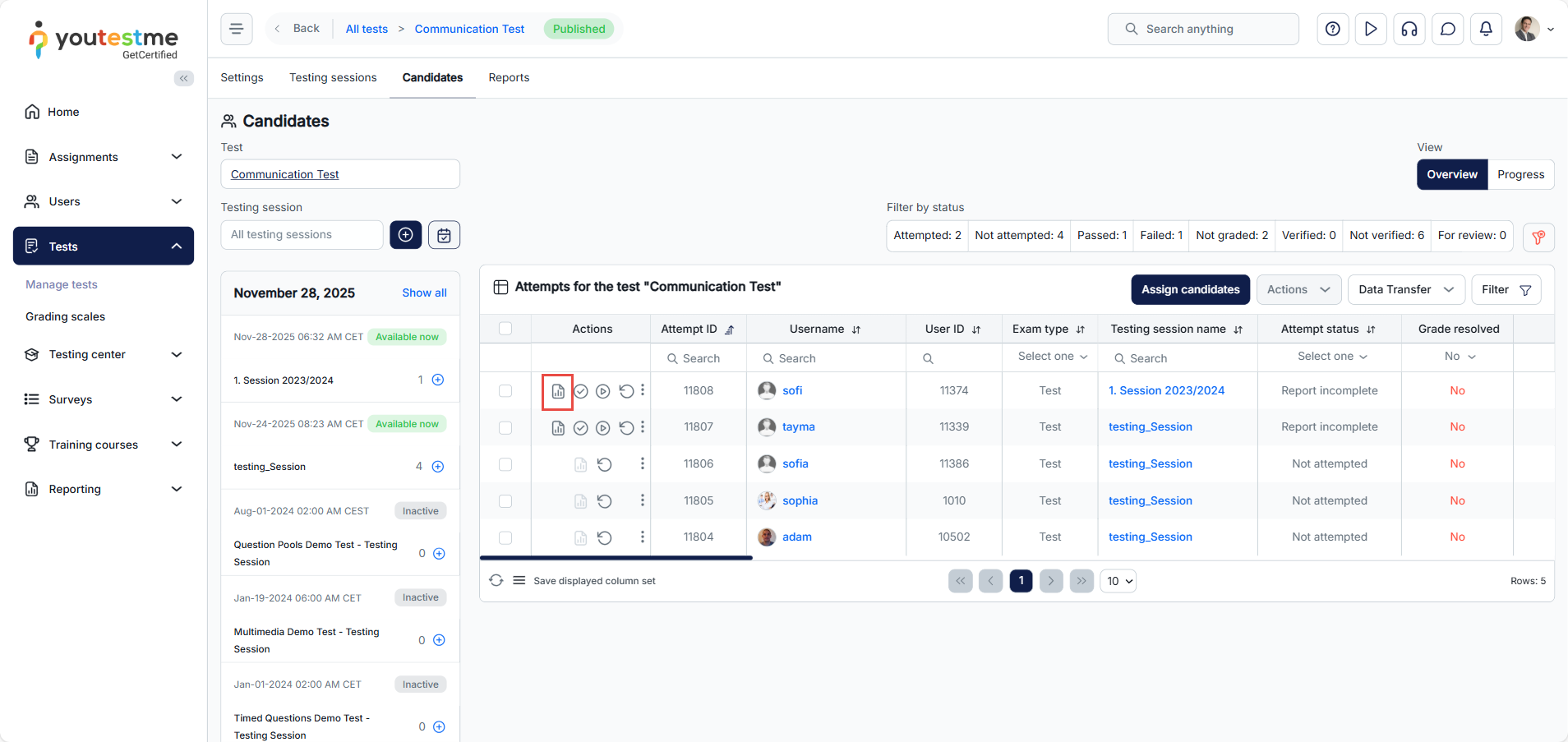
- Click on Open personal report for this candidate to grade questions.
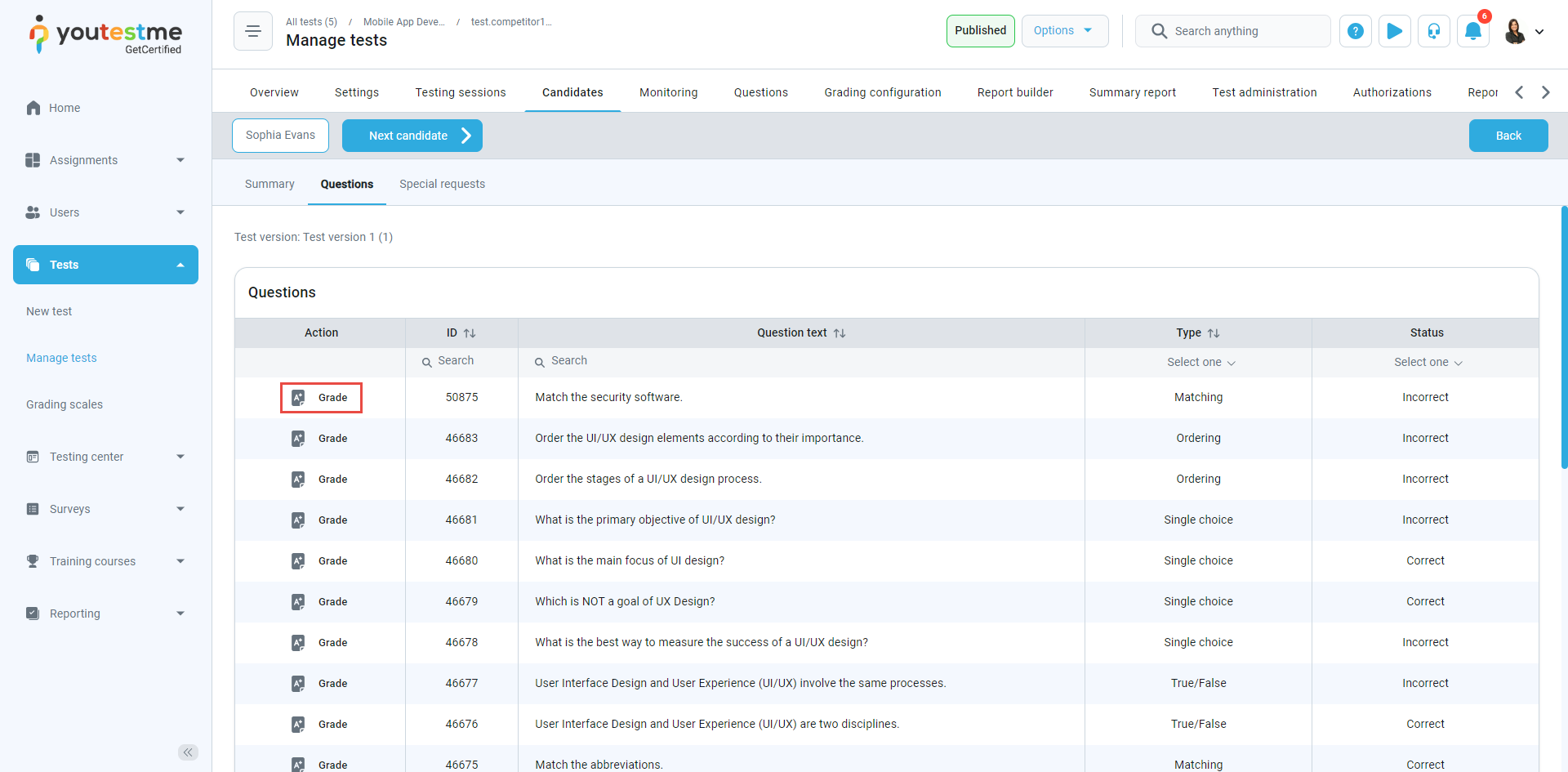
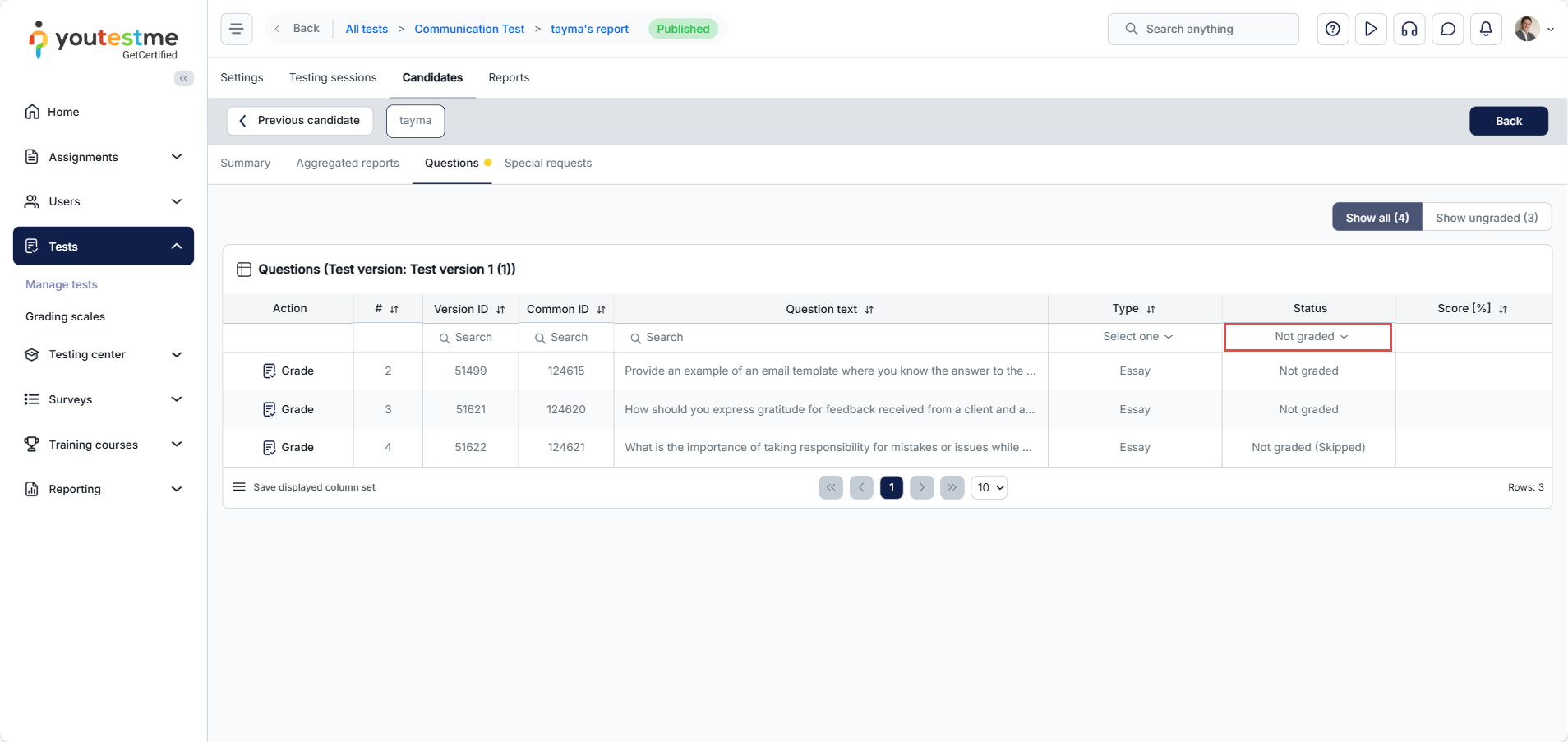
- When you open the report, under the Questions tab, select the status Not graded.
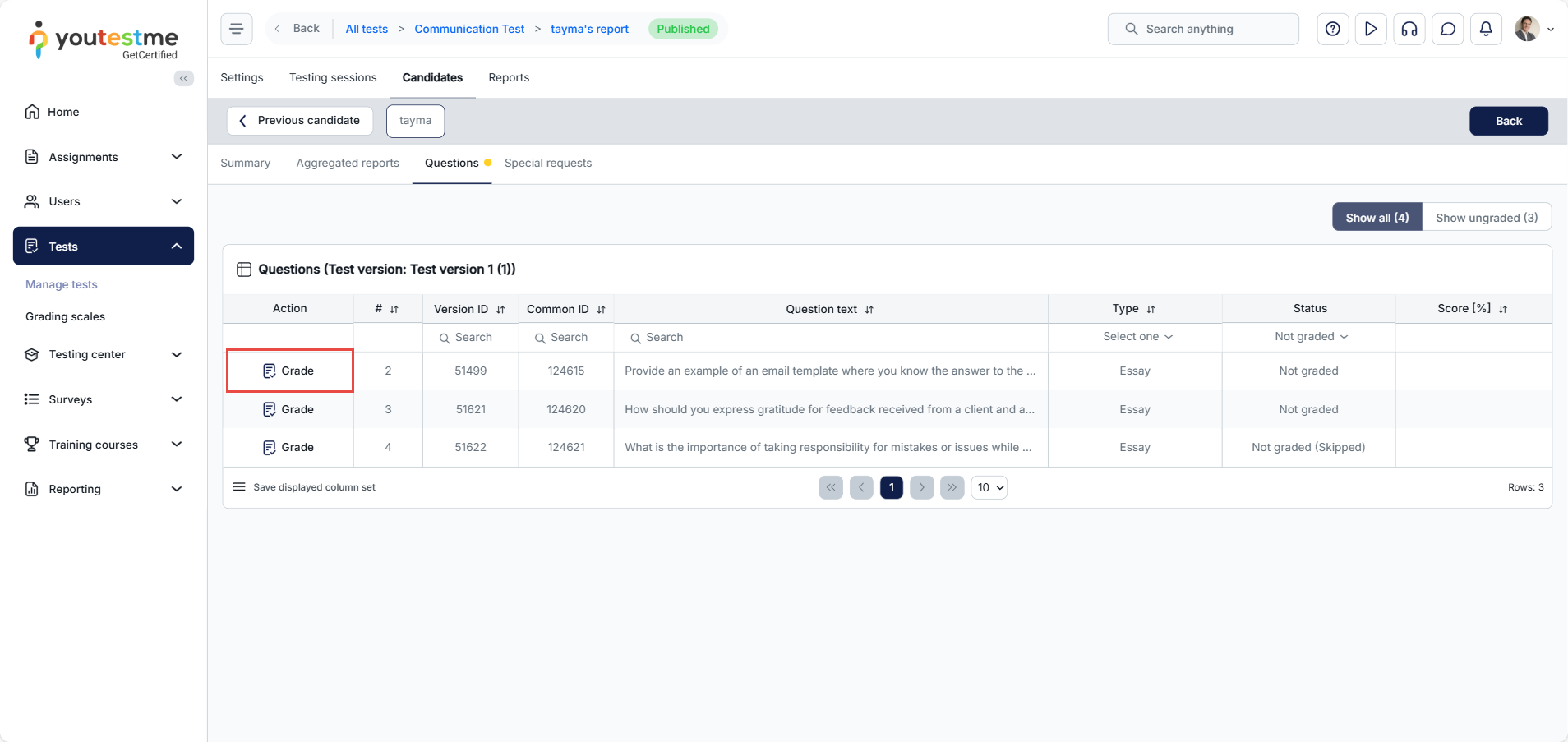
- Scroll to the right, and under the Action tab, select Grade.
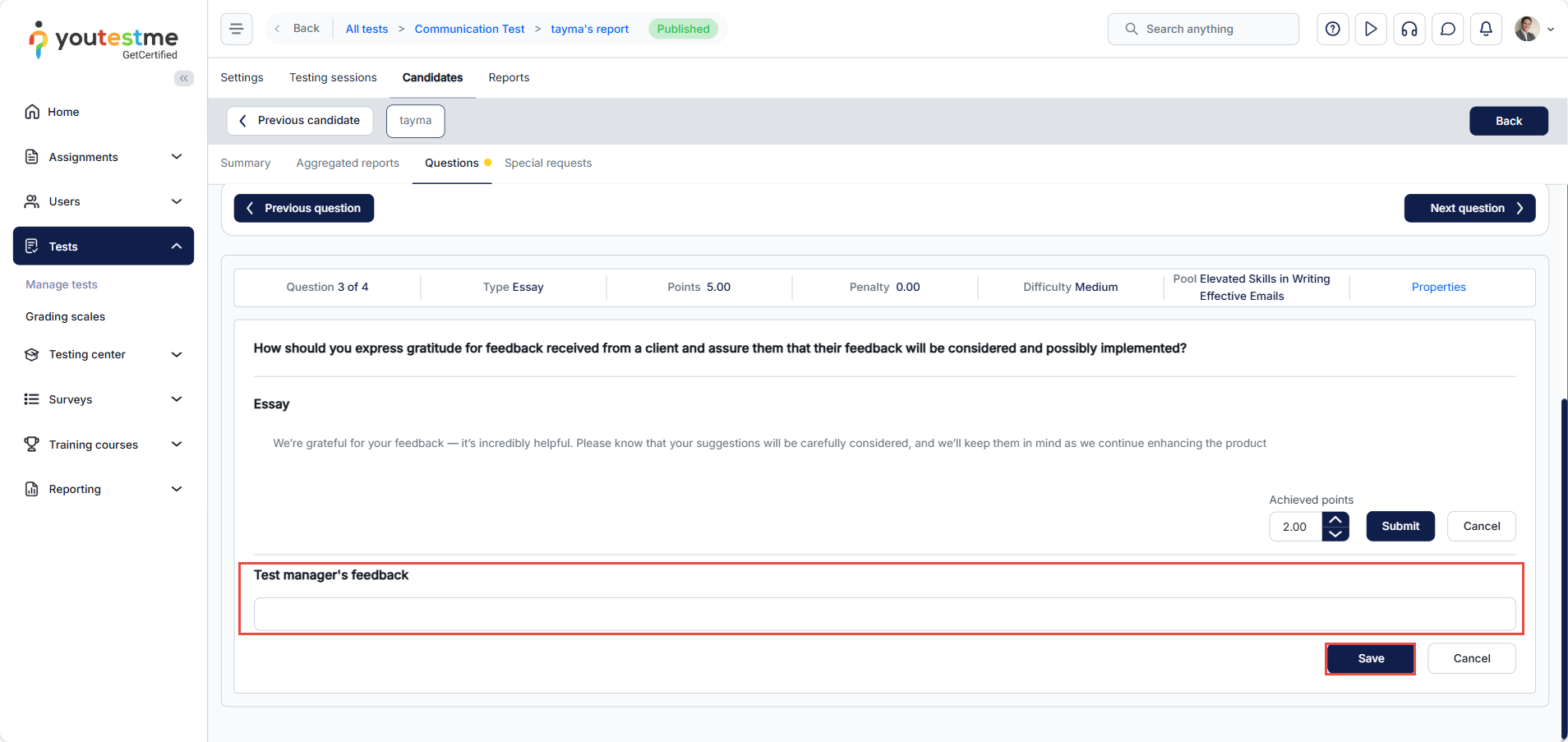
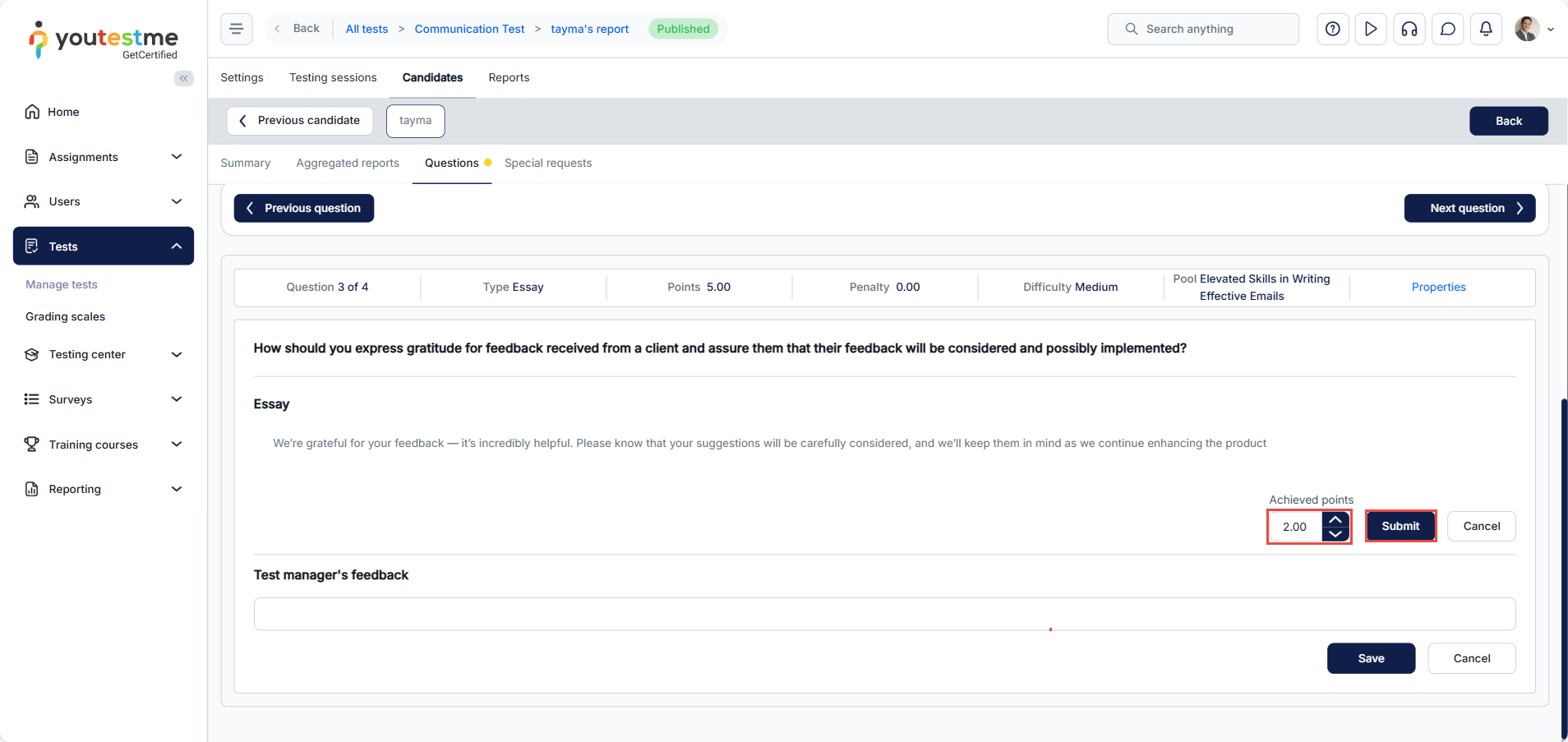
- You can grade questions and give feedback.
- Click on Submit, and the grade is resolved.
Grading process from the Grader’s perspective (2nd scenario)
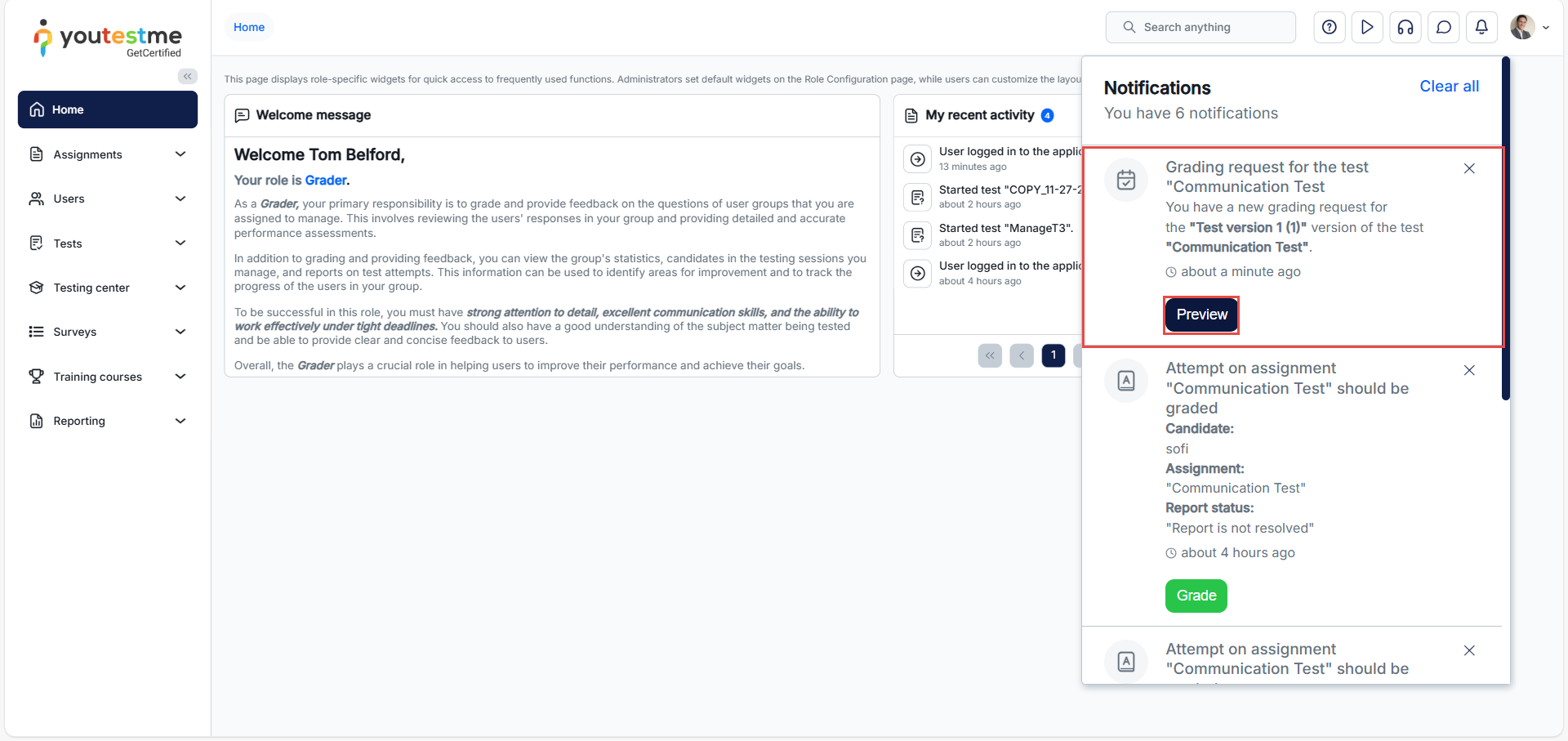
After the user finishes the attempt, the grader role will get a notification to grade the report. Select the Preview button.
The grader can accept or reject the grading report.
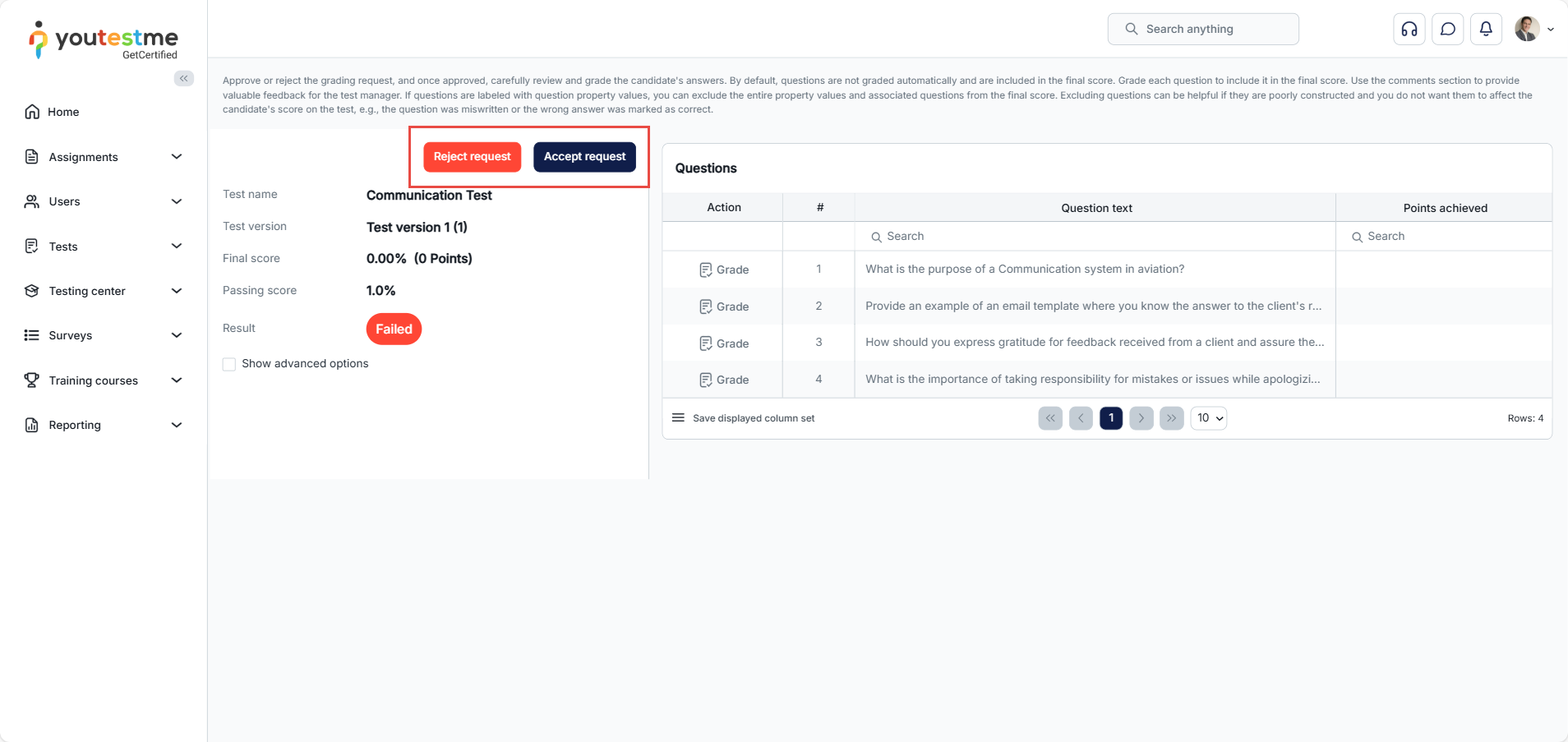
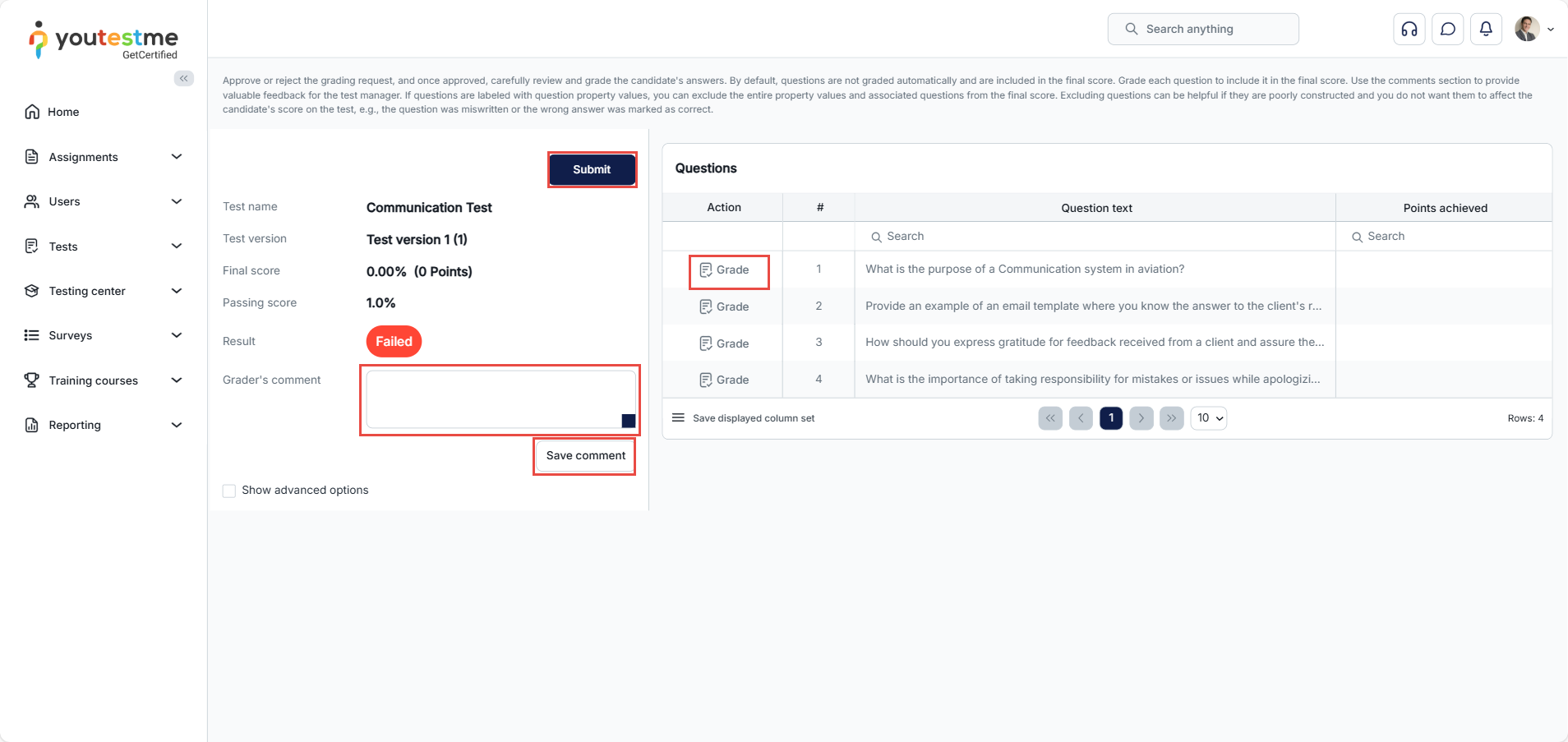
After accepting the test, the Grader’s comment field will be displayed. They can add comments and grade the attempt.
For more useful instructional materials, please visit:
- How to Use the Multiple Graders Feature to Grade a Test
- How to Grade a Proctoring Report of Proctorio
- How to Manually Grade a Test Attempt