Article verified for Release 15.1 on November 23, 2025.
This article explains how to use the Answers Generator, available for Single Choice and Multiple Choice questions. The feature automatically selects a set number of correct and incorrect answers, helping reduce memorization, increase test security, and give each candidate a different answer combination.
The steps below explain how to enable the Answers Generator in your questions.
How to Enable the Answer Generator
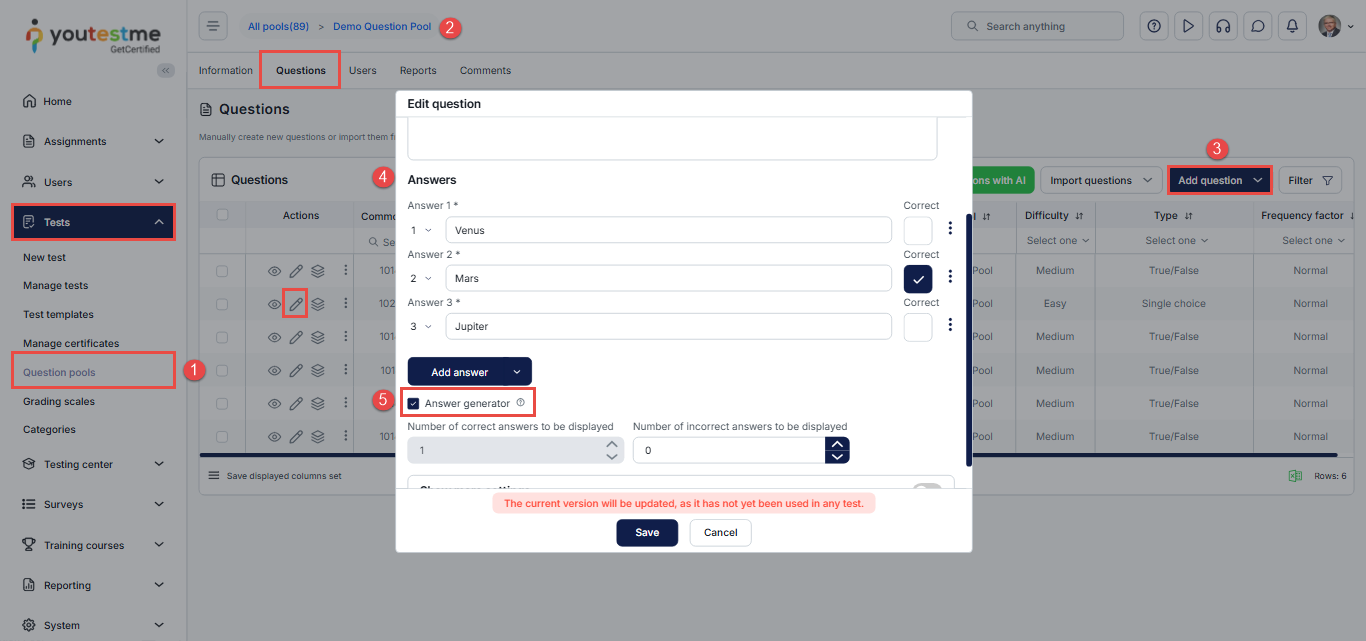
- In the main menu, navigate to Tests and choose Question Pools.
- Select an existing question pool or create a new one, depending on your scenario, and open the Questions tab.
- Create a new question or edit an existing Single Choice or Multiple Choice question.
- Scroll down to the Answers section.
- Enable the Answer Generator option.
Configuring the Answer Generator for Single-Choice Questions
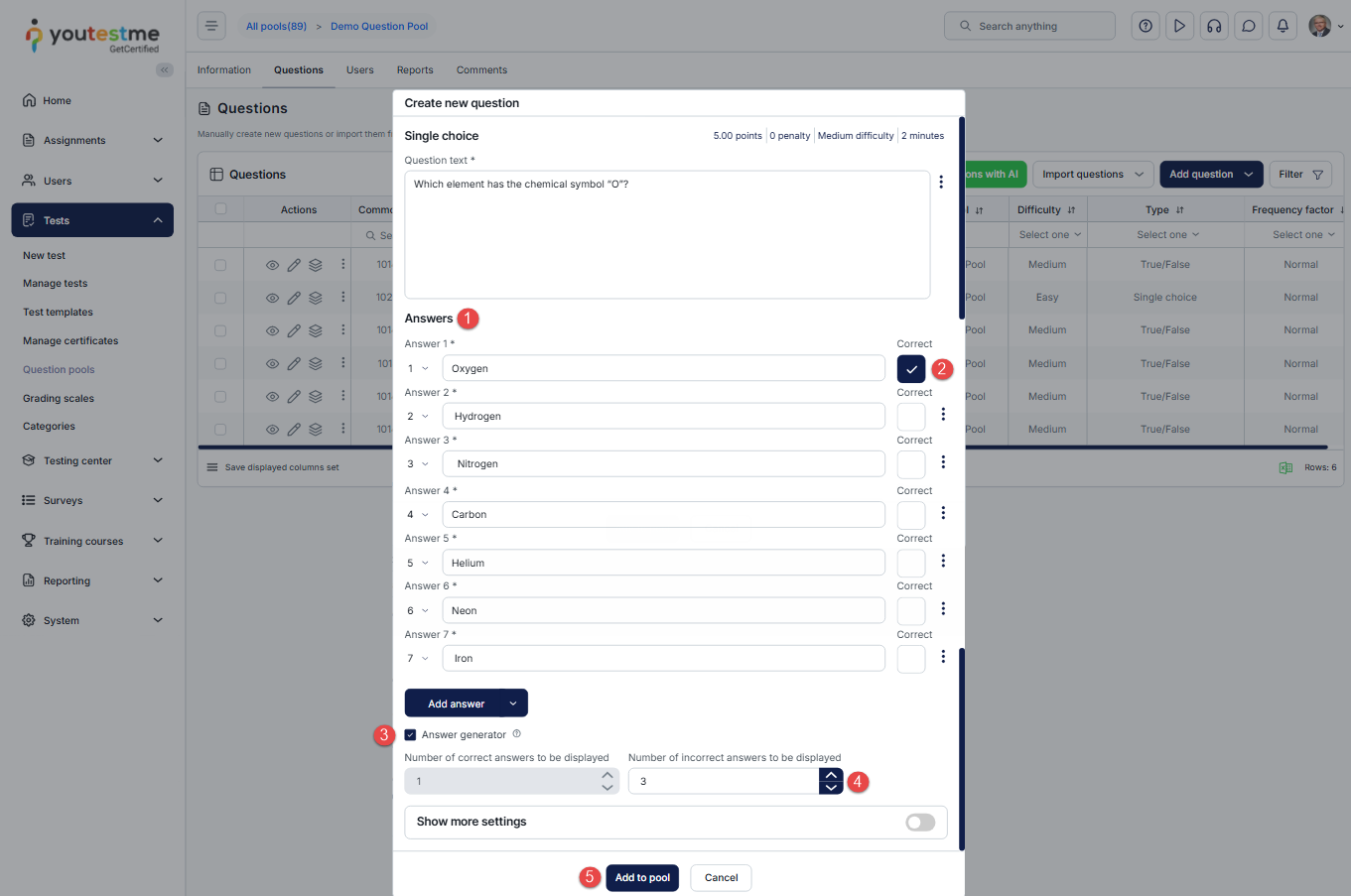
For single-choice questions, the Answers Generator creates different answer combinations for each candidate by using the answer possibilities you define. Since this question type always has one correct answer, the configuration is simpler, but you still have full control over how many incorrect answers the system will display.
- Enter all answer possibilities, including the correct and incorrect options.
- Select the correct answer. Single-choice questions always have exactly one correct answer, and this cannot be changed.
- Enable the Answer Generator in the Answers section.
- Define how many incorrect answers should be randomly displayed to each candidate from the remaining possibilities.
- Save the question.
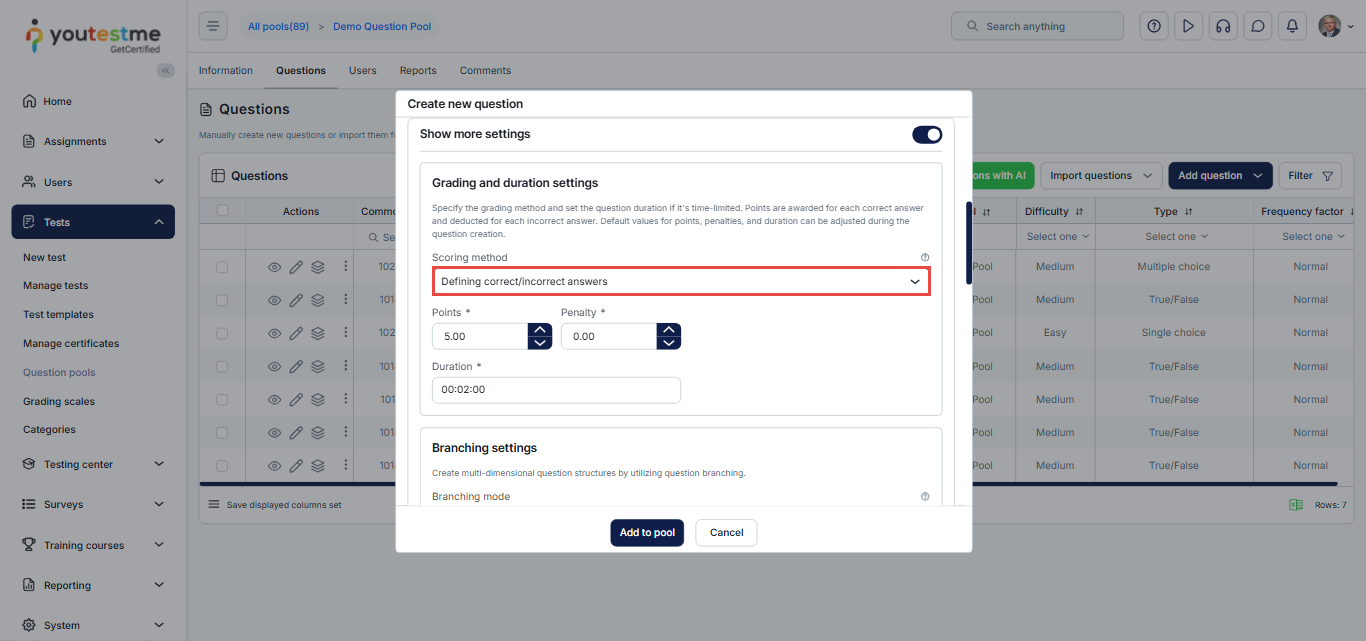
Note: The Answer Generator is available for Single-Choice questions only if the scoring method is “Defining correct/incorrect answers”. If a different scoring method is selected, the generator will be disabled.
Once configured, the system will automatically generate answer combinations for each candidate based on your settings. The correct answer is always included.
Example:
If you create 10 answer possibilities and configure the system to display 3 incorrect answers, each candidate will see 4 answers total (1 correct + 3 randomly selected incorrect ones).
Note: When the Answer Generator is enabled, branching is automatically disabled for this question.
For more information on creating a Single-Choice question, please visit this article.
Configuring the Answer Generator for Multiple-Choice Questions
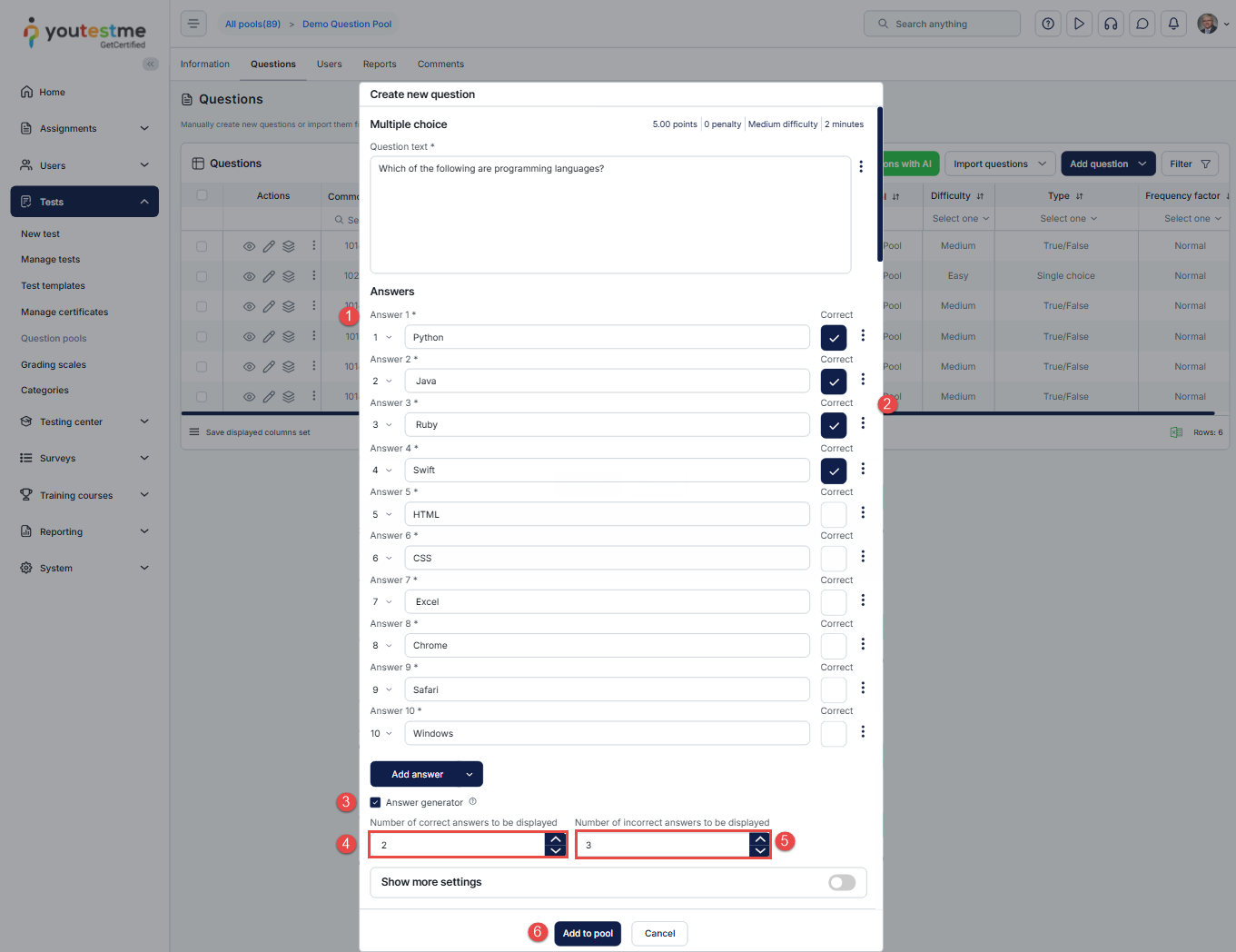
For multiple-choice questions, the Answers Generator can display a mix of correct and incorrect answers, based on the numbers you define. This allows each candidate to receive a different answer combination while maintaining accurate scoring.
- Enter all answer possibilities, including all correct and incorrect options.
- Mark the correct answers.
- Enable the Answer Generator in the Answers section.
- Define how many correct answers should be randomly displayed to each candidate.
- Define how many incorrect answers should be randomly displayed to each candidate.
- Save the question.
Note: The Answer Generator is available for Multiple-Choice questions only if the scoring method is either “Defining correct/incorrect answers” or “By grading rules.” If a different scoring method is selected, the generator will be disabled.
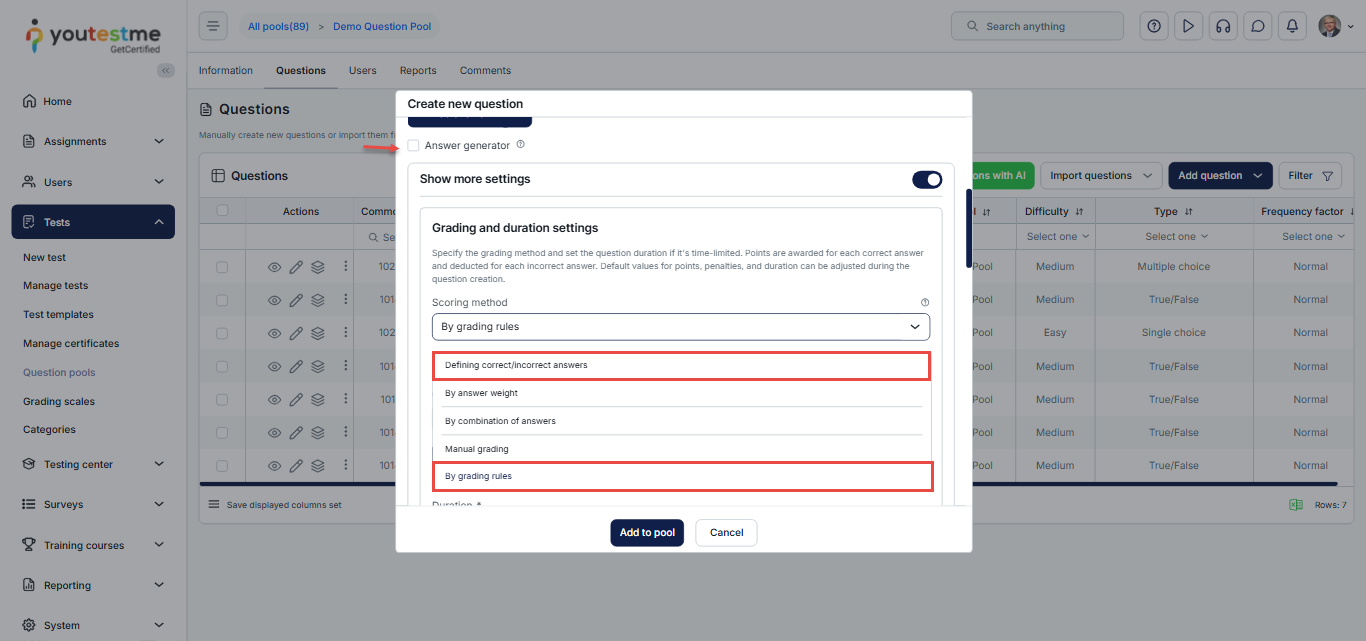
The system will now generate different answer combinations for each candidate based on your configured number of correct and incorrect answers.
- Example: If a question has 6 correct answers and 12 incorrect answers, and you configure the system to display 2 correct and 3 incorrect answers per attempt, each candidate will see 5 answers total.
Note: When the Answer Generator is enabled, branching is automatically disabled for this question.
For more information on creating a Multiple-Choice question, please visit this article.
Candidate Perspective
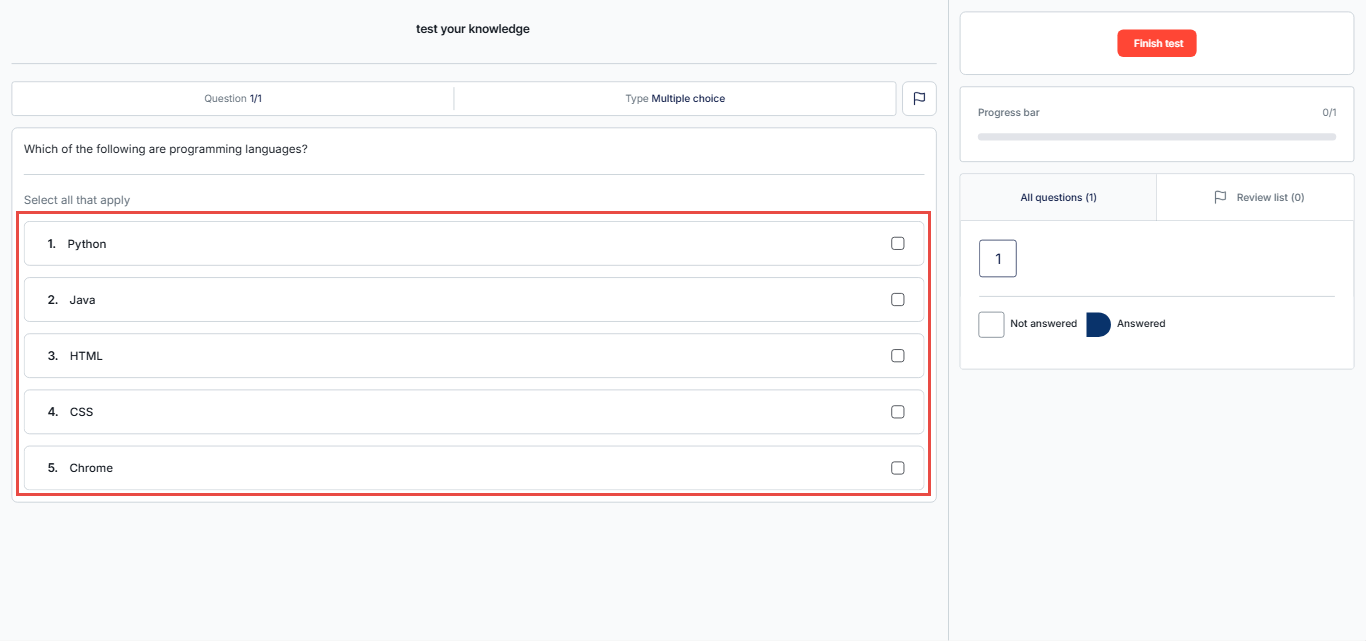
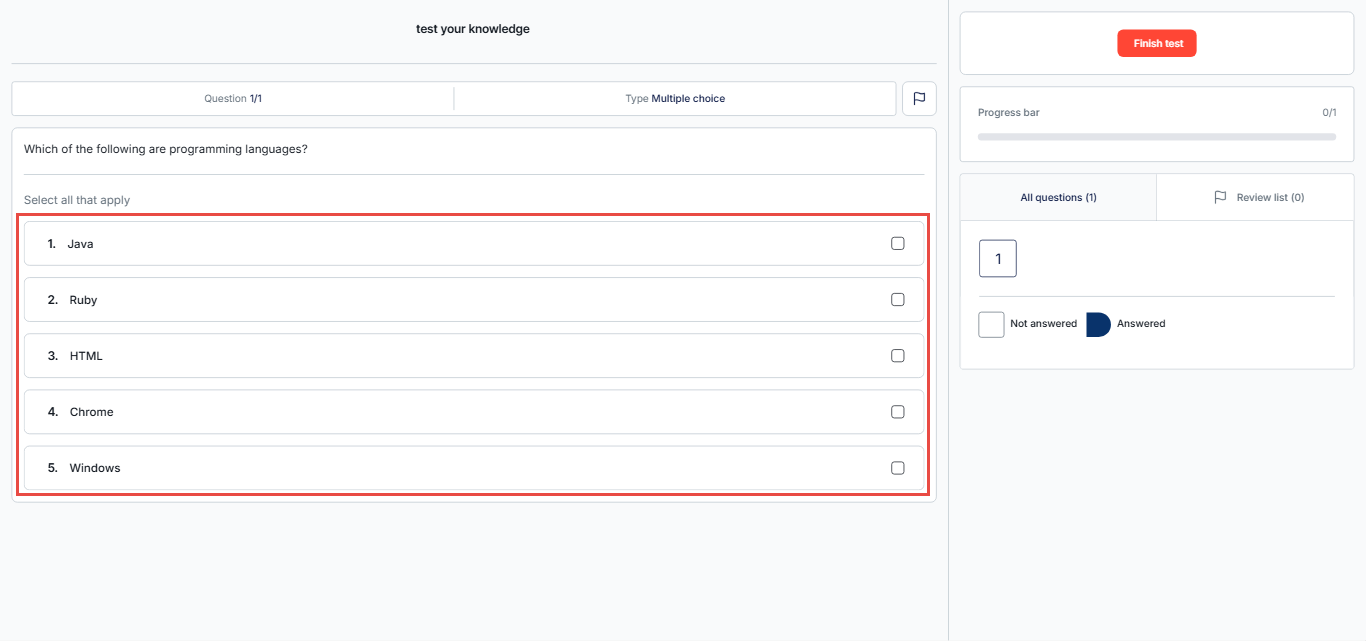
When the Answer Generator is enabled, each candidate will see a unique, randomly generated set of answers based on the configuration defined by the test manager. If two candidates take the exam at the same time, or if the same candidate retakes the exam, the displayed answers may differ each time. See the examples below.
Impact on Reports
When the Answer Generator is enabled, reports reflect the report configuration set by the test manager, and only the answers shown to each candidate. Hidden answers are never included.
- Only displayed answers appear in the Personal Report.
Correct and incorrect options that were not presented during the test will not appear in any report. - Scoring is based exclusively on the answers each candidate received.
The system applies the test’s scoring rules only to the answers displayed to that candidate. - Different attempts may show different answer sets.
This applies to both different candidates and repeat attempts by the same candidate.
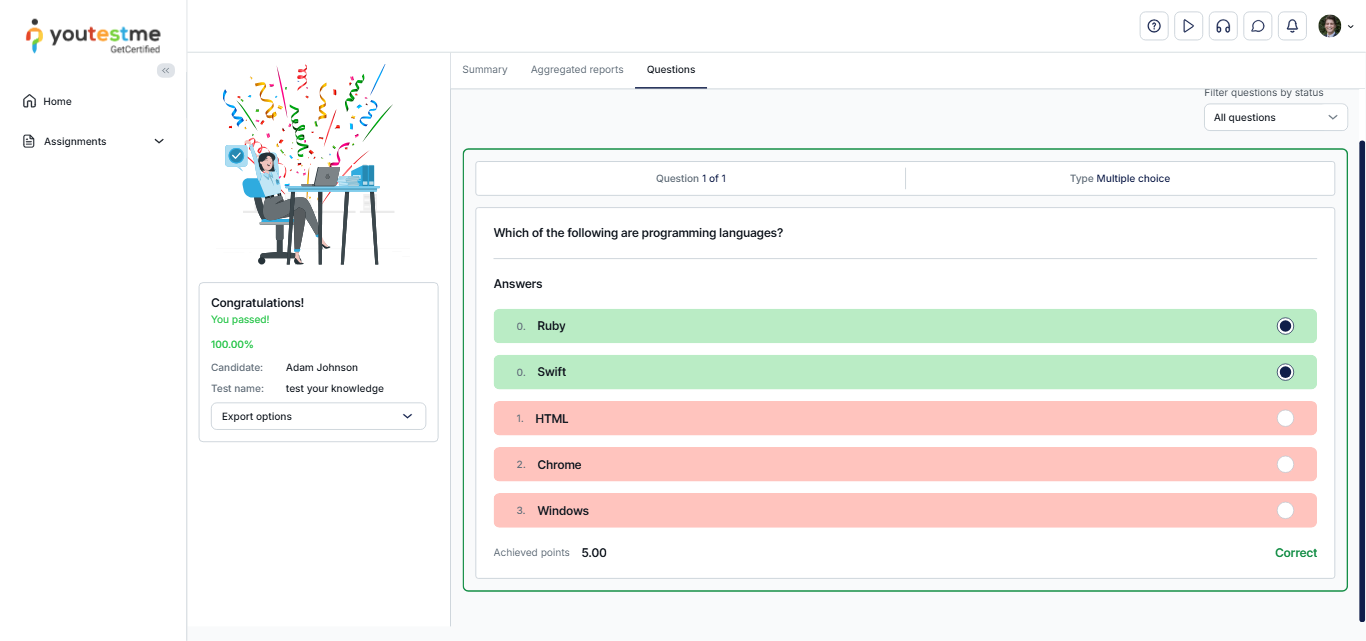
The examples below show how two candidates taking the same exam and answering the same question can receive different scores, depending on the answers that were displayed to each of them.

For more related topics, please visit these articles






