Article verified for Release 15.0 on December 25, 2025.
This article explains how to use the real-time grading option, which lets users see their test scores update immediately after submitting each answer.
Configuring a Test with Real-Time Grading
When creating a test, you can choose when to display candidates’ scores. This selection is made in the Settings step of the wizard.
In the following sections, we will explain what happens when the real-time grading option is selected.
Candidate’s Perspective with Real-Time Grading
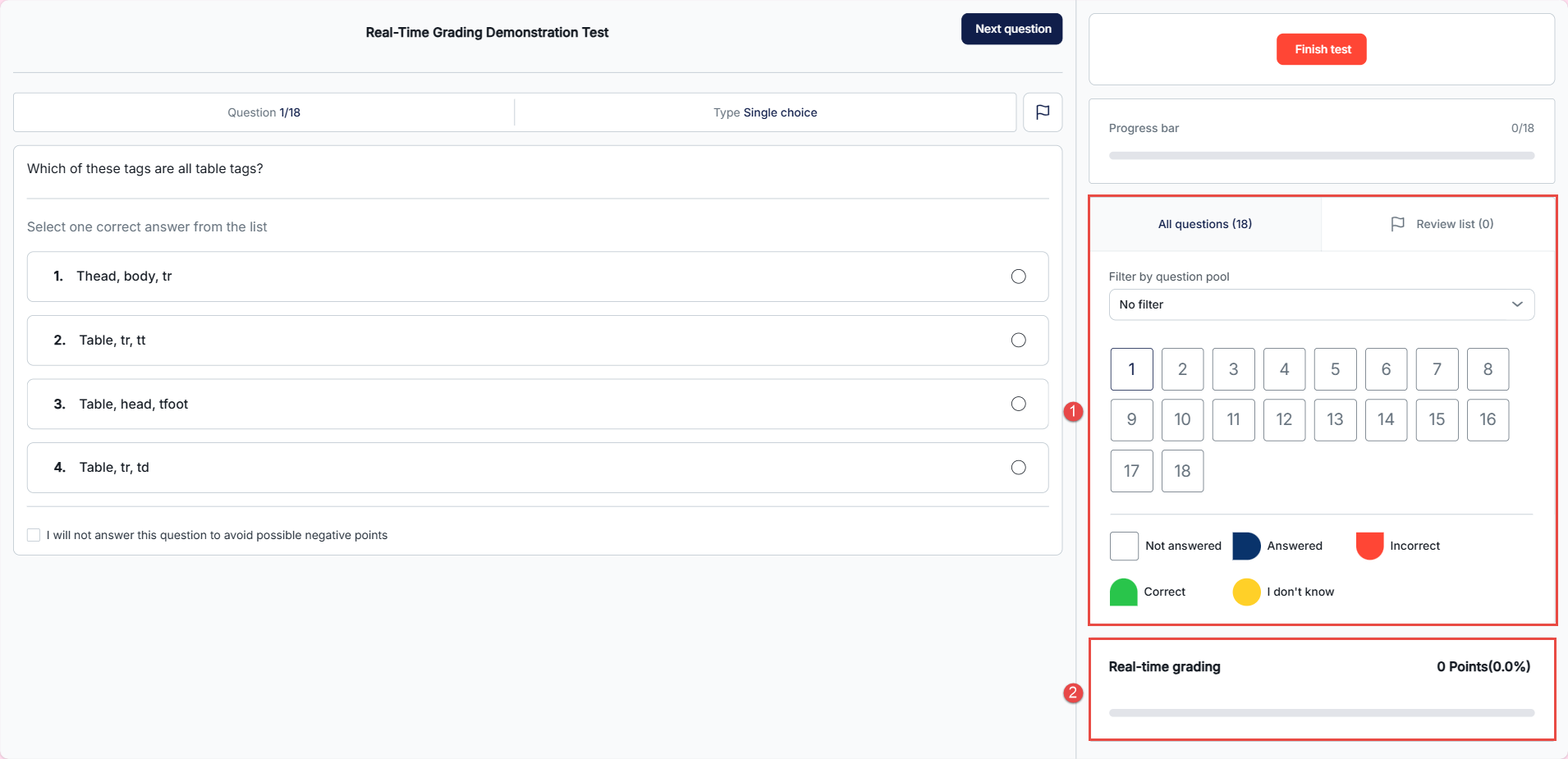
During the test-taking process, the candidates will be presented with:
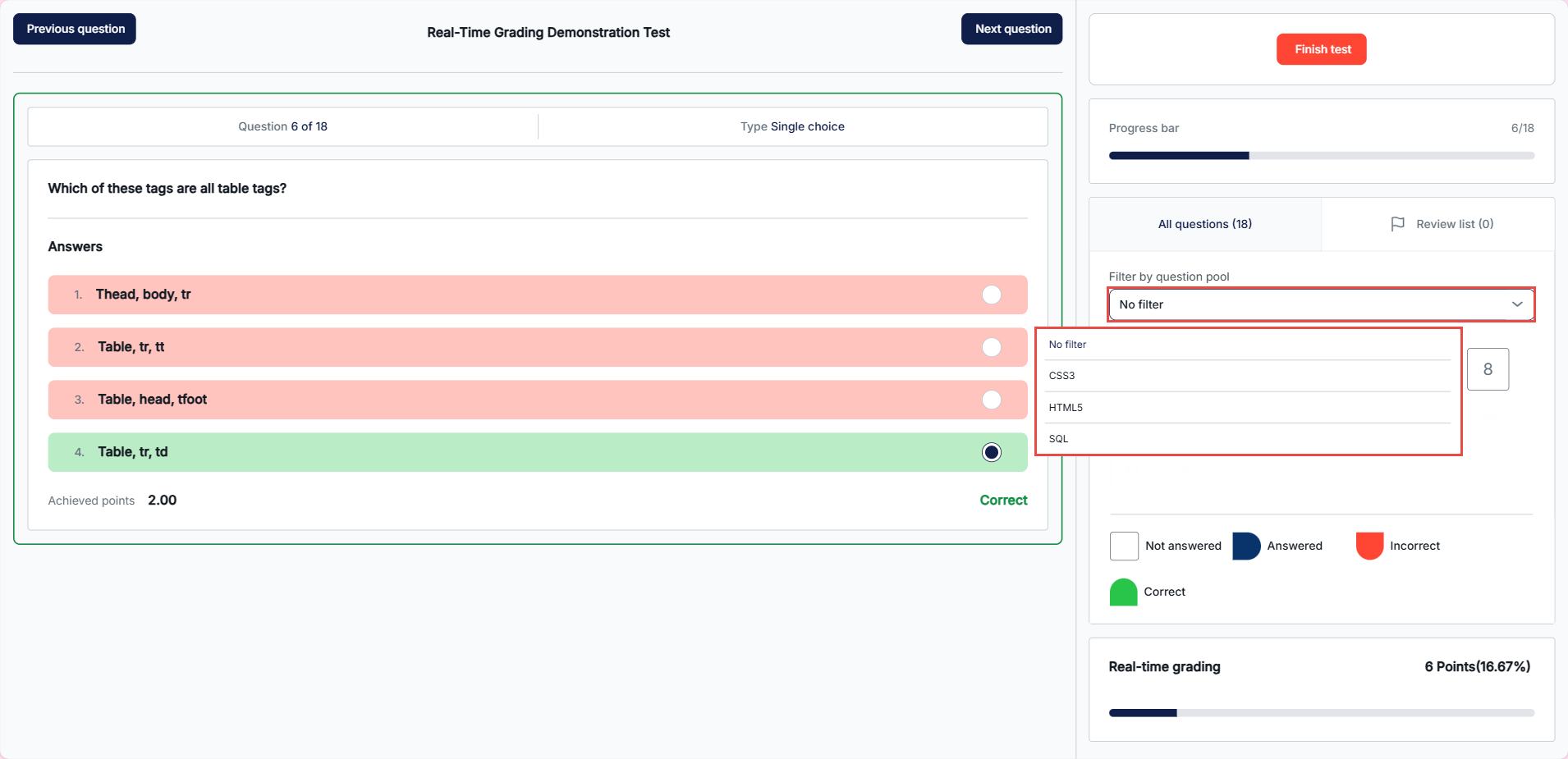
Symbols and Colors to Indicate Question Status:
White: The question is not answered.
Yellow: The question was skipped because the “I will not answer this question to avoid possible negative points” option was selected. Note: The “I don’t know” option is optional and can be enabled or disabled in the question settings. For instructions on how to configure this option, please refer to this article.
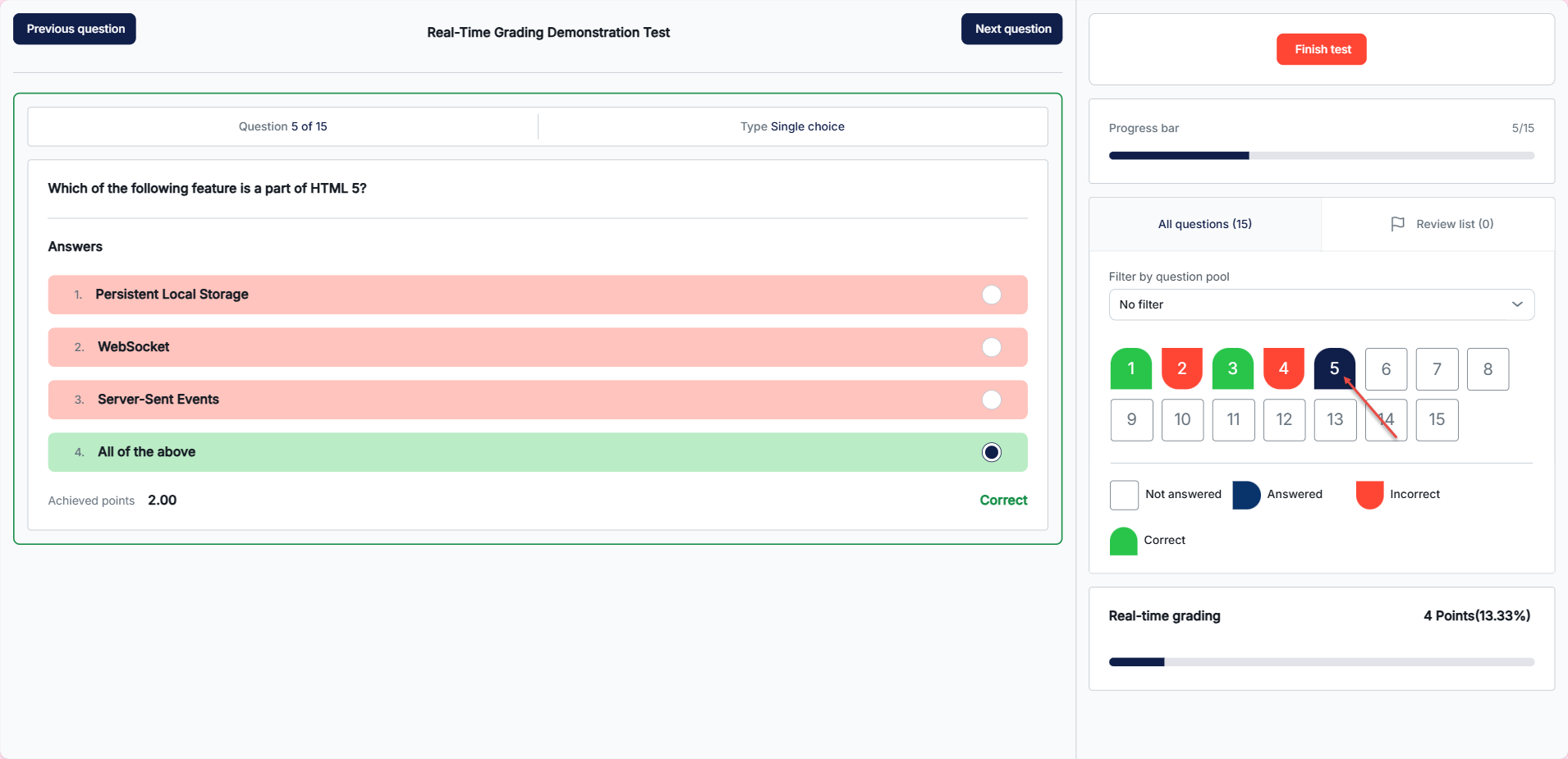
Blue: The question is answered. (When real-time grading is enabled, the field will be blue when the instructor must rate the question.)
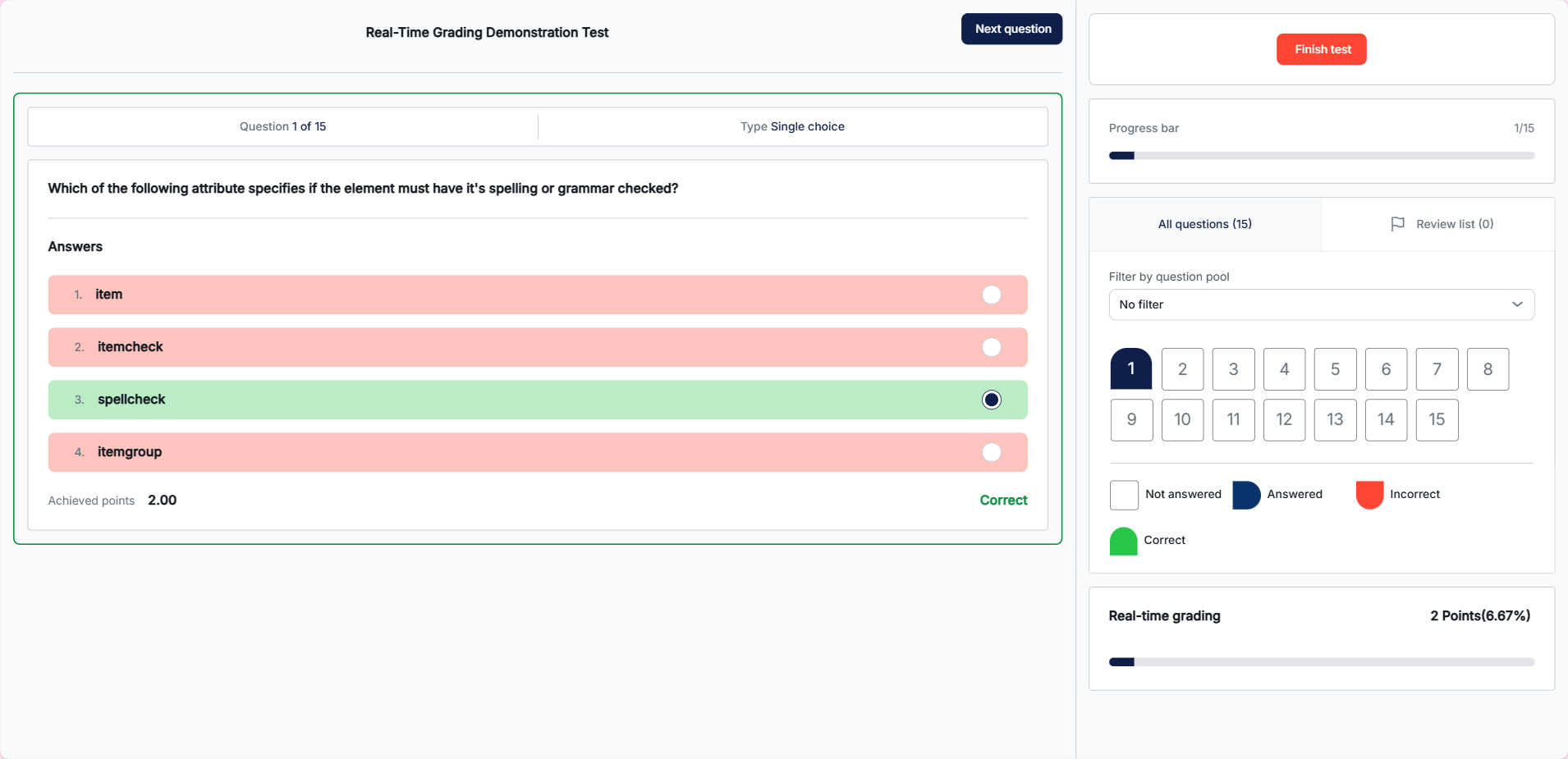
Green: The question is answered correctly. This color is used only when real-time grading is enabled.
Red: The question was answered incorrectly. This color is used only when real-time grading is enabled.
Progress Bar: Displays the current progress on the test (number of points earned or percentage of completed questions). This feature is only available when real-time grading is enabled.
Additional Options for Real-Time Grading
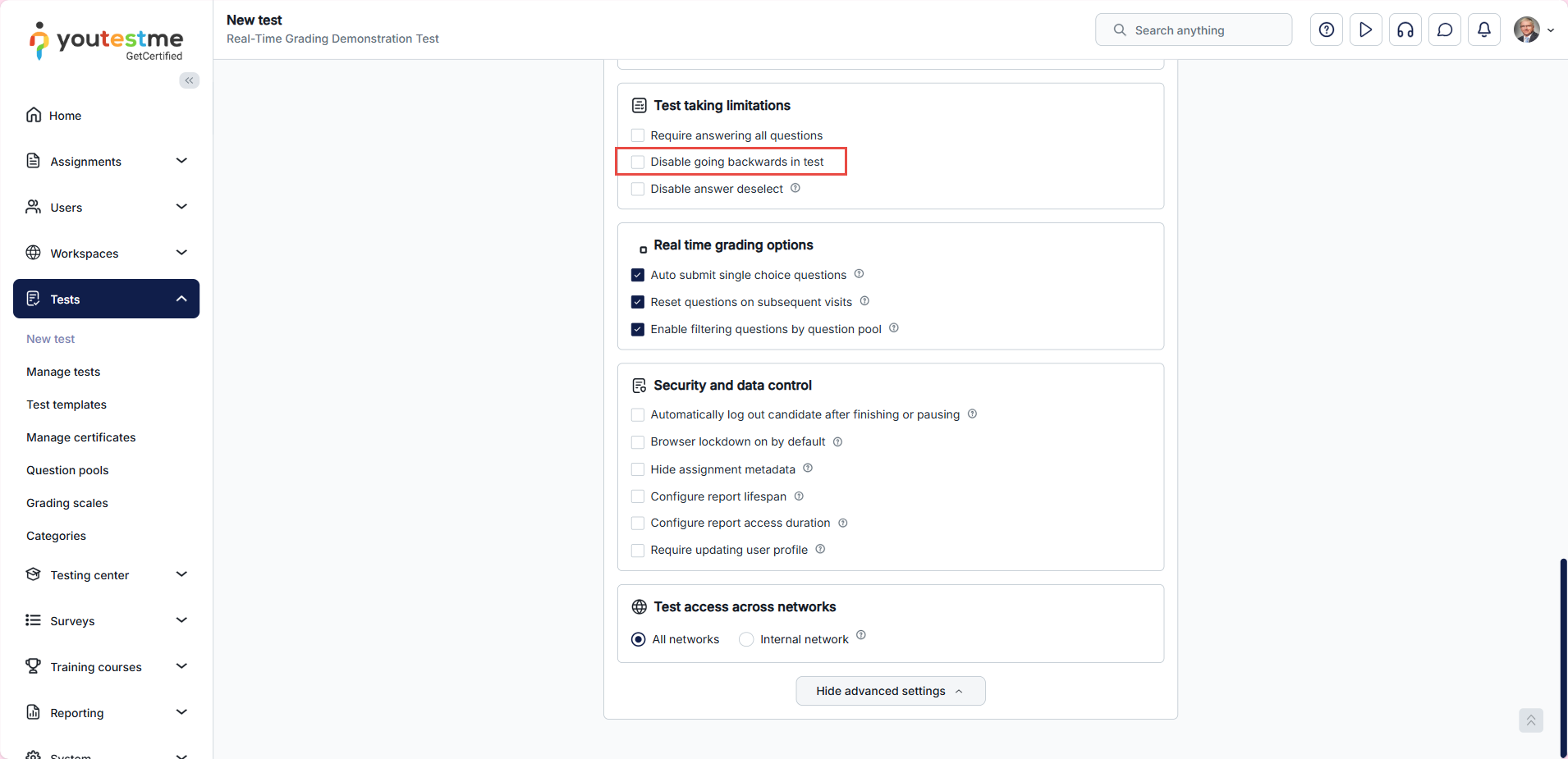
Auto Submit Single Choice Questions
If enabled, single-choice questions will be automatically submitted when an answer is selected.
Candidate’s Perspective:
Reset Questions on Subsequent Visits
If enabled, the candidate’s previously selected answer will be reset on subsequent visits.
Note: If no new answer is provided, the previous answer will be counted.
Candidate’s Perspective:
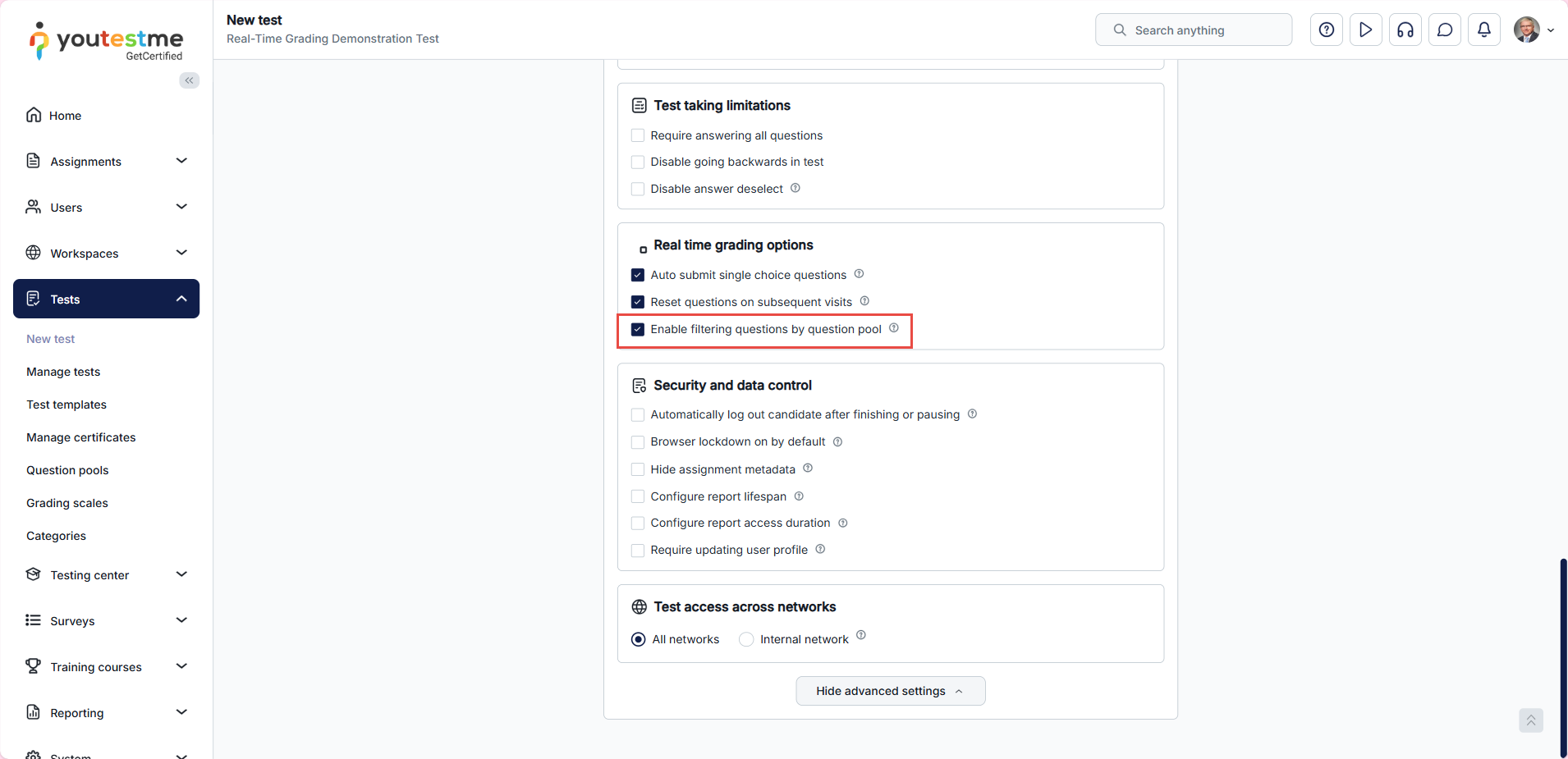
Enable Filtering Questions by Question Pool
If enabled, candidates can filter questions by selecting a question pool from the list. Only questions from the selected pool will be visible.
Note: This option is available only for real-time grading tests and if the “Disable going backwards in test” option is not checked.
Candidate’s Perspective:
Disable Going Backwards in Test
If enabled, candidates cannot go back to previous questions.
Recommendations:
Enable this option for official tests with real-time grading to prevent candidates from changing answers after seeing if they were correct.
Disable this option for practice tests to allow candidates to learn and practice using the additional real-time grading features like answer resetting.
Tests with Sections
The same settings apply for tests with sections:
Real-time grading is configured at the test level
Additional real-time grading options are configured at the section level
Decide at the section level whether to allow candidates to return to the section or not.
For more useful instruction materials, please check: