Article verified for Release 15.1 on December 18, 2025.
This article explains how to edit test questions while keeping their connection to the question pool. It clarifies the difference between editing questions directly in the test and updating them through the pool, as well as how each method affects future test attempts.
Manually created tests – Import questions from pools
When creating tests, you can import questions from pools. If necessary, you can later edit the test questions. New users will get a new version of the questions, while users who have already attempted them will see the old version in the report.
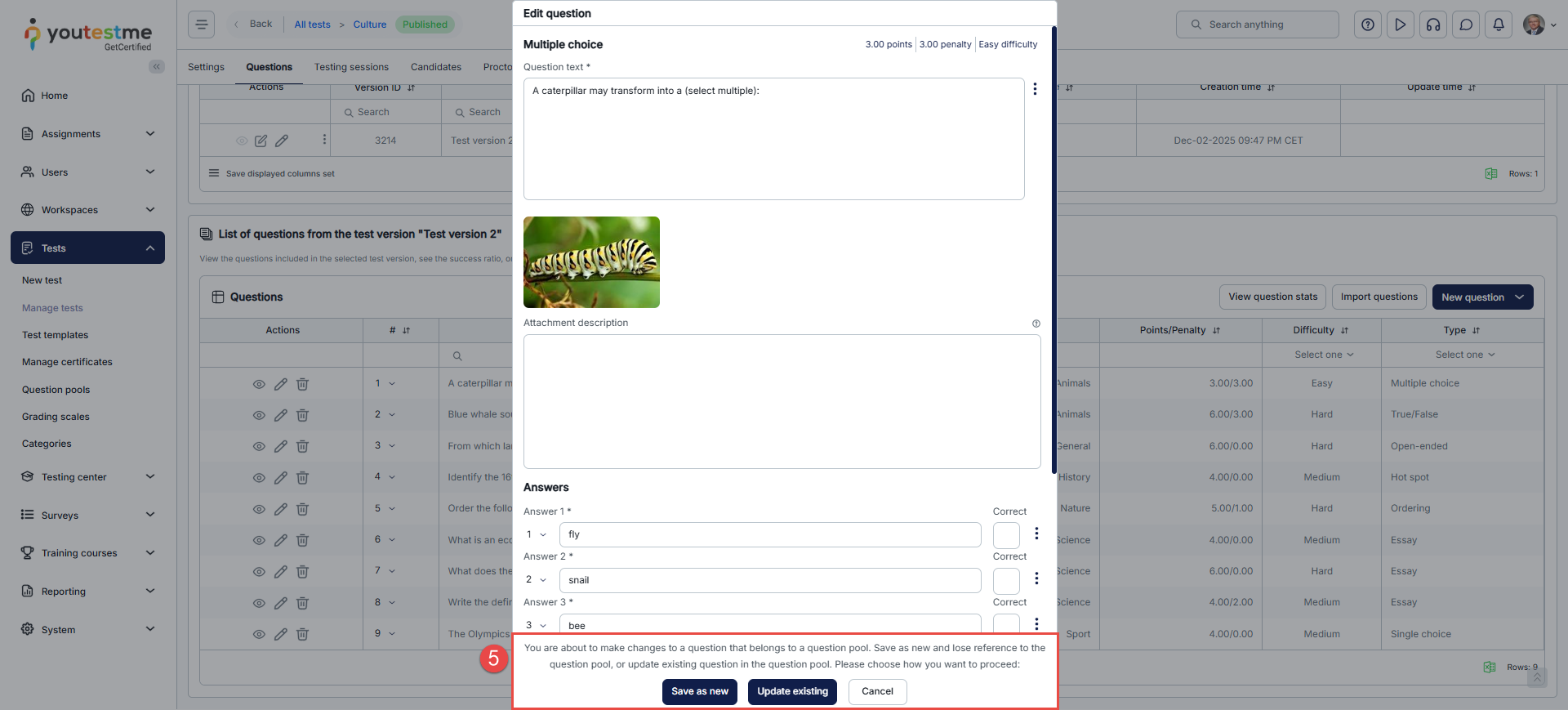
Important notice: When editing a question directly inside a manually created test that is linked to a question pool, the system gives you a choice. A prompt will appear saying that the question belongs to a pool and asking how you want to proceed. You can choose from these two options:
Save as New: The edited question will become a standalone question, losing its connection to the pool.
Update Existing: The changes will be applied to the existing question in the pool, preserving the connection. Future test attempts will use the updated version.
This prompt lets you decide immediately whether your edits should remain linked to the pool or become a separate question. You can also update questions directly in the question pool, which preserves the connection.
Editing questions directly in the test
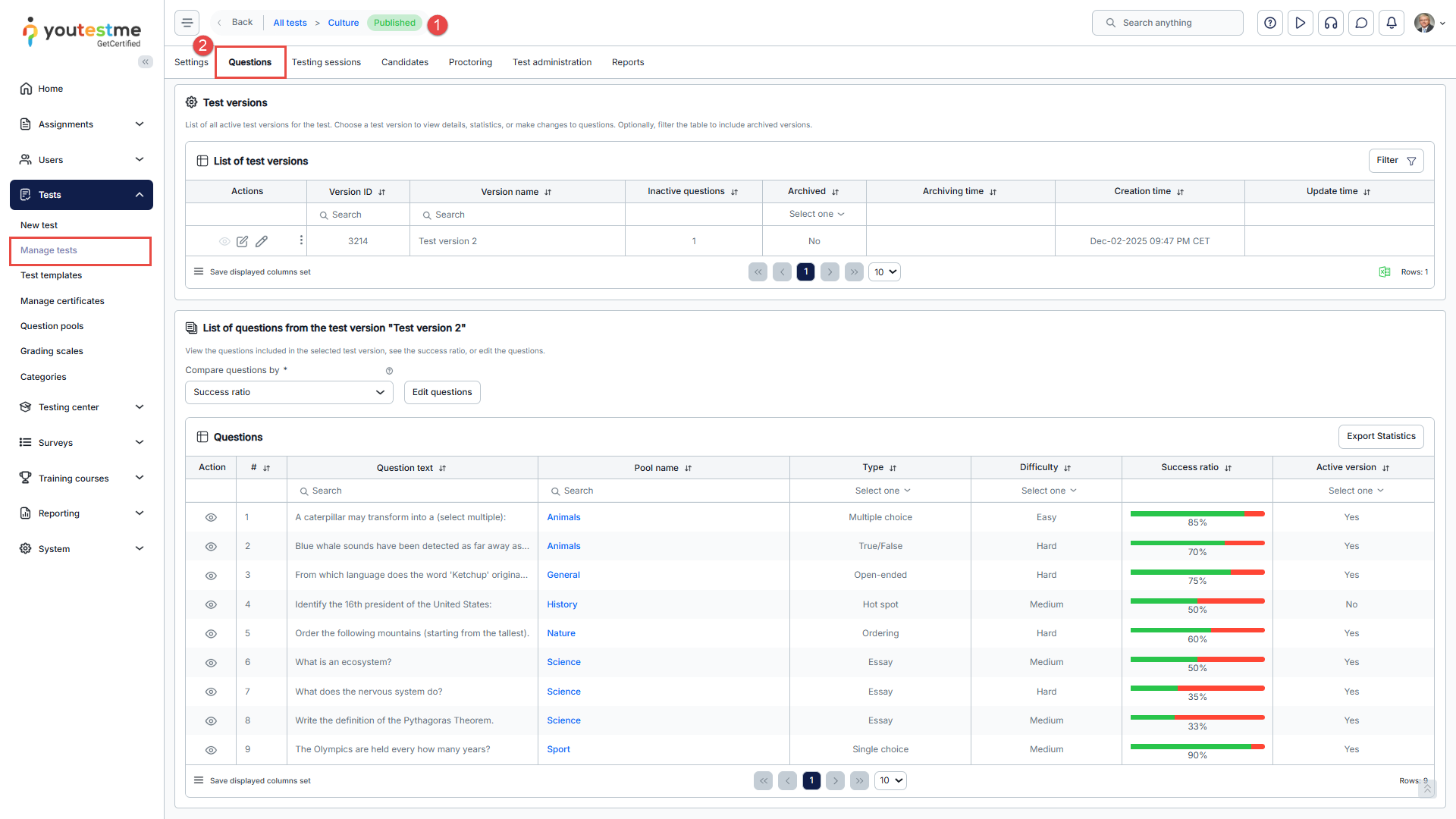
Open the desired test.
Navigate to the Questions tab.
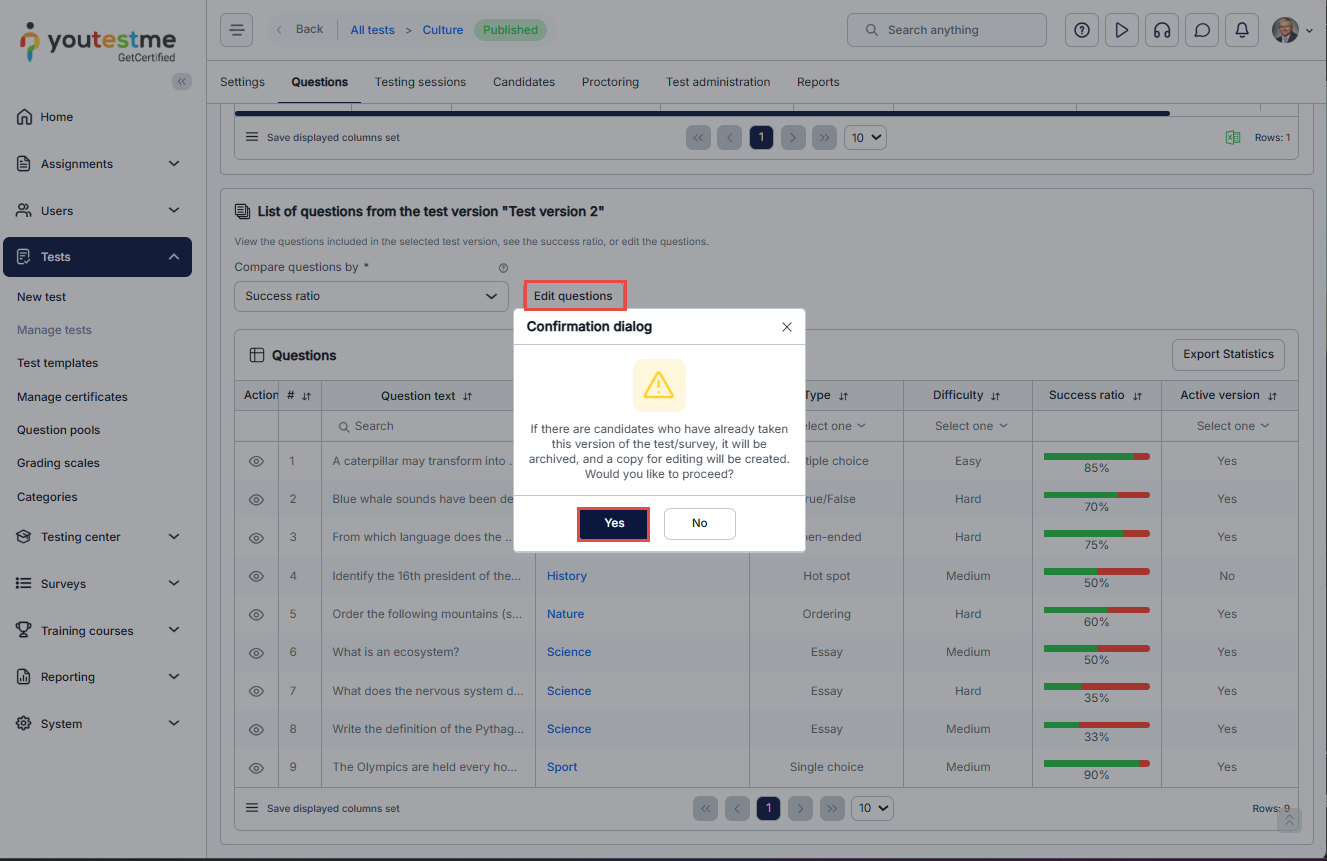
Click the Edit questions button.
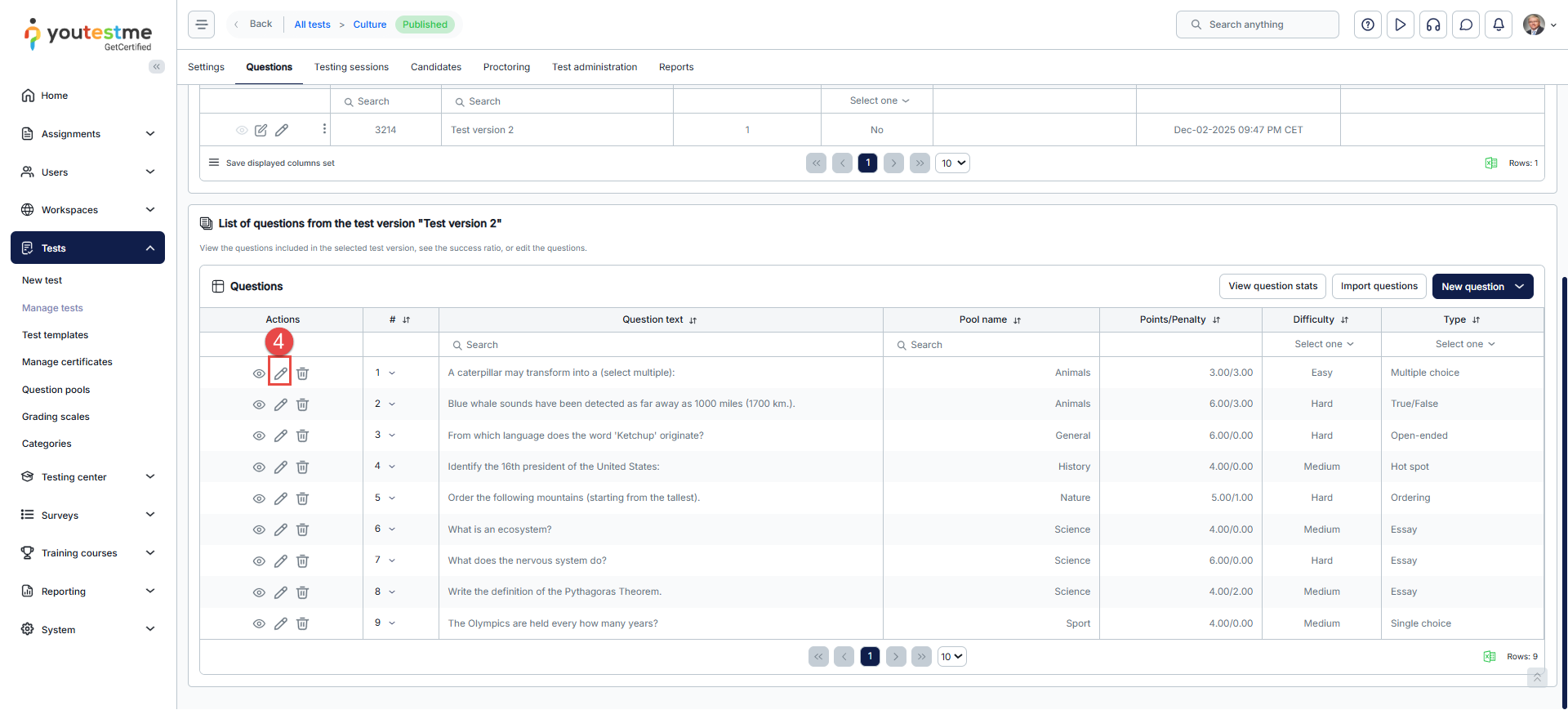
Click the pencil icon next to the question you want to edit.
Make your changes and choose Save as New or Update Existing as described above.
If you choose Save as New, the edited question is no longer linked to the pool. The changes are applied immediately to the current test, and other tests that use the original pool question remain unaffected.
If you choose Update Existing, the system updates the question in the Question Pool, which means the change is applied globally—to that question everywhere it’s used (including other tests that reference it). The update also creates a new question revision, and the previous revision becomes inactive.
Important: Existing tests will not automatically start using the updated revision. To apply the change in a specific test, you must generate a new test version. The steps below explain how to generate a new version:
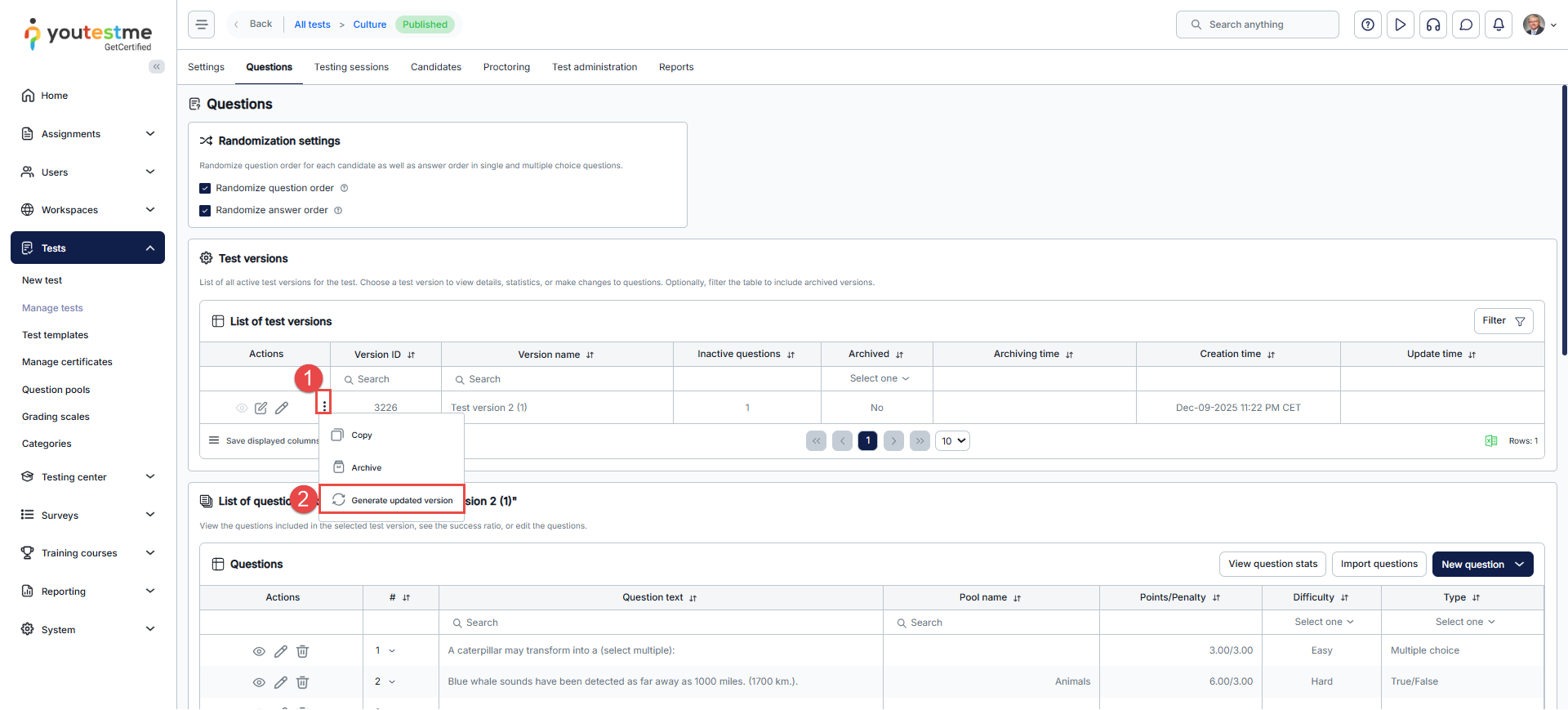
Click the three dots in the Actions column.
Select Generate updated version.
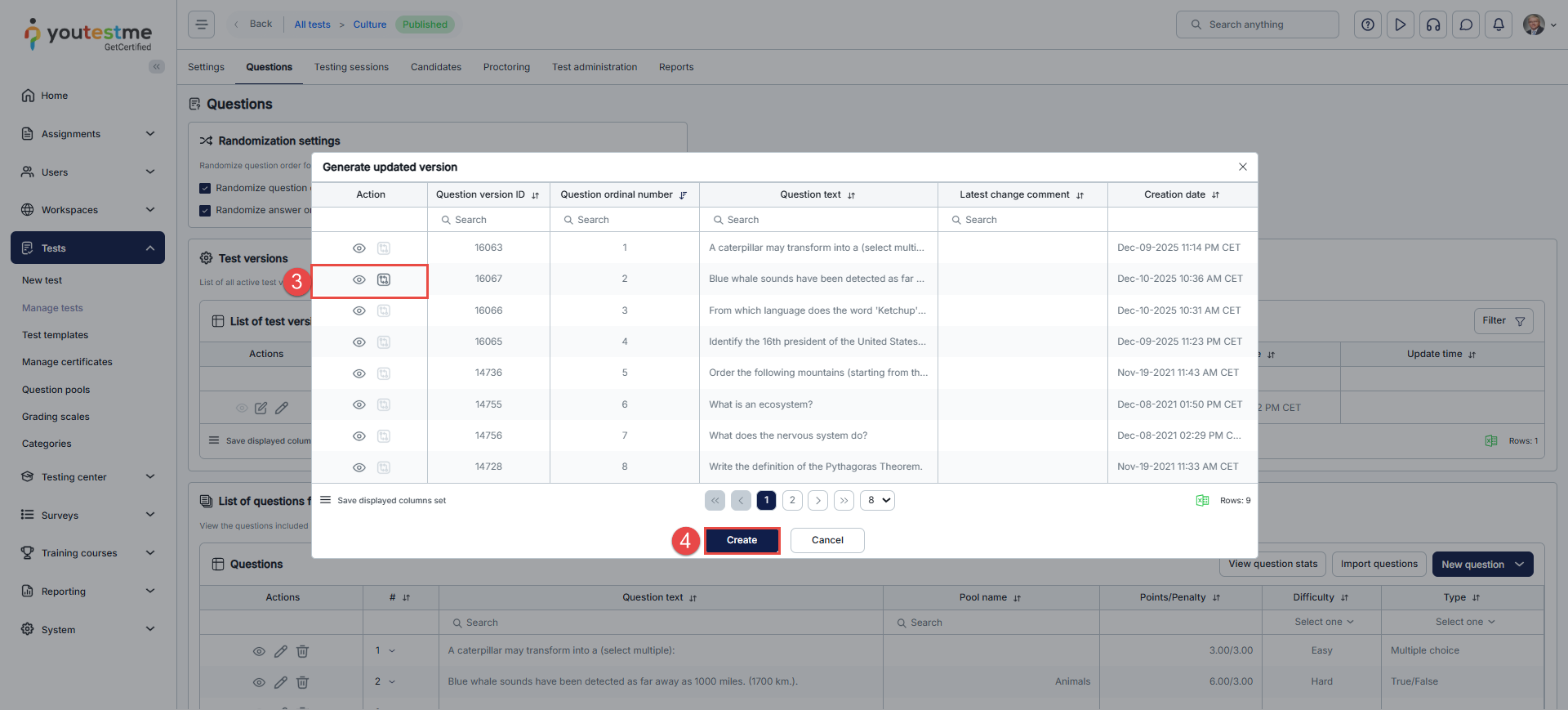
Review the question using:
Preview question.
Compare question changes.
After confirming the changes, click Create to generate a new test version.
Editing questions through the question pool
You can also update questions by editing them directly inside the question pool from which they originate.
Open the desired test and navigate to the Questions tab.
Click the view icon to see the question list and check the pool name of the question you wish to edit.
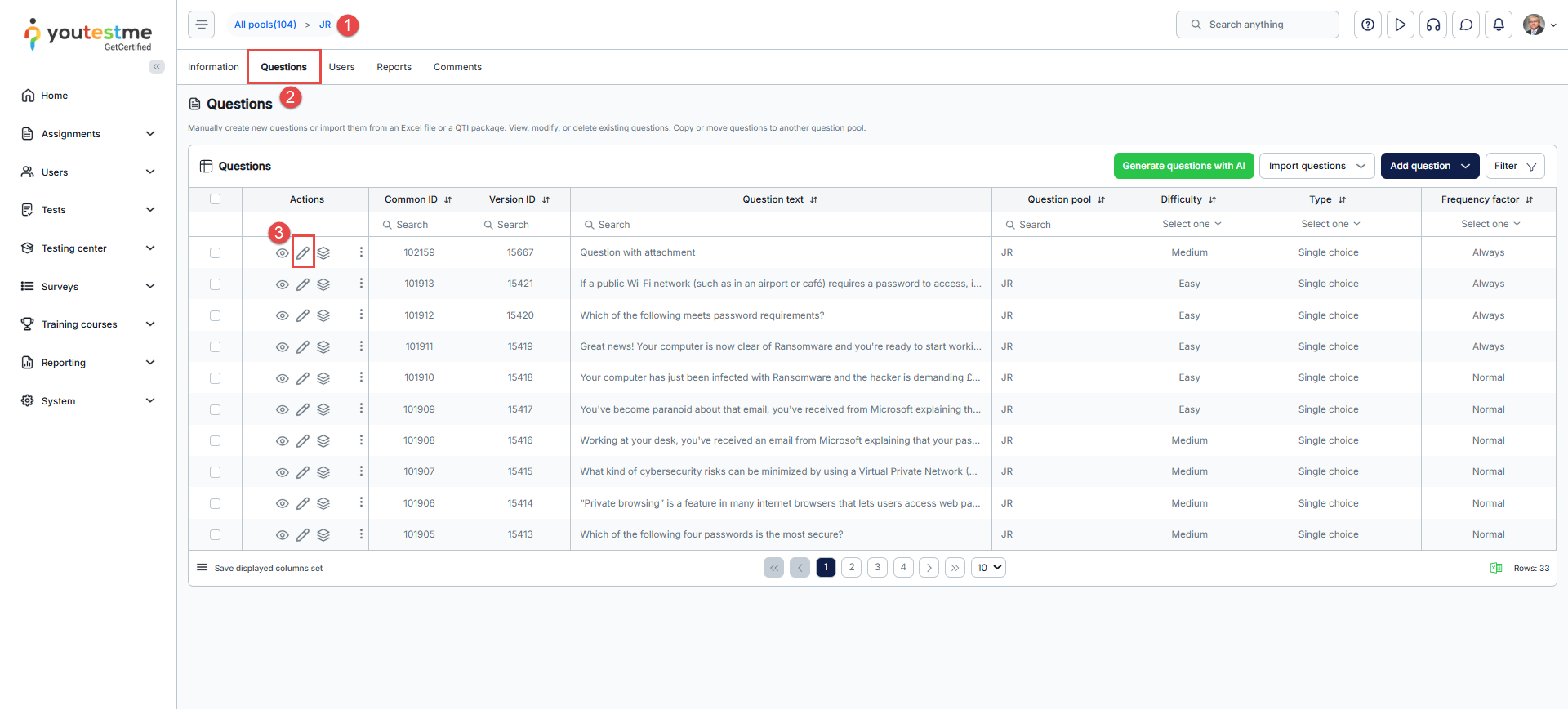
Click the pool name to open the corresponding question pool.
Go to the Questions tab in the pool.
Click the pencil icon next to the question and make your changes.
After updating the question in the pool:
Return to the test.
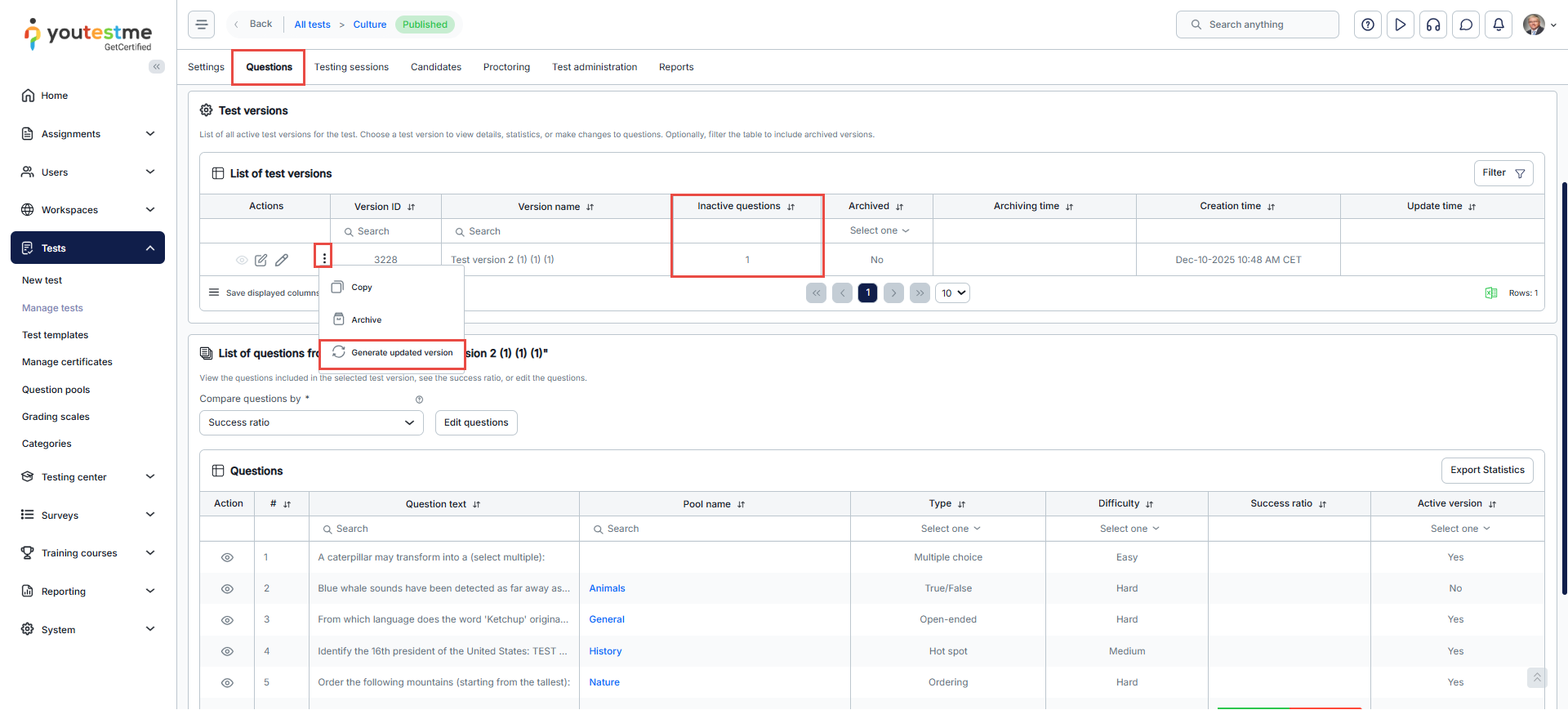
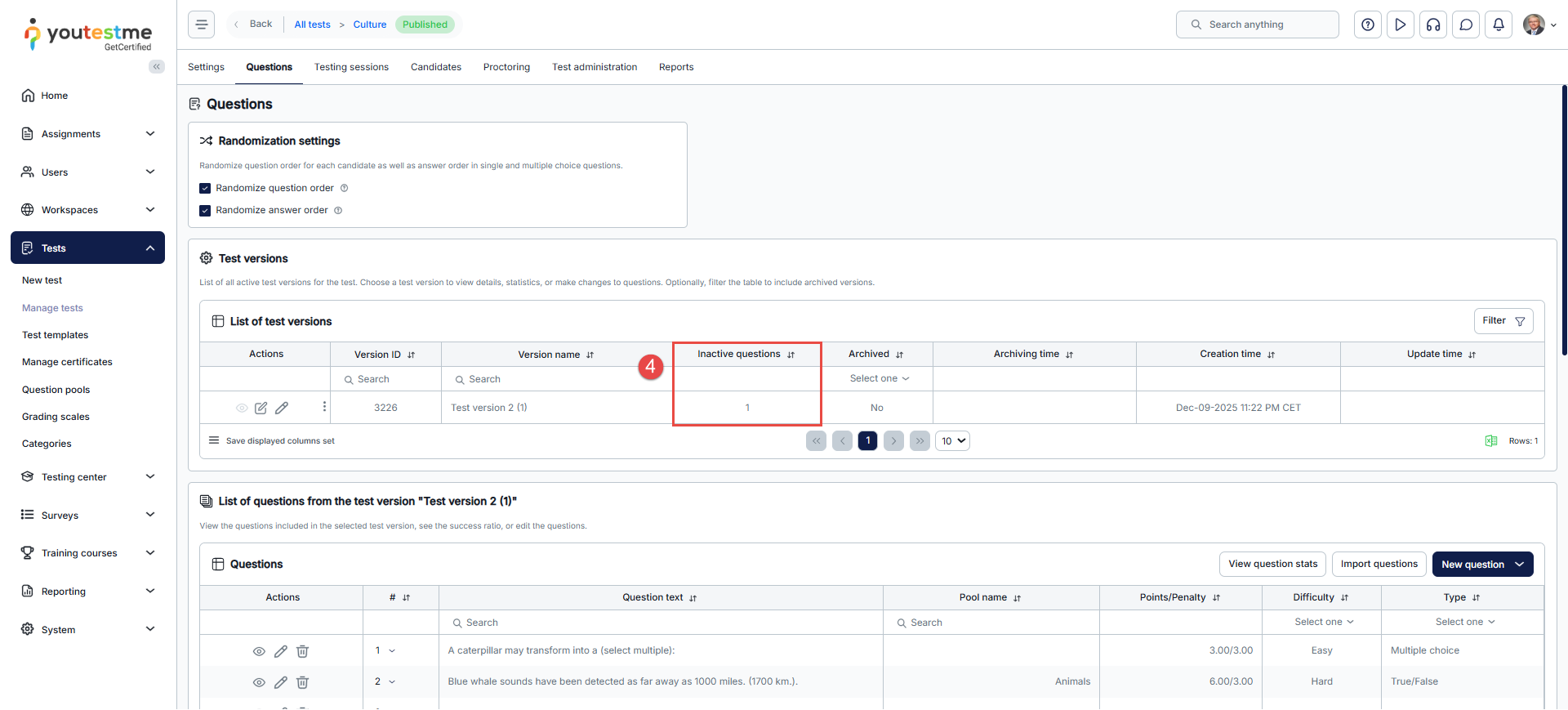
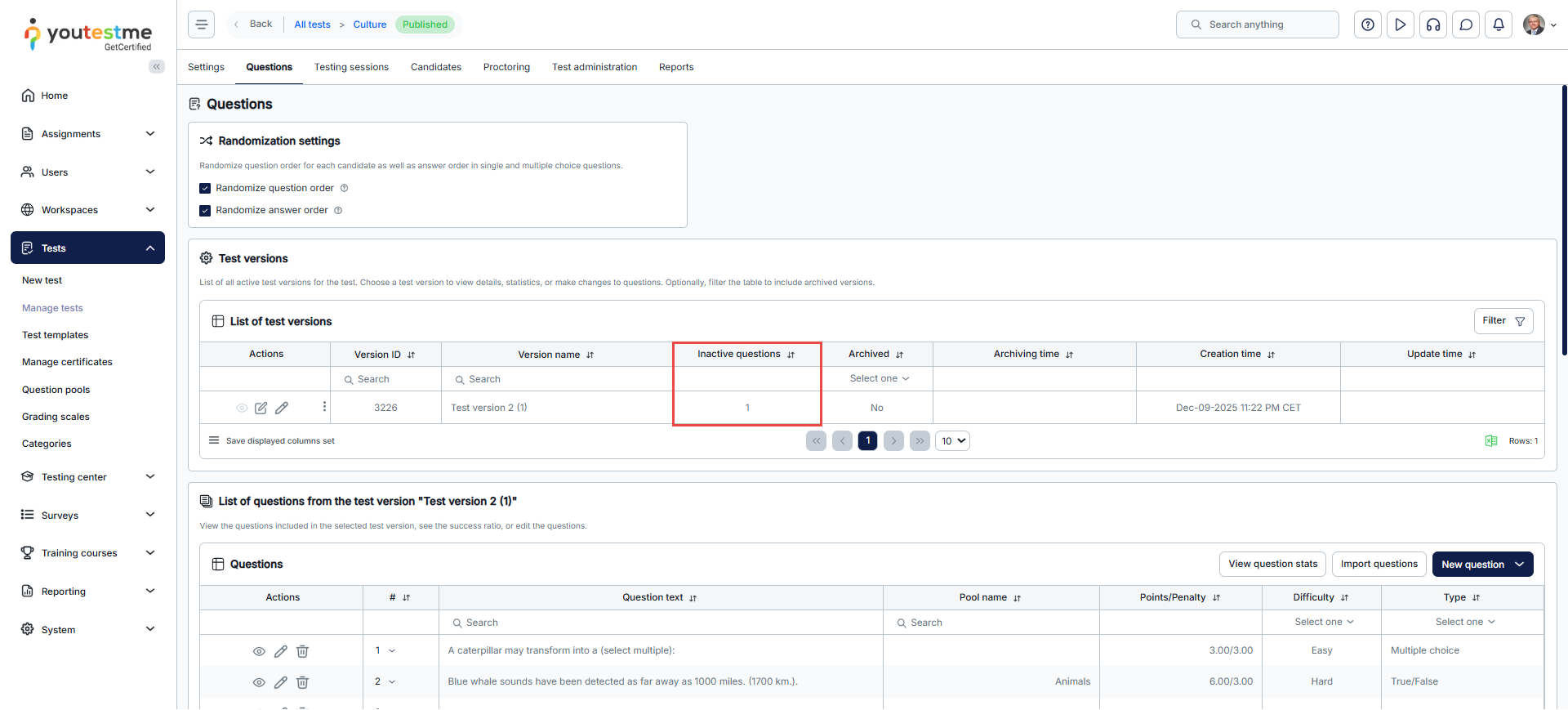
The system will display the number of inactive questions created by the update. Note: Inactive questions are created when an existing pool question is updated. In such cases, other tests that use the same question will mark the previous version as inactive, and a new test version must be generated for those tests to apply the update.
Just like in the Update Existing process, click the three dots in the Actions column and select Generate updated version.
Review the changes, then click Create to generate the new test version.
This ensures that the updated pool question is applied to all future test attempts.
Generated tests
When creating tests, you can also generate them using a test generator. If changes are needed later, questions must be edited directly in the question pool.
When a question is edited in the pool, the updated version will be used for all future test attempts, regardless of whether the test is manually created or generated. Candidates who have already attempted the test will continue to see the original version of the question in their reports.
Open the question pool from which the questions are contained in the test.
Navigate to the Questions tab.
Find the question you want to change and click the pencil icon. Once you have finished editing a question, click the Save button to save changes.
Once the question is updated in the pool, the previous version becomes inactive in all tests that contain it, regardless of the test type. To apply the updated question to those tests, a new test version must be generated.
Note:For generated tests, you can enable the Integrity Check, which prevents updates to questions that are already used in generated tests and helps preserve test consistency. Learn more here: How to Enable the Integrity Check For Generated Tests.
Changed questions will be automatically displayed in new test versions for new test attempts.
Note:Questions from the question pool already in the test can be copied to another question pool but cannot be moved.
For more useful instructional materials, please check the following: