Article verified for Release 15.1 on December 24, 2024.
This article explains how to limit how long candidates can access their personal reports after completing a test. Once the report becomes available, it can be viewed only within the configured time window.
Accessing the page
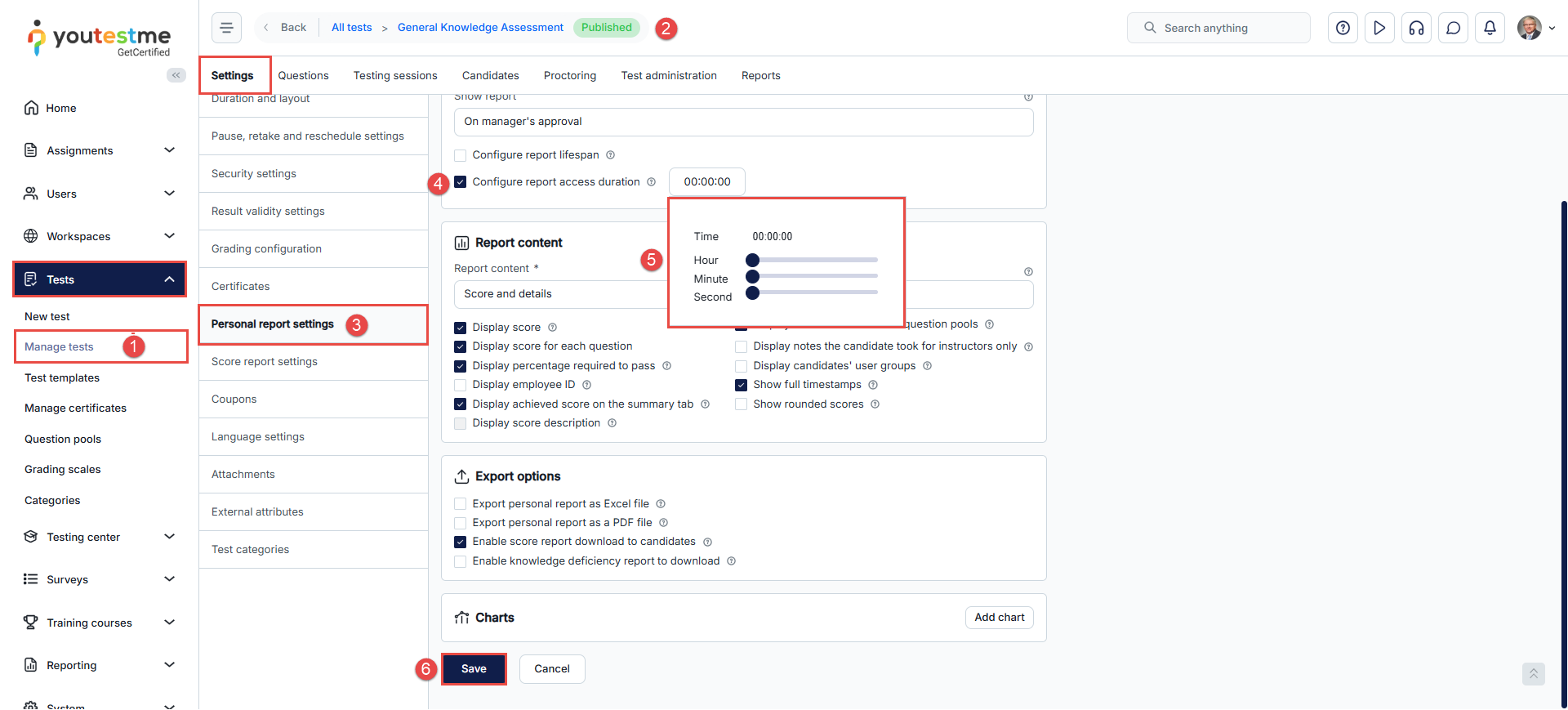
To set the time limit on the personal report, do the following:
- Select the Tests/Manage tests tab.
- Select the desired test.
- Select the Settings/Personal report settings tab.
- Enable the Configure report access duration option. – Define how long candidates can view their report after test completion, regardless of whether they accessed it immediately or later.
- Add time in hours/minutes/seconds.
- Select the Save option to save the changes.
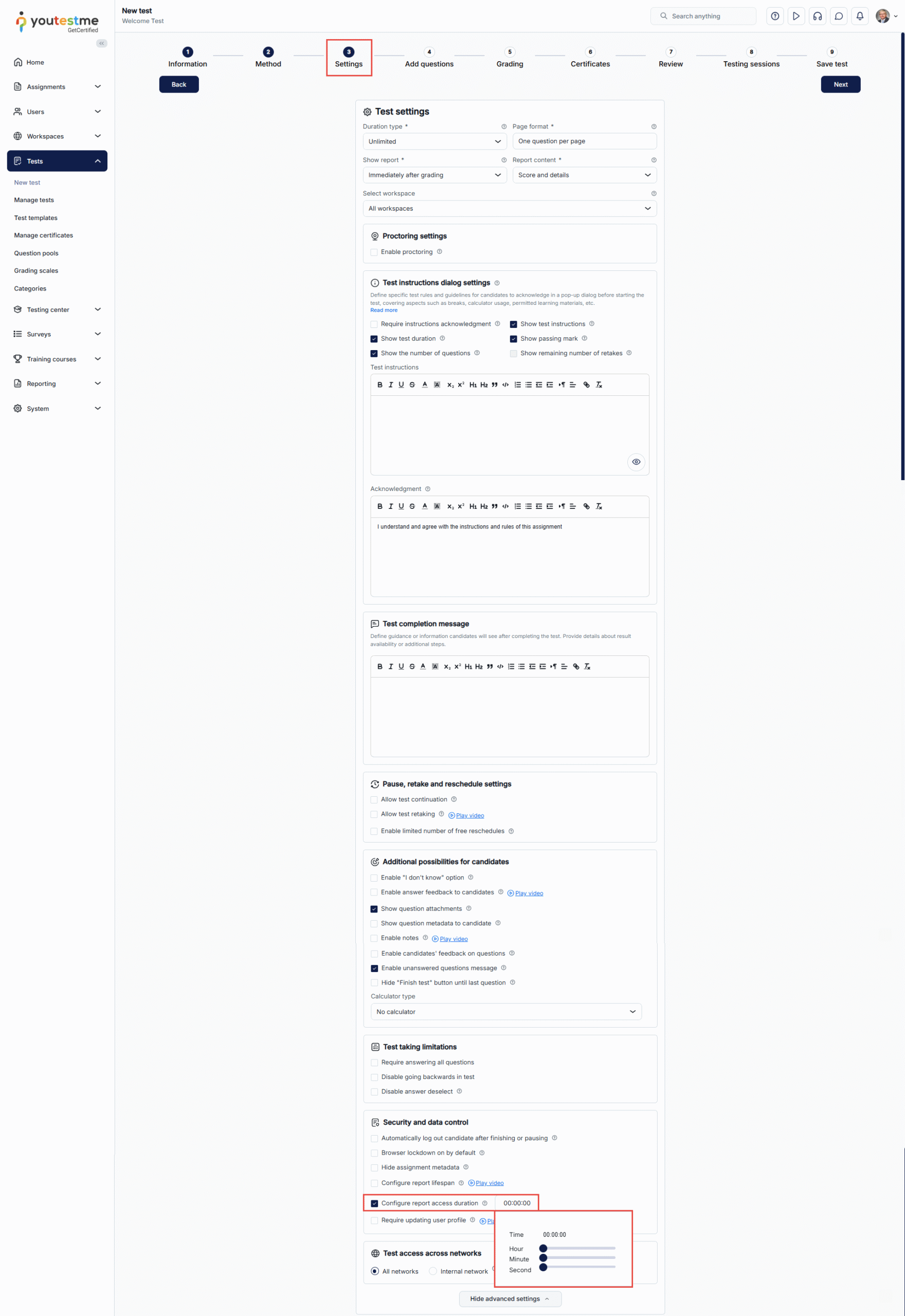
To enable this option in the Test creation wizard, go to the second step under the title Security and data control.
Candidate’s perspective
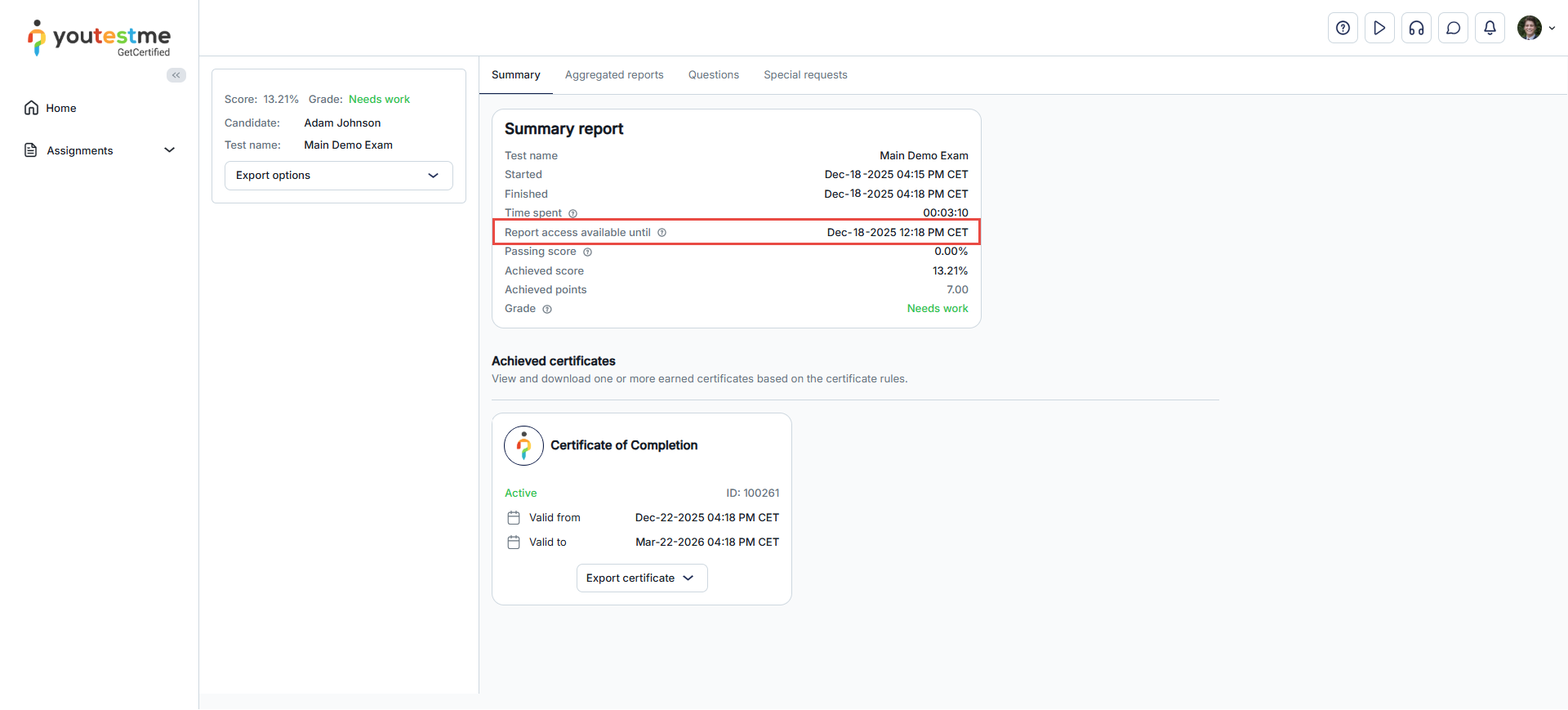
When the candidates finish the test, they will be provided with the time until the report is available.
If the time for report access has expired and the candidate is still on the Personal report page, they will be redirected to their account with a warning message.
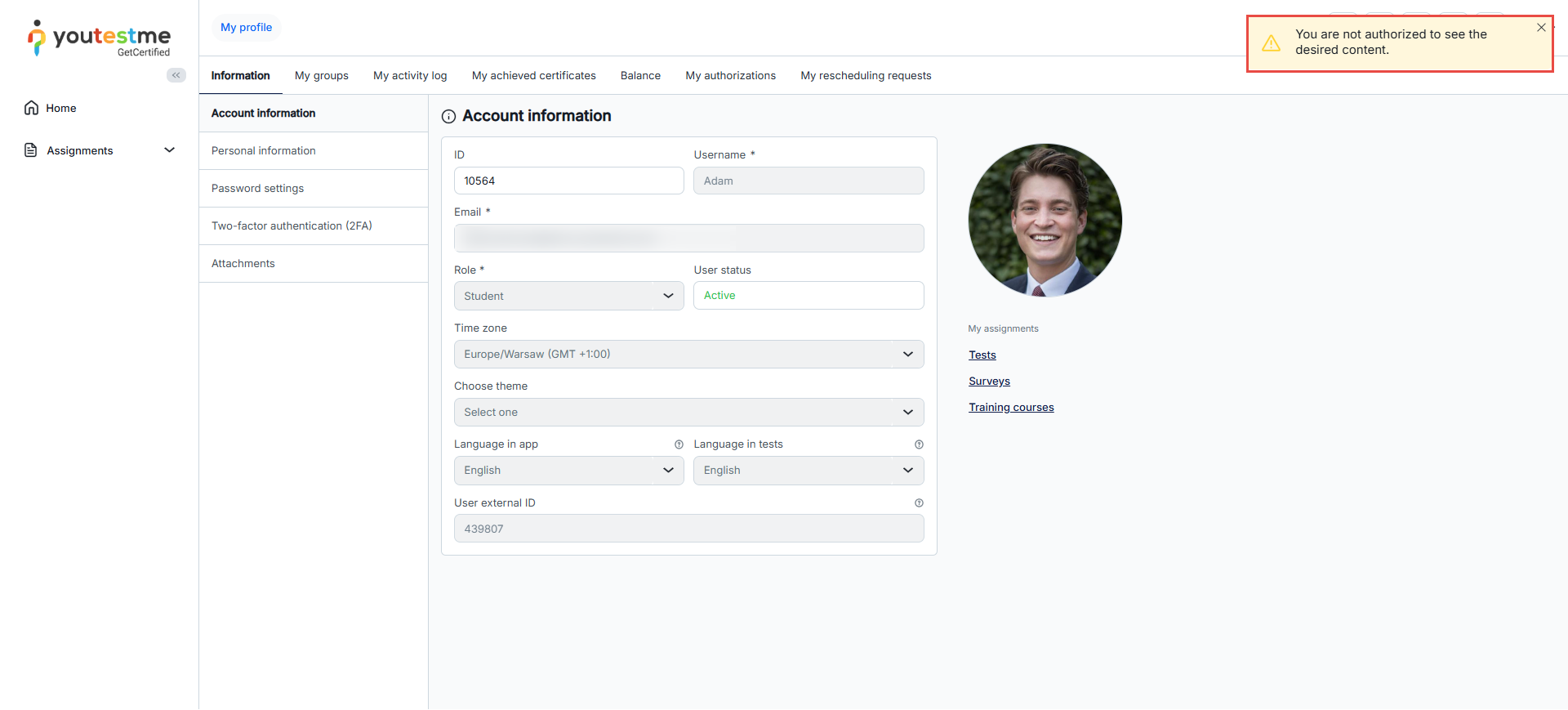
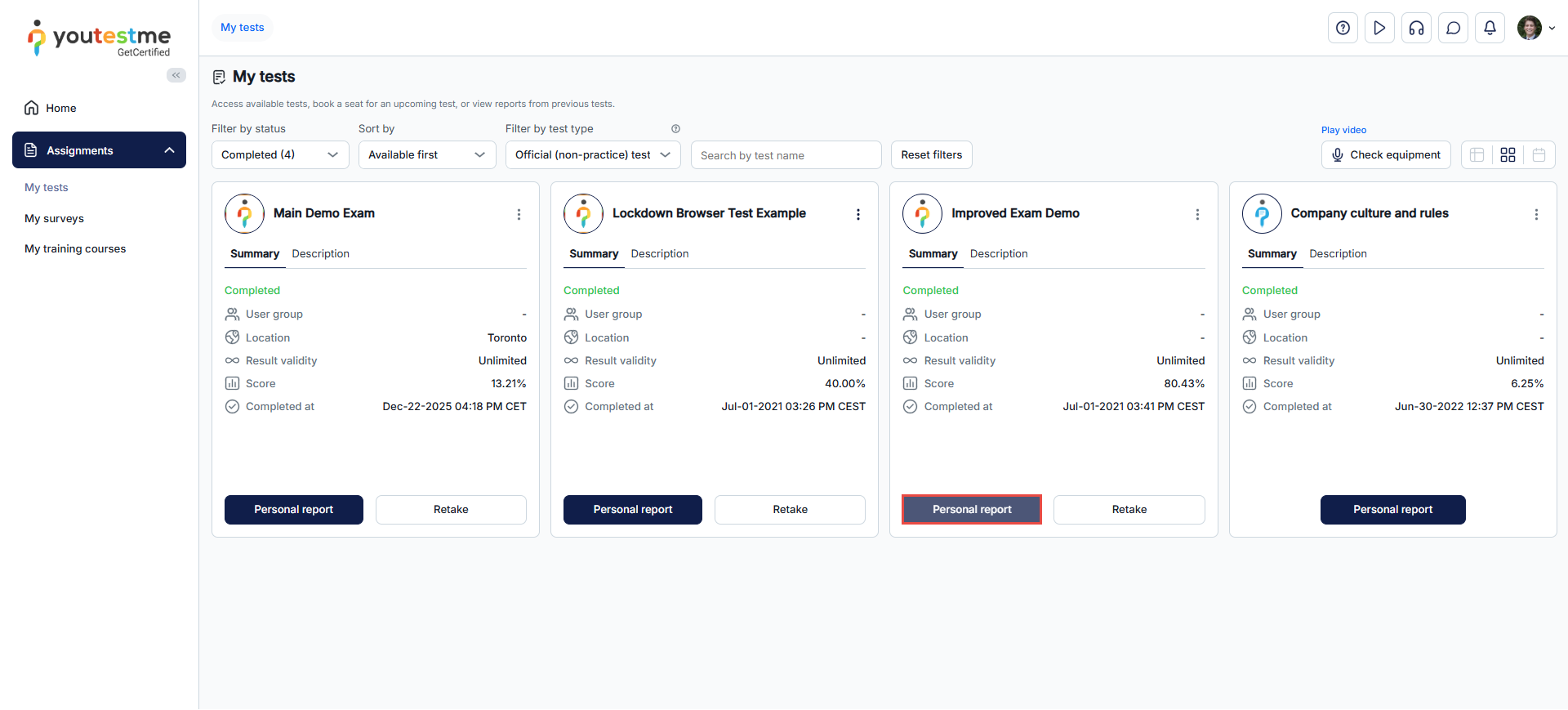
If the time for report access has expired, the personal report option will be disabled on the My tests tab.