Article verified for Release 15.2 on January 24, 2026
This article explains how booking and cancellation notifications are delivered to students. It describes when these notifications are triggered and how students receive confirmation messages through the application and email.
Booking confirmation
Students can book available sessions from the Exams section.
From the main menu:
- Navigate to Exams and select My Tests.
- Locate the test you want to book.
- Click the Choose the session button.
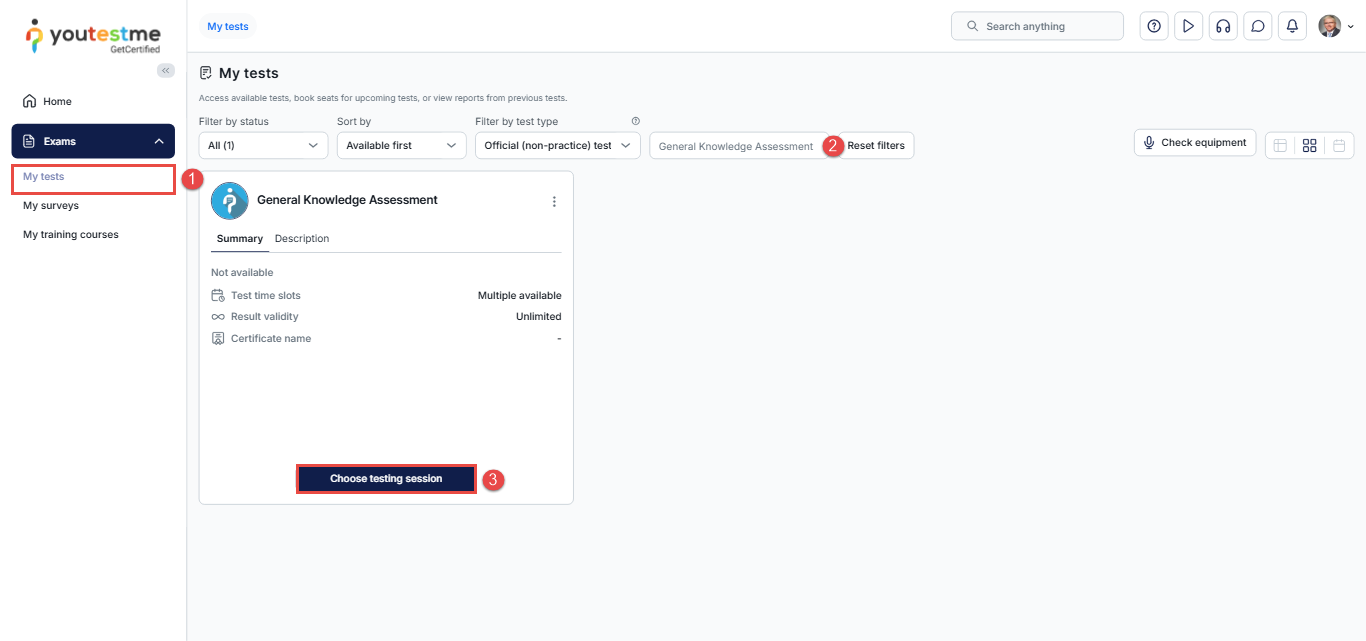
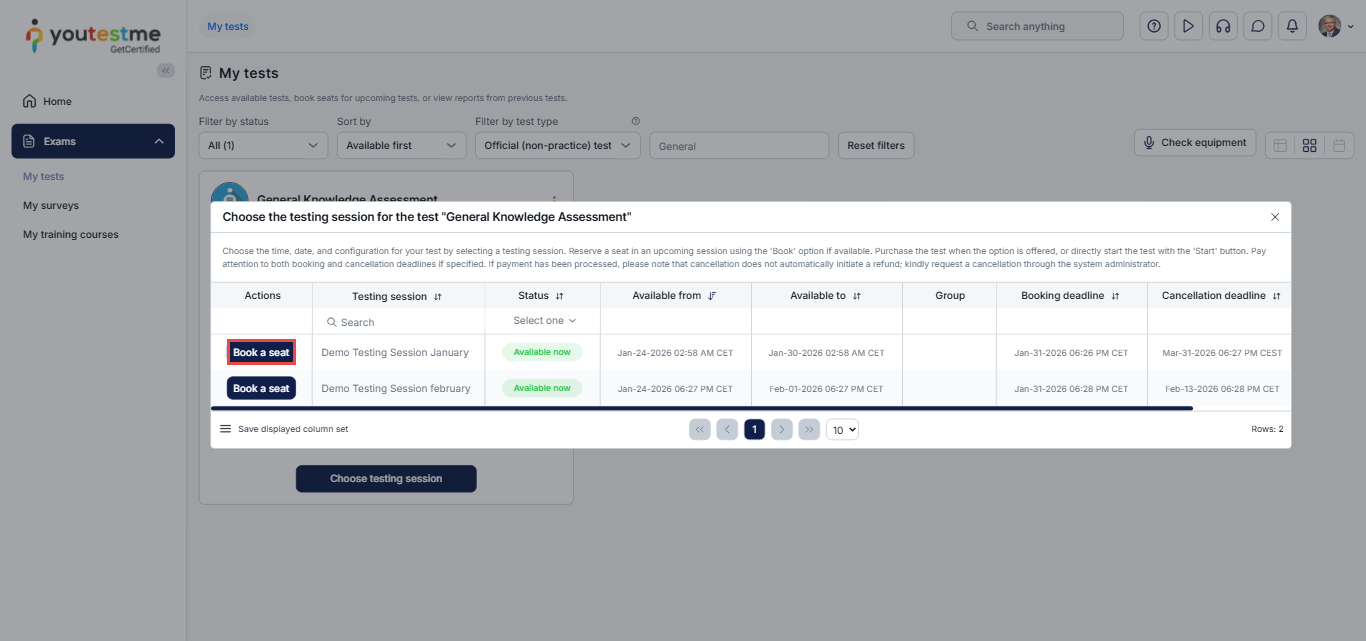
Note: If only one session is available, the student will see the Book button directly without the Choose the session button.
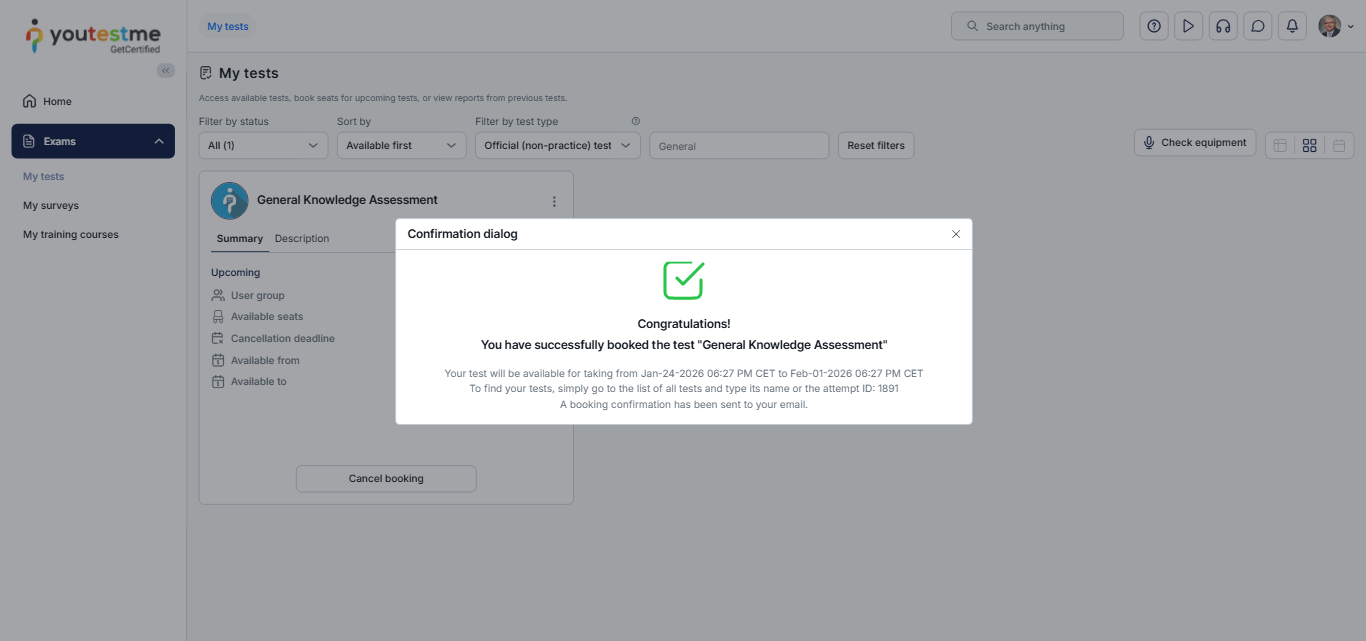
Once the student books the test, a booking confirmation dialog is displayed in the application.
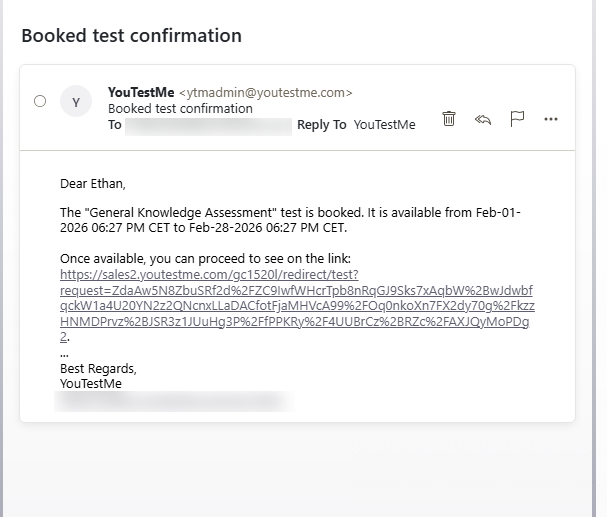
A confirmation email will also be sent to the email address defined in the student’s profile.
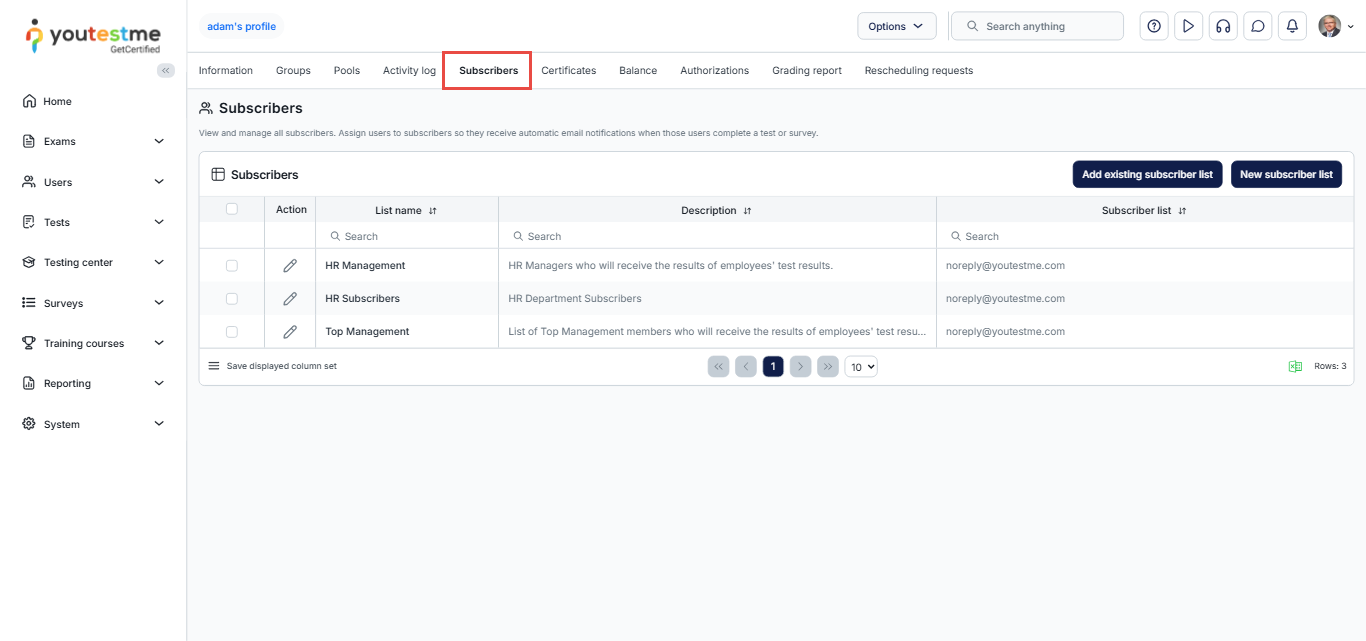
Notification for canceled booking
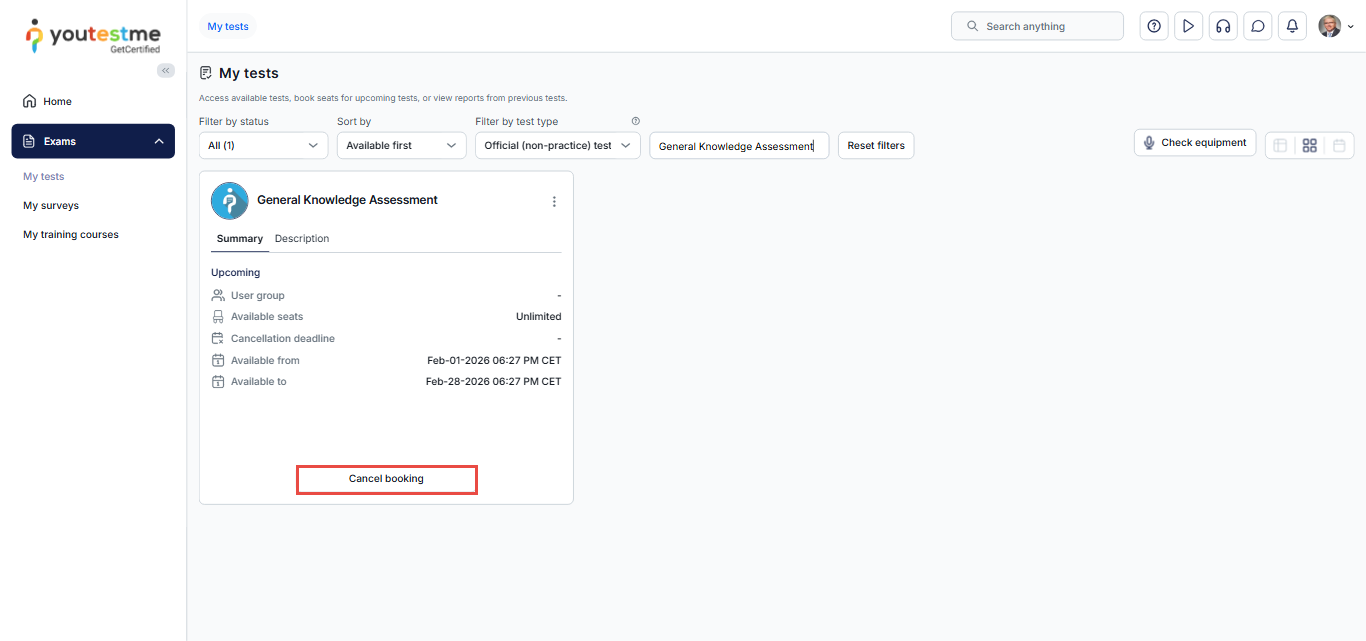
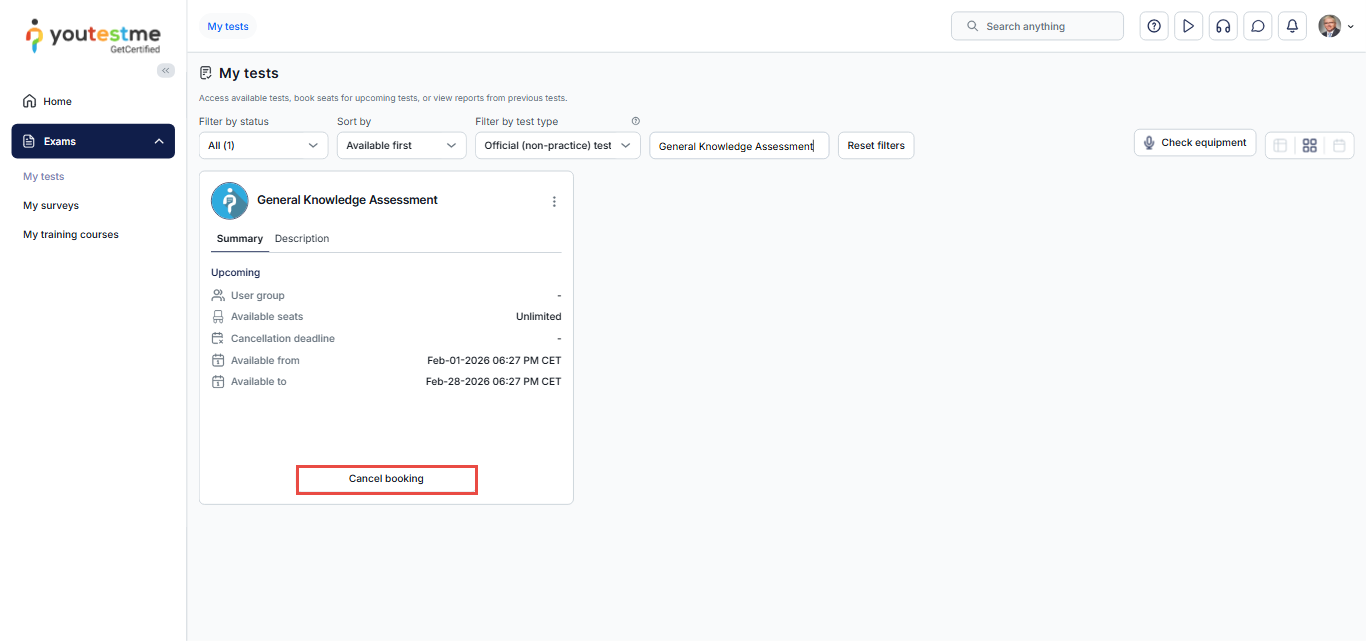
Note: If a cancellation deadline is defined, the student can cancel the booked attempt only within that time frame.
After the booking is canceled, the student will receive a cancellation confirmation notification through the application.
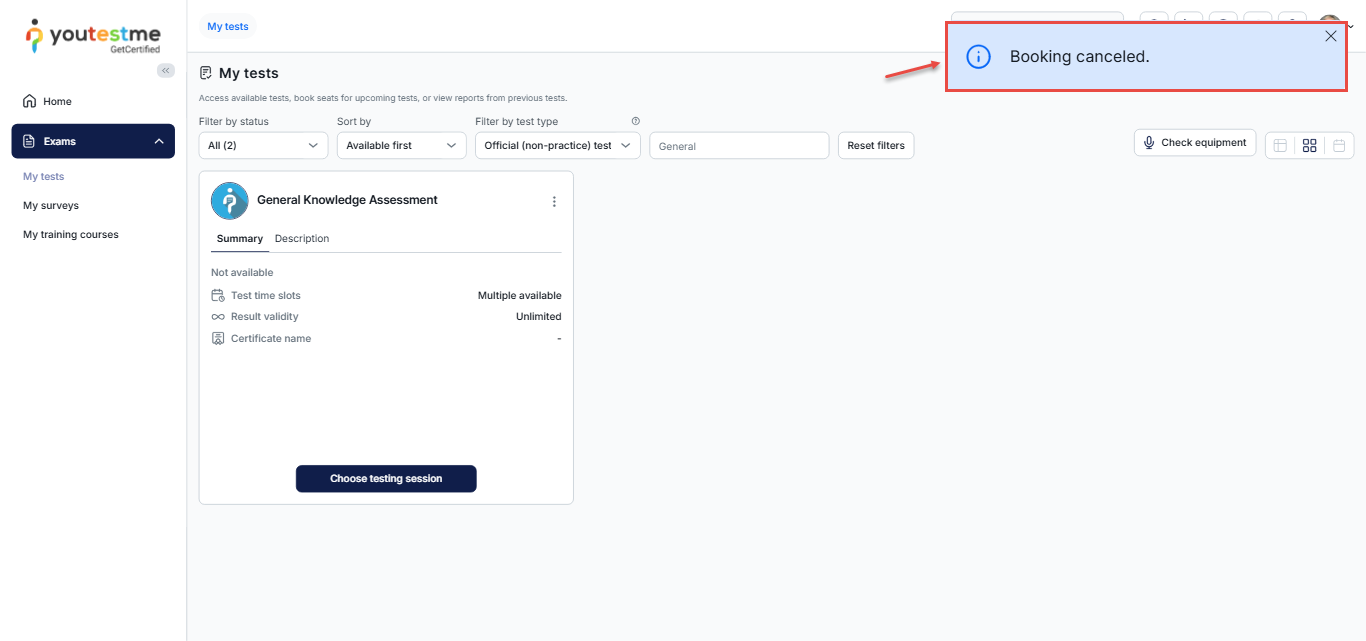
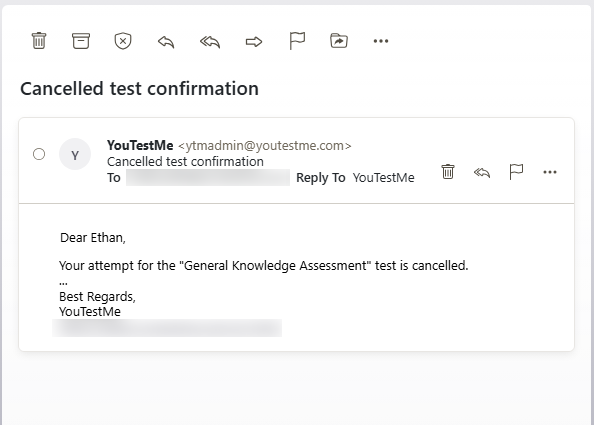
A confirmation email will also be sent to the user’s profile email address.
Note: Canceling a previously booked attempt after the cancellation deadline requires a user with test management permissions. Once the cancellation is completed, the student will receive a confirmation notification.
To edit the notification displayed in the application and email, please refer to this article for further details.
For more related instructional materials, please visit:






