Article verified for Release 15.1 on February 18, 2026.
This article explains how to generate tests based on question categories that you previously created and assigned to test questions.
Generating tests based on question categories allows administrators to create dynamic, flexible, and targeted tests by automatically selecting questions that meet predefined criteria. Instead of manually selecting individual questions, this option enables the system to generate test content based on custom categories and values, such as skill level, topic, language proficiency, or difficulty.
This approach ensures consistency across test versions while maintaining variety, making it especially useful for large-scale assessments, adaptive testing, or recurring exams. By defining rules based on question categories, administrators can control which types of questions appear in a test, how many are selected, and how they are scored, while allowing the system to generate appropriate test versions for each candidate.
Creating question categories
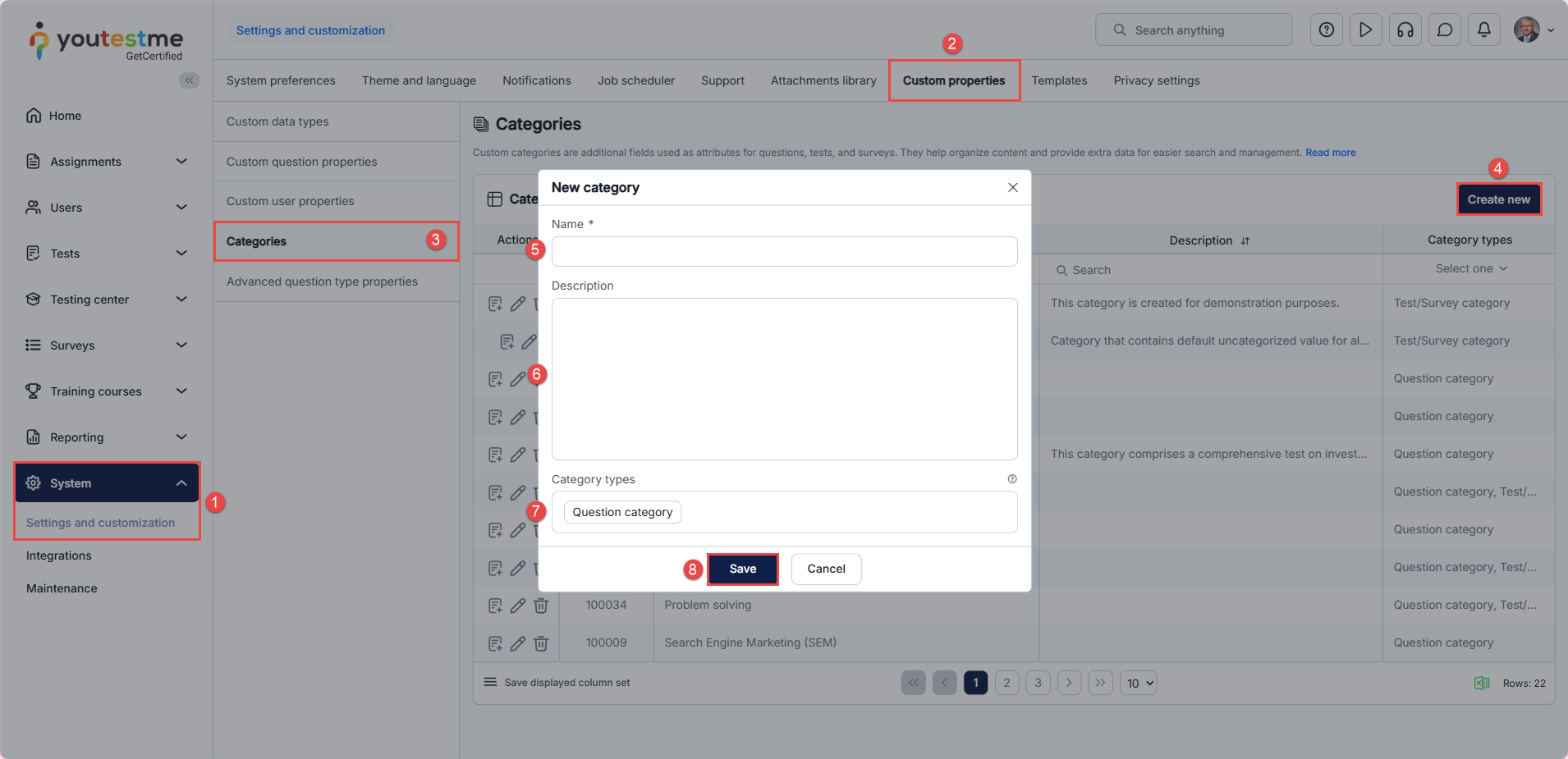
To create categories that you can define in the questions, you should:
- Go to System and open the Settings and Customization tab.
- Select the Custom Properties section.
- Open the Categories tab.
- Click Create new.
- Enter the category name.
- (Optional) Add a description for the category.
- Under Category Types, select Question Category (this option enables test generation based on question categories instead of manually selecting individual questions; when selected exclusively, this category type can be assigned to questions only and will not be available at the test level).
- Click the Save button to apply the changes.
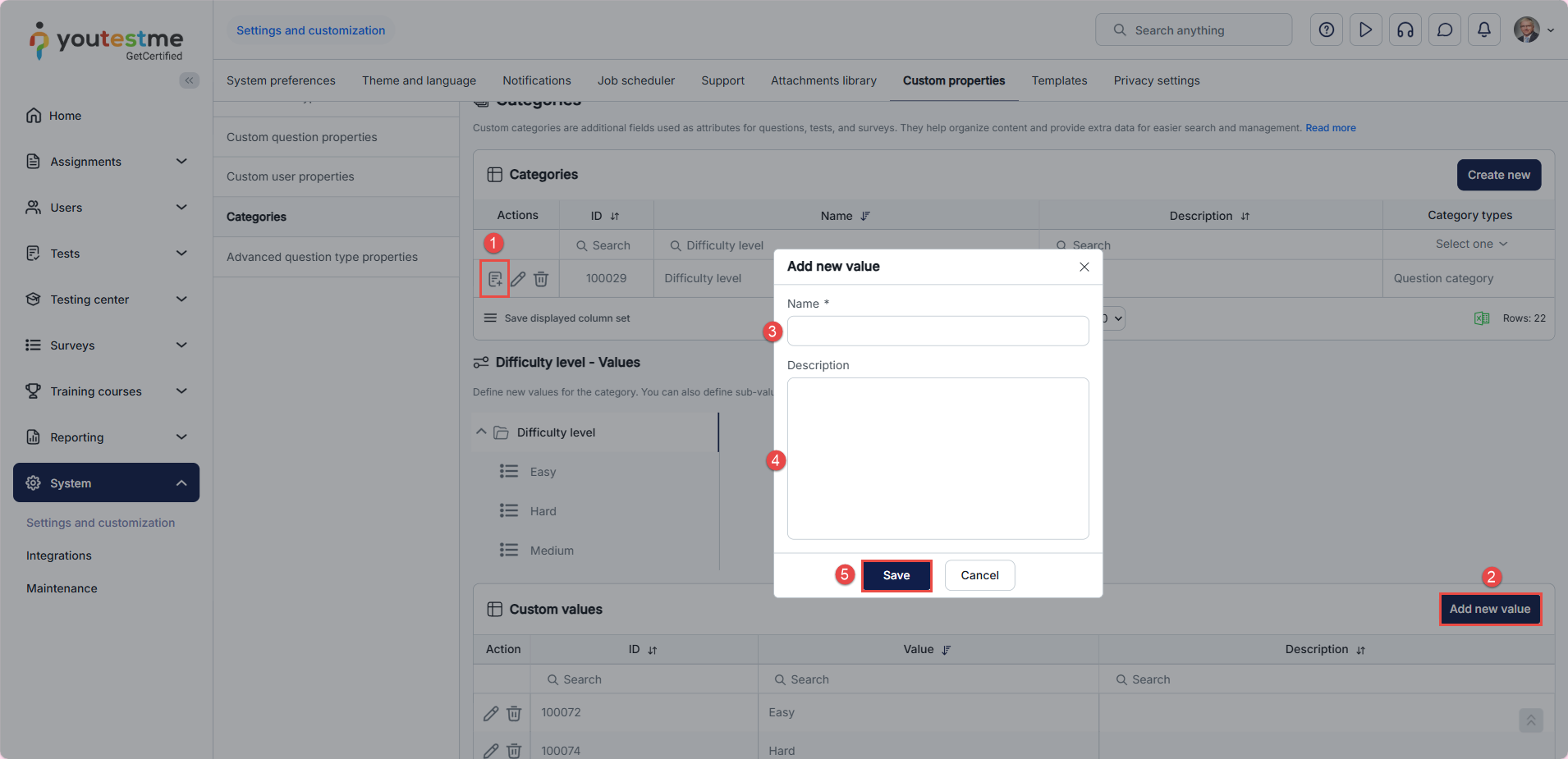
To add the desired values for the created category:
- In the Actions column, click Define Values.
- Click the Add new value button.
- Enter a name for the value.
- (Optional) Add a description.
- Click the Save button.
You can add as many values as you want.
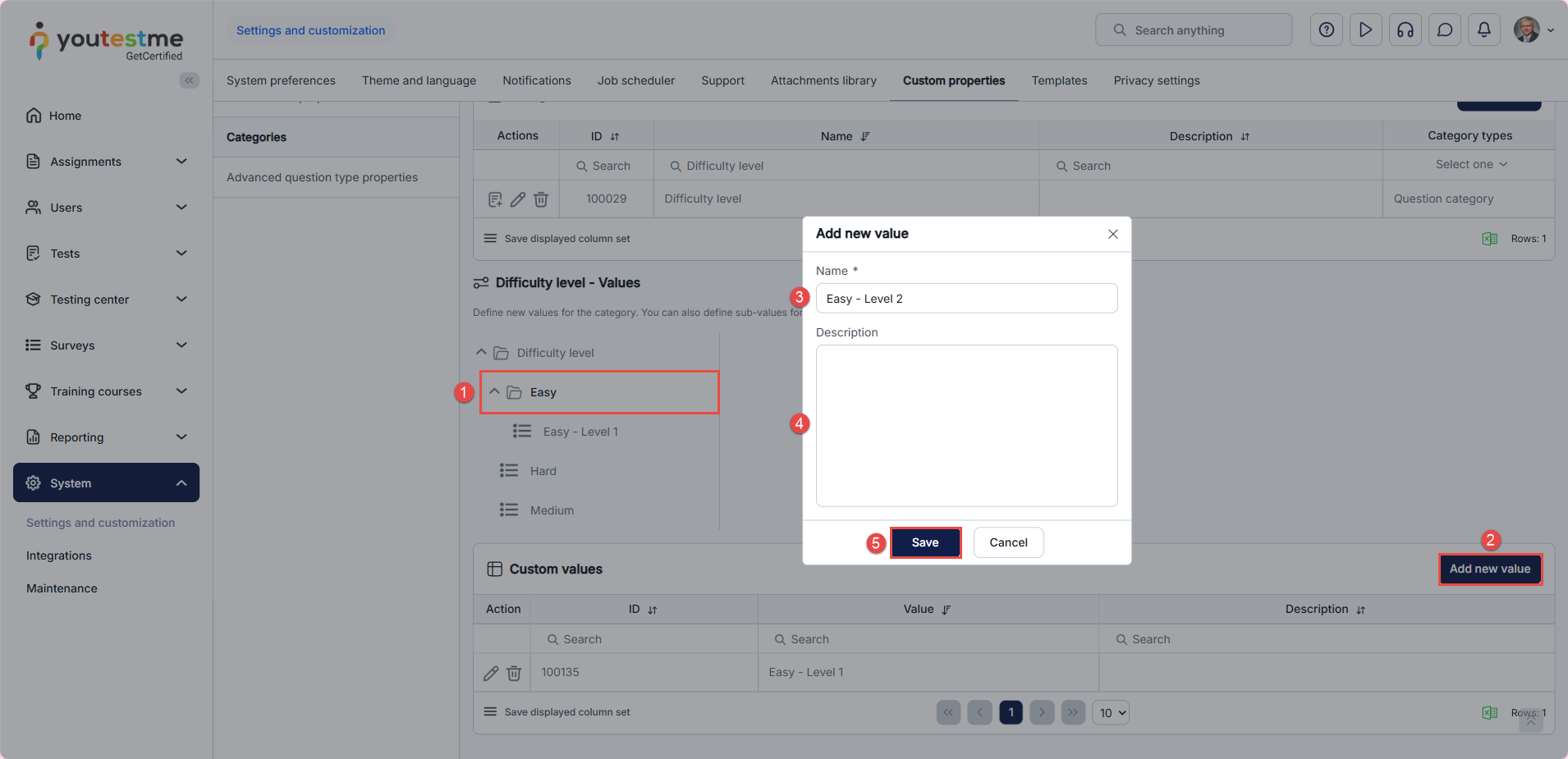
Additionally, you can add sub-values by following the steps below:
- Click the value you want to add a sub-value to.
- Click the Add new value button.
- Enter a name for the sub-value.
- (Optional) Add a description.
- Click the Save button.
Note: You can create as many values and sub-values as needed.
Adding values in questions for the defined categories
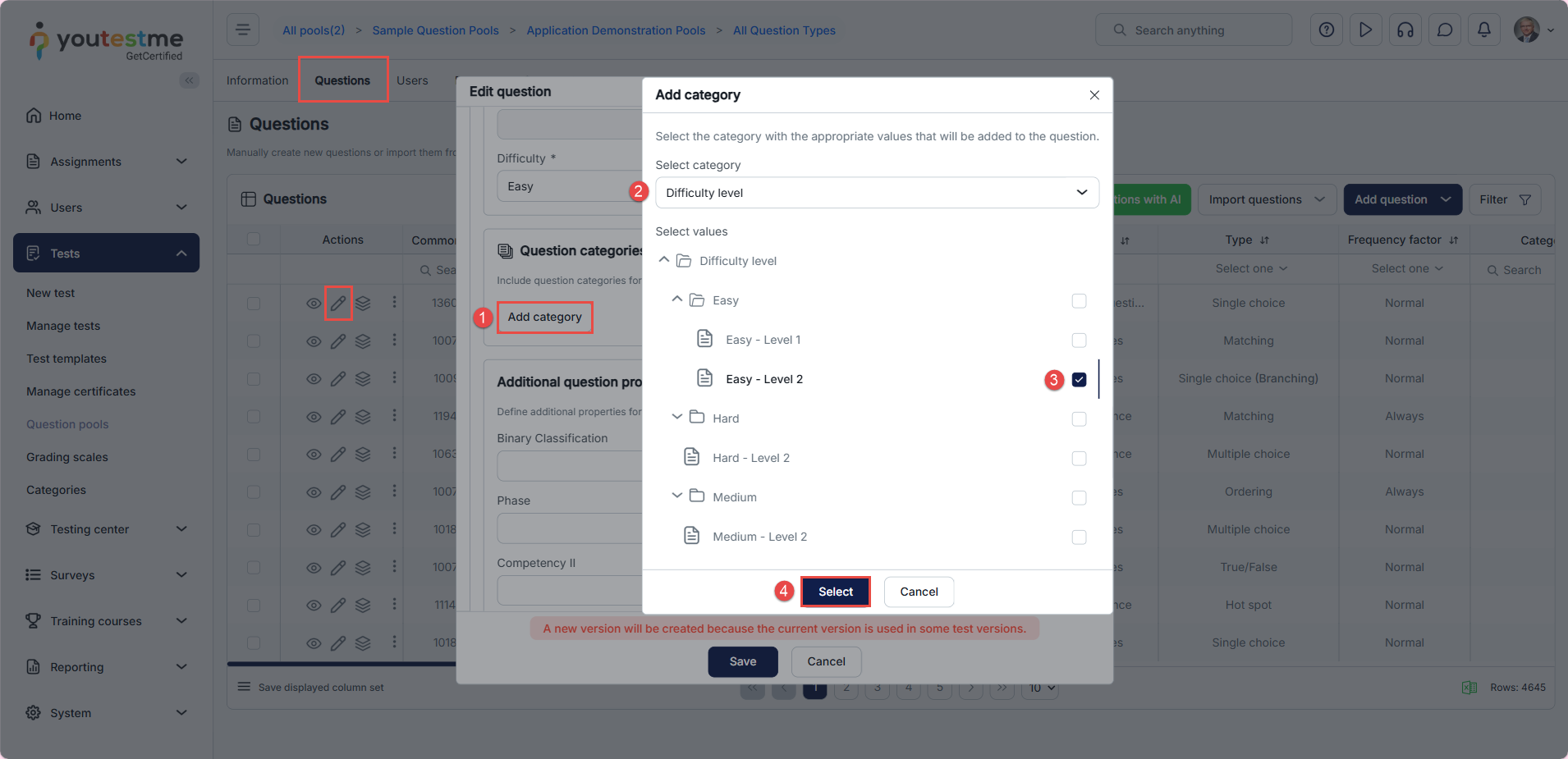
You can assign existing category values to questions in the question pool. To do this, open the desired question pool, go to the Questions tab, and click the Edit button in the Actions column for the question you wish to update.
- Click the Add category button.
- Select the desired category.
- Choose the desired value(s) for the question category.
- Click the Select button.
Note: If Integrity Check is enabled and a question is used in a generated test based on category rules, you will not be able to remove the categories on which those rules are based. For more information about Integrity Check, see the related article.
You can modify or remove any selected category at any time, provided it is not restricted by Integrity Check rules as described above. After adding or adjusting the desired categories, click Save to apply and preserve your changes.
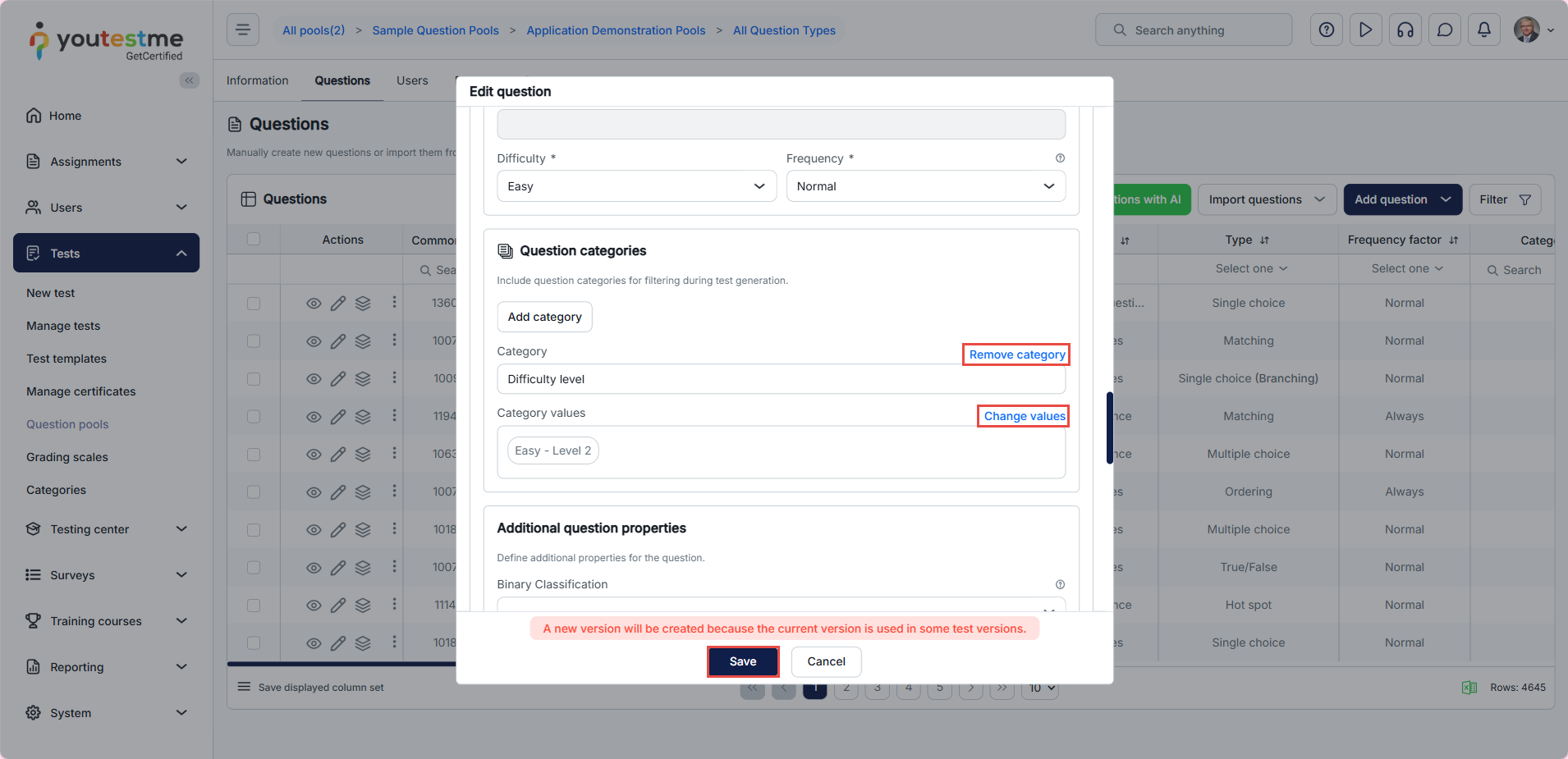
Repeat the steps above for all desired questions.
How to search questions in the question pool by defined categories
To search questions by already defined and added categories:
- Click the Filter button.
- Click Select Value to choose the values.
- Click on the values that you want to use for the search.
- Click the Select button to confirm.
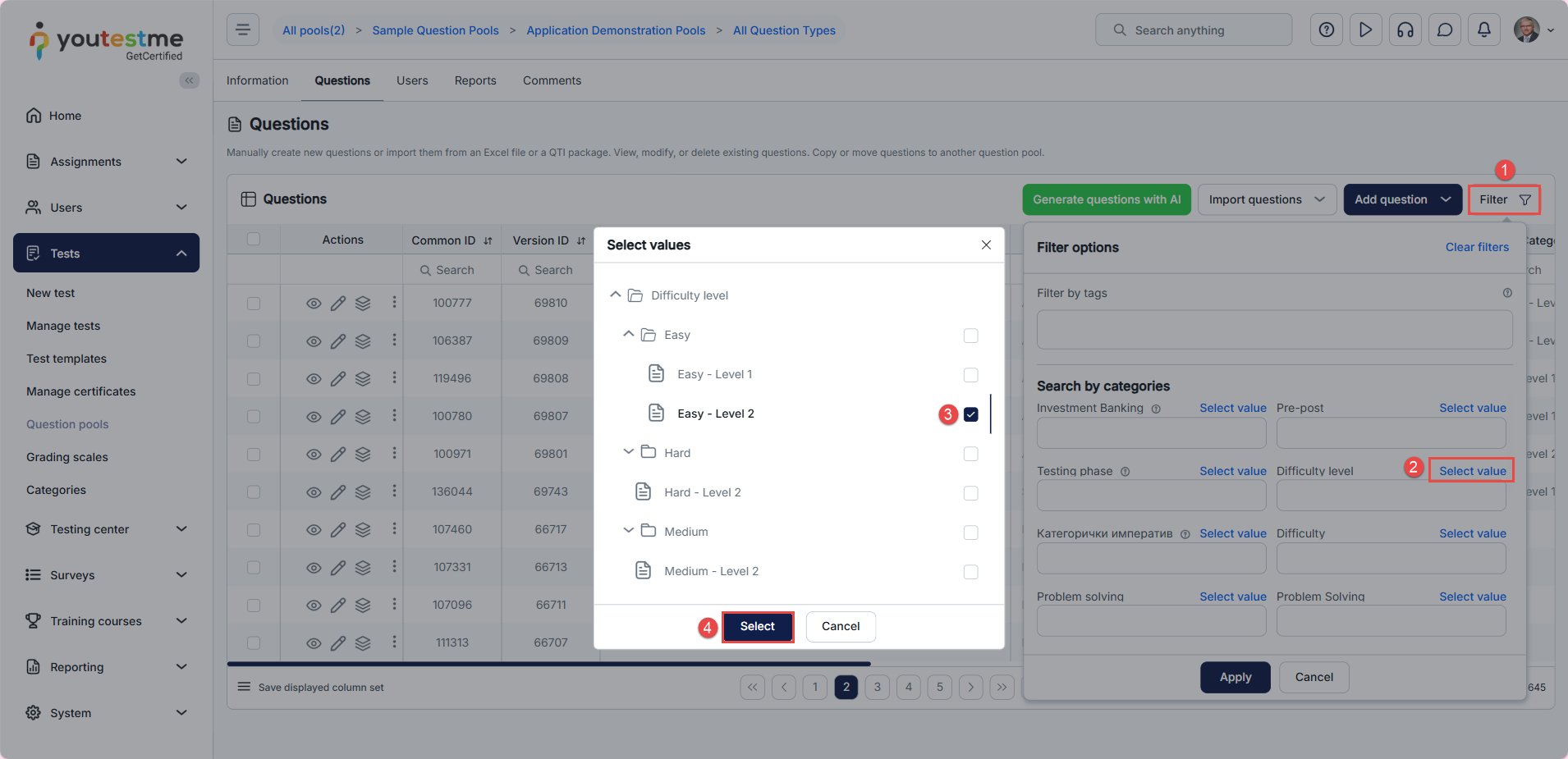
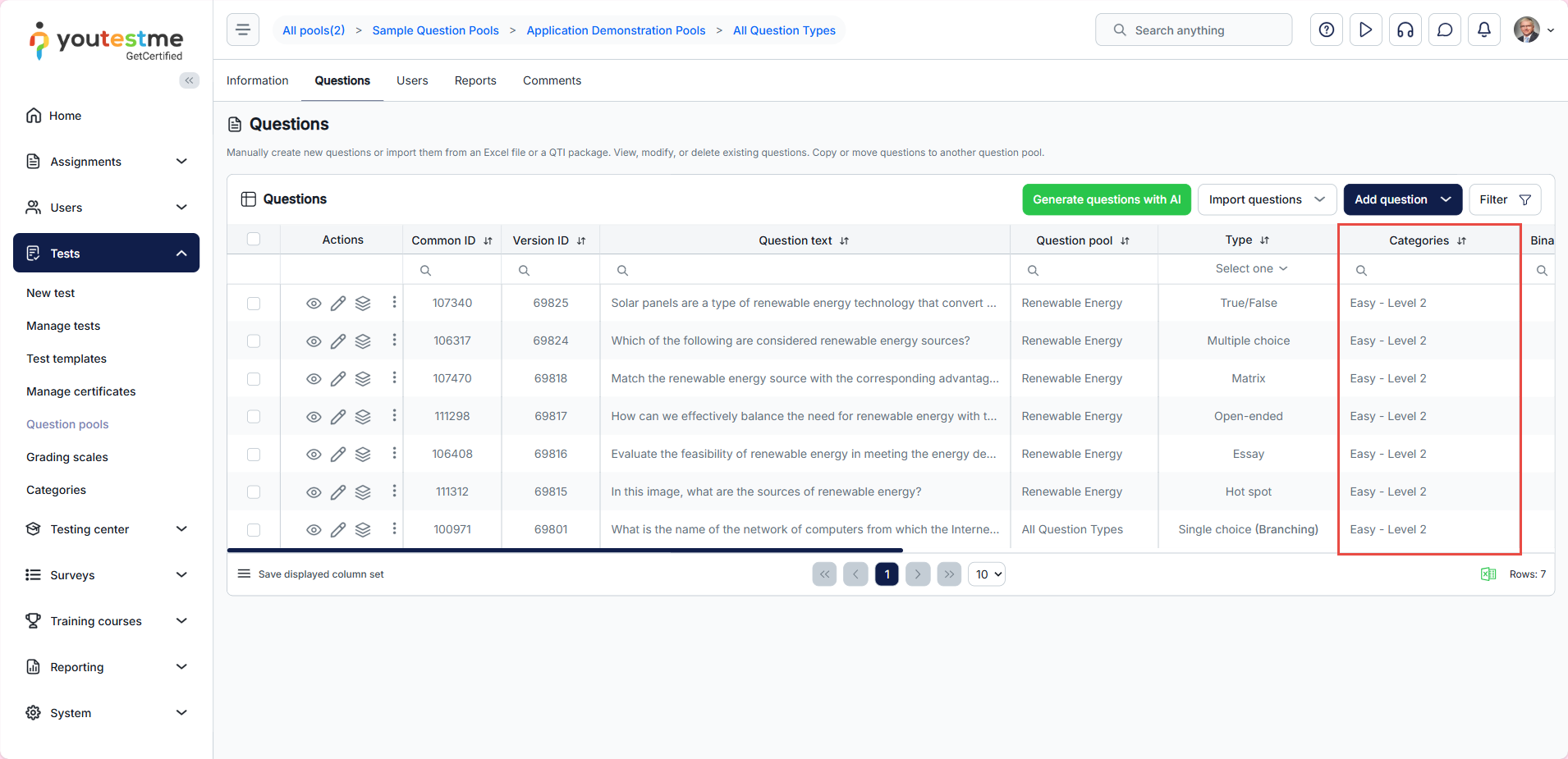
Select the Apply button to apply the filter. After the search, the questions with selected values will appear in the table.
Test creation process
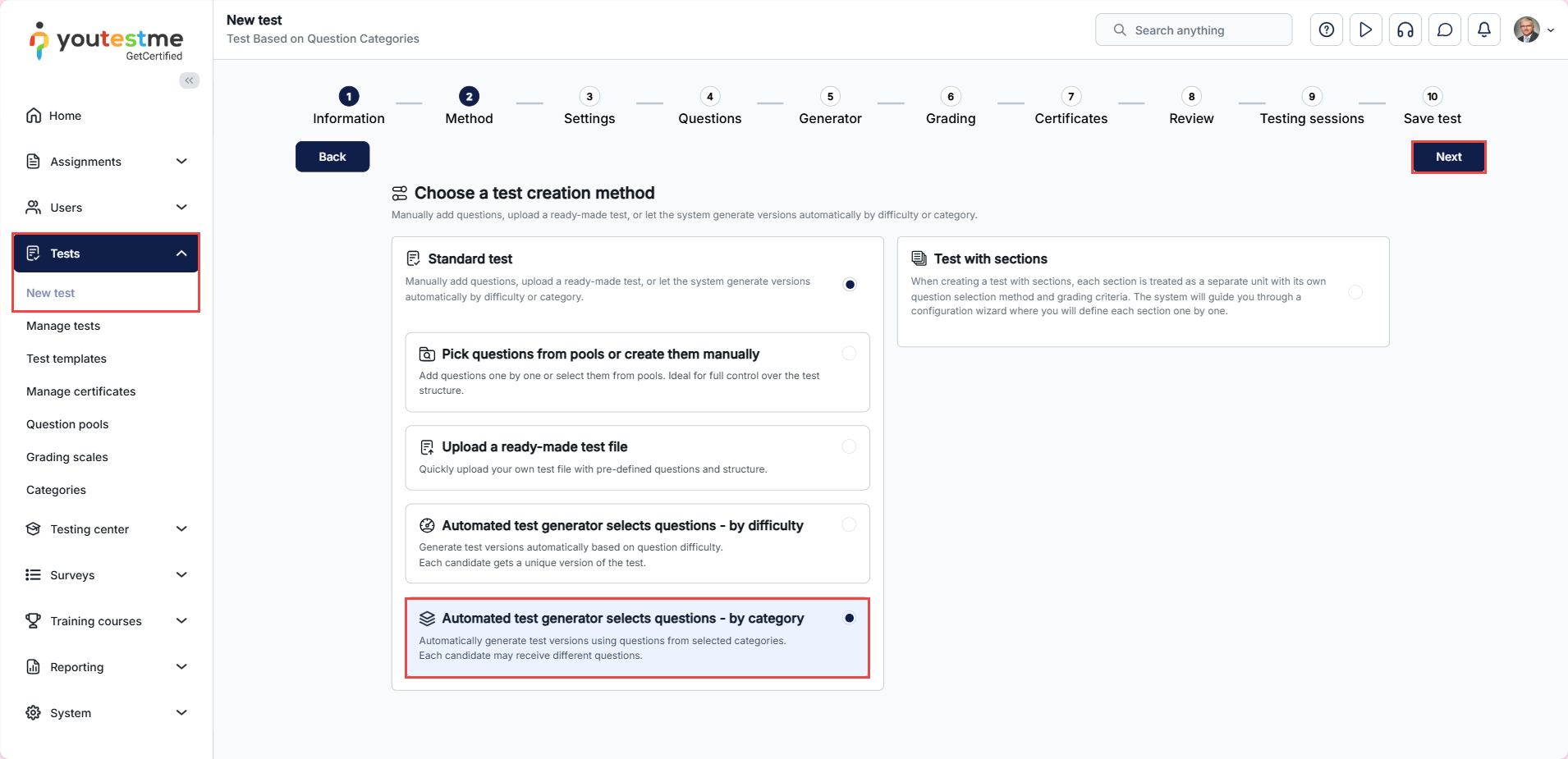
To generate a test based on question categories, navigate to Tests and select the New test button.
In the second step of the test creation wizard, select the Based on Question Categories method and click Next.
In the fourth step of the test creation wizard:
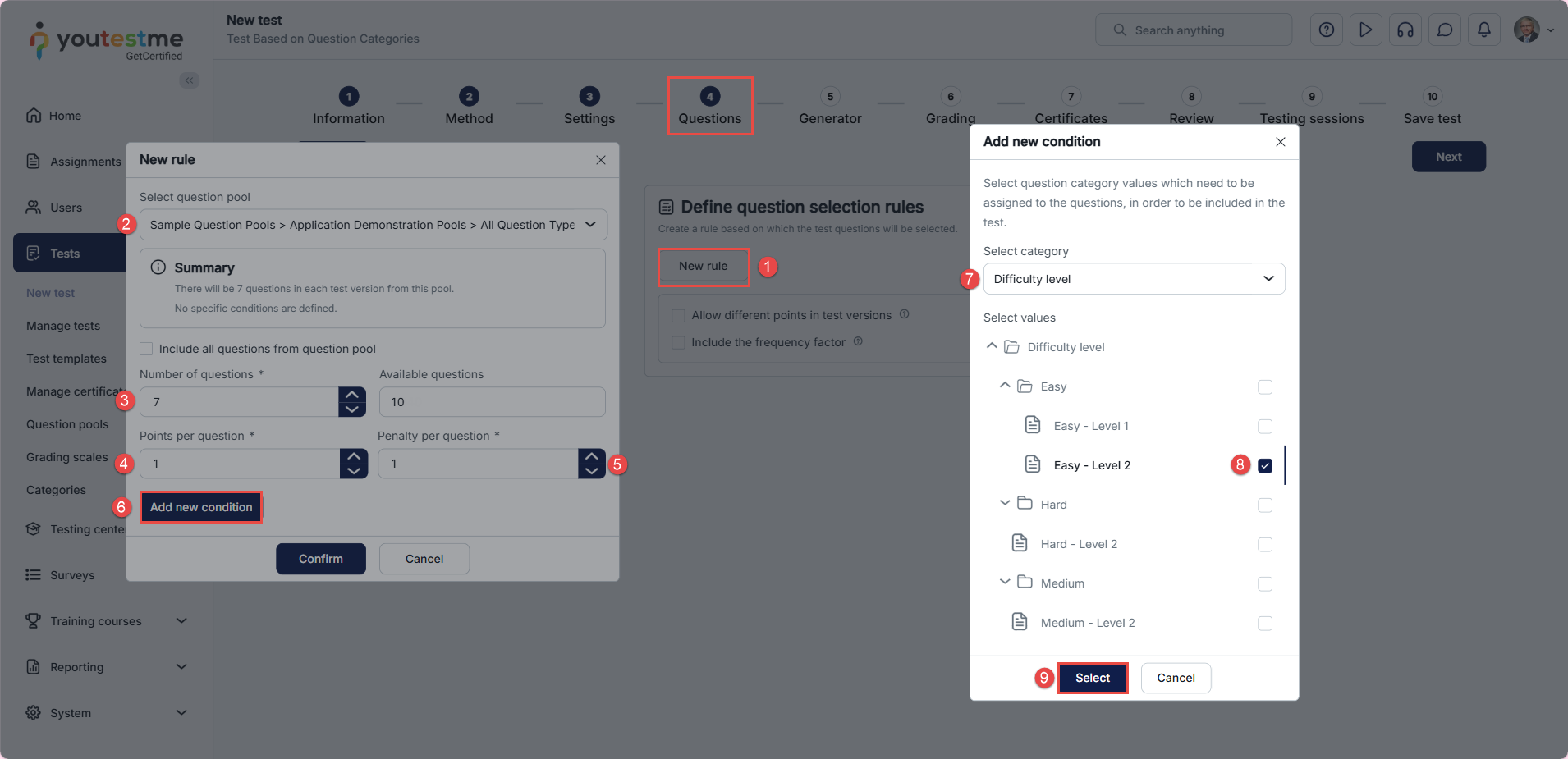
- Click the New rule button.
- Select the desired question pool based on which you want to create a test.
- Define the number of questions from the pool you want to be included in the test.
- Define the number of points that will be earned for correct answers to the questions.
- Define the number of penalties that will be earned for incorrect answers to the questions.
- Click the Add new condition button.
- Select the desired question category from the dropdown menu.
- Select the desired values of the question category, which will be used for filtering in test generation.
- Click the Select button. Additionally, if you want to add more conditions for test generation, you can repeat the steps from 6 to 9.
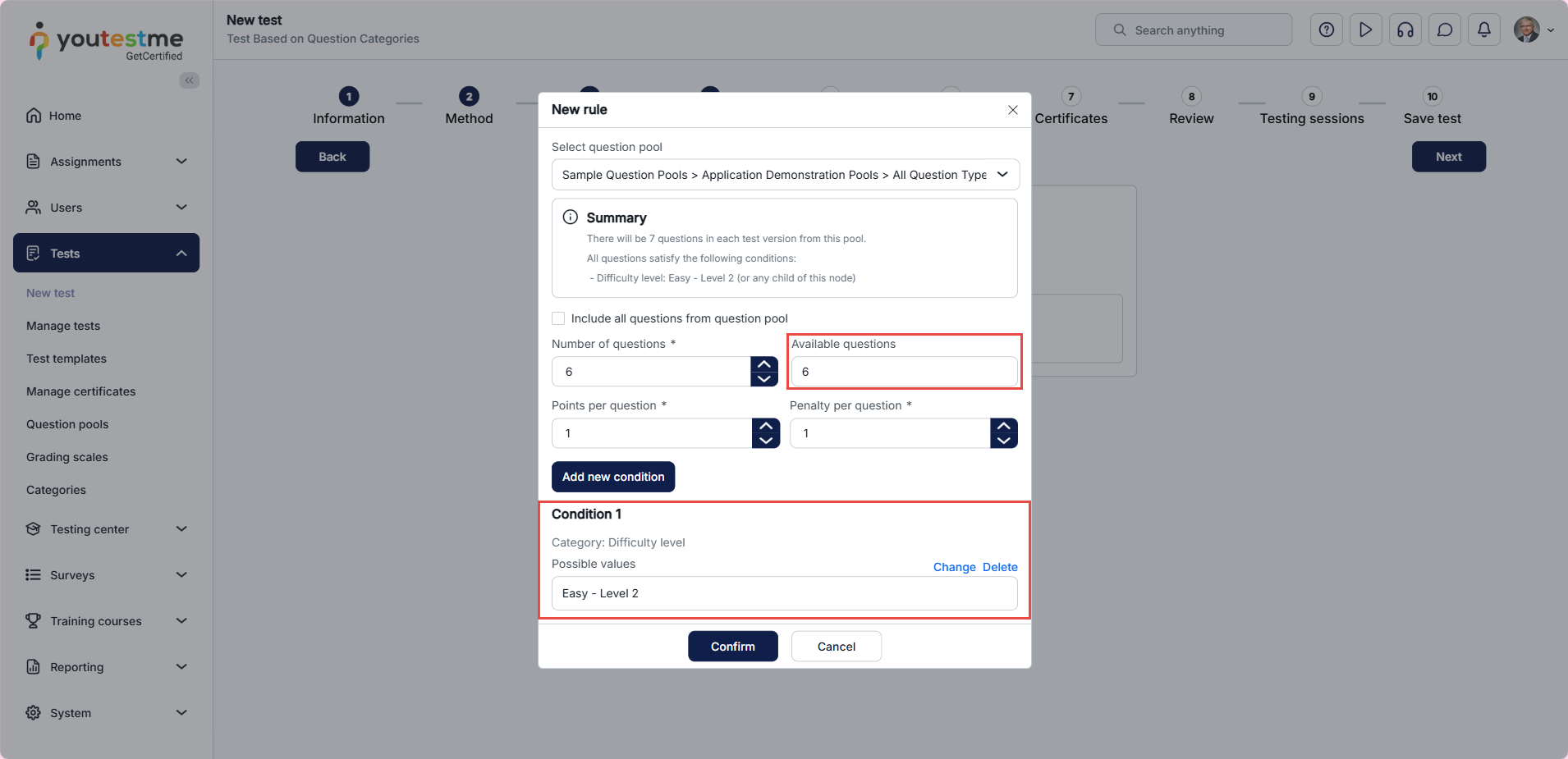
You will be presented with the number of available questions containing the defined condition. Once the condition is added, you will receive an in-app notification. Click the Confirm button to create a test rule. You can repeat the steps from 1 to 9 to define more test rules.
Click the Next button to proceed to the next step of the test creation wizard. After finishing the test wizard, create a session and assign the desired candidates. For more information, please visit this article.
Updating Rules for a Published Test
If you need to update or modify the rules of a test that has already been published:
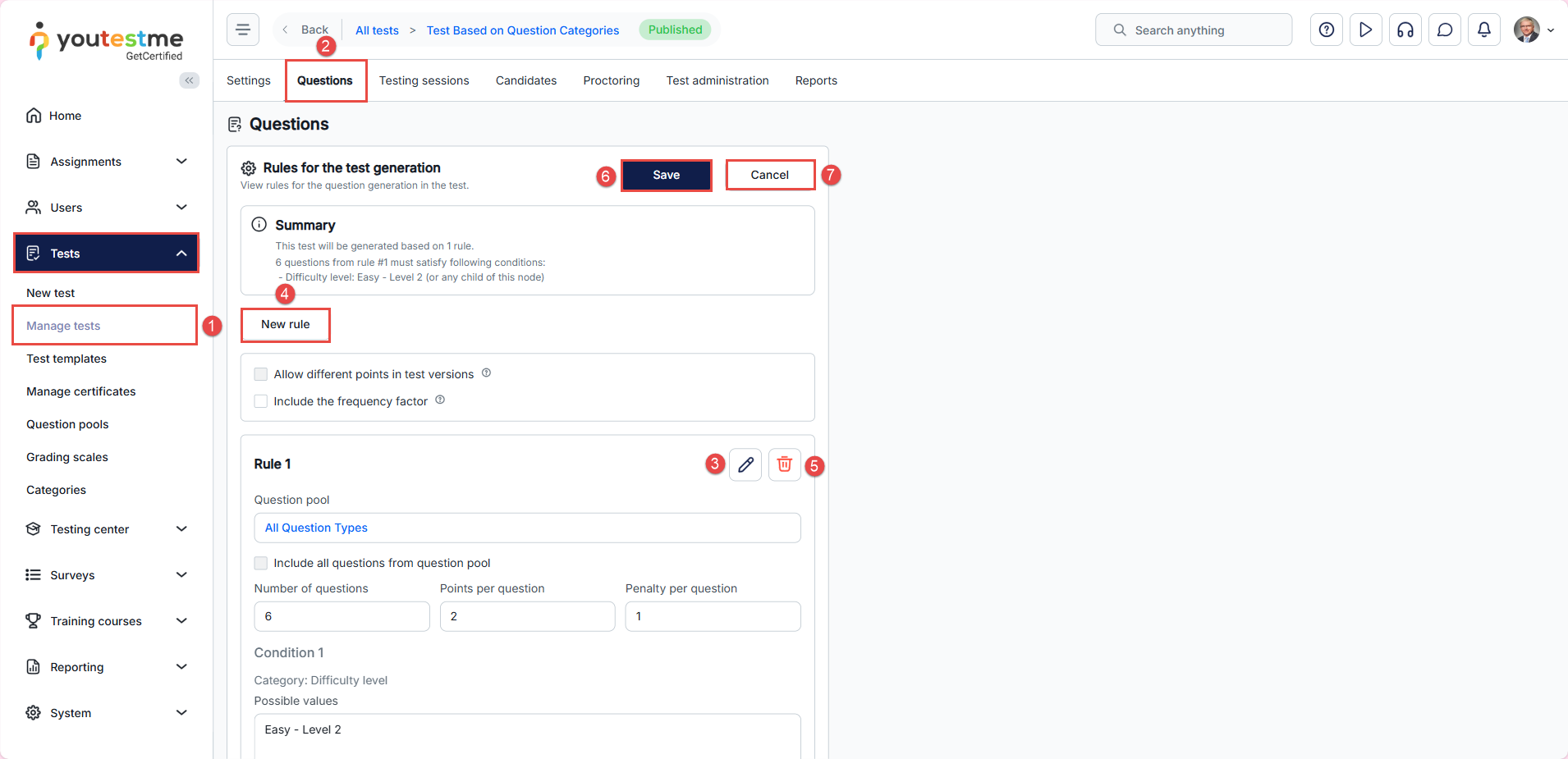
- Navigate to Tests > Manage Tests and select the test you want to modify.
- Navigate to the Questions tab.
- Click the Edit icon to modify an existing rule. Update the question pool, number of questions, points, penalties, or category conditions as needed.
- Click the New Rule button to add a rule, following the steps described in the Test Creation Process section.
- Click the Delete icon to remove a rule.
- After updating all desired rules, save to preserve all changes.
- Click Cancel to discard any changes.
Note: For tests with limited versions, new versions will be created based on the new changes, and previous versions will be automatically archived. For tests with unlimited versions, new versions will be generated dynamically according to the updated rules.
Test-taking process
Based on defined rules, the candidates will get appropriate test versions.
For more useful instructional materials, please check:






