
Article verified for Release 16.1 on March 03, 2026.
This article explains how to completely disable a Live Proctorio Session and prevent real-time video and audio monitoring. It also clarifies which settings must be disabled to ensure that live supervision does not occur and how AI-based and algorithm-based detections are affected.
A Live Proctorio Session allows a proctor to monitor candidates in real time while they are taking the test, intervene if necessary, and review the full recording and report after completion. If properly disabled, this live supervision functionality will not be available.
How to Disable Live Session
To fully disable a Live Proctorio Session:
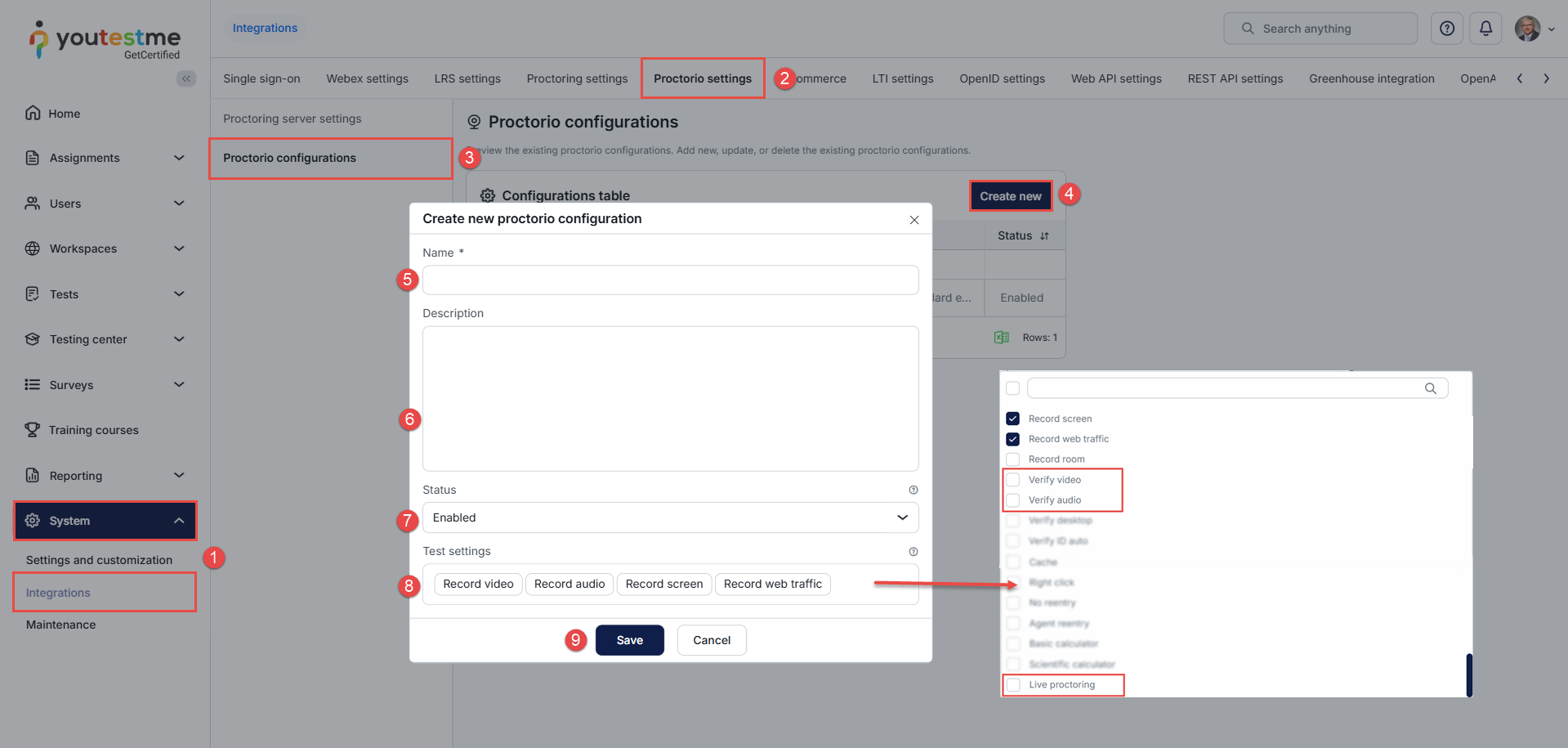
- Navigate to System > Integrations.
- Open Proctorio Settings.
- Go to Proctorio Configurations.
- Select Create New or edit an existing configuration template.
- Enter the Configuration Name.
- (Optional) Add a Description.
- Set the Status to Enabled so the configuration can be assigned to tests and sessions.
- Disable the following add-ons:
- Live Proctoring
- Verify Video
- Verify Audio
Disabling these three settings is essential to ensure that a live session does not occur and that no real-time video or audio monitoring is active.
Note: If the Live Proctoring add-on is enabled, Verify Video and Verify Audio must also be enabled.
If Verify Video and Verify Audio are disabled:
- There is no live webcam monitoring.
- There is no live audio monitoring.
- No related alerts will be generated.
- The proctor cannot supervise the candidate in real time.
Note: The proctor will still see the option to open the Live Session and view how many candidates are currently taking the test. However, real-time video and audio monitoring will not be available.
Important Clarification
A Live Proctorio Session allows a proctor to monitor candidates in real time while they are taking the test.
Live Session cannot function without Verify Video and Verify Audio. If these settings are not enabled, real-time monitoring is not possible.
When Live Proctoring, Verify Video, and Verify Audio are enabled, the system generates Incident Log entries during the Live Session while the proctor is actively monitoring candidates. These may include alerts such as:
- Speaking detected
- Mobile device detected
- Obscured webcam
- Navigating away
Because video and audio monitoring are active, AI-based detections assist by identifying and logging these events. In practice, Live Session relies on AI-supported monitoring while observing candidates.
If AI-based monitoring is not allowed, Live Proctoring must be disabled. Once Live Proctoring is turned off, Verify Video and Verify Audio can also be disabled. This completely removes live monitoring and prevents AI-based incident logging during the session.
It is important to note that Live Session cannot operate without AI-supported video and audio monitoring. If AI is not permitted, Live Session functionality will not be available.
When reviewing recordings in the Review Center, all AI-related frame metrics should be set to 0 if AI assistance is not desired. In this case, reviewers must manually watch recordings to determine whether violations occurred. If AI metrics are set above 0, the system will flag incidents during review. Higher metric levels (Low, Moderate, High) increase detection sensitivity and result in more AI-identified events and stronger statistical flagging.
Additional resources:




