
Article verified for Release 17.0 on October 11, 2026.
This article explains how to edit test questions while keeping their connection to the question pool. It clarifies the difference between editing questions directly in the test and updating them through the question pool, as well as how each method affects future test attempts.
Questions in a test often come from a question pool. When you change a question, a test that already uses it does not always show the new version right away. This article explains how to edit questions and how to make sure your tests use the updated versions.
Keep these rules in mind:
- Every question update creates a new test version. The previous version is archived.
- New candidates get the new version. Candidates who already took the test see the old version of the question in their reports.
- Candidates who were added to a test before the update do not get the new questions. Candidates who are added after the update, or whose attempt is reset, get the new version.
The steps depend on how you created the test: manually or with a test generator.
Manually created tests
You can import questions from question pools when you create a test, and edit them later in two ways:
-
- Edit in the question pool. Then apply the change to the test.
- Edit in the test. The change can also go to the question pool.
Step-by-step instructions for both editing methods are below.
New candidates will get a new version of the questions, while users who have already attempted the test will see the old version in their report.
Editing questions directly in the test
For manually created tests, you can manually manage the test versions and the questions associated with them from the Questions tab of a desired test.
Questions tab overview
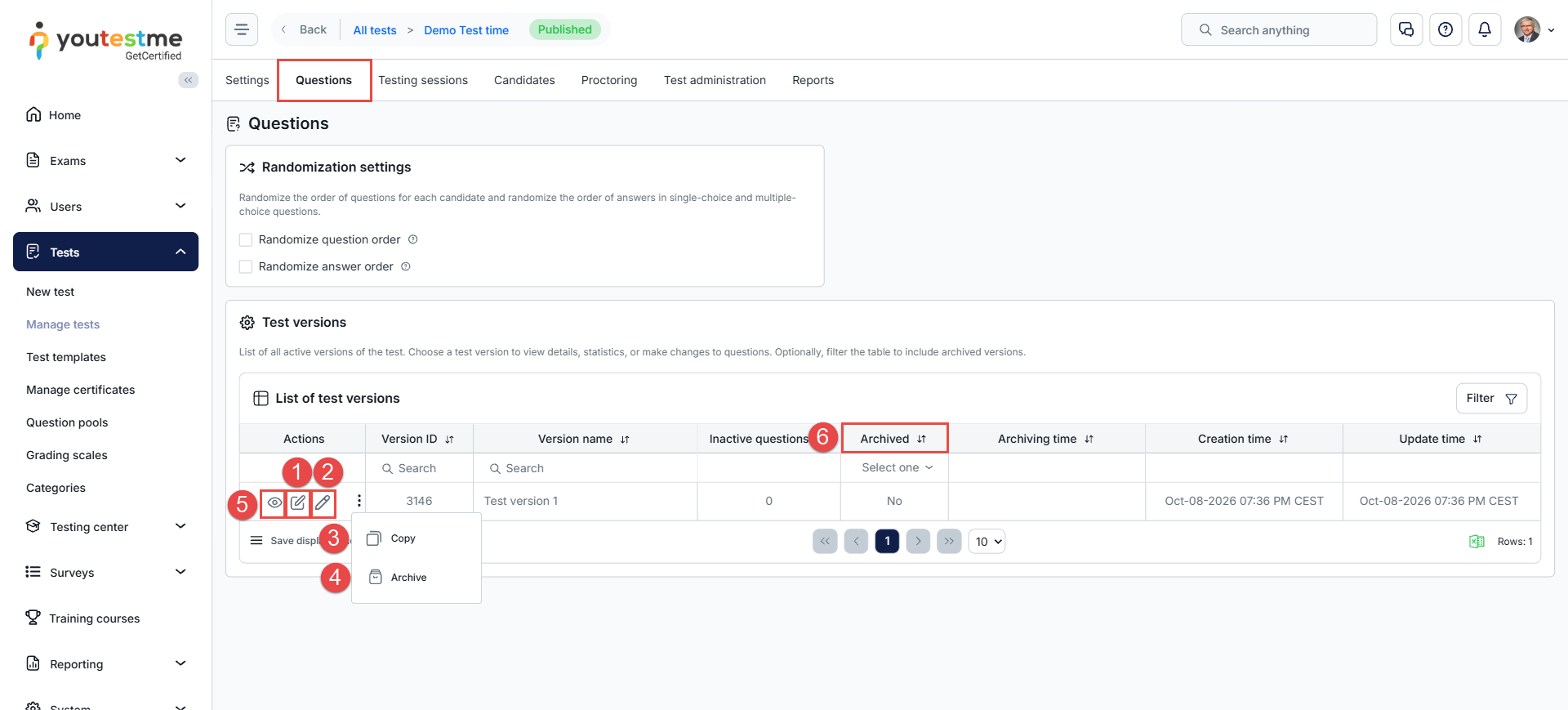
In the Questions tab, you can access the Randomization and Test Versions settings. In the Test versions section, you can do the following:
- Rename: Change the name of a version so it is easier to find.
- Edit test version’s unique code: Change the code of a version.
- Copy: Make an identical copy of a version, to edit it or compare it.
- Archive: Move a version to the archive. The data stays, but the version is not used.
- View: See the list of questions in a version.
- Show archived versions: Turn on this filter to see a new column. Use it to filter versions by Yes or No.
Editing the Questions
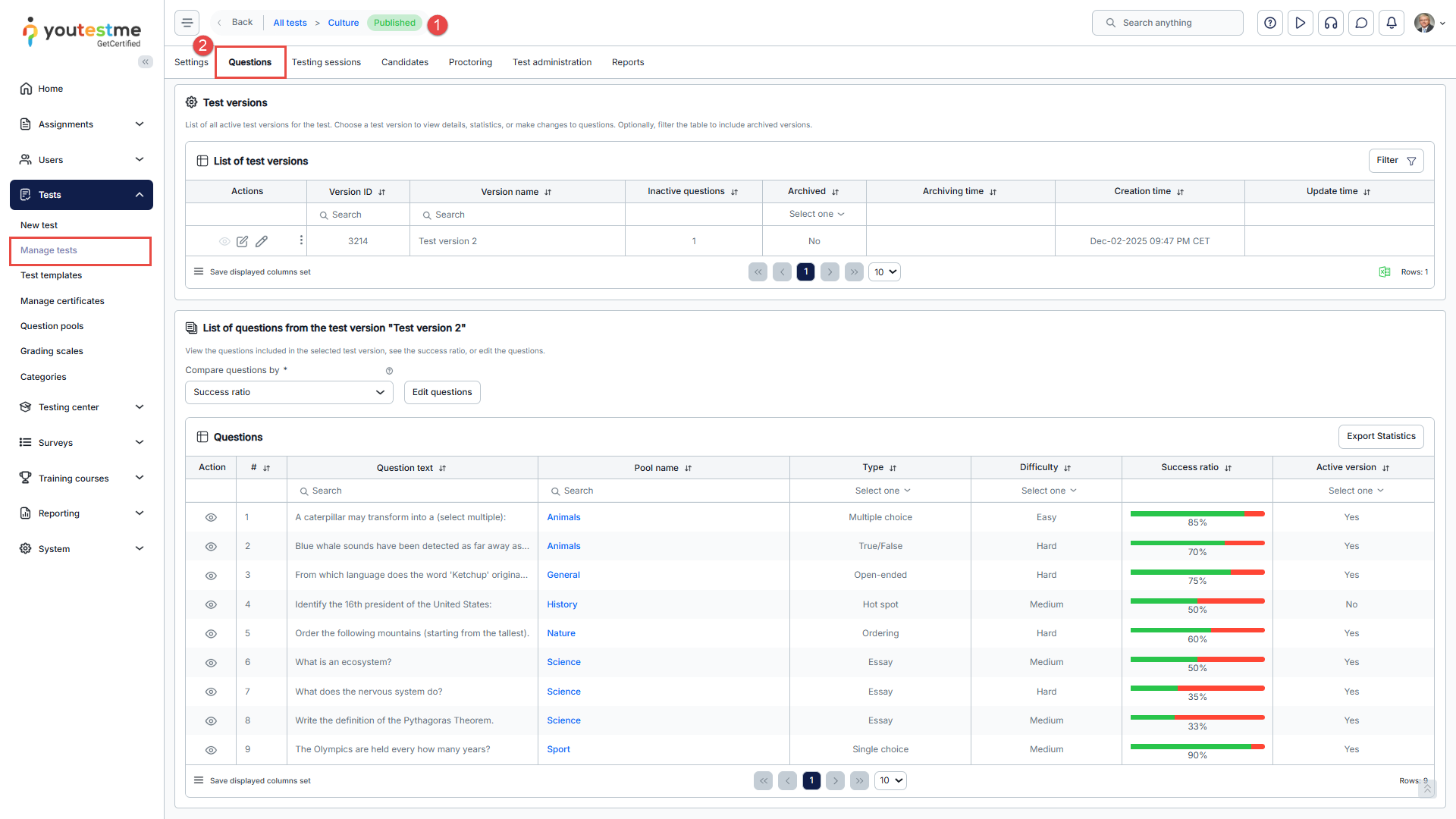
- Open the desired test.
- Navigate to the Questions tab and click the View button next to the version you would like to update. You will be presented with the list of questions in the test version.

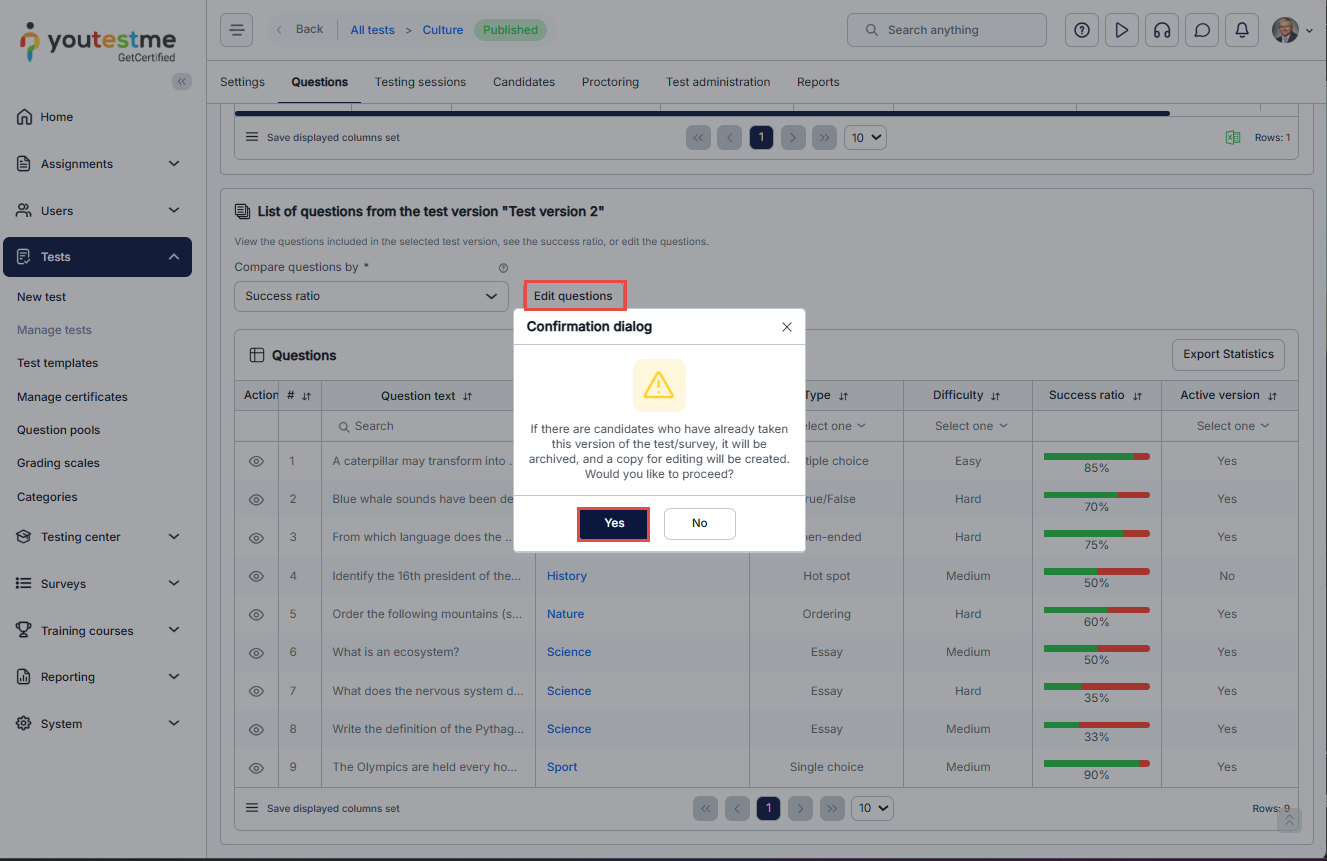
- Click the Edit questions button and confirm that you want to archive the current test version and generate a new one.

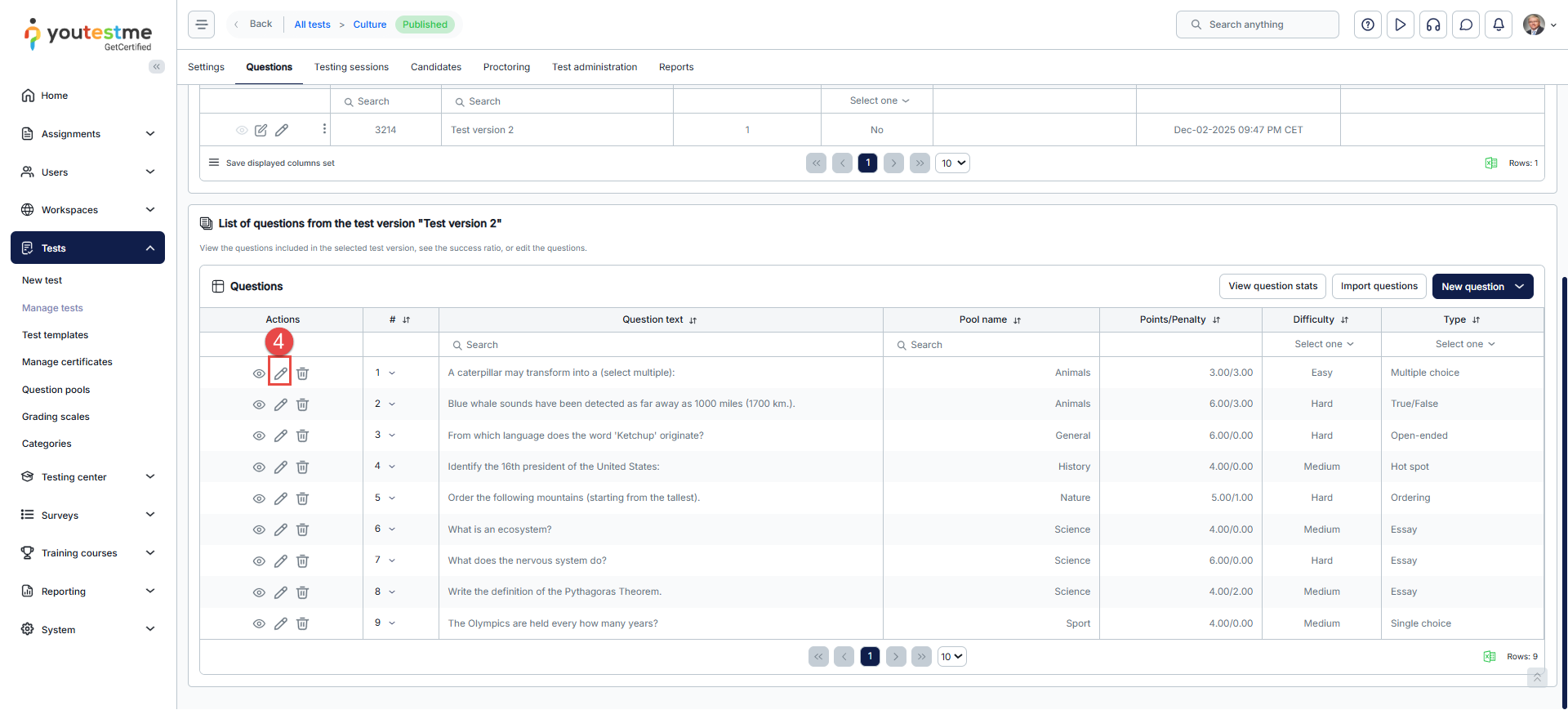
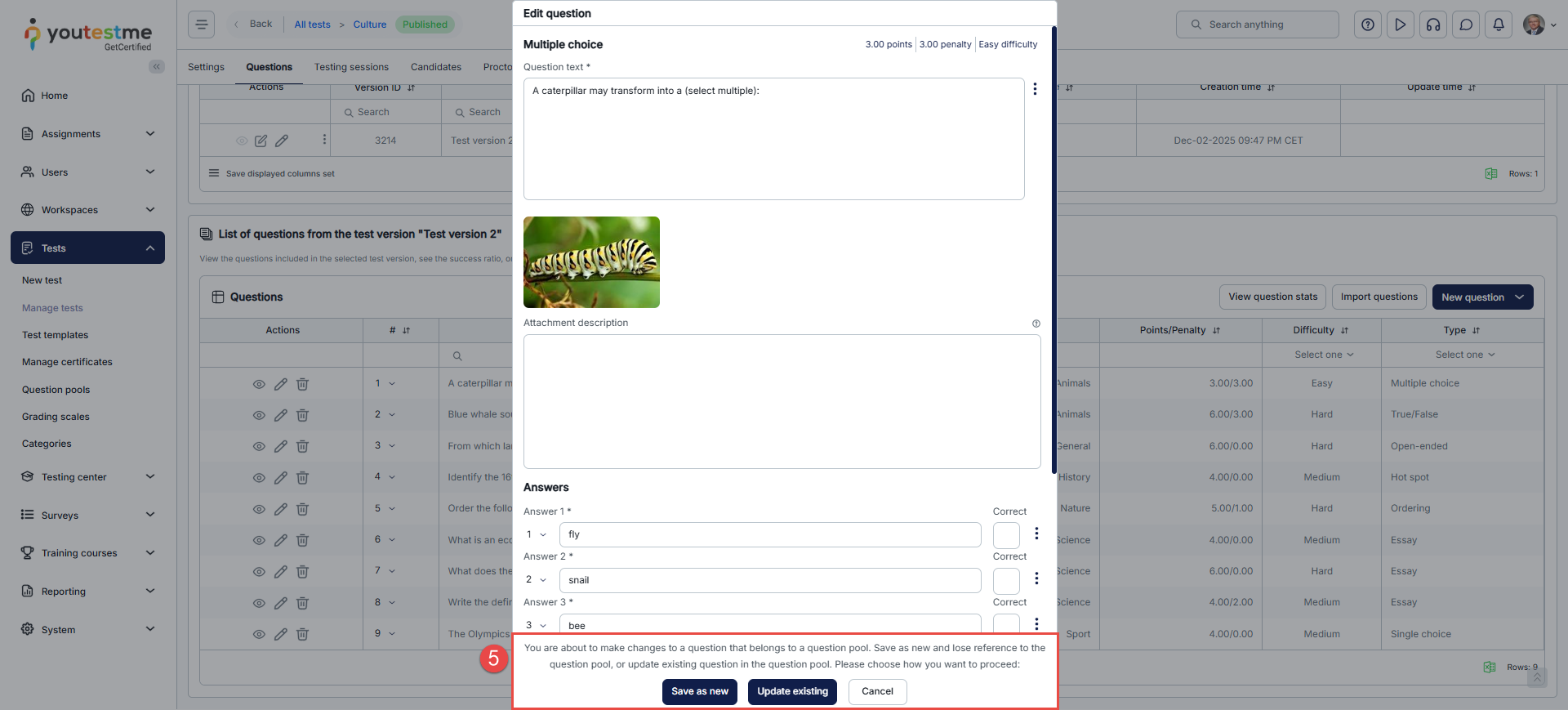
- Click the pencil icon next to the question you want to edit.

- Make your changes and choose Save as new or Update existing.
- Save as new: The question becomes a standalone question. It is no longer connected to the question pool. The change shows only in this test, and the question stays the same in the pool and in other tests.
- Update existing: The question changes in this test and in the question pool. Other tests that use the old question do not change automatically.
The change applies right away to the new test version, so you do not need to do anything else for this test.
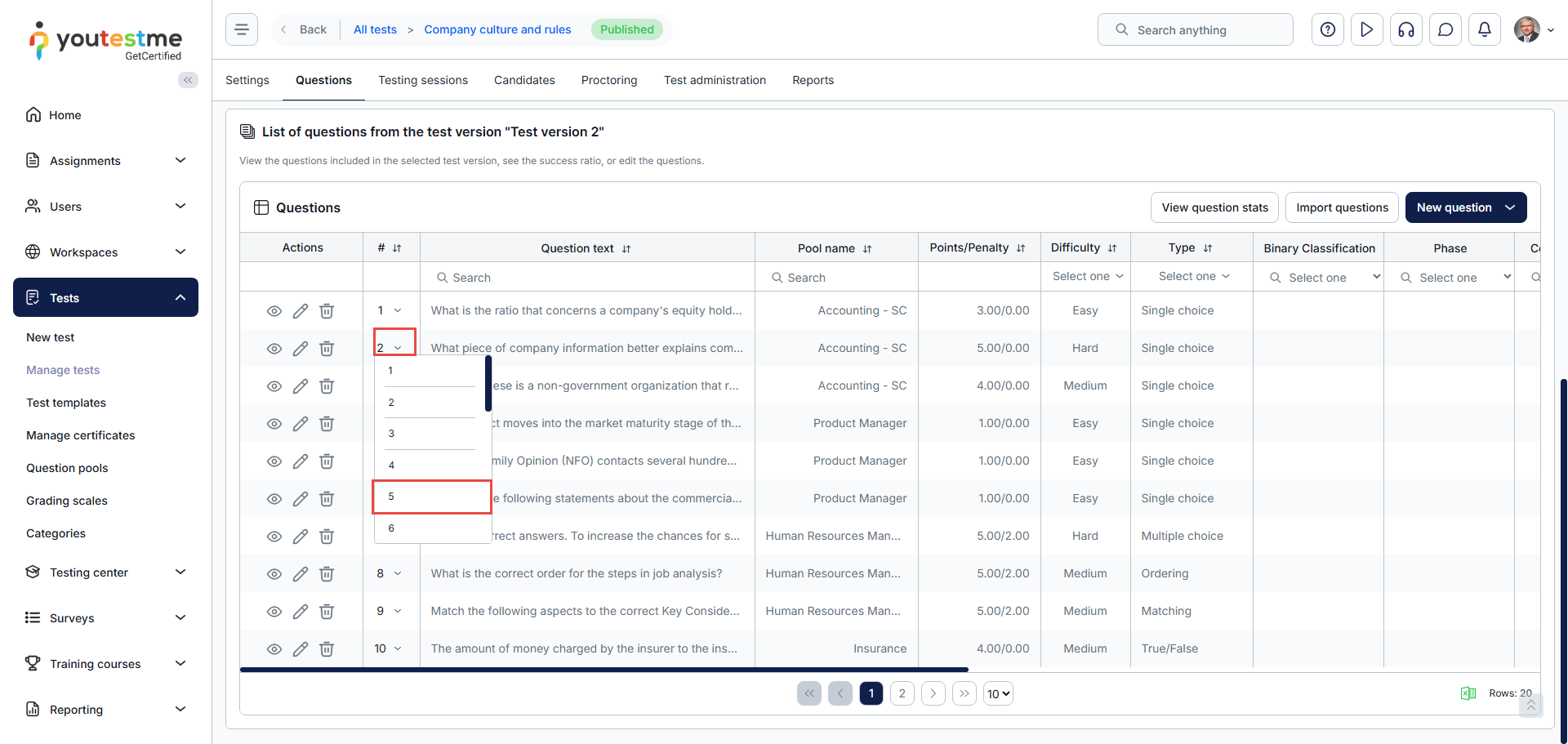
Changing the order of questions in a test
To change the order of questions in a test, click the question number and select the position where you want the question to appear.
Editing questions in the question pool

The test does not change yet. The changes should be applied to the test. Please see the next chapter for more details.
Apply the changes to a test
After you edit a question in the pool, create a new test version so the test uses it.
-
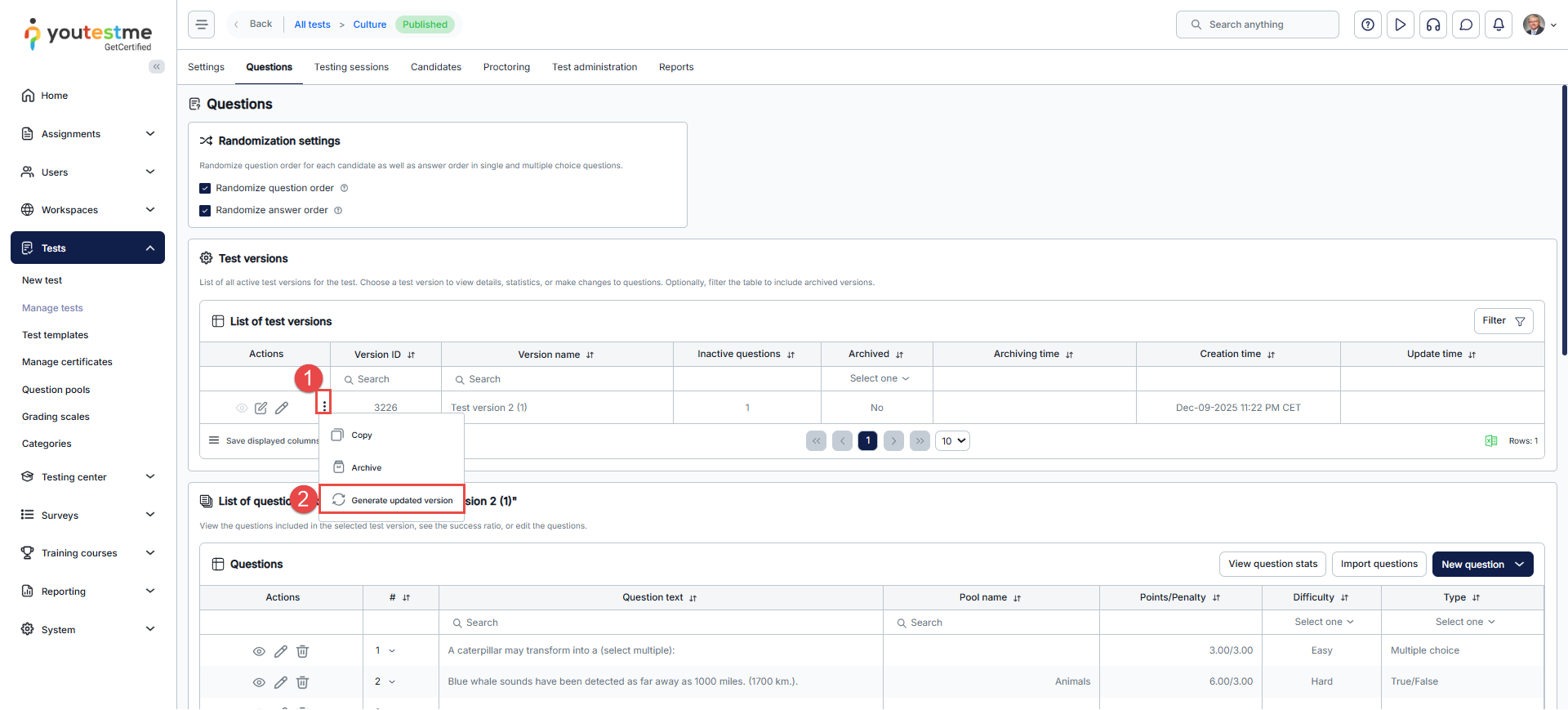
- Navigate to the Questions tab of the manually created test and click the three dots in the Actions column for the test version.
- Select Generate updated version.
- 1. Check the changes. Use Preview question to see the new question, and Compare question changes to see what is different.
- After confirming the changes, click Create to generate a new test version.
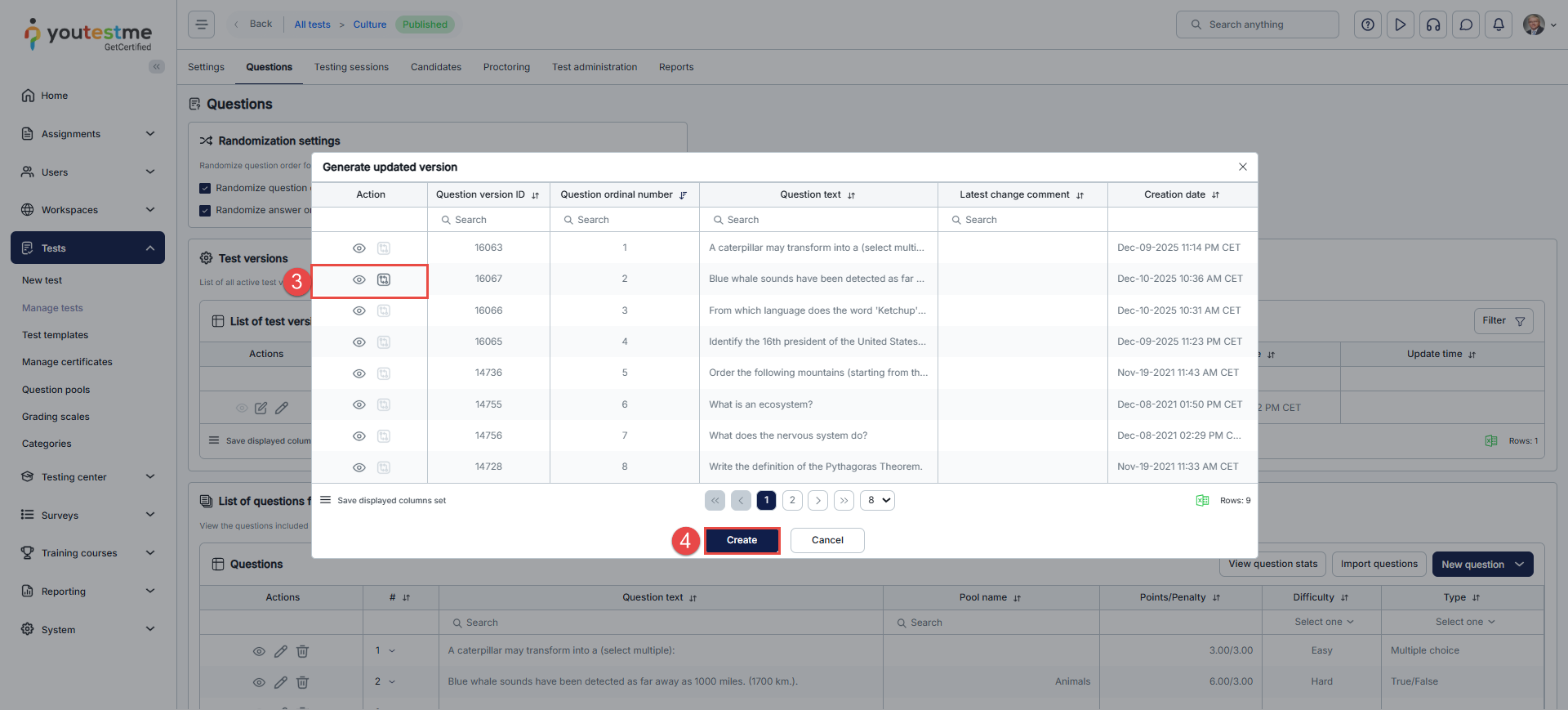
The system archives the previous version and gives the new version to all new test attempts.
Note: You can use Generate updated version only on a version that has inactive questions.
Update several test versions at once
Use this method when many test versions are outdated.
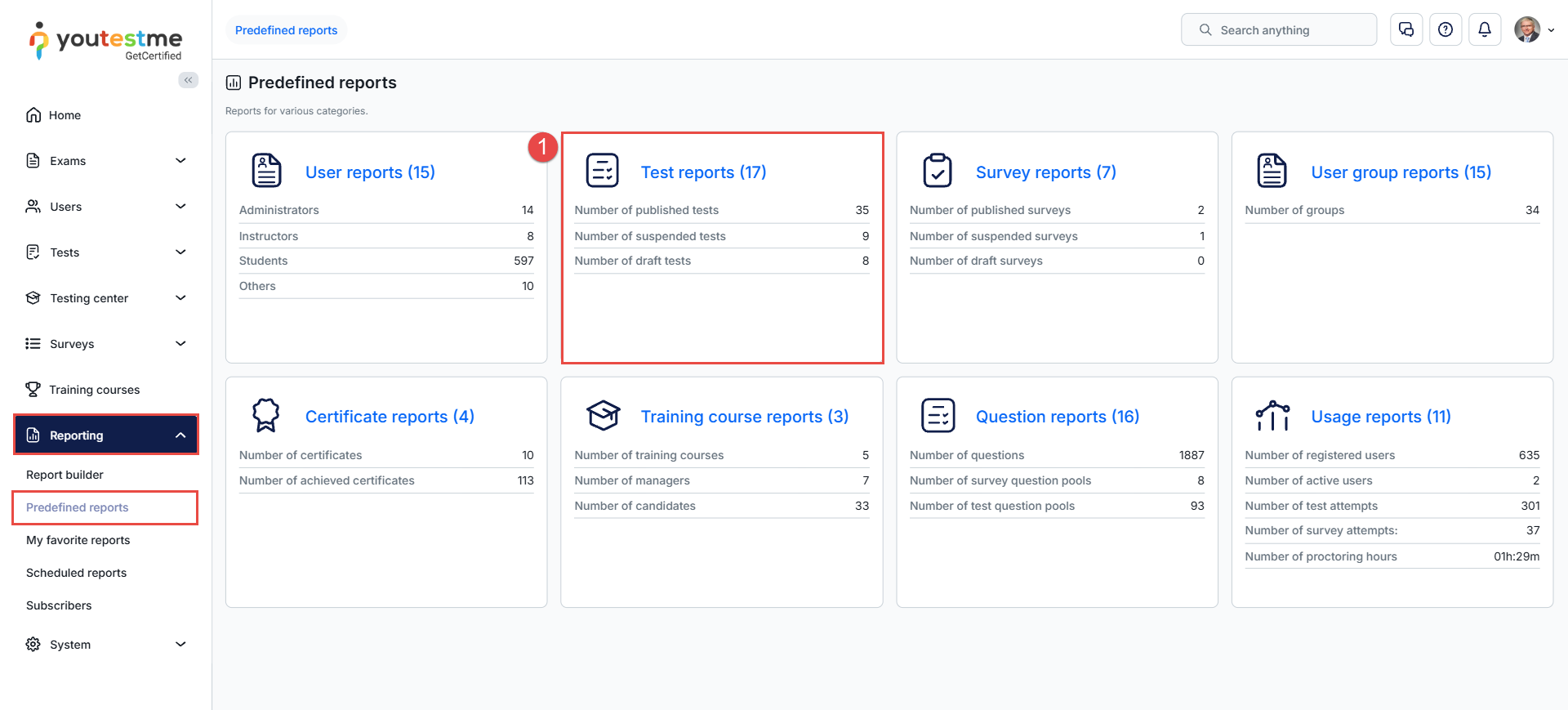
- Go to Reporting> Predefined reports > Test reports
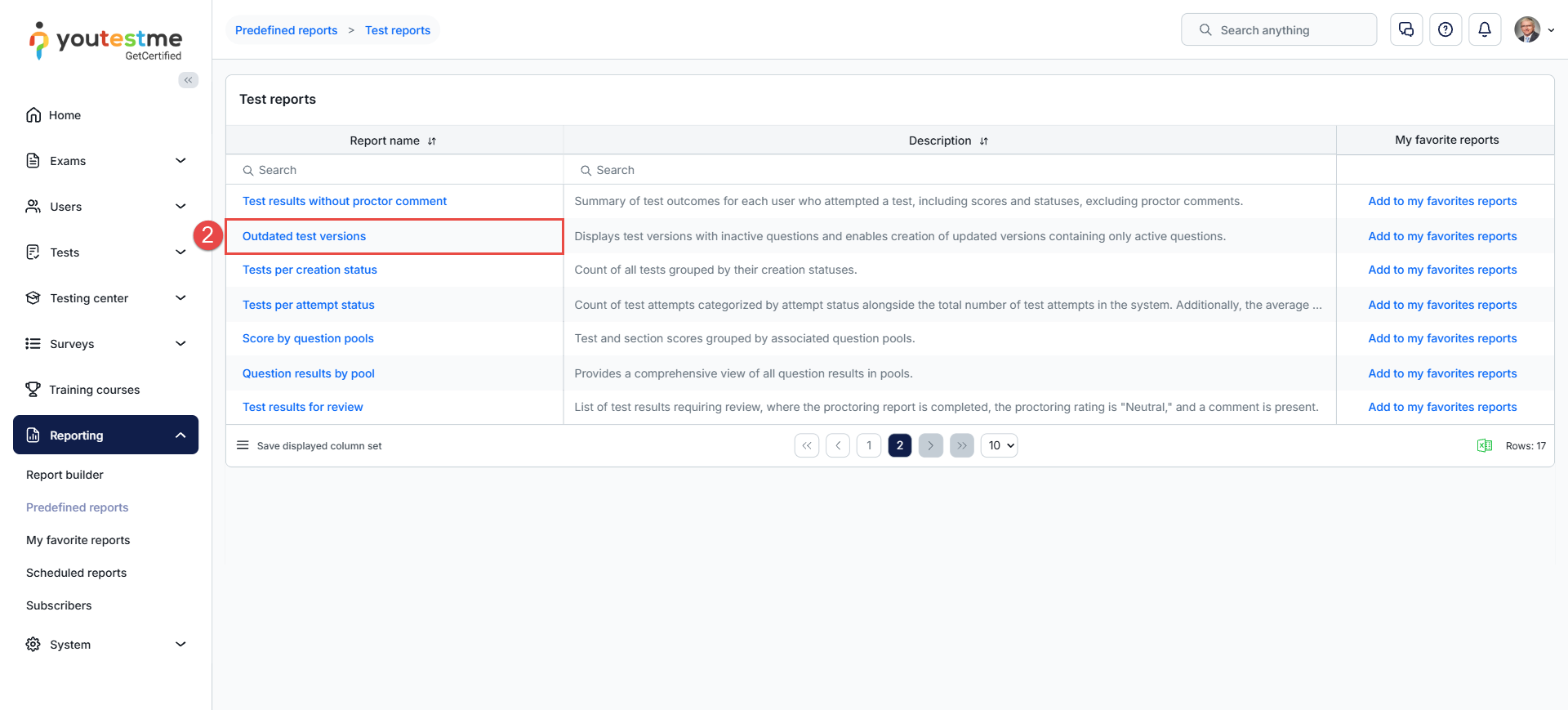
- Select the Outdated test versions report
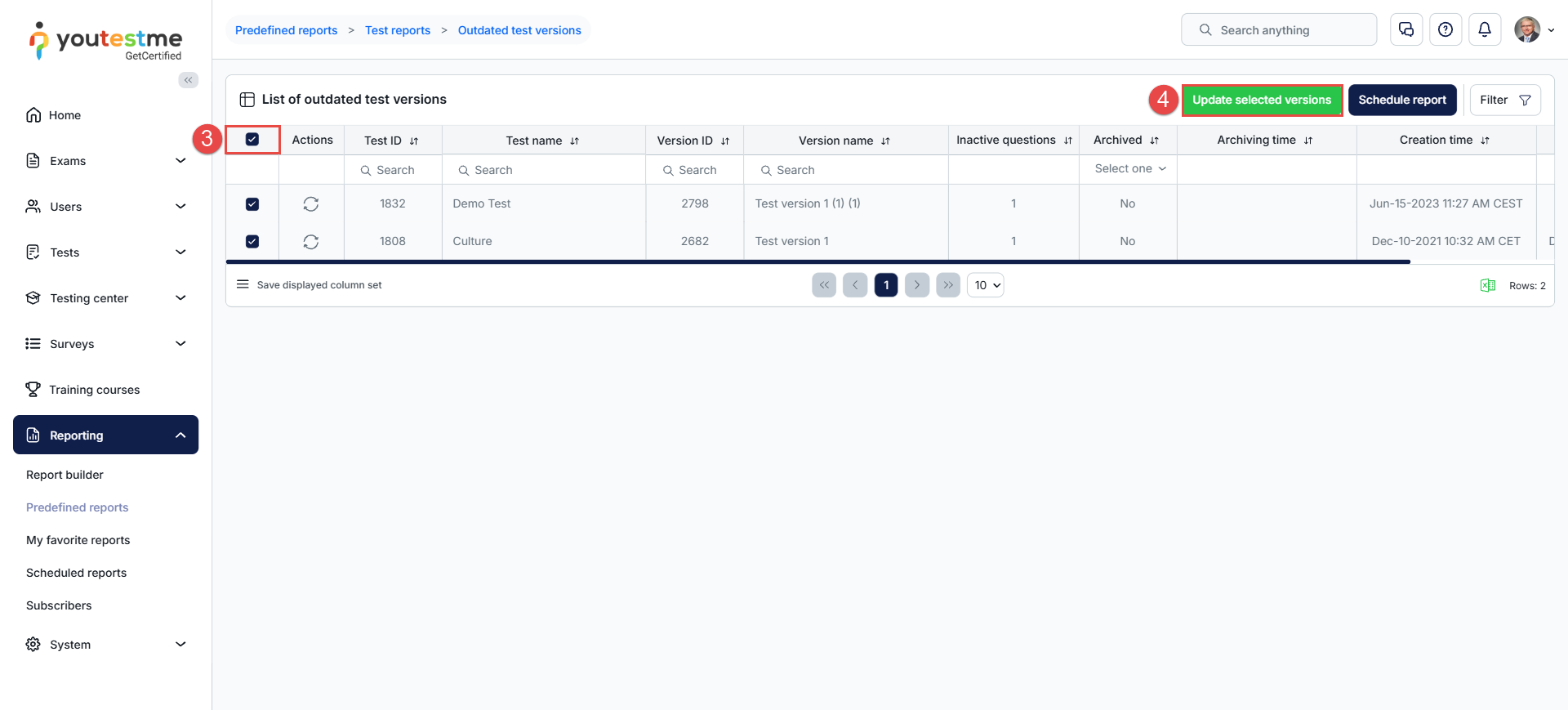
- Select the version or versions you want to update
- Click Update selected versions.
- In the pop-up window, you will be presented with the active questions list for each version. If you selected several versions, use the drop-down menu to choose which version to preview.
- Click the Compare versions button that will be presented next to the edited questions to preview the question changes.
- Click Create.
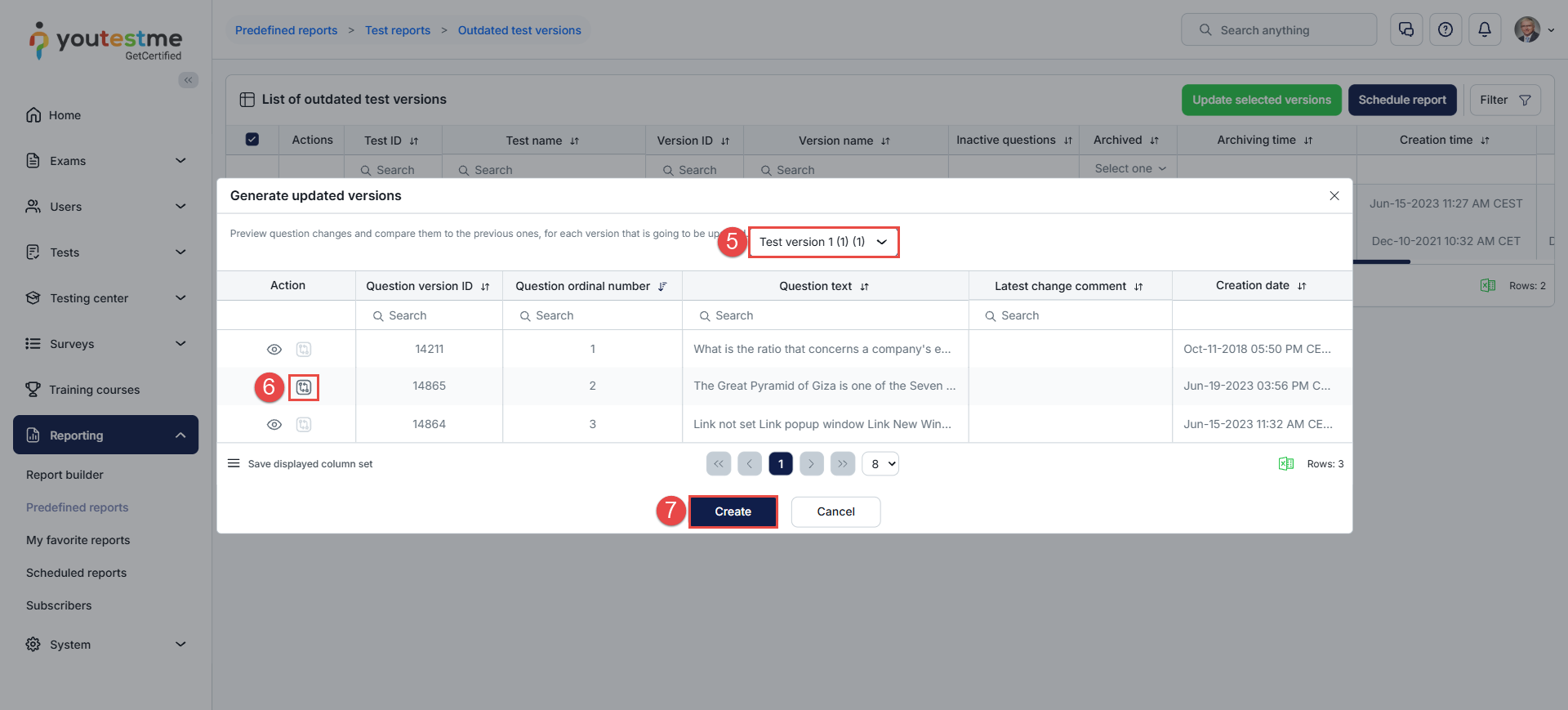
The system updates the versions with the active questions and archives the versions that have inactive questions.
Note: You can use this method for manually created tests that are Published or Draft.
Generated tests
If you create a test with a test generator, you must edit its questions in the question pool. What you do next depends on the number of test versions you set for the test.
The process differs depending on whether the test has an unlimited or limited number of test versions defined. After you have made changes in the pool:
- Limited number of versions: Generate new versions yourself. Versions cannot update on their own because you set an exact number. If you don’t update them, candidates may receive a version with inactive questions.
- Unlimited number of test versions: Nothing. Candidates get the updated version when they start the test, even if they were assigned an older version before.
In every case, candidates who already took the test still see the original question in their reports.
For more useful instructional materials, please check the following:




