
Article verified for Release 15.2 on February 06, 2026.
This article explains how to access, preview, and export predefined reports available in the YouTestMe system. Predefined reports provide ready-made insights into key platform data, allowing users to quickly analyze activity, performance, usage, and access information without creating custom reports.
Accessing the predefined reports
The Predefined Reports module in YouTestMe provides users with ready-made summaries of key data generated within the system. These reports cover various aspects, including users, exams, training courses, surveys, and activity logs. Designed for convenience, the module lets users easily preview and export comprehensive data without manual setup.
To view the predefined reports, navigate to the Reporting section from the left-hand menu, then click on the Predefined Reports tab.
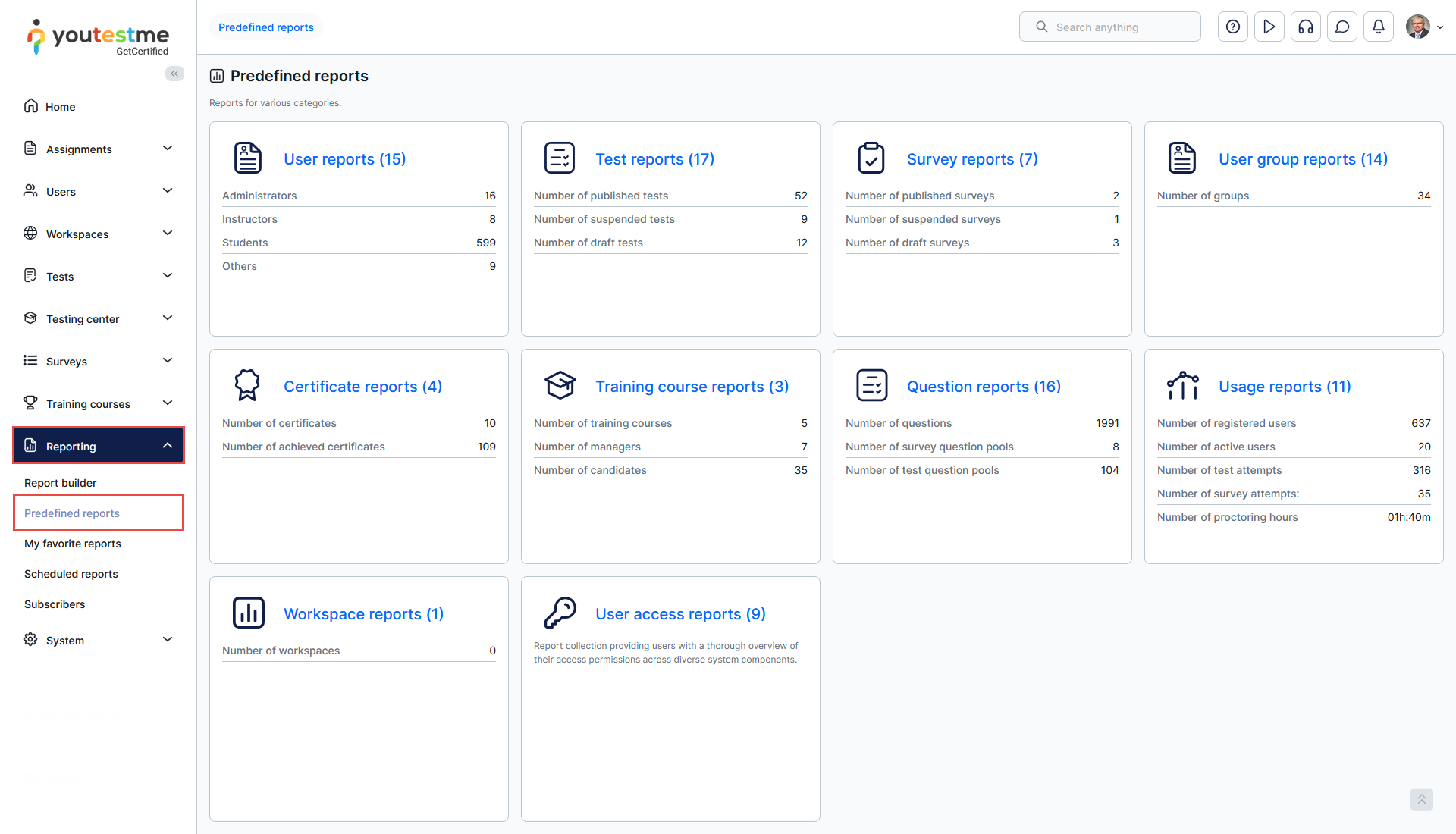
The available report categories are:
- User Reports: The User Reports provide a comprehensive overview of user-related data within the system, covering user demographics, login activity, role distribution, credentials, account status, communications, and payment history—enabling detailed analysis of user engagement and system interaction.
- Test Reports: The Test Reports offer extensive insights into test management and performance, including participant data, test configurations, reliability indicators, attempt outcomes, scoring trends, feedback statistics, and version control, supporting effective test analysis and continuous improvement.
- Survey Reports: The Survey Reports present structured information on survey deployment and results, featuring data on survey content, grading scales, response statistics, and lifecycle status, facilitating efficient evaluation of survey reach and effectiveness.
- User Group Reports: The User Group Reports focus on group-based user organization and performance, detailing group hierarchies, member roles, test and survey attempt results, certificate achievements, and statistical breakdowns, supporting team-level monitoring and reporting.
- Certificate Reports: The Certificate Reports provide insights into certification achievements across users and groups, capturing issuance history, frequency of downloads, and the timeline of certifications, helping track progress and recognize accomplishments.
- Training Course Reports: The Training Course Reports summarize essential data on training course structure, participant enrollment, and progress tracking, including matrix-based views of training operations for streamlined management and compliance assessment.
- Question reports: The Question Report provides detailed insights into question-related data across the system, including creation statistics, user roles, pool categorization by type and difficulty, performance metrics, and feedback summaries—offering a comprehensive view of how questions are managed, used, and perform within tests and surveys.
- Usage reports: Present usage-based metrics essential for system monitoring and billing analysis. They include monthly trends on user registration, activity, test and survey attempts, concurrent users, and proctoring usage. These reports help track platform utilization over time and support data-driven billing and resource planning.
- Workspace reports: Provide counts of tests, surveys, training courses, user groups, question categories, and test and survey pools for each workspace.
- User access reports: The User Access Reports provide a detailed overview of user permissions and access rights across system components, including tests, surveys, training courses, pools, categories, and user groups. These reports also include permissions based on system and workspace roles, enabling administrators to manage and audit user access effectively.

Previewing the Report
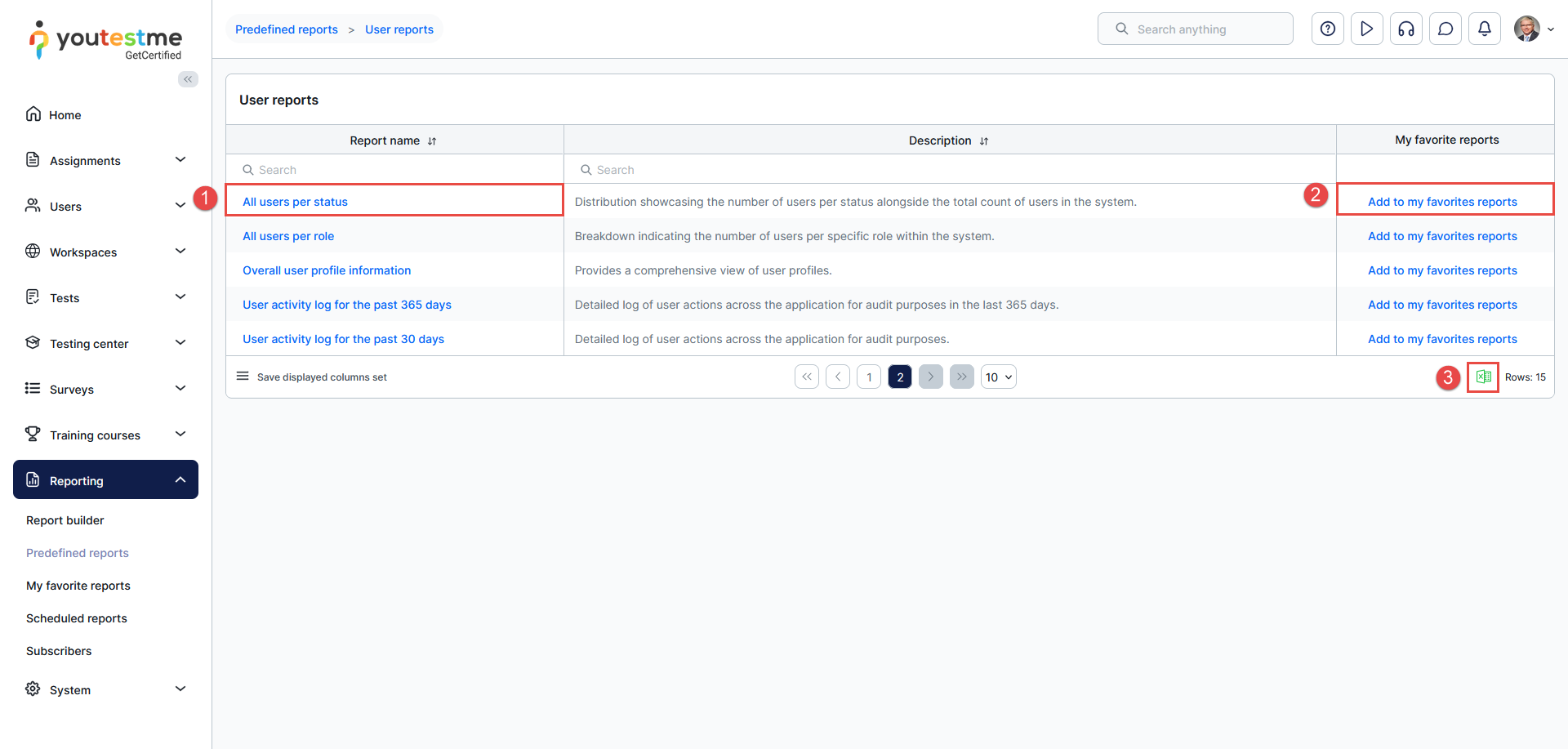
To access the predefined reports in a specific category, click the category name. You will be redirected to a list of available reports in that category.
In this view, you can:
- Click on a report name to preview its content.
- Add reports to your favorites for quick access via the Favorite Reports tab.
- Download the entire report list in an Excel format.
Note: When exporting or scheduling a report that contains a large amount of data, only the first 10,000 rows are included in the output, regardless of sorting or filtering order.
To ensure the exported data is relevant and complete, we recommend applying filters to reduce the dataset before exporting or scheduling the report.
For more useful instructional materials, please see:




