
Article verified for Release 15.2 on March 12, 2026.
Comments allow test administrators and instructors to document important changes made during the creation or modification of a test. By adding comments, users can keep track of updates, record notes about adjustments to questions or settings, and maintain better collaboration among team members working on the same test.
This feature is particularly useful when multiple users manage tests or when it is necessary to keep a record of modifications for future reference. Comments help maintain transparency and provide a simple way to review the history of changes made to a test.
This article explains how to access the comment section of a test and how to add and manage comments.
Accessing the page
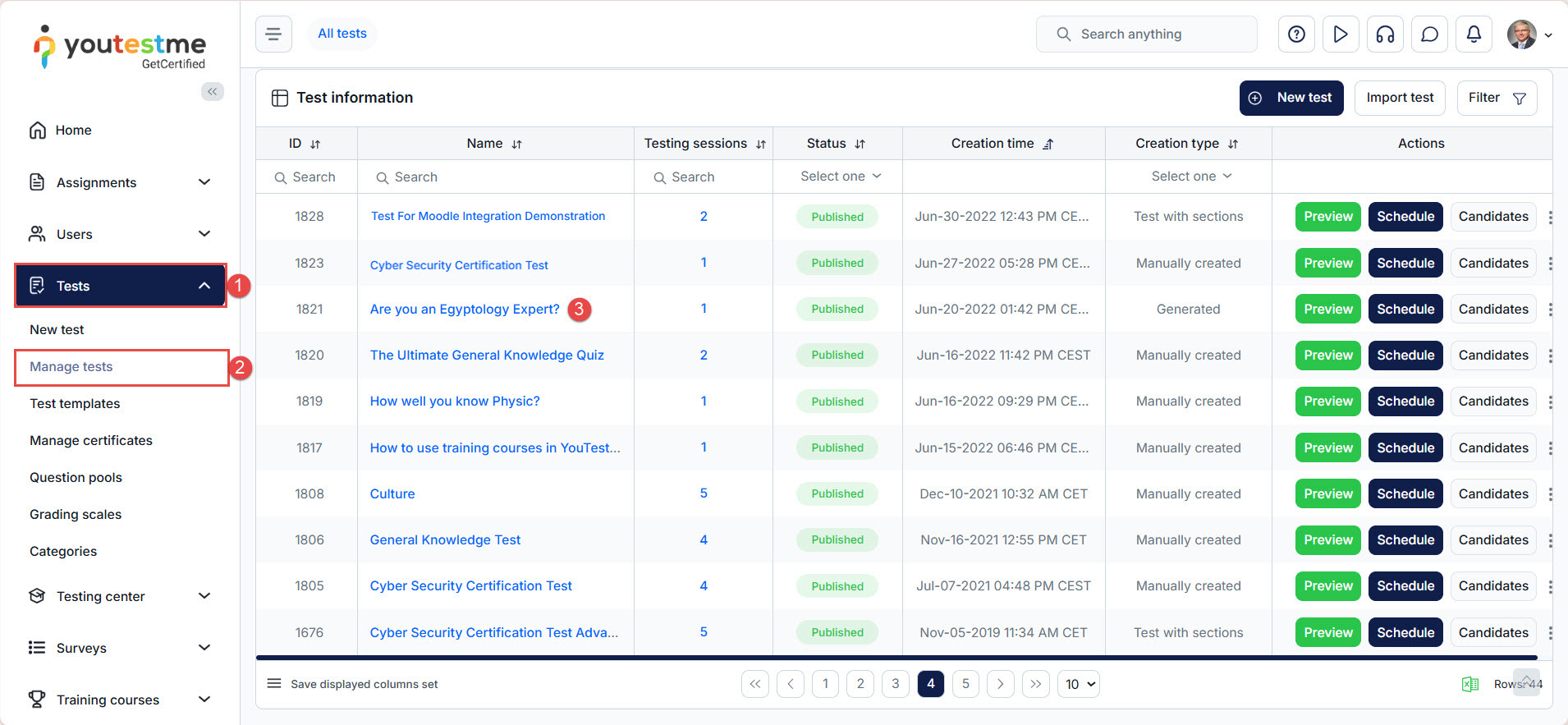
To access the desired test you would like to add a comment to, do the following:
- Click the “Tests” option in the left-side menu.
- Select “Manage test.”
- Select the desired test from the list.
How to add a comment
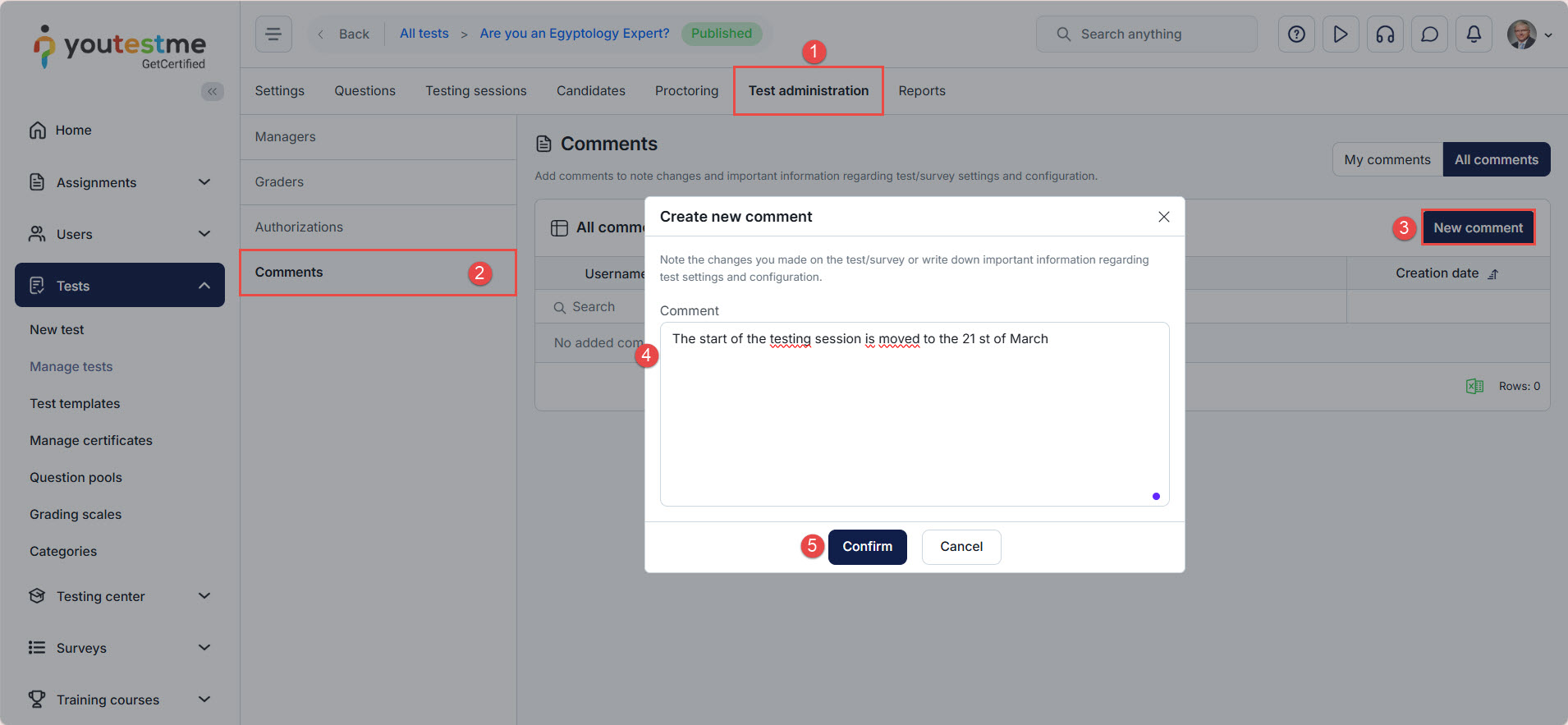
To add a comment, do the following:
- Navigate to the “Test administration” tab.
- Navigate to the “Comment” tab.
- Click the “Create new” button.
- Add a comment about the changes made in the test.
- Click on the “Confirm” button.
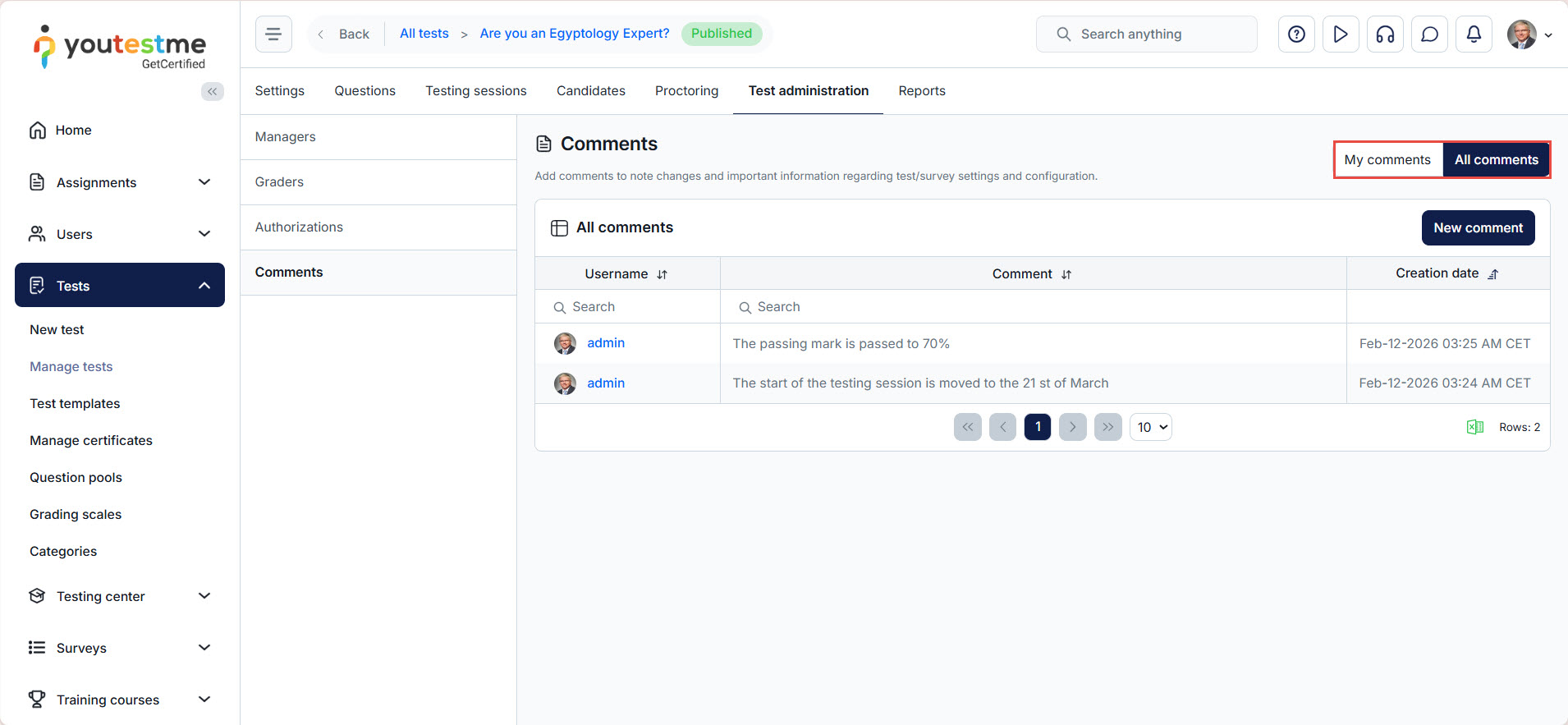
To view all comments created by all users in the system, click on the “All comments” option. To view only the comments inserted by you, select “My comments.”
For more related instructional materials, please visit:




